Odoo 19 provides an integrated recruitment and payroll workflow that allows organizations to prepare employment offers, configure salary packages, and send offer letters to selected candidates. Once a candidate is selected for a job position, recruiters can generate an offer, define the proposed salary package, and send the offer to the applicant for review and acceptance.
The salary package can include the employee's employer budget, wage, and other benefits configured through the Salary Configurator enterprise module. Applicants can also review their proposed package and, where applicable, configure the available benefits before accepting the offer.
In this blog, we will explore how to install the required applications, configure salary packages, create job positions, generate offer letters, send them to applicants, complete the signing process, and create an employee from the accepted offer in Odoo 19.
UNDERSTANDING OFFER LETTERS AND SALARY PACKAGES IN ODOO 19
An offer letter represents the employment proposal made to a selected applicant. It contains information such as the proposed position, salary, contract details, and other applicable employment terms.
A salary package defines the compensation offered to the employee. Depending on the configured Contract Template and available benefits, it can include different salary components and benefits.
The overall recruitment workflow can be represented as:
Job Position > Applicant > Contract Proposal > Offer Letter > Salary Package > Applicant Review > Signature > Employee
The offer and salary package functionality works together with the Recruitment, Employees, Payroll, Salary Configurator, and Sign applications to streamline the hiring process.
INSTALLING THE REQUIRED MODULES
Before configuring offer letters and salary packages, the required applications must be installed in the Odoo 19 database.
The workflow requires the following modules:
- Recruitment - manages job positions and applicants.
- Salary Configurator - manages salary packages and employment offers.
- Sign - allows employment documents to be signed electronically.
- Payroll - provides salary structures and payroll configuration.
The Employees application is also used to manage employee records after the applicant accepts the offer.
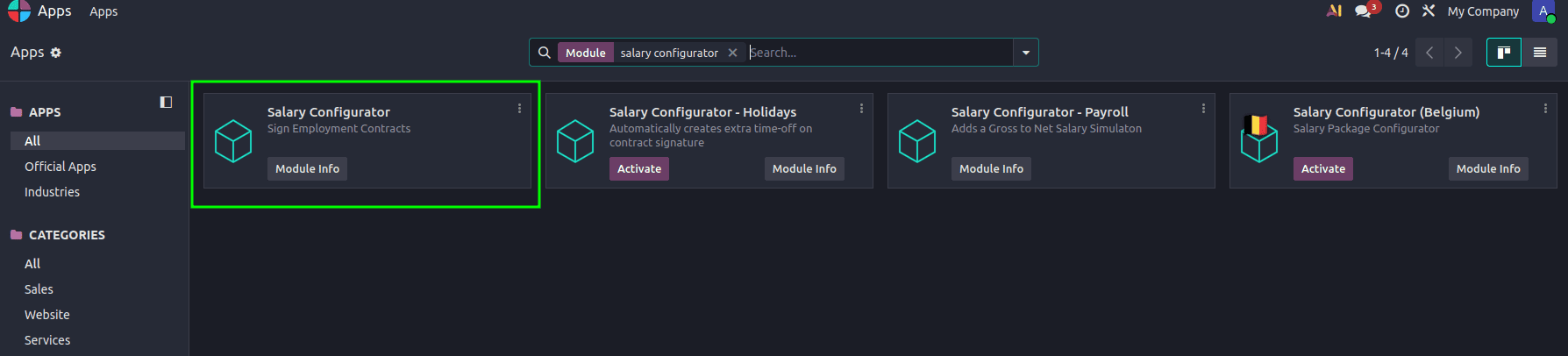
Step 1: Open Apps
Search for the required applications and install them.
Install:
- Recruitment
- Salary Configurator
- Sign
- Payroll
The Salary Configurator is an Enterprise module and is the core module used for creating salary packages and employment offers.
CONFIGURING SALARY PACKAGES IN ODOO 19
Before creating an offer for an applicant, the required salary configuration should be available in the database.
In Odoo 19, salary packages are managed through Contract Templates, which define the compensation structure that can be offered to an employee.
Step 1: Configure the Salary Configurator
Go to:

Employees > Configuration > Settings
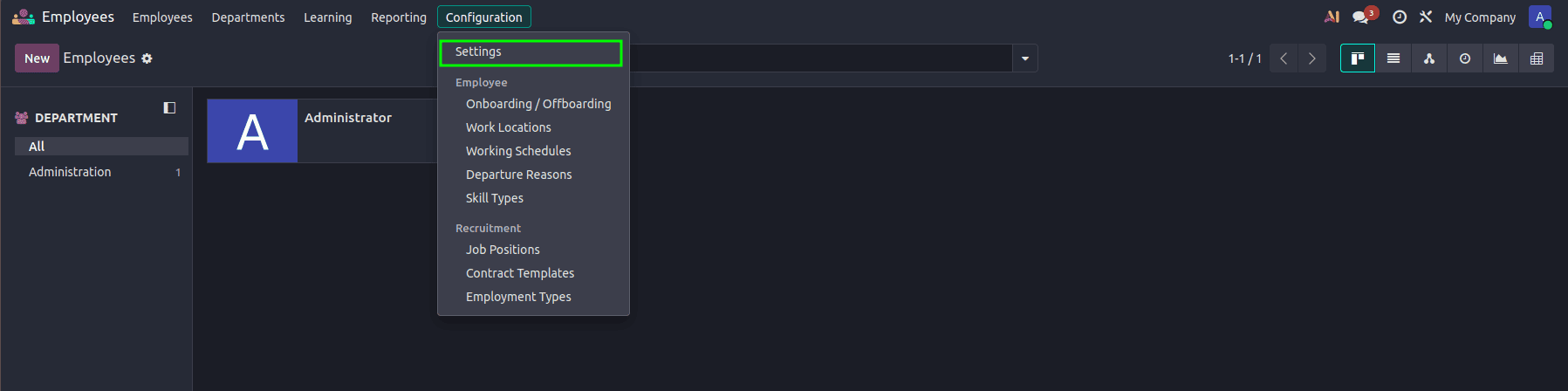
Under the Salary Configurator section, configure the required options.

Salary Package Configurator - Validity duration for salary package requests for employees
The default offer link validity is 30 days.
These settings determine how long applicants can access the Salary Configurator through the link provided in the offer email.
Step 2: Configure a Contract Template
Go to:
Recruitment > Configuration > Contracts > Templates
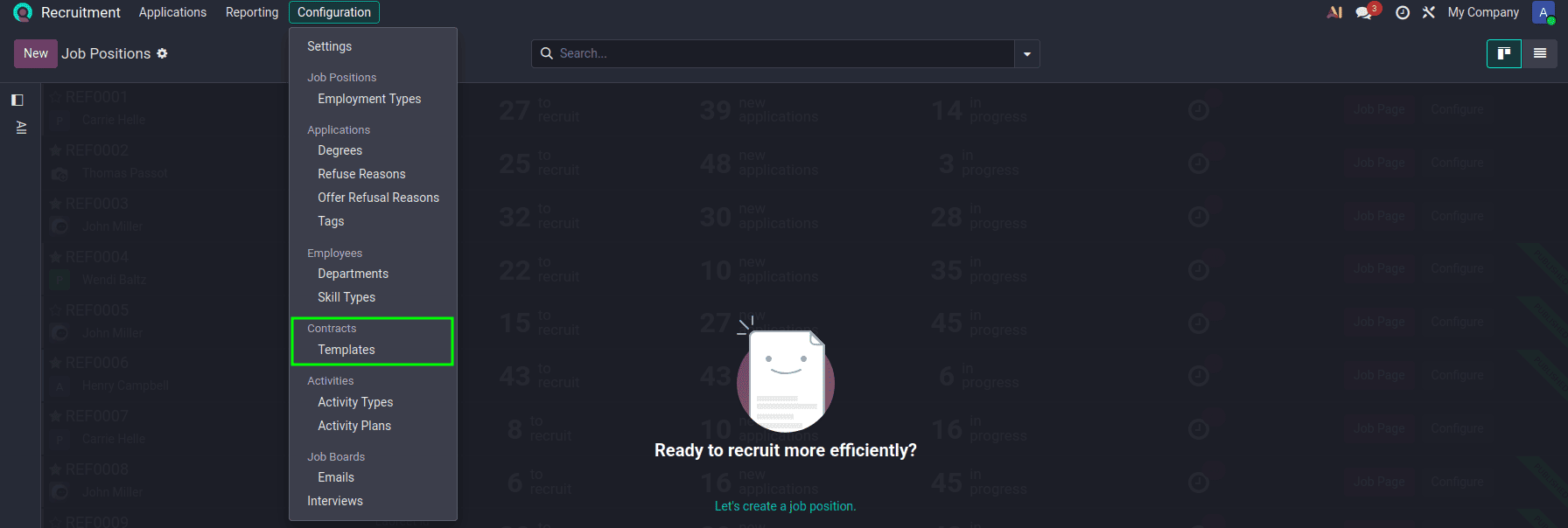
Click New to create a new Contract Template.
Contract Templates define the contract and salary configuration used when creating an employment offer.
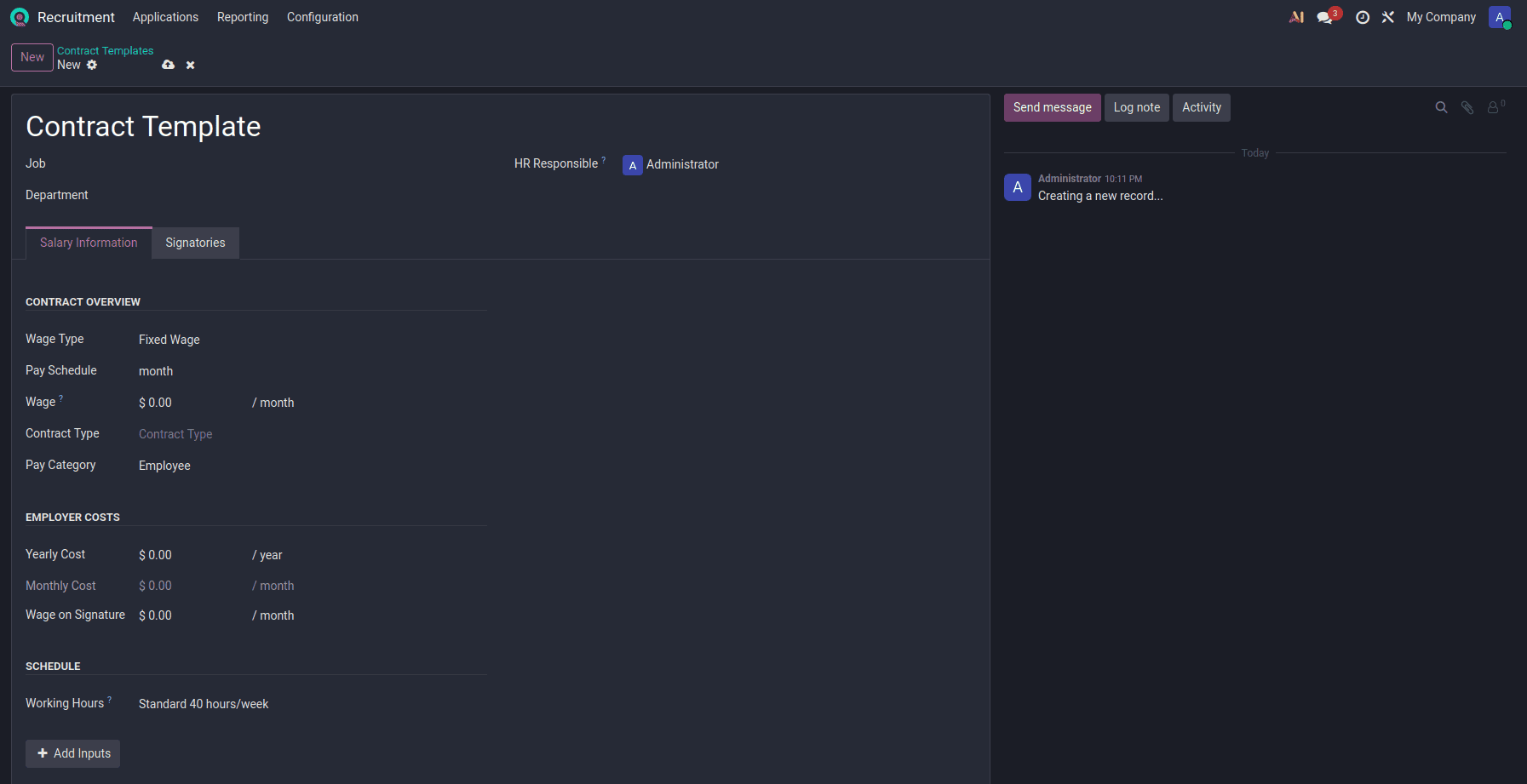
- Job: The job position this contract template is linked to. Keep this blank if the template is used for multiple job positions.
- Department: The department associated with this contract template.
- HR Responsible: The HR user responsible for managing this contract.
- Wage Type: Defines how the employee is paid - Fixed Wage (set monthly amount) or other types like hourly.
- Pay Schedule: The frequency of payroll runs (e.g., Monthly, Weekly, Bi-weekly).
- Wage: The base gross salary paid to the employee per pay period (e.g., per month).
- Contract Type: The legal/employment contract classification (e.g., permanent, part-time, Interim).
- Pay Category: Classifies who receives the pay – e.g., Employee or Worker.
- Yearly Cost: Total annual cost to the employer, including salary and employer contributions.
- Monthly Cost: Monthly equivalent of the yearly employer cost (auto-computed).
- Wage on Signature: The wage amount recorded at the time the contract is signed by the employee.
- Working Hours: The standard work schedule applied to this contract (e.g., Standard 40 hours/week).
The salary structure and salary rules configured in the Payroll application determine how the employee's compensation is calculated.
CONFIGURING THE SIGN TEMPLATE
The offer can include an employment document that must be electronically signed by the applicant.
Step 1: Configure the Sign Template
Open the Contract Template associated with the offer.
Configure the PDF Sign Template for the employment contract.
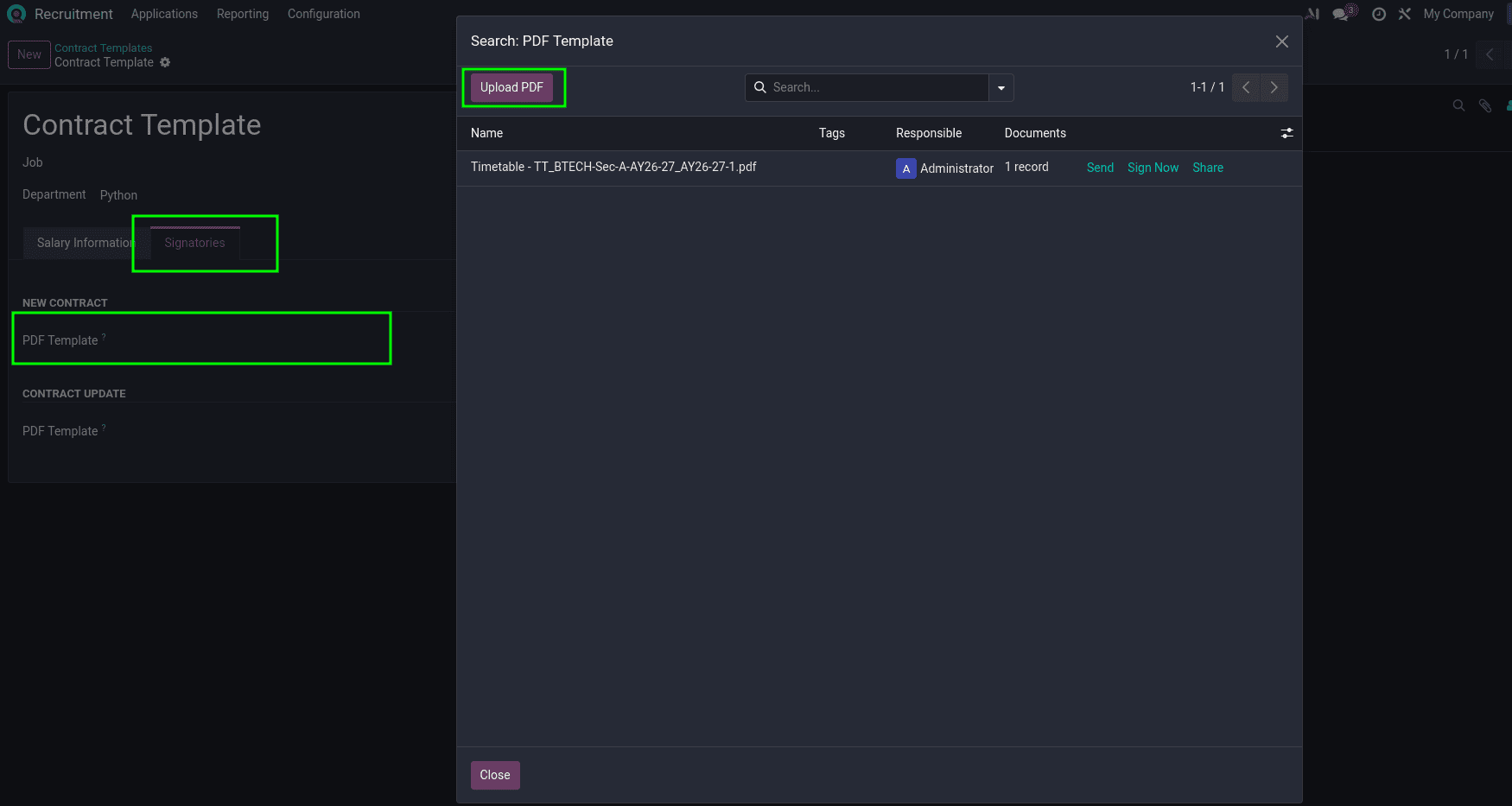
The PDF Sign Template defines the document that will be presented to the applicant for electronic signing.
Step 2: Configure Signatories
Open the Signatories configuration of the Contract Template.
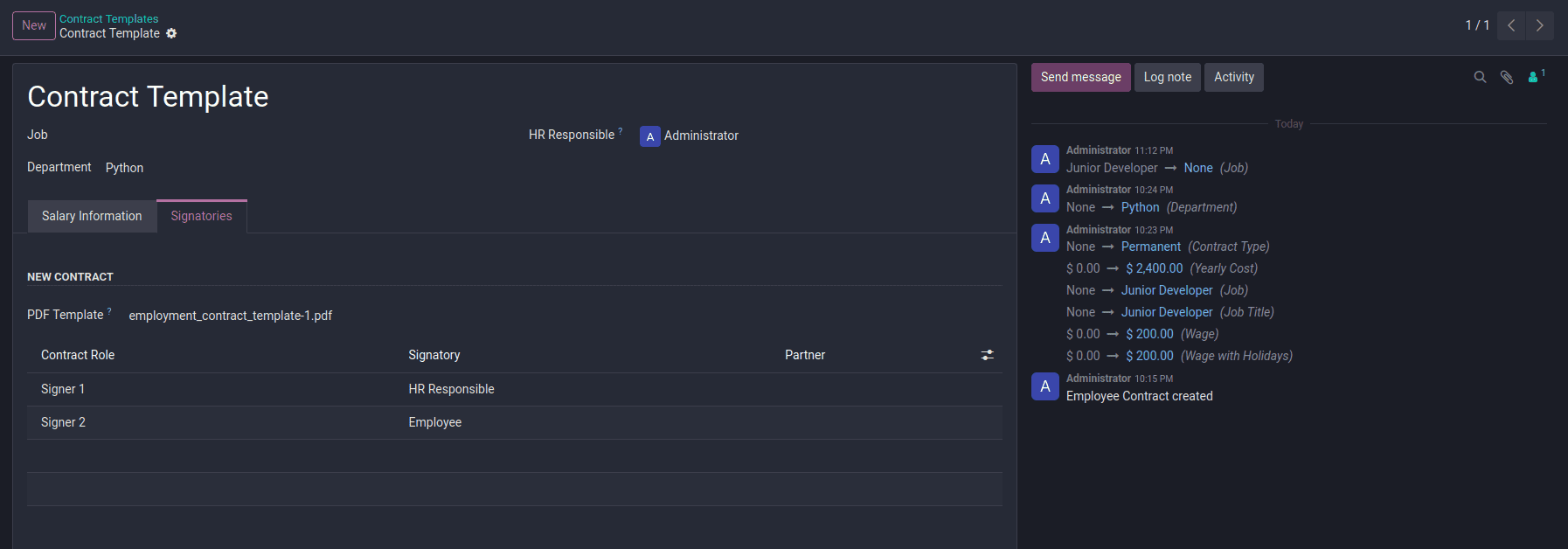
Configure the users or parties who need to sign the employment contract.
For example:
When multiple signatories are configured, the offer can move through the following stages:
Open > Partially Signed > Fully Signed
If only one signatory is required, the offer can move directly from:
Open > Fully Signed
CONFIGURING SALARY BENEFITS
Benefits can be configured so that they become part of the salary package offered to the applicant.
Step 1: Open Benefits
Go to:
Payroll > Configuration > Benefits
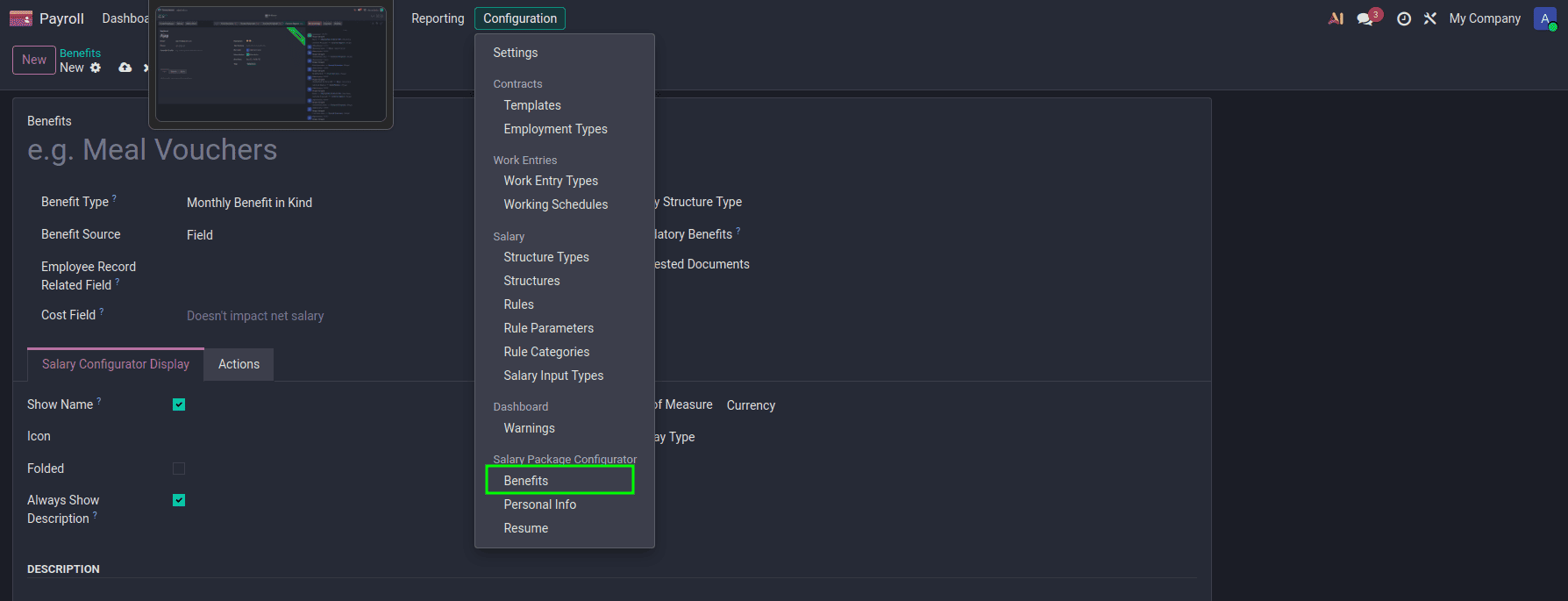
- Benefit Type: Defines the type of benefit provided to the employee.
- Salary Structure Type: Specifies the salary structure type to which the benefit applies.
- Benefit Source: Defines where the benefit value is obtained from. Here, it is configured as Field.
If the source is salary rule, another field appears
- Salary Rule: Specifies the salary rule used to determine the benefit amount.
- Mandatory Benefits: Specifies whether the benefit is mandatory and must be included in the salary package.
- Employee Record Related Field: Links the benefit to a specific field from the employee record.
- Requested Documents (IDs): Specifies the documents that should be requested from the employee for this benefit.
- Cost Field: Defines how the benefit cost affects the employee's salary. Here, it indicates Doesn't impact net salary.
- Show Name: Displays the benefit name in the salary configurator.
- Icon: Defines the icon displayed for the benefit in the salary configurator.
- Folded: Determines whether the benefit section is collapsed by default.
- Always Show Description: Displays the benefit description in the salary configurator.
- Unit of Measure: Defines the unit used to represent the benefit value. Here, it is Currency.
- Display Type: Defines how the benefit is presented in the salary configurator. Here, it is Always Selected.
Create a new benefit or configure an existing benefit.
Benefits can be configured according to the compensation package offered by the organization.
For example, a salary package may contain:
- Basic Salary
- Allowances
- Benefits
- Additional Compensation
- Other Package Options
Benefits that are configured as applicant-configurable can be displayed to the applicant through the Salary Configurator.
CREATING A JOB POSITION
A salary package is associated with a job position through a Contract Template during the recruitment process.
Step 1: Open Job Positions
Go to the Applications menu in Recruitment.
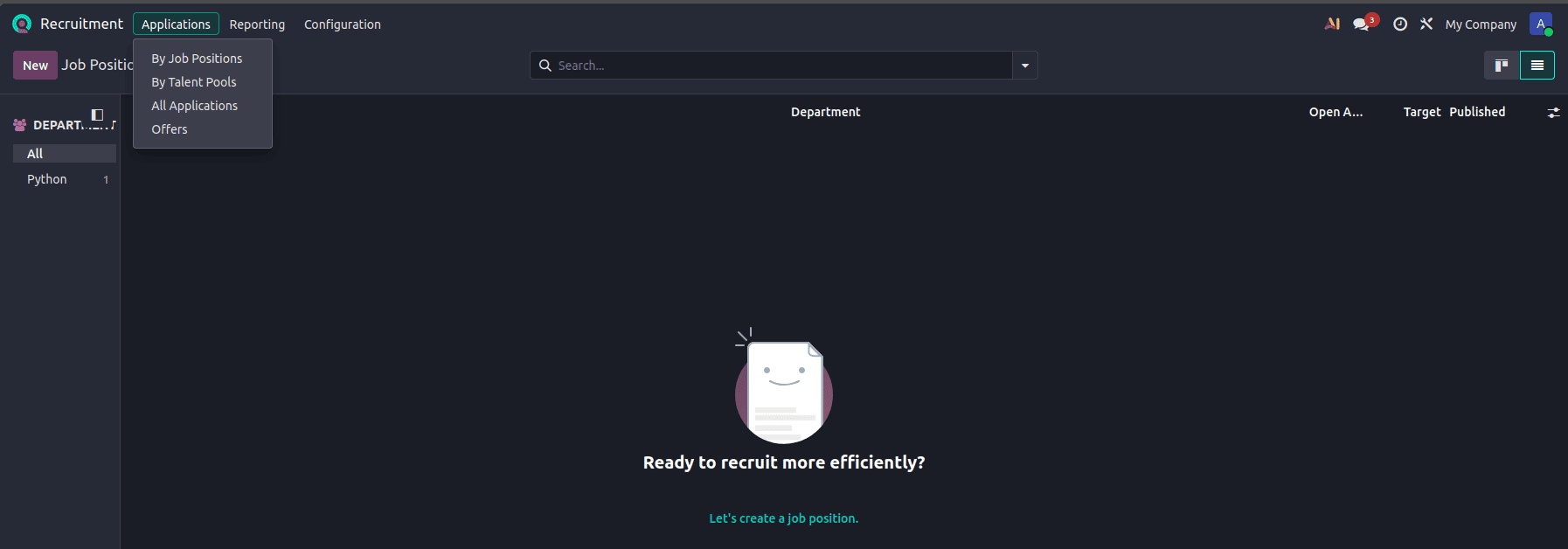
Click New to create a new job position or open an existing position.
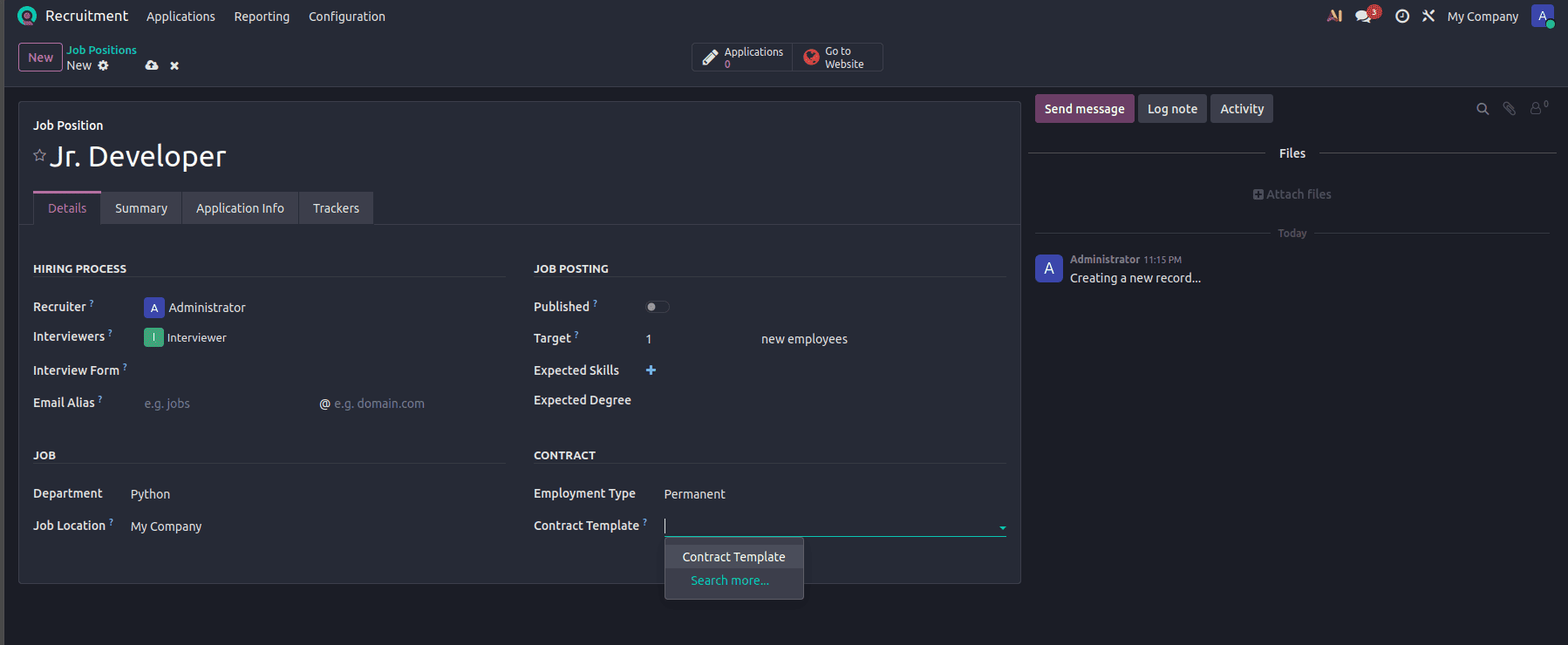
Set up the details, and now we can select the contract template created.
Other options:
- Recruiter: User responsible for managing the recruitment process.
- Interviewers: Users assigned to conduct interviews.
- Interview Form: Form used to evaluate applicants during interviews.
- Email Alias: Email address associated with the job position for receiving applications.
- Published: Indicates whether the job position is published for candidates.
- Target: Number of employees to be recruited for the position.
- Expected Skills: Skills expected from applicants.
- Expected Degree: Educational qualification expected from applicants.
- Department: Department associated with the job position.
- Job Location: Location where the employee will work.
- Employment Type: Type of employment, such as Permanent or Temporary.
The Contract Template connects the job position with the salary package configuration.
Enter the required information.
Once the job position is configured with a Contract Template, Odoo can use the associated salary package when generating an offer for an applicant linked to that position.
RECRUITMENT STAGES IN ODOO 19
Odoo 19 provides recruitment stages that allow applicants to be processed through the hiring workflow.
The default recruitment stages include:
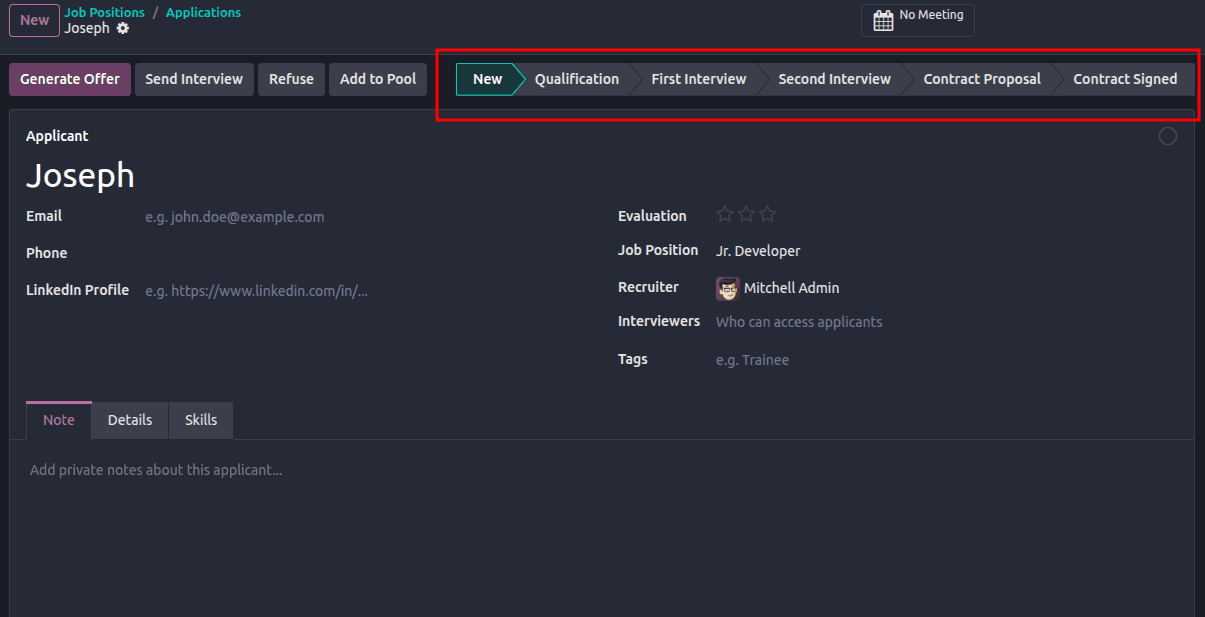
- New
- Qualification
- First Interview
- Second Interview
- Contract Proposal
- Contract Signed
The Contract Proposal stage is used when an offer is being prepared and sent to the applicant.
The Contract Signed stage is the hired stage. Once the applicant reaches this stage, the applicant is considered hired.
GENERATING AN OFFER FOR AN APPLICANT
After completing the recruitment process and selecting a suitable candidate, an offer can be generated directly from the applicant's record.
Step 1: Open the Applicant
Go to:
Recruitment > Applications
Open the applicant who has been selected for the position.

Click the job position.
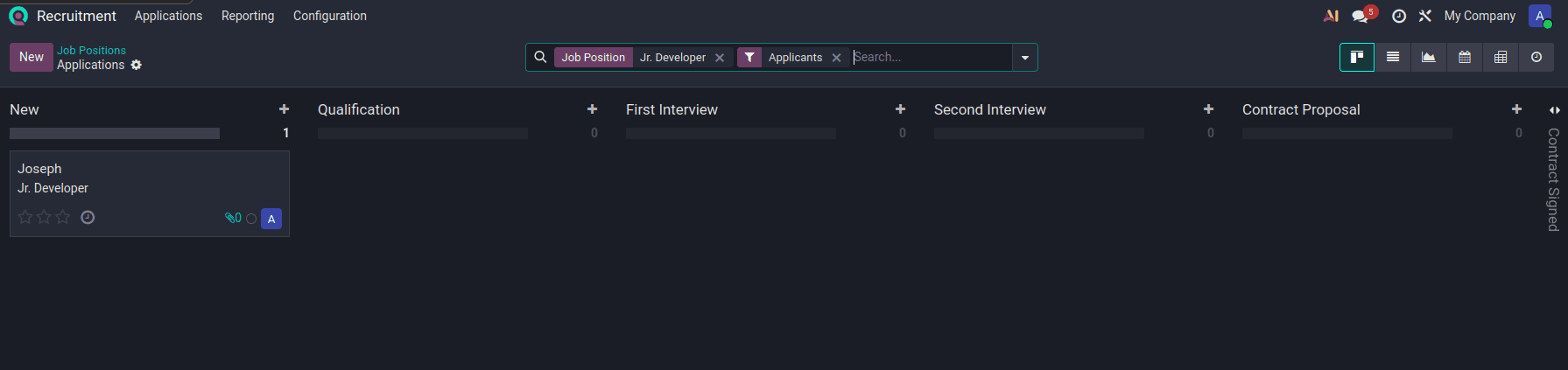
Move the applicant to the Contract Proposal stage (assuming the interviewee has passed through the intermediary stages).

At this stage, Odoo provides the option to generate an employment offer.
Step 2: Generate the Offer
Click Generate Offer.
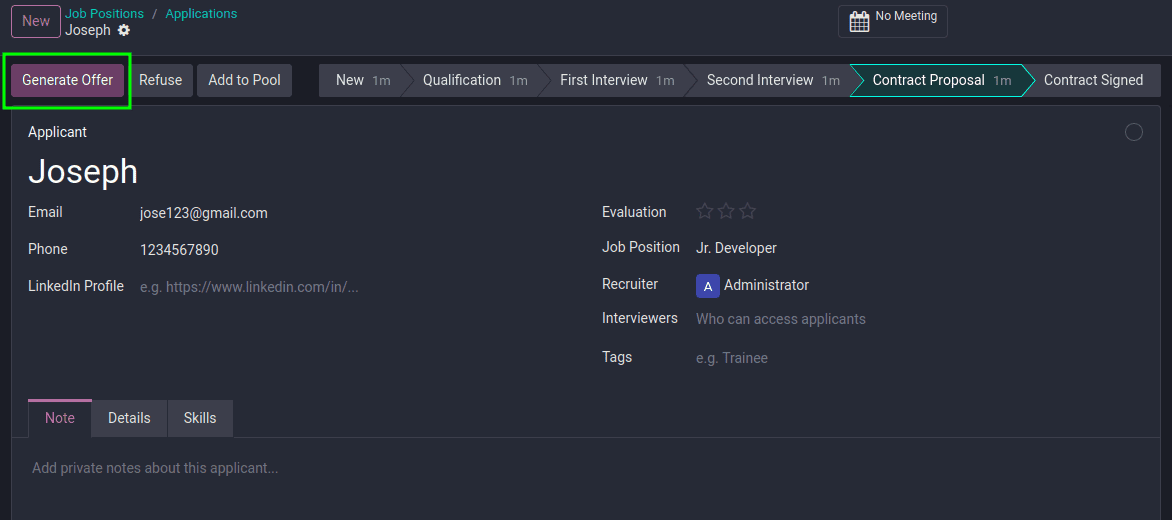
Odoo creates a new employment offer and opens the offer configuration form.
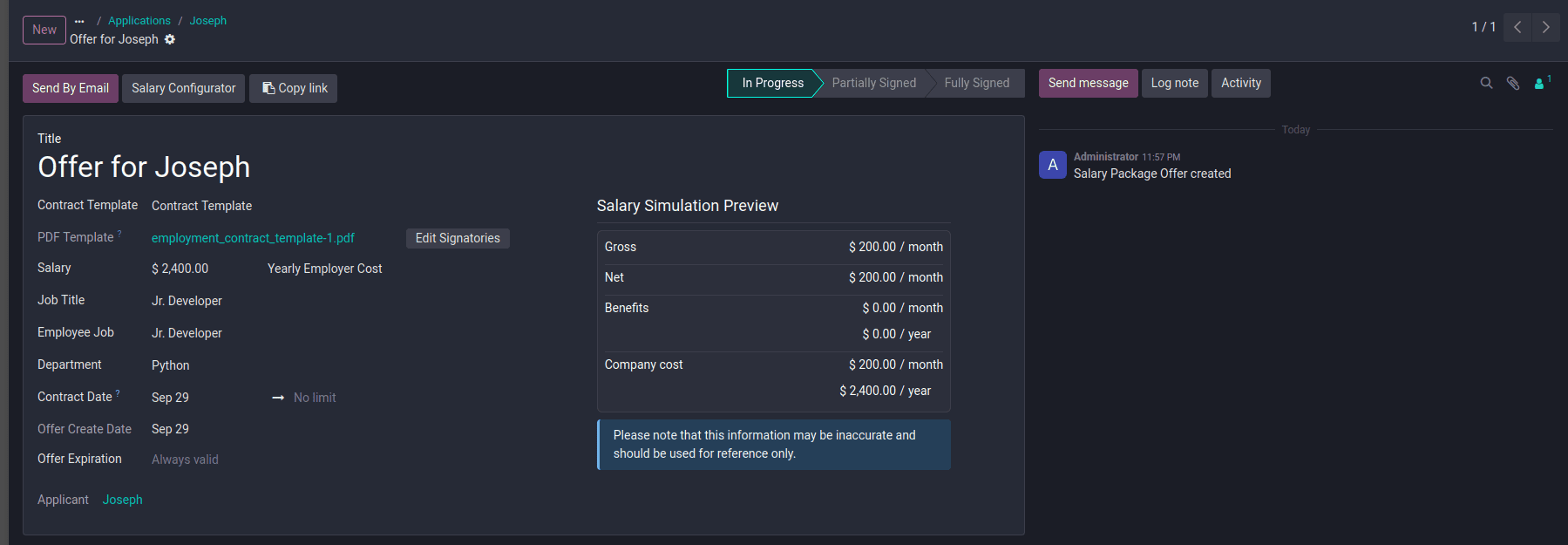
The Generate Offer button is available when the applicant is active, has not already been hired, is not a pool applicant, and the user has the required Recruitment access.
The applicant must also have a name before an offer can be generated.
CONFIGURING THE SALARY PACKAGE FOR THE OFFER
The Offer form is used to manage the employment offer and its associated salary package.
The benefits, along with the salary details and application details, will now be available for editing for the applicant.
Step 1: Review the Offer Details
The offer can contain information such as:
- Display Name
- Contract Template
- PDF Sign Template
- Employer Budget
- Job Title
- Employee Job
- Department
- Contract Start Date
- Contract End Date
- Offer Expiration Date
- Validity Days Count
- Status
The offer information is automatically populated from the Contract Template linked to the job position.
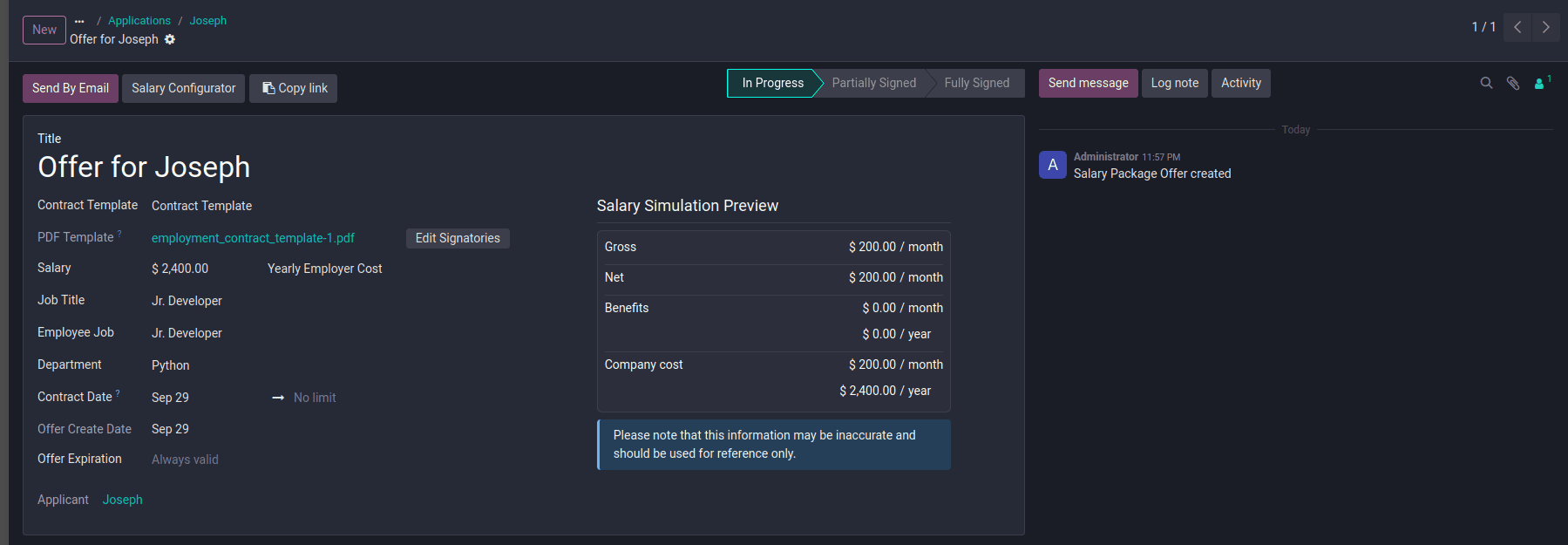
For example, the employer budget, job title, employee job, and department can be obtained from the configured Contract Template. The Salary Configurator link is also generated for the offer. This link can be shared with the applicant or sent through email. The offer can have different statuses depending on the signing process:
- Open
- Partially Signed
- Fully Signed
- Expired
- Refused
- Cancelled
SENDING THE OFFER LETTER TO THE APPLICANT
Once the offer and salary package have been configured, the offer can be sent to the applicant.
Step 1: Send the Offer
Click Send By Email.
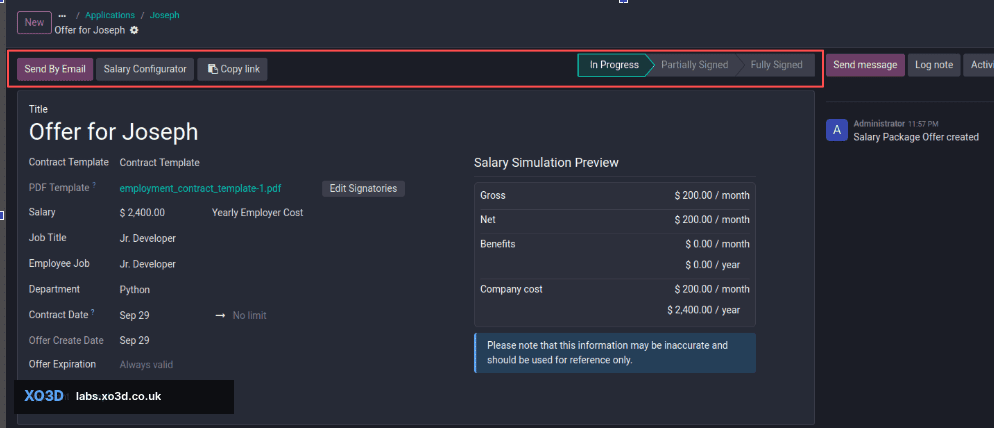
The Send By Email button is available when the offer has been saved, is not refused, expired, or cancelled, and a PDF Sign Template has been configured.
If no PDF Sign Template is configured, the Send By Email button remains disabled.
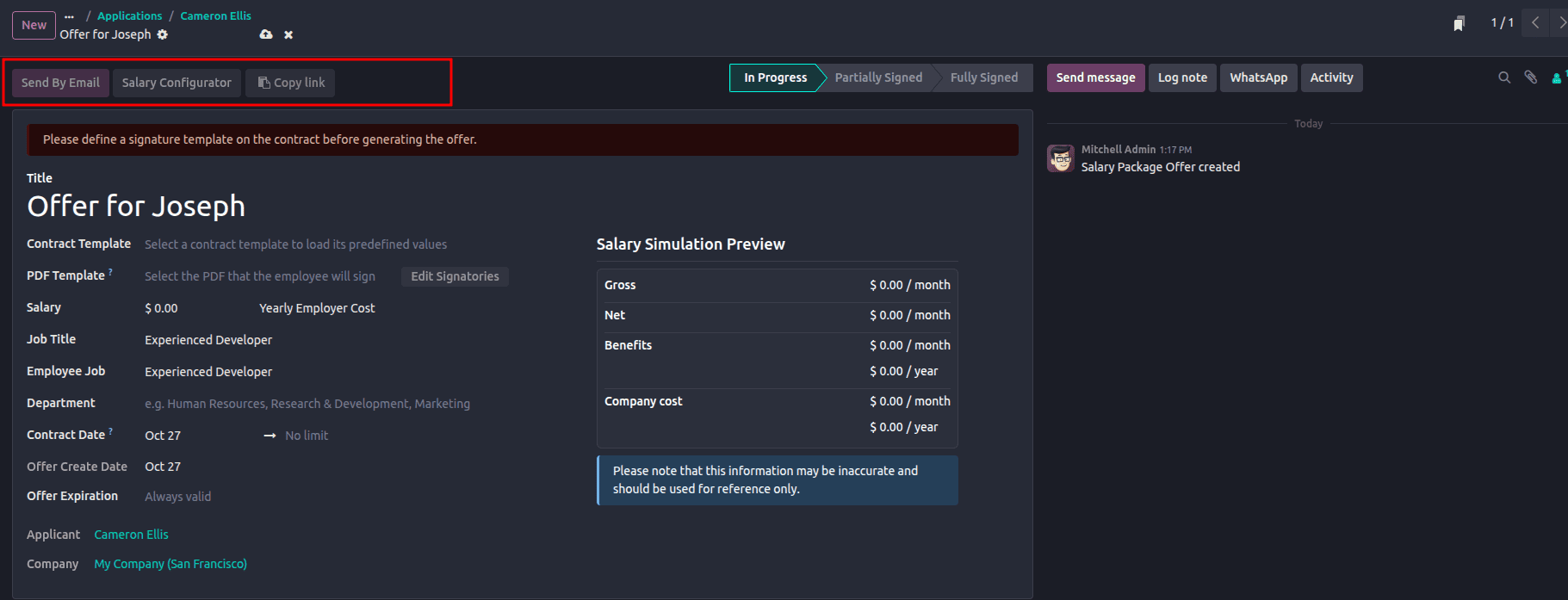
Configure a PDF Sign Template in the Contract Template before sending the offer.
Step 2: Review the Email
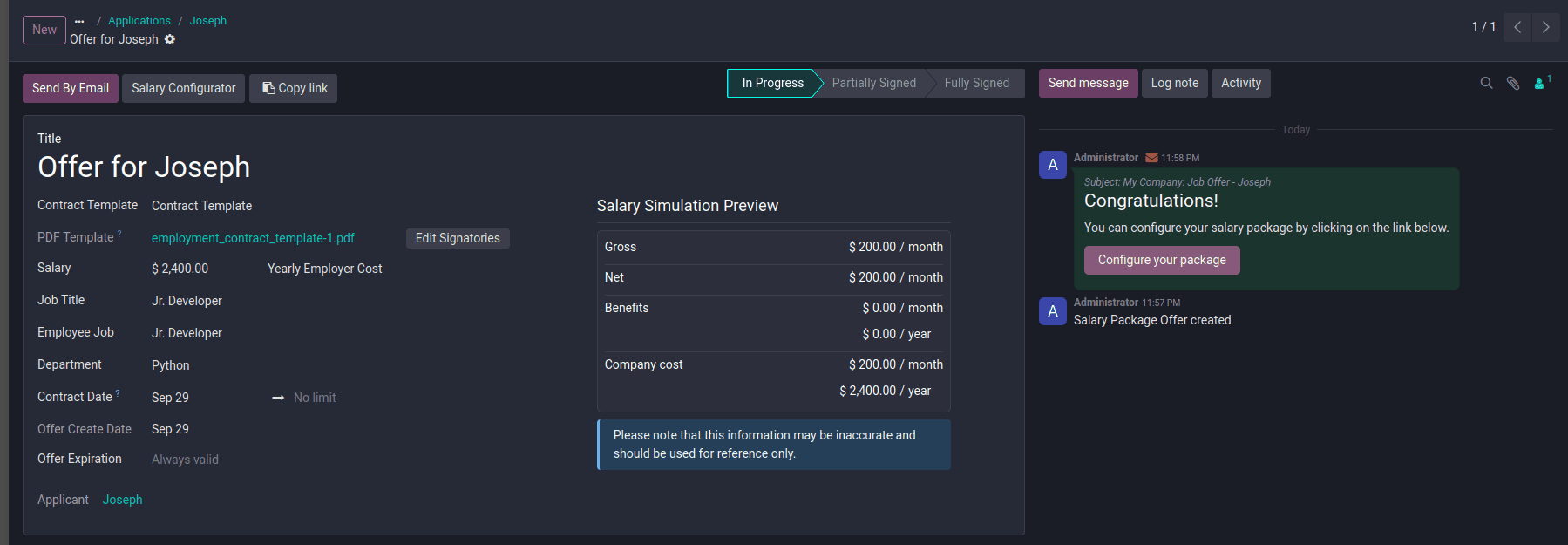
Odoo opens the email composer with the relevant offer information.
The email contains the information required for the applicant to access the offer and Salary Configurator.
Review the email content and click Send.
Odoo sends the offer to the applicant's email address.
After the offer has been sent, the offer can be tracked from the applicant record using the Offers smart button.
REVIEWING THE OFFER AS AN APPLICANT
The applicant receives the offer through email.
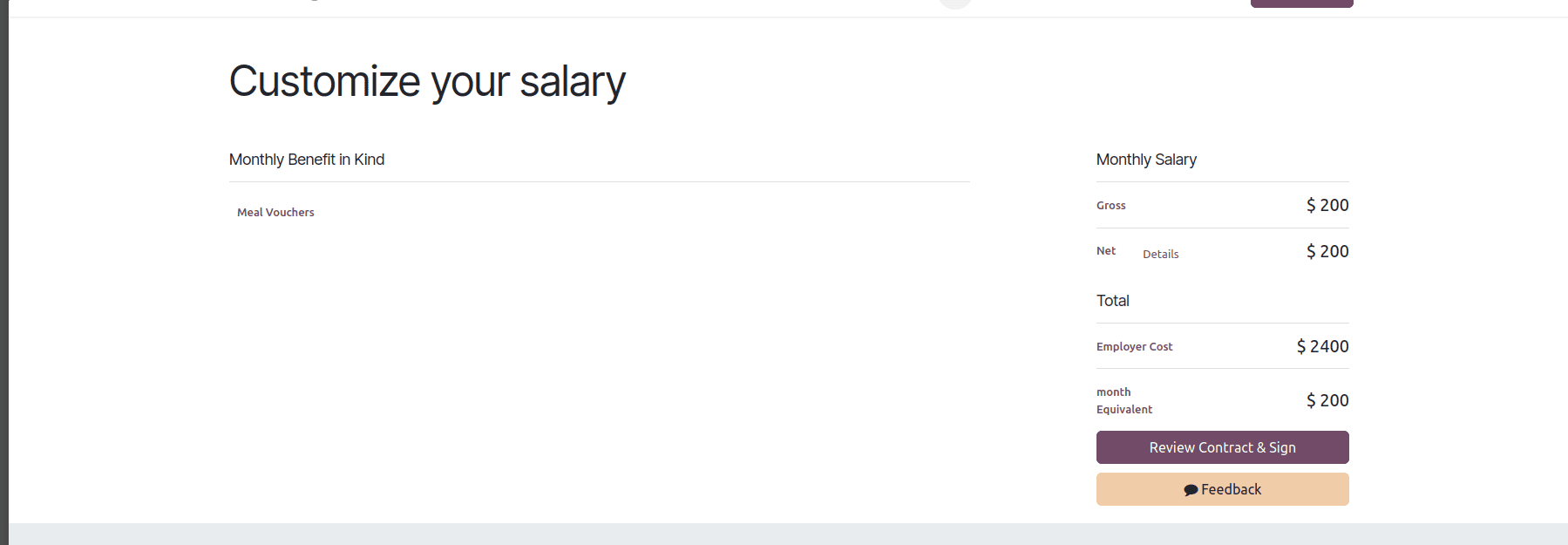
The email contains a unique link to the Salary Configurator portal page.

The link is secured using an access token generated for the offer.
The access token provides controlled access to the salary package and remains valid for the configured period.
Through the Salary Configurator, the applicant can:
- View the proposed compensation details
- Review available benefits
- Configure applicant-selectable benefits
- View the resulting salary breakdown
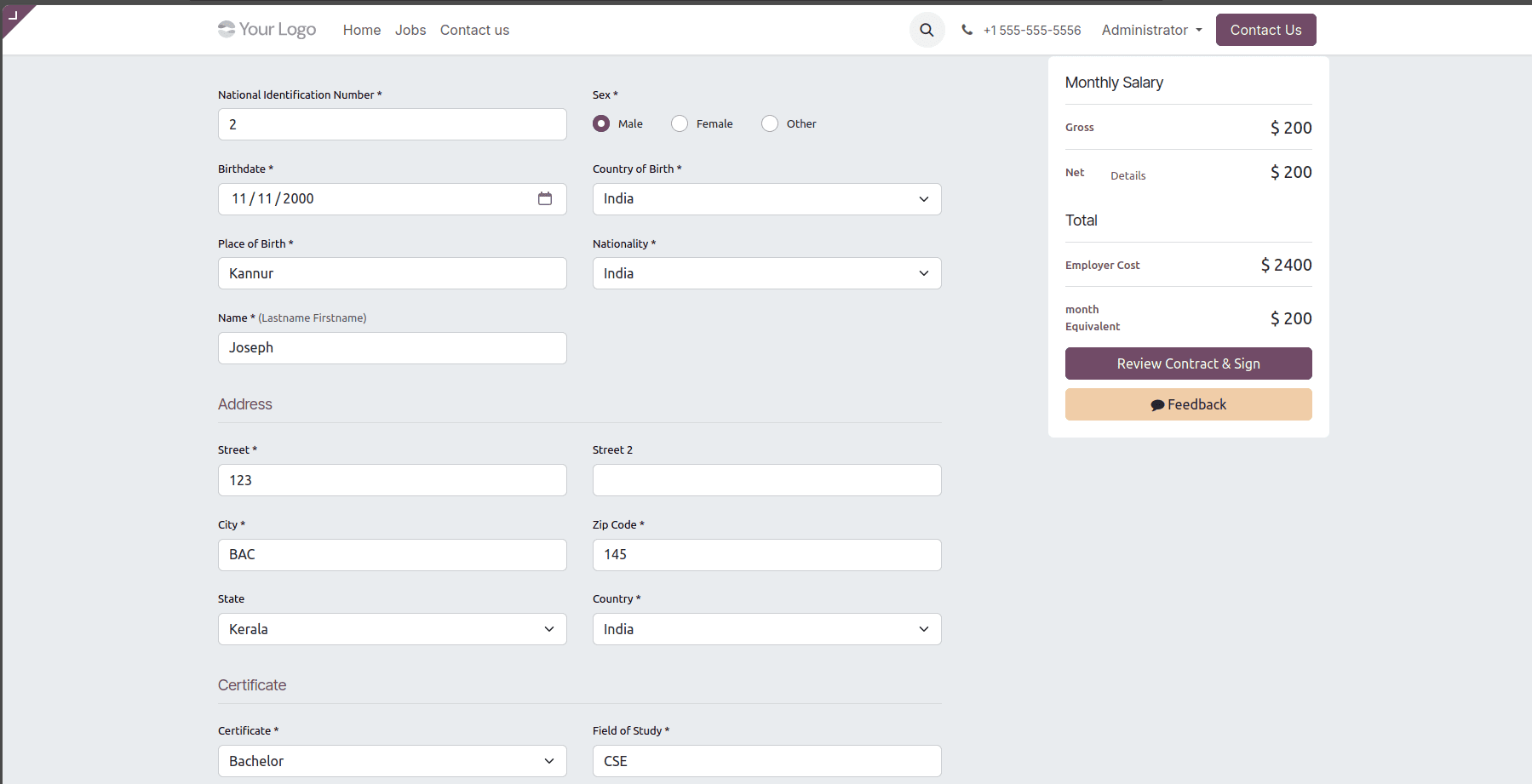
The applicant can review the resulting salary package before proceeding with the offer.
This allows the applicant to understand the proposed compensation and available benefits before accepting the employment offer.
ACCEPTING AND SIGNING THE OFFER
After reviewing the salary package, the applicant can proceed with the contract.
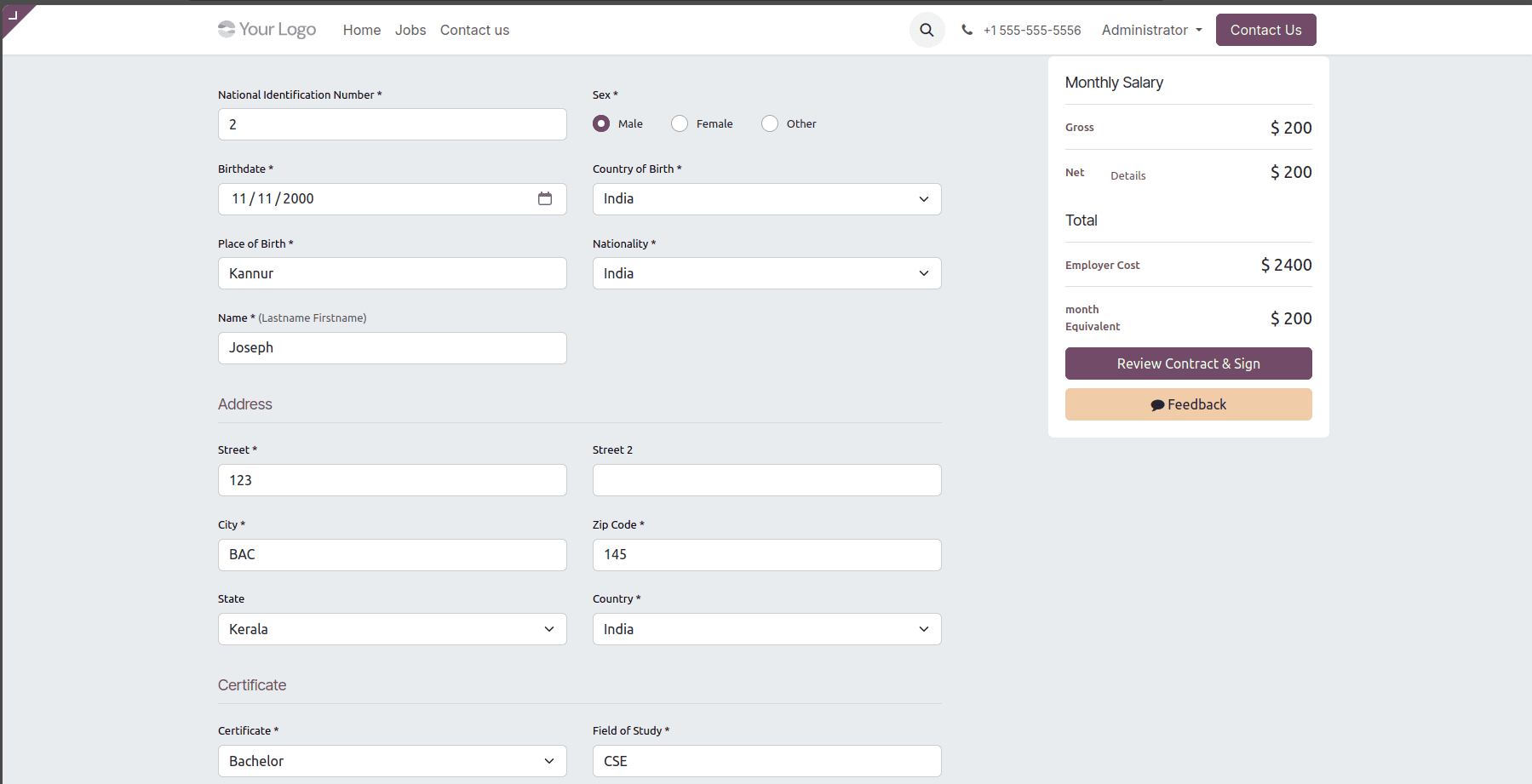
Step 1: Review Contract and Sign
Click Review Contract & Sign.
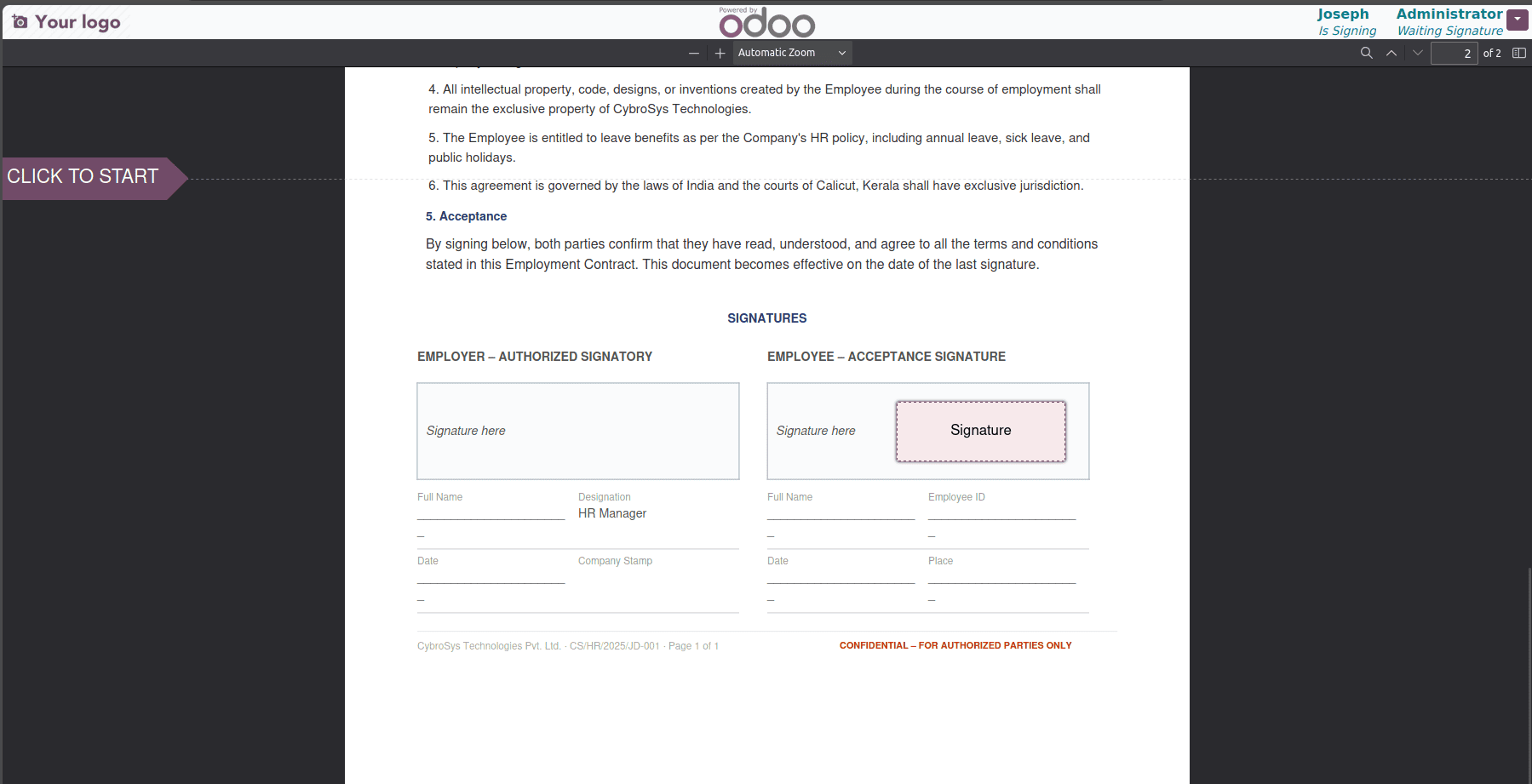
The applicant is taken to the electronic signature process.
The Sign module uses the PDF Sign Template configured in the Contract Template.
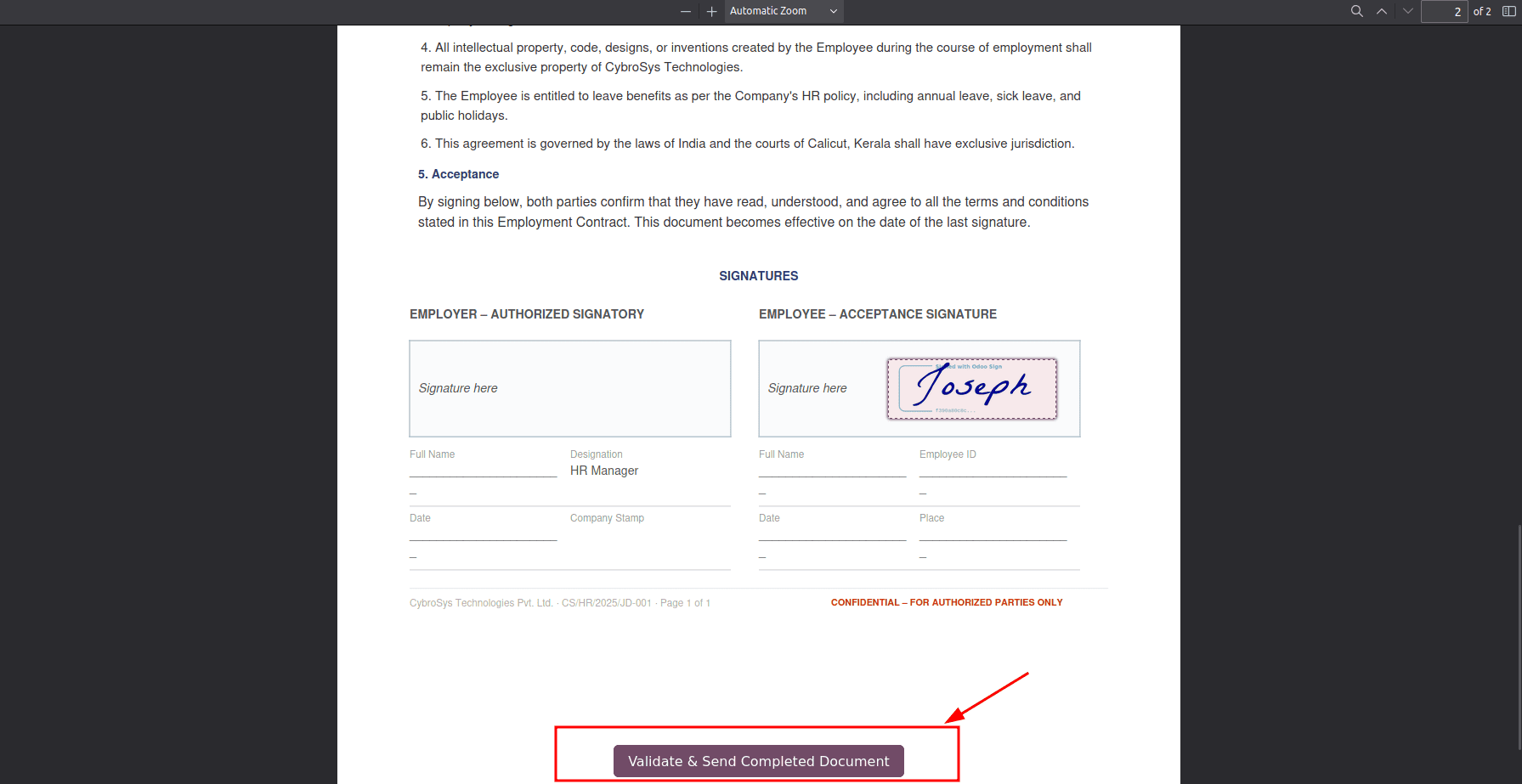
The applicant can review the contract document and provide the required information.
If electronic signing is configured, the applicant can sign the document directly through Odoo.
When multiple signatories are required, the offer moves through:
Open > Partially Signed > Fully Signed
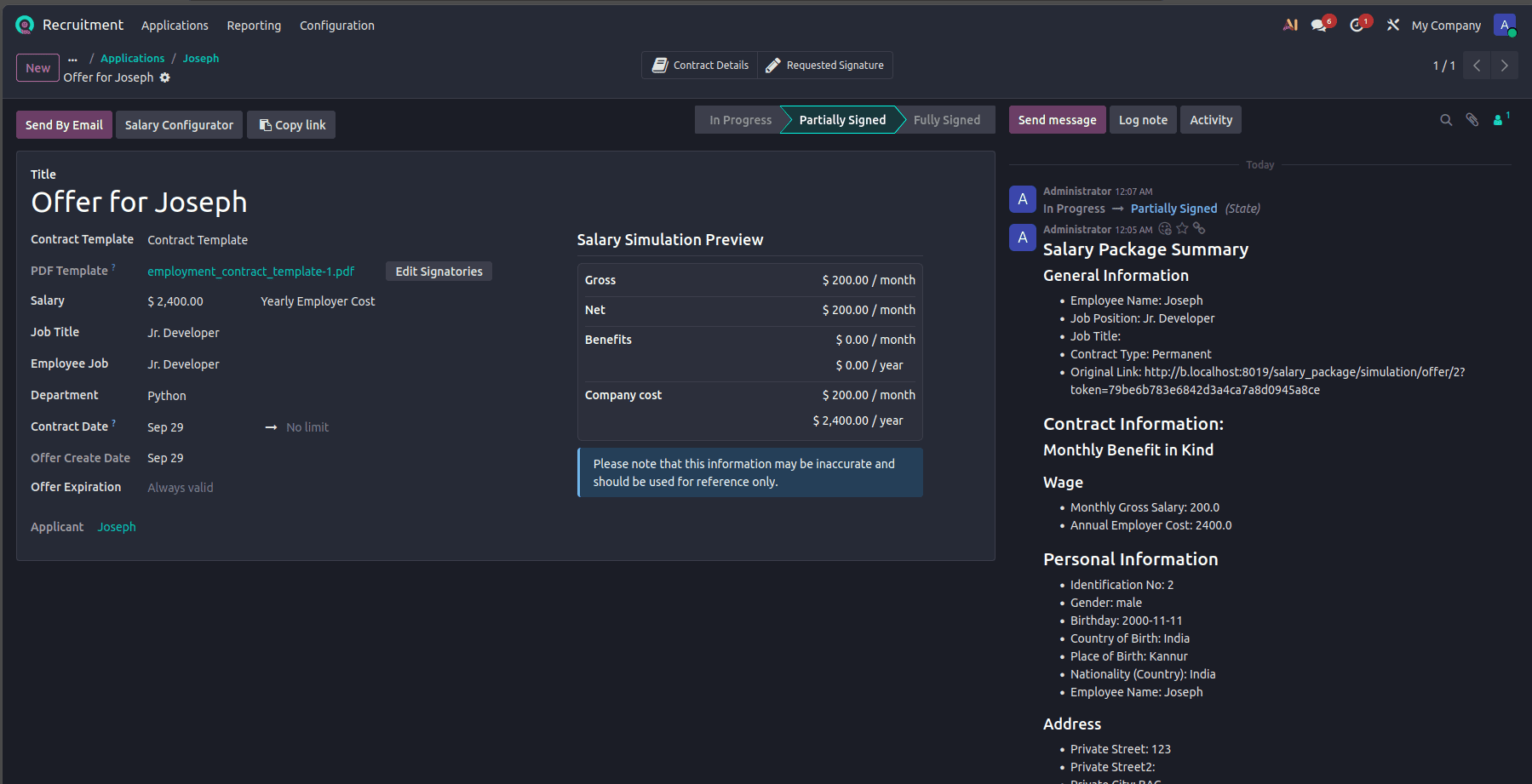
When only one signatory is required, the offer moves directly through:
Open > Fully Signed
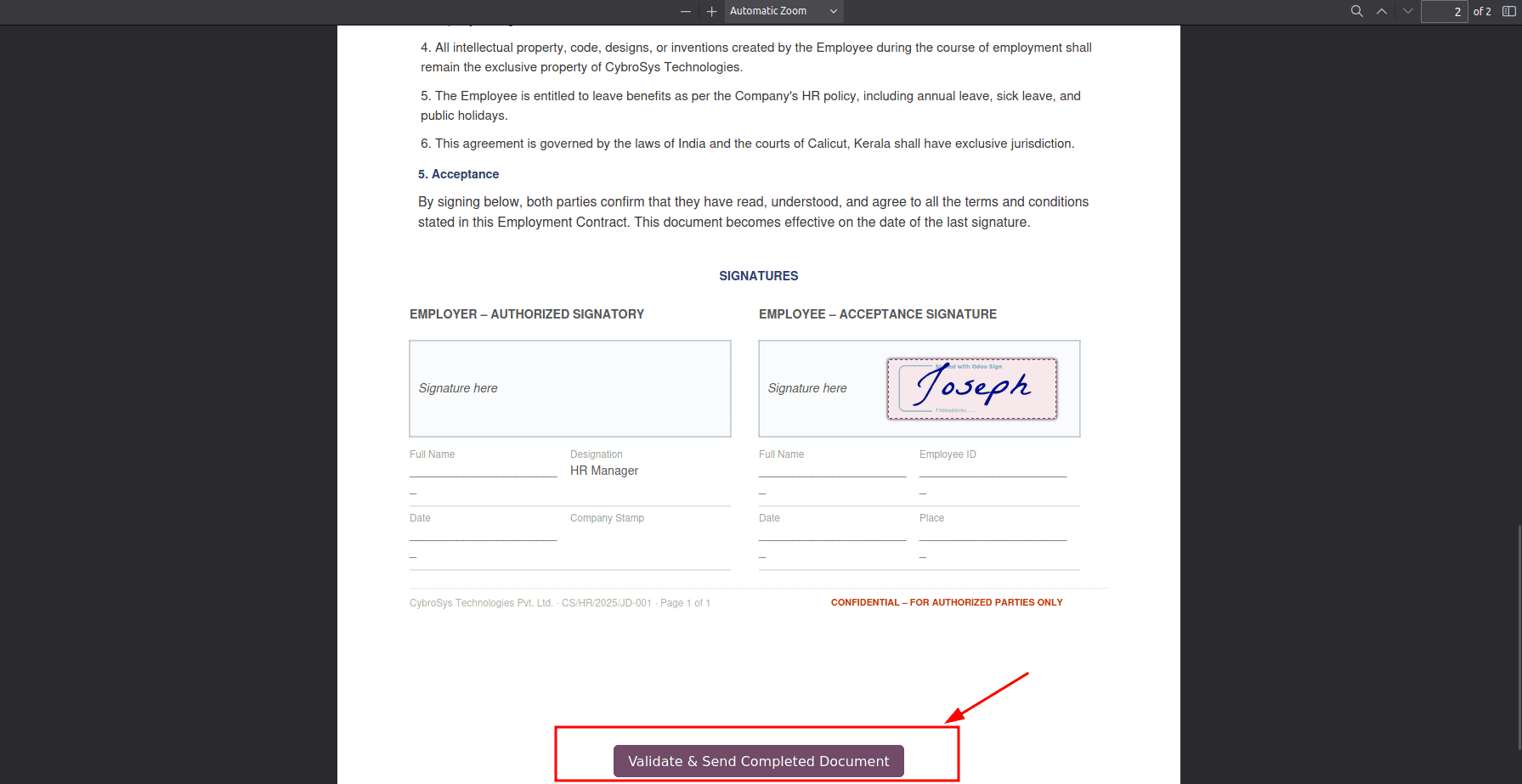
After all required signatories complete the signing process, the offer becomes Fully Signed.
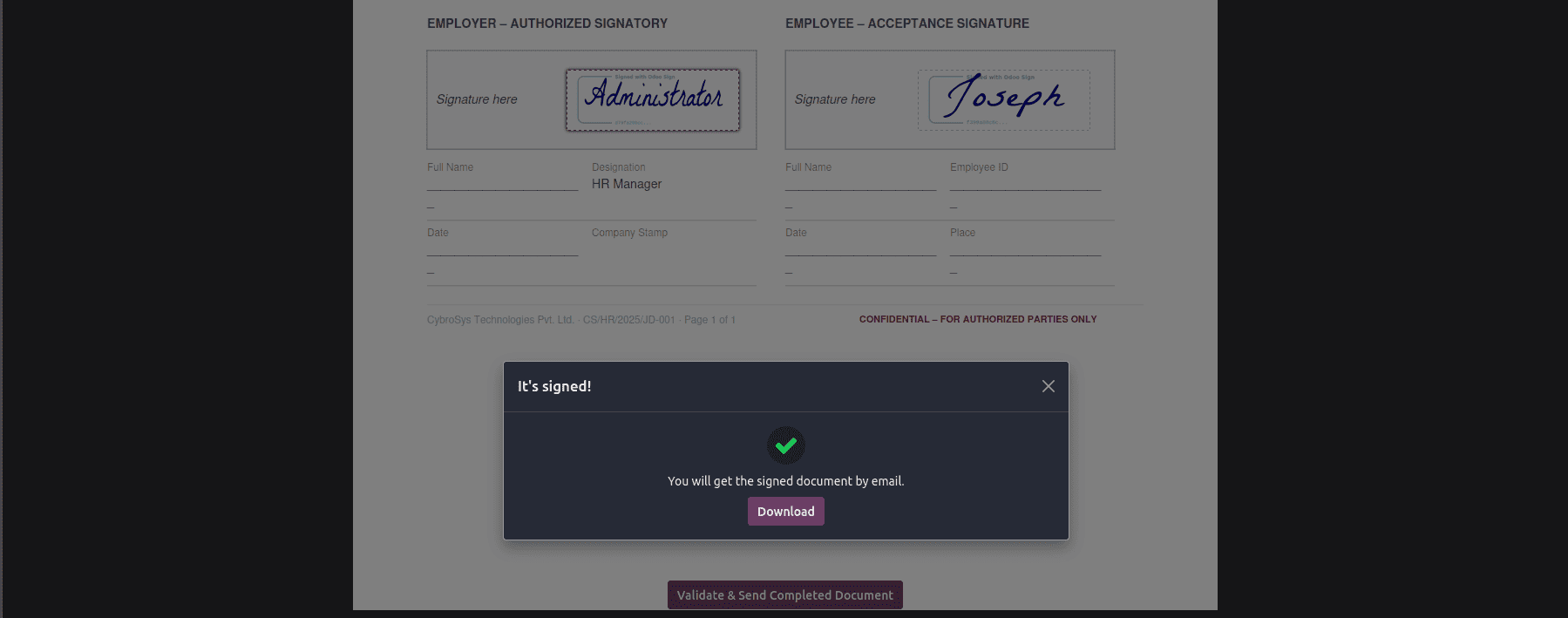
MANAGING THE SIGNED CONTRACT
Once the applicant accepts and signs the offer, Odoo completes the contract-related steps.
The offer status changes to Fully Signed.
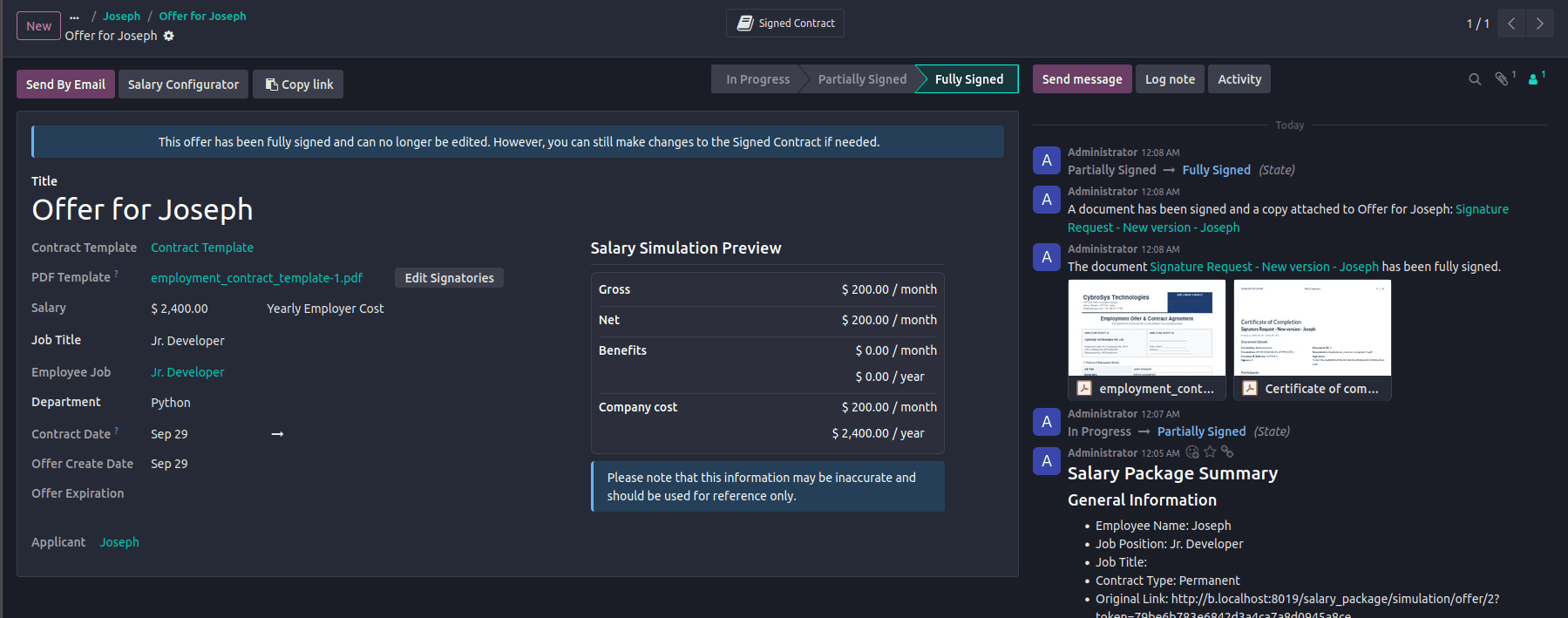
A contract version is created for the employee and linked to the original offer.
The signed contract contains the agreed employment information and salary package.
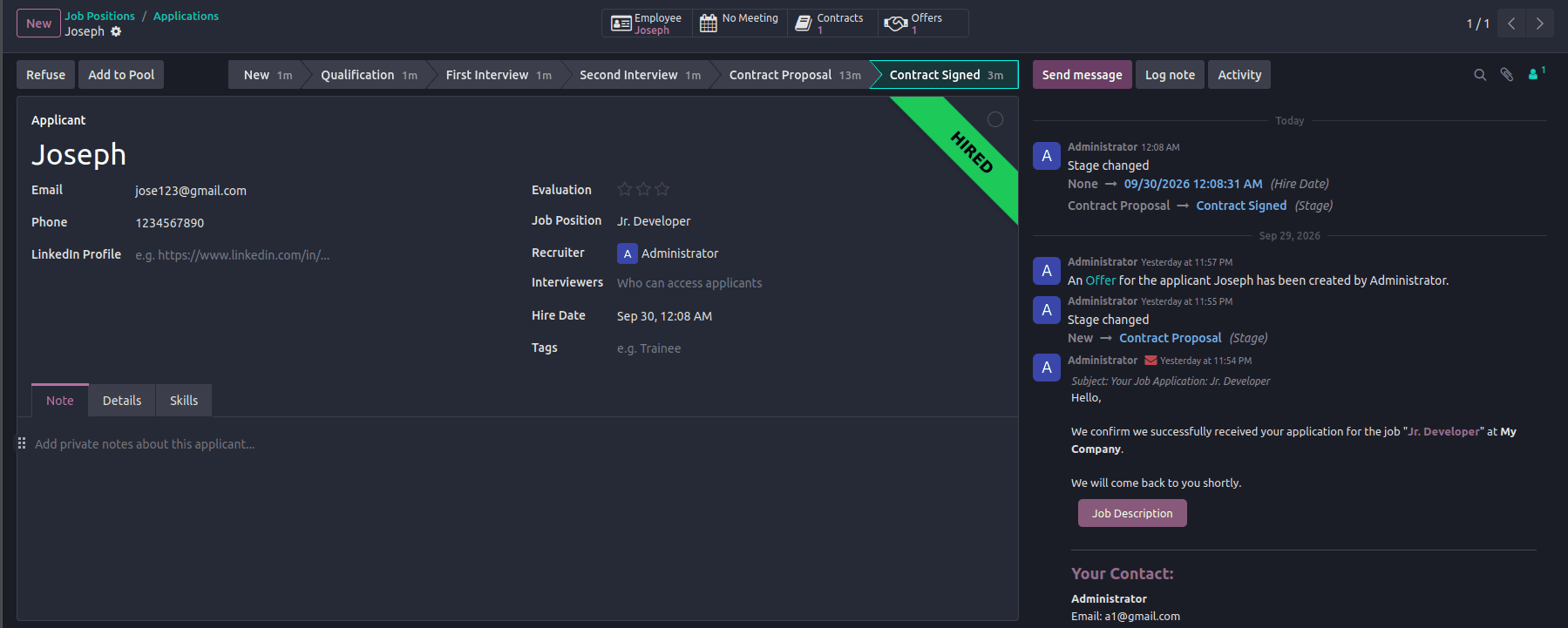
The responsible HR users can review the contract from the Contracts smart button on the applicant record.
CREATING AN EMPLOYEE FROM THE ACCEPTED OFFER
After the candidate accepts and signs the offer, the applicant can be converted into an employee.
Step 1: Create the Employee
When the applicant signs the contract, an archived record for the employee is created, and when the contract is fully signed, the employee record is created.
The employee record can contain information such as:
- Employee Name
- Job Position
- Department
- Work Information
- Employment Details
- Contract Information
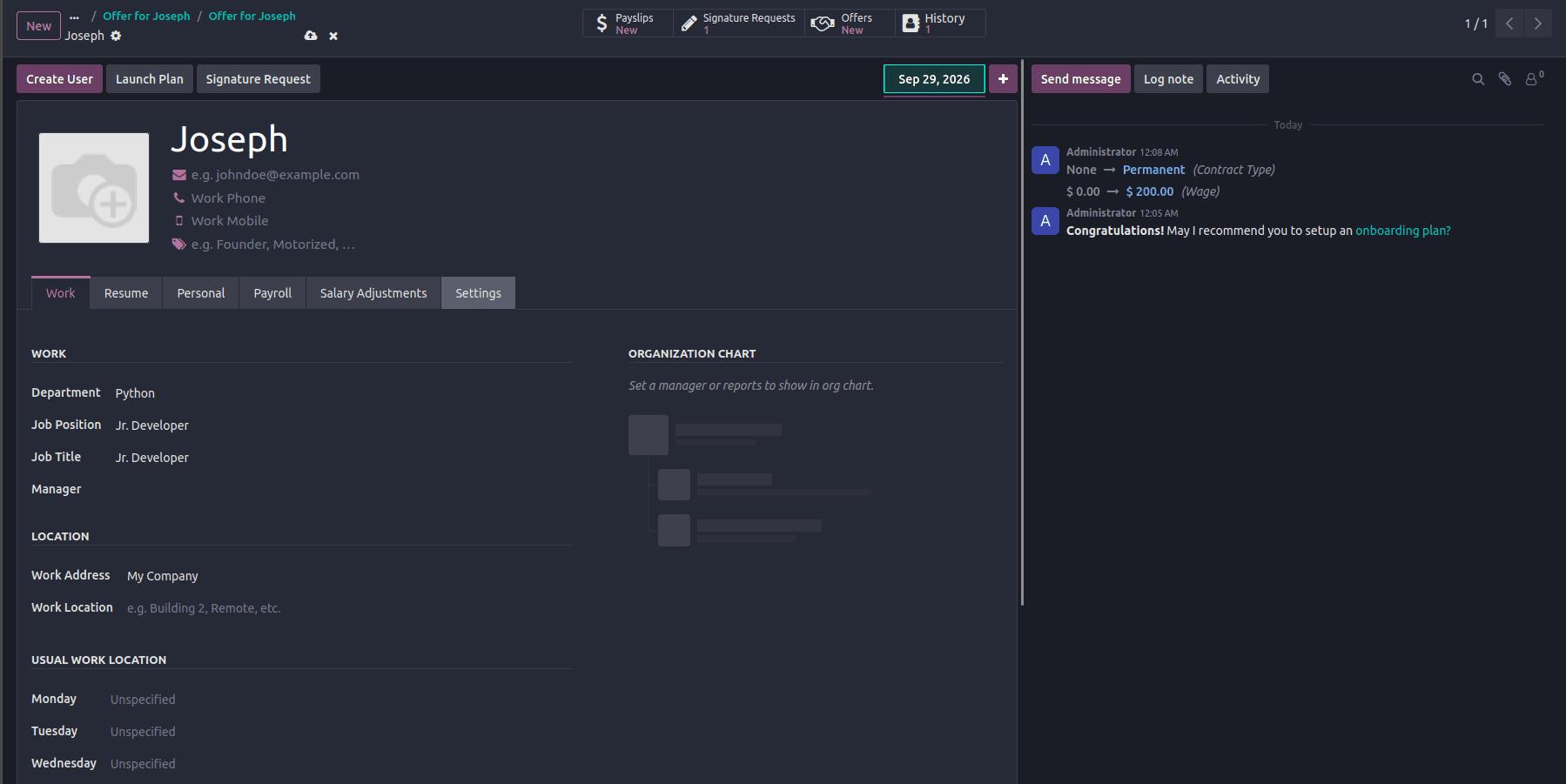
The signed salary package and contract information are carried into the employee's contract.
Once the applicant is converted into an employee and the offer is fully signed, the applicant's stage is automatically moved to Contract Signed.

Odoo 19 provides an integrated approach to managing offer letters and salary packages as part of the recruitment process. Organizations can configure job positions, create Contract Templates, define salary packages and benefits, generate employment offers, and send them directly to selected applicants through the Salary Configurator.
Applicants can review the proposed compensation package, configure available options where applicable, and electronically sign the employment contract. Once the offer process is completed, the applicant can be converted into an employee without manually recreating their information.
By connecting Recruitment, Salary Configurator, Sign, Employees, and Payroll, Odoo 19 provides a consistent workflow from applicant selection through offer creation, contract signing, employee creation, and payroll processing.
To read more about How to Manage Employee Offer Letter and Salary Configurator in Odoo 18, refer to our blog, How to Manage Employee Offer Letter and Salary Configurator in Odoo 18.