In the current marketing scenario, delivering good after-sales service is essential as well as making the sale. The effectiveness of an after-sales service process will help generate customer trust, increase retention, and create brand loyalty.
Odoo 19 Helpdesk acts as an integrated solution for managing customers' complaints, returns, and repairs. This blog will help us learn about configuring after-sales services in Odoo 19 Helpdesk and see how these functionalities can make customer support easier for you.
Why Enable After-Sales Services?
After-sales services help you:
- Manage customer service issues after the sale seamlessly, such as returns, repair services, and refunds, within the same ticketing system environment.
- Track the entire process of customer contacts, problem resolution, and follow-ups since everything is connected to the support ticket.
- Allow your Service and Support teams not only to manage issues but also to create coupons, schedule site visits, and enter credit memos from within the Helpdesk application without having to toggle between applications.
- Ensure customers feel satisfied with your service through quick resolution of their after-sales issues. Features available in Odoo Helpdesk will facilitate a smooth transition from selling to service through effective after-sales service management solutions.
Prerequisites & Considerations
Before configuring After-Sales Services, keep the following points in mind:
- Some of the post-sales functionalities, like Returns, Repairs, and Field Services, rely on other Odoo applications, such as Inventory, Repairs, Field Services, and Accounting. When enabling these functionalities, the related apps will be installed automatically.
- Please ensure that all the necessary modules are installed and set up. In the case of handling returns, it is important that Inventory, deliveries, and warehouses are set up correctly.
- Users should be provided with the necessary access rights within various applications like Help Desk, Repair, and Inventory to ensure efficient management of after-sales activities.
- It is essential to select the Helpdesk teams for post-sale services since not all teams may require access to all the services. This includes assigning repair requests to certain teams only.
Best Practices & Tips
- Define clear team roles: It is necessary to provide proper training and authorization for the Helpdesk team members to process refunds, returns, and repairs. It must coordinate with the Inventory, Accounting, and Field Services Departments in post-sales activities.
- Link data flows: Regarding returns and repairs, make sure that your Sales Order and/or Delivery Order are documented properly so that you can use the Return button.
- Use smart buttons: Motivate the agents to make use of the smart buttons, including Credit Notes, Coupons, Returns, Repairs, and Tasks, to get the relevant documents and ensure full traceability during the post-sale process.
- Warranty tracking: If appropriate, check the Under Warranty checkbox in the Repair Reference box to signify that the service will be performed free of charge.
- Customize your service mix by team: For instance, a particular Helpdesk team could be assigned to oversee refunds and coupons, whereas another would handle returns and repairs. This makes the interface clear and prevents agents from being flooded with irrelevant choices.
- Portal access: Customers with portal access can track their repair requests and field service tasks directly through the same portal interface.
- Monitor metrics: Measure the relevant key performance indicators during the after-sales process through the reporting tools available on the Helpdesk. The indicators include the rate of product returns, duration of repair, and utilization of vouchers.
Step-by-Step: Configure After-Sales Services
The following steps explain how to enable and configure After-Sales services for a Helpdesk team:
Step 1: Access the Helpdesk Team Settings
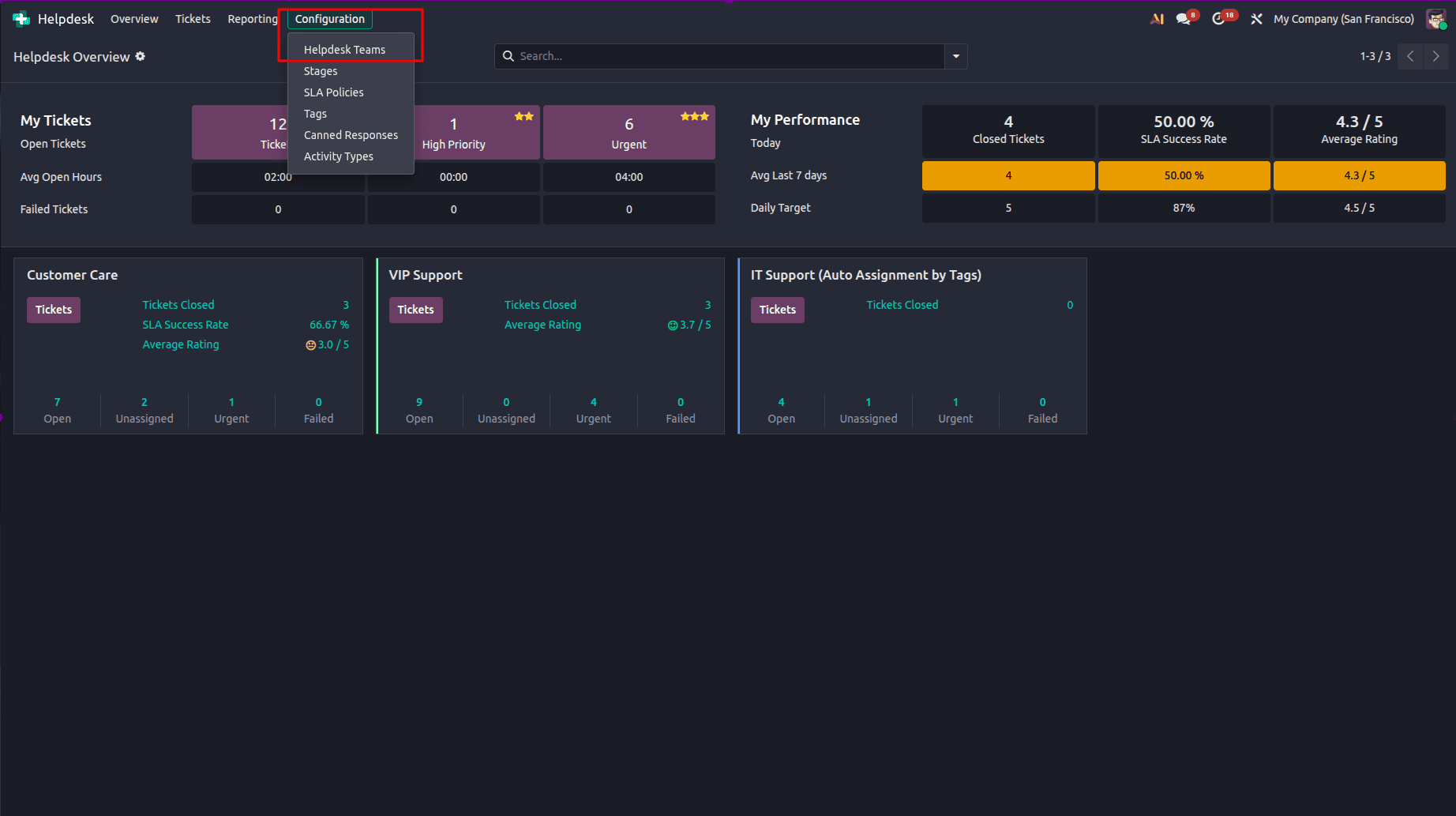
- Go to Helpdesk > Configuration > Helpdesk Teams to access the Helpdesk team settings.
- Choose the Helpdesk Team whose after-sales services you want to activate, or press New if you want to create a new team.
- Scroll down to the After Sales portion of the Helpdesk team settings.
Step 2: Enable the After-Sales Options
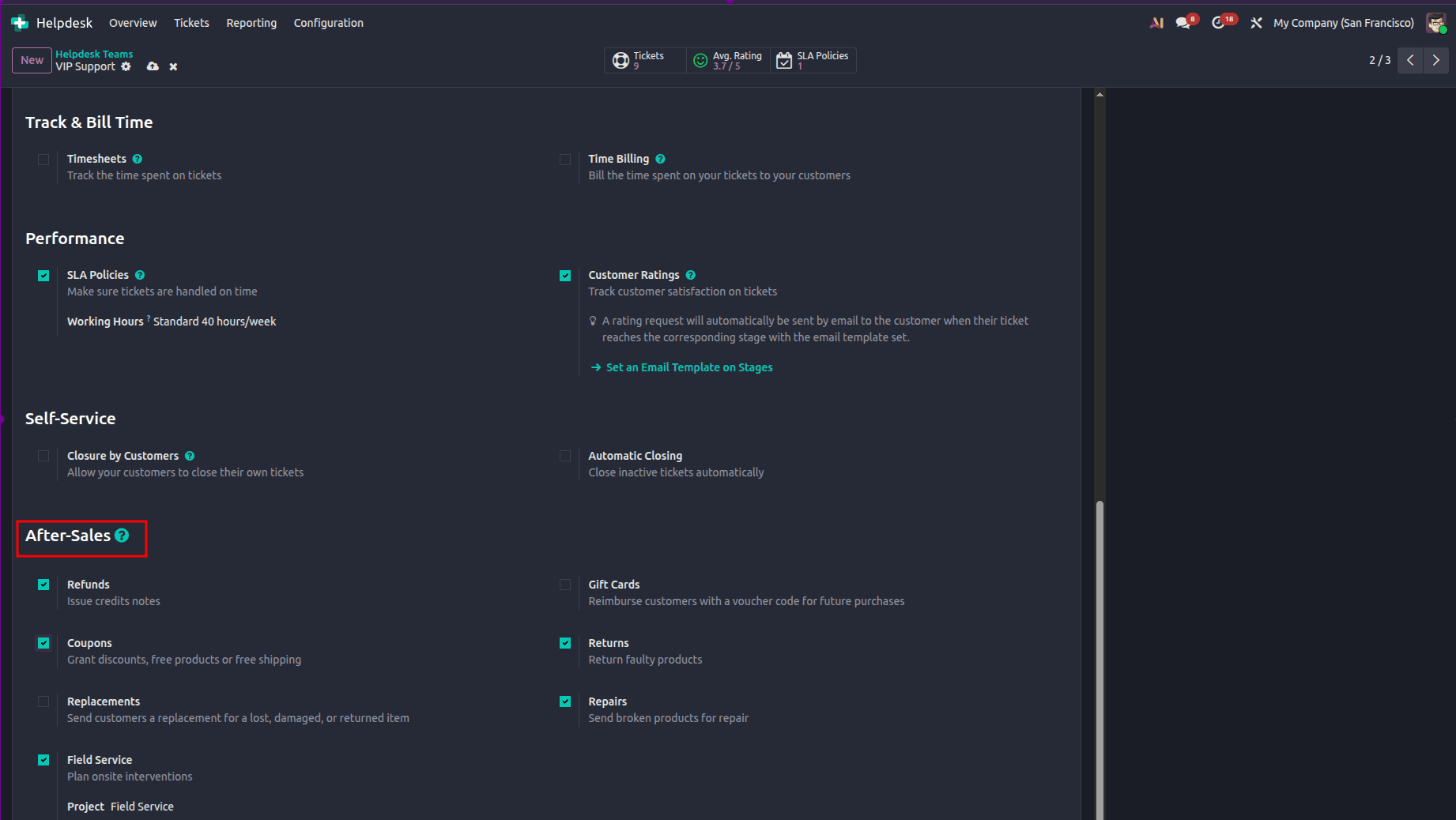
In the After-Sales section, choose the services you want to enable from the available options:
- Refunds: This option allows you to issue credit notes to customers or adjust outstanding amounts when required
- Coupons: Offer customers discount or free-product coupons as part of the after-sales support process.
- Returns: Process product returns through reverse warehouse operations.
- Repairs: Prepare repair orders from the ticket itself through the Repairs module.
- Field Service: Schedule your service appointments via the Field Service app.
Using After-Sales Features from a Ticket
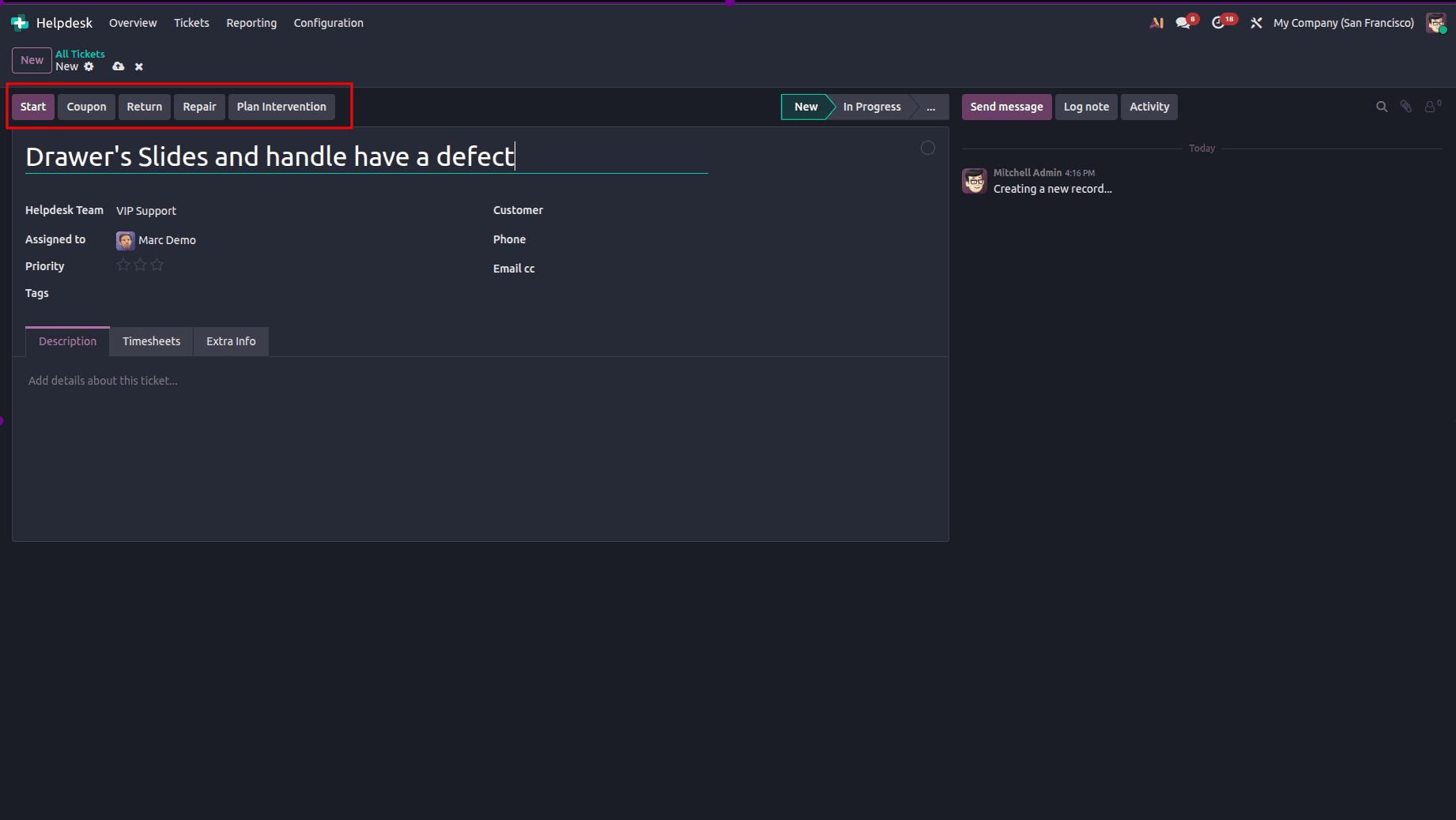
With everything set up, the customer service staff will be able to perform the After-Sales tasks directly in the ticket. Some of the available actions are.
1. Issue a Refund (Credit Note):
- A Refund button is displayed in the top-left corner of the ticket form.
- A pop-up box will open up from which you can pick options like Sales Order (if any), Product, Lot/Serial Number (if any), Invoices for Credit, Reason, Journal, and Reversal Date.
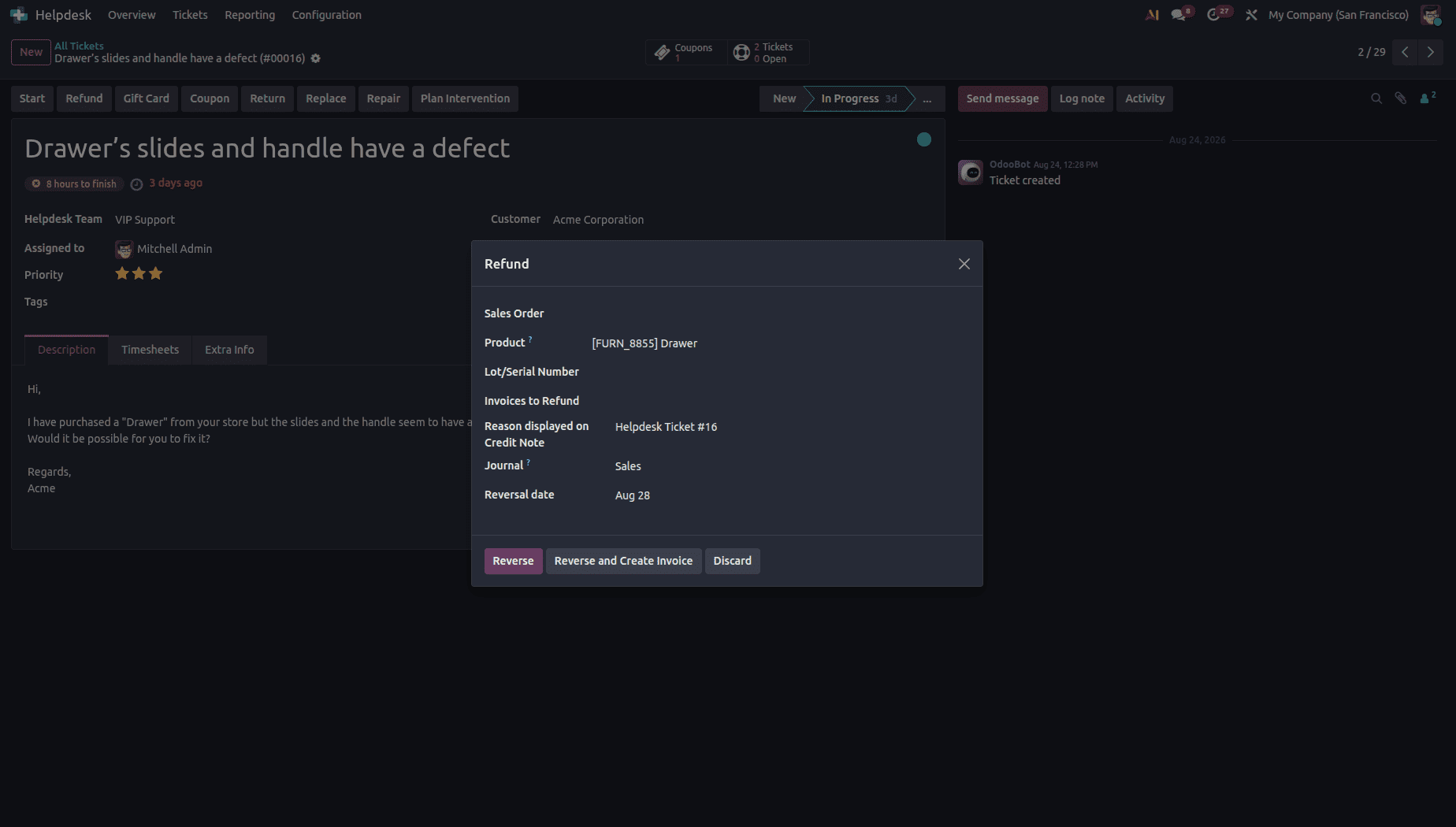
- There are two choices available to you: Reverse, which gives you the chance to edit the transaction and prepare the credit note, and Reverse and Create Invoice, which will post the credit note and make a new draft invoice.
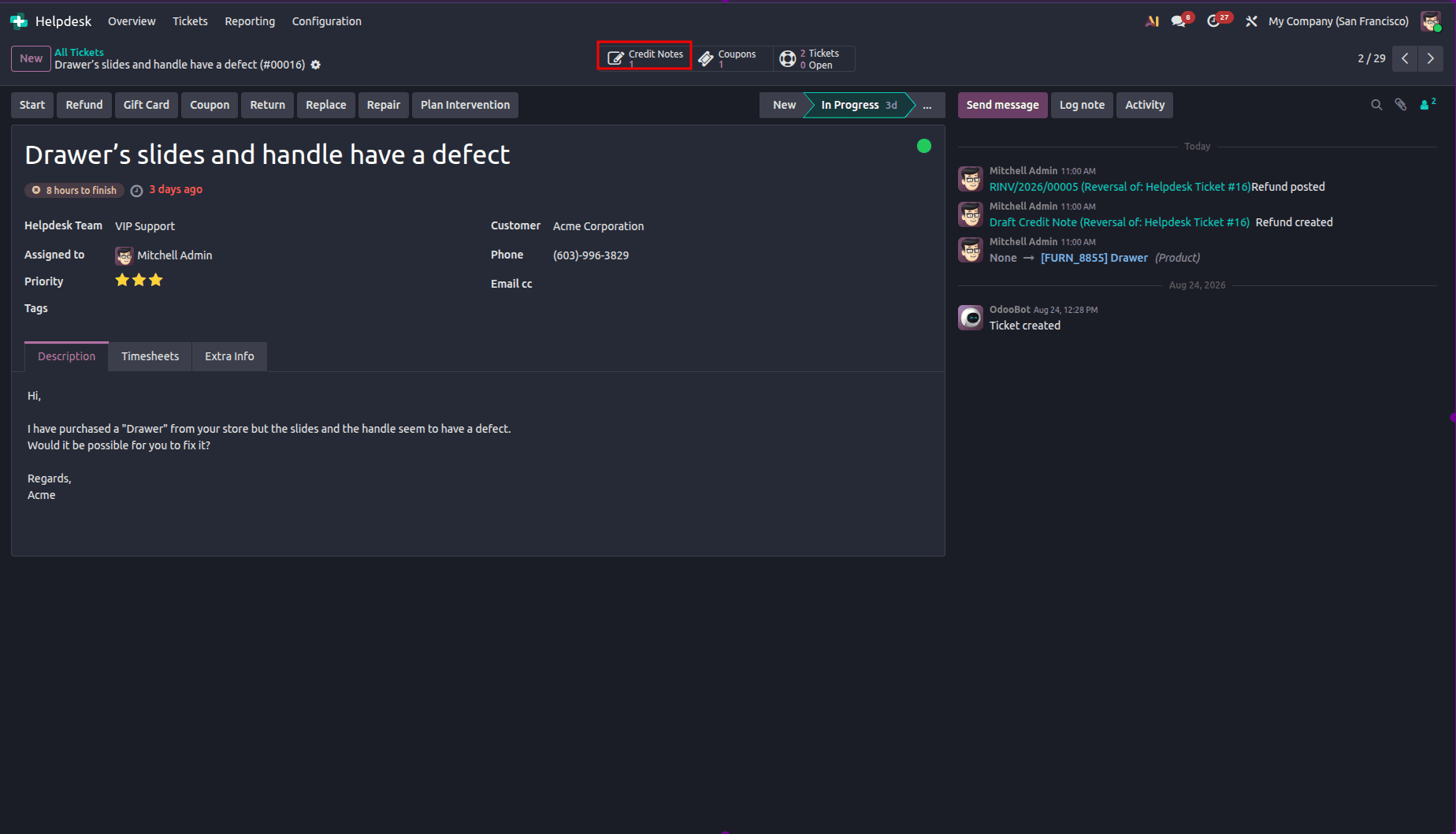 After posting the credit note, a "Credit Notes" button will show up in your ticket, enabling you to view the attached credit note.
2. Generate Coupons
- Click the Coupon button on the ticket to access the coupon details.
- Select a Coupon Program from the dropdown list. Ensure that the program has been created under Sales, Website, or POS with Program Type set to Coupons.
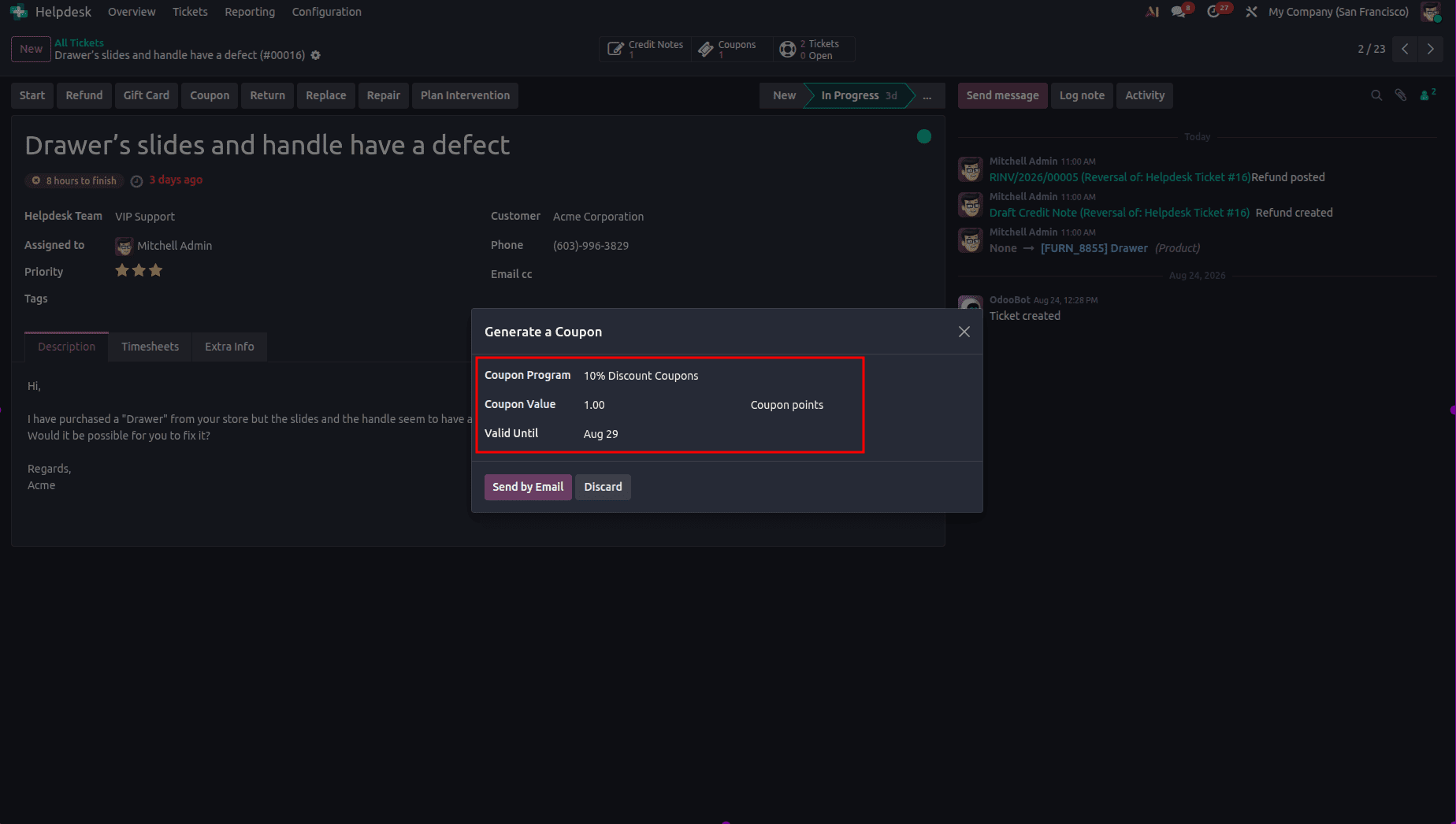
- Enter Valid Until if necessary. Finally, click Send by Email to email the coupon to the client or Get Share Link to send it directly.
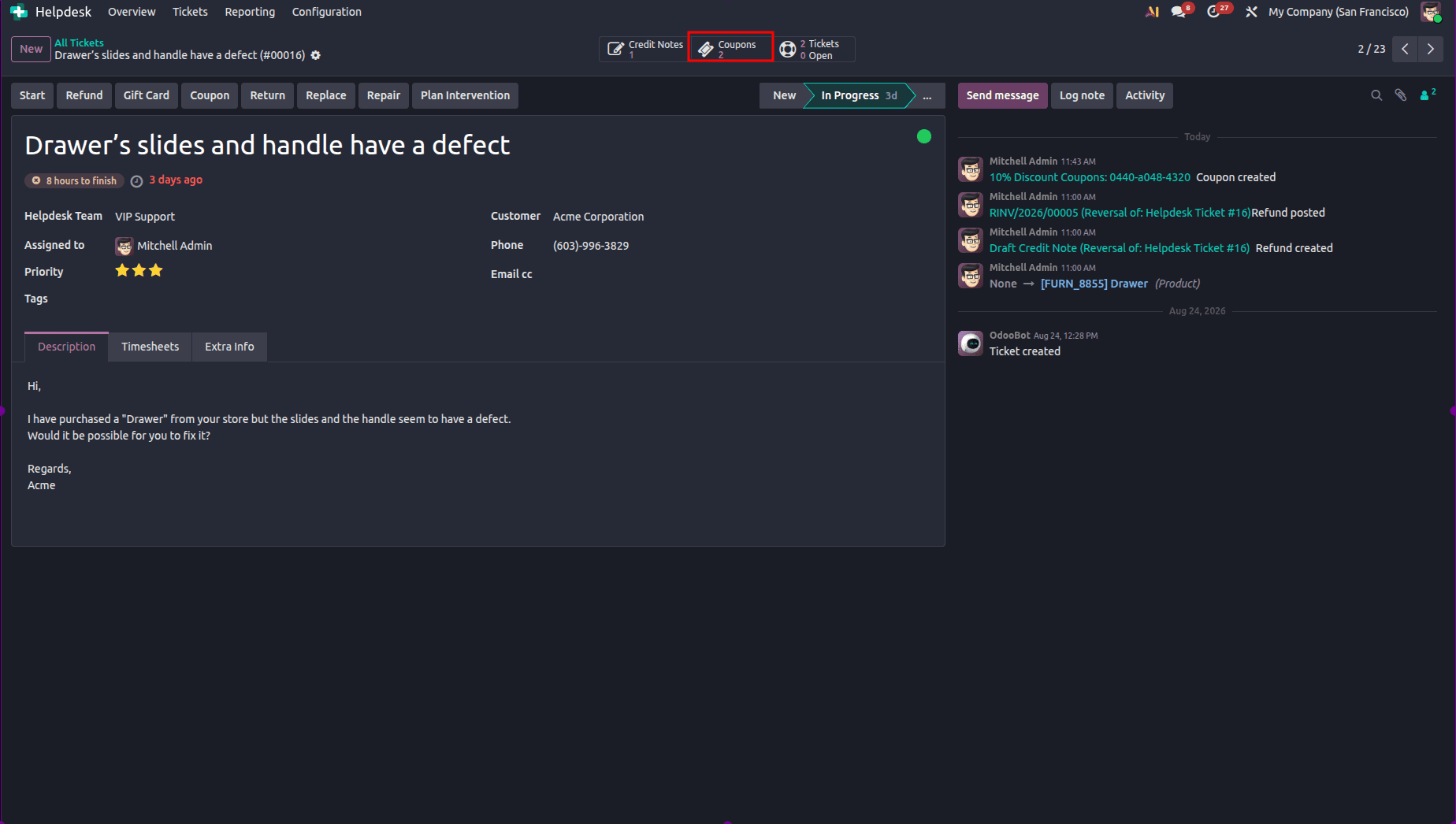
- After the coupon is generated, the Coupons smart button will appear on the ticket, allowing you to track the associated coupon
3. Return Products
- Press Return on the ticket - this appears only when there is a record of delivery in the system.
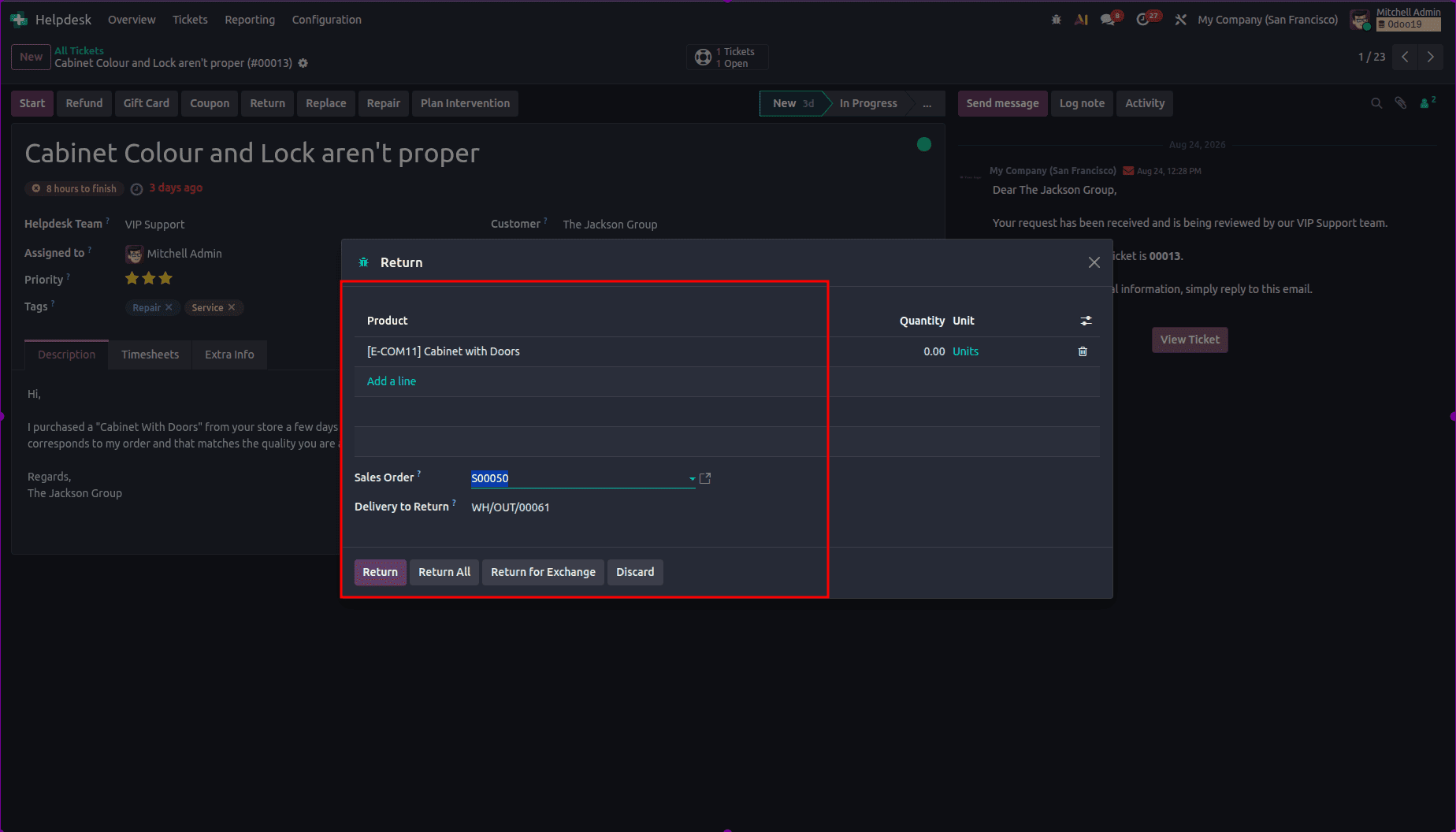
- In the pop-up: Select the Sales Order/Delivery you want to return, adjust the quantities (the default is the validated delivery quantity), and select the Return Location.
- Click Return to process a standard return, or Return for Exchange to send a replacement. This will create an opposite warehouse system.
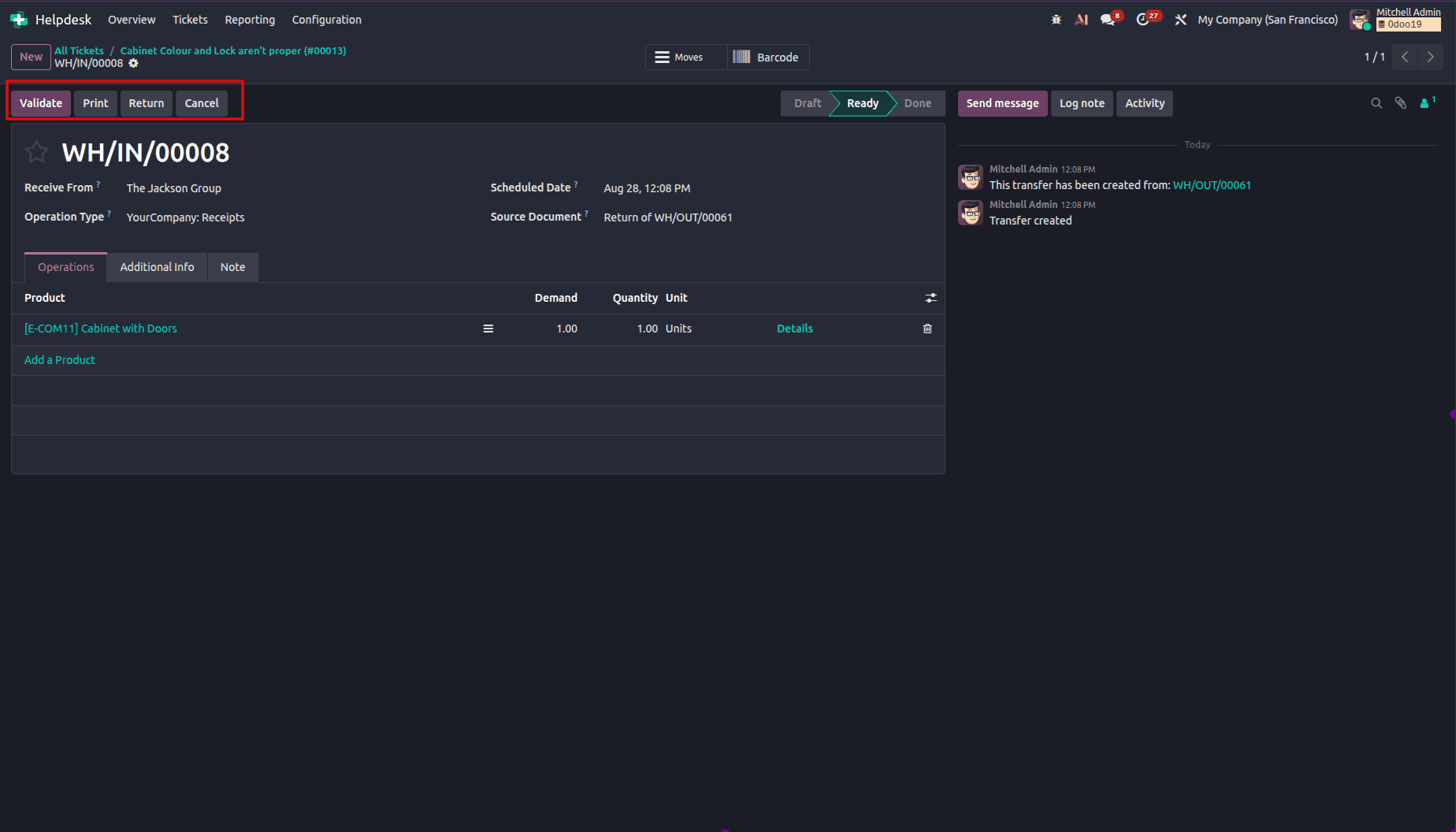
- When finished, the present screen will appear. Press Validate to continue.
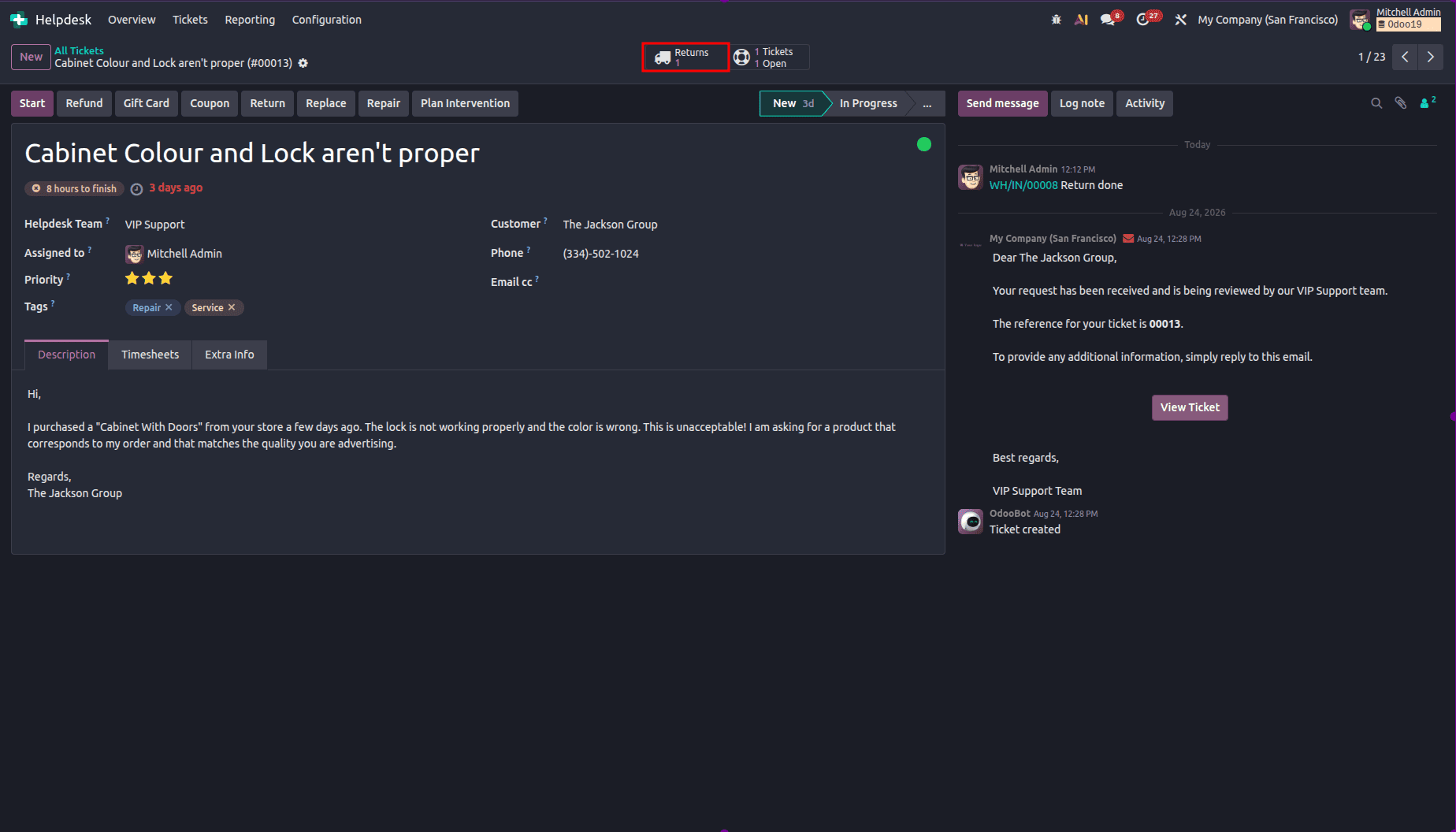
- Upon processing, a Returns smart button will pop-up on the ticket.
4. Send Products for Repair
- Click the Repair button on the ticket to initiate the repair process.
- Fill out the Repair Reference: Input or confirm the Customer (defaulted), Product, Lot/Serial number (if monitored), Return (if any), Warranty Status, Planned Date, Responsible User, and Tags.
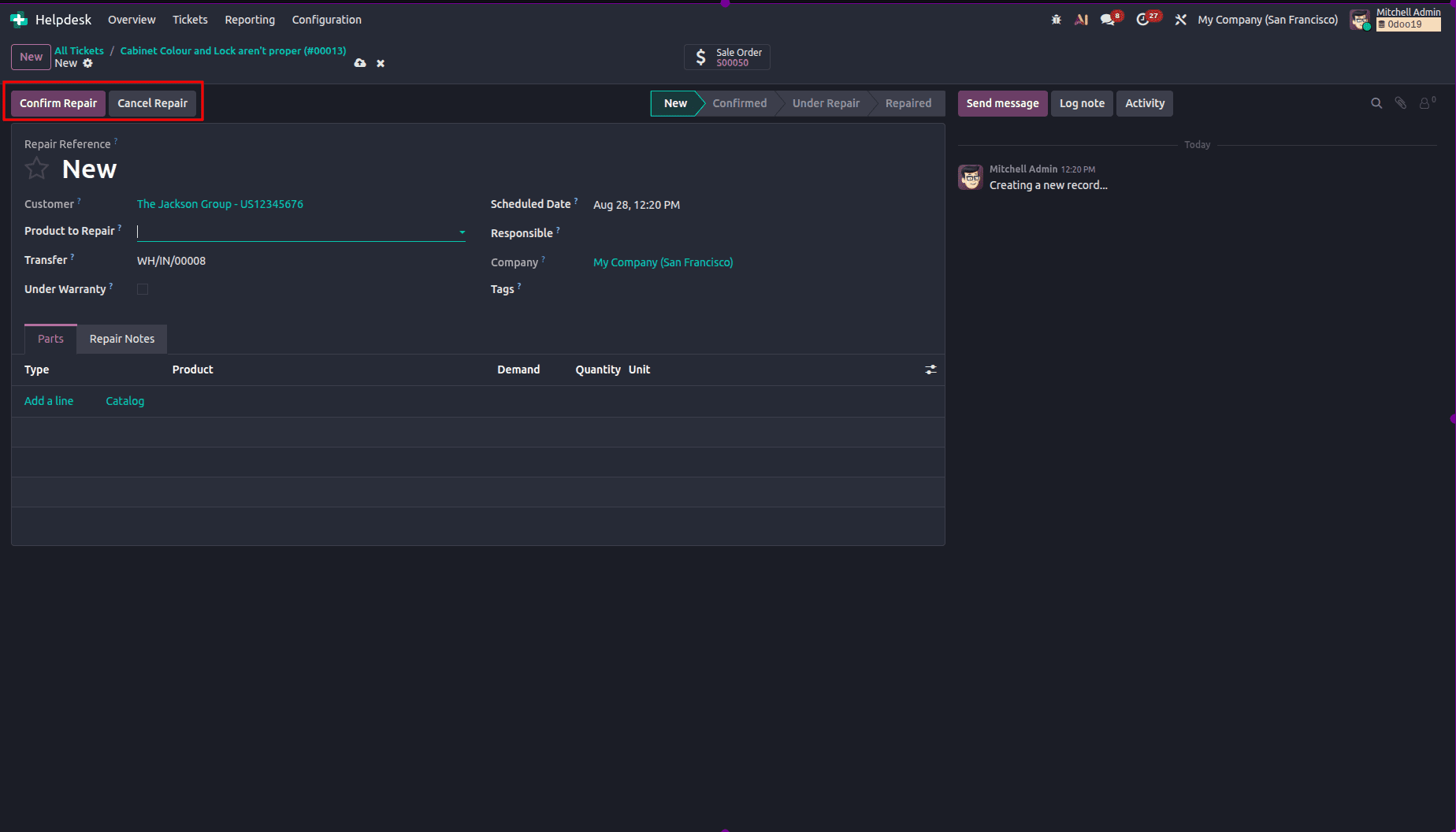
- Under the Parts tab, enter the spare parts needed. Use the Notes/Quotation tabs to provide any additional information.
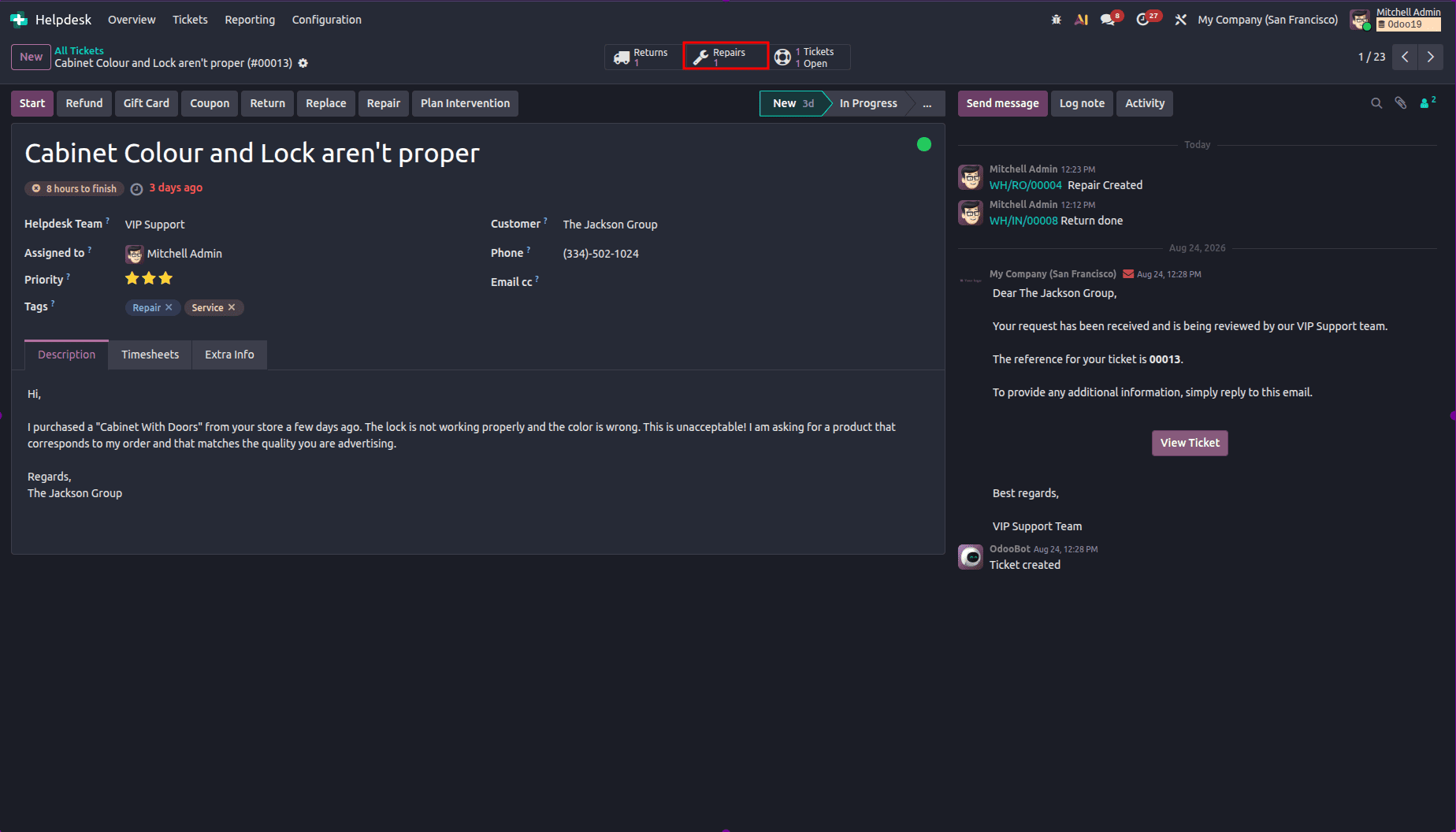
- Click the Confirm Repair option, and add a quotation, if needed. After confirming the repair, the Repairs smart button will show on the ticket.
5. Field Service Tasks from Ticket
- On the ticket, select Plan Intervention to set up a Field Service task.
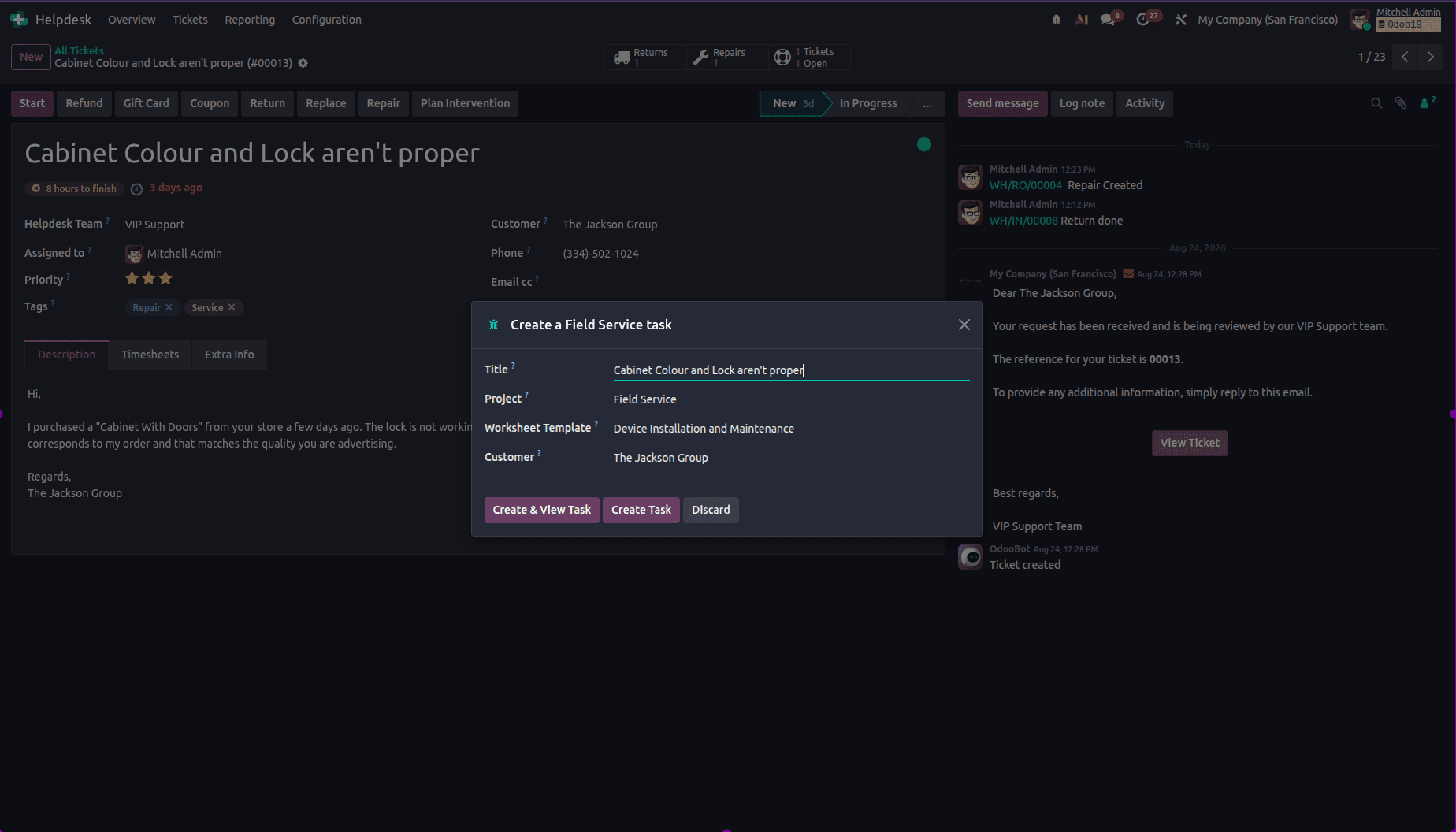
- Title defaults from ticket: The Project is populated using the settings chosen by the team, although you can modify it. Also, you may choose a worksheet template if your project allows for worksheets.
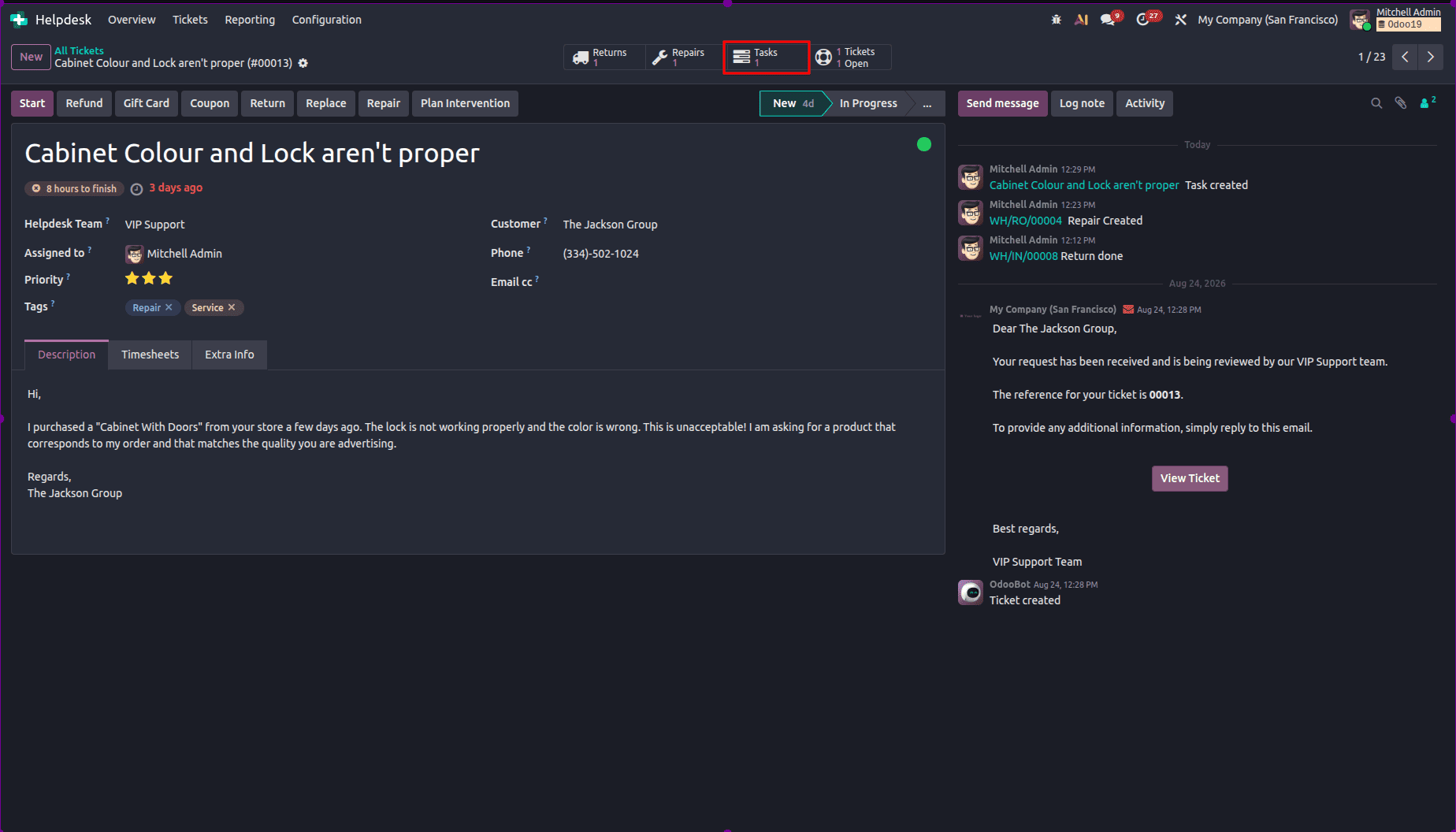
- Select Create Task or Create & View Task to create a service task. After that, a smart button for Tasks will be available in the ticket.
The provision of after-sales services in Odoo 19 Helpdesk allows the support staff to progress beyond just resolving issues in a reactive manner and adopt a proactive approach towards the provision of services to the customers. This can be achieved by processing refunds, coupons, returns, repairs, and on-site activities from tickets. The training of your support staff in the provision of these services should follow the procedures described above. You can then track the results based on various service measures.
To read more about How to Configure After-Sales Services in Odoo 18 Helpdesk, refer to our blog How to Configure After-Sales Services in Odoo 18 Helpdesk.