The advanced permission request applications for managing employee activities within an organization can be found in the Approval module of the Odoo 18 platform. Odoo 18’s methodology will establish a reliable system for processing authorization and approval requests. The rollout of a paperless module is anticipated to improve collaboration and facilitate information sharing between management and employees.
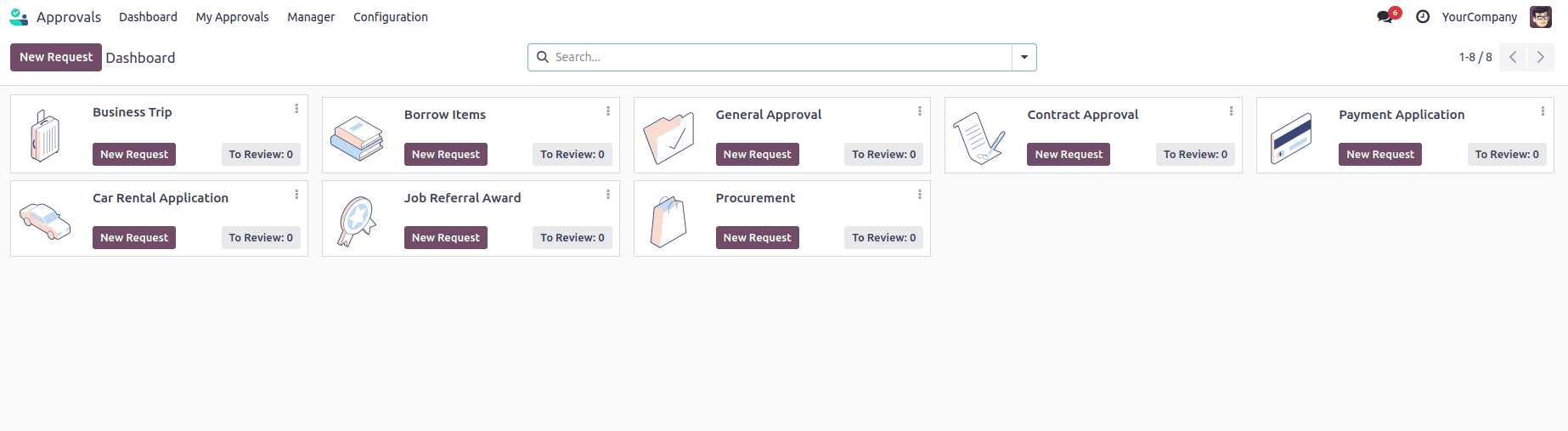
Before users can generate approval requests, they must first configure the approval types. This can be set up by selecting the approval types menu from the dashboard. Users have the option to create and customize new types or utilize various predefined ones. The dashboard form for generating additional approvals is shown in the image below.
Approvals Types
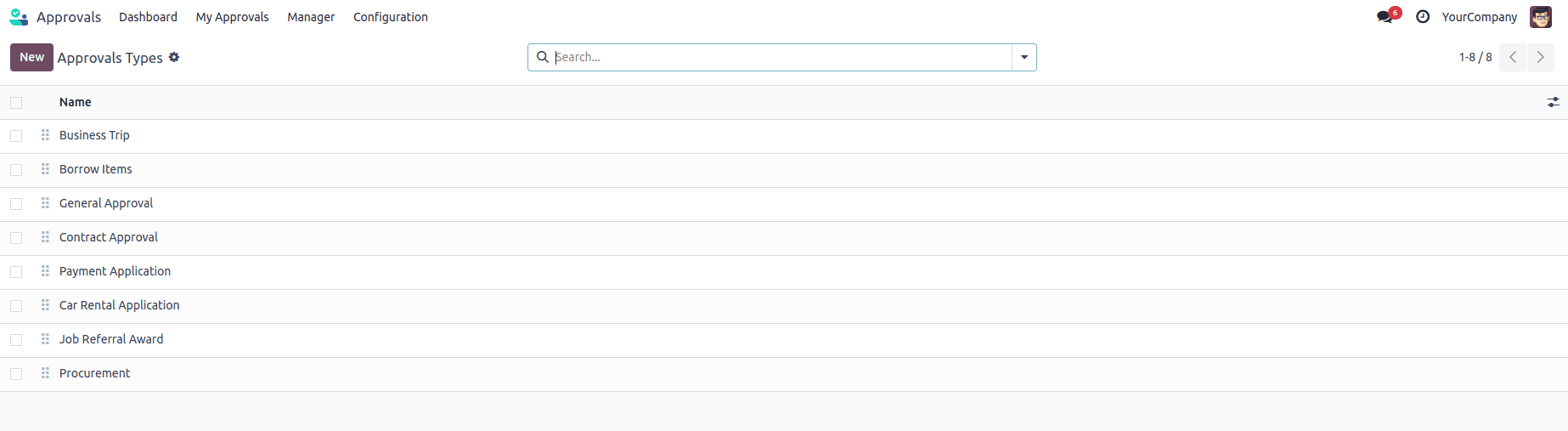
The approval types menu displays the available approvals, and by selecting the create option within the window, users have the ability to add a new approval. Numerous filtering and grouping methods, both standard and customizable, are accessible for arranging the list of approvals.
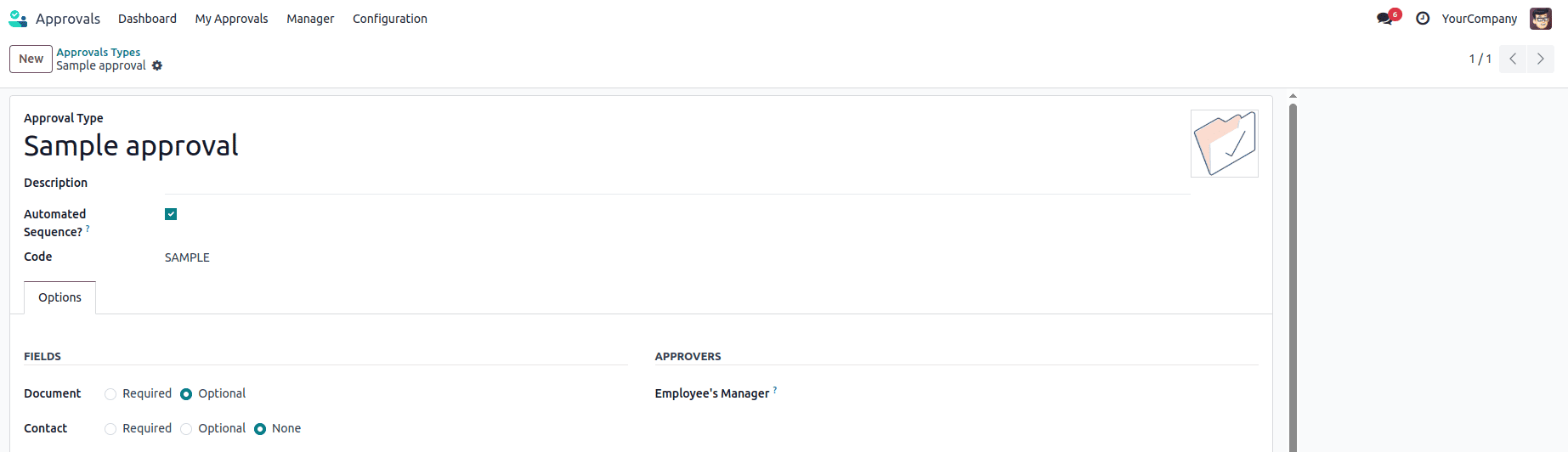
The conversation shown below illustrates how the user will be represented when they opt to create a new approval type. The user has the ability to provide a name and a description for the approval type. If the Automated Sequence feature is activated, the approval request will receive an automatically generated name based on the specified Code.
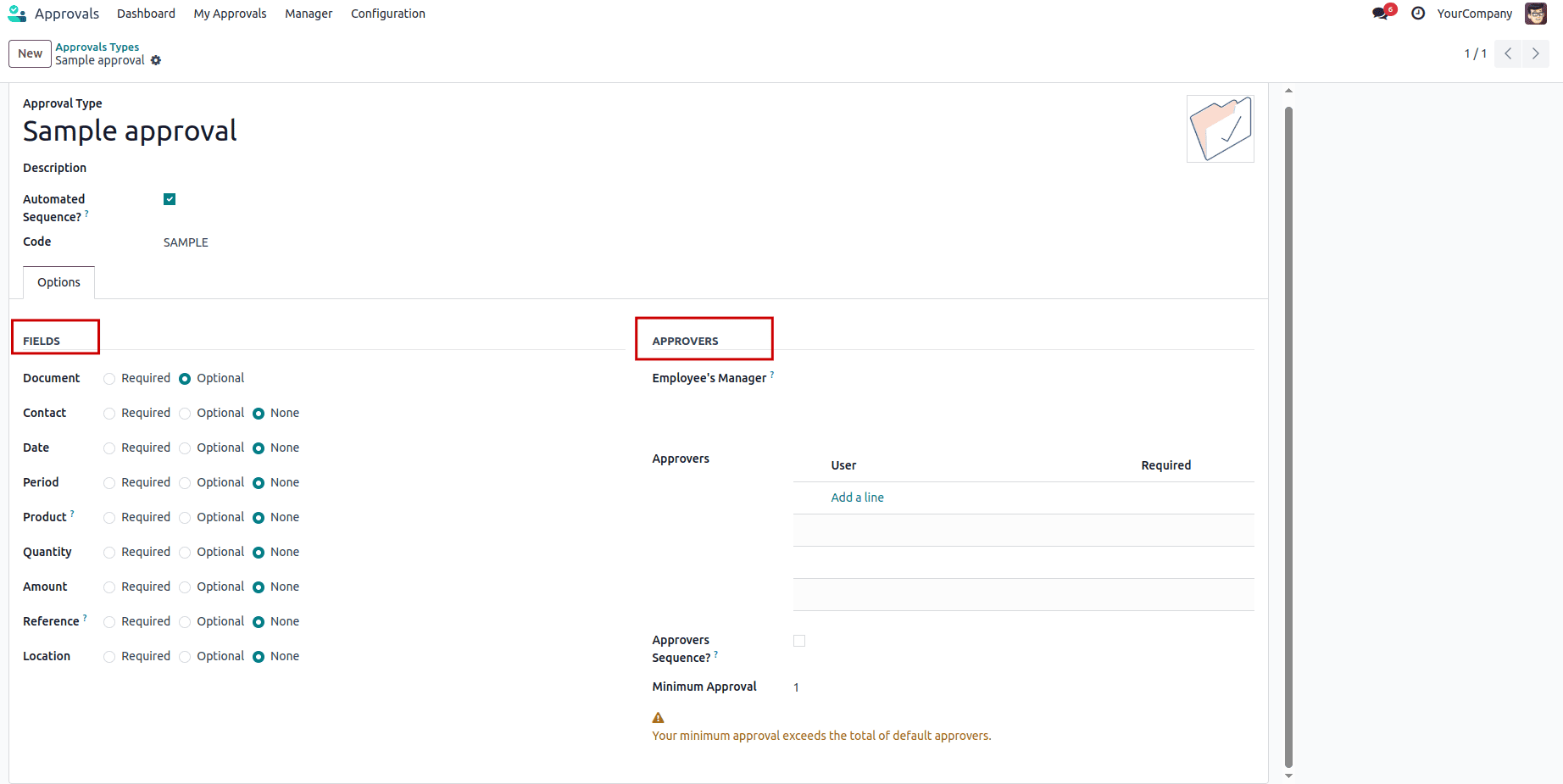
For the managers to grant approval, several field options can be designated as required, optional, or not required.
My Approvals Menu and Creating New Requests
The "My Approvals" menu is the initial section of the Odoo Approval module that features two options: "New Request" and "My Requests."
New Requests
The "New Requests" window, which acts as the module's homepage and offers many approval dashboards, appears as soon as you launch the Approval Module.
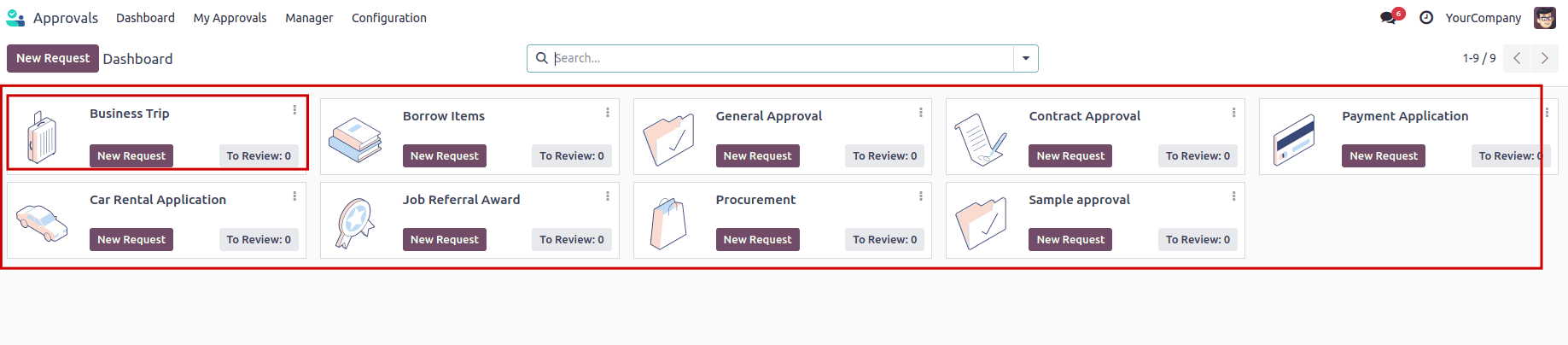
This is the dashboard for the various approvals. Among other things, it is arranged in Kanban cards and contains cards for business travel, financing, contract approvals, general approvals, payment applications, and car rental applications. We can see how many requests are still pending approval by clicking the "TO REVIEW" button on the left side of the Kanban board.
Additionally, by selecting the "NEW REQUEST" button on the Kanban board, we can initiate a new approval request. I just had to click the "NEW REQUEST" button on the "Business Trip" Kanban card to submit a new request for a business trip. The related request configuration form will then show up, as seen below.
Request Owner: This shows the person submitting the request.
Employees can create any type of request that fits their needs and submit it to the relevant Kanban card.
Category: The type of approval request, which is set to "Business Trip".
Period: This section requires specifying the duration of the trip. The label "From" is visible, indicating fields will be needed for the start date and likely the end date (or period length).
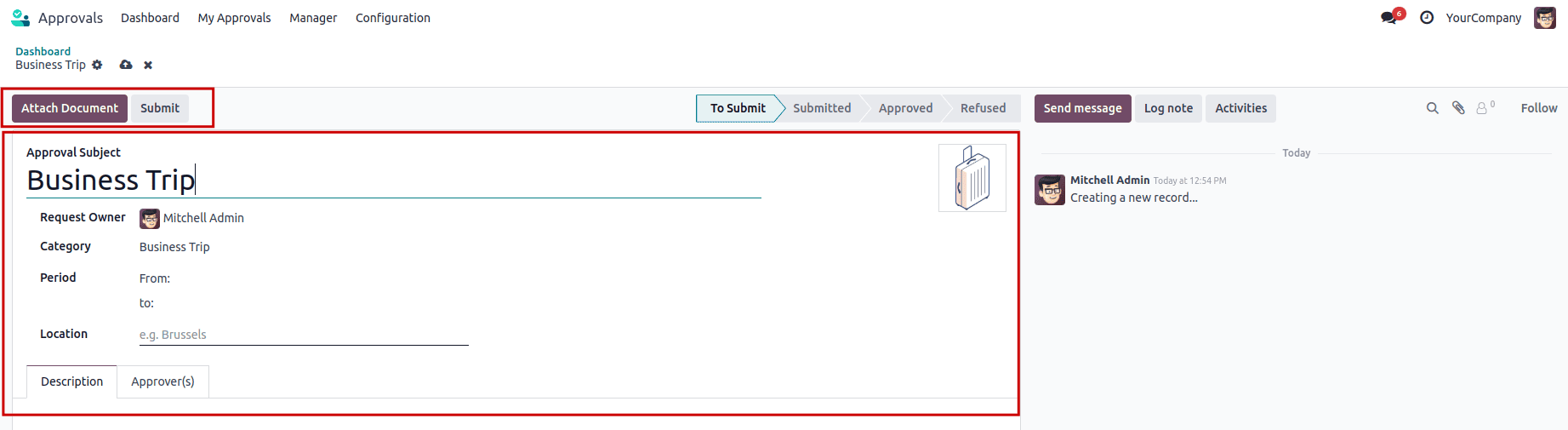
Attach Document: This button allows the user to upload necessary supporting files.
My Requests
From the "My Approvals" menu, we can access the "My Requests" page. You can continue to monitor the status of your individual requests using this section.
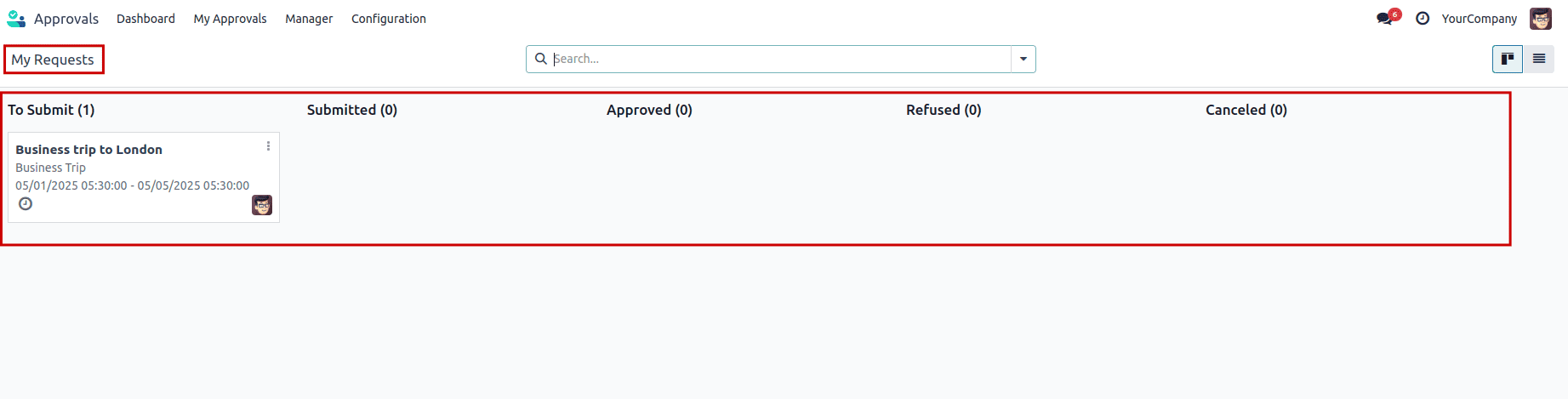
Your requests will be arranged as "To Submit," "Submitted," "Approved," etc, as shown in the screenshot above. You can view the requested data on the Kanban cards. This is the only request that has been posted, and it is still in its early stages. The request will appear in the "Submitted" area after it has been uploaded. You can click the "+" symbol to add new requests.
Manager Menu
Managers have the ability to review, manage, and approve employee requests through the "Manager" option. "Approvals To Review" and "All Approvals" are the names of the two sections in this menu.
Approvals To Review
The manager can view the requests that are still undergoing review and approval in this section.
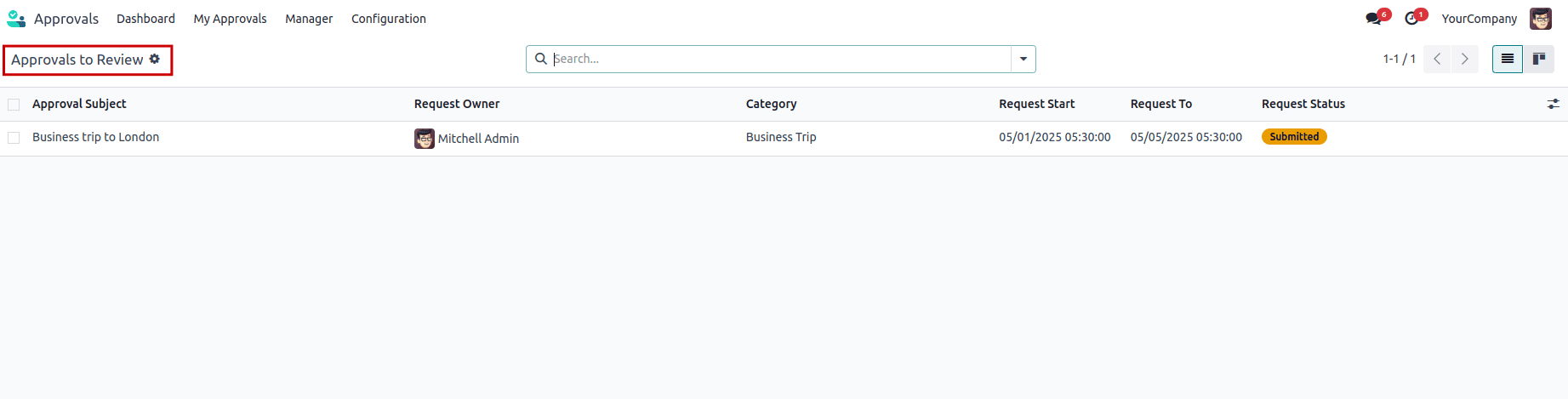
You can use the "Export All" icon that is located beneath the gear symbol to export the files or documents of the approvals. This displays the request that is pending review.
All Approvals
All permission requests submitted to a manager appear on the dashboard under the "All Approvals" menu. This allows managers or responsible approvers to view and manage the complete list of employee requests that fall within their scope of responsibility.
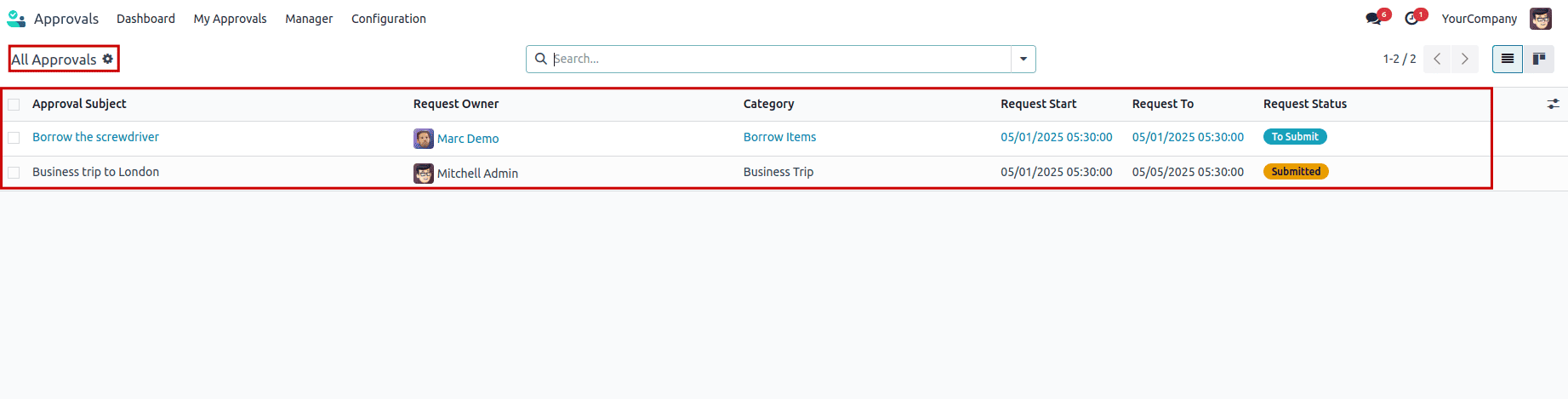
Your approvals will be arranged by "Approval Subject," "Request Owner," "Category," "Activities," and "Request Status." Clicking on any approval column will allow you to examine or approve the requests. You can use the "Filter," "Group By," and "Favourites" options to filter the required permissions if you have a large number of them.
Configuration Menu
Odoo18 provides small-scale settings features in the "Approvals" Module platform's "Configuration" menu. Among the options on this menu are "Products," "Approvals Types," and "Product Variants."
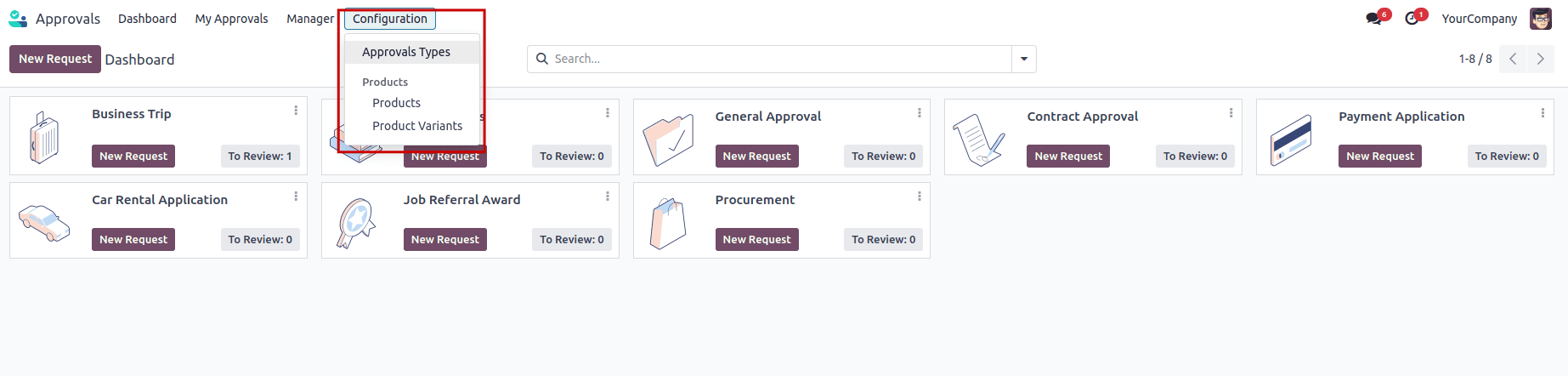
The Odoo 18 Approvals Module is a powerful tool designed to boost efficiency and control across all your internal processes.
To read more about How to Configure and Manage ECO Approvals on ECO Stages in Odoo 18, refer to our blog How to Configure and Manage ECO Approvals on ECO Stages in Odoo 18.