In Odoo 19, organizing products effectively is essential for managing purchases smoothly and efficiently. Product categories help businesses group similar items, making it easier to control purchasing rules, pricing, and inventory flow. By using well-structured product categories, purchase teams can save time, reduce errors, and maintain better visibility across their procurement operations.
Creating and managing product categories in Odoo 19 allows businesses to apply consistent settings such as expense accounts, valuation methods, and vendor-related configurations. Instead of managing each product individually, categories enable centralized control, ensuring uniformity and smarter decision-making during purchasing and stock management.
In this blog, we will explore how to create and manage product categories in Odoo 19 and understand how they support smarter purchasing practices. The article will guide you through the category setup process and explain how proper categorization improves efficiency, accuracy, and overall purchase management.
In Odoo 19, Product Categories play a crucial role in controlling how products behave across Purchasing, Inventory, and Accounting. While their impact extends to stock valuation and financial postings, the configuration of Product Categories is accessible from the Purchase module under the Configuration menu. By defining product categories correctly, businesses can centralize purchasing rules, ensure consistent accounting treatment, and streamline warehouse operations for similar groups of products.
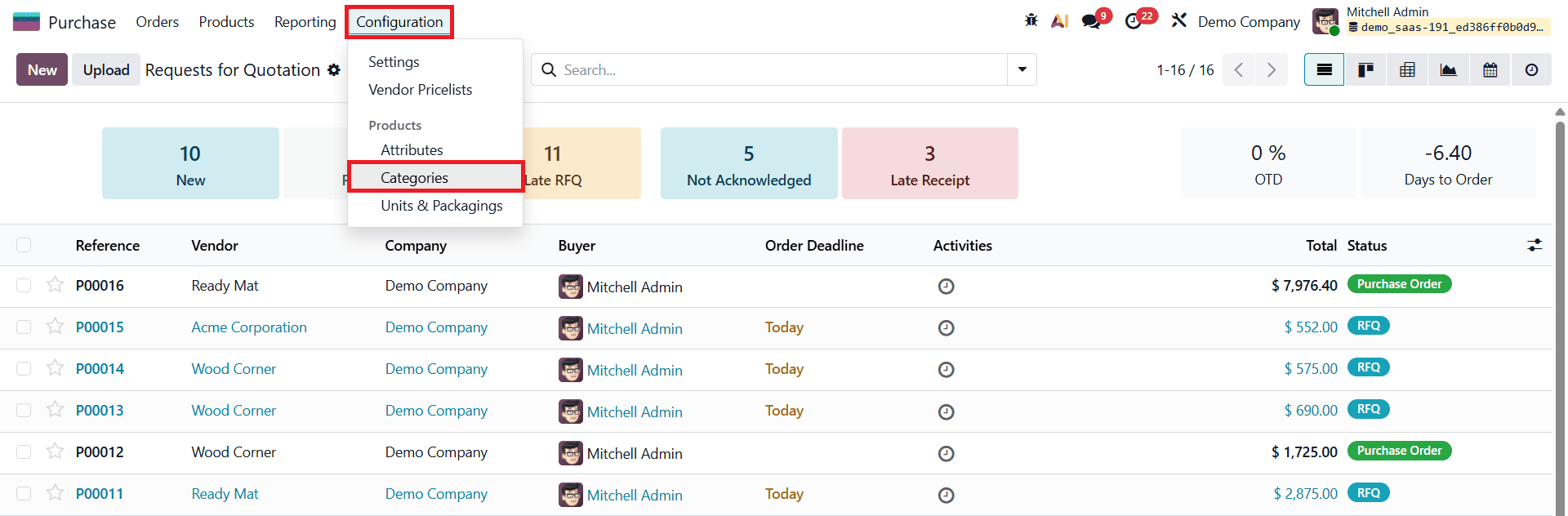
To configure a new product category, navigate to Purchase > Configuration > Product Categories and click the New button.
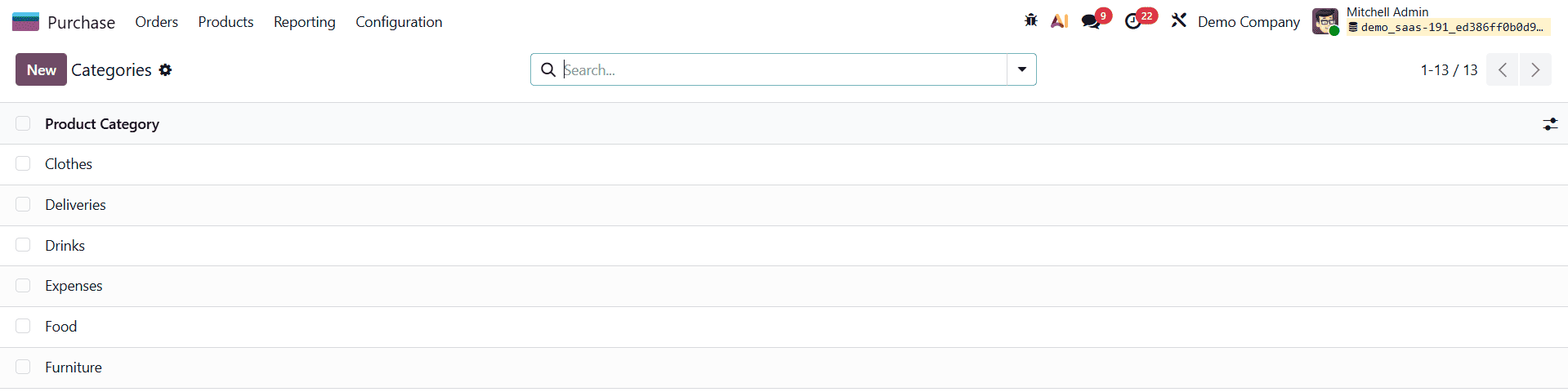
Each category begins with a Category Name, which helps identify the type of products it represents.
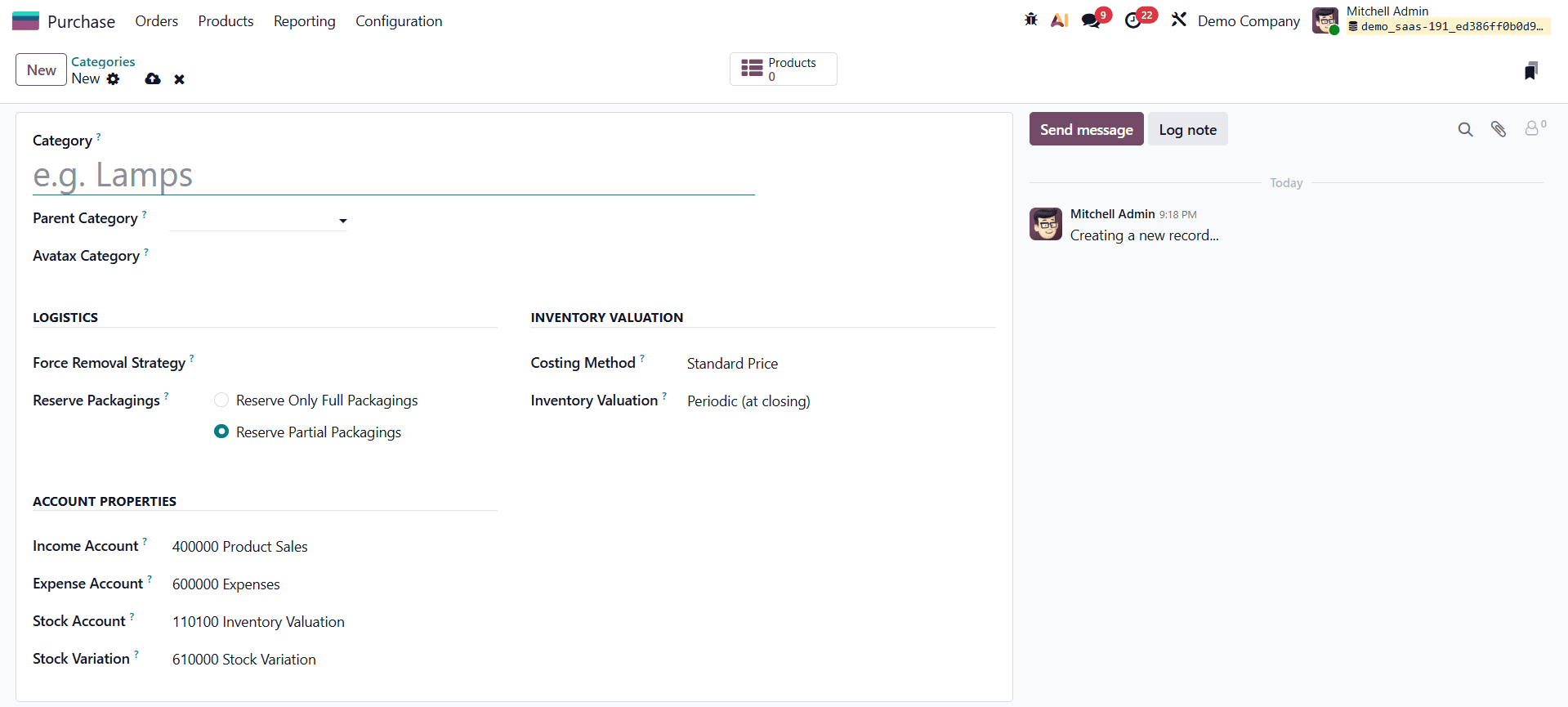
Categories can also be organized under a Parent Category, allowing businesses to build a clear and logical product hierarchy. This hierarchical structure is especially useful for large catalogs, as it simplifies reporting, purchasing analysis, and category-based configurations. The Avatax Category field is used when integrating automated tax solutions, enabling accurate tax mapping during purchase and sales transactions.
Under the Logistics settings, several important options determine how products in the category are handled during warehouse operations.
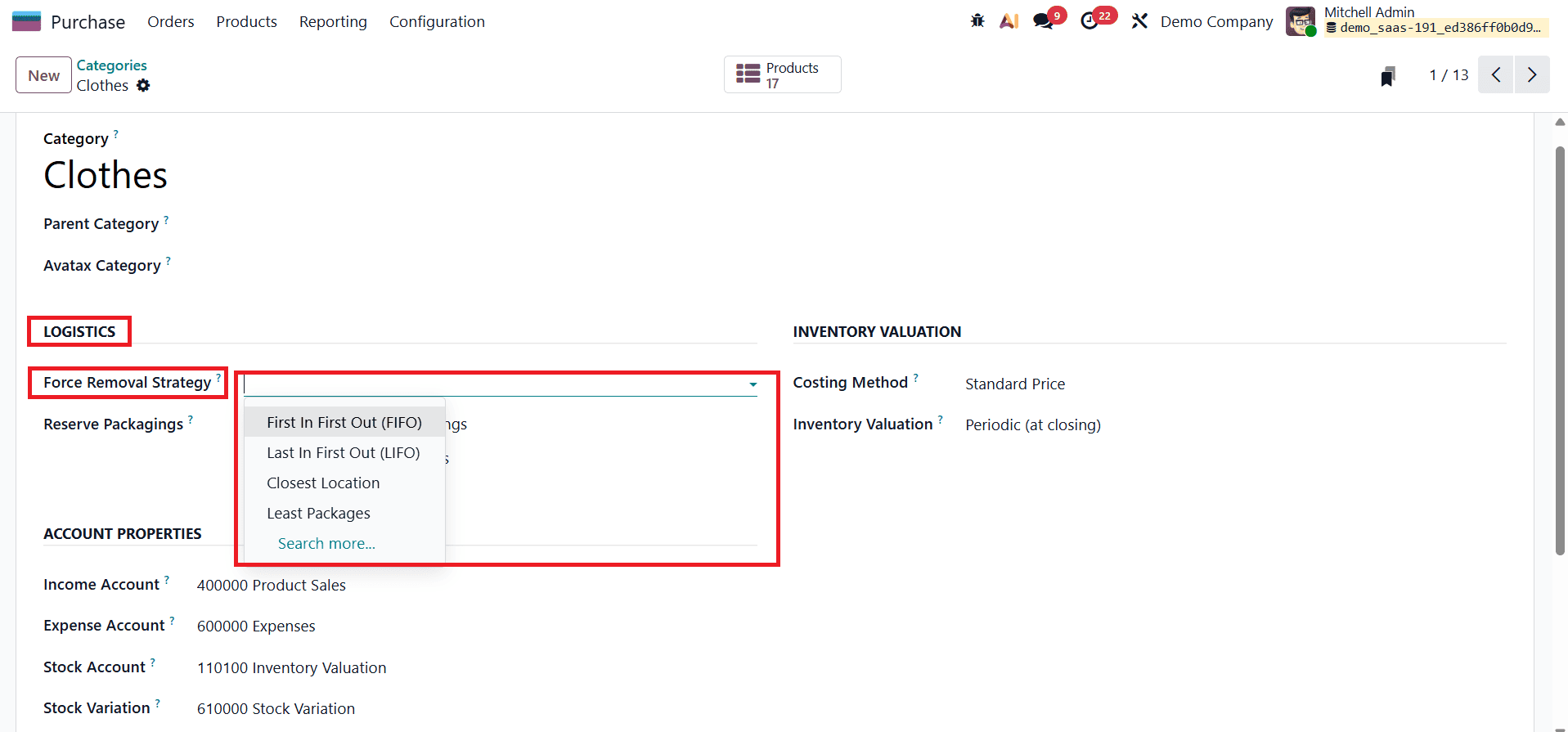
The Force Removal Strategy defines how items are picked from stock. Selecting First In First Out (FIFO) ensures that the oldest stock is used first, which is ideal for perishable or time-sensitive products. Last In First Out (LIFO) prioritizes the most recently received items, which can be useful when newer stock is more accessible or preferred. The Closest Location strategy selects products stored nearest to the picking location, helping reduce picking time and improve warehouse efficiency. The Least Packages option ensures that products are reserved using the minimum number of packages or containers, reducing partial picks and optimizing handling efficiency.
In addition, the Reserve Packagings options control how products are reserved during stock operations. By choosing Reserve Only Full Packagings, Odoo ensures that reservations are made only in complete packaging units, which is useful for bulk or sealed products. Alternatively, Reserve Partial Packagings allows the system to reserve smaller quantities from a package, providing greater flexibility for products sold or purchased in varying quantities.
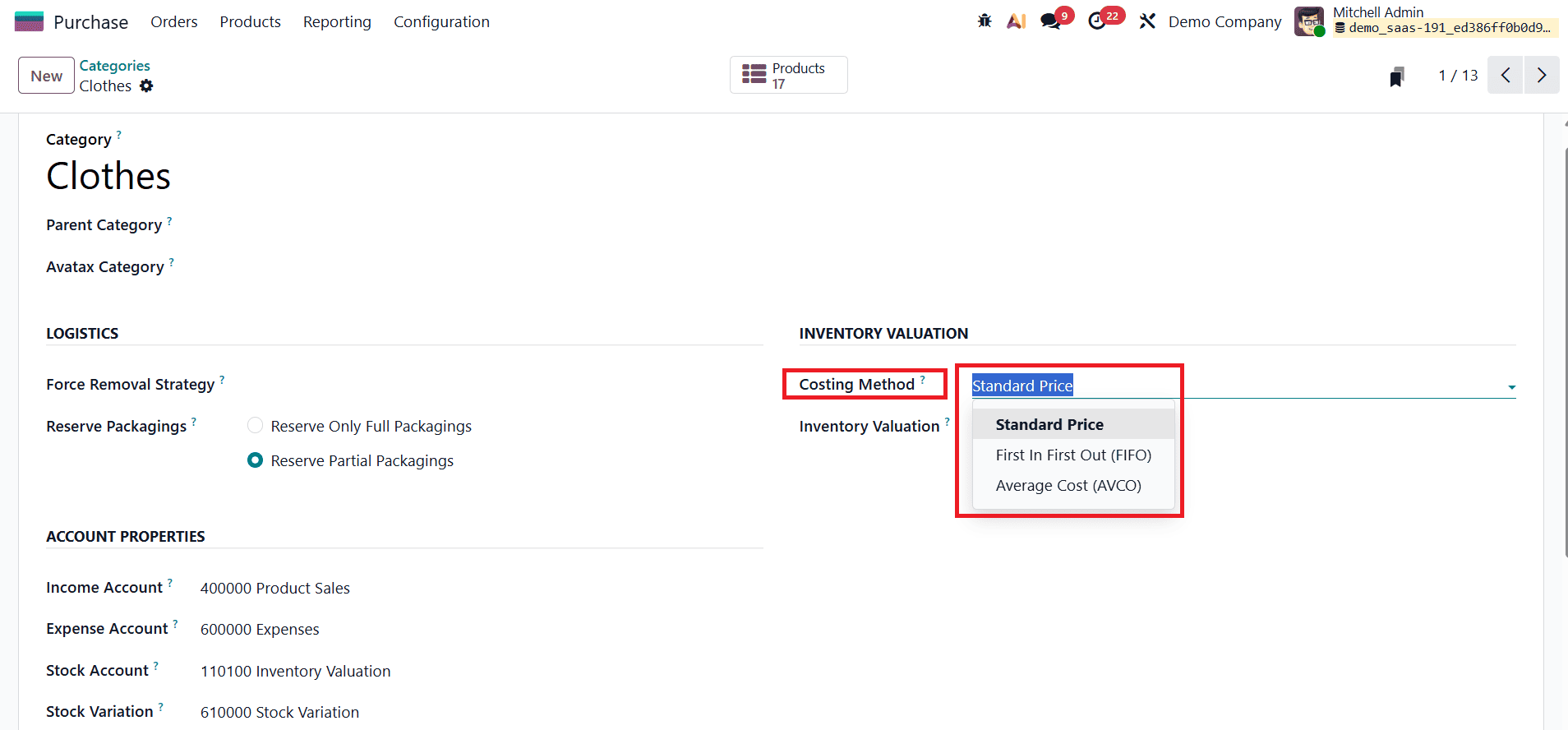
The Inventory Valuation section determines how product costs are calculated and tracked. The Costing Method plays a key role here. Using Standard Price, a fixed cost is assigned to products and remains unchanged unless manually updated, making it suitable for items with stable pricing. The FIFO costing method assigns costs based on the oldest stock first, ensuring accurate valuation when purchase prices fluctuate. Average Cost (AVCO) continuously recalculates the product cost by averaging the value of existing inventory with each new purchase, providing a realistic and balanced valuation for products with frequent price changes.
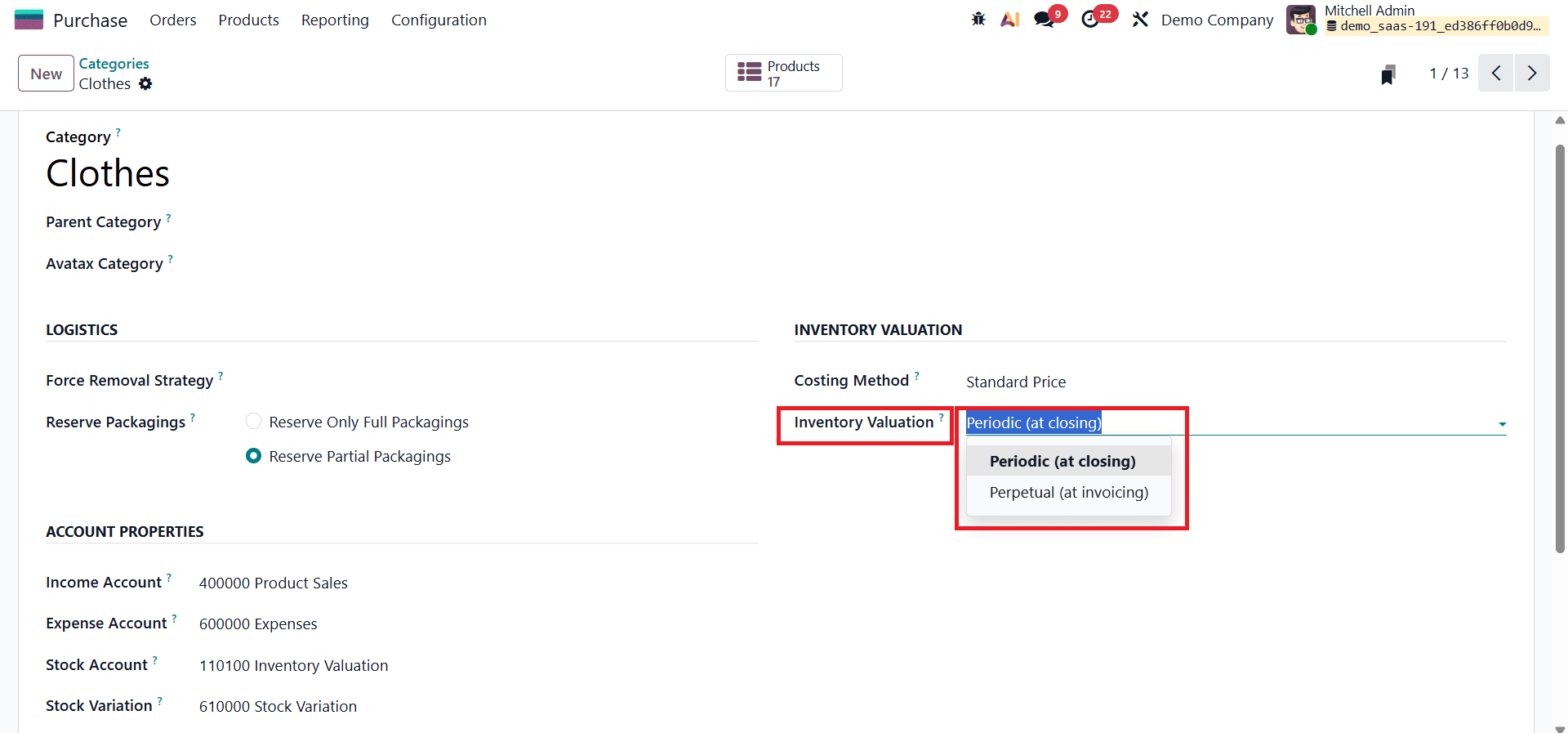
Alongside costing methods, the Inventory Valuation mode defines how accounting entries are generated. With Periodic (at closing) valuation, inventory-related accounting entries are recorded manually at the end of an accounting period. In contrast, Perpetual (at invoicing) valuation automatically updates inventory values and creates corresponding accounting entries in real time whenever products are purchased, sold, or adjusted. This ensures continuous financial accuracy and real-time visibility into stock value.
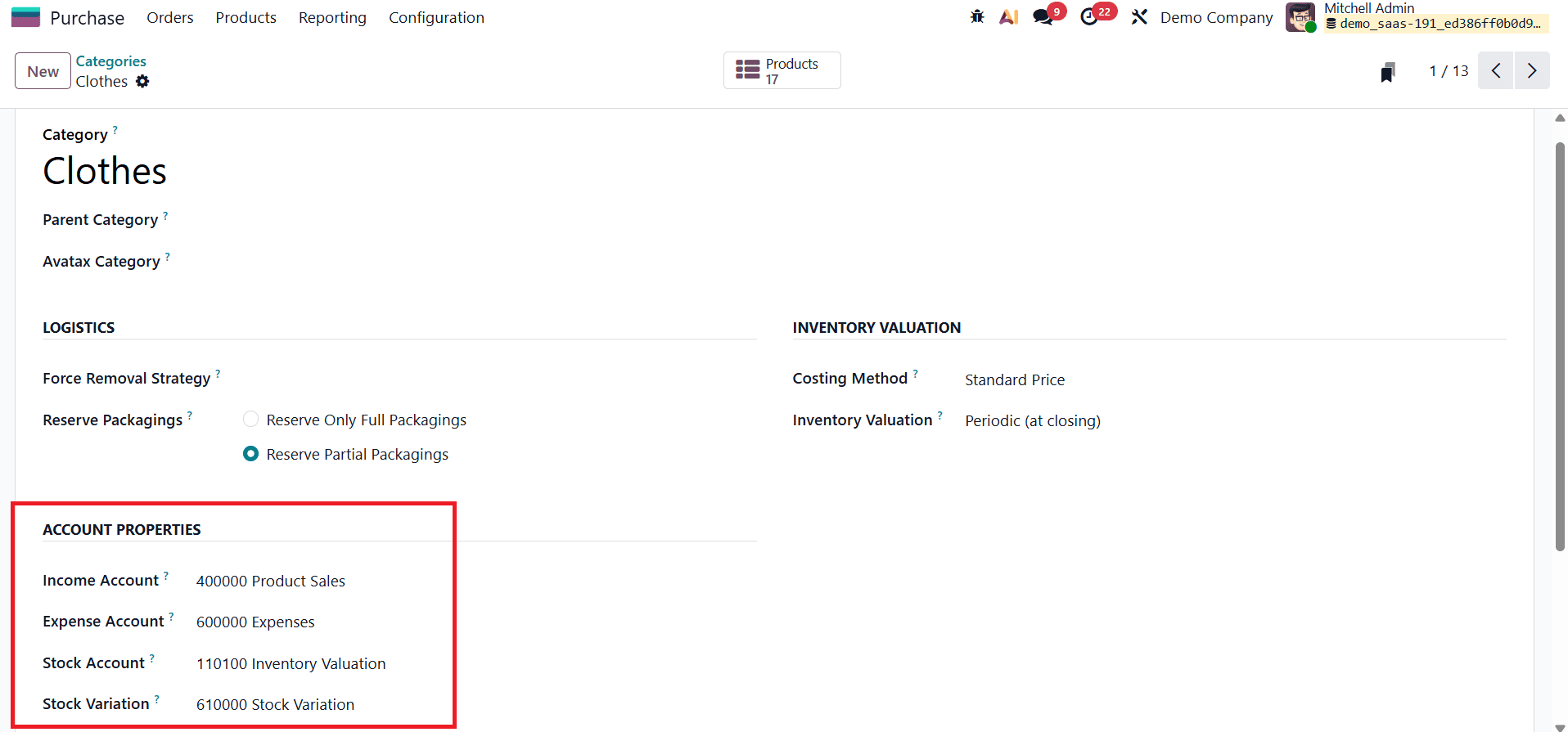
The Account Properties section specifies the accounts used for financial postings related to products in the category. The Income Account records revenue generated from product sales, while the Expense Account captures costs associated with purchasing those products. The Stock Account holds the inventory value on the balance sheet, and the Stock Variation account is used to record differences between purchase costs and actual inventory valuation. These configurations ensure accurate financial tracking of stock movements, cost variations, and valuation adjustments.
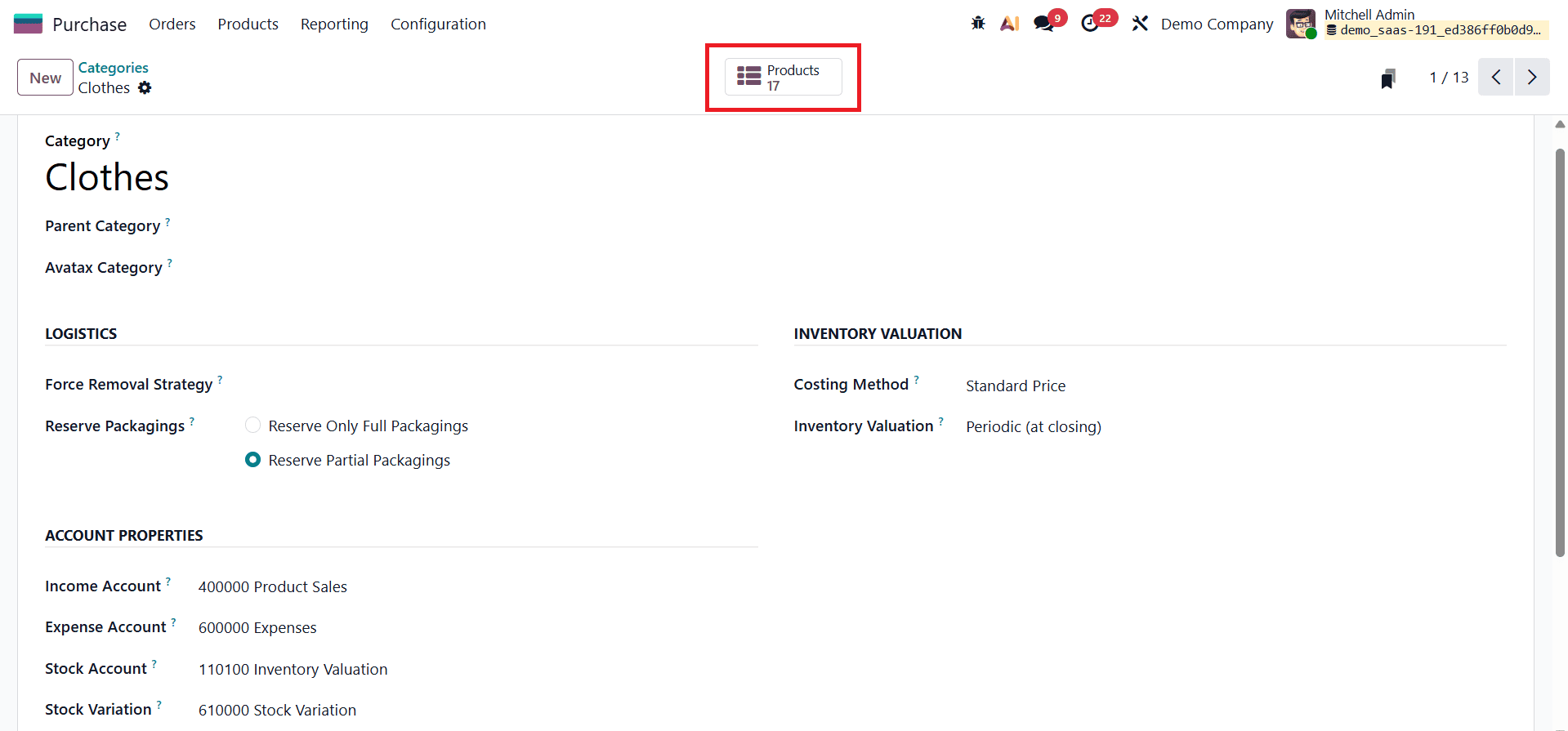
Once the product category configuration is completed and saved, a smart tab appears on the category form. This smart tab displays all products assigned to that particular category, allowing users to quickly review and manage related items. This feature enhances visibility, simplifies category-level management, and ensures that purchasing and accounting rules are consistently applied across all products within the category.
Product Categories in Odoo 19 provide a powerful way to standardize and control purchasing, inventory handling, and accounting behavior across similar products. By configuring categories through the Purchase module, businesses can apply consistent costing methods, valuation rules, logistics strategies, and financial accounts without managing each product individually. Properly structured product categories not only improve purchasing efficiency and inventory accuracy but also ensure reliable financial reporting, making them a key foundation for smarter and more organized procurement in Odoo 19.
To read more about How to Use Purchase Agreements for Strategic Buying in Odoo 19, refer to our blog How to Use Purchase Agreements for Strategic Buying in Odoo 19.