Odoo is known for its flexibility and modular architecture, allowing businesses to extend or customize functionalities as needed. When the default features are not enough, installing a custom module becomes essential. This guide explains how to install a custom module in Odoo 19, following a clear and practical workflow similar to the official Odoo process.
Step 1: Download the Custom Module
Start by downloading the required module from the Odoo App Store or any trusted source. Make sure that the module version is compatible with Odoo 19.
The module will be downloaded as a .zip file. Extract it to access the actual module folder.
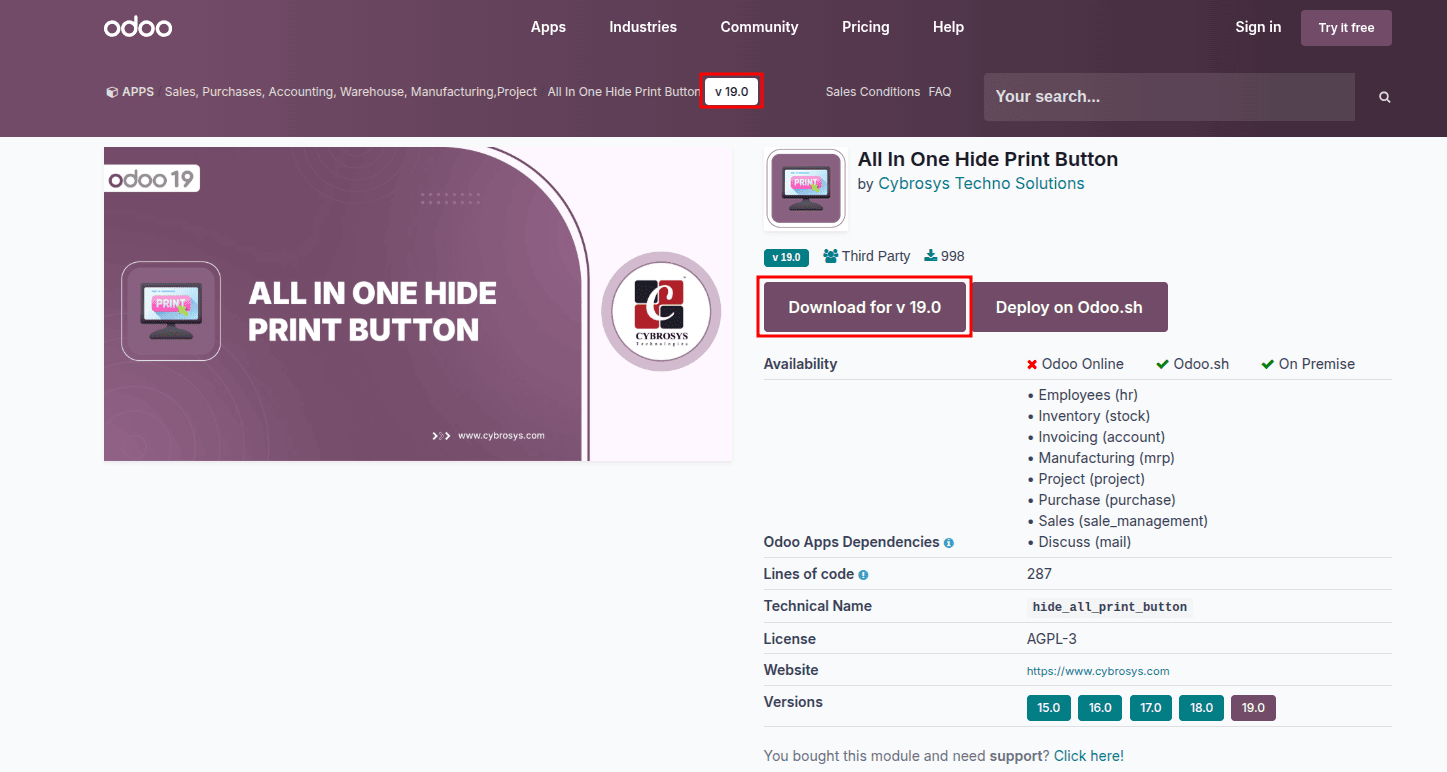
Step 2: Add the Module to Your Addons Directory
For On-Premise
1. Create a dedicated folder for custom addons, for example:
/opt/odoo/custom_addons/
2. Assign permissions so Odoo can access the folder:
sudo mkdir -p /opt/odoo/custom_addons
sudo chown -R odoo:odoo /opt/odoo/custom_addons
3. Now you have to add the ‘custom_addons’ path in the ‘config’ file.
sudo nano /etc/odoo.conf (provide the exact path of the config file)
4. Copy the extracted module folder into custom_addons.
sudo scp -r<custommodule>//root@<ip_address>:/../../odoo/<custom_addons>/
5. Restart the server to configure the file.
sudo service odoo-server restart
For Odoo.sh
Method 1: Deploy Directly from the Odoo App Store (Odoo.com Apps)
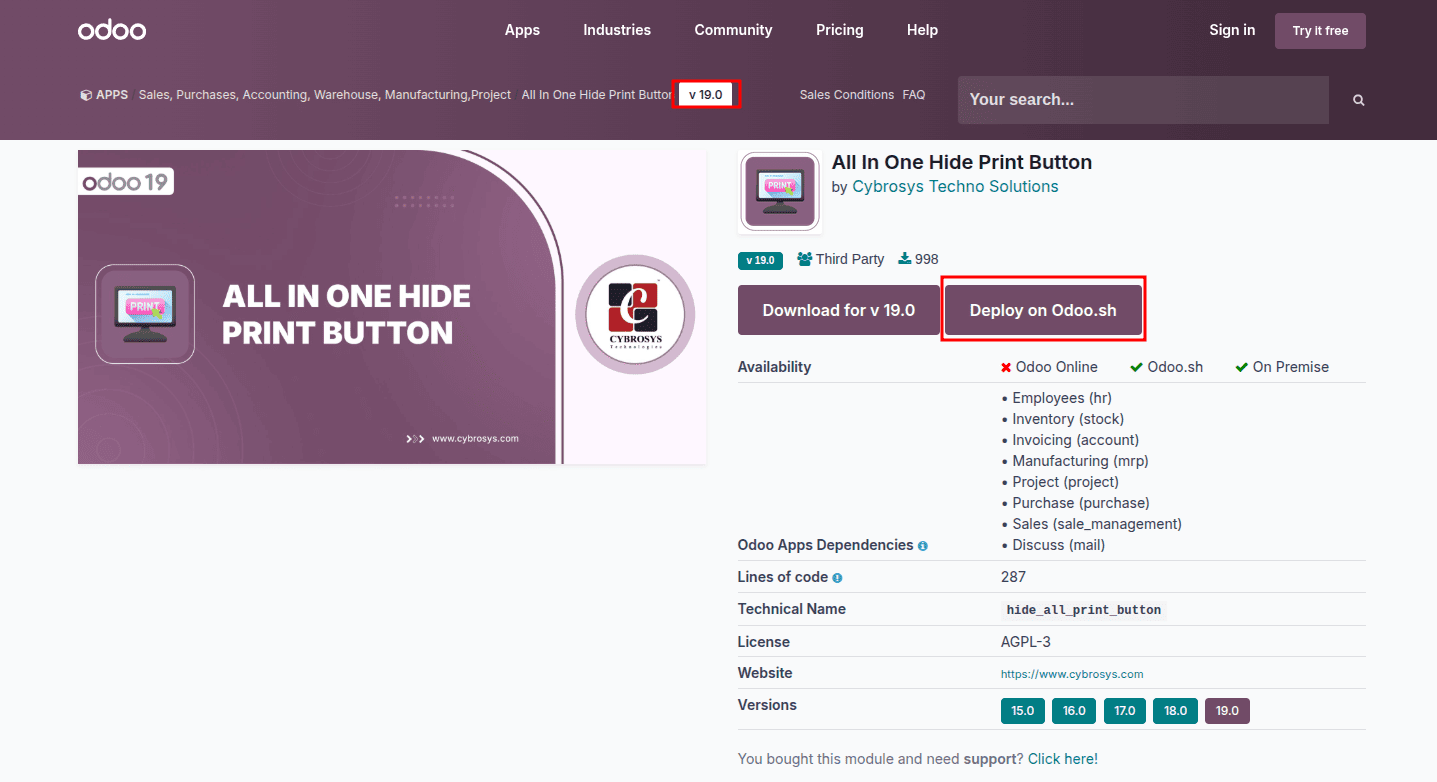
When to use:
If the module is published on the Odoo App Store and linked to your Odoo.sh subscription.
Method 2: Deploy a Downloaded Module (Manual Push to Odoo.sh Git Repo)
Steps
1. Prepare Your Local Folder, Initialize, and Pull Your Odoo.sh Repository
Open your terminal and run:
git init
git pull <your-odoo-sh-repository-url> <your-repository-name>
2. Add the module
Now unzip the downloaded file and paste in this folder
3. Commit and Push to Odoo.sh
Checkout the repository:
git checkout -b <your-repository-name>
Add Files to Git :
git add .
Commit Your Changes :
git commit -m "Add custom module: your_module_name"
Push to Odoo.sh
git push <your-odoo-sh-repository-url> <your-repository-name>
For Your Local
Update the Addons Path (If Required)
If the module is placed in a non-default location, specify the path in your odoo.conf file:
admin_passwd = 1234
 db_host = localhost
 db_port = 5432
 db_user = odoo19
 db_password = cool
 addons_path = /home/cybrosys/odoo 19/addons,/home/cybrosys/odoo 19/19.0,/home/cybrosys/odoo 19/demo
 http_port = 8020
 limit_time_cpu = 600
Restart Odoo after saving changes:
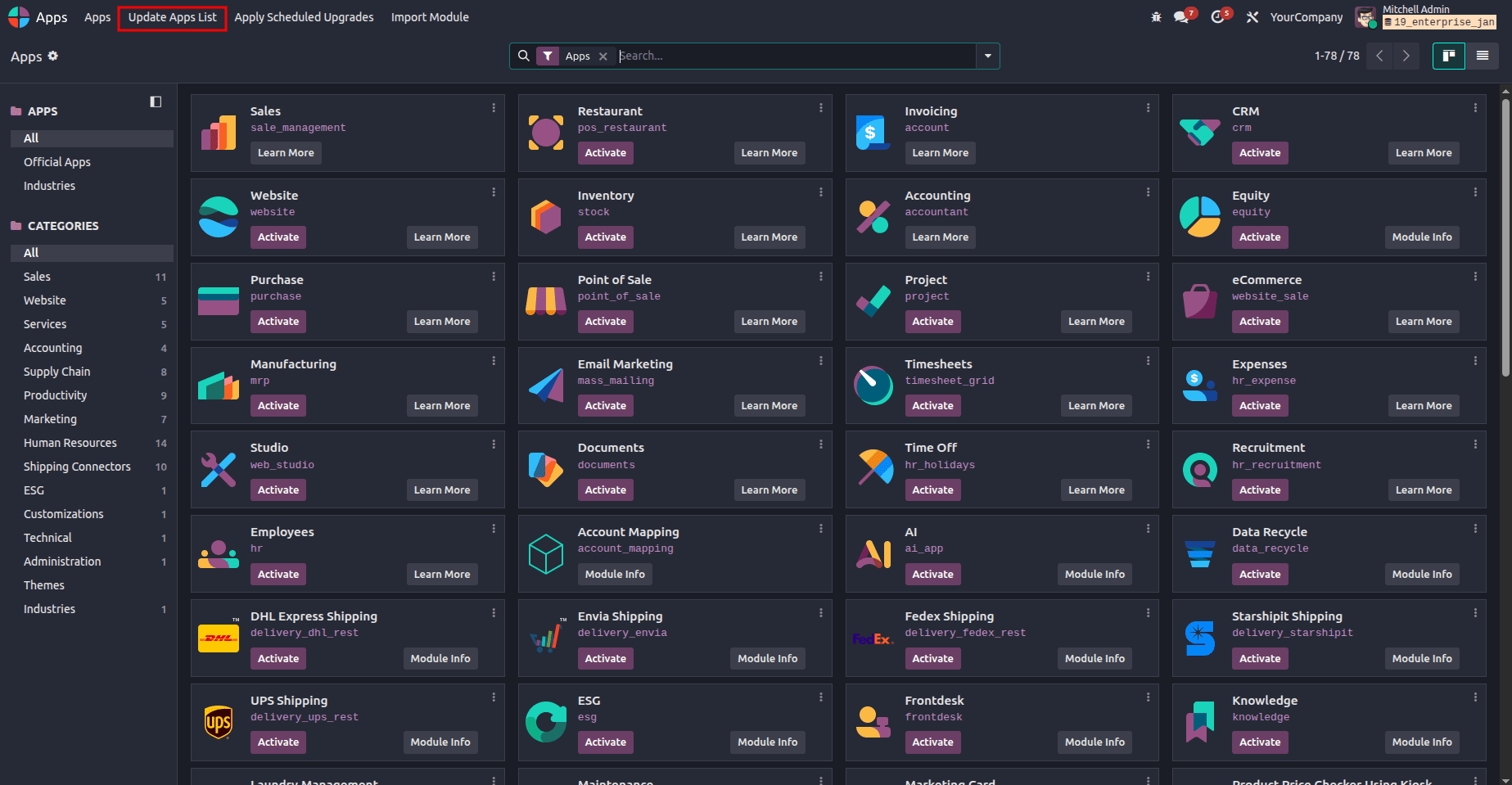
Step 3: Activate Developer Mode and Update the Apps List
To detect new modules, enable developer mode:
- Go to Settings
- Click Activate Developer Mode

Then navigate to Apps and click Update Apps List. Confirm the update when prompted.
Step 4: Install the Custom Module
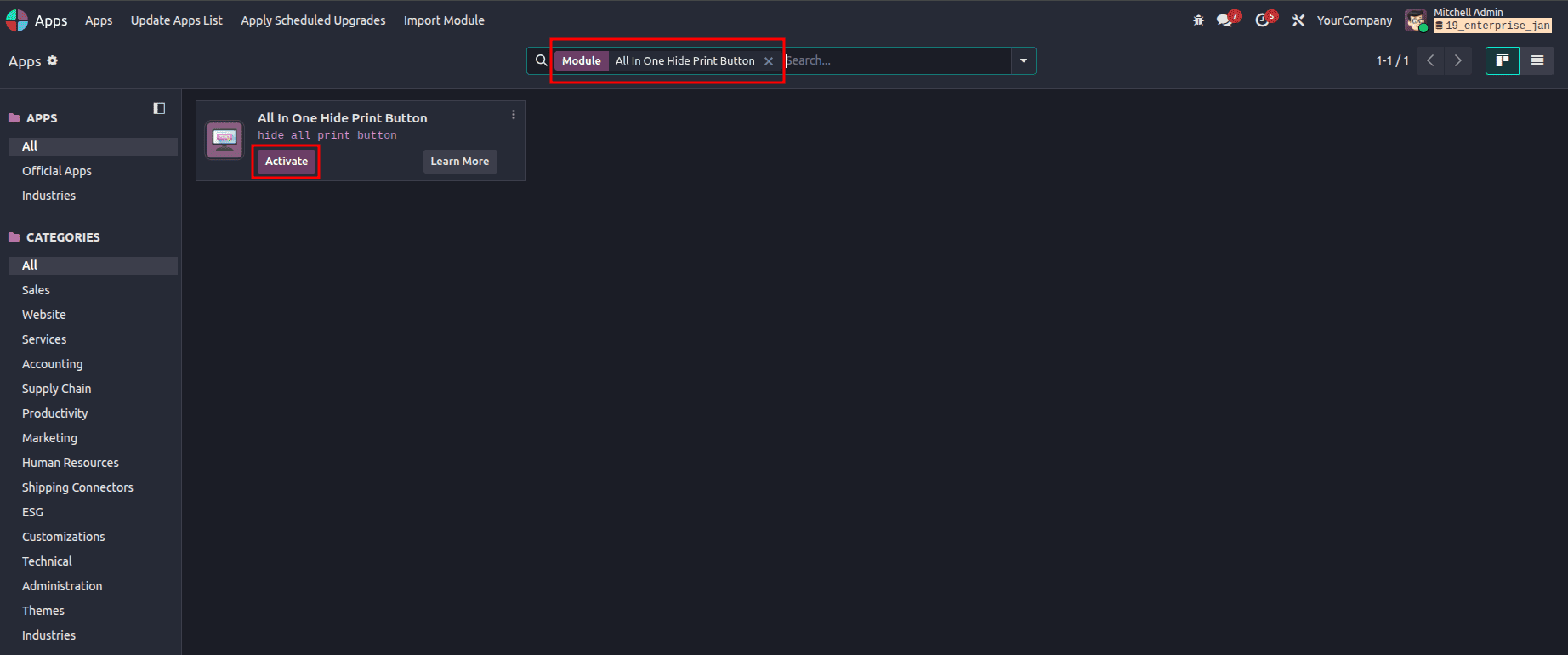
Search for your module in the Apps menu. If it doesn’t appear, remove filters like Apps, Installed, or Extra.
Click Install and wait for the process to complete.The module will now be available under the installed applications.
Best Practices
- Match module version with Odoo version - Ensures compatibility
- Update Apps List after copying new modules - Required for Odoo to detect new modules
- Disable filters while searching - Avoids hidden modules
Import Module
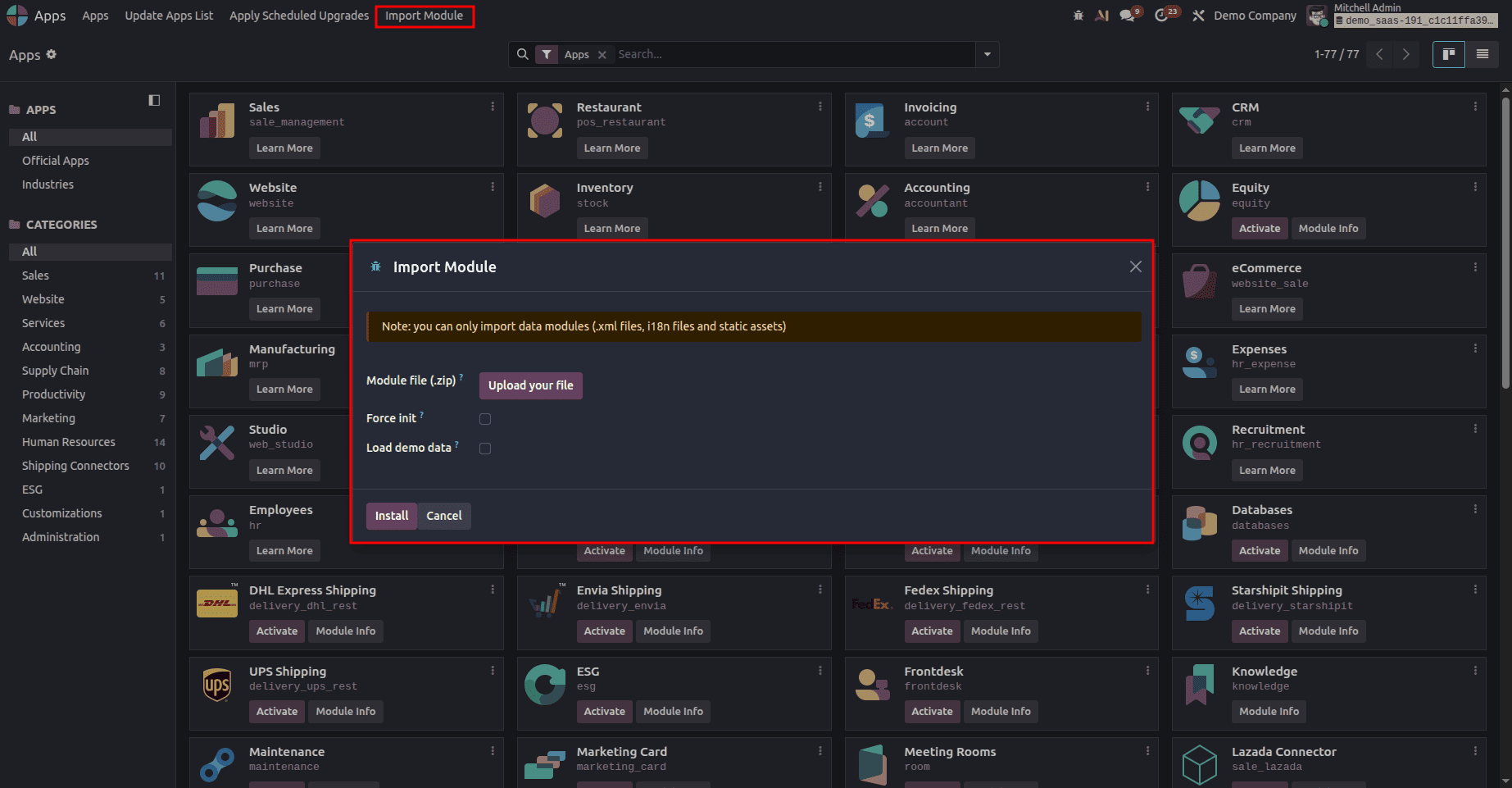
The 'Import Module' menu in the app list is intended only for importing data modules (.xml files and static assets), not for modules having Python files.
Conclusion
Installing a custom module in Odoo 19 is a simple and structured process. With the correct setup and module version, you can easily extend your system’s capabilities. Whether you're using Odoo.sh or hosting Odoo yourself, these steps ensure a smooth installation without affecting existing data.
To read more about How to Create a Module in Odoo 18, refer to our blog How to Create a Module in Odoo 18.