Everyday interactions feel much more seamless with Odoo 19's smoother and more user-friendly interface. The option to open a modal window when clicking on a field is one tiny but effective feature. The process is quicker and less distracting because users can view or enter information directly where they are, rather than having to navigate to another page.
In this blog, we'll examine how to use a field click in Odoo 19 to cause a modal pop-up. This is particularly helpful if you want to reduce needless user navigation or make your forms more interactive. Once put into practice, the easy steps can significantly improve usability.
In Odoo 19, a modal is essentially a tiny pop-up window that appears on top of the current screen. It maintains a seamless and continuous workflow by enabling users to take actions or verify details without ever leaving the page they are on.
Now, let’s go through the steps to implement this in Odoo 19.
To begin, we must first use a QWeb template to create the content that will appear inside the modal. The modal's opening, behaviour, and closing will then be managed by a small amount of JavaScript.
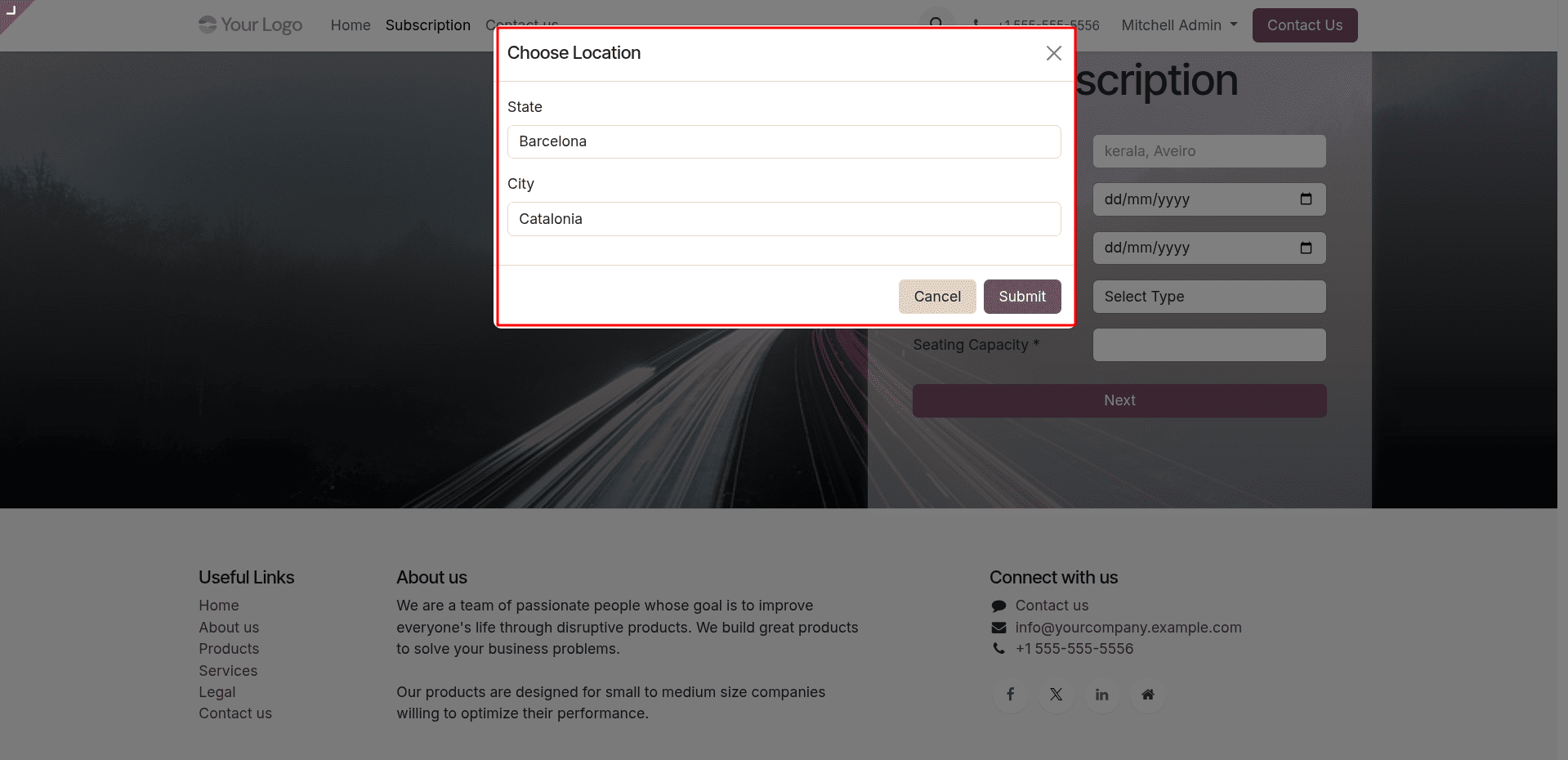
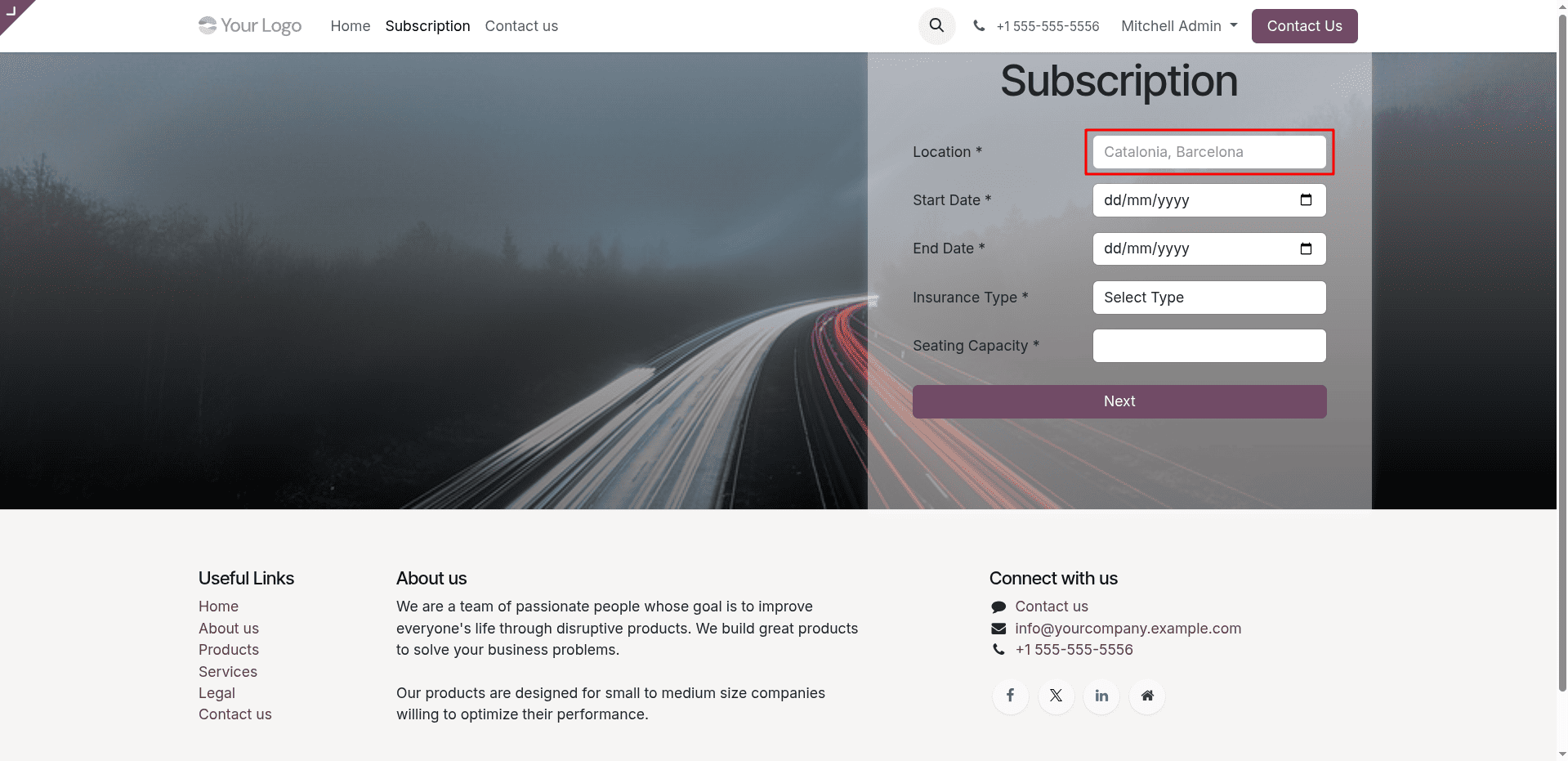
Let's look at a straightforward example. Consider a scenario where a user clicks on a Location field. They can enter information like State and City in a modal window that appears rather than typing everything out. These details appear automatically in the same Location field after they complete and close the modal.
Example Scenario:
Before Interaction: Clicking on the Location field brings up a modal for entering data.
After Interaction: After submission, the provided details populate the Location field.
By defining a controller, we can render a QWeb template and inject state values into the modal context.
import logging
from odoo import http
from odoo.http import request
class SubscriptionController(http.Controller):
    @http.route('/subscription', type='http', auth='public', website=True)
    def show_subscription_form(self, **kw):
        states = request.env['res.country.state'].sudo().search_read([], ['id', 'name'])
        return request.render('website_modal.subscription_form', {
            'all_states': states,
        })
Now, let's define the template required to open the modal.
<?xml version="1.0" encoding="UTF-8" ?>
<odoo>
   <template id="subscription_form" name="Subscription Form">
       <t t-call="website.layout">
           <!-- IMPORTANT: Add id="whole_sub" here so JS widget attaches -->
           <div id="whole_sub" class="image_website_form"
                style="background-image: linear-gradient(to bottom, rgb(255 255 255 / 43%), rgb(0 0 0 / 50%)), url('https://cdn.pixabay.com/photo/2017/01/31/17/44/highway-2025863_960_720.jpg');
                       background-size: cover;
                       background-position: center;">
               <div class="online_vehicle_main_form"
                    style="max-width: 1320px; margin: 0 auto; width: 100%;">
                   <div id="wrap" class="oe_structure oe_empty"
                        style="display: flex; justify-content: flex-end; align-items: center; height: 60vh;">
                       <section style="padding: 50px 0px;">
                           <div class="container"
                                style="padding: 8px 50px;
                                       border-radius: 6px;
                                       background-color: #fffafa75;
                                       box-shadow: 0 3px 10px rgb(255 255 255 / 17%);
                                       height: 519px;">
                               <h1 class="text-center">Subscription</h1>
                               <br/>
                               <form id="subscription_main_form">   <!-- Added id for future use -->
                                   <!-- Location -->
                                   <div class="row mb-3">
                                       <label class="col-form-label col-sm-auto" style="width: 200px;">
                                           Location *
                                       </label>
                                       <div class="col-sm">
                                           <input id="location_id"
                                                  type="text"
                                                  class="form-control"
                                                  readonly="readonly"
                                                  placeholder="Click to choose location"/>
                                       </div>
                                   </div>
                                   <!-- Modal - Moved outside the main form (Best Practice) -->
                                   <div class="modal fade" id="locationModal" tabindex="-1" aria-labelledby="locationModalLabel" aria-hidden="true">
                                       <div class="modal-dialog">
                                           <div class="modal-content">
                                               <div class="modal-header">
                                                   <h5 class="modal-title" id="locationModalLabel">Choose Location</h5>
                                                   <button type="button" class="btn-close" data-bs-dismiss="modal" aria-label="Close"></button>
                                               </div>
                                               <div class="modal-body">
                                                   <!-- State -->
                                                   <div class="mb-3">
                                                       <label class="form-label">State</label>
                                                       <select id="state_id" class="form-control">
                                                           <option value="">Select State</option>
                                                           <t t-foreach="all_states" t-as="state">
                                                               <option t-att-value="state['id']">
                                                                   <t t-esc="state['name']"/>
                                                               </option>
                                                           </t>
                                                       </select>
                                                   </div>
                                                   <!-- City -->
                                                   <div class="mb-3">
                                                       <label class="form-label">City</label>
                                                       <input id="city_id" type="text" class="form-control" placeholder="Enter city"/>
                                                   </div>
                                               </div>
                                               <div class="modal-footer">
                                                   <button type="button" class="btn btn-secondary" data-bs-dismiss="modal">Cancel</button>
                                                   <button type="button" class="btn btn-primary" id="submit_location">
                                                       Submit
                                                   </button>
                                               </div>
                                           </div>
                                       </div>
                                   </div>
                                   <!-- Other fields remain the same -->
                                   <div class="row mb-3">
                                       <label class="col-form-label col-sm-auto" style="width: 200px;">Start Date *</label>
                                       <div class="col-sm">
                                           <input id="start_date" type="date" class="form-control"/>
                                       </div>
                                   </div>
                                   <div class="row mb-3">
                                       <label class="col-form-label col-sm-auto" style="width: 200px;">End Date *</label>
                                       <div class="col-sm">
                                           <input id="end_date" type="date" class="form-control"/>
                                       </div>
                                   </div>
                                   <div class="row mb-3">
                                       <label class="col-form-label col-sm-auto" style="width: 200px;">Insurance Type *</label>
                                       <div class="col-sm">
                                           <select id="insurance_type" class="form-control">
                                               <option value="">Select Type</option>
                                           </select>
                                       </div>
                                   </div>
                                   <div class="row mb-3">
                                       <label class="col-form-label col-sm-auto" style="width: 200px;">Seating Capacity *</label>
                                       <div class="col-sm">
                                           <input id="seating_capacity" type="text" class="form-control"/>
                                       </div>
                                   </div>
                                   <!-- Main Submit -->
                                   <div class="form-group mt-4">
                                       <button type="submit" class="btn btn-primary w-100">Next</button>
                                   </div>
                               </form>
                           </div>
                       </section>
                   </div>
               </div>
           </div>
       </t>
   </template>
</odoo>
The <div id="location_temp"> element defines a hidden modal that is triggered under specific conditions.
To provide access to the subscription form, create a menu item using an XML file on the website.
<?xml version="1.0" encoding="UTF-8" ?>
<odoo>
    <record id="menu_subscription_form" model="website.menu">
        <field name="name">Subscription</field>
        <field name="url">/subscription</field>
        <field name="parent_id" ref="website.main_menu"/>
        <field name="sequence" type="int">40</field>
    </record>
    <record id="page_subscription_form" model="website.page">
        <field name="website_published">True</field>
        <field name="url">/subscription</field>
        <field name="type">qweb</field>
        <field name="key">modal_test_module.subscription_form_page</field>
        <field name="arch" type="xml">
            <t t-name="website_modal.subscription_form_page">
                <t t-call="website_modal.subscription_form"/>
            </t>
        </field>
    </record>
</odoo>
Modal Content:
Users can quickly select their State and City from straightforward dropdown options within the modal. Bootstrap's grid system is used to organize the form, keeping everything well-aligned and simple to navigate.
Input Field & Modal Trigger
- The <div class="col-sm" id="col-sm-location"> contains an input field (<input>) that is displayed on the main page.
- When a user clicks on this input field, the hidden modal appears.
- The attributes data-toggle="modal" and data-target="#location_temp" link the input field to the modal, ensuring that clicking the field opens the pop-up.
Summary:
This XML template creates a modal that only shows up when the user interacts with a particular input field and is hidden by default. Choosing a State and City from the dropdown options, it provides an easy-to-use method of entering location details.
The behavior of the modal when the Location field is clicked will then be handled by JavaScript.
Handling Modal Opening
When the user clicks on the Location field in this implementation, the modal is displayed by the _onOpenModal function. For greater control and consistency, the function makes use of Bootstrap's modal API rather than directly modifying CSS properties like display: block.
The function targets the modal element using its ID locationModal after preventing the default click behavior. It determines if this element already has a Bootstrap modal instance. A new instance is made if not. Lastly, the modal is made visible to the user by calling the show() method.
By adhering to Bootstrap's recommended practices instead of manually toggling visibility, this method guarantees that the modal is handled in a clean and dependable manner.
/** @odoo-module **/
import publicWidget from "@web/legacy/js/public/public_widget";
publicWidget.registry.LocationWidget = publicWidget.Widget.extend({
    selector: '#whole_sub',
    events: {
        'click #location_id': '_onOpenModal',           // Open modal when clicking location field
        'click #submit_location': '_onSubmitLocation',  // ? This makes the Submit button work
        'click .btn-close': '_onCloseModal',            // Bootstrap close button
    },
    start() {
        this._super(...arguments);
        console.log('LocationWidget started successfully');
        // Bootstrap might move the modal to the body, breaking event delegation
        // So we bind the events directly to the elements
        const submitBtn = document.getElementById('submit_location');
        if (submitBtn) {
            submitBtn.addEventListener('click', this._onSubmitLocation.bind(this));
        }
        const closeBtns = document.querySelectorAll('.btn-close, .btn-secondary[data-bs-dismiss="modal"]');
        closeBtns.forEach(btn => {
            btn.addEventListener('click', this._onCloseModal.bind(this));
        });
    },
    _onOpenModal(ev) {
        ev.preventDefault();
        const modalEl = document.getElementById('locationModal');
        if (modalEl) {
            let modal = window.Modal.getInstance(modalEl);
            if (!modal) {
                modal = new window.Modal(modalEl);
            }
            modal.show();
        } else {
            console.error('Modal element #locationModal not found');
        }
    },
    _onSubmitLocation(ev) {
        ev.preventDefault();   // Very important
        const stateSelect = document.getElementById('state_id');
        const cityInput = document.getElementById('city_id');
        const stateId = stateSelect ? stateSelect.value : '';
        const city = cityInput ? cityInput.value.trim() : '';
        if (!stateId || !city) {
            alert("Please select a State and enter a City.");
            return;
        }
        // Fill the main location field
        const locationField = document.getElementById('location_id');
        if (locationField) {
            const stateName = stateSelect.options[stateSelect.selectedIndex].text;
            locationField.value = `${city}, ${stateName}`;
        }
        // Close modal
        const modalEl = document.getElementById('locationModal');
        if (modalEl) {
            const modal = window.Modal.getInstance(modalEl);
            if (modal) modal.hide();
        }
        console.log('Location submitted successfully:', { state_id: stateId, city: city });
    },
    _onCloseModal() {
        const modalEl = document.getElementById('locationModal');
        if (modalEl) {
            const modal = window.Modal.getInstance(modalEl);
            if (modal) modal.hide();
        }
    },
});
Handling Modal Closing & Data Transfer
The selected State and entered City are retrieved from the modal, the input is validated, and the formatted value is updated in the main Location field by the _onSubmitLocation function. It uses Bootstrap's hide() method to close the modal after the field has been updated. In the meantime, the _onCloseModal function doesn't change any input values; it just closes the modal when the user clicks the close or cancel button.
With this method, users can easily enter their State and City in the modal, and once the form is submitted, the chosen values will automatically appear in the Location field. Users can enter information without leaving the current page by managing the interaction within a pop-up.
By facilitating seamless, in-place data entry, Odoo 19's modal implementation improves user interaction. The system can dynamically update the input based on user selection and initiate a pop-up when the Location field is clicked by using a QWeb template to define the modal structure and JavaScript to handle its behavior. By streamlining workflows and enhancing usability, this approach makes data entry more effective and intuitive.
To read more about How to Open a Modal on Clicking a Field in Odoo 18, refer to our blog How to Open a Modal on Clicking a Field in Odoo 18.