The systray is Odoo's top navigation bar in the backend UI, where developers can extend it for customization. Systray icons are commonly used for quick actions, notifications, status indicators, and custom menus or popups. Technically, the systray is a client-side registry where OWL components can be registered and rendered. Odoo 19 uses the OWL components, JavaScript registries, QWeb templates, and asset bundling.
We can create a custom module following the structure below.
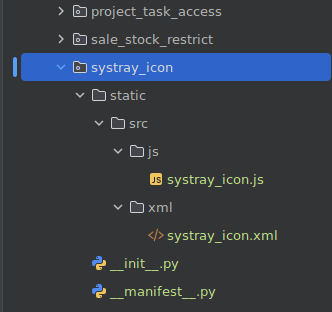
Next, we can create the systray template. In the file static/src/xml/stytray_icon.xml we can add the following code.
<?xml version="1.0" encoding="UTF-8"?>
<templates xml:space="preserve">
   <t t-name="systray_icon" owl="1">
       <div class="o_mail_navbar_item" style="cursor: pointer;">
           <i class="oi oi-smile-add" title="My Custom Systray Icon"
              style="cursor: pointer;"
              t-on-click="onClick"/>
       </div>
   </t>
</templates>
This XML defines how the icon appears in the UI. owl=”1” indicates this is an OWL template, and when clicked on the icon, it calls the onClick() method from the OWL component’s JavaScript class.
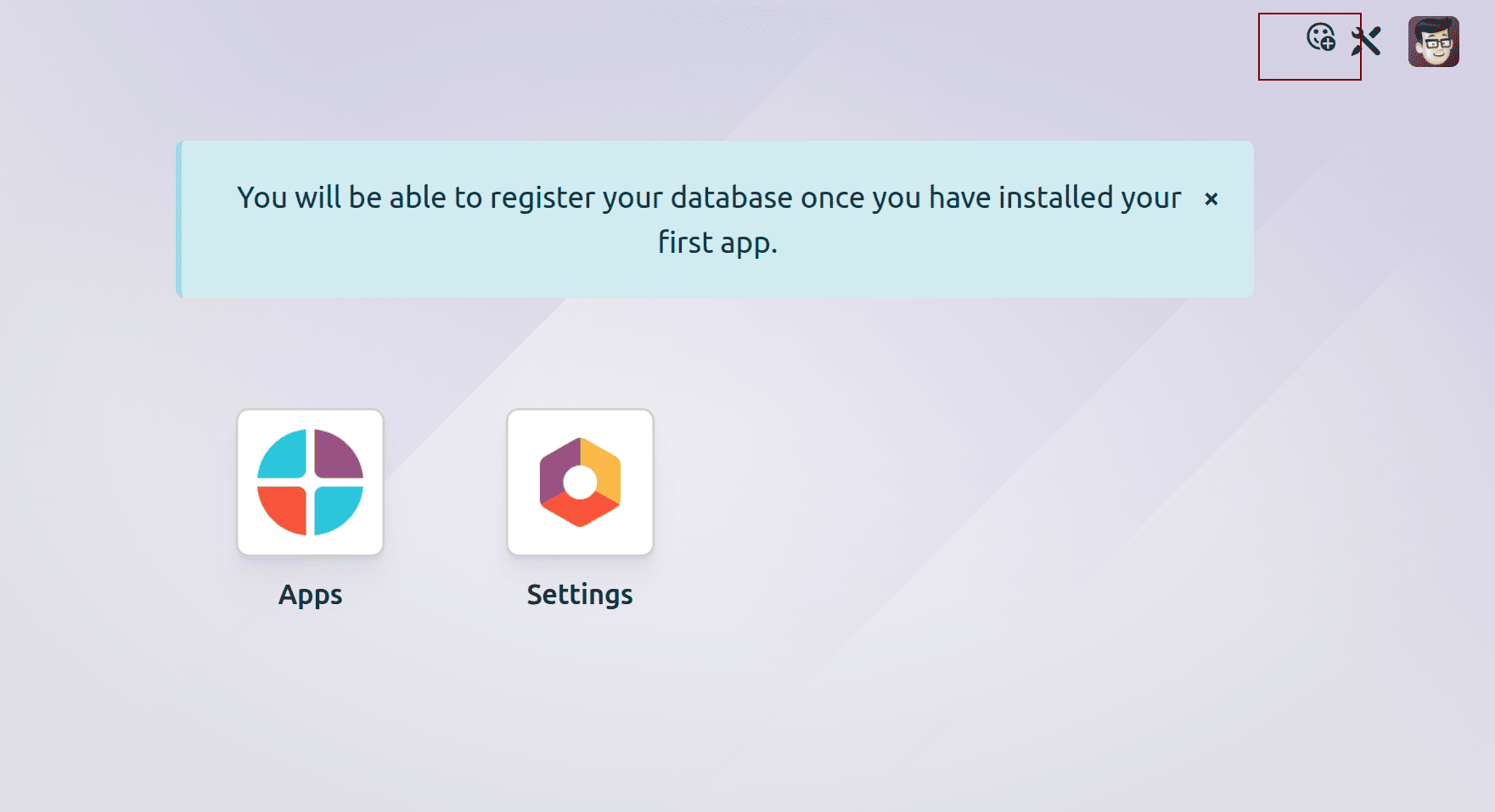
This is how the UI looks after adding an icon in systray.
Next, we can define the OWL component and register it in the systray registry. The code below can be added to the file, static/src/js/systray_icon.js.
/** @odoo-module **/
import { registry } from "@web/core/registry";
import { Component } from "@odoo/owl";
import { Dialog } from "@web/core/dialog/dialog";
import { useService } from "@web/core/utils/hooks";

class MySystrayIcon extends Component {
   setup() {
   this.dialogService = useService("dialog");
   }
   onClick() {
   this.dialogService.add(Dialog, {
       title: "My Systray Dialog",
       });
   }
}
MySystrayIcon.template = "systray_icon";
export const systrayItem = {
   Component: MySystrayIcon,
};
registry.category("systray").add(
   "MySystrayIcon",
   systrayItem,
   { sequence: 10 }
);
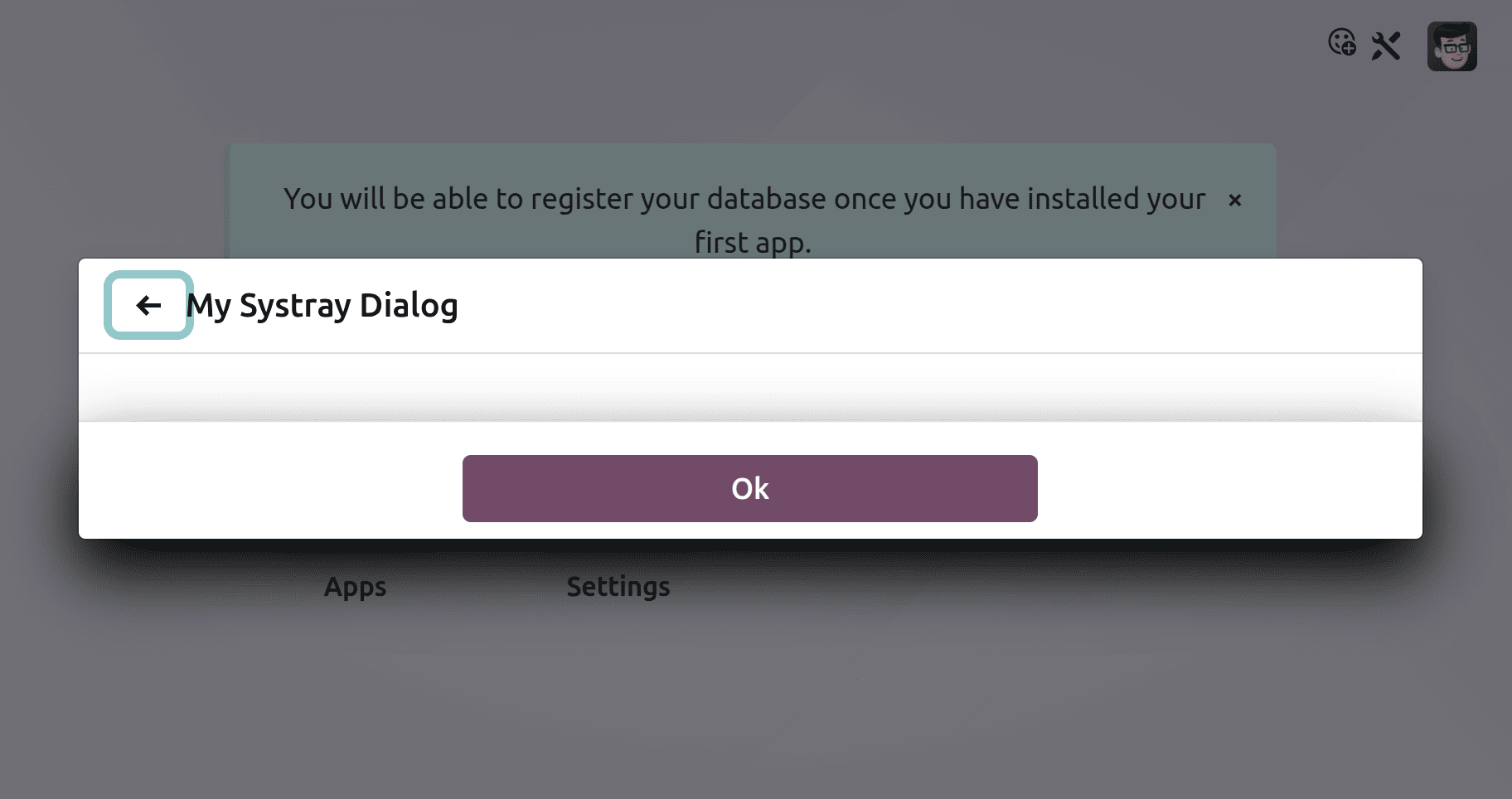
Here, when the icon in the systray is clicked, the onClick() method uses the dialog service to open an Odoo modal dialog with the title ‘My systray Dialog’. Also, registry.category(“systray”) registers the component in the systray in the sequence we provided.
And finally, we need to make sure this is included in the backend assets in the manifest.py file.
{
   'name': 'Systray Icon',
   'version': '19.0.1.0.0',
   'category': 'Tools',
   'summary': 'Systray Icon',
   'description': """  """,
   'depends': ['web'],
   'assets': {
       'web.assets_backend': [
           'systray_icon/static/src/js/systray_icon.js',
           'systray_icon/static/src/xml/systray_icon.xml',
       ],
   },
   'application': False,
   'installable': True,
   'auto_install': False,
}
By following these steps, in the UI, we can see the dialog box when clicking on the icon in systray.
This is how we add an icon to the systray in Odoo 19.
To read more about How to Add an Icon in Systray in Odoo 18, refer to our blog How to Add an Icon in Systray in Odoo 18.