Managing customer invoices is one of the most important tasks for any business, and Odoo 19 Accounting makes this process easier, faster, and more organized. With its improved design and smarter automation, businesses can create professional invoices, add customer details, track payments, and ensure accuracy in just a few clicks. Beyond basic invoicing, Odoo 19 also provides several advanced features that help companies customize their invoices based on real business needs.
In this blog, we will explore the key invoice management features available in Odoo 19 and explain how each of them supports smooth business operations. You will learn how to add the customer’s address directly onto the invoice, set invoice warnings to avoid mistakes, apply default Incoterms for shipping clarity, and include standard terms and conditions automatically. We also cover useful tools like showing the invoice amount in words, adding an authorized signatory block, managing taxes in the company currency, and generating QR codes for easier payments.
These features not only improve the look and clarity of your invoices but also help ensure accuracy, compliance, and convenience, both for your business and your customers. Whether you are new to Odoo or looking to make better use of its Accounting module, this guide will help you understand how to manage customer invoices effectively in Odoo 19.
Adding Customer Address on Invoice
Businesses often deal with customers who have more than one address, for example, one address for receiving invoices and another for receiving deliveries. Odoo’s Customer Addresses feature helps manage this easily by allowing you to select the right address for each purpose.
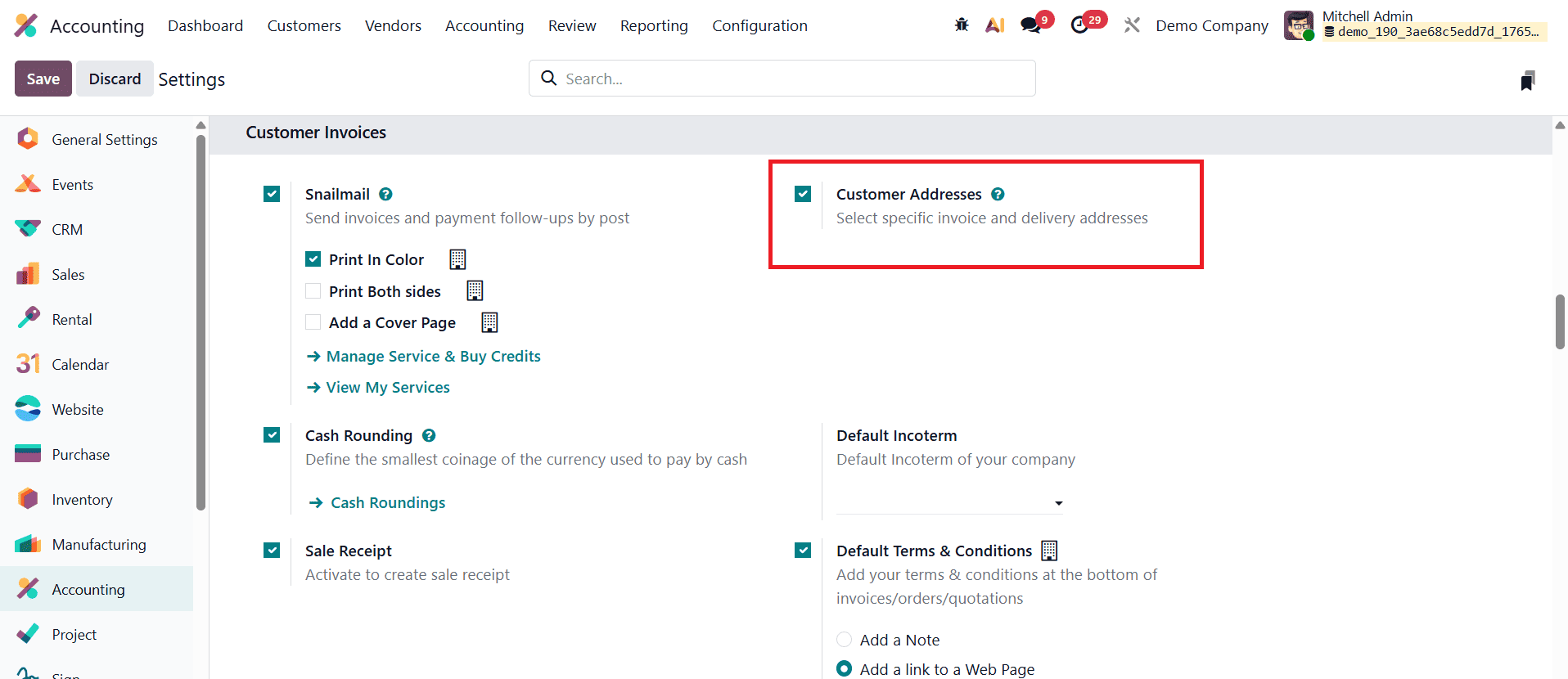
To set up invoice and delivery addresses for sales orders, go to Accounting > Configuration > Settings. Under the Customer Invoices section, enable Customer Addresses and click Save.
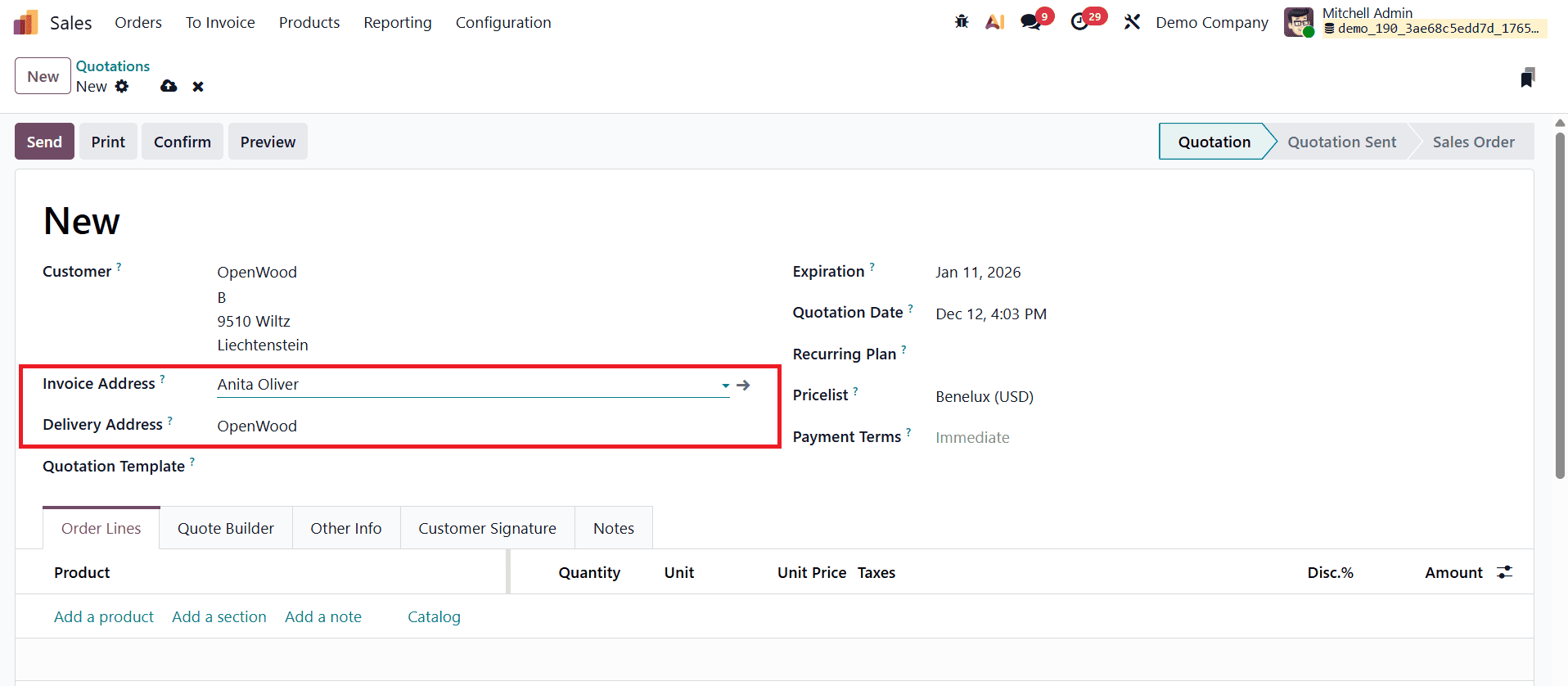
Once this feature is activated, quotations and sales orders will display two separate fields: Invoice Address and Delivery Address. If a customer already has these addresses saved in their contact record, Odoo will fill them in automatically. However, you can always choose a different contact or address if needed.
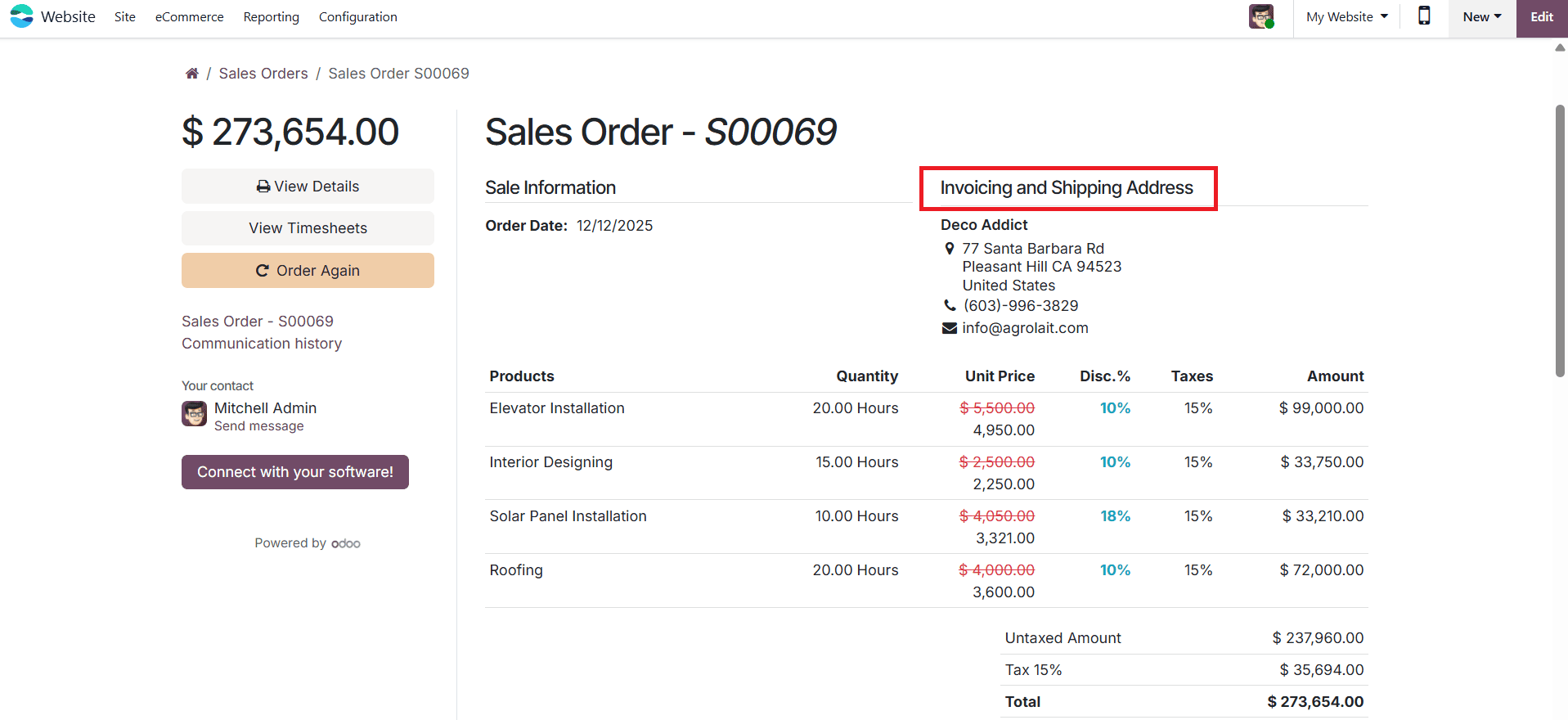
The address selected as the Delivery Address is used for delivery orders and appears on the delivery slip report. Invoice reports, by default, show both the shipping address and the billing address so customers can confirm that their products will be delivered to the correct location.
Email communication adjusts accordingly as well. Quotations and sales orders are sent to the customer’s main email address, while the invoice is sent to the email listed under the Invoice Address. This ensures each document reaches the right person without confusion.
Default Incoterm on Invoice
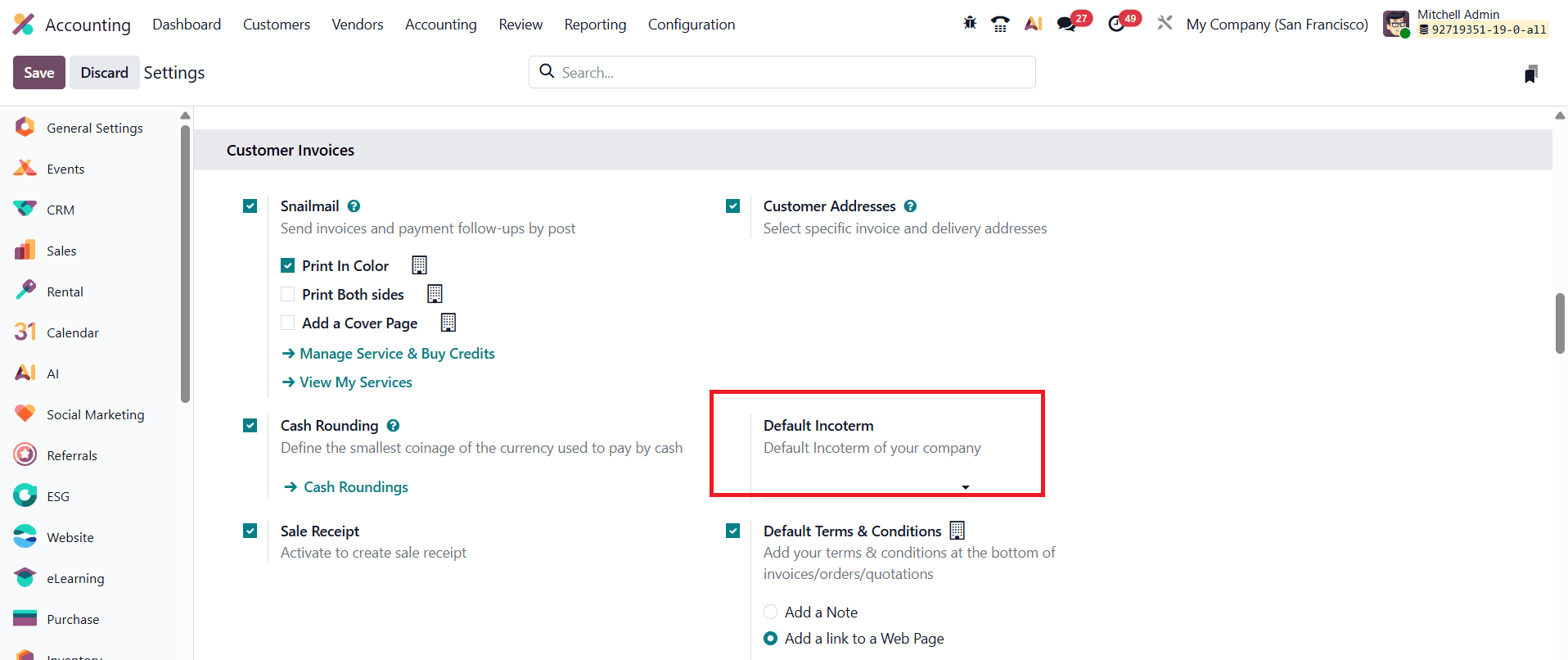
In international trade, Incoterms are essential because they clearly define the responsibilities of both the buyer and the seller during the delivery of goods, such as who handles transportation, insurance, customs duties, and the point at which risk is transferred. Odoo 19 makes managing these terms easier by allowing businesses to set a default Incoterm directly from the Accounting module’s Settings menu. By configuring a default value, companies ensure that every new invoice, bill, or sales document automatically includes the correct delivery terms, reducing manual work and preventing mistakes.
When creating or editing an invoice, the Other Info tab provides dedicated fields related to Incoterms.
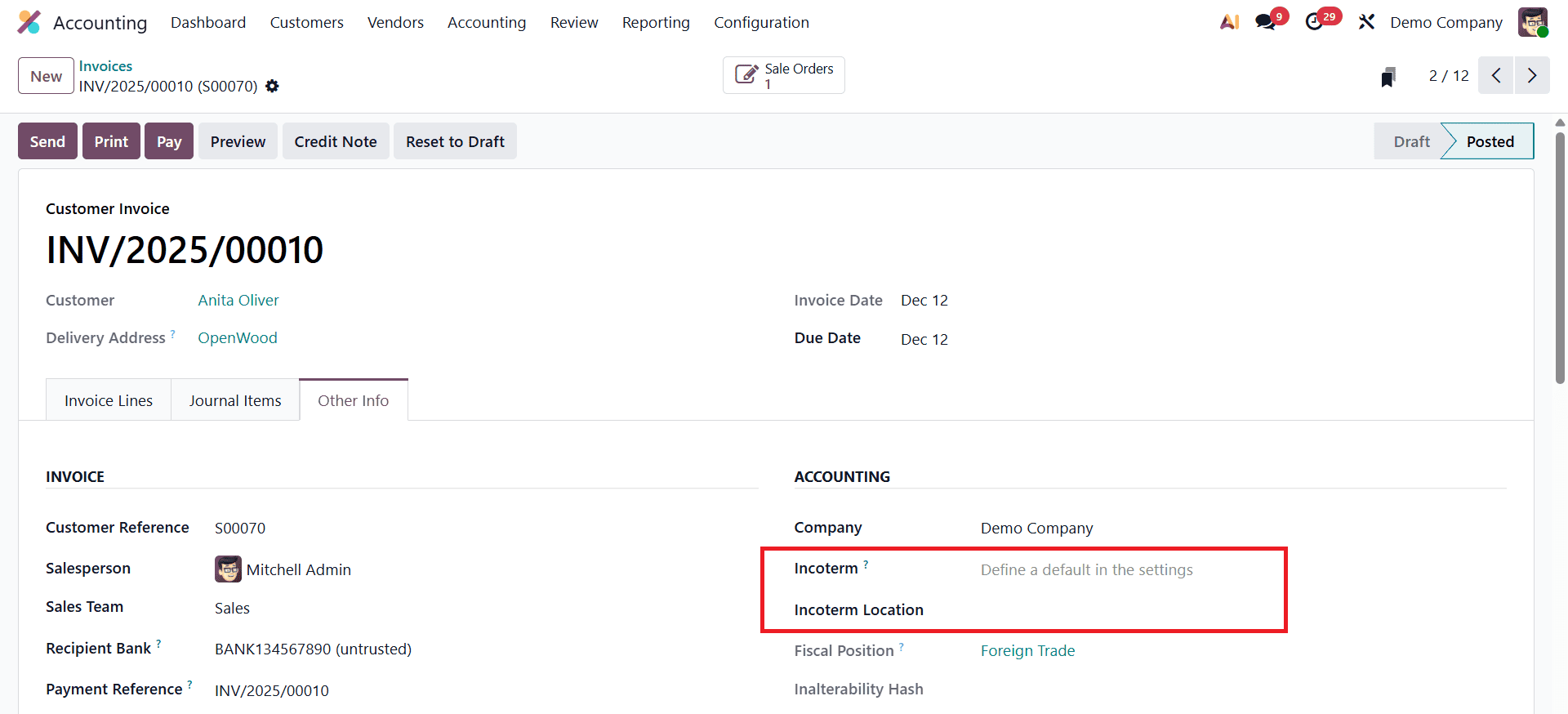
The Company field simply displays the company to which the document belongs, helping users stay aware of the correct entity in multi-company environments. The Incoterm field allows users to choose the specific international commercial term that applies to the transaction, such as EXW, FOB, CIF, or DDP, and if a default Incoterm has been set in the system settings, it will automatically appear here. Users can still change it manually if the situation requires a different delivery arrangement. The Incoterm Location field adds even more clarity by letting users specify the exact location associated with the chosen term, ensuring both parties know where responsibility shifts from seller to buyer.
Default Terms and Conditions
In Odoo 19 Accounting, the Default Terms and Conditions feature helps businesses maintain consistency, clarity, and professionalism across all customer-facing documents by automatically adding their standard contractual information to invoices, quotations, and sales orders. This feature can be activated by navigating to Accounting > Configuration > Settings, where the Default Terms and Conditions option is located under the Customer Invoices section.
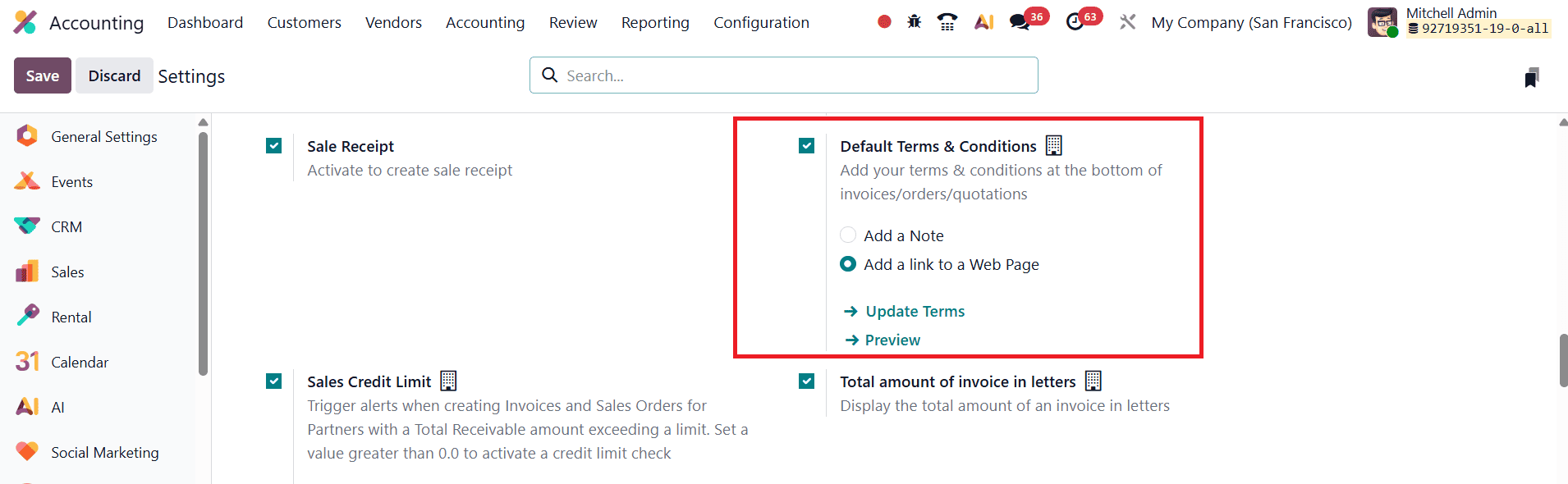
Once enabled, companies can enter their standard terms directly into the text box provided. These terms may include payment deadlines, refund or cancellation policies, delivery conditions, warranty information, or any legal or commercial clauses that the business wants customers to be aware of before completing a transaction. Odoo 19 offers flexibility in how these terms appear on documents: users can either enter them as plain text, which will be printed directly on the invoice or quotation, or include a hyperlink that directs customers to a webpage containing the complete terms and conditions for easier reading.
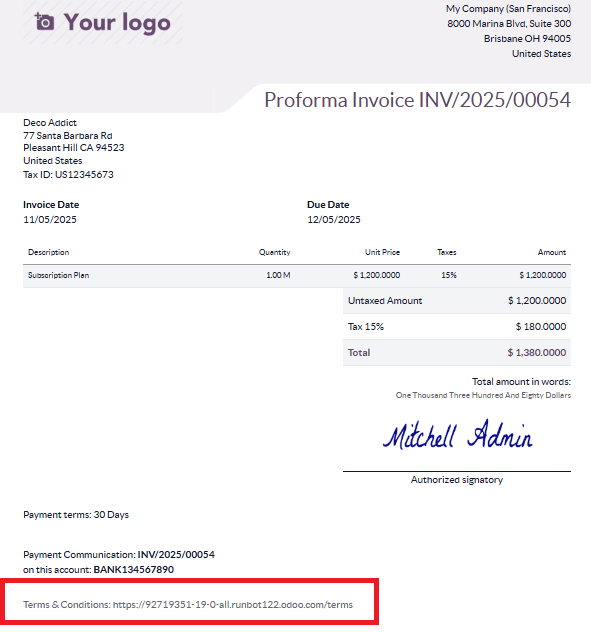
After configuring this feature, Odoo automatically displays the defined terms at the bottom of every sales order, quotation, and customer invoice generated in the system. This automation helps ensure that all required legal information is consistently communicated, reduces the chance of missing critical details, and strengthens the overall reliability and transparency of customer documentation.
Total Amount of Invoice in Letters
In Odoo 19 Accounting, the Total Amount of Invoice in Letters feature remains a useful addition that enhances the clarity and professionalism of customer invoices. When enabled, the system automatically converts the invoice’s total amount into words and displays it on the document, helping prevent misunderstandings, reducing errors in financial communication, and meeting certain banking or legal requirements in many regions. To activate this feature, users can go to Accounting > Configuration > Settings and enable the Total Amount in Letters option under the Customer Invoices section.
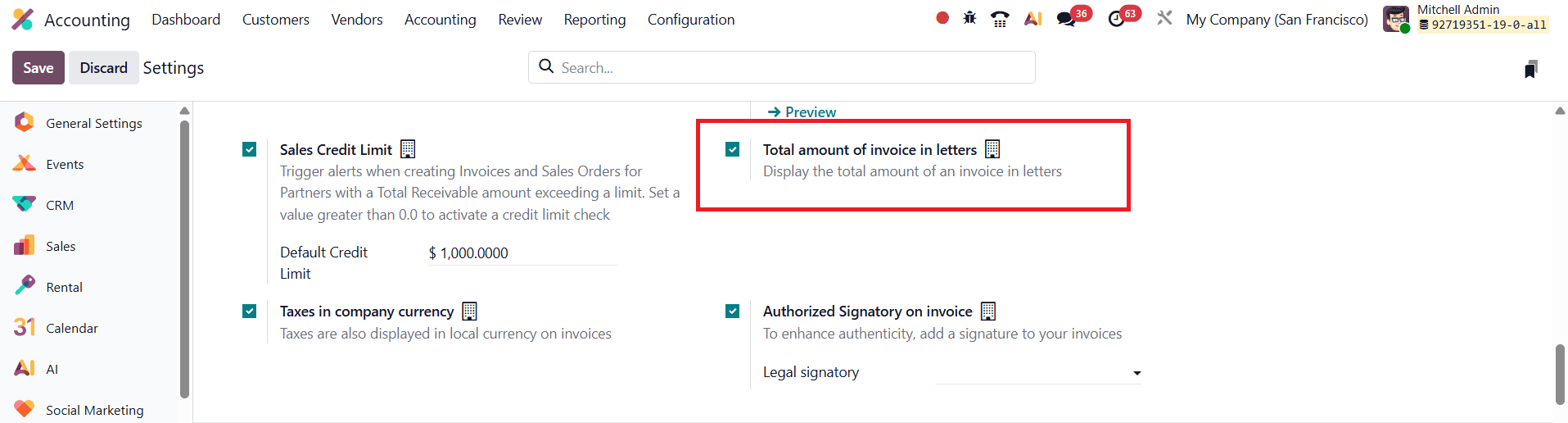
Once this feature is enabled, Odoo automatically converts the total invoice amount from numbers into written words and displays it directly on the invoice. This ensures clearer communication and reduces the chances of misinterpretation, especially in formal or legal contexts. For example, an amount like ?10,250.00 will also be shown as “Ten Thousand Two Hundred Fifty Rupees Only.” By presenting the amount in both numerical and written form, Odoo enhances the accuracy and professionalism of financial documents, making them easier for customers, auditors, and financial institutions to understand.
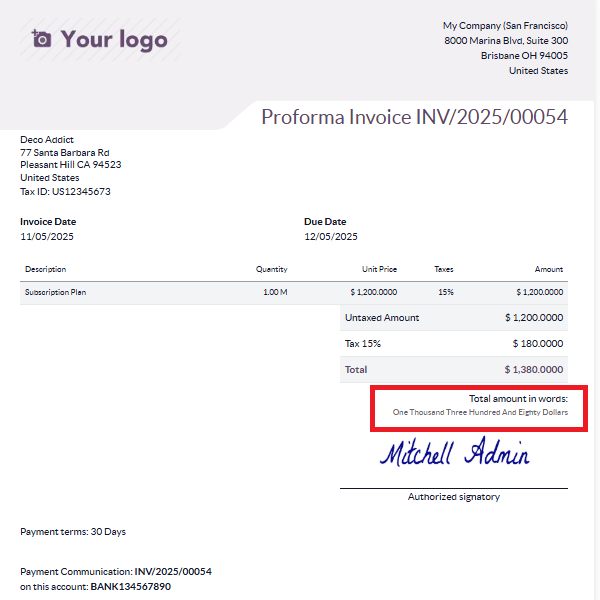
This functionality is particularly useful in formal, legal, and banking contexts where invoices, contracts, or payment documents require the amount to be stated in words to prevent discrepancies or fraud.
Authorized Signatory on Invoice
In Odoo 19 Accounting, the Authorized Signatory on Invoice feature continues to be an essential tool for enhancing the authenticity, professionalism, and legal validity of customer invoices. Many companies require their financial documents to be signed or approved by a designated person, such as a finance manager, accountant, or company executive, to confirm that the information is accurate and officially approved. By allowing businesses to include the name and signature of an authorized representative on all outgoing invoices, Odoo ensures that each document reflects proper authorization and meets internal control requirements, as well as any external regulatory standards. To configure this feature, users can navigate to Accounting > Configuration > Settings and enable the Authorized Signatory option under the Customer Invoices section.
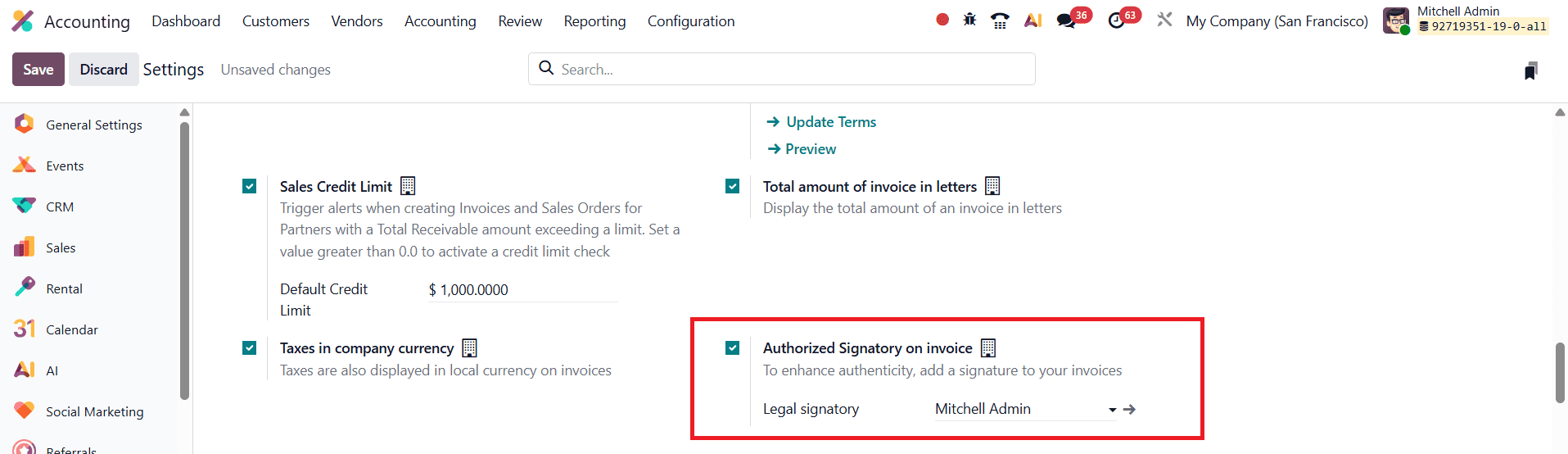
Once activated, a new field labeled Legal Signatory becomes available. Here, users can assign a specific employee or manager as the official signatory for company invoices.
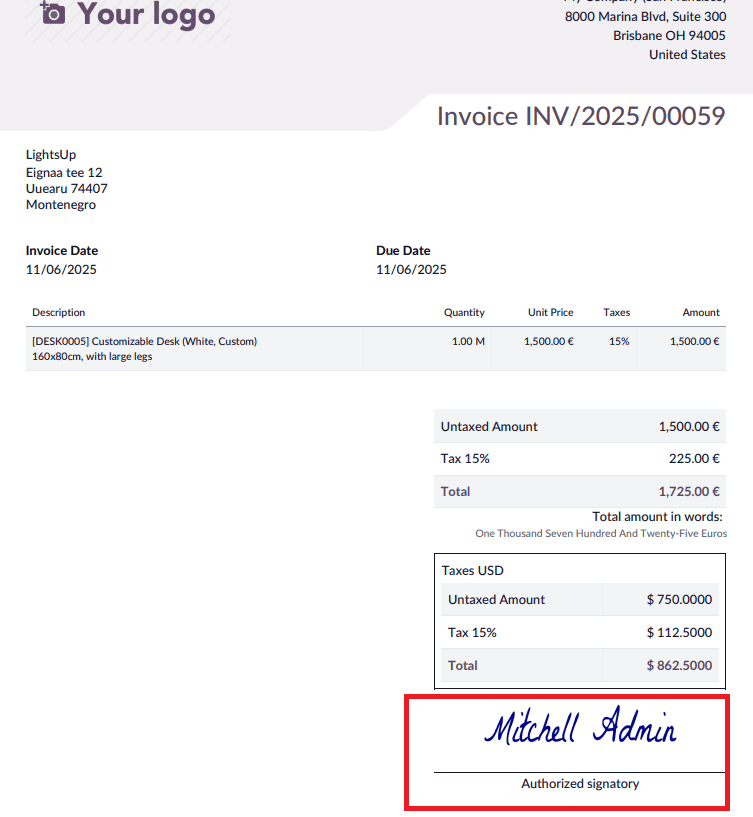
When a legal signatory is designated in the system, their name, and digital signature, if one has been uploaded to their user profile, will automatically appear on all customer invoices generated in Odoo. This seamless integration ensures that every invoice carries an official, verified, and traceable authorization. Such validation is especially important for organizations that follow strict approval workflows or must comply with regional legal, tax, or audit requirements.
Taxes in Company Currency
In Odoo 19 Accounting, the improved Taxes in Company Currency feature offers businesses better clarity and consistency when dealing with multi-currency transactions. In many international operations, invoices may be issued in foreign currencies, which can make tax calculations and reporting more complex. By enabling this feature, Odoo ensures that all tax amounts are displayed not only in the transaction currency but also in the company’s base currency. This makes it much easier for finance teams to review tax values, reconcile accounts, and prepare accurate financial statements without having to manually convert figures. The feature is especially valuable for organizations that regularly work with global clients or suppliers, as it helps maintain uniform tax reporting across all documents. To activate this functionality, users can navigate to Accounting > Configuration > Settings and enable the Taxes in Company Currency option under the Customer Invoices section.
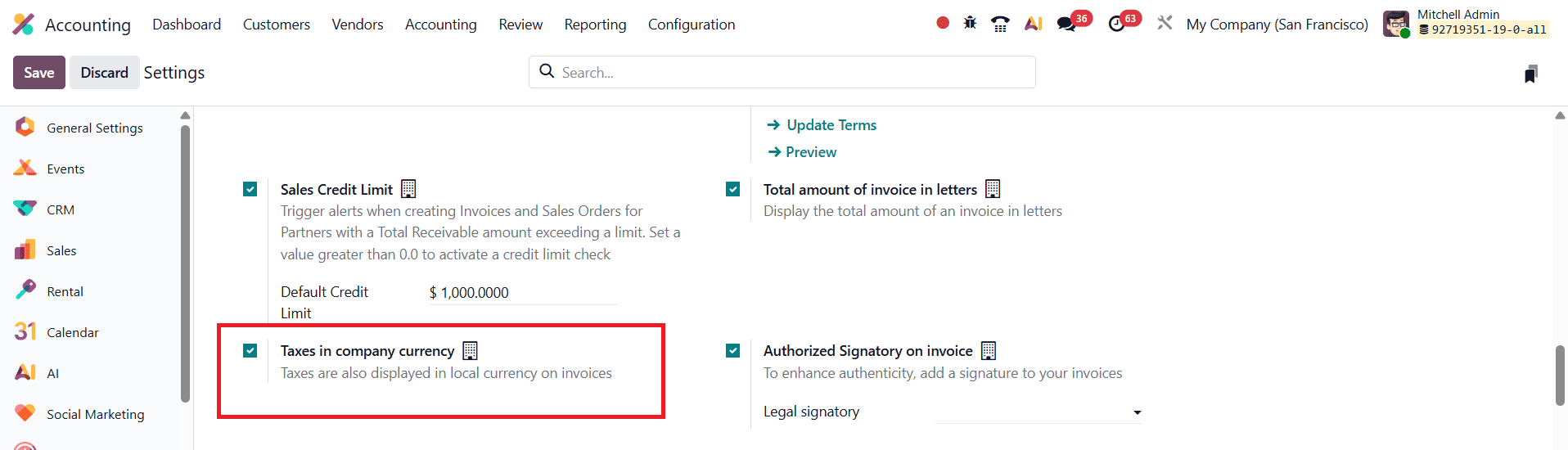
Once this feature is enabled and saved, Odoo automatically converts and displays all tax amounts in the company’s base currency across invoices and related financial documents, even when the invoice is issued in a different currency. This ensures that tax reporting remains clear, consistent, and easy to reconcile. For example, if an invoice is created in EUR for a company whose base currency is USD, Odoo will calculate the equivalent tax amount in USD and present it clearly on the invoice under a dedicated Taxes (USD) section.
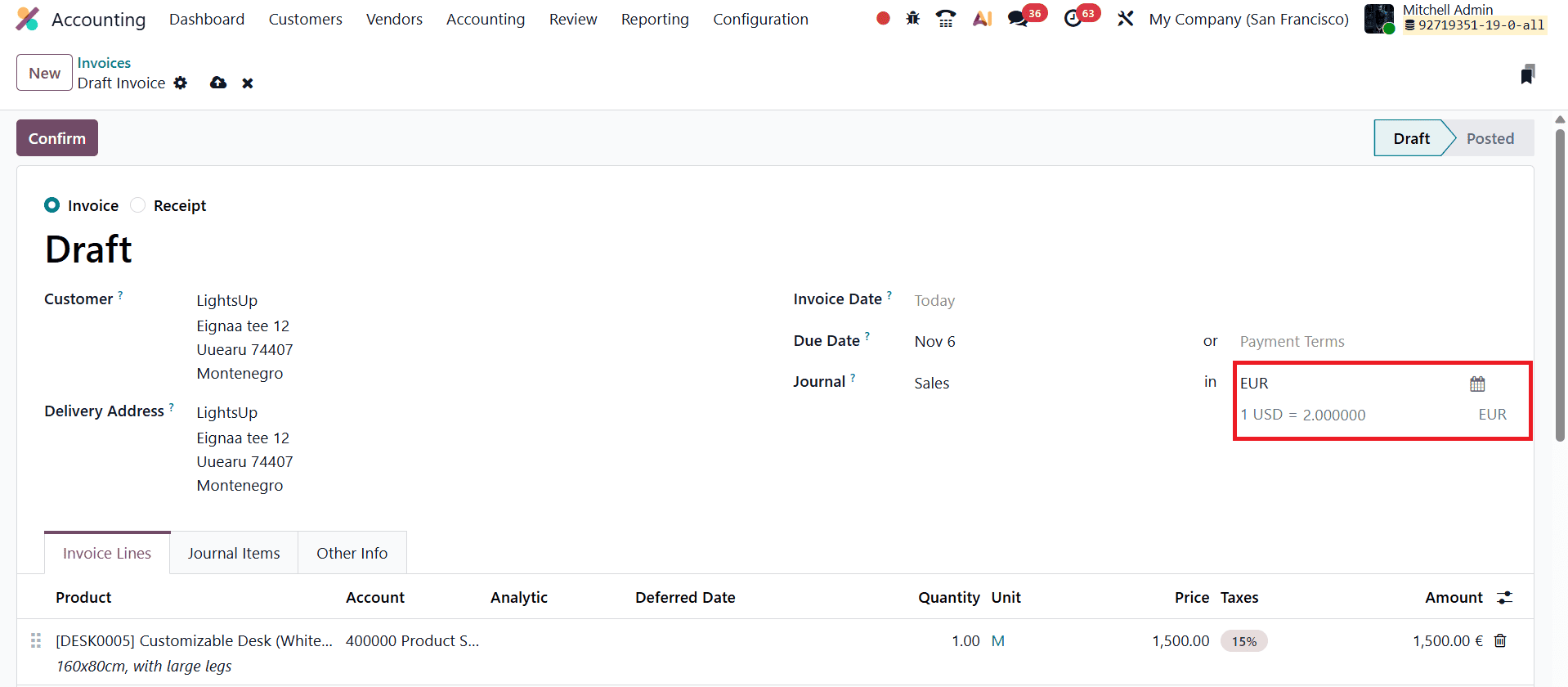
When the invoice is confirmed, users can print the document by clicking the Print button, and the generated invoice will show both the transaction currency and the tax values in the company’s base currency.
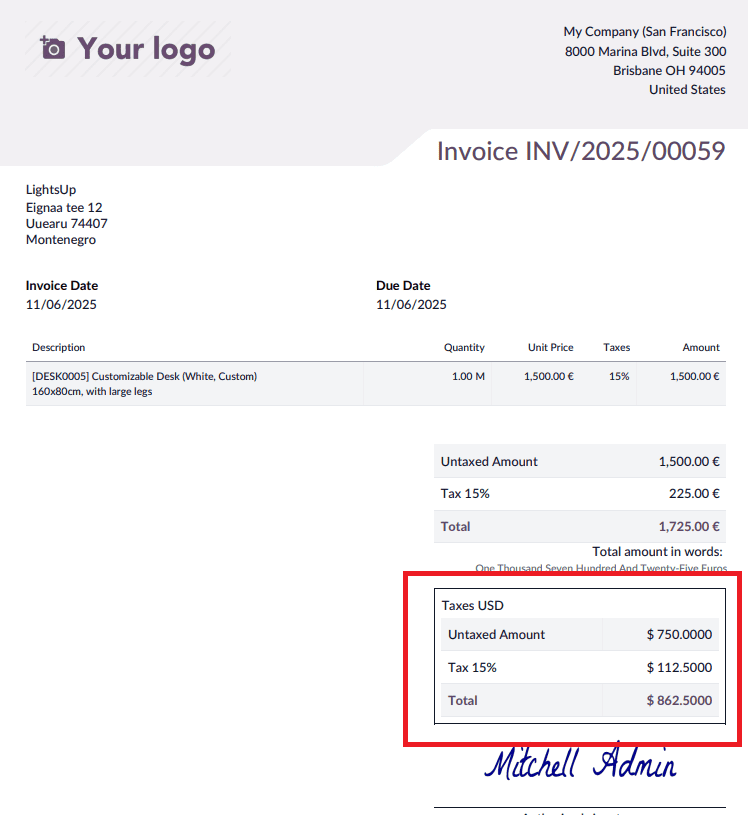
This enhancement in Odoo 19 Accounting greatly improves financial clarity by presenting tax amounts in a uniform currency format, regardless of the transaction currency.
Invoice Online Payment
In Odoo 19 Accounting, the Invoice Online Payment feature continues to improve the customer payment experience by allowing clients to pay their invoices directly through Odoo’s online customer portal. This convenient option simplifies the entire payment workflow, reduces the need for manual reminders, and helps businesses receive payments more quickly. By giving customers immediate access to secure payment methods, such as credit cards, online banking, or integrated payment gateways, Odoo ensures a smooth and user-friendly payment process. To enable this functionality, users can go to Accounting > Configuration > Settings and activate the Invoice Online Payment option under the Customer Payments section.

Once activated, customers who receive their invoices through the portal will see a Pay Now button displayed on the invoice page.
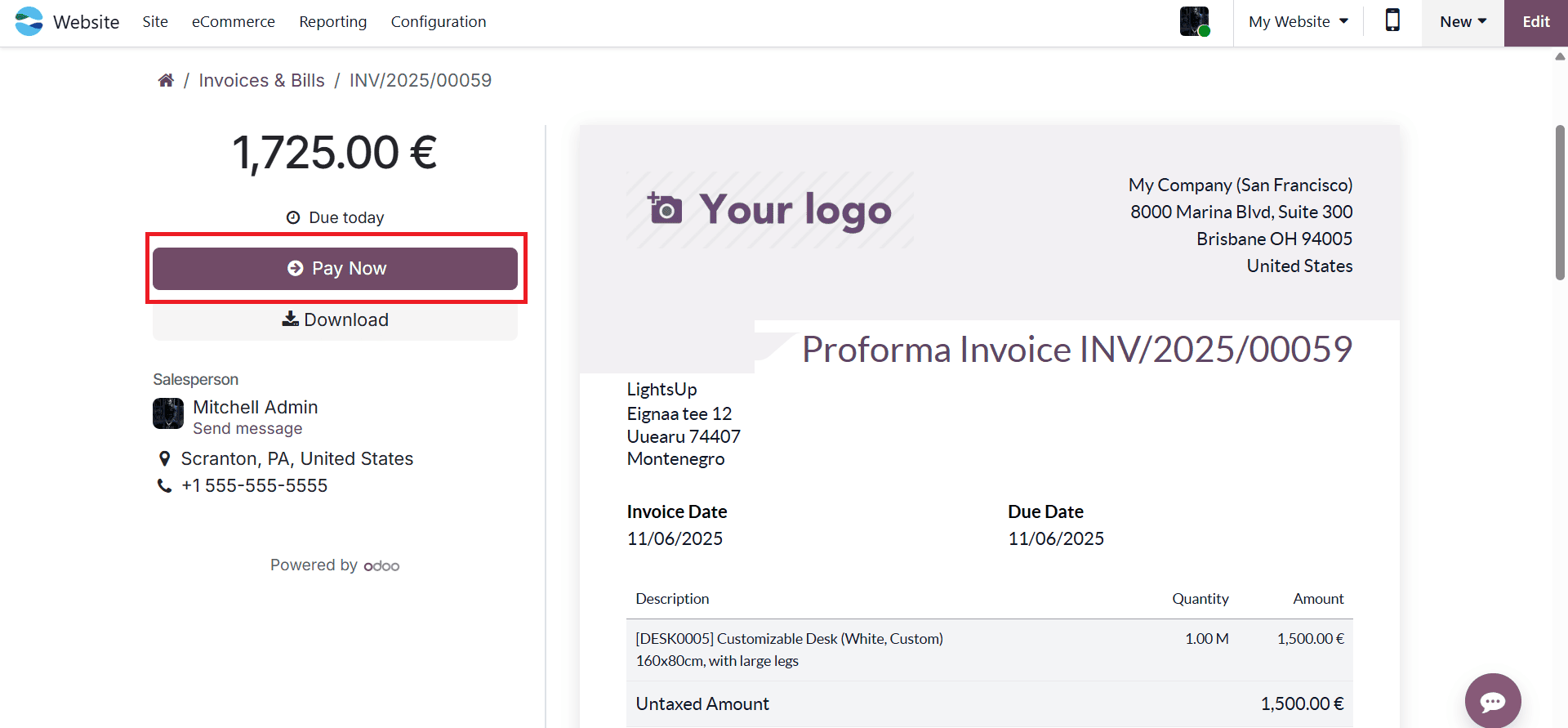
When customers click Pay Now on an invoice, they are directed to a secure payment interface where they can complete their transaction using any of the enabled payment acquirers, such as Stripe, PayPal, or other gateways supported by Odoo. This seamless experience encourages faster payments and reduces the administrative workload on finance teams.
Odoo 19 also enhances this process with the Add QR-code link on PDF option available under the Invoice Online Payment feature. When this option is activated, Odoo automatically generates a unique QR code for each invoice and places it on the PDF document. This QR code contains a direct payment link to the online portal for that specific invoice, allowing customers to initiate payment instantly by simply scanning the code with their mobile device.
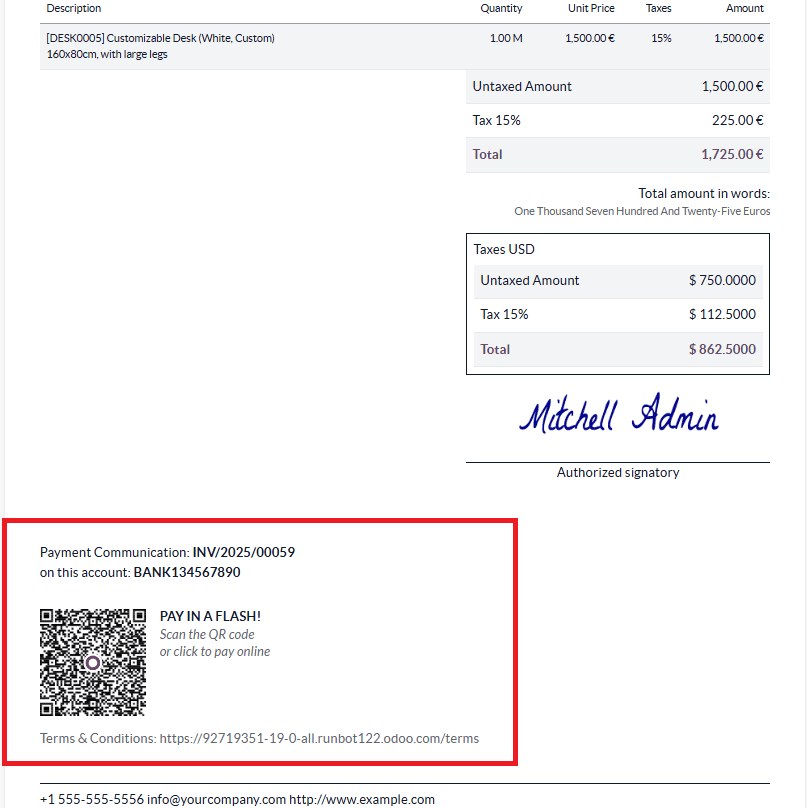
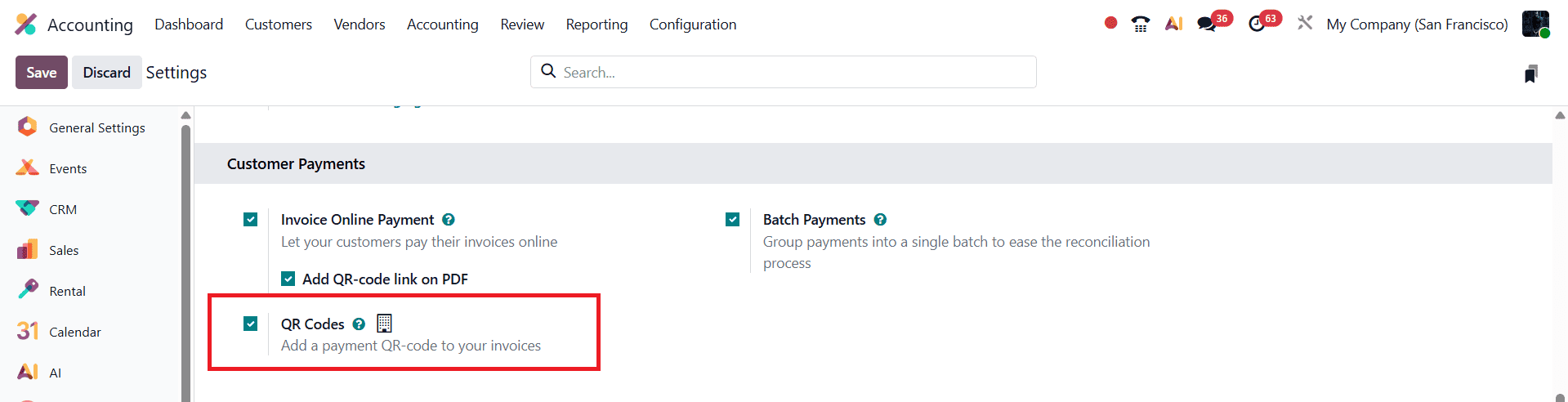
In Odoo 19 Accounting, the Payment QR Code feature takes e-invoicing convenience to the next level by allowing businesses to embed instant payment options directly within their invoices. This feature makes it easier for customers to complete payments quickly and accurately, especially in regions where QR-based payment systems are widely used. To configure this functionality, users can open the Accounting module, go to Configuration > Settings, and enable the QR Codes option under the Customer Payments section. After saving the settings, Odoo provides the ability to choose the specific type of payment QR code your business needs, depending on regional standards or preferred payment methods.
When creating or editing an invoice, go to the Other Info tab, where you’ll find the Payment QR-Code field.
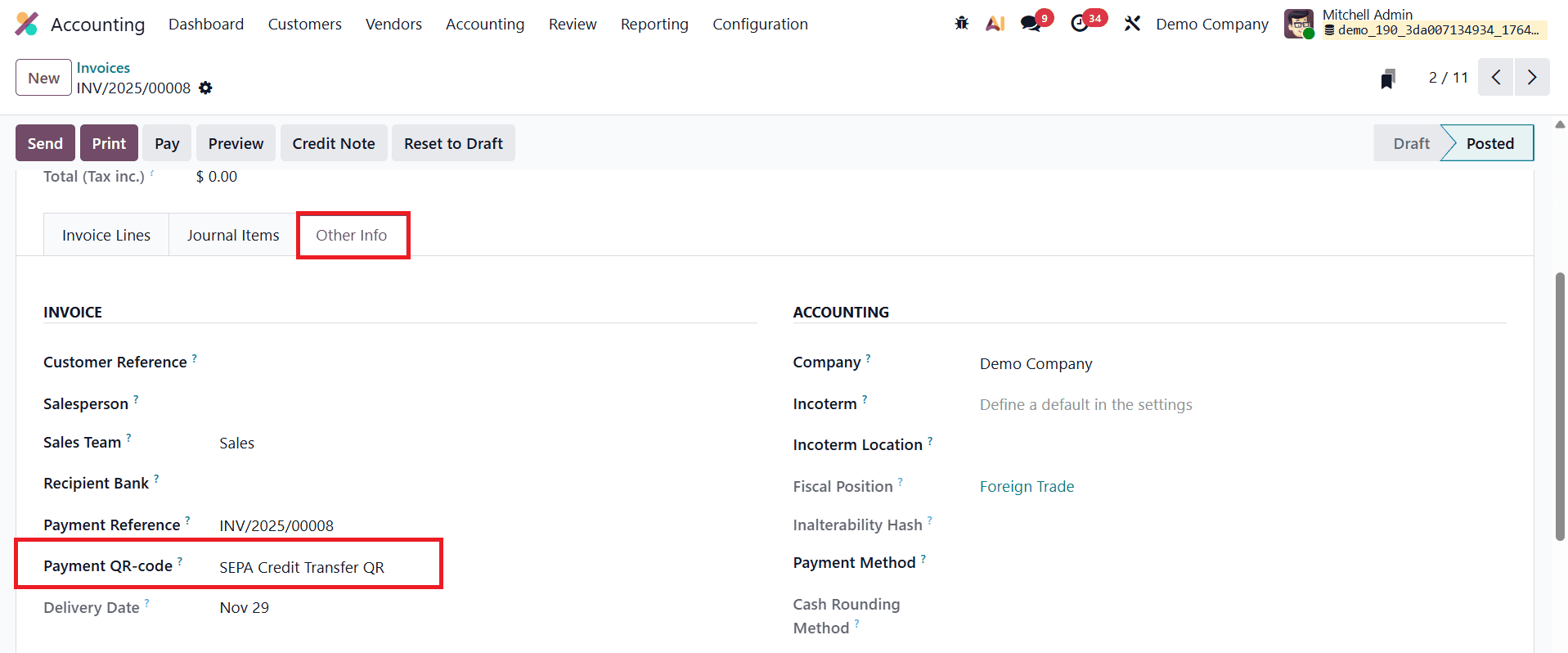
From this configuration screen, you can select the specific QR code format that is supported by your chosen payment acquirer. After you complete and confirm an invoice, you can click the Preview button to view how the QR code will appear on the final invoice document. This allows you to verify that the QR code is correctly generated and properly positioned before sending the invoice to the customer. By offering a quick scan-to-pay option, the QR code makes the payment process more convenient and efficient for customers, ultimately helping businesses accelerate collections and enhance the overall invoicing experience.
Odoo 19 Accounting brings together a wide range of powerful and user-friendly features that make customer invoice management more efficient, accurate, and professional. From adding customer addresses and setting invoice warnings to applying default Incoterms, terms and conditions, authorized signatories, and tax displays in company currency, each tool is designed to reduce manual work and improve clarity for both businesses and their customers. Features like total amount in words, online payment options, and QR codes further enhance the usability and trustworthiness of invoices, helping companies maintain consistent documentation and meet legal or industry standards with ease.
These enhancements not only streamline daily accounting tasks but also create a smoother experience for customers by offering clearer information and faster payment options. Whether a business deals with local clients or operates globally with multi-currency and cross-border transactions, Odoo 19 provides a flexible and reliable platform to manage invoices from start to finish. By using these advanced features effectively, companies can strengthen their financial operations, improve communication with customers, and ultimately support better business growth and efficiency.
To read more about How to Manage Customer Invoices in a Business with Odoo 18 Accounting, refer to our blog How to Manage Customer Invoices in a Business with Odoo 18 Accounting.