The Purchase module in Odoo 19 plays a crucial role in managing procurement activities efficiently. From requesting quotations to confirming purchase orders, this module helps businesses streamline their purchasing workflow while maintaining accuracy and transparency. One of the first and most important steps in this process is creating a Request for Quotation (RFQ).
An RFQ in Odoo 19 allows organizations to request pricing and terms from vendors before making a purchase decision. It helps compare supplier offers, control costs, and ensure that purchases align with business requirements. With Odoo 19’s improved interface and user-friendly features, creating and managing RFQs has become more intuitive and time-saving.
In this blog, we will explore how to create an RFQ using the Odoo 19 Purchase module in a step-by-step manner. The article will guide you through the key options, fields, and best practices involved in RFQ creation, helping both beginners and experienced users understand the process with ease.
Odoo’s Request for Quotation (RFQ) feature within the Purchase application helps standardize the procurement process when dealing with multiple vendors who may offer different prices, delivery schedules, and purchase conditions. An RFQ is a formal document sent by a company to vendors to request product pricing and terms before finalizing a purchase. In Odoo, once a vendor reviews and approves an RFQ, it can be seamlessly converted into a Purchase Order (PO), ensuring alignment on agreed pricing, quantities, and lead times. To begin working with RFQs, users can navigate to Purchase > Orders > Requests for Quotation, where all quotation-related activities are managed centrally.
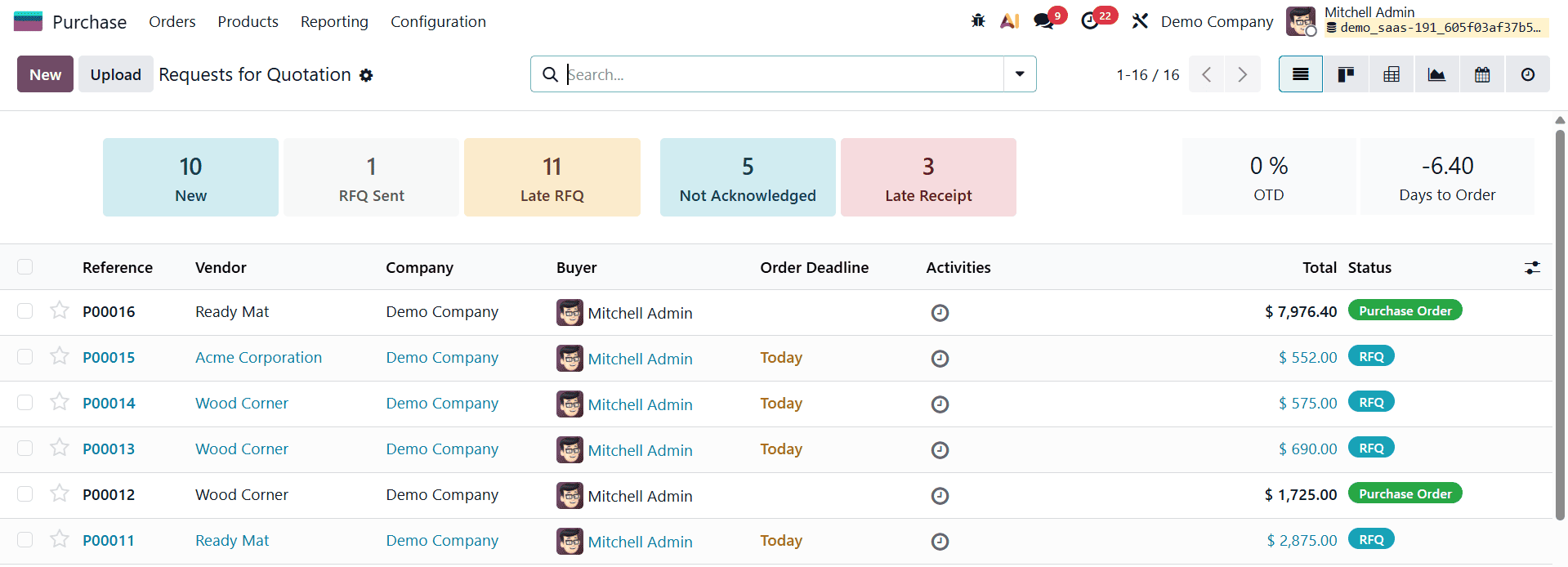
The Requests for Quotation dashboard provides a comprehensive overview of all RFQs and purchase orders within the company, along with their current statuses. At the top of the dashboard, Odoo displays a summary of all RFQs created across the organization, as well as RFQs assigned to the logged-in user as the buyer. In addition to status summaries, the top-right section of the dashboard presents valuable analytical insights into recent purchasing activity. These reports highlight total purchase values, average vendor lead times, and the number of RFQs sent over a specific period. The dashboard also includes quick-access filters such as New, which shows RFQs still in the draft stage and not yet emailed to vendors; RFQ Sent, which displays RFQs that have been sent and are awaiting vendor confirmation; and Late RFQ, which identifies RFQs or confirmed purchase orders where the order deadline has already passed. In addition to multiple view options, the Requests for Quotation dashboard in Odoo 19 also offers powerful Filter and Group By features, which can be accessed through the search bar’s drop-down menu.
To create a new Request for Quotation (RFQ) in Odoo 19, begin by clicking the New button located at the top-left corner of the Requests for Quotation dashboard. This action opens a new Purchase Order (PO) form where all RFQ details can be entered.
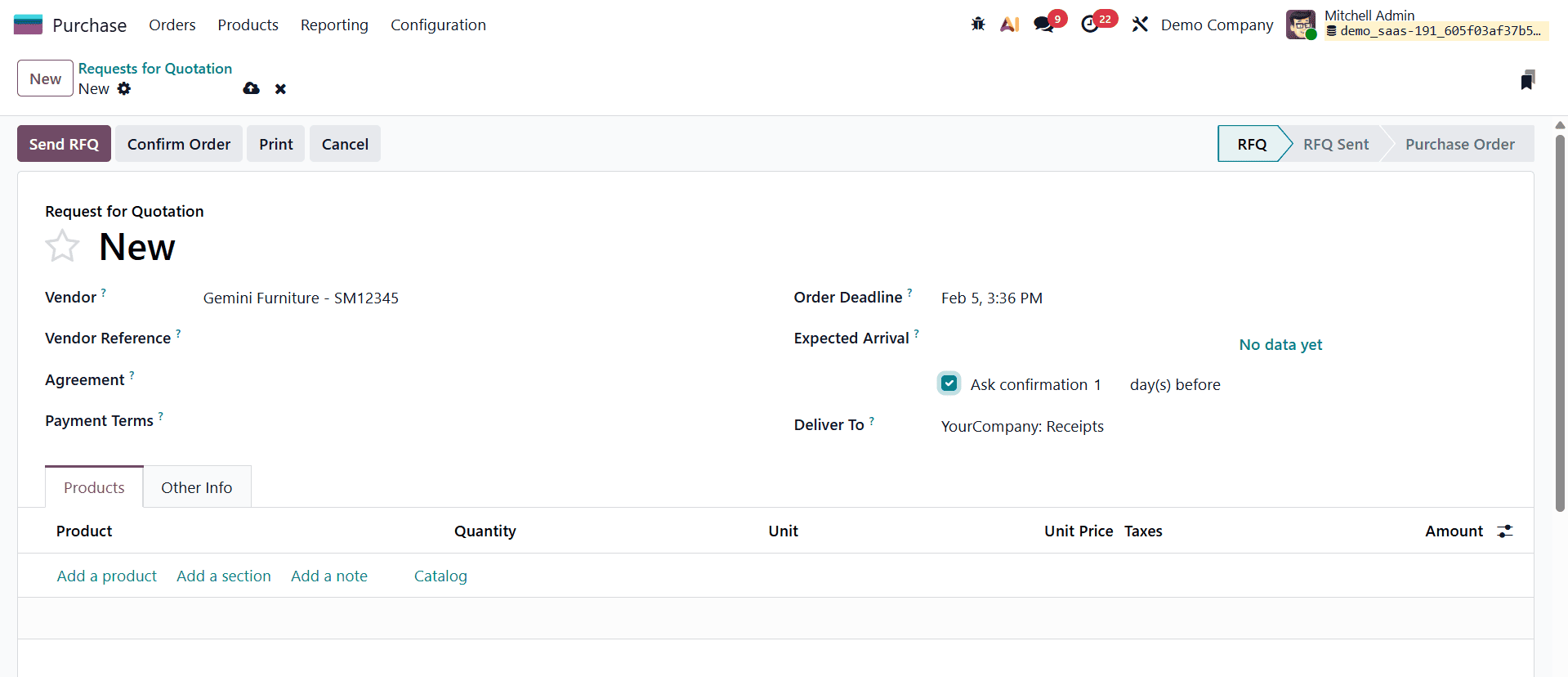
The first step is to assign a Vendor, as this determines pricing rules, delivery lead times, and available products. Selecting the correct vendor ensures that the quotation aligns with the supplier’s predefined terms and conditions.
The Vendor Reference field allows users to record the sales or delivery order number provided by the vendor. This reference becomes particularly useful during the receiving stage, as it helps match the purchase order with the corresponding delivery documents. If the Purchase Agreements feature is enabled, the Blanket Order field becomes visible. This field links the RFQ to long-term purchase agreements that define recurring orders with fixed pricing. Blanket orders can be viewed and managed by navigating to Purchase app > Orders > Purchase Agreements, making it easier to handle ongoing procurement contracts.
Next, users must define the Order Deadline, which specifies the date by which the vendor is expected to confirm the quotation. Based on this deadline and the vendor’s lead time, Odoo automatically calculates the Expected Arrival date. If required, the Ask Confirmation checkbox can be selected to request the vendor to confirm the shipping date via email, ensuring clarity and reducing delays in delivery schedules.
When the Storage Locations feature is activated, the Deliver To field becomes available, allowing users to specify the warehouse operation where the products will be received. This information is derived from warehouse configurations set up in the Inventory app. Users can choose a specific receiving warehouse address or select Dropship if the products are to be delivered directly to the end customer. When dropshipping is selected, the Dropship Address field is enabled, and contact details are automatically populated from the Contacts app.
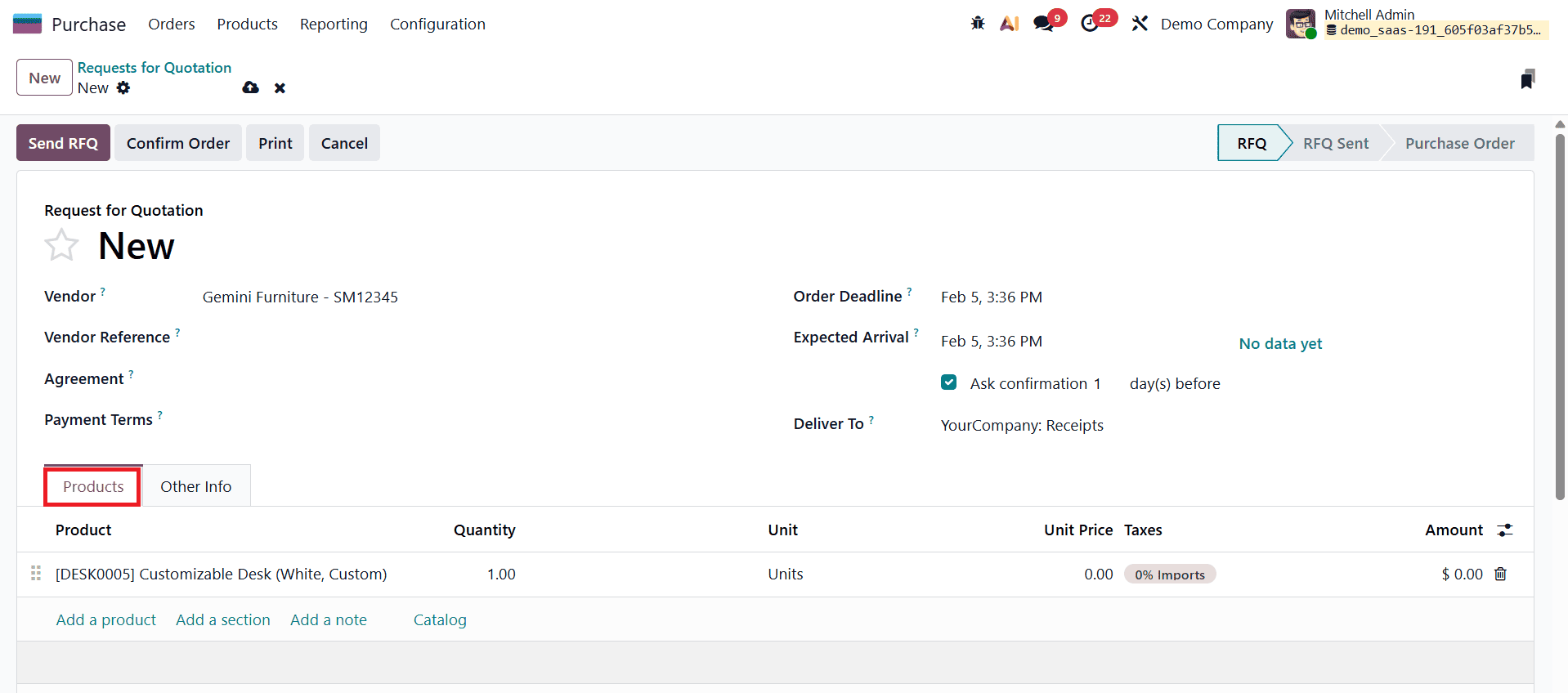
In the Products tab, users can add items to be ordered by clicking Add a product and selecting the product from the drop-down list. To create a new product on the spot, users can type the product name and select Create [product name], then manually enter the unit price. Alternatively, choosing Create and Edit… opens the full product form, allowing for detailed configuration. In the Products section of the RFQ, Odoo 19 also allows users to add a product description directly under the product name. Users can also click Catalog to browse the vendor’s product list and add items directly to the RFQ cart.
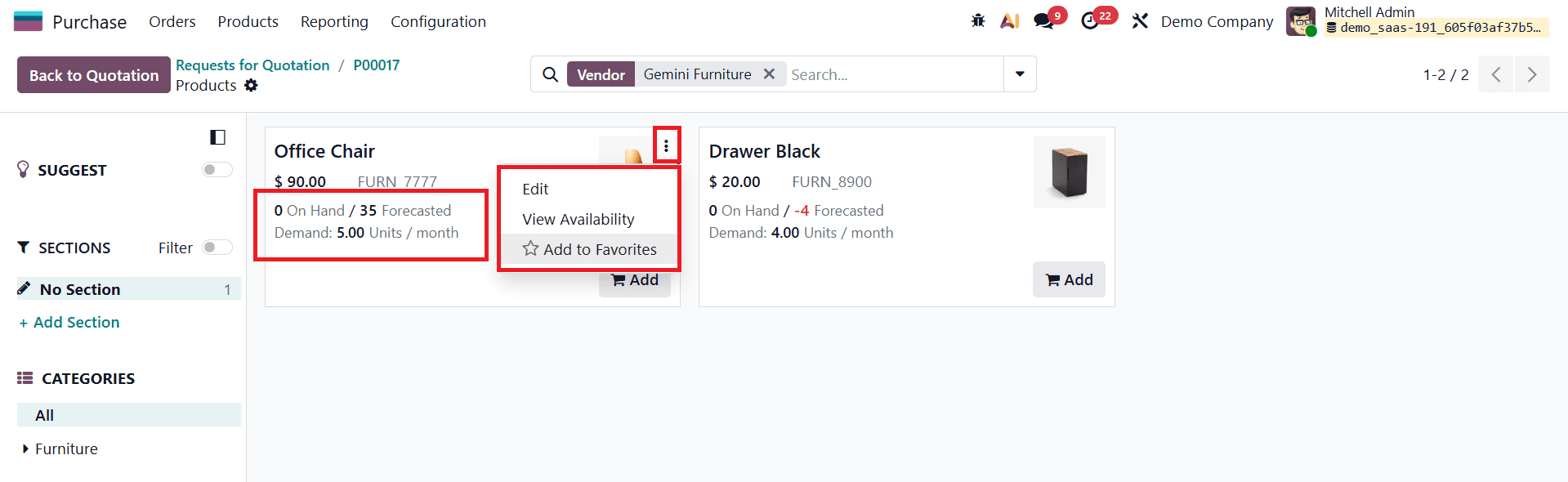
Odoo 19 introduces several notable enhancements to the Catalog view in the Purchase module, making product selection faster and more informative during RFQ creation. One of the key improvements is the display of 6 quantities directly on the product kanban tiles. This allows purchasers to instantly assess current stock levels and future availability without navigating away from the catalog, enabling more informed purchasing decisions based on real-time inventory data.
Another important update in Odoo 19 is the ability to edit product details directly from the catalog view. This streamlines the procurement workflow, especially when quick adjustments are needed while reviewing vendor catalogs. Additionally, the new Add to Favorites option allows users to mark frequently purchased products, making them easier to locate in future RFQs and improving efficiency for recurring purchases.
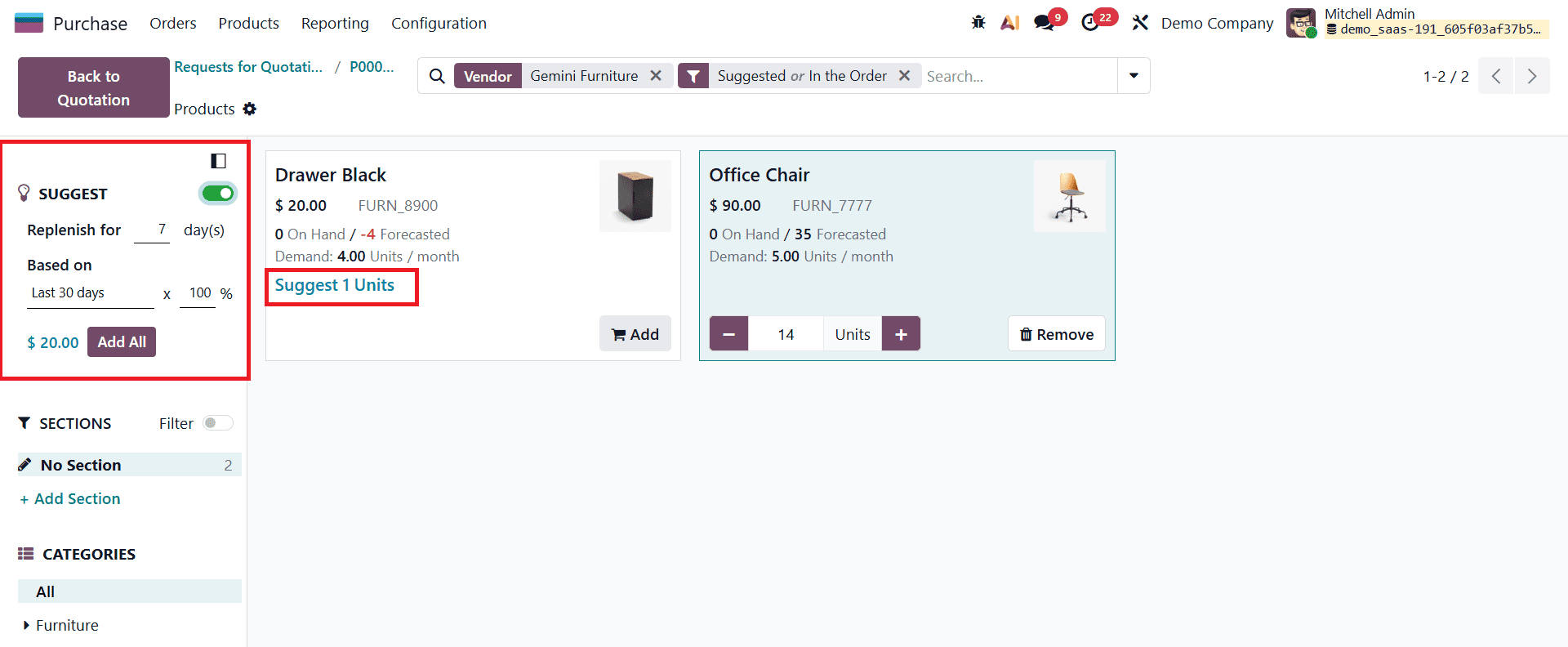
A standout feature newly introduced in Odoo 19 is the “Suggest” option within the catalog. This intelligent feature recommends purchase quantities based on sales history and demand forecasts, helping buyers determine optimal order quantities. By leveraging past sales data and projected demand, the Suggest option supports better inventory planning, reduces the risk of overstocking or stockouts, and enhances overall procurement accuracy.
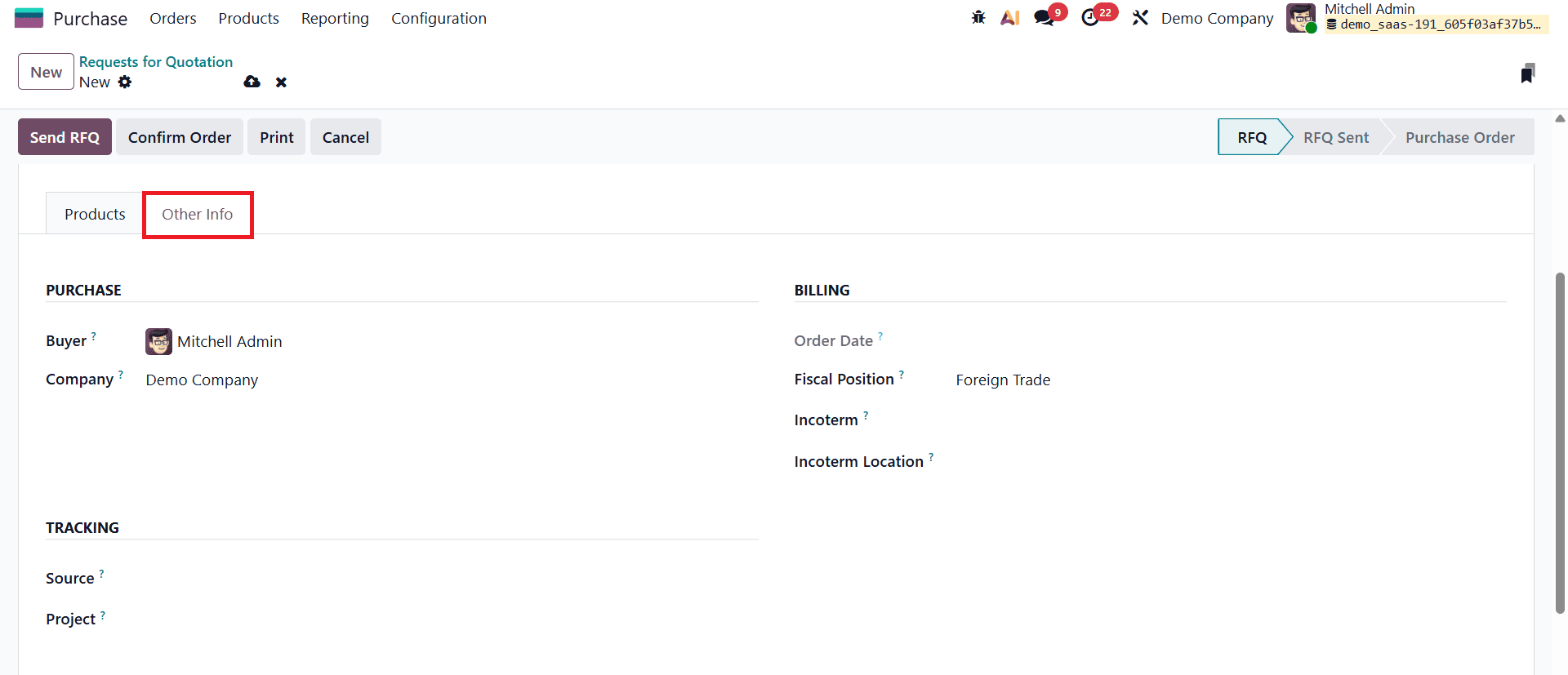
Under the Other Infor tab of the RFQ configuration window, you can mention the Buyer, Company, Source, Project, Order Date, Fiscal Position, Incoterm, and Incoterm Location in the given fields.
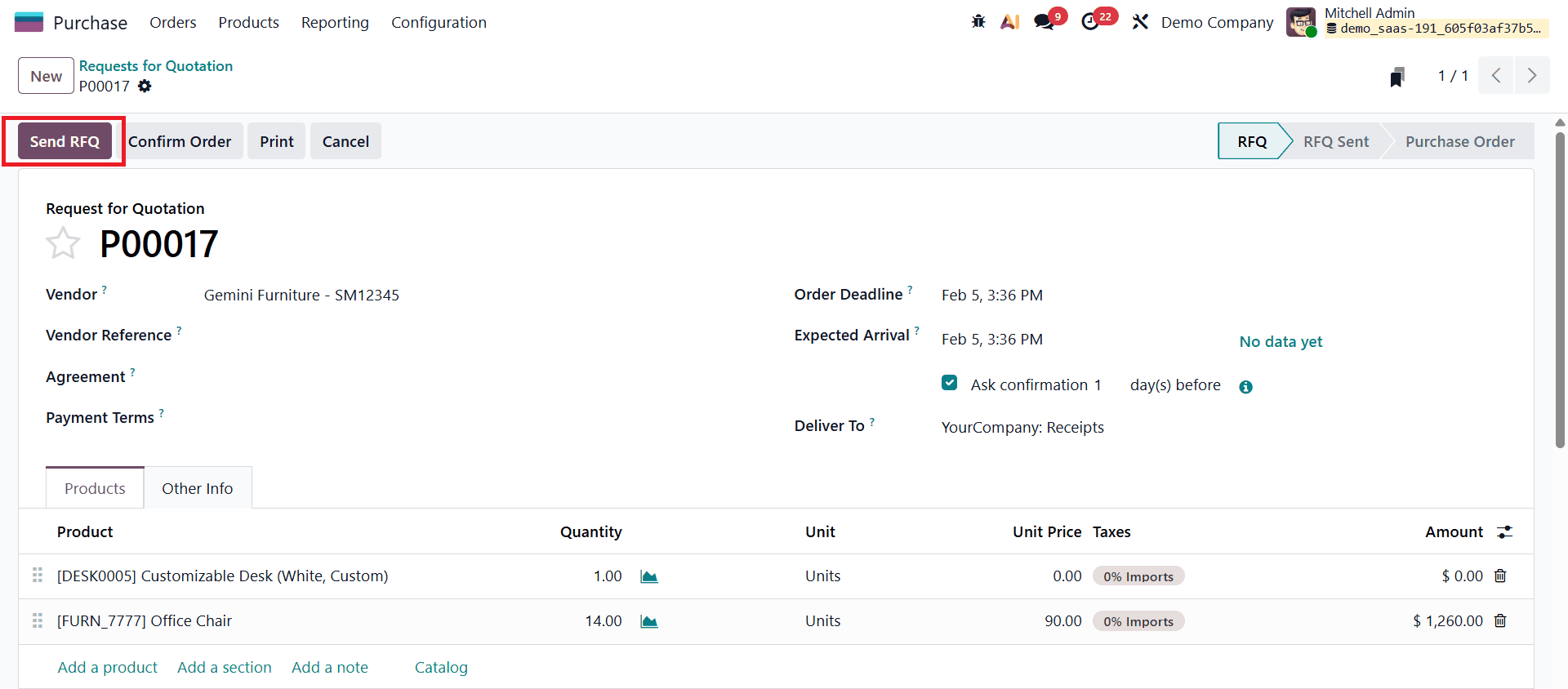
Once all required details are filled in, clicking Send RFQ opens a Compose Email pop-up window with the default Purchase: Request for Quotation email template automatically loaded.
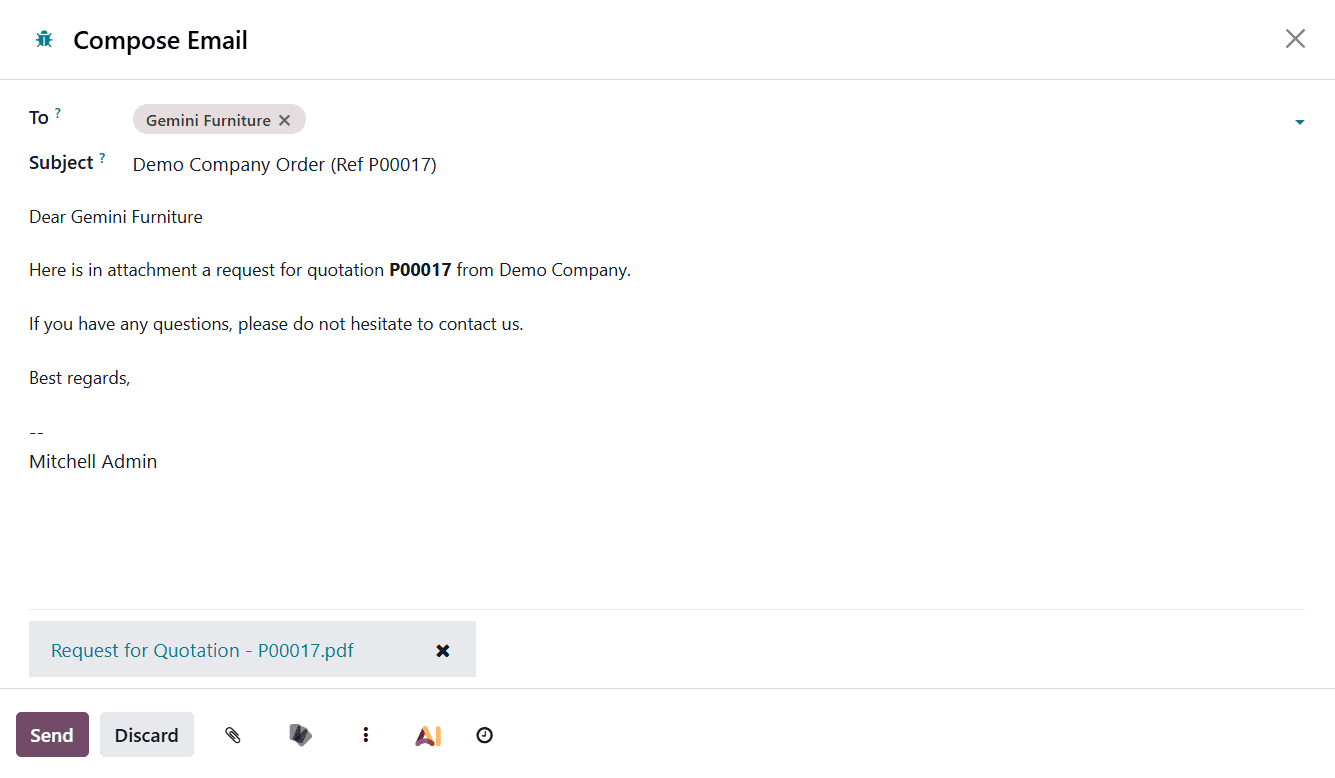
This email is sent to the vendor’s email address as configured in the Contacts app. After customizing the message, clicking Send moves the RFQ to the RFQ Sent stage.
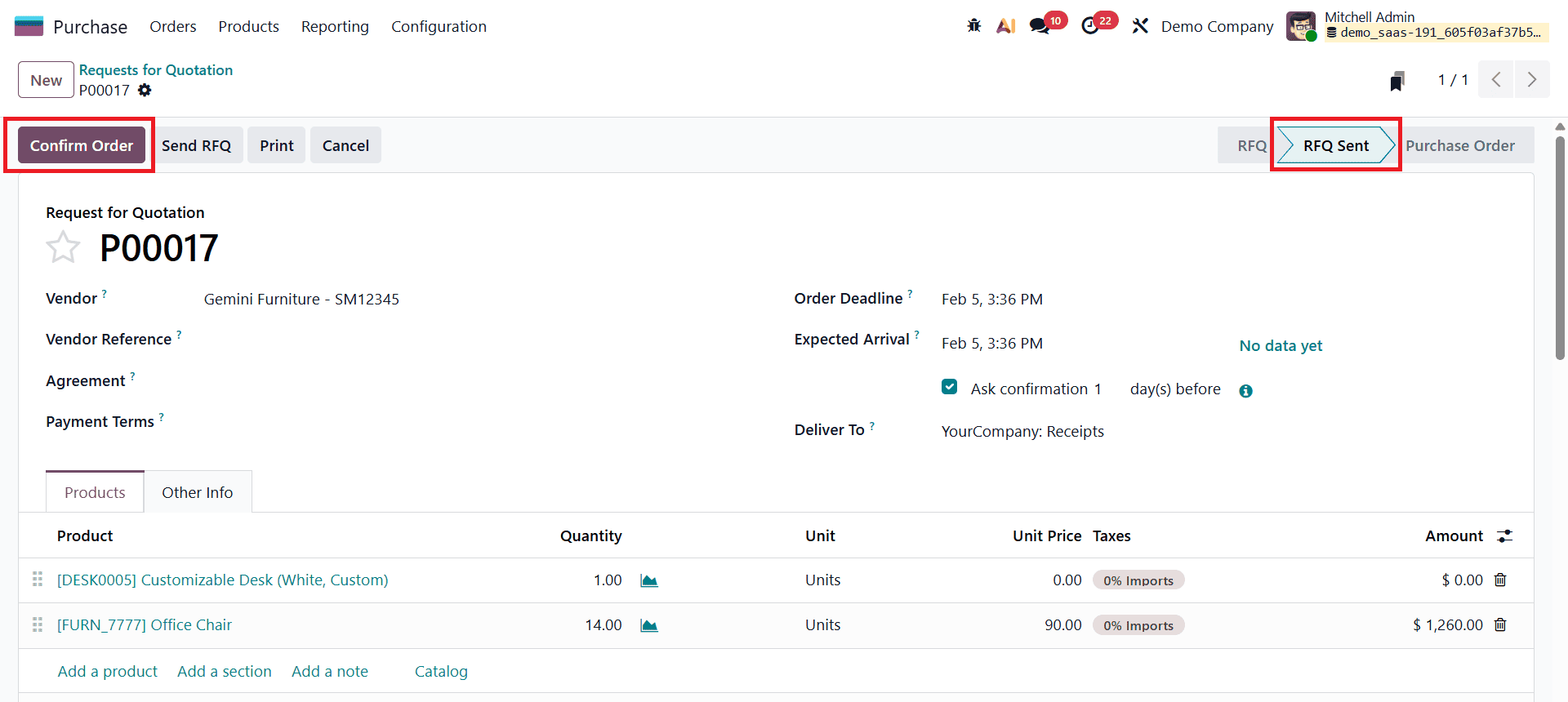
Users can also choose Print to download a PDF version of the quotation for offline sharing or record-keeping. When the vendor agrees to the terms, clicking Confirm Order converts the RFQ into an active Purchase Order (PO). Upon confirmation, the Order Deadline field is replaced with the Confirmation Date, which records the exact date and time the order was approved. After the order is placed, clicking Receive allows users to record incoming goods directly into the system.
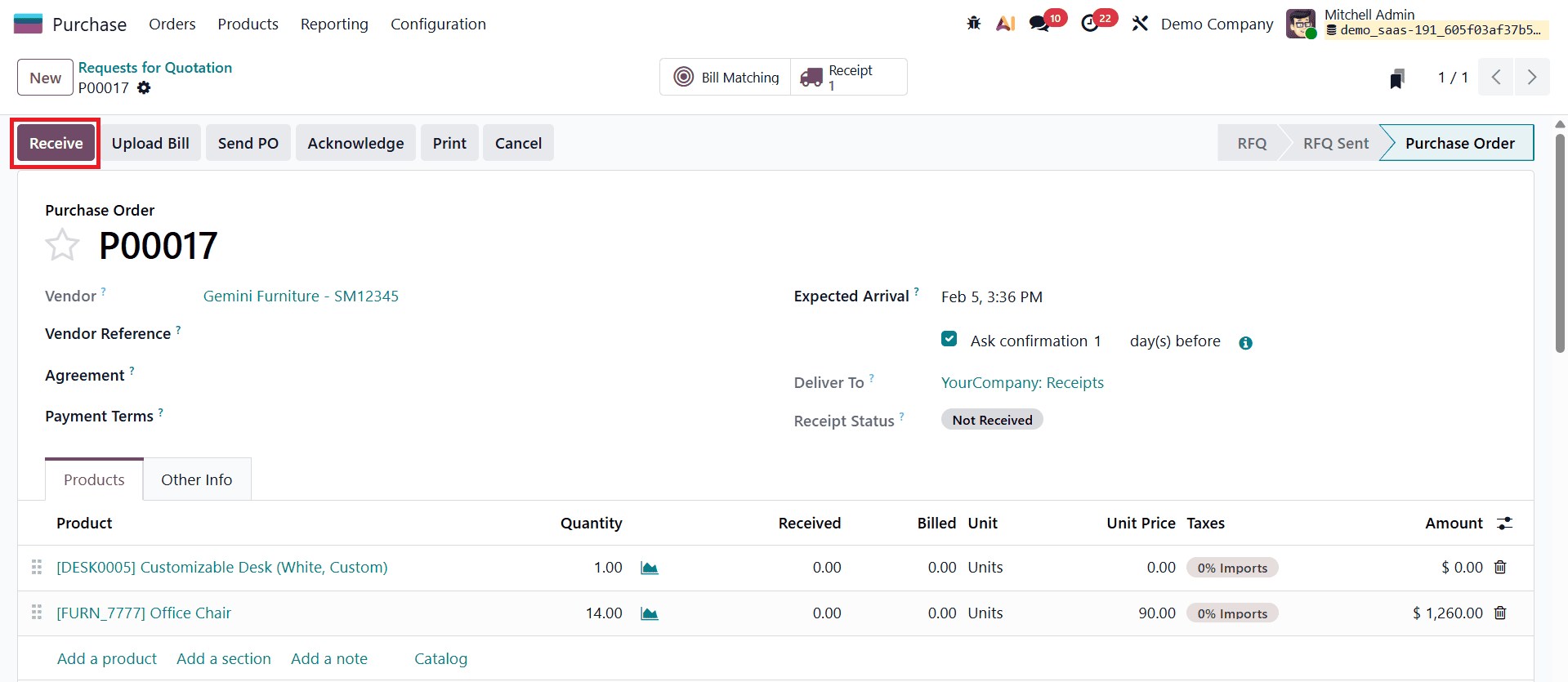
With the Inventory module installed, confirming a purchase order automatically generates a receipt document. This document includes product details, quantities, and expected arrival dates, all pre-filled based on the purchase order.
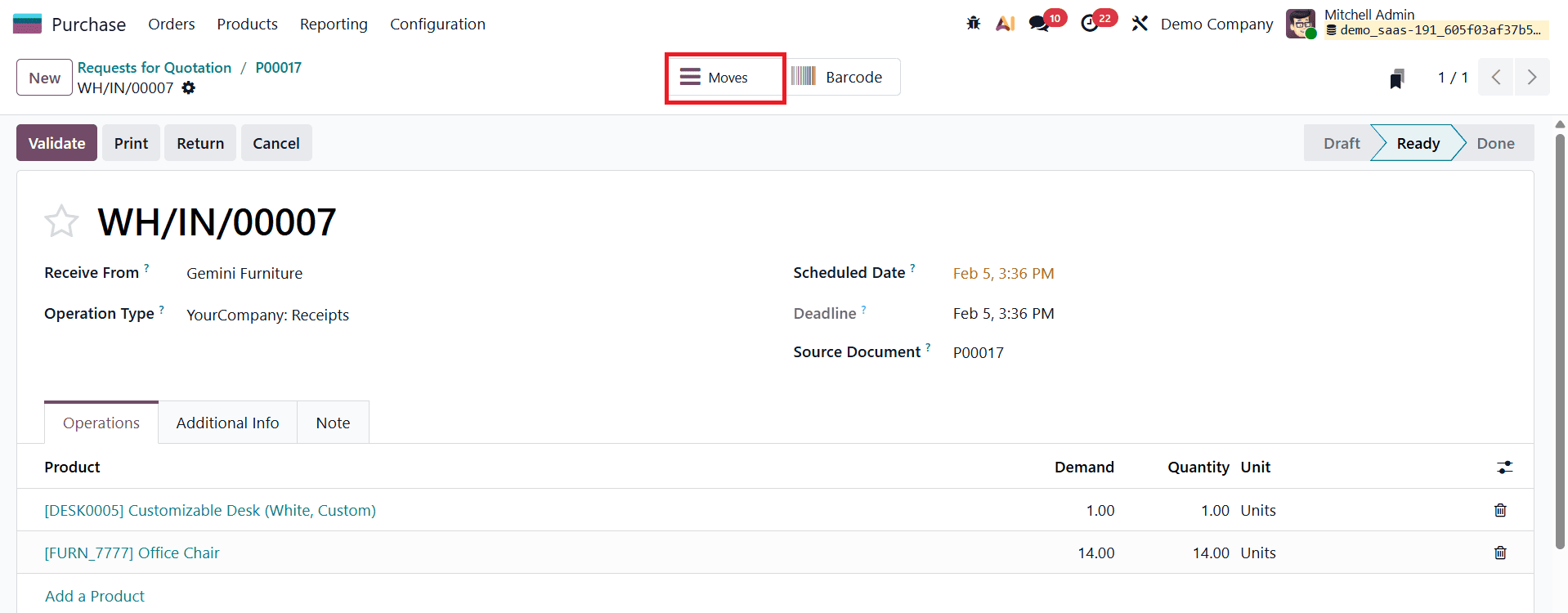
Odoo 19 introduces a new smart tab called Moves in the Receipt form, enhancing visibility and control over incoming stock operations. This smart tab provides a consolidated view of all stock movements linked to the receipt, including product quantities, source and destination locations, and movement status.
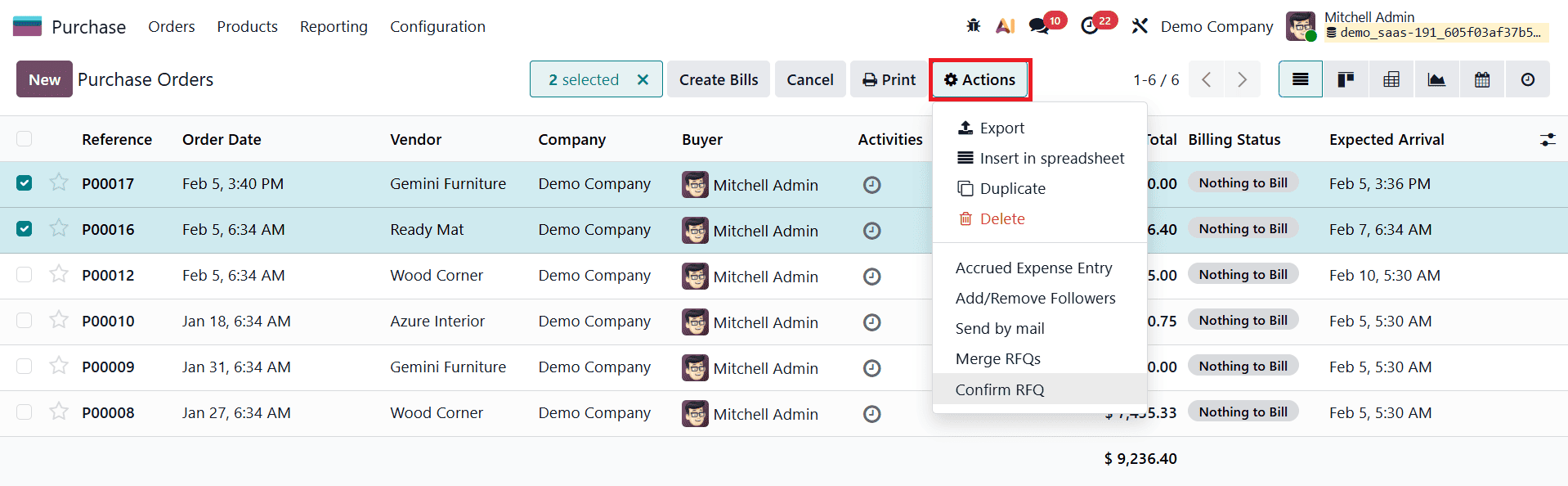
In Odoo 19, users can efficiently manage procurement by selecting multiple Requests for Quotation (RFQs) and processing them together using the Actions button. From the RFQ list view, multiple RFQs can be selected at once, allowing users to either Merge RFQs into a single request or confirm multiple RFQs simultaneously. This feature is particularly useful when dealing with the same vendor or similar products, as it reduces duplication and simplifies order management. By using the Actions menu to process RFQs in bulk, purchase teams can save time, maintain consistency, and streamline the overall purchasing workflow.
Creating and managing Requests for Quotation in Odoo 19’s Purchase module offers a streamlined and intelligent approach to modern procurement. From an intuitive RFQ dashboard and enhanced catalog features to smart confirmations, bulk actions, and seamless integration with the Inventory app, Odoo 19 simplifies every stage of the purchasing workflow. By leveraging these features effectively, businesses can improve vendor coordination, maintain accurate inventory levels, and make data-driven purchasing decisions. Mastering the RFQ process in Odoo 19 ultimately helps organizations achieve greater efficiency, transparency, and control over their procurement operations.
To read more about How to Create a Request for Quotation in Odoo 18 Purchase, refer to our blog How to Create a Request for Quotation in Odoo 18 Purchase.