A well-designed quotation does more than communicate numbers; it reflects the professionalism, credibility, and brand identity of a company. Quotation layouts refer to the overall format and structure used to present sales quotations to customers, defining how key details such as product descriptions, pricing, taxes, terms, and conditions are organized and visually displayed. Since a quotation is often the first formal document shared with a potential customer, its clarity and presentation play a crucial role in building trust and influencing purchasing decisions.
Within ERP systems like Odoo, quotation layouts are designed to ensure that sales information is not only accurate but also visually consistent and easy to understand. A quotation typically outlines the offered products or services along with their prices, validity period, payment terms, and other commercial conditions. The layout determines how this information flows on the document, whether it appears clean and structured or cluttered and confusing. A professional layout helps customers quickly grasp the value proposition, reducing back-and-forth communication and accelerating the sales cycle.
In Odoo, quotation layouts already allow businesses to customize the appearance of sales quotations and sales orders before sending them to customers. Users could define how fields are arranged, choose document styles, and incorporate company branding elements such as logos, colors, headers, and footers. This flexibility made it possible for organizations to align their quotations with their corporate identity while maintaining consistency across all customer communications. These layouts ensured that quotations were not just transactional documents, but polished representations of the brand itself.
Building on this foundation, Odoo 19 further emphasizes the importance of designing professional quotation templates that balance aesthetics with functionality. By refining layout customization and presentation options, Odoo 19 enables businesses to create quotations that are clear, visually appealing, and brand-aligned, while still being easy to manage from a sales operations perspective. Designing professional quotation templates in Odoo 19 is therefore not just about formatting a document, it is about enhancing customer experience, strengthening brand image, and supporting more effective and confident sales communication.
In Odoo 19, quotation and document layouts can be configured directly from the General Settings menu under the Companies section, making it easy for businesses to standardize the appearance of their customer-facing documents. Within this area, Odoo provides a dedicated Document Layout section that allows users to manage how quotations, sales orders, invoices, and other reports are visually presented. This centralized configuration ensures consistency across all documents generated by the system, regardless of the sales team or user creating them.
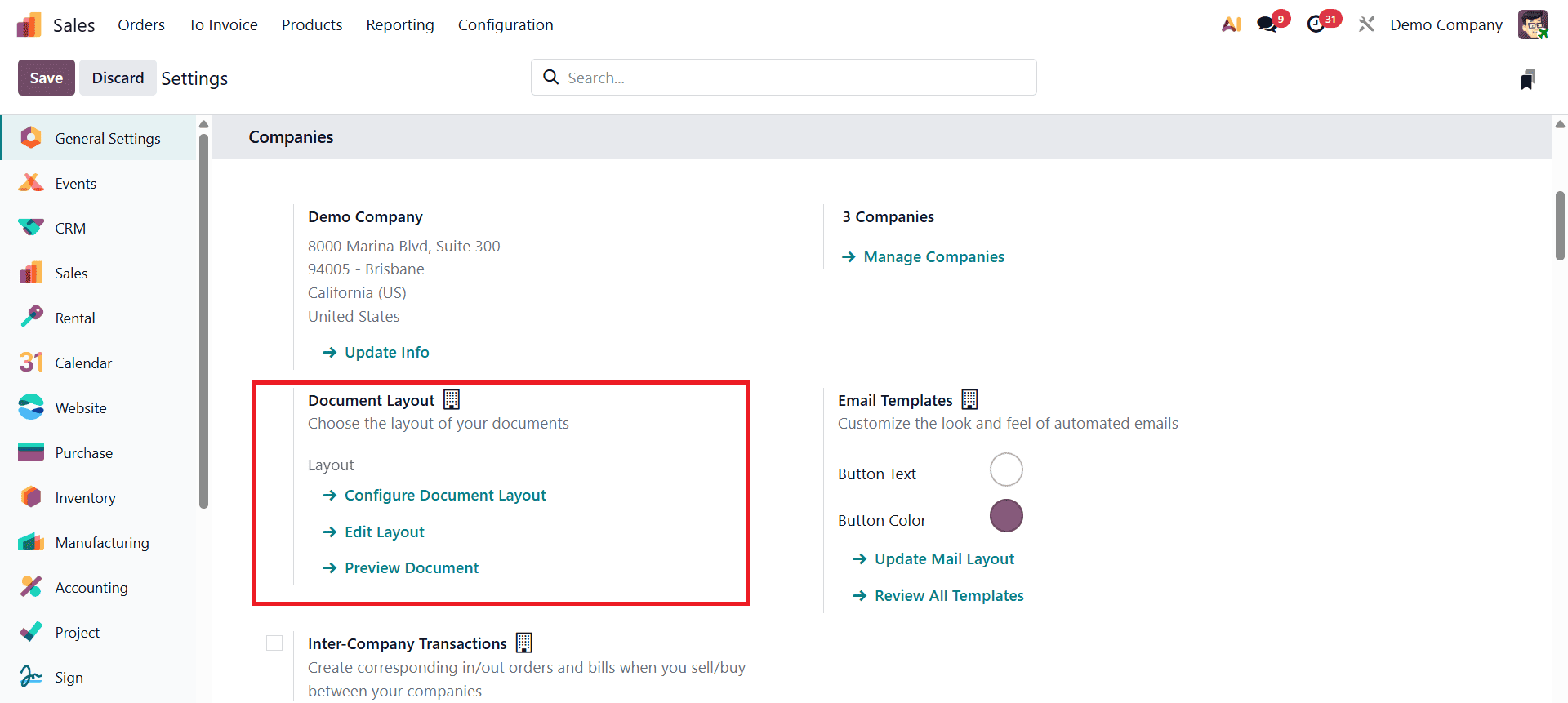
Under the Document Layout section, three key options are available: Configure Document Layout, Edit Layout, and Preview Document. The Preview Document option allows users to download and view a sample document layout without including any actual order or customer data. This is particularly useful for quickly checking the overall structure, branding, and alignment of elements such as headers, footers, and logos before applying the layout to live quotations. Since no transactional details are included, it serves purely as a visual reference.
When users click on Configure Document Layout, Odoo opens a pop-up configuration window where the core layout settings can be customized. From this window, businesses can define essential branding elements such as company logo, layout style, colors, font choices, and address placement.
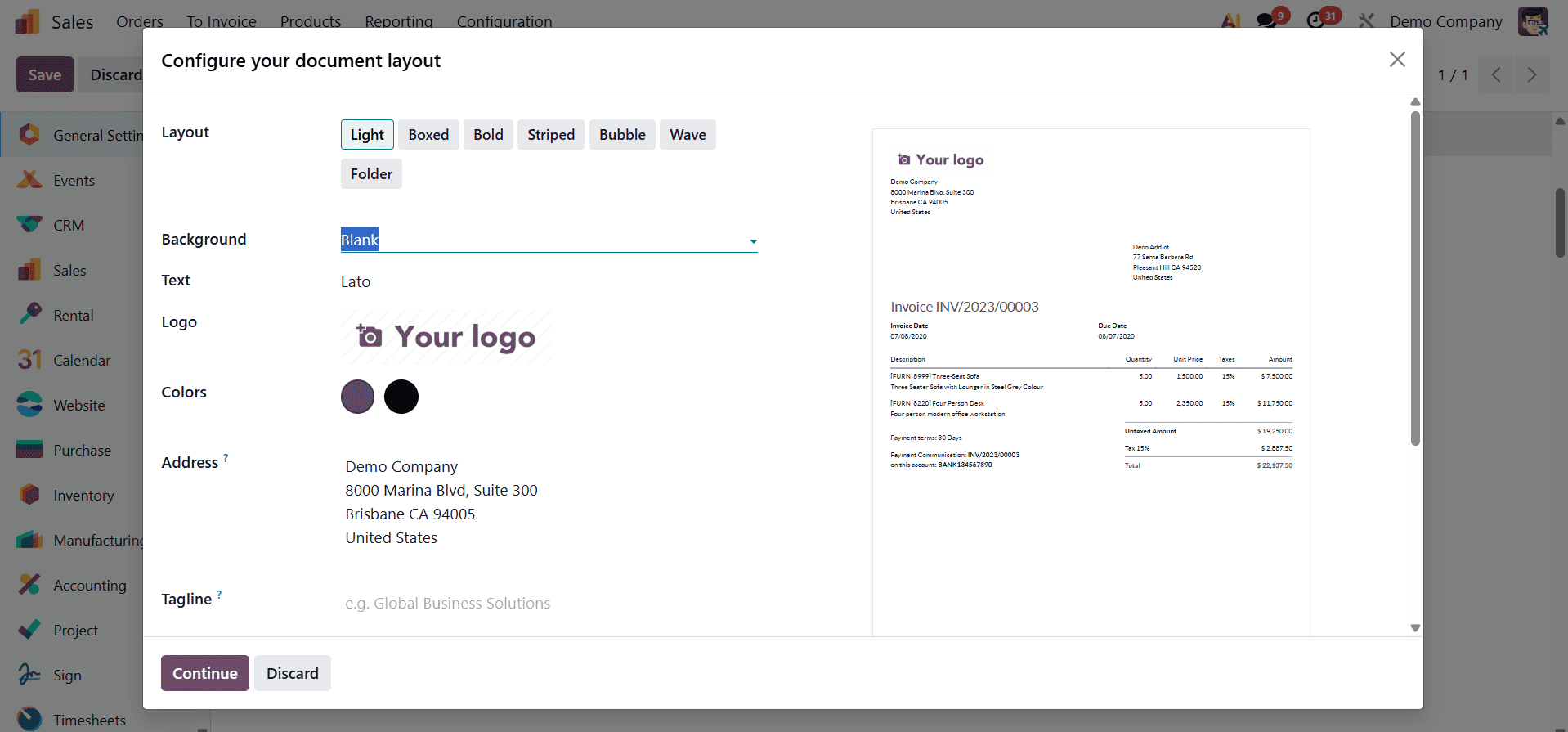
The system offers a range of predefined layout styles that control how information such as headers, section divisions, totals, and status-related elements are arranged and highlighted within the document. These layouts are designed to suit different business preferences, from minimal and elegant designs to more visually expressive formats, while maintaining clarity and professionalism.
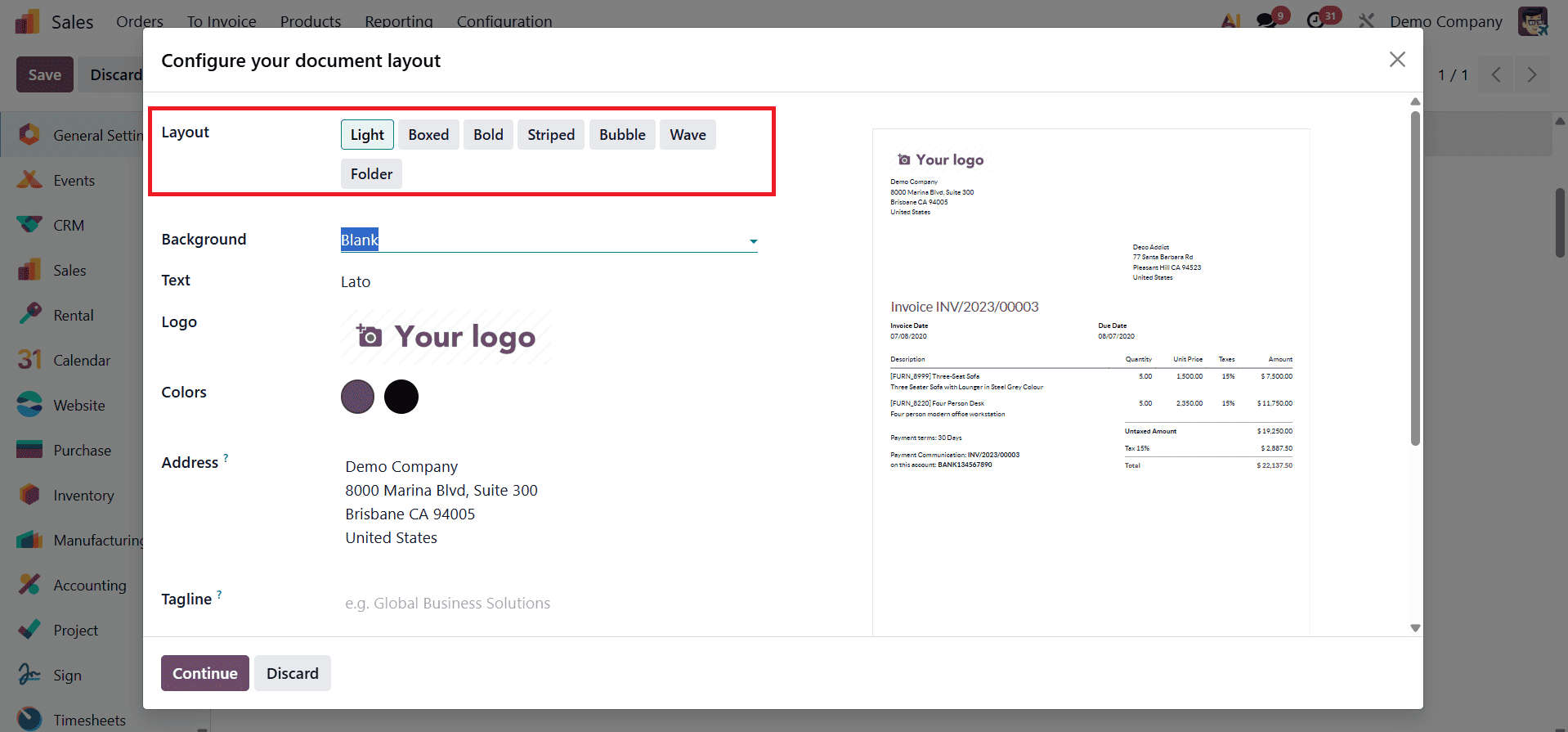
Odoo 19 supports multiple layout variants, including Light, Boxed, Bold, Striped, Bubble, Wave, and Folder. The Light layout provides a clean and minimal appearance, making it ideal for businesses that prefer a simple and uncluttered quotation format. The Box layout emphasizes content by enclosing sections within clear boundaries, improving readability for detailed quotations. Bold layouts focus on strong visual contrast, drawing attention to key elements such as totals and headings. The Striped layout uses alternating background lines to clearly separate rows, which is especially useful for quotations with multiple product lines. More visually dynamic options such as Bubble and Wave introduce curved or flowing design elements, giving quotations a modern and distinctive look. The Folder layout, on the other hand, offers a structured and document-style appearance that works well for formal business communication.
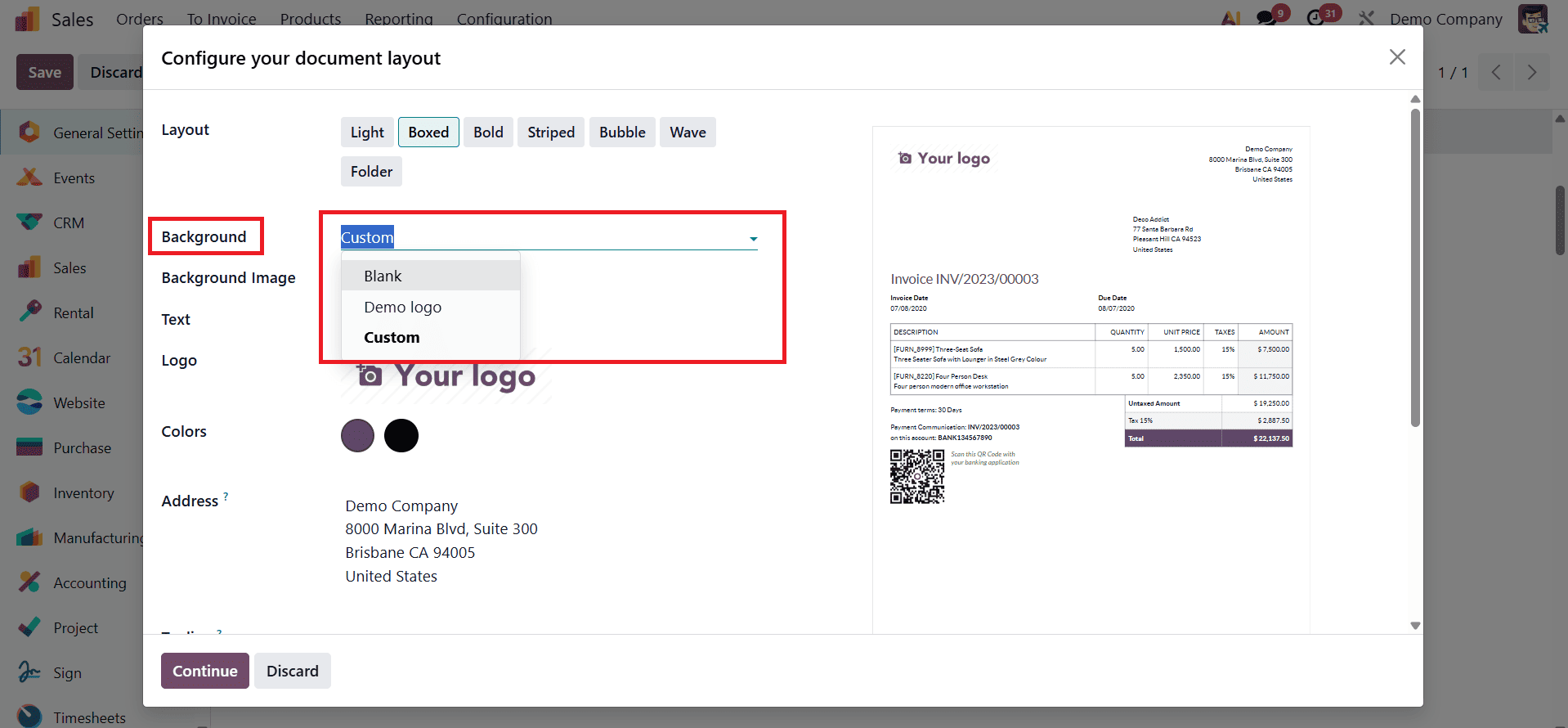
Odoo 19 supports three types of document backgrounds: Blank, Logo, and Custom. When the background is set to Blank, no visual element is applied behind the document content. This option is ideal for businesses that prefer a clean, minimal, and distraction-free layout, ensuring maximum focus on the quotation details such as products, prices, and terms. Selecting Logo as the background allows the company’s logo to appear subtly behind the document content, reinforcing brand identity without overwhelming the text. This option is commonly used to maintain a professional yet branded appearance across all official documents.
For organizations that require a more distinctive or creative presentation, Odoo 19 offers the Custom background option. With this setting, users can upload a custom image to be used as the document background. This could include branded designs, watermarks, or themed visuals tailored to specific business needs or marketing strategies. By choosing the appropriate background type, businesses can ensure that their quotations not only convey accurate information but also align visually with their brand image and communication style.
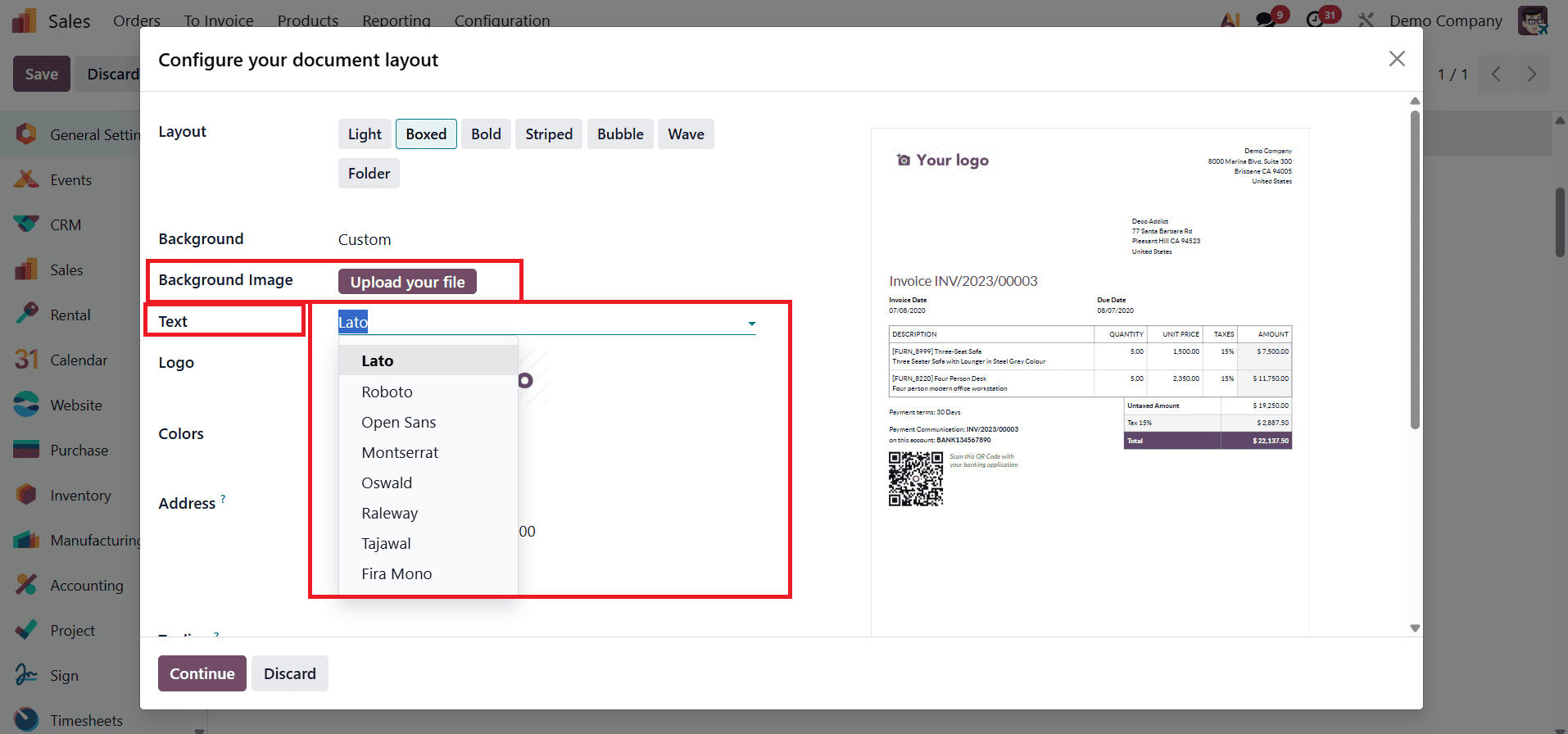
One of the key features available in this pop-up is the Background Image option. This setting allows users to define how the background is applied to the document by selecting whether the background should be blank, based on the company logo, or use a custom uploaded image. Alongside background customization, the Text settings in the same pop-up window control the typography used throughout the quotation. Text refers to the font style applied to all written content in the document, including headings, product descriptions, prices, and terms. Odoo provides a selection of professionally designed fonts to suit different branding needs and document styles. These include Lato, Roboto, Open Sans, Montserrat, Oswald, Raleway, Tajawal, and Fira Mono.
Another important element is the Logo option, where the company can upload its official logo in image format. Once added, this logo is automatically displayed on the document, reinforcing brand recognition and ensuring a professional appearance across all customer-facing communications.
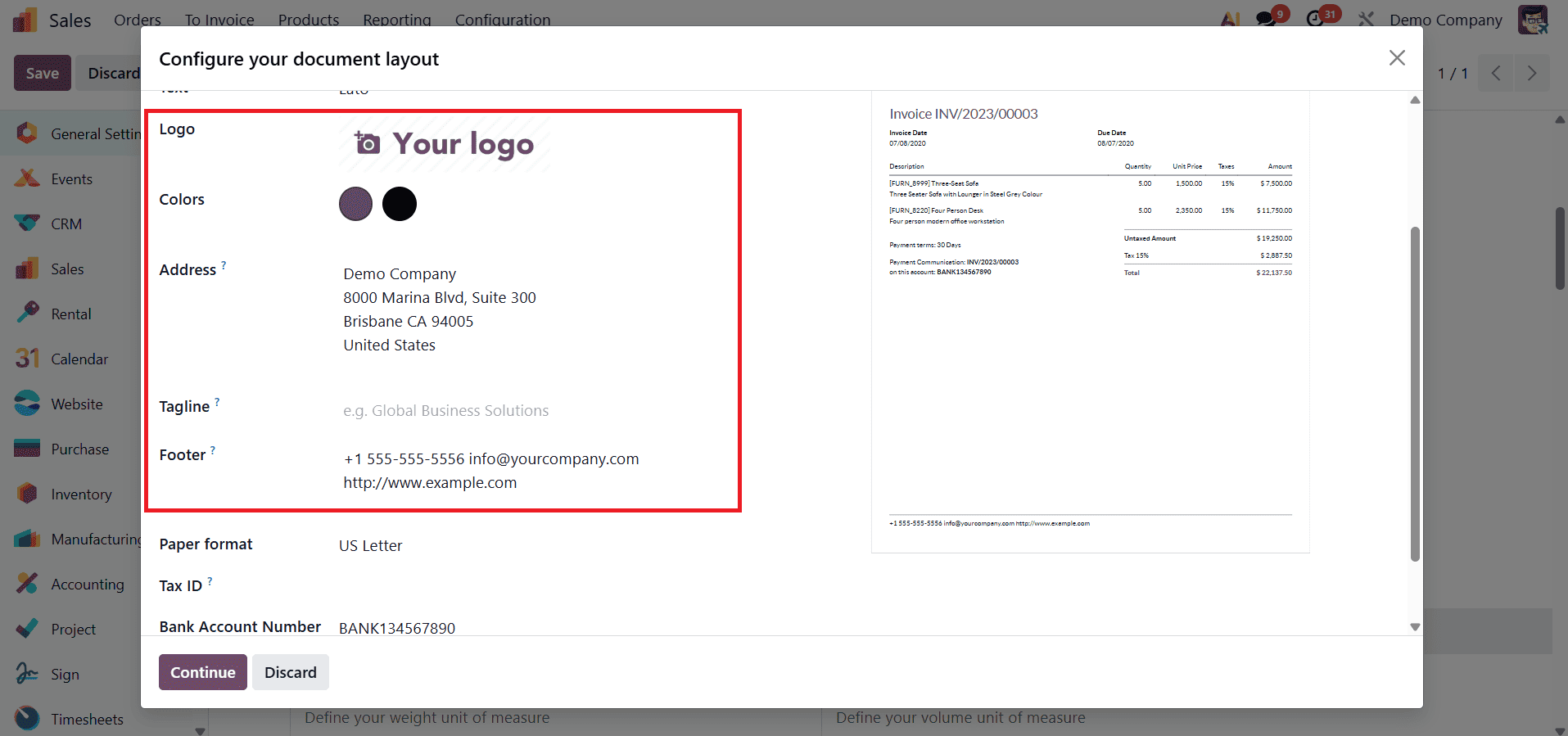
The Color setting allows users to define the overall color theme of the document. This color is applied consistently to elements such as headings, lines, highlights, and totals, helping maintain visual coherence with the company’s branding guidelines. The Address field is used to specify the company’s official address, which is then displayed in the document header. Including the address in the header ensures that essential company information is clearly visible to customers and adds formal authenticity to the quotation. Similarly, the Tagline option allows businesses to include a short slogan or tagline that represents their brand identity. The Footer section enables users to define the text that appears at the bottom of the document. The footer often contains additional information such as legal notes, payment instructions, contact details, or disclaimers.
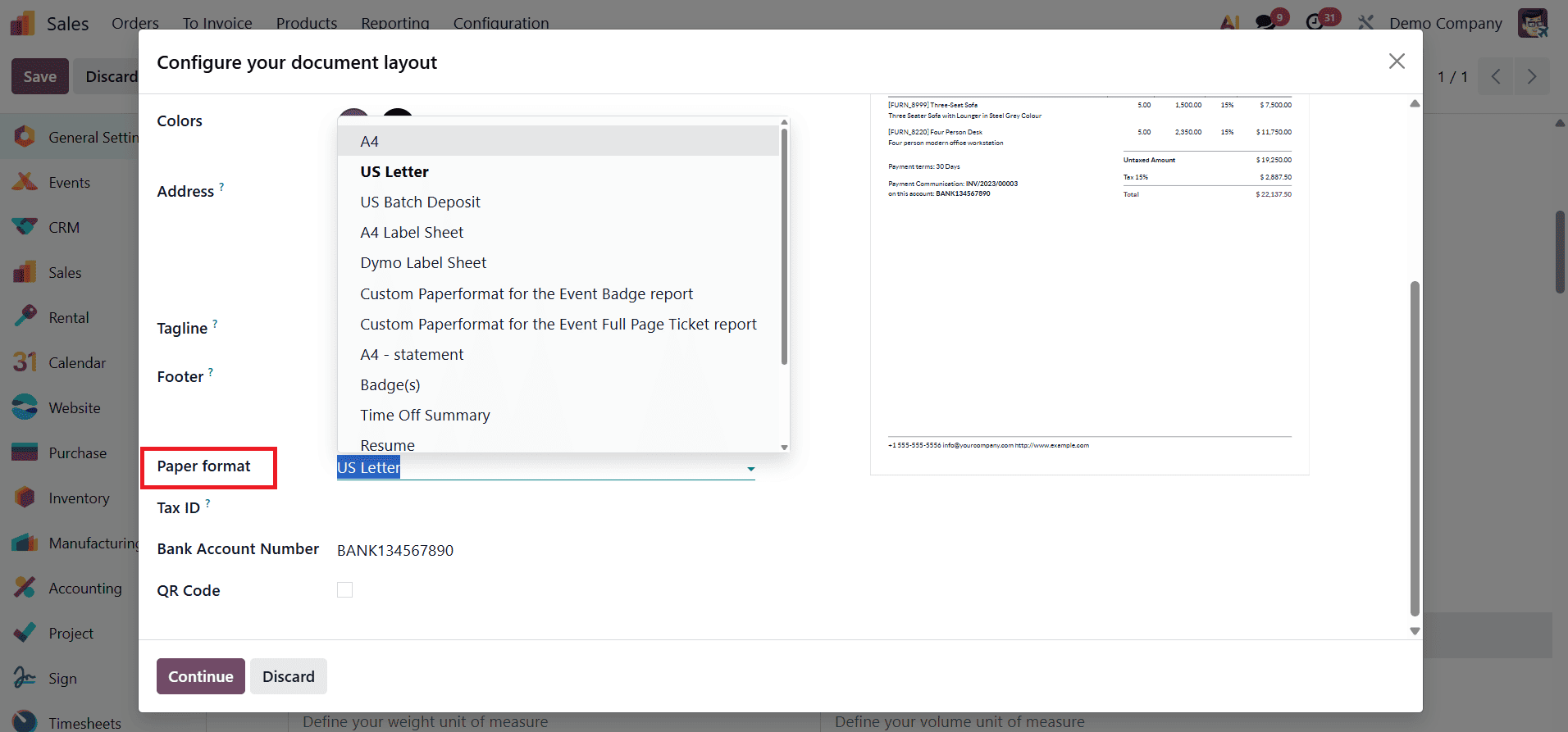
In Odoo 19, the Paper Format option in the document layout settings allows users to define how quotations and other documents are structured when printed or exported as PDFs. Odoo supports multiple paper formats, including widely used standards such as A4 and US Letter, making it suitable for businesses operating across different regions.
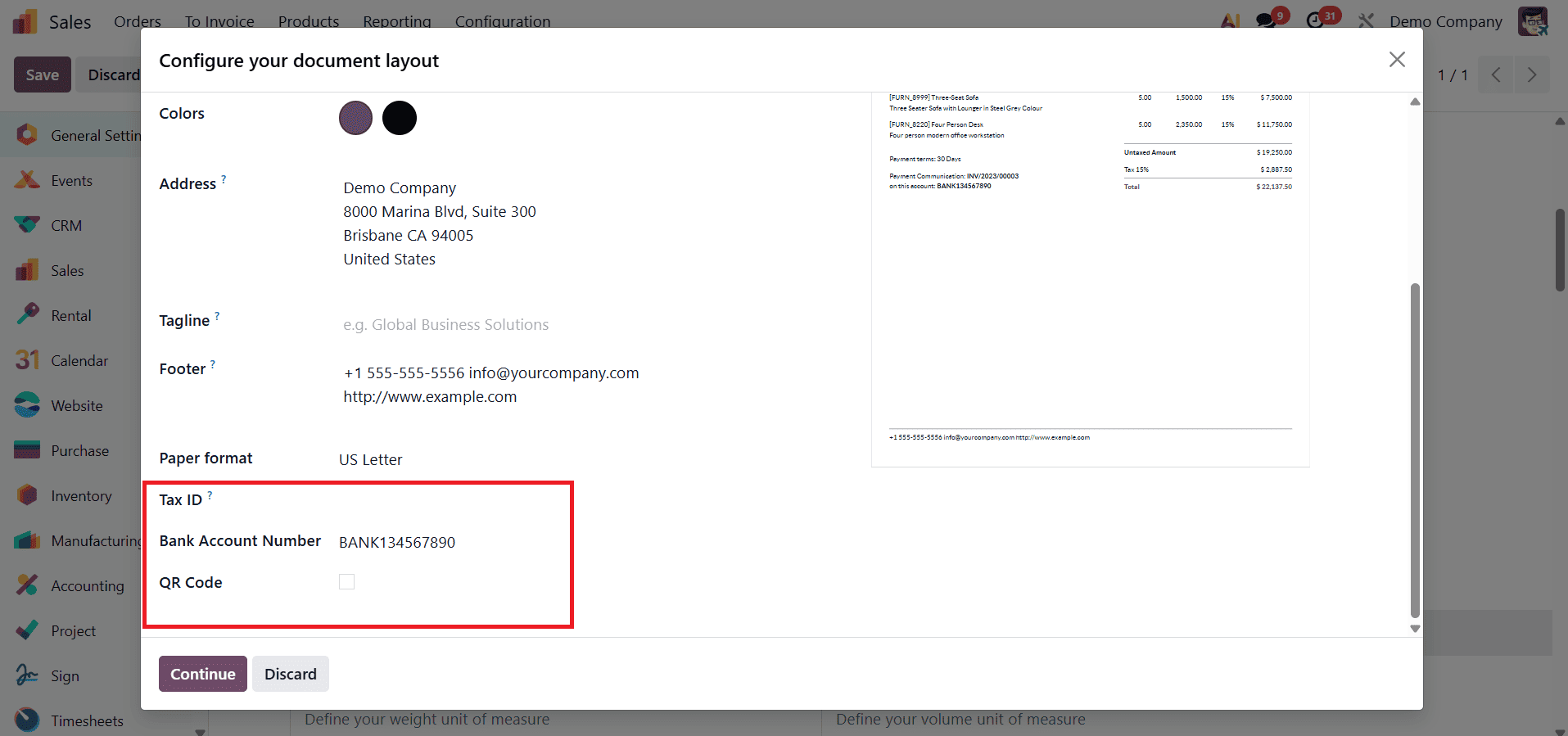
The Tax ID field allows companies to display their official tax identification number on the document, ensuring legal compliance and transparency, especially for customers who require tax details for accounting purposes. The Bank Account Number option enables businesses to show their bank details on quotations, making it easier for customers to understand where and how payments should be made. In addition, QR Code options allow companies to embed QR codes on documents, providing quick access to payment links or online portals for faster and more convenient transactions.
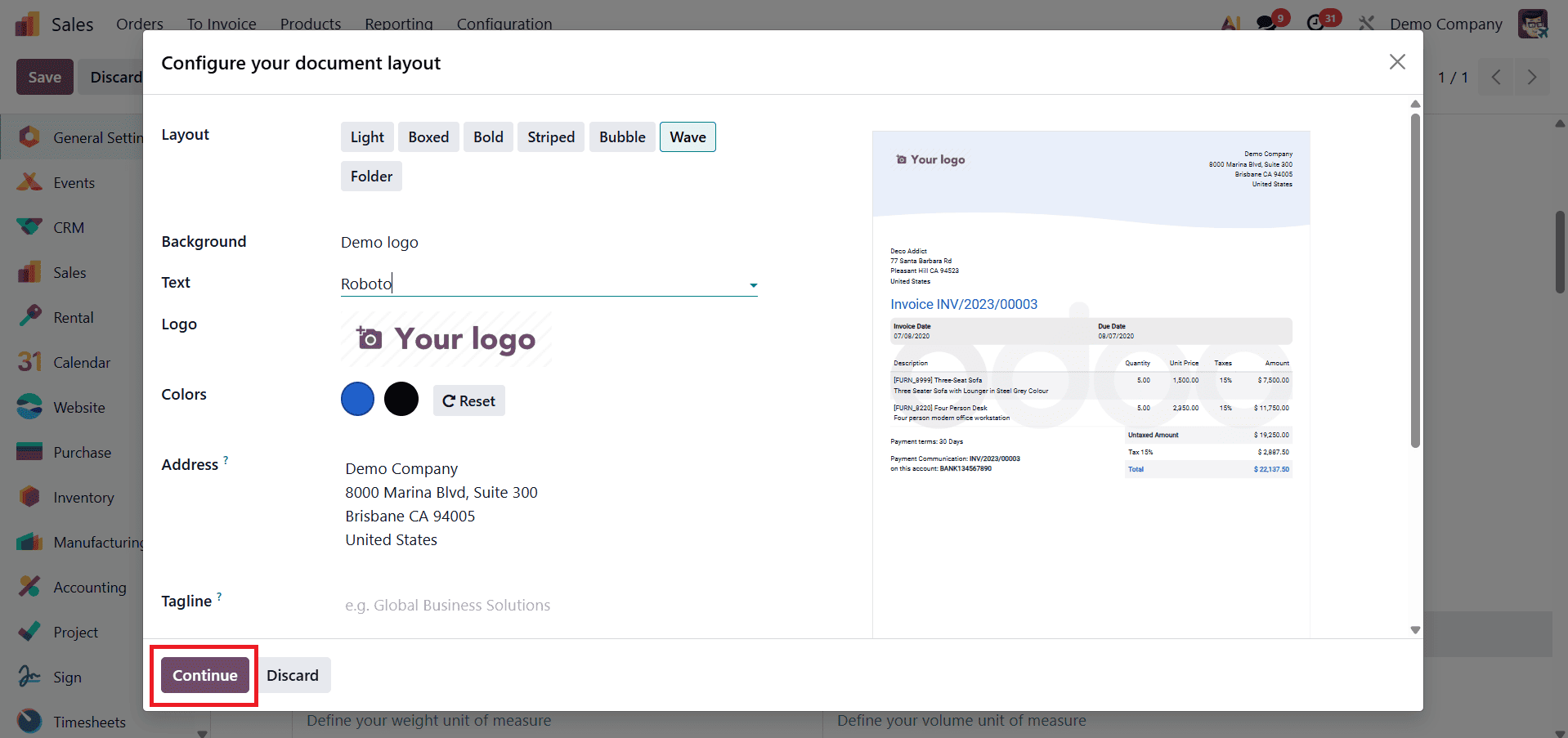
Once the company is satisfied with the configured document layout in Odoo 19, the settings can be finalized by clicking the Continue button. After this, the applied layout automatically becomes active for all relevant documents. To see the effect of the configured layout in real time, users simply need to create a new quotation for a customer and print or preview the document. To do this, navigate to the Sales module in Odoo 19, create a new quotation, add the required customer and product details, and then print or download the quotation.
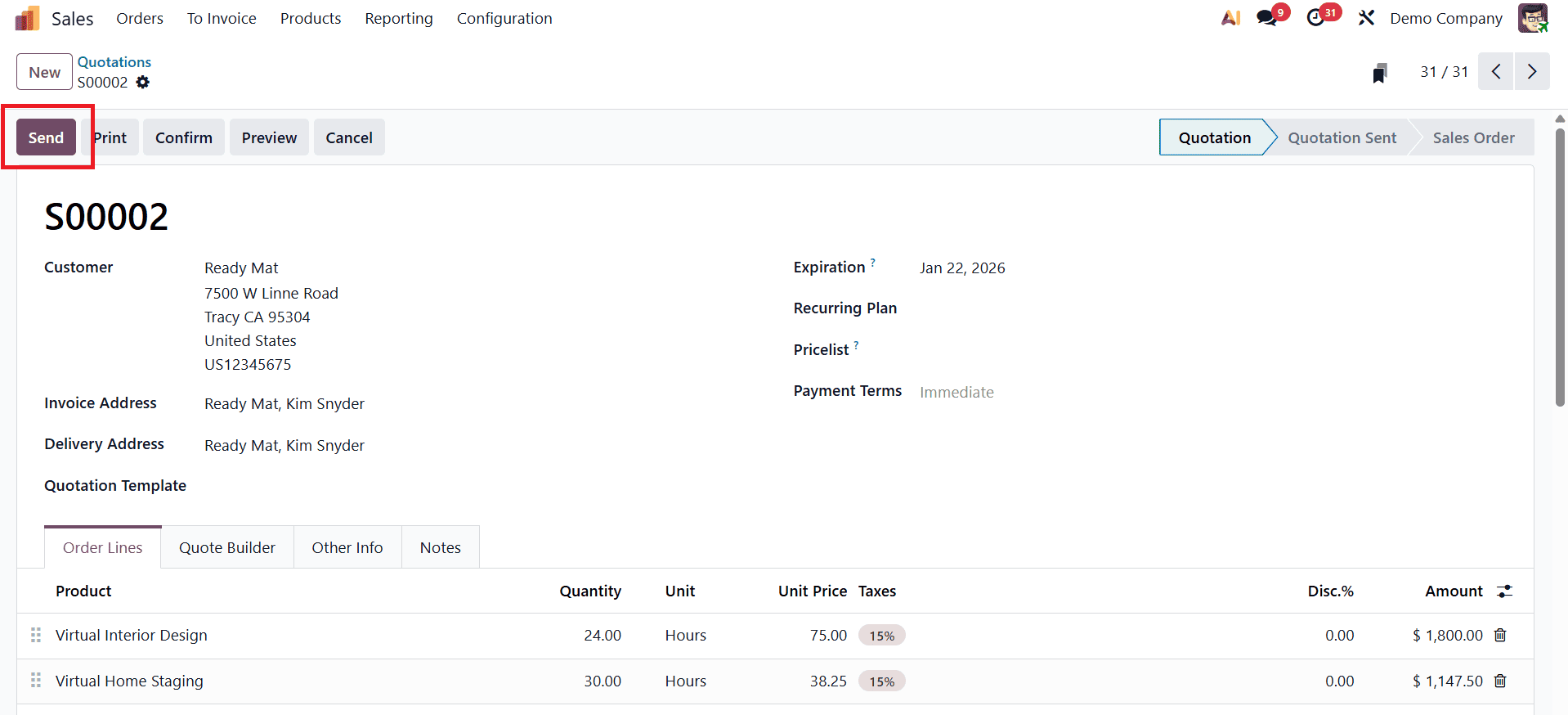
Once a quotation is created in Odoo 19, users can click the Send button to share it with the customer.
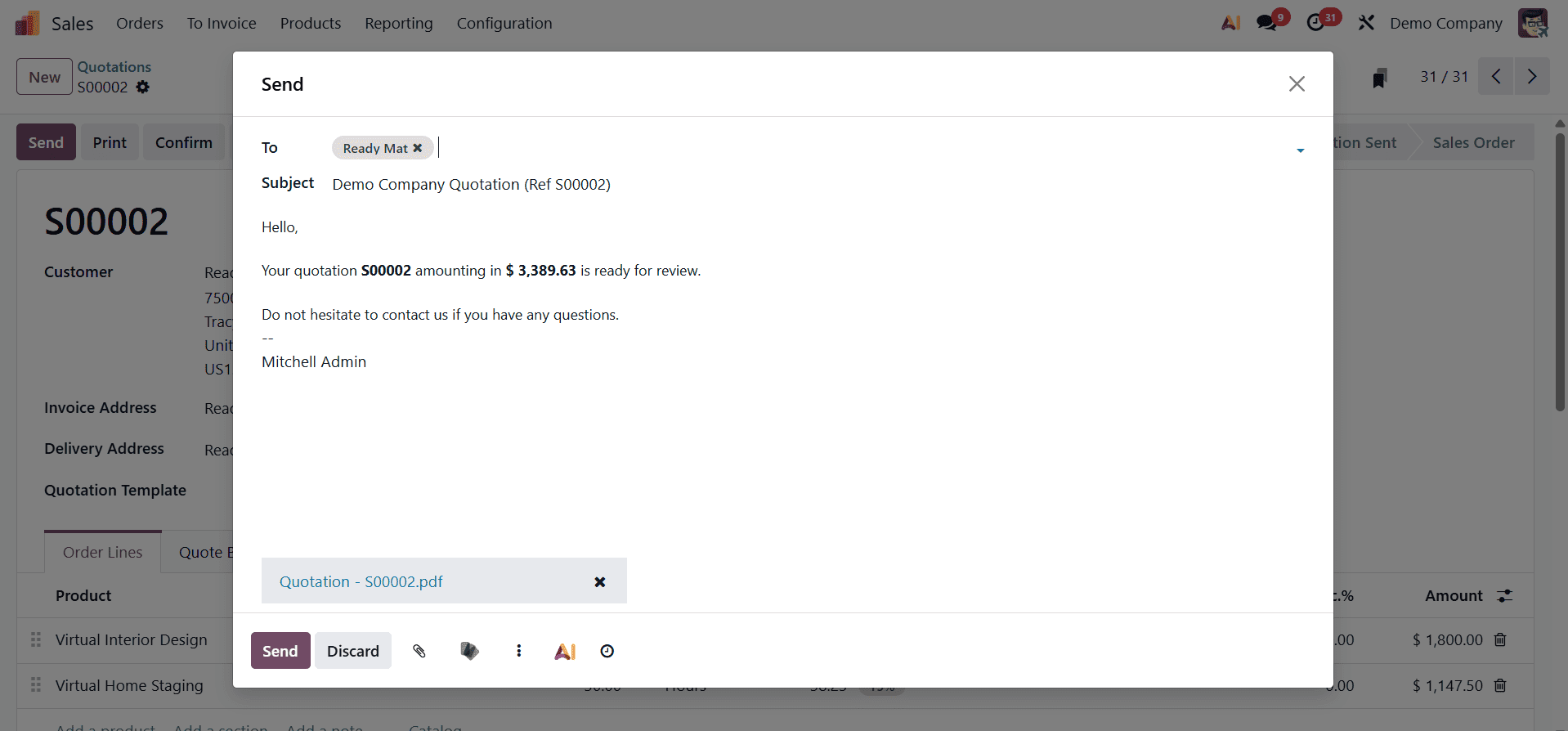
This action opens a pop-up window where the email content and attached quotation PDF can be reviewed; clicking Send confirms the action and moves the quotation to the Quotation Sent state. To print the quotation, users can click the Action button within the quotation form and select the Print option.
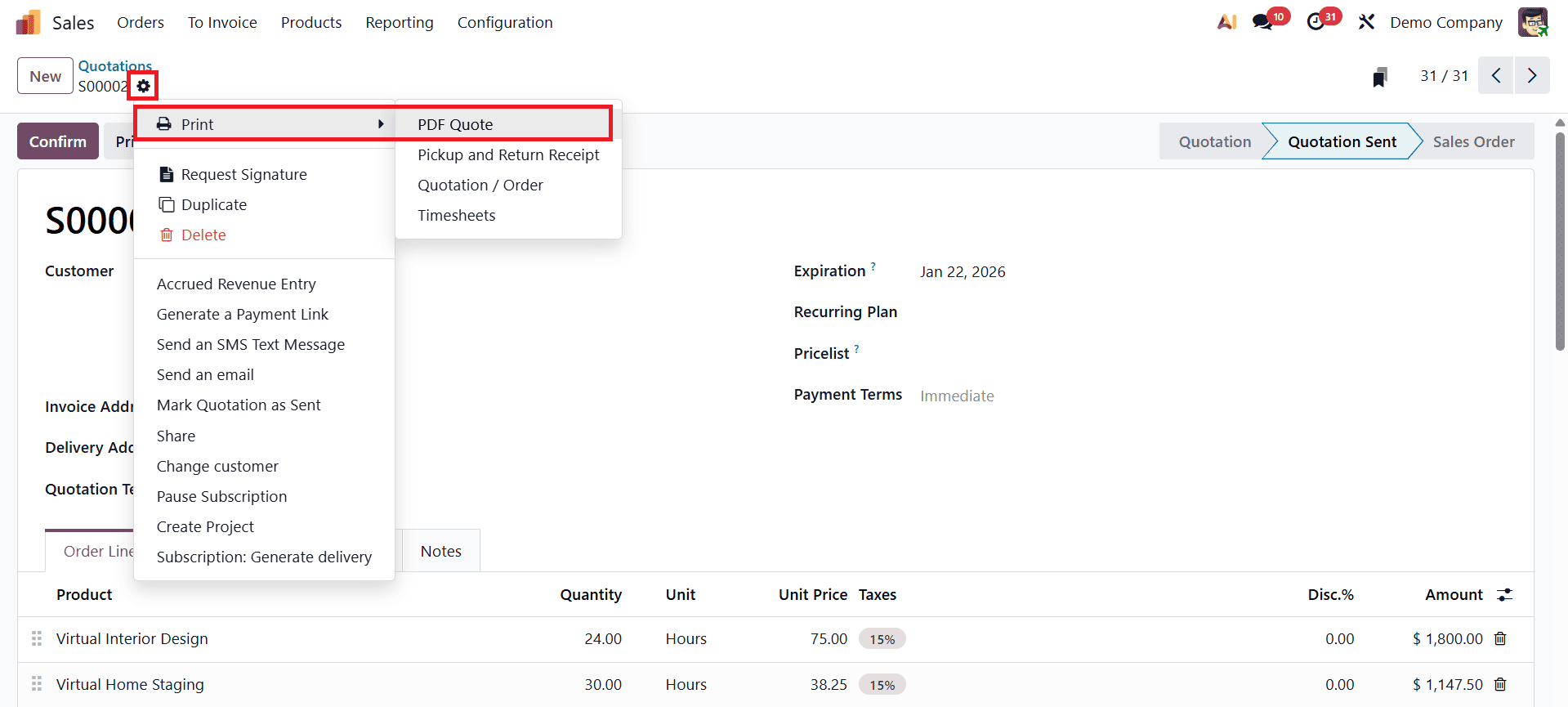
The system then downloads the quotation as a PDF, automatically applying the document layout that was configured earlier in the settings.
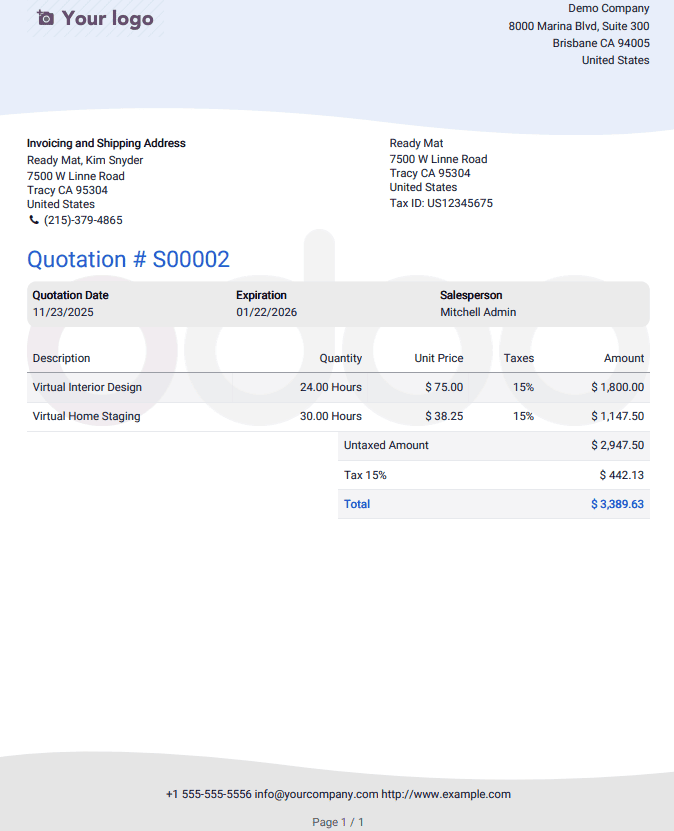
Odoo 19 ensures that all branding elements, such as the company logo, color theme, font style, and other visual components, are consistently reflected in the generated quotation. This level of customization allows businesses to present quotations that are not only informative but also visually professional and aligned with their brand identity. A well-designed quotation template enhances document clarity and leaves a strong, professional impression on customers.
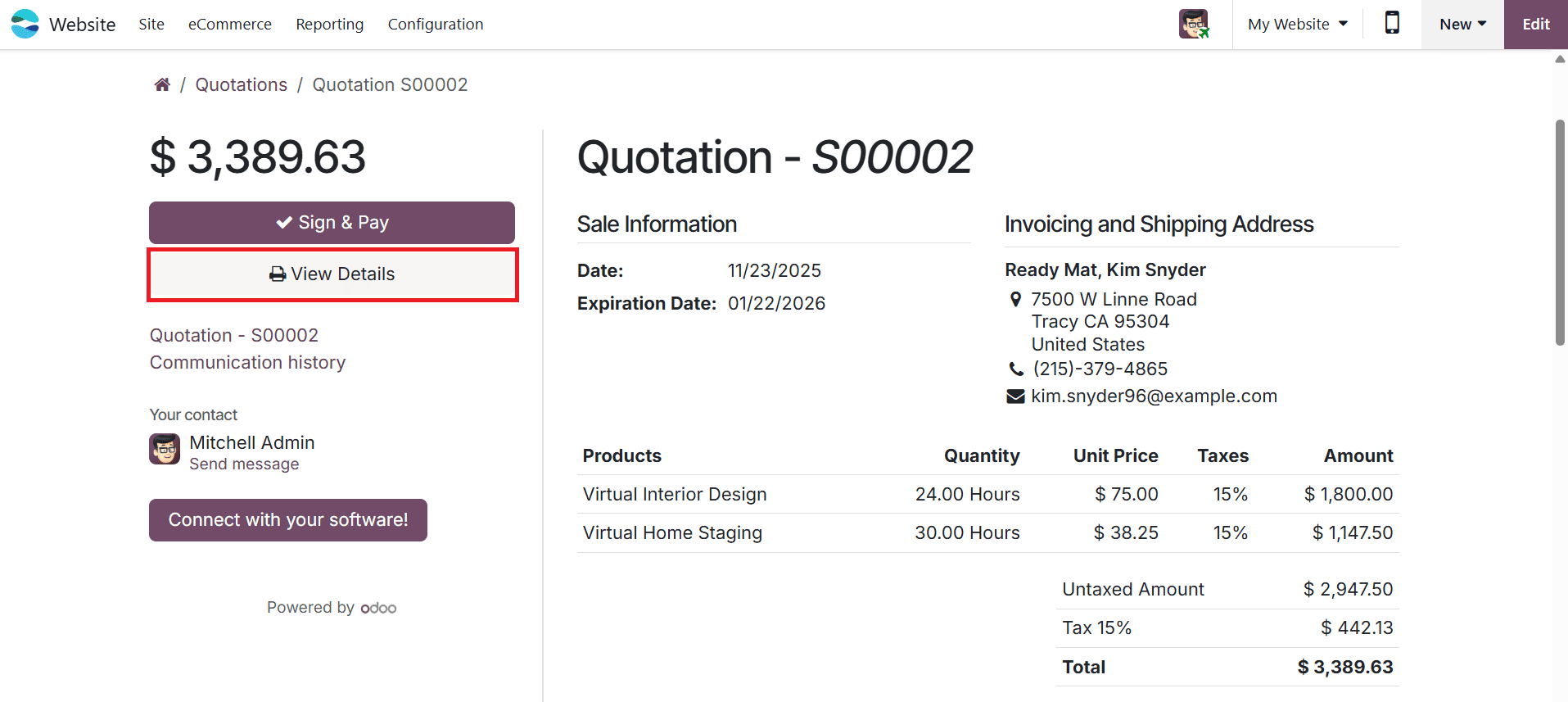
After the quotation is sent, customers can access and download it directly from the customer portal. By clicking the View Details button, customers are able to see the complete quotation information displayed in the same customized layout used in the PDF. This consistency across email, PDF, and portal views helps reinforce brand identity, improves customer experience, and demonstrates attention to detail and quality in every stage of the sales process.
To read more about How to Customize Quotation Layouts in Odoo 18, refer to our blog How to Customize Quotation Layouts in Odoo 18.