Odoo 19 continues to improve security and developer experience, and one of the biggest enhancements is the use of API Keys for authentication. API keys replace traditional passwords when connecting to Odoo from external systems such as Python scripts, mobile apps, Node.js backends, and integration platforms.
In this guide, you’ll learn how to:
- Generate an API key in Odoo 19
- Example Authentication using XML-RPC
Generate an API Key in Odoo 19:
Before you can connect to Odoo using the API, you first need to generate a secure API key.
Follow these simple steps:
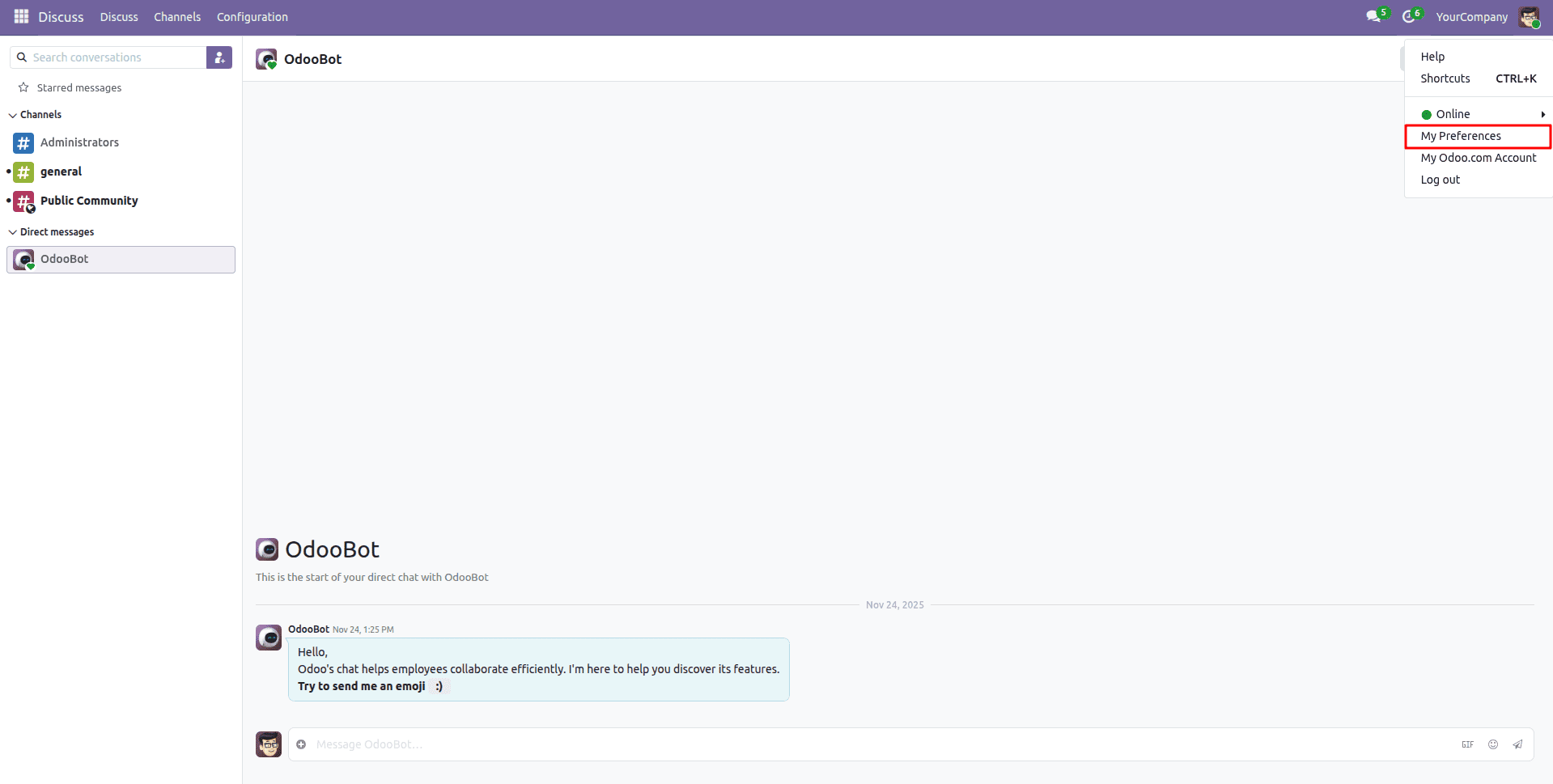
- Click on My Profile (top-right corner menu)
- Click on My Preferences
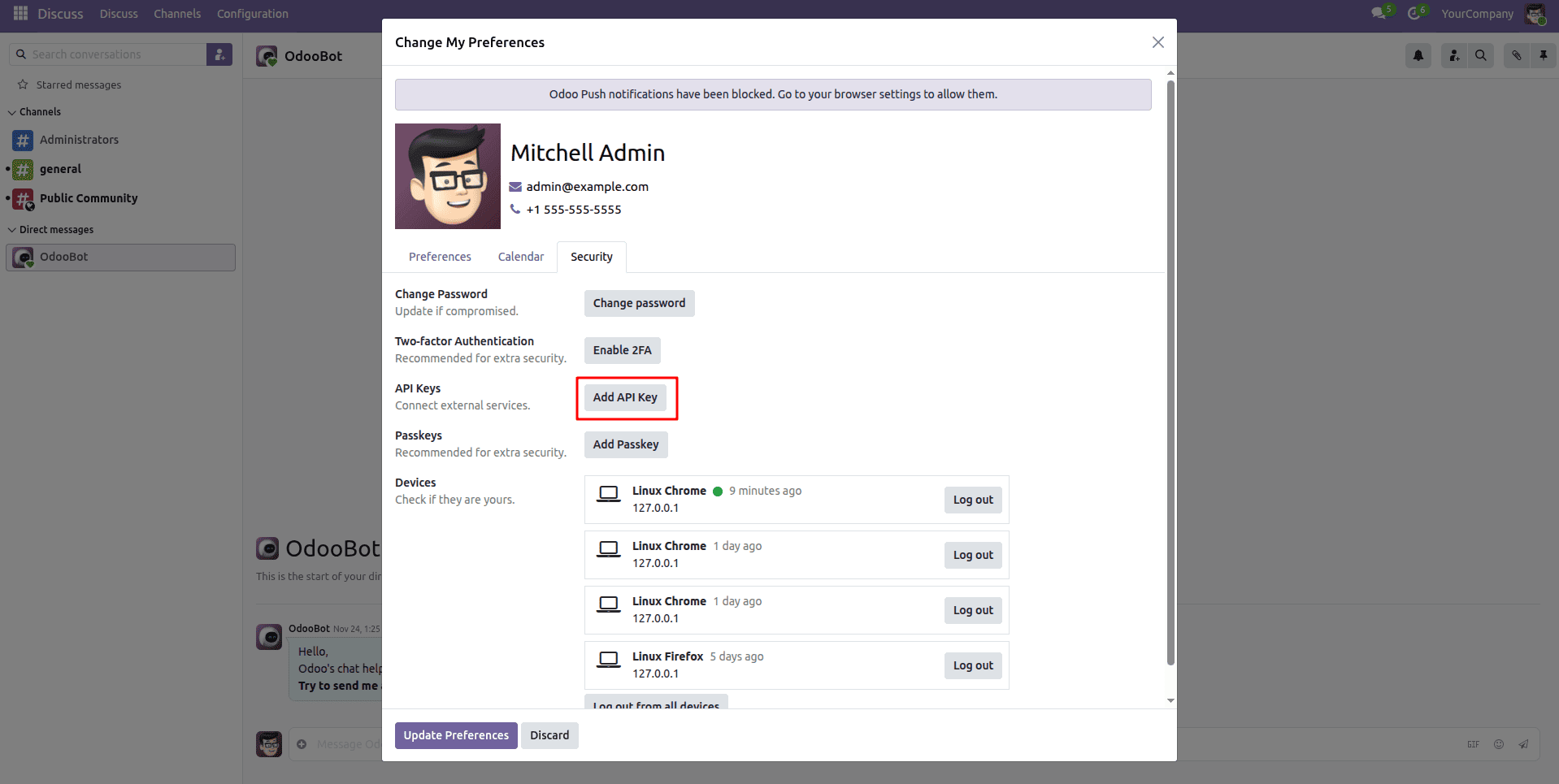
- Click on the Security section
- Click Add API Key
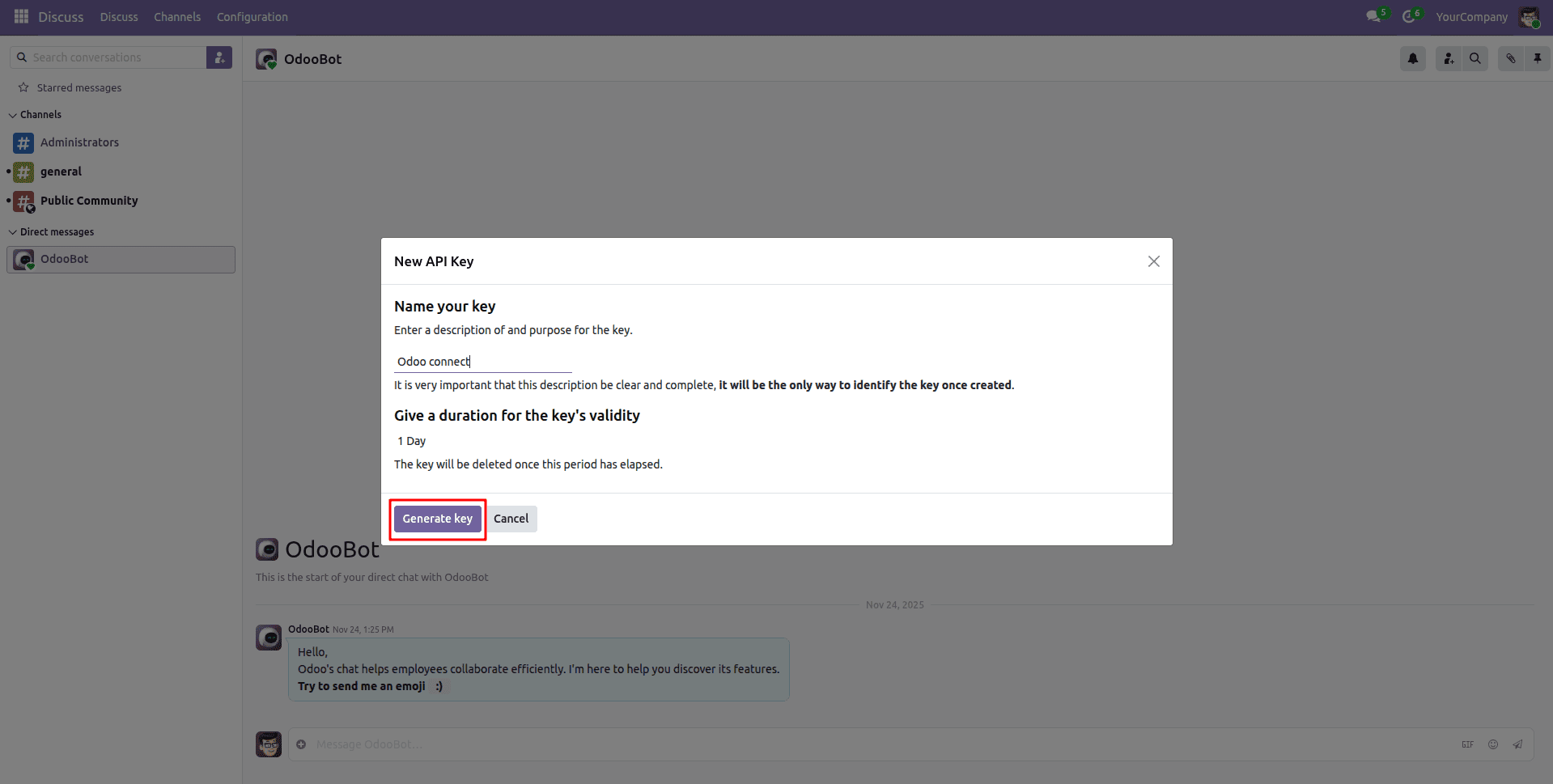
- Enter a name for your key > click Generate
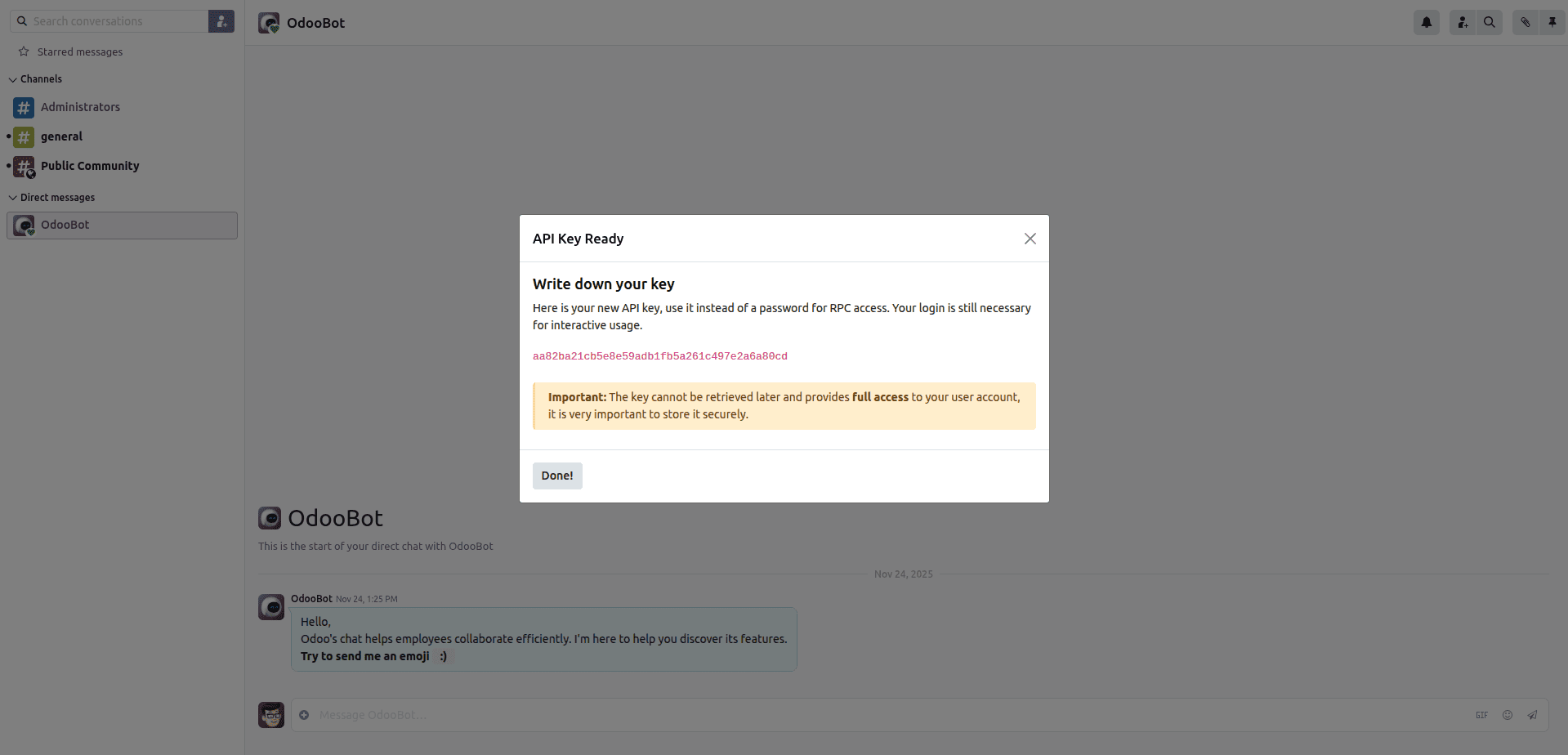
- Copy the API key immediately (Odoo will not show it again)
Example Using the API Key in XML-RPC:
API keys completely replace your normal user password.
When making API requests, you will use:
- url > your url to odoo instance = “http://localhost:8019” -since this is demo
- db > your db name = “odoo19”
- username (your email) > the API username = admin
- api_key > the API password = aa82ba21cb5e8e59adb1fb5a261c497e2a6a80cd
That’s all you need to authenticate and start communicating with Odoo
import xmlrpc.client
url = "http://localhost:8019"
db = "odoo19"
username = "admin"
api_key = "aa82ba21cb5e8e59adb1fb5a261c497e2a6a80cd"
# Authenticate
common = xmlrpc.client.ServerProxy(f"{url}/xmlrpc/2/common")
uid = common.authenticate(db, username, api_key, {})
# Call Odoo model
models = xmlrpc.client.ServerProxy(f"{url}/xmlrpc/2/object")
partners = models.execute_kw(
   db,
   uid,
   api_key,
   'res.partner',
   'search_read',
   [[['is_company', '=', True]]],
   {'fields': ['name', 'email'], 'limit': 5}
)
This example simply fetches a recordset with the name and email fields of the first five partner companies. You can do any operation available for that user.
Conclusion:
API keys in Odoo 19 provide a more secure, modern, and developer-friendly way to integrate external systems with Odoo. By replacing traditional passwords, API keys reduce security risks while simplifying authentication for scripts, applications, and third-party services. As demonstrated, once an API key is generated and used in XML-RPC authentication, you can seamlessly access and operate on Odoo models based on the user’s permissions. Whether you are building integrations, automations, or custom applications, adopting API key–based authentication is the recommended and future-proof approach for connecting with Odoo 19.
To read more about How to Configure Odoo REST API Module in Odoo 18, refer to our blog How to Configure Odoo REST API Module in Odoo 18.