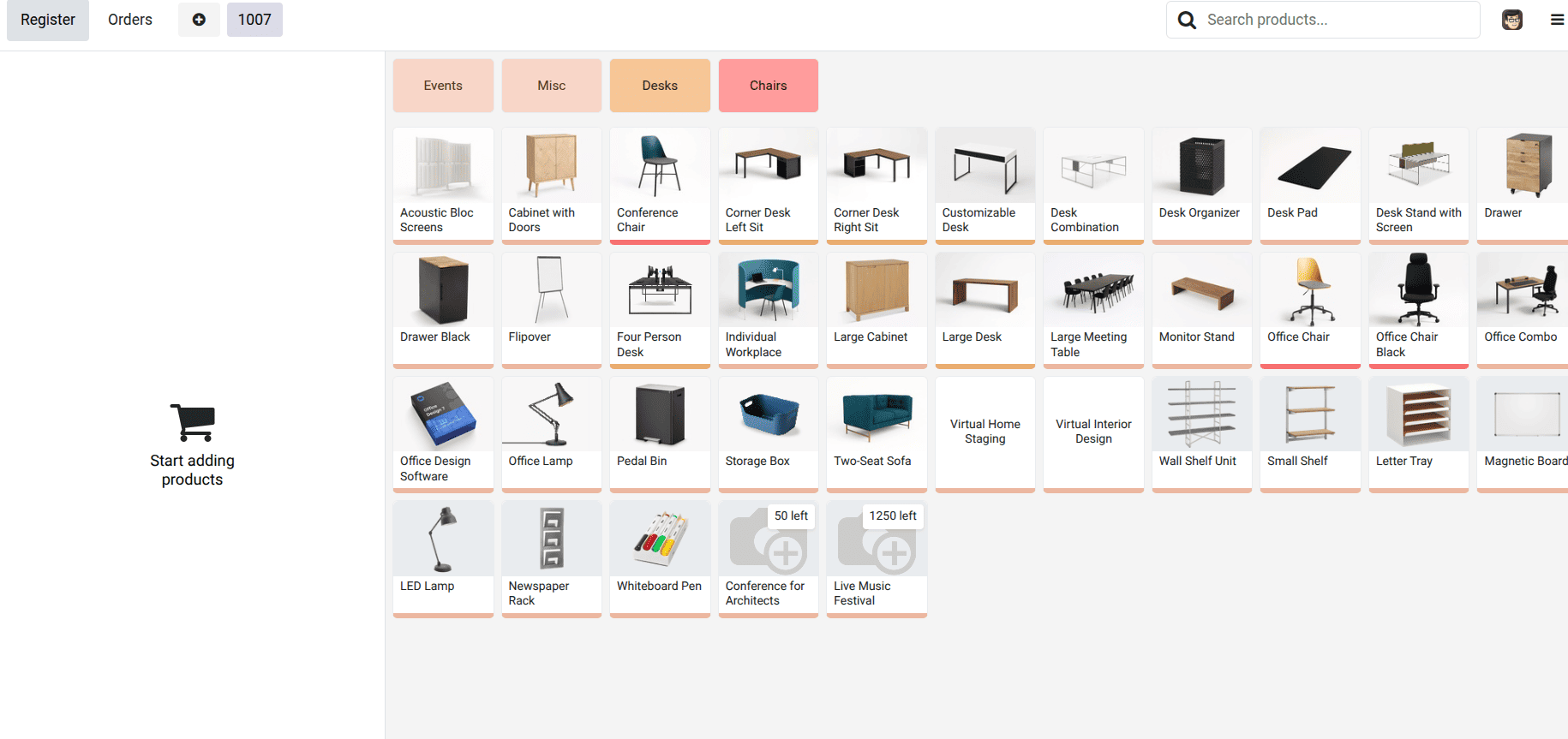
The Point of Sale (POS) module in Odoo plays a key role in handling day-to-day sales operations. Sometimes, it’s useful to display additional information directly on product cards. For example, promotional text or internal notes. In this guide, we’ll look at how to add a small ribbon overlay on POS product cards in Odoo 19. The goal is to display custom text (such as “Hey Odoo”) on top of the product image inside the POS screen. Since Odoo 19 does not include a built-in ribbon or badge feature for POS product cards, this functionality needs to be implemented through a custom module. We can achieve this by extending the existing ProductCard OWL component in the POS module. By inheriting the default template, we can insert additional HTML inside the product image container and apply custom styling to make it appear as a ribbon.
Step 1: Create a Custom Module
Start by creating a new custom module. Inside this module, we will override the point_of_sale.ProductCard template to inject our ribbon element.
Step 2: Extend the ProductCard Template
Create an XML file (for example, product_card.xml) and inherit the point_of_sale.ProductCard template. Using XPath, we insert a new <div> inside the product image container.
<?xml version="1.0" encoding="UTF-8" ?>
<templates xml:space="preserve">
    <t t-inherit="point_of_sale.ProductCard"
       t-inherit-mode="extension"
       owl="1">
        <xpath expr="//div[contains(@class, 'product-img')]" position="inside">
            <div class="pos-ribbon">
                Hey Odoo
            </div>
        </xpath>
    </t>
</templates>
The owl="1" attribute ensures that the template is processed using the OWL framework, which is required for POS components in Odoo 19.
Step 3: Load the XML in POS Assets
To make sure the template is loaded in the POS interface, add the XML file to the POS asset bundle in your module’s manifest file.
'assets': {
    'point_of_sale._assets_pos': [
        'module_name/static/src/xml/product_card.xml',
    ],
},
Step 4: Add Styling for the Ribbon
Next, create a CSS file (for example, product_card.css) to style the ribbon and position it over the product image.
.pos-ribbon {
   position: absolute;
   top: 6px;
   left: 6px;
   background: #ff4444;
   color: white;
   font-size: 12px;
   padding: 3px 8px;
   border-radius: 4px;
   z-index: 20;
   font-weight: bold;
   height: auto;
   width: auto;
}
Step 5: Include the CSS in the Manifest
Finally, add the CSS file to the same POS asset bundle in the manifest.
'assets':{
   'point_of_sale._assets_pos':[
       'module_name/static/src/css/product_card.css'],
},
Upon updating the module and refreshing the POS, every product card will feature a ribbon overlay on the product image containing the designated text. This personalization allows for easy emphasis on promotions, notifications, or other crucial product-related details right within the POS system.
To read more about How to Add a Ribbon with a Value in Odoo 18 POS, refer to our blog How to Add a Ribbon with a Value in Odoo 18 POS.