Barcode nomenclatures play a vital role in the Inventory and Warehouse Management system of Odoo 19, as they determine how the platform reads, understands, and processes scanned barcode data. From identifying products and storage locations to managing lots, serial numbers, and quantities, barcode nomenclatures ensure that every scan translates into a precise inventory action. When configured correctly, they significantly improve operational speed, accuracy, and traceability across warehouse and logistics workflows.
In Odoo 19, barcode nomenclatures define a set of structured rules that tell the system how to interpret different barcode patterns. These rules rely on prefixes, lengths, and pattern-matching logic, often implemented through regular expressions, to map scanned barcodes to specific fields such as product codes, quantities, weights, or operational commands. For example, in retail or POS environments, a barcode beginning with a predefined prefix like “21”, followed by digits representing a product identifier and its weight, allows Odoo to automatically recognize weighted items without manual input. This intelligent parsing ensures consistent and error-free barcode processing across operations.
Odoo 19 supports widely used barcode standards, including EAN (European Article Number), UPC (Universal Product Code), and GS1. By default, the system relies on EAN and UPC formats, which are sufficient for most small- to medium-scale retail, warehouse, and distribution use cases. However, for organizations operating in global supply chains or industries that require advanced traceability and standardized data exchange, GS1 barcode nomenclatures provide a powerful solution. GS1 codes embed structured information, such as batch numbers, expiration dates, and quantities, within a single barcode, ensuring global uniqueness and regulatory compliance.
This guide explores how barcode nomenclatures work in Odoo 19 Inventory, covering both the default barcode configuration and the GS1 standard. It also explains how these nomenclatures are configured and applied in real-world scenarios, helping businesses design efficient, scalable, and future-ready barcode workflows.
Default Barcode Nomenclature in Odoo 19 Inventory
The default barcode nomenclature in Odoo 19 Inventory is designed to support widely used barcode standards such as EAN-13, EAN-8, UPC-A, and GS1-128, making it suitable for businesses that rely on common barcode formats while maintaining internal consistency. This nomenclature is commonly used in environments where barcode structures may differ across suppliers but follow a predictable pattern within the organization. To activate barcode scanning, users can navigate to the Inventory module > Configuration > Settings, enable the Barcode Scanner option, and select Default Nomenclature from the Barcode Nomenclature field before saving the settings.
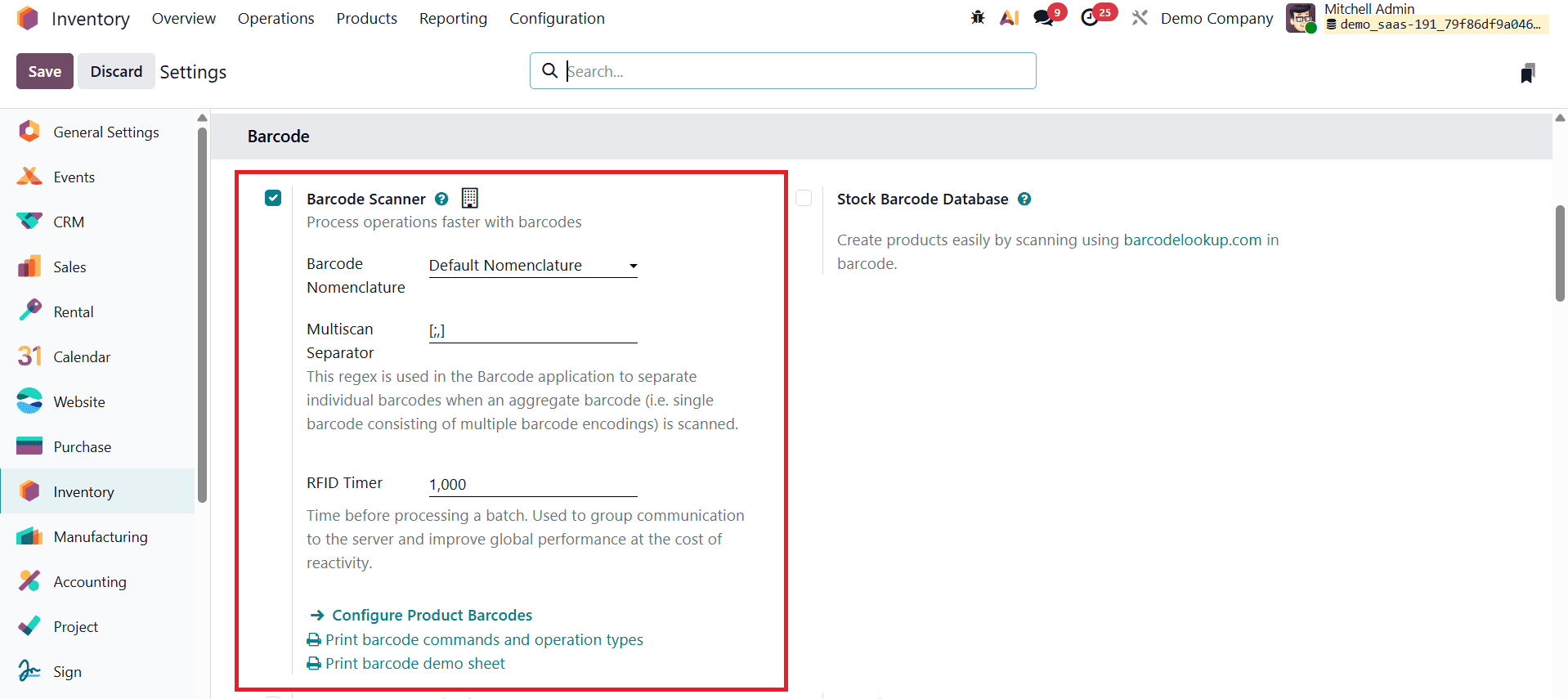
In Odoo’s Barcode application, the Multiscan Separator defines how the system splits multiple barcodes when they are scanned together as a single, aggregated input. The regex [;,] tells Odoo to treat a semicolon (;) or comma (,) as a separator, allowing it to correctly identify and process each individual barcode within the combined scan. This feature is especially useful when scanners or external systems send multiple barcode values at once, ensuring that Odoo interprets each code separately and applies the correct inventory action for every scanned item.
Once enabled, Odoo automatically interprets EAN and UPC barcodes without requiring additional configuration, allowing businesses to begin barcode-based inventory operations quickly.
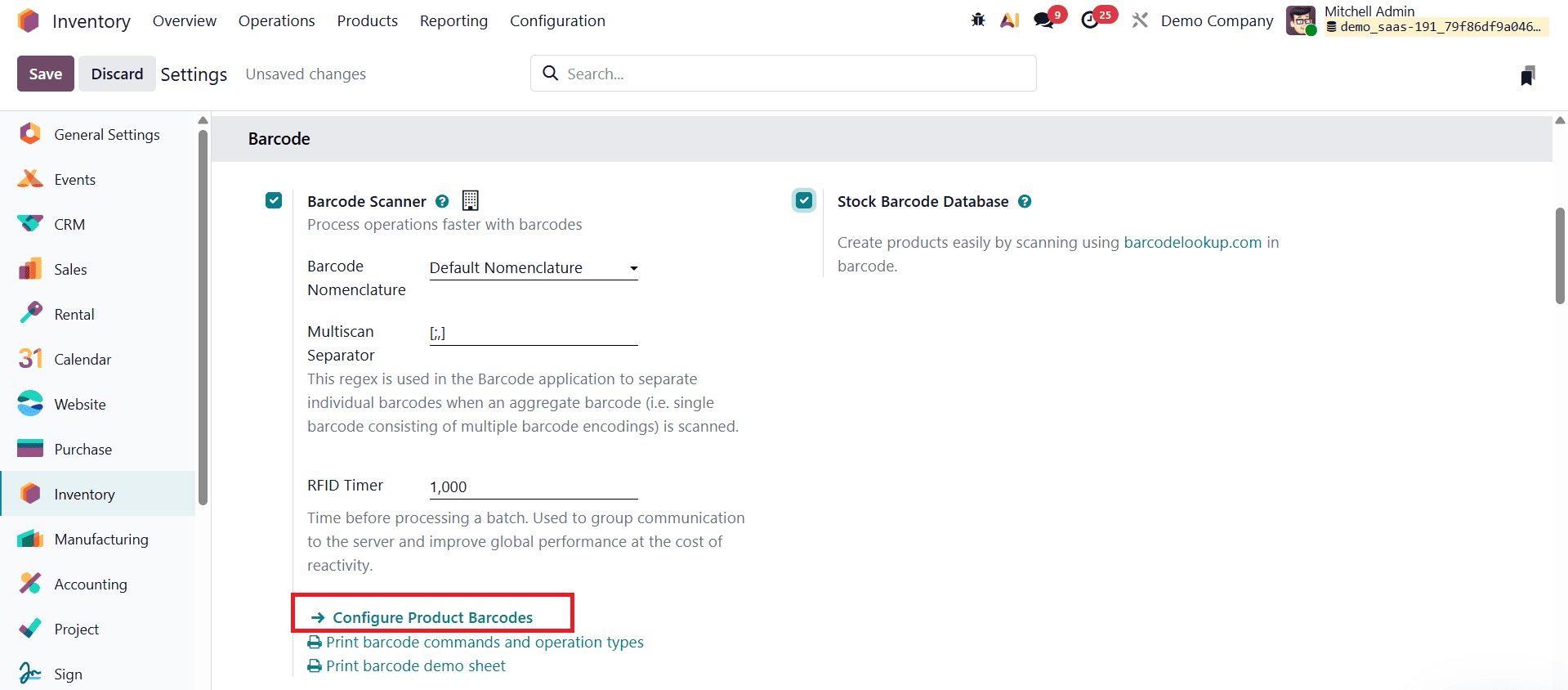
After selecting a barcode nomenclature, Odoo provides a Configure Product Barcodes option that opens a dashboard listing all products available in the inventory database.
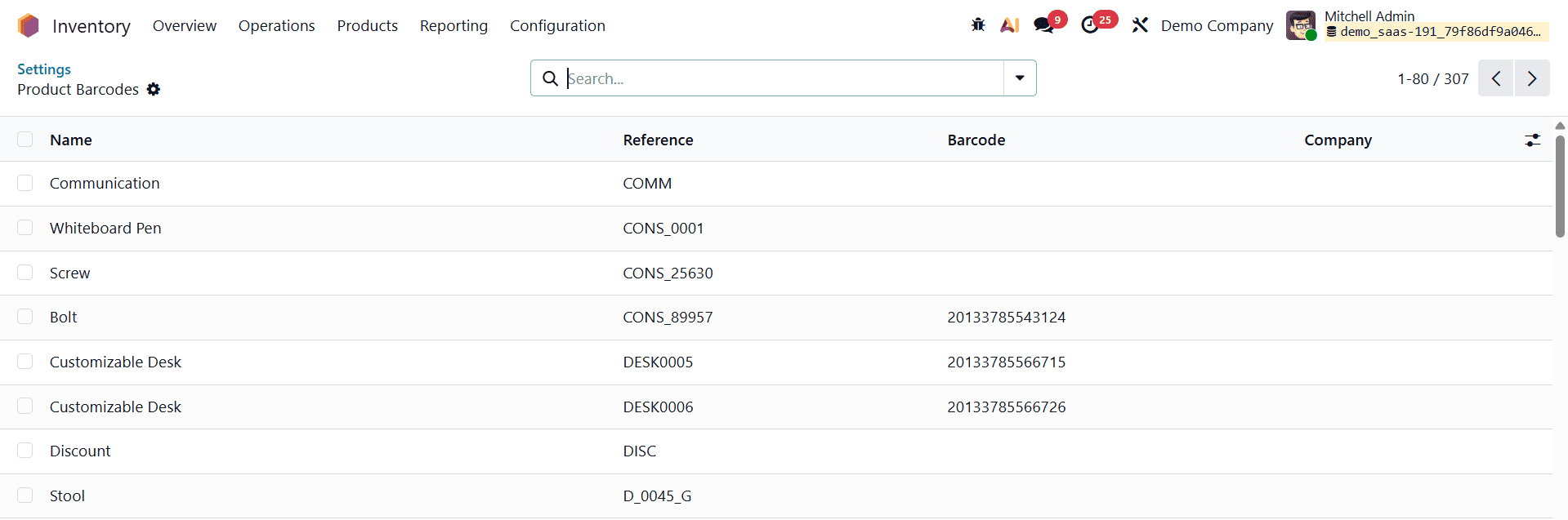
This view displays key product details such as product name, internal reference, barcode, and company. From this list, users can select any product to edit or assign a barcode, making it easy to generate and manage unique identifiers for inventory items.
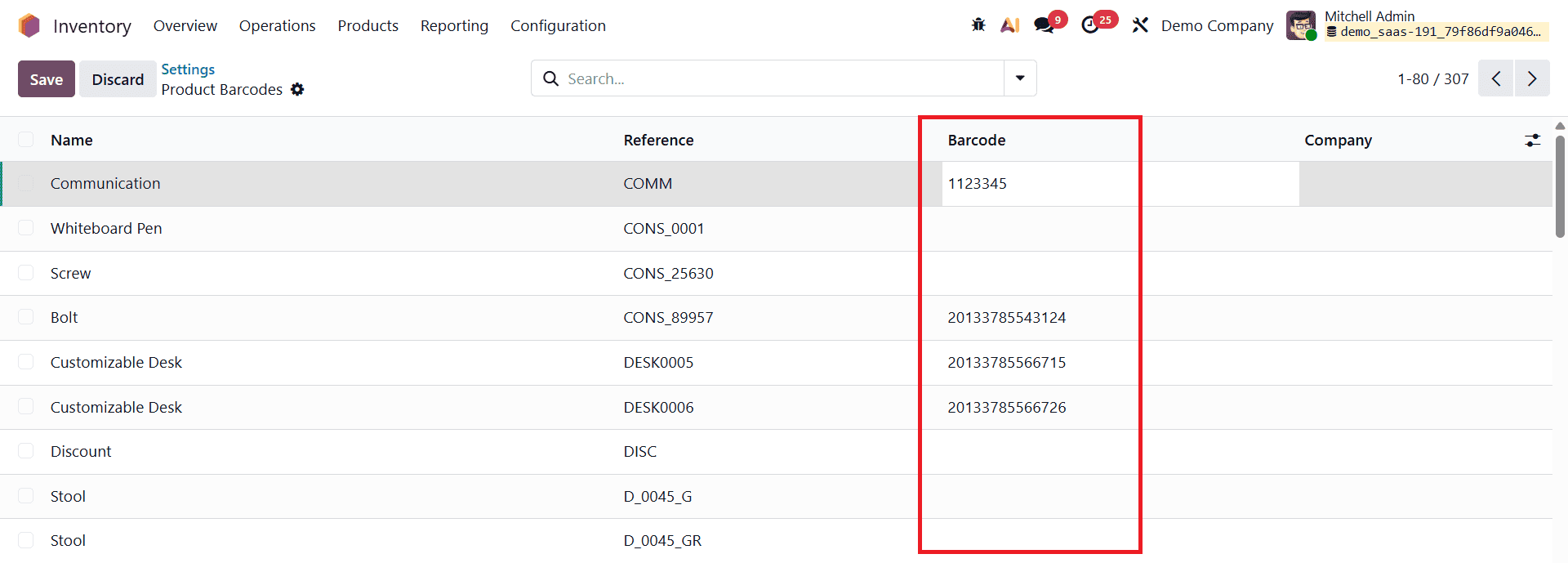
In addition to product barcodes, Odoo 19 offers several printing options that support warehouse operations.
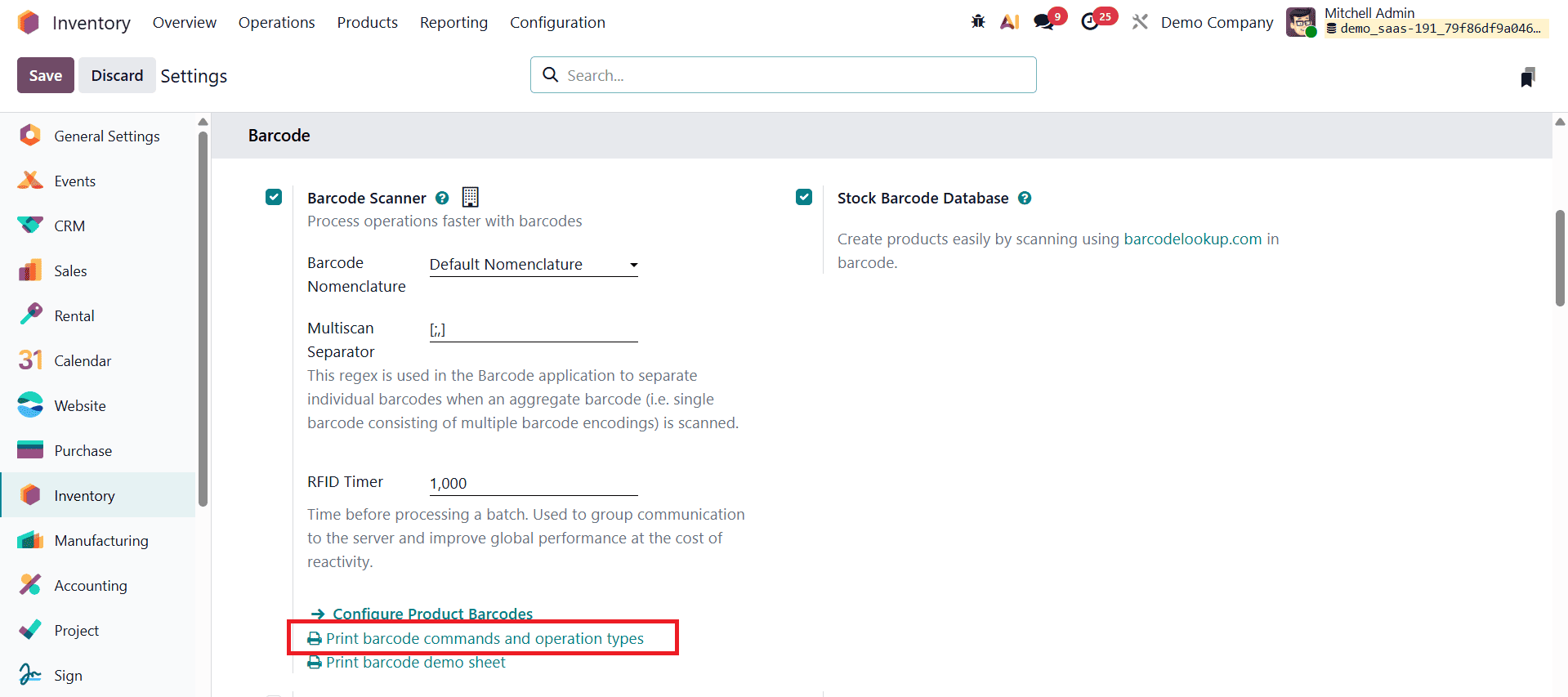
Users can download printable barcodes for warehouse commands and operation types and print a barcode demosheet containing sample product barcodes and operational triggers.
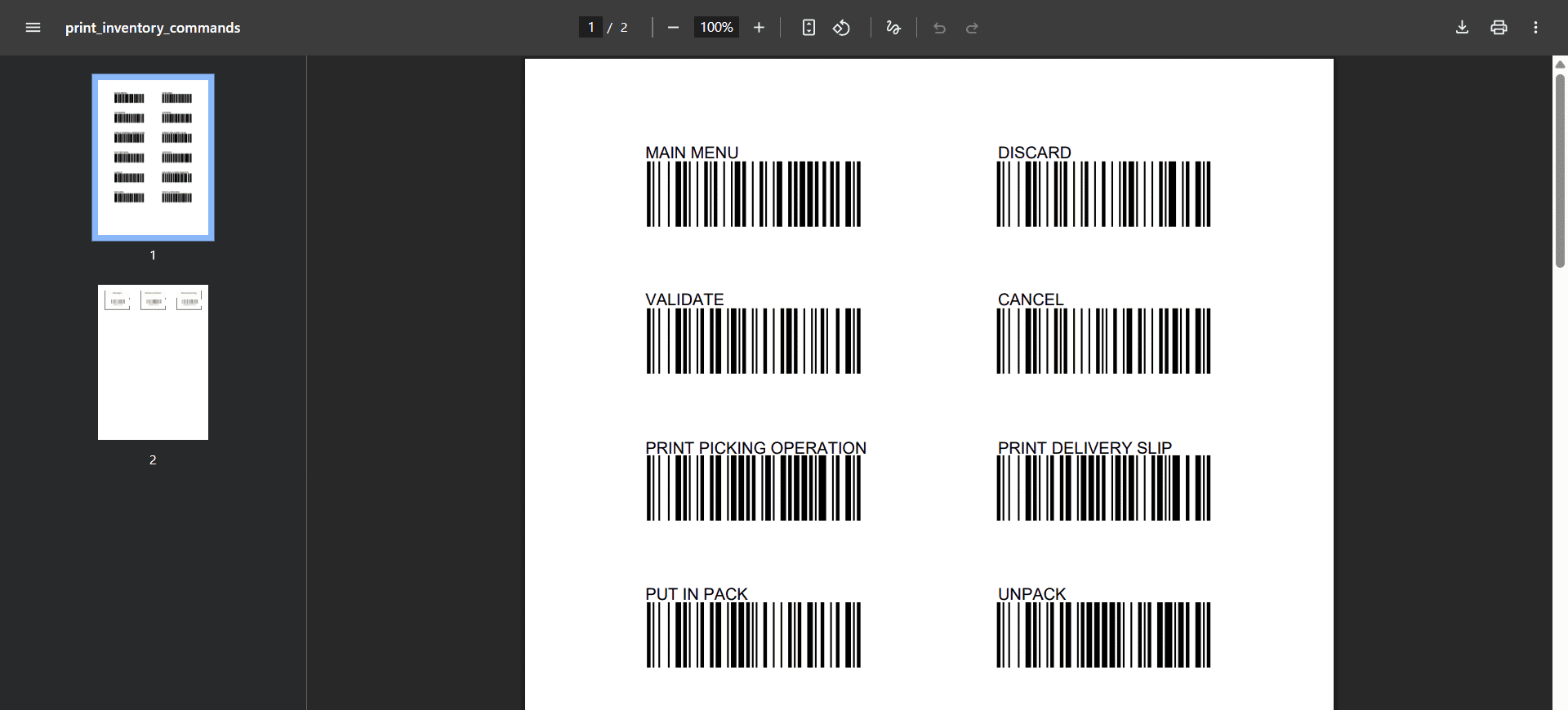
The demosheet is especially useful for training purposes, testing barcode workflows, and simulating real warehouse environments before full deployment.
Selecting the Default Nomenclature activates a predefined set of barcode rules that allow Odoo to interpret EAN and UPC formats automatically. However, businesses with more specific requirements can enable Developer Mode to create custom barcode nomenclatures.
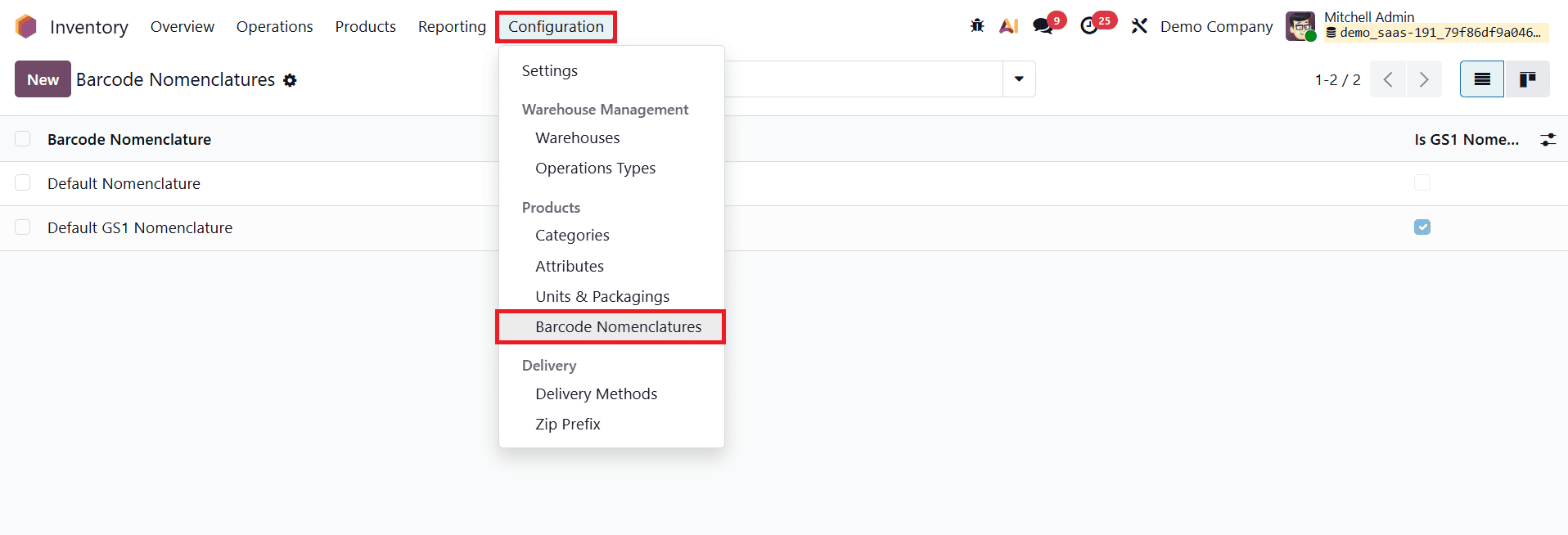
Once Developer Mode is activated, a Barcode Nomenclature option appears under the Inventory configuration menu, allowing users to define new nomenclatures tailored to their operational needs.
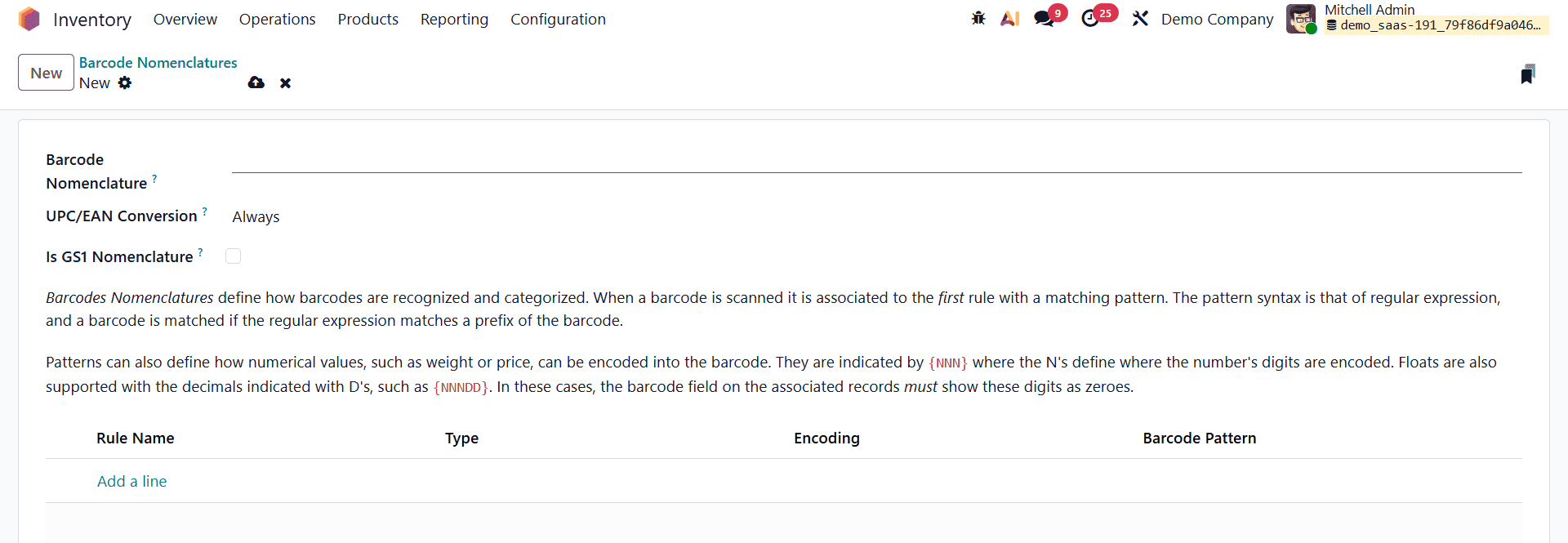
When creating a new nomenclature, users can specify a name and configure the UPC/EAN Conversion option, which automatically adds or removes a leading zero to convert between 12-digit UPC-A and 13-digit EAN-13 barcodes.
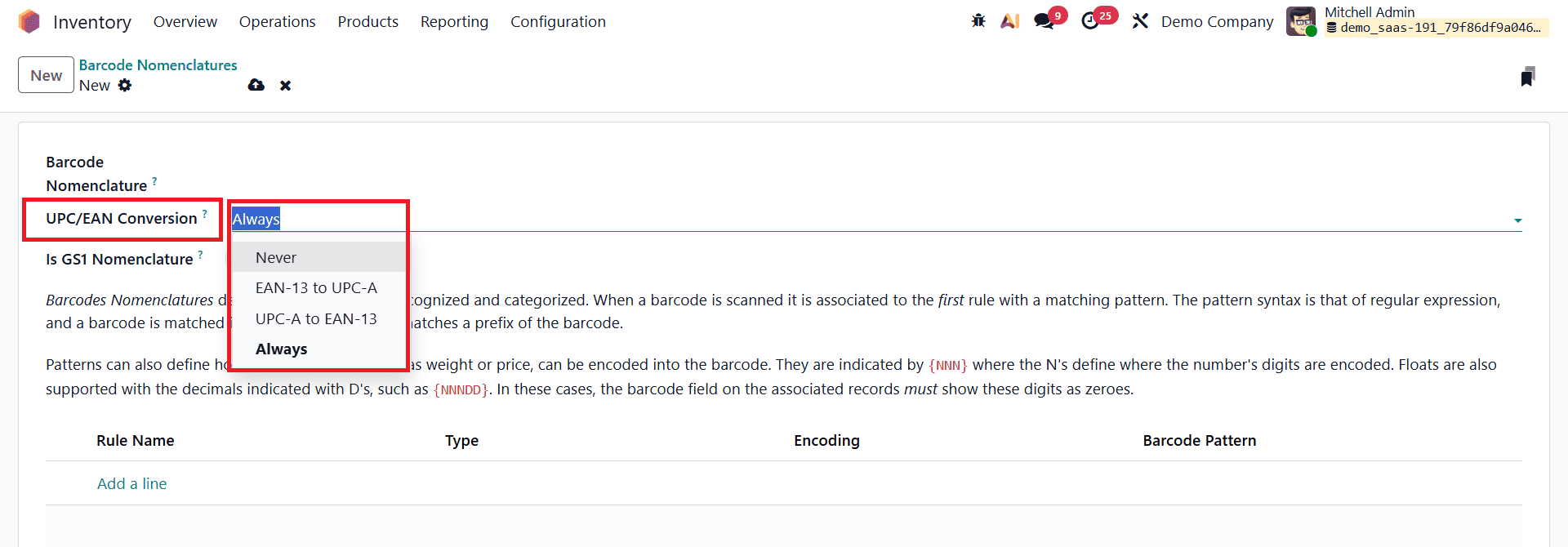
Conversion options include Never, Always, EAN-13 to UPC-A, and UPC-A to EAN-13. This functionality helps avoid product duplication and ensures compatibility across systems that use different barcode standards, which is particularly important in retail and global supply chain environments.
When working with the default configuration, it is important to ensure that the “Is GS1 Nomenclature” option remains unchecked, as the default nomenclature relies on EAN and UPC encoding rather than GS1 logic. Enabling GS1 rules unintentionally may cause barcode interpretation issues. Barcode decoding behavior in Odoo is controlled through configurable rules that define how scanned barcodes are interpreted. These rules are created by adding new lines in the Rule Name section, where each rule includes a sequence value to determine priority, with lower numbers applied first.
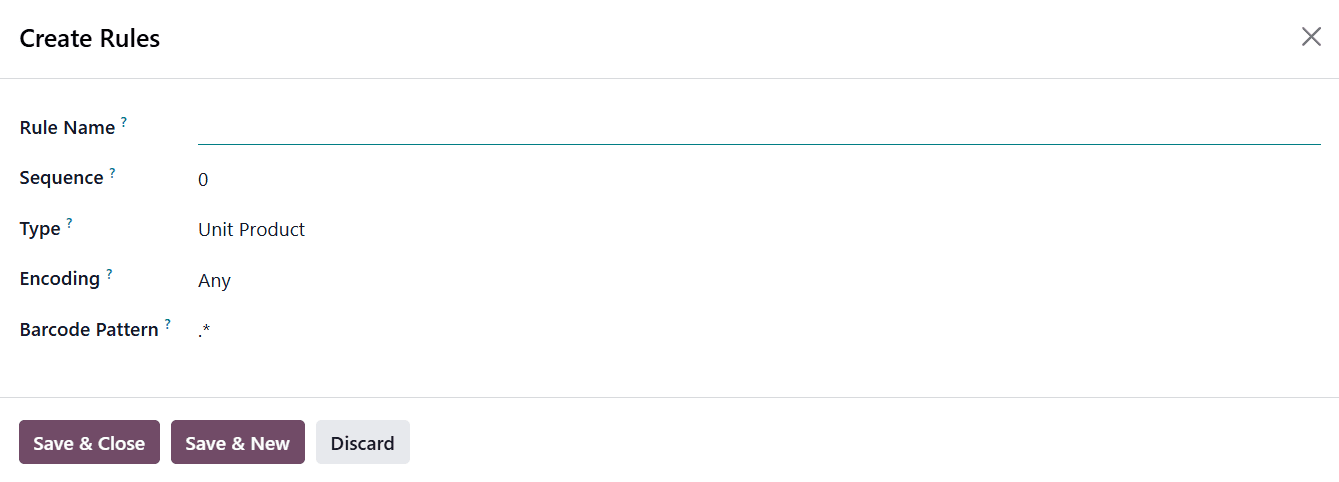
The Barcode Type field specifies the kind of information the barcode represents, such as product, package, lot or serial number, location, or coupon. The Encoding field restricts the rule to specific barcode standards, including EAN-13, EAN-8, UPC-A, and GS1-28, ensuring that the rule is applied only when the scanned barcode matches the selected format.
The Barcode Pattern field defines how the sequence of numbers or characters in a barcode is interpreted using pattern logic. For example, a pattern such as 1... matches any four-digit barcode that starts with the digit 1. Special pattern characters like N for whole number digits and D for decimal digits allow Odoo to interpret values accurately. A pattern such as NNDD would interpret the barcode value 1425 as 14.25, which is commonly used for weighted products. Once these rules are configured and saved, Odoo 19 can accurately decode a wide range of barcode formats, including those that embed quantities, weights, or operational instructions, making barcode nomenclatures a powerful and flexible tool for efficient inventory and warehouse management.
Stock Barcode Database in Odoo 19 Inventory
The Stock Barcode Database is a powerful feature in Odoo 19 Inventory that enables faster and more accurate product creation through barcode scanning. When this feature is enabled, Odoo can automatically fetch product information, such as the product name, description, category, and images, by scanning standard barcodes like UPC, EAN, or ISBN. This semi-automated approach significantly reduces manual data entry, minimizes human errors, and speeds up product onboarding, making it especially useful for retail and warehouse environments handling large product catalogs.
To configure this feature, navigate to the Inventory module > Configuration > Settings and enable the Stock Barcode Database option under the Barcode section.
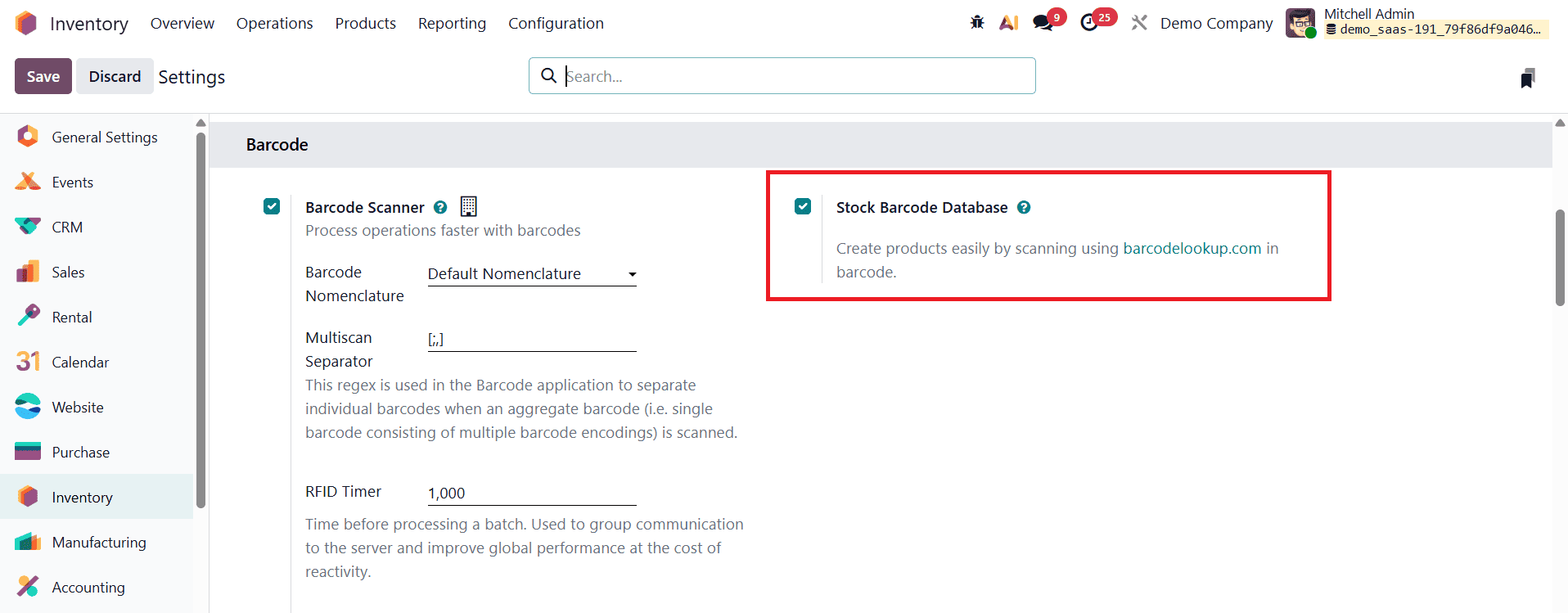
Once activated, Odoo attempts to match scanned barcodes with entries in its external barcode database and auto-populates the corresponding product details. For Odoo Online users, this functionality works out of the box. However, for on-premise or custom deployments, an API key may be required to access external lookup services such as barcodelookup, depending on the system configuration.
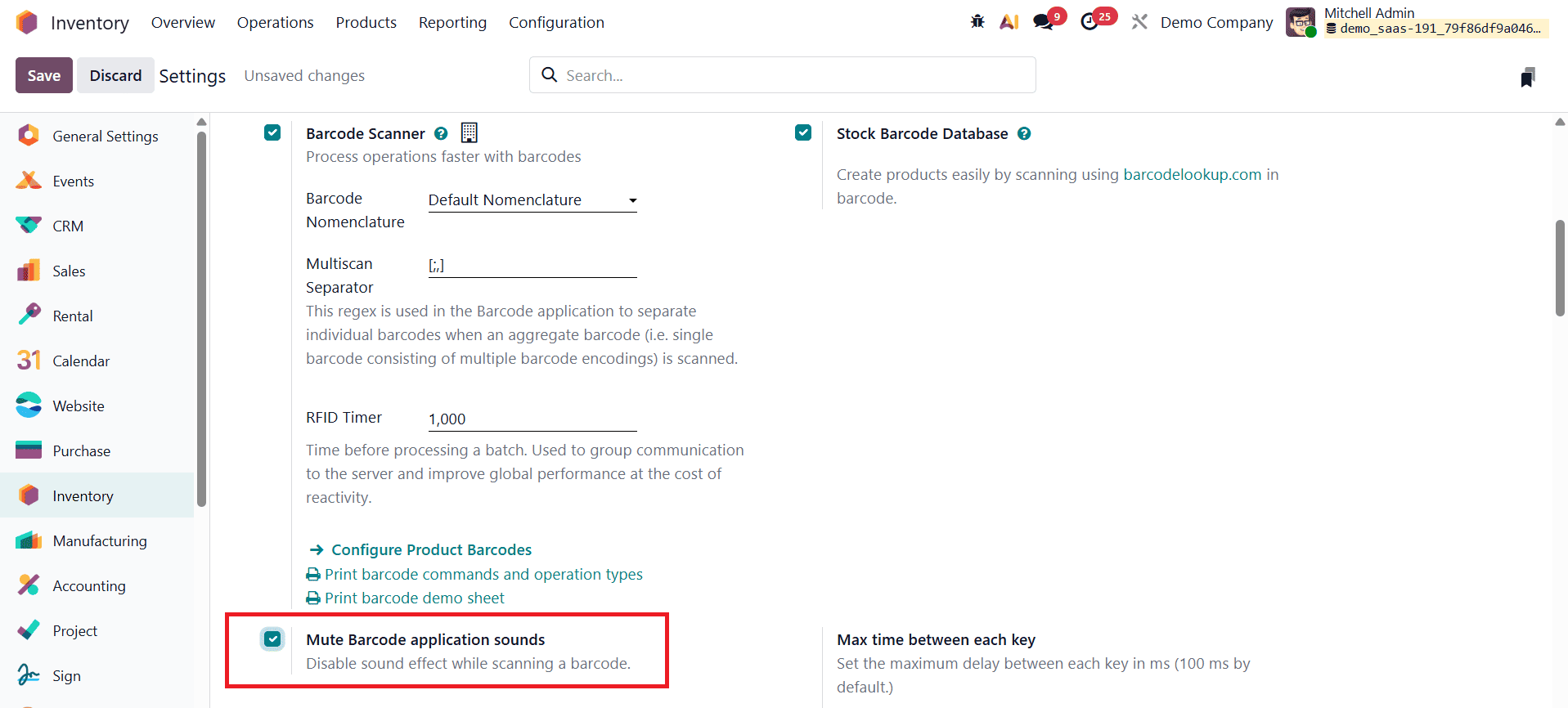
In Odoo’s Barcode application, the Mute Barcode Application Sounds feature allows users to disable the audible sound that plays when a barcode is scanned. When this option is enabled from the Barcode or Inventory settings, Odoo continues to process scans normally but without audio feedback. This is particularly useful in quiet work environments or warehouses where scanners already provide their own sound alerts, helping reduce noise without affecting scanning accuracy or performance.
Overall, barcode nomenclatures in Odoo 19 play a critical role in improving warehouse accuracy, traceability, and operational efficiency. By properly configuring default or custom nomenclatures and leveraging features like the Stock Barcode Database, businesses can seamlessly integrate barcode scanning into their inventory workflows. Whether working with internally defined barcodes or globally standardized formats such as GS1, Odoo 19 provides the flexibility and control needed to optimize modern inventory and warehouse management processes.
To read more about Overview of Nomenclatures in Odoo 18 Inventory Module, refer to our blog Overview of Nomenclatures in Odoo 18 Inventory Module.