Odoo 19 Accounting's aged payable report is a comprehensive summary of unpaid vendor bills arranged according to the length of time they have been past due. It assists companies in managing cash flow, keeping track of short-term obligations, and determining which suppliers should be paid first. The report facilitates effective financial planning and vendor relationship management by providing real-time data and adaptable filtering choices.
To open the Aged Payable report, click on the Reporting menu. And the Aged Payable report available under the partner report.
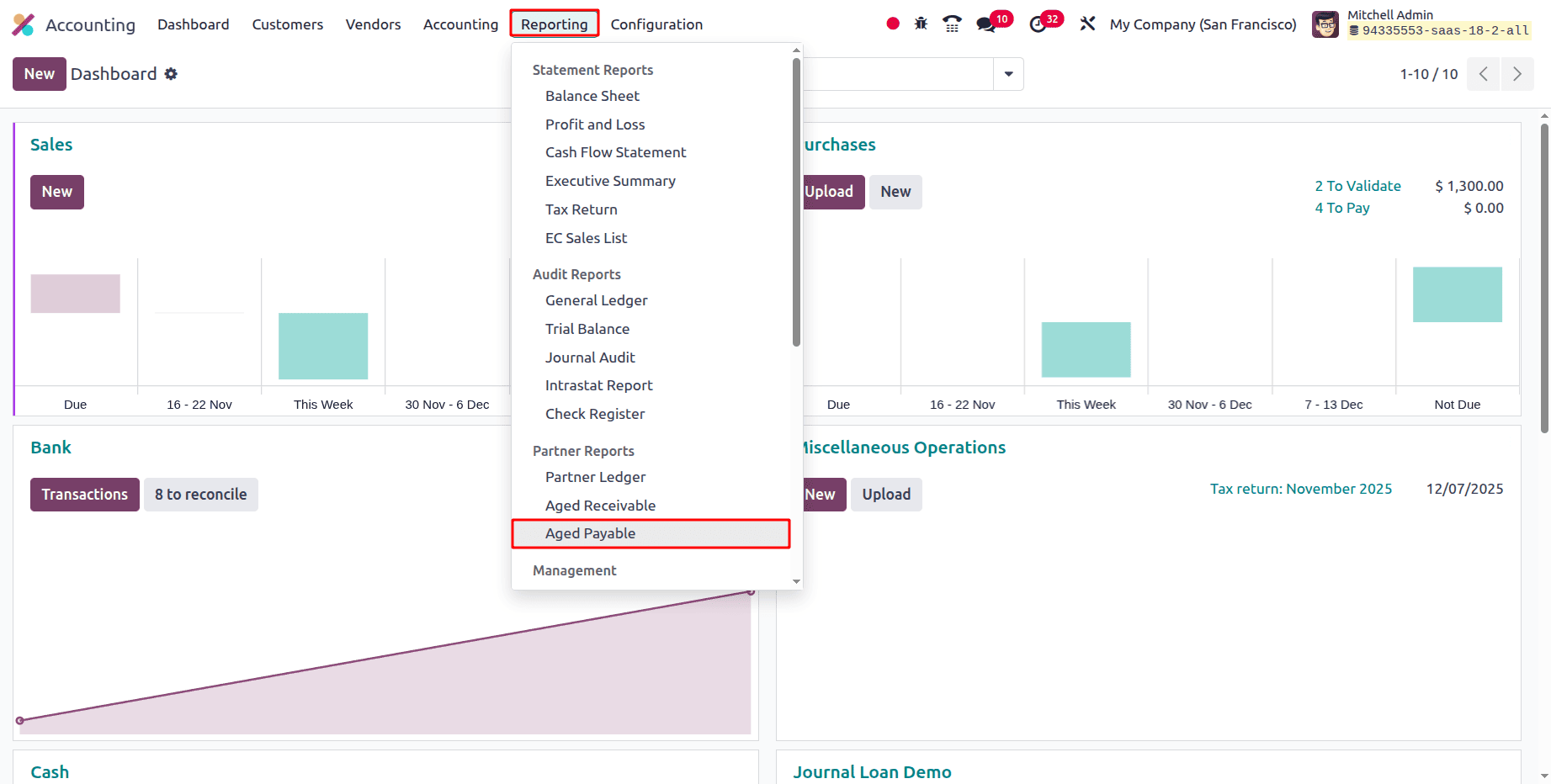
You will be able to comprehend the part of the past-due payments that the business should have made thanks to this Aged Payable reporting feature. The Aged Payable reports will define the Aged Payable items for each Business Operations Partner or Vendor exactly as the Aged Receivable reports do.
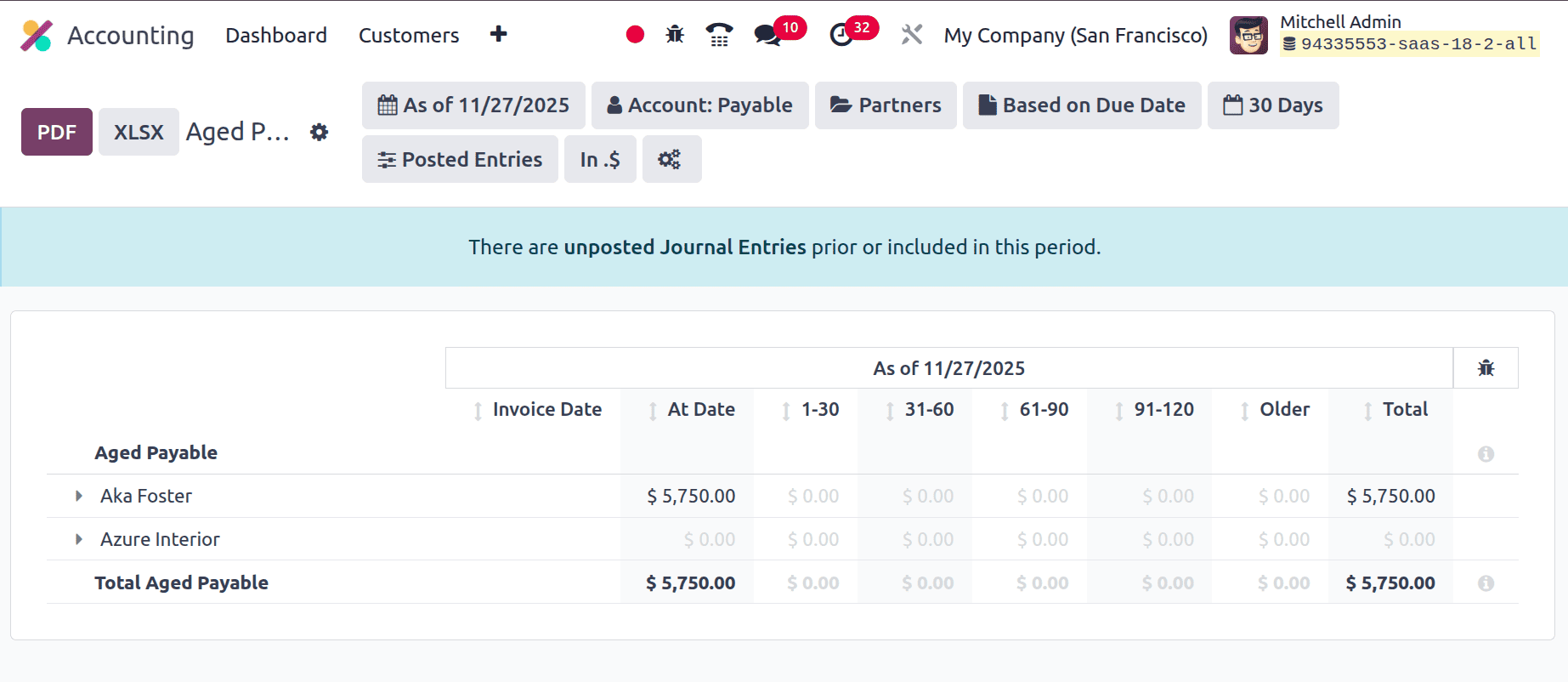
The Aged Payable Report can be imported in PDF format and XLSX formats. To that, click on the PDF and XLSX button.
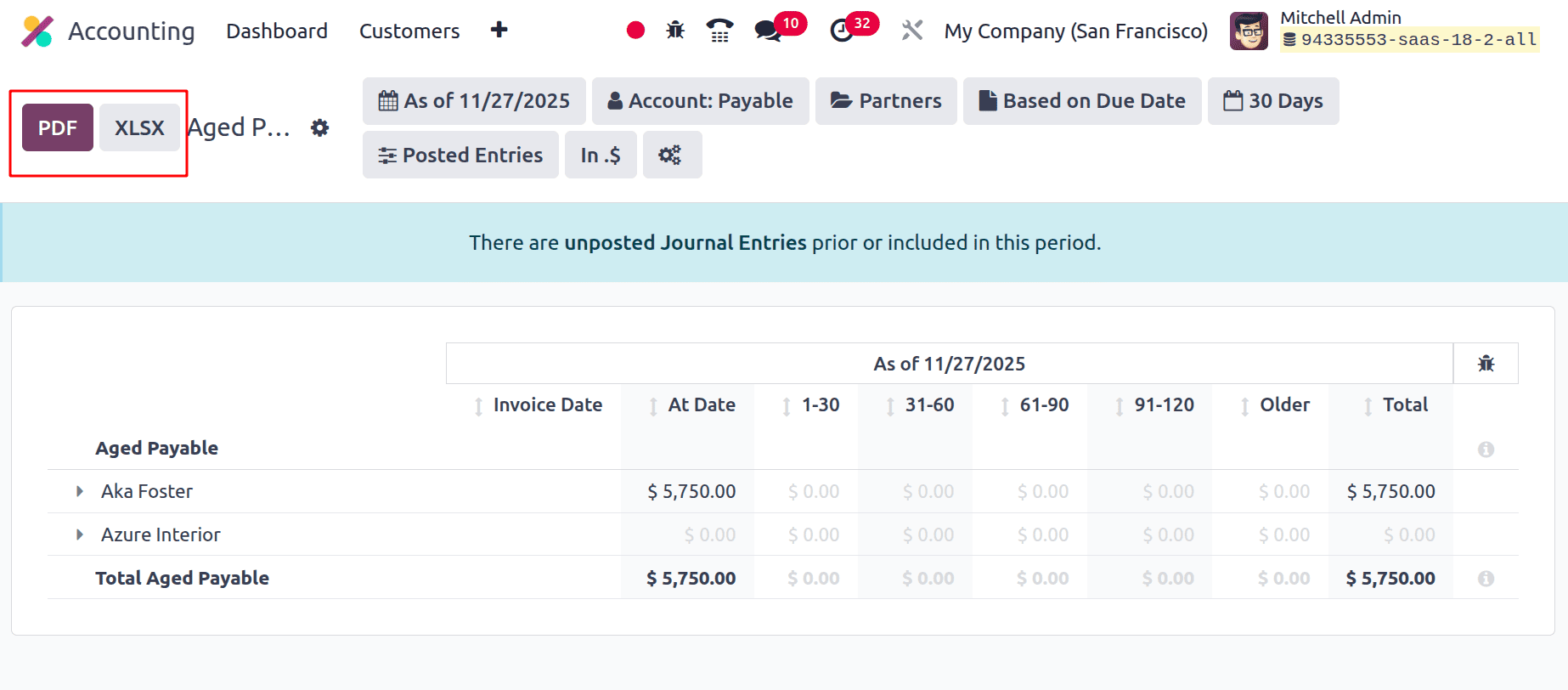
There are several filters. The first one is As of, which contains Today, End of Month, End of Quarter, End of Year and can customize the date by adding dates in Specific Date.
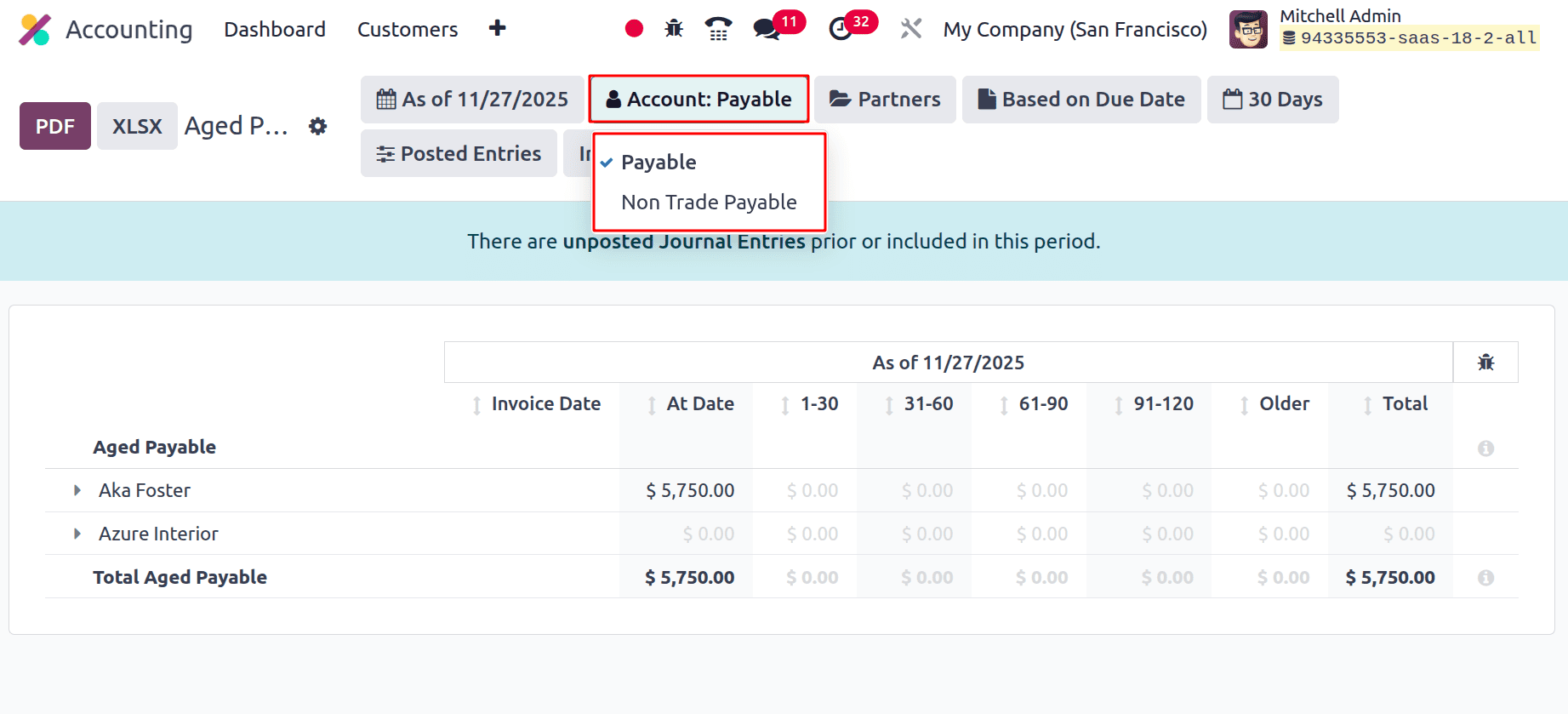
Next is to filter based on Account. Users can filter the report on the basis of Payable and Non Trade Payable.
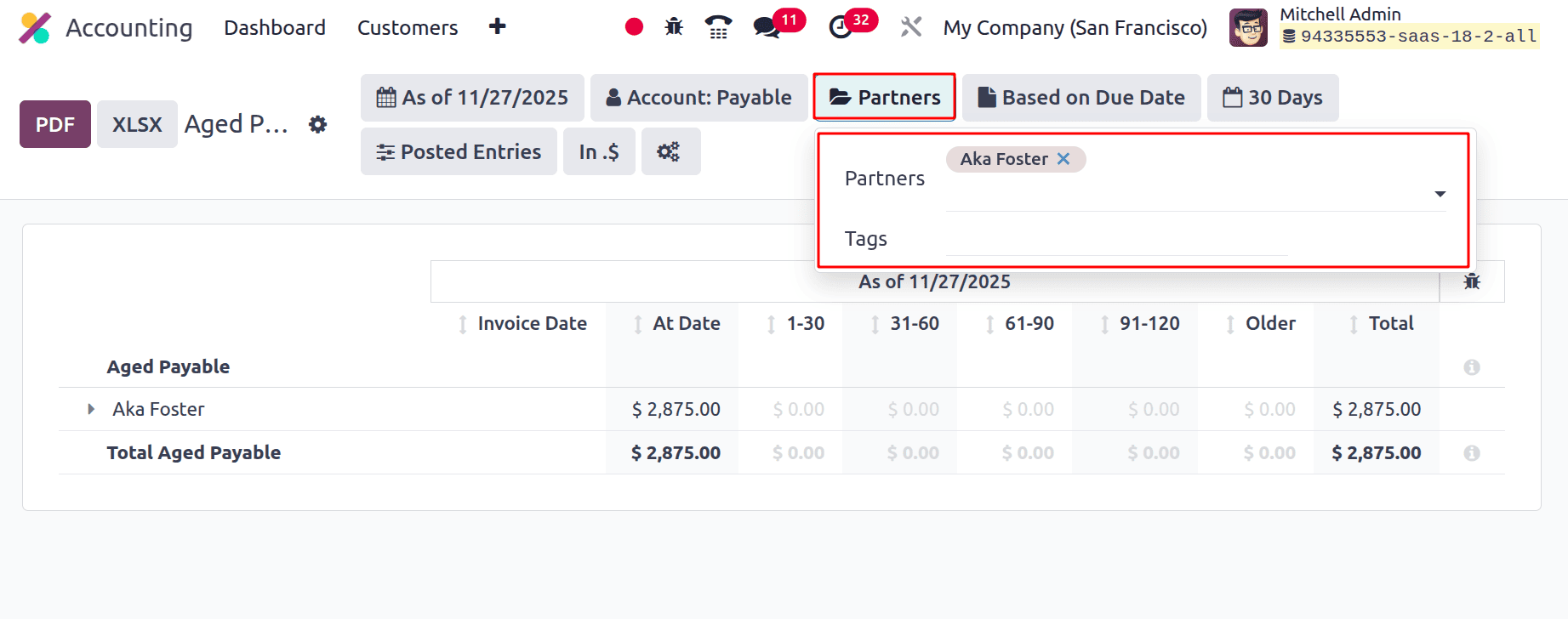
Users can filter the report based on Partner or based on Tags. For that, click on the filter Partners. If the user added any partner, then the report shows the entry for the chosen partner.
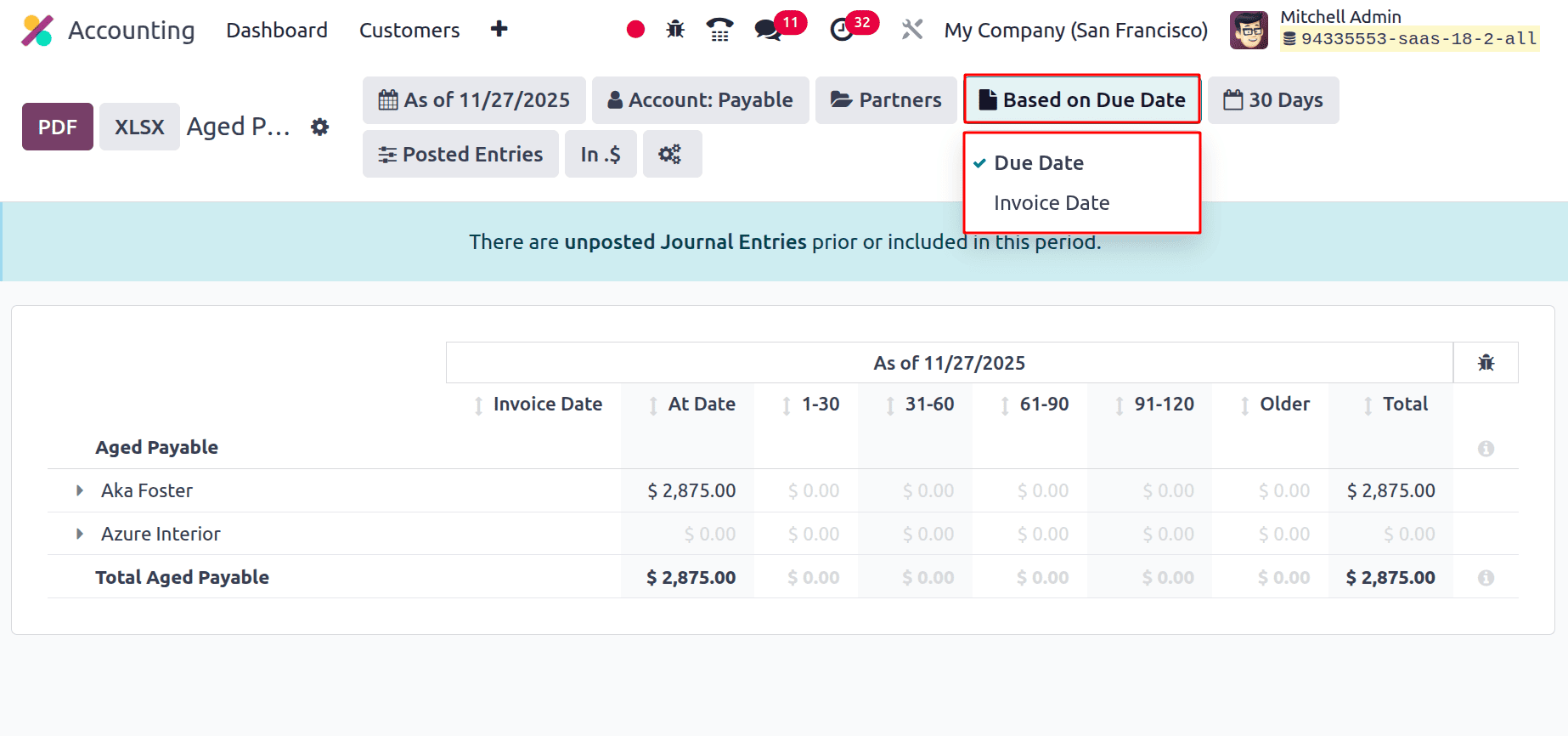
Then the users can filter the report either Based on Due Date or Based on Invoice Date.
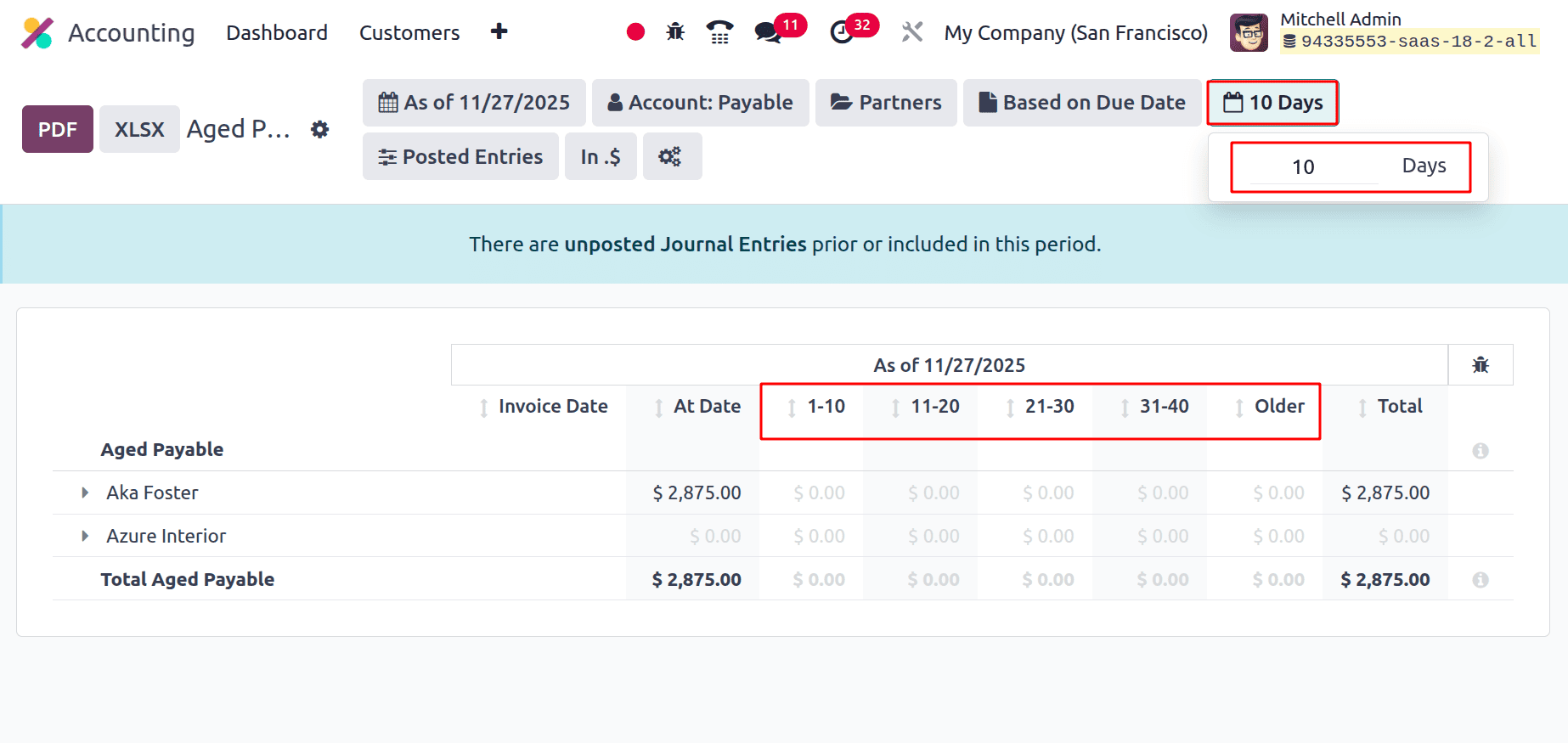
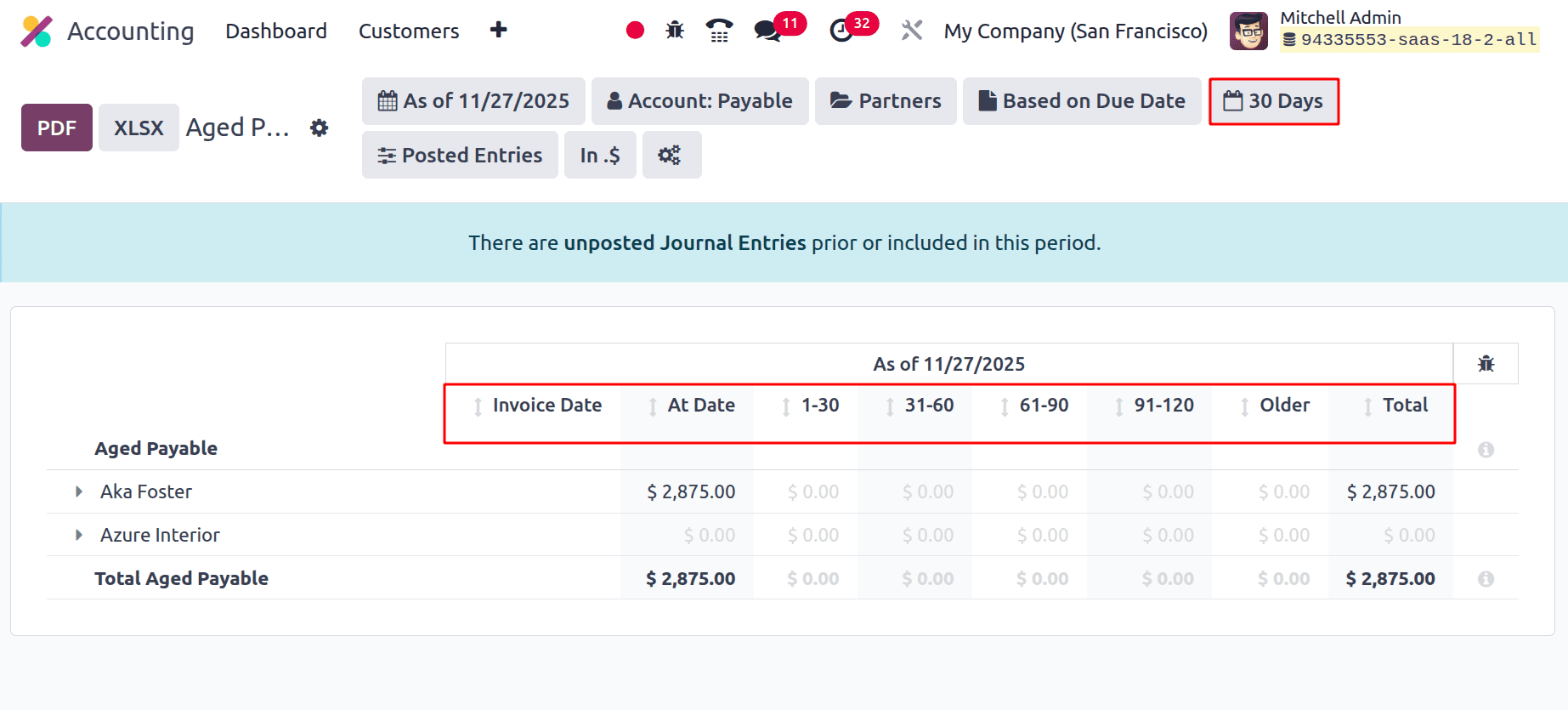
The report can be filtered based on the number of days. The users can add the days needed, on the basis of the chosen date the report will change as marked below.
The next filter shows Draft Entries, Unfold All, Show Currency, Show Account and Hide lines at 0. The Draft Entries show unposted entries in the report. The Unfold All will unfold the report lines.
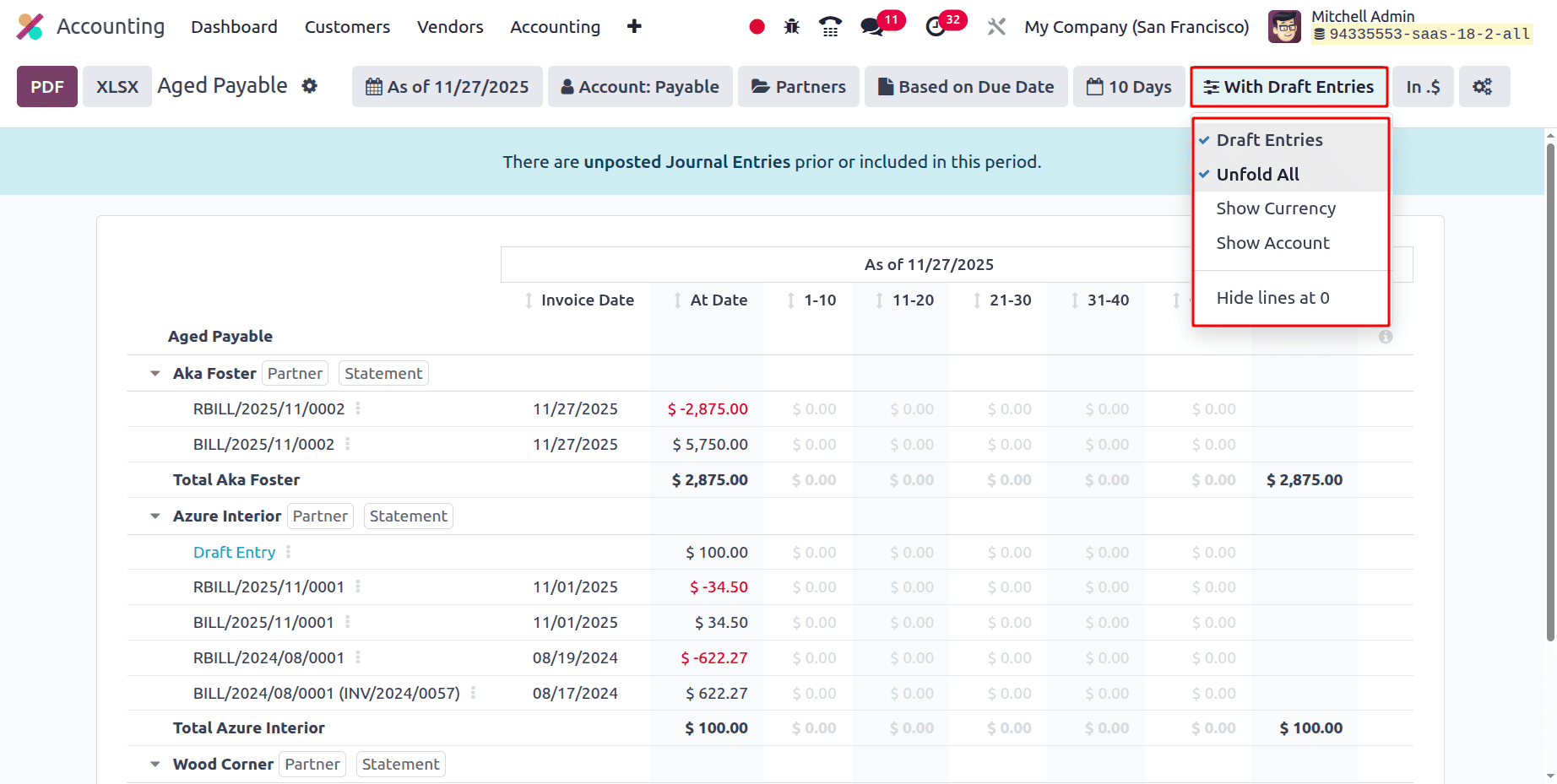
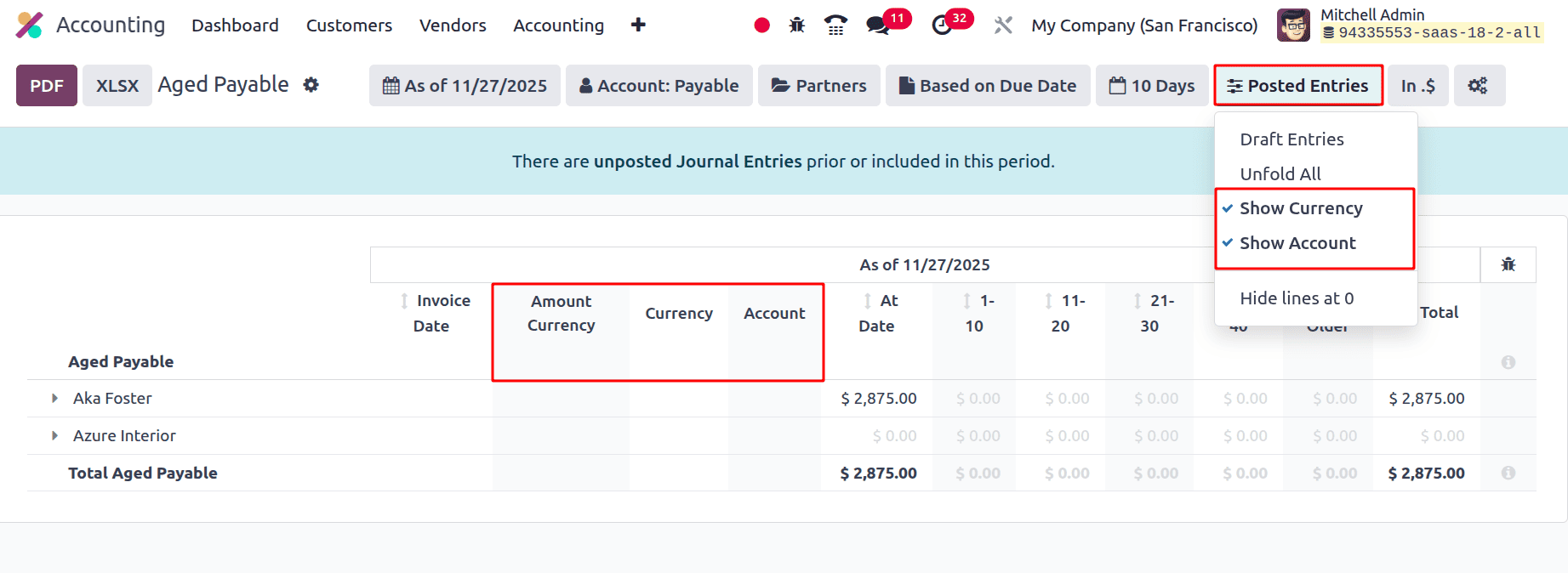
If the Show Currency is enabled, two additional fields are available in the report named Amount Currency and Currency. If the Show Account is enabled, then the report shows the Account field inside the report.
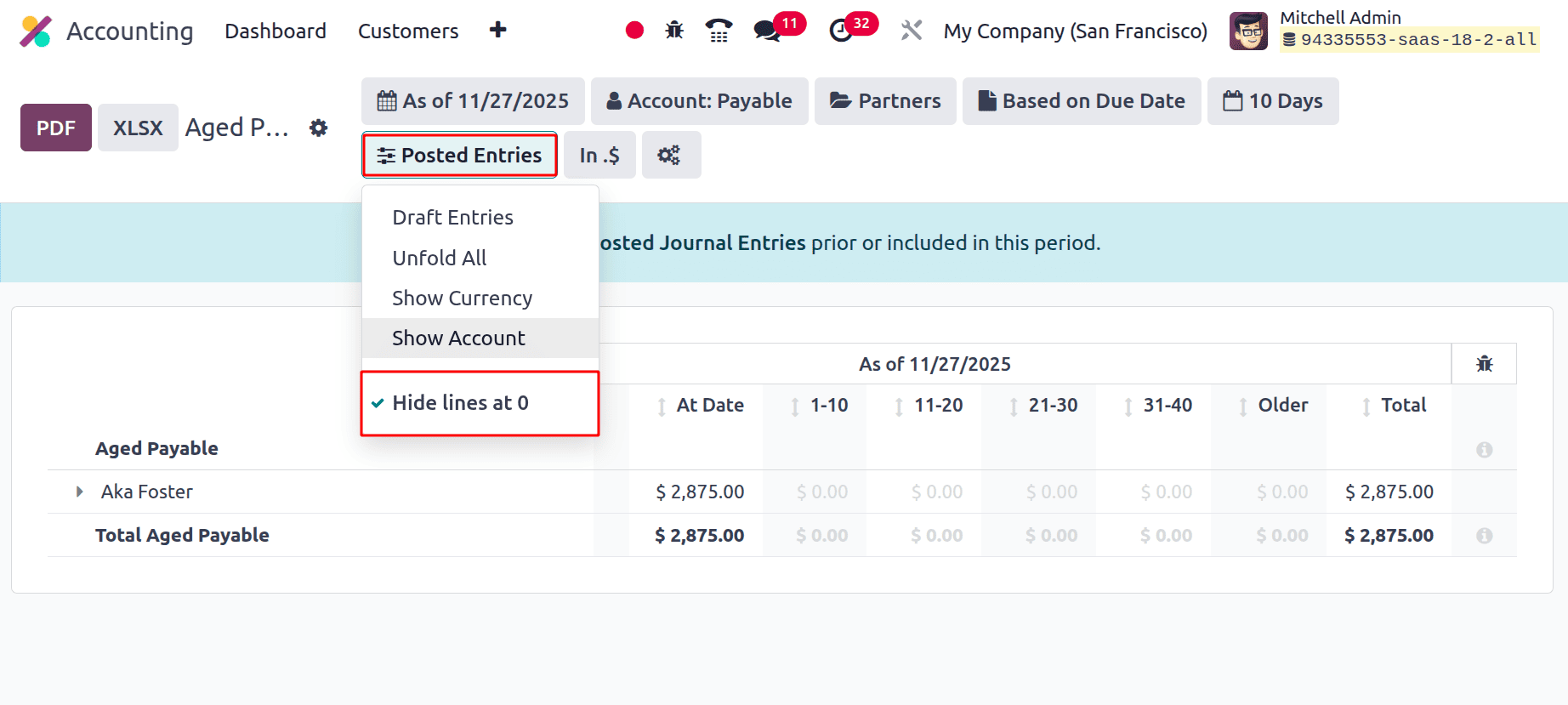
In the above image, there is a partner Azure Interior, but there is no value shown. If the filter ‘Hide lines at 0 ’ is enabled, the same line will be hidden as shown in the image below, because there is no value.
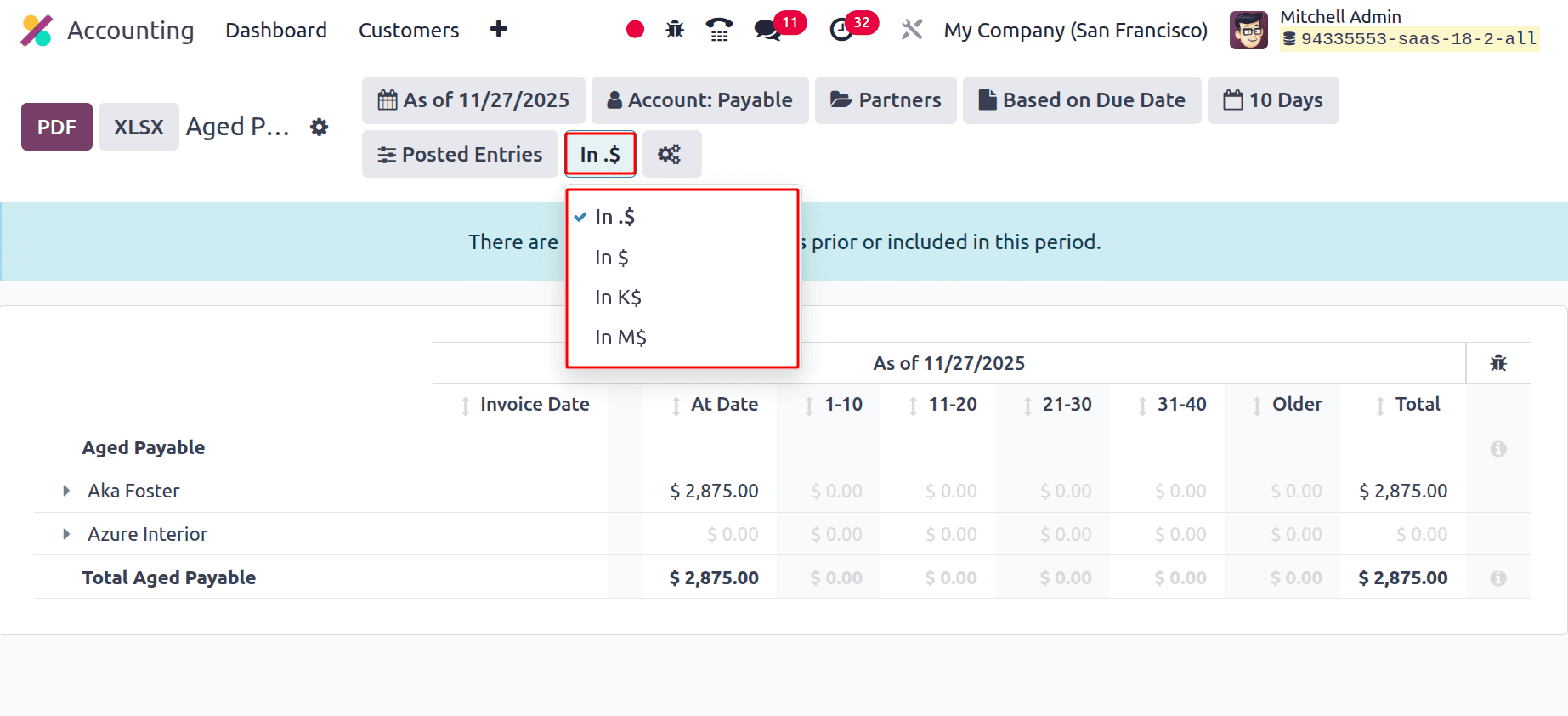
The next filter is the Currency filter.
In . $ : The sum is displayed in the report with two decimal places in US dollars.
In $ : The total is displayed as an integer in dollars.
In K$ : The sum is displayed in K$ thousands.
In M$ : The amount is displayed in millions of dollars, or M$.
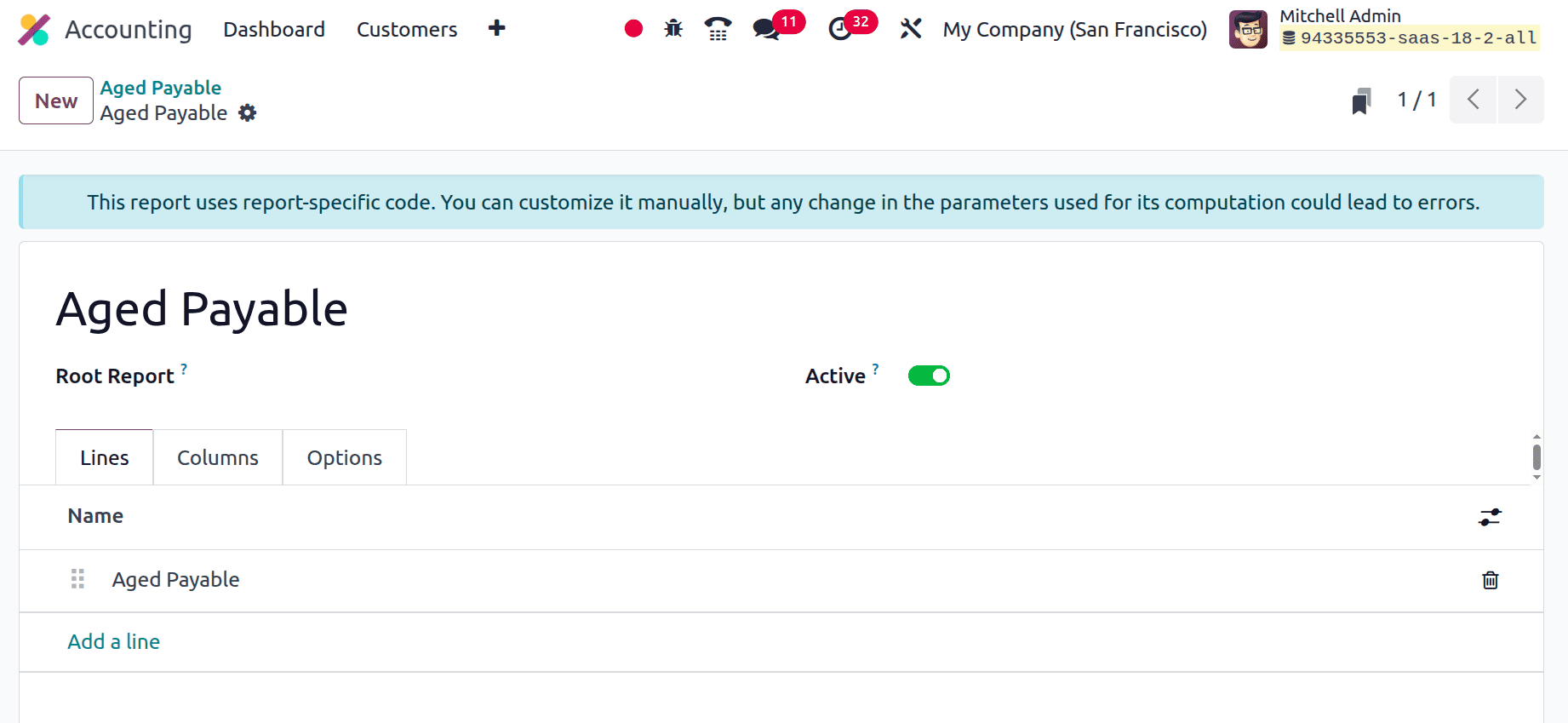
While clicking on the icon the Accounting Report will open. Which helps to customize the Aged Payable Report.
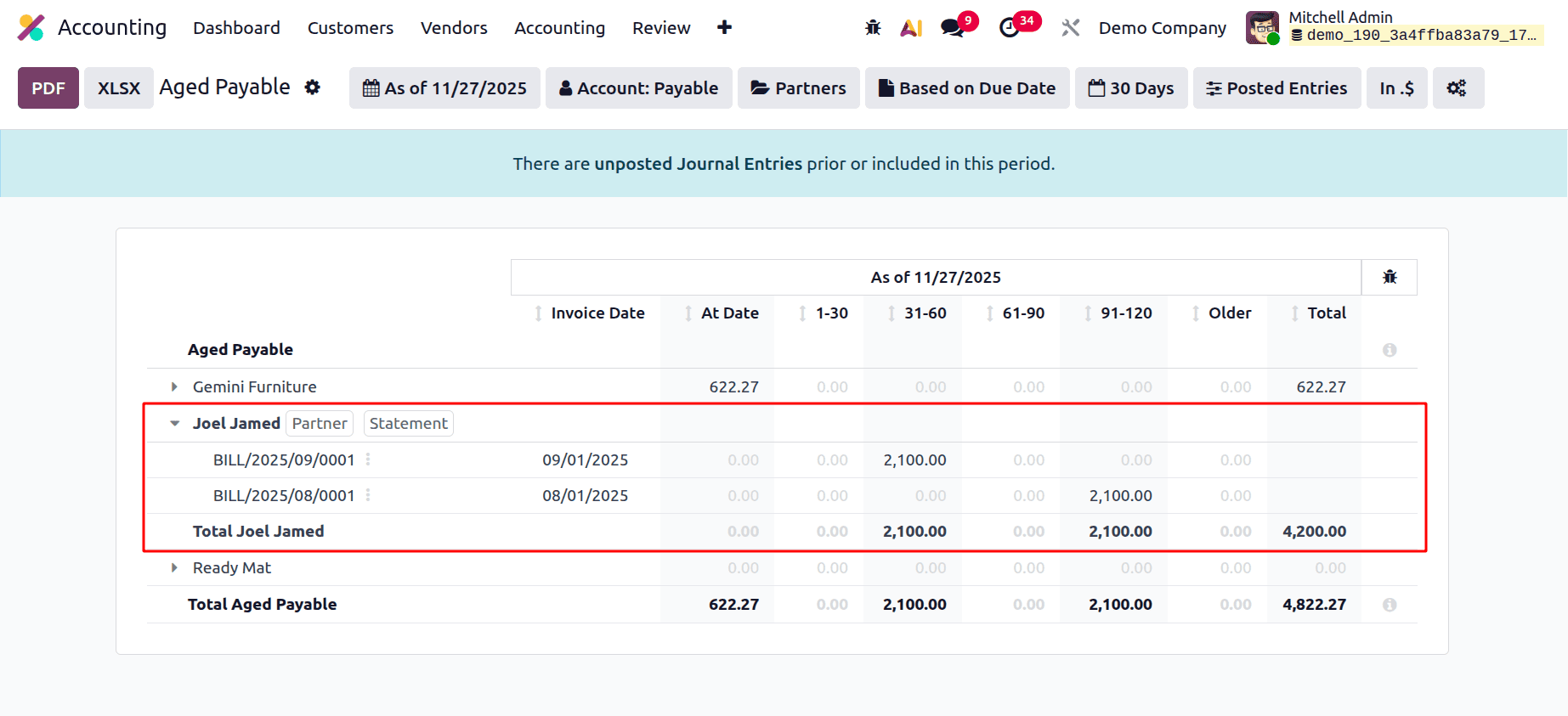
The top of the report shows Invoice Date, At Date, 1-30, 31-60, 61-90,91-120 and Older. If the bill amount is due today, it will be listed under At Date. If the payment is due within 30 days, it will be listed under 1-30 days. If the payment is due more than 31 days or less than 60 days, it will be listed under 31-60 and so on.
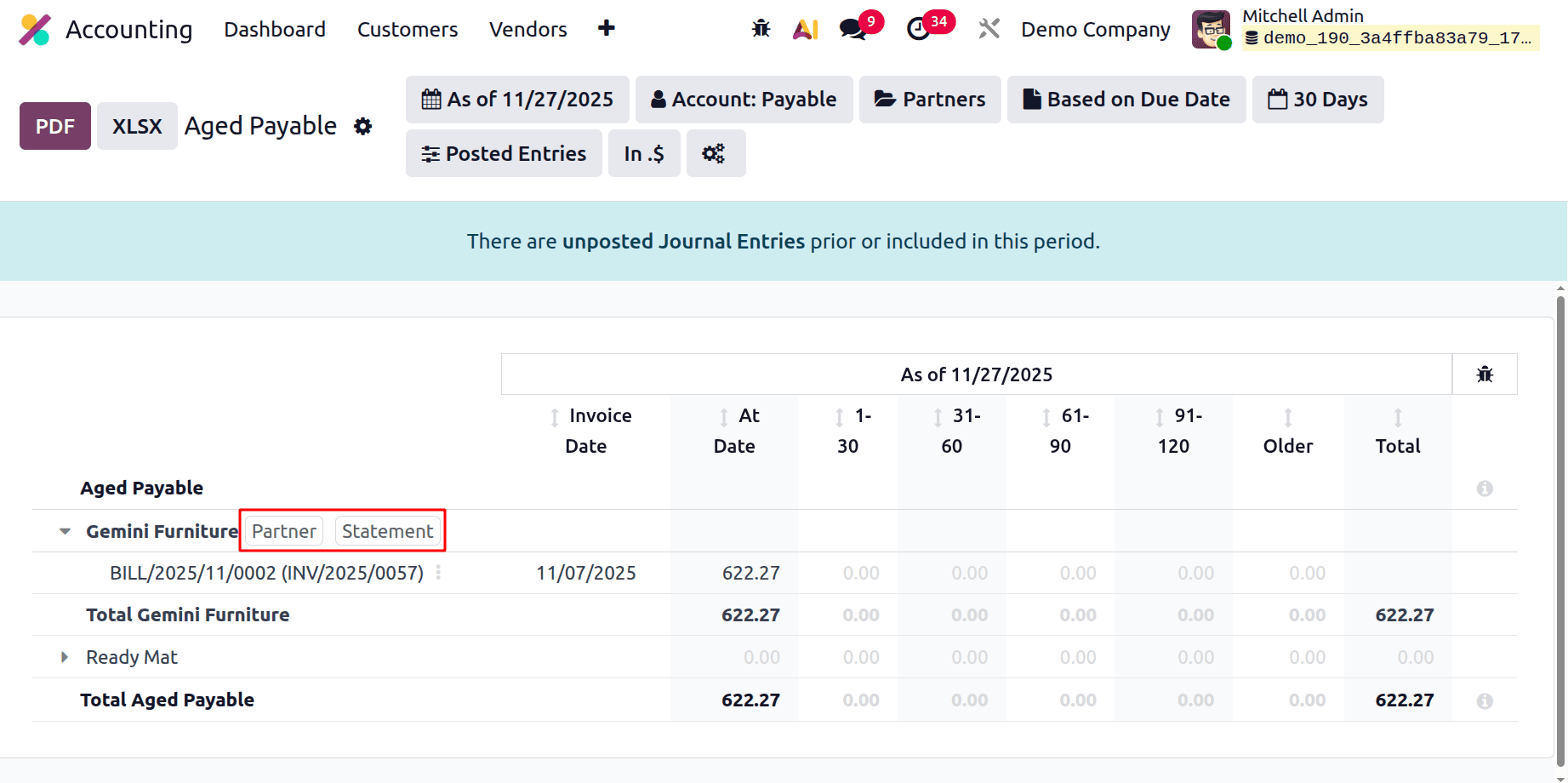
If the partner unfolds, the entries will be listed below there. There are two buttons: Partner and Statement.
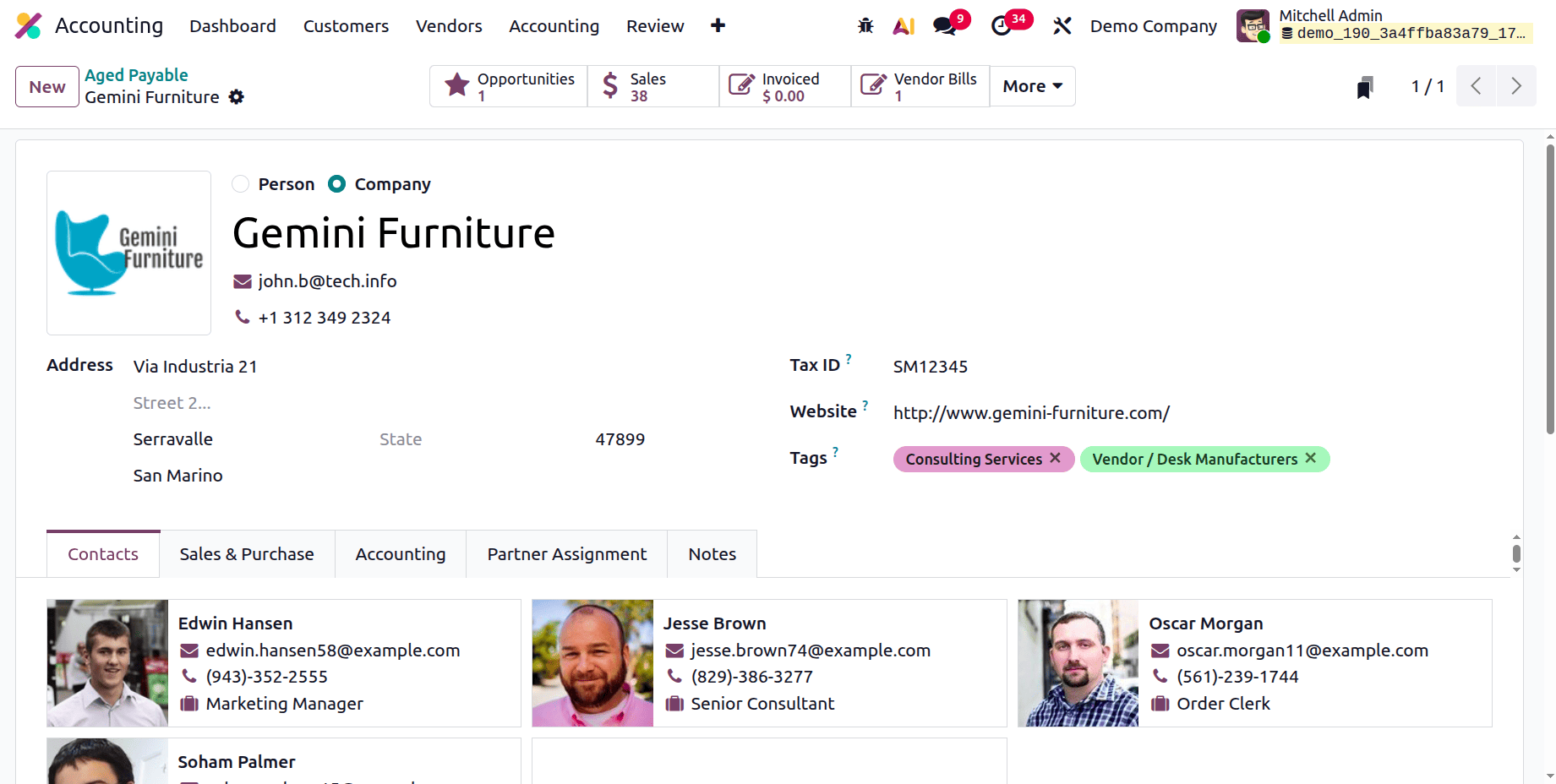
If the Partner button is clicked, it opens the employee form. Users can view all the configurations of the corresponding partner.
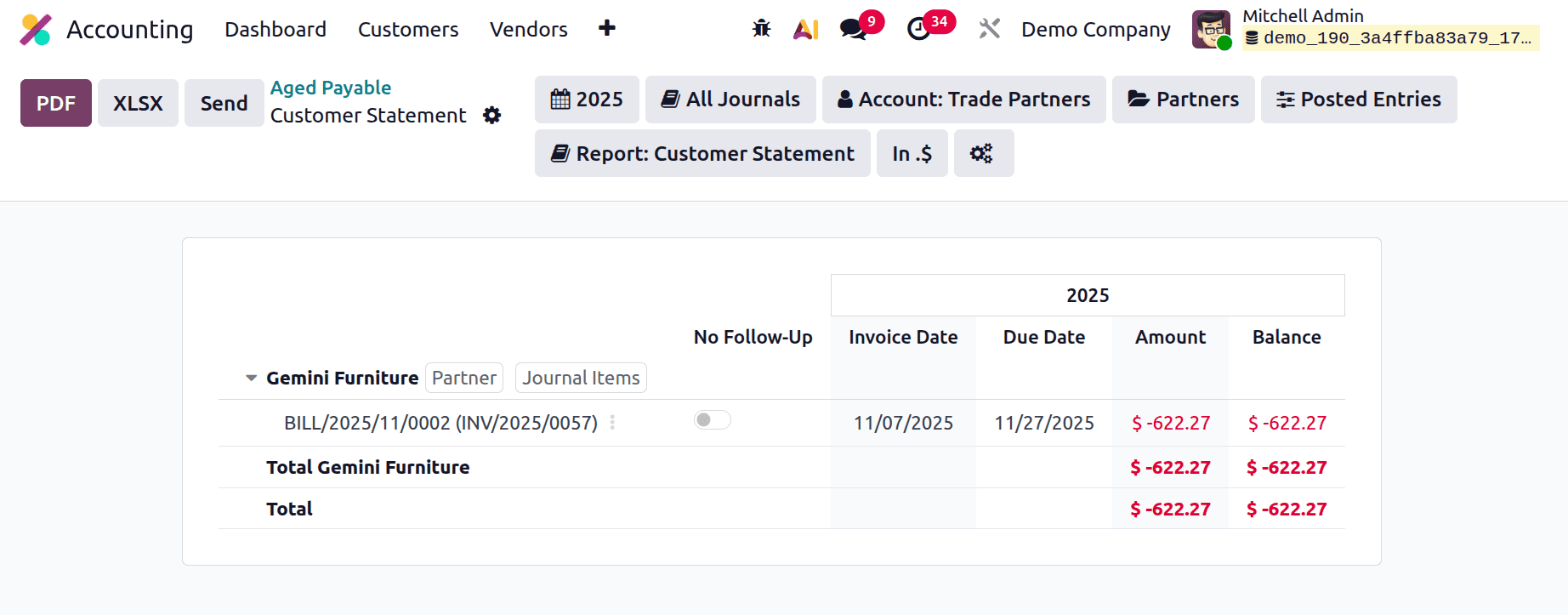
If the Statement button is clicked, it will open the Customer Statement, which shows the entry with Invoice Date, Due Date, Amount and Balance.
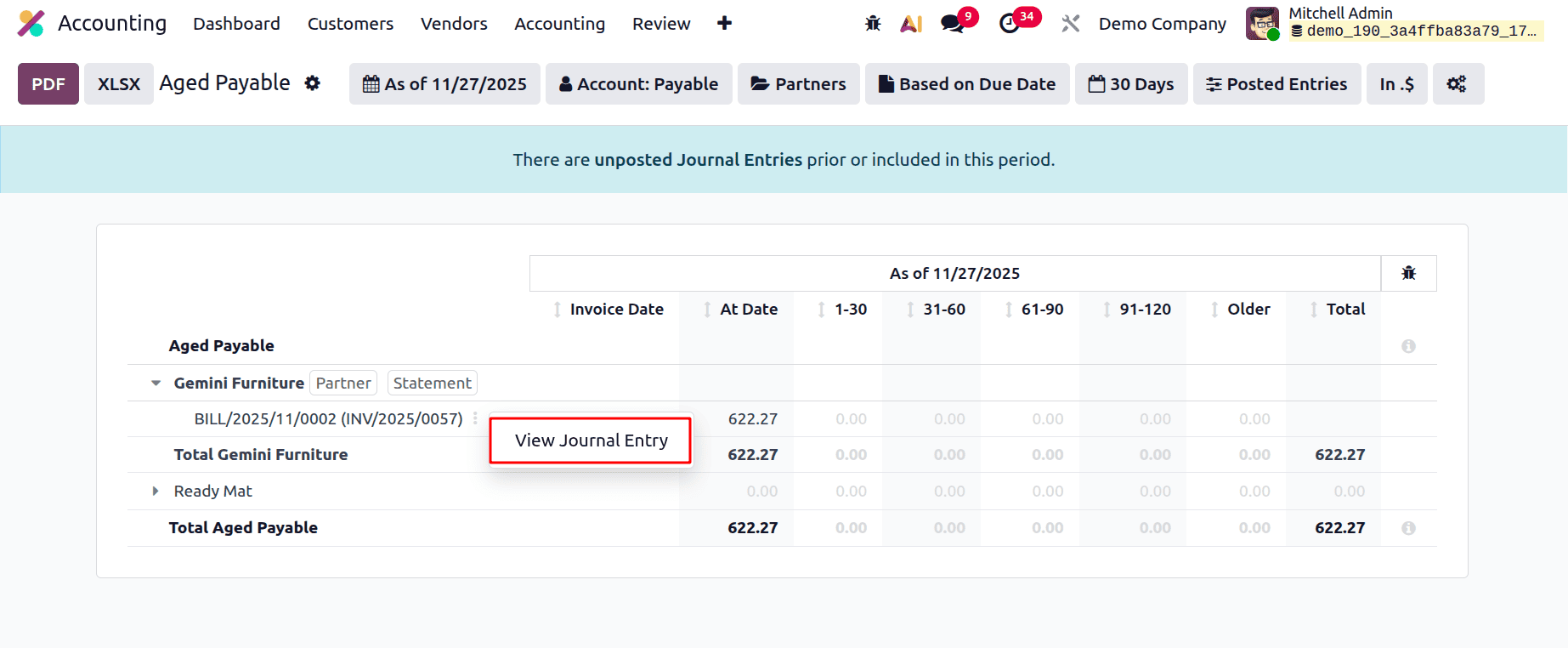
While clicking on the three dots, which shows View Journal Entry. Click on it to view the corresponding journal entry.
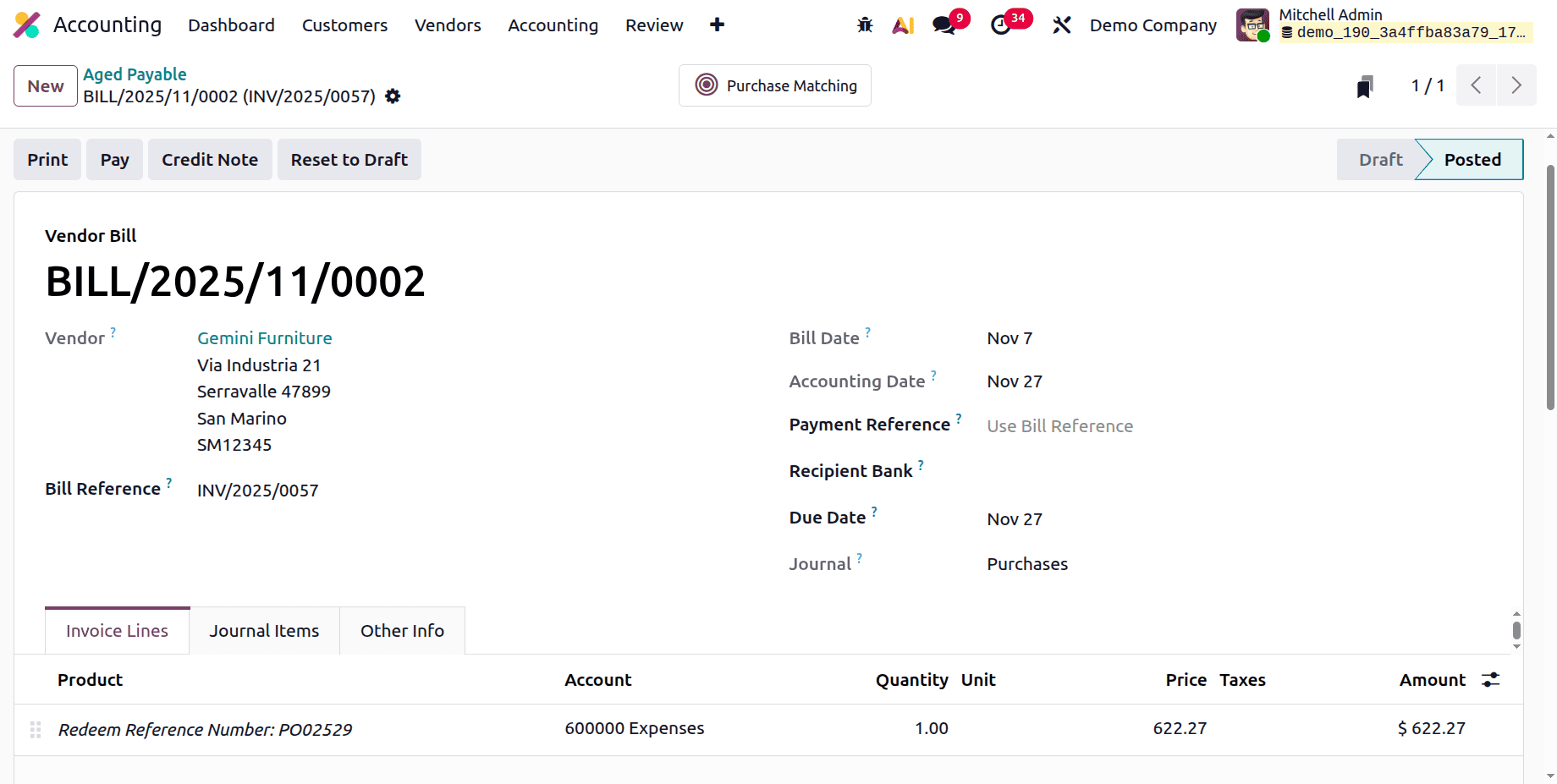
The Journal Entry can be viewed as shown below.
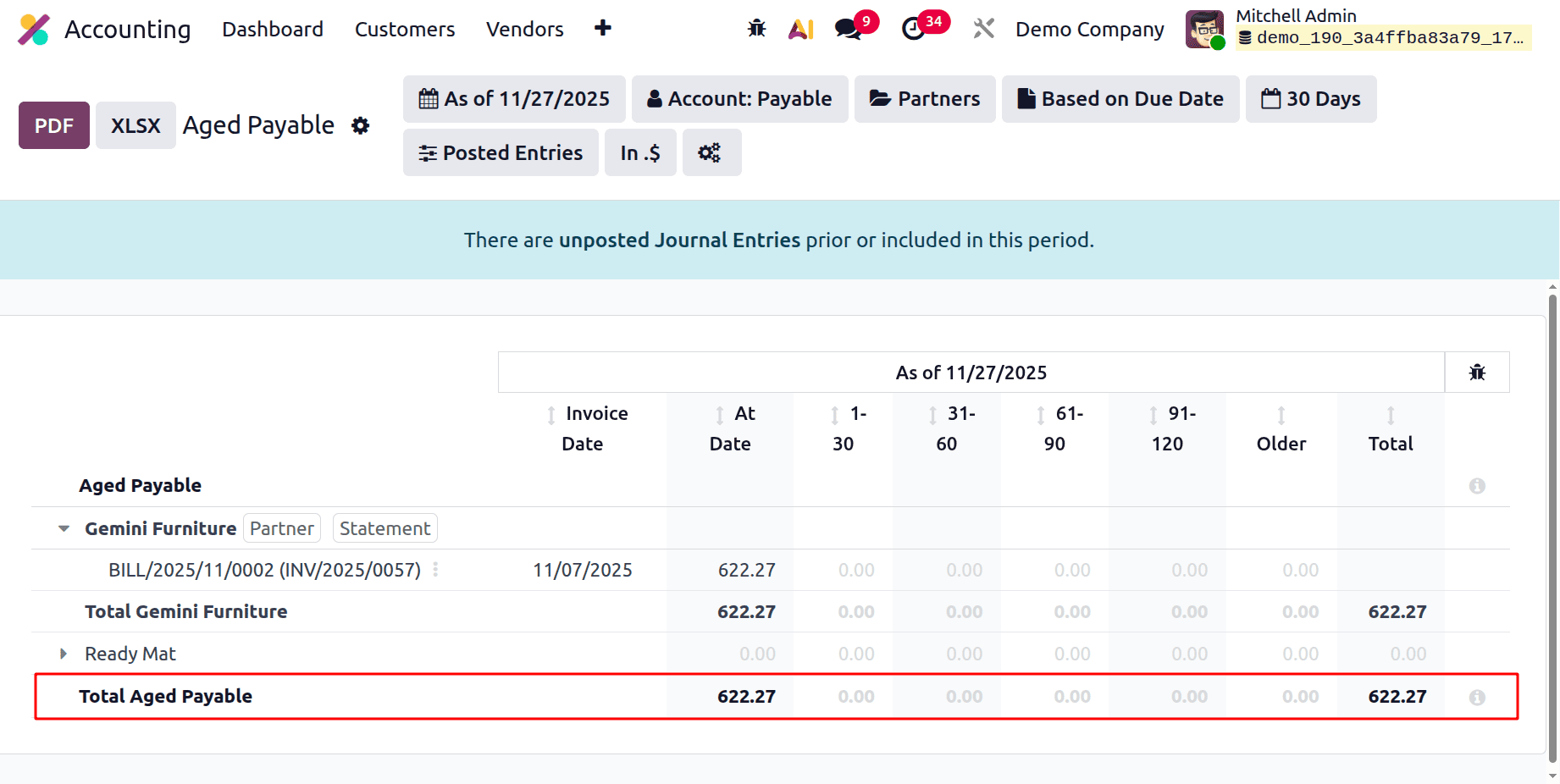
At the bottom of the report, the Total Aged Payable amount can be viewed as shown in the image below.
Let's check how the entry is shown inside this Aged Payable report.
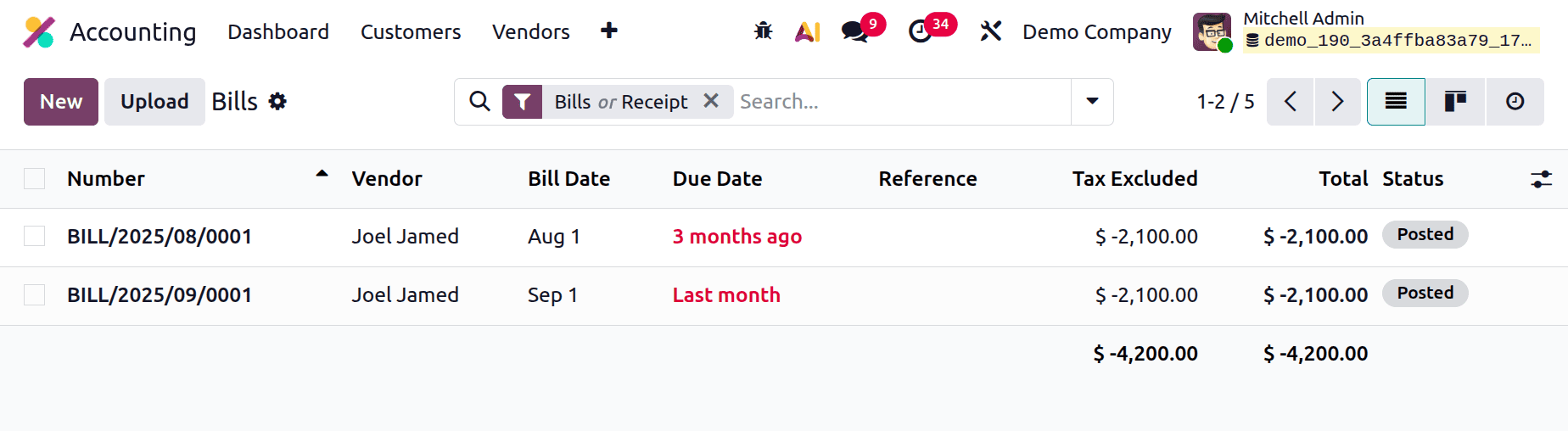
The screenshot below shows the vendor bill created for one vendor named Joel Jamed. The first bill was created on August 1st, and the due date was 3 months ago. The second vendor bill is created on September 1st, and the due date is last month.
Let's check the Aged Payable report. The first bill is due in between 31-60 days, and the second bill is due in between 91-120 days, as shown in the screenshot below. The Total will be shown as below.
To sum up, the Odoo 19 Accounting Aged Payable report is a crucial tool for preserving financial transparency and guaranteeing prompt vendor payments. It enables companies to make well-informed decisions and improve their cash flow management by providing structured insights into past-due liabilities. Organizations can maintain organization, proactivity, and control over their financial responsibilities by making appropriate use of this report.
To read more about How to Analyze Aged Receivables and Payables Reports in Odoo 19, refer to our blog How to Analyze Aged Receivables and Payables Reports in Odoo 19.