Efficient warehouse management depends heavily on how well storage locations are structured and utilized. In Odoo 19, the Storage Categories feature plays a crucial role in organizing warehouse space by allowing businesses to control where products are stored based on factors such as weight, package type, and product compatibility. Storage categories act as an additional attribute for storage locations and work closely with putaway rules to automatically suggest the most appropriate locations for incoming products. Before configuring storage categories, it is essential to create and enable storage locations within the Inventory module.
To begin using storage locations in Odoo 19, the feature must first be activated. Navigate to the Inventory module > Settings and enable the Storage Locations option.
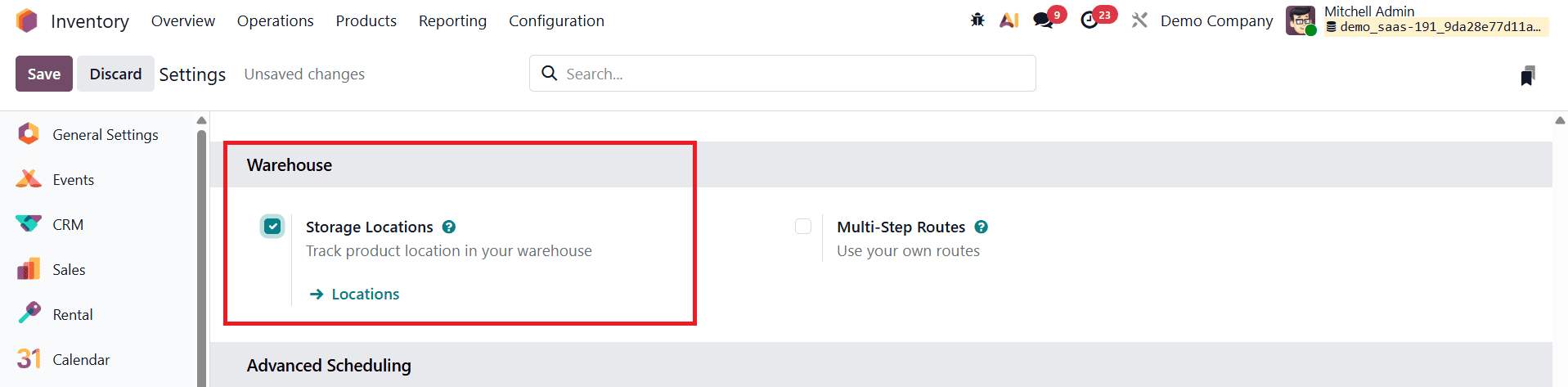
This activation allows you to define storage-specific constraints and link them to warehouse locations.
Once the feature is activated, the next step is to create storage categories. Go to Inventory > Configuration > Storage Categories.
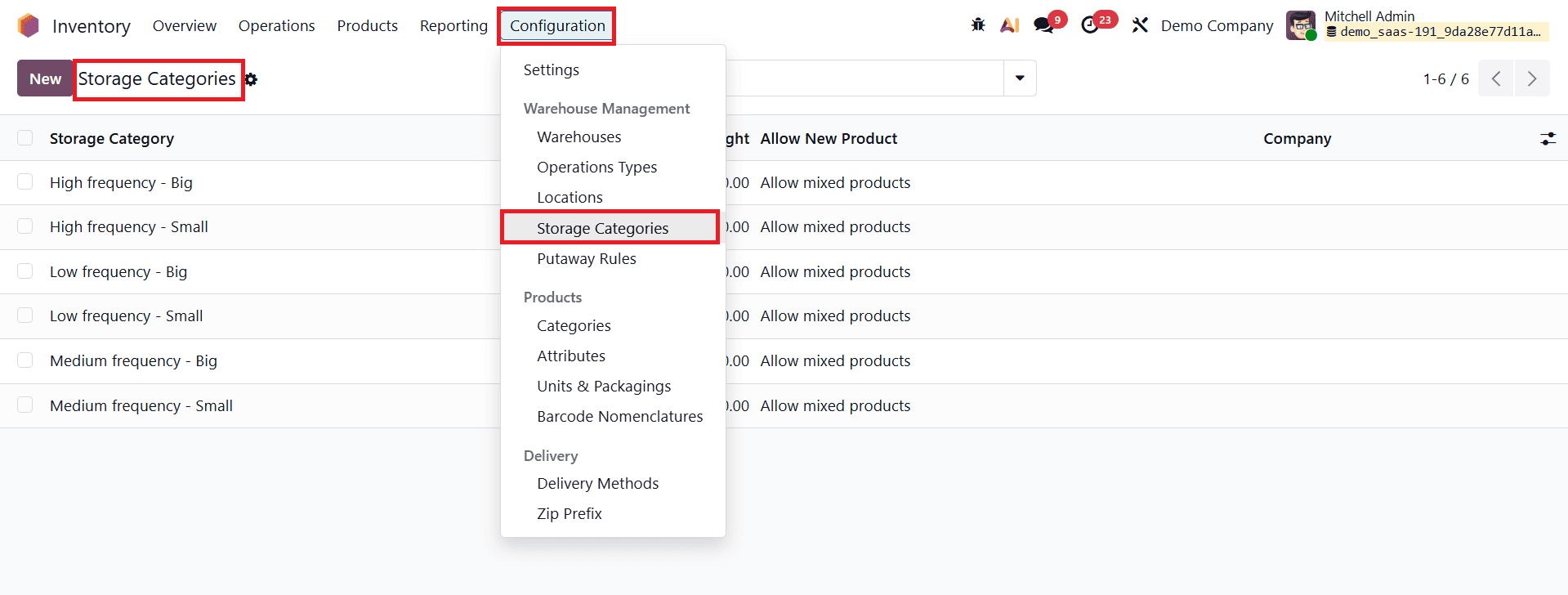
Storage categories allow you to group multiple storage locations under a single logical classification, making it easier to manage how and where products are stored. From this view, you can see any existing categories already created in the system. To define a new category, click the New button and configure it according to your warehouse requirements.
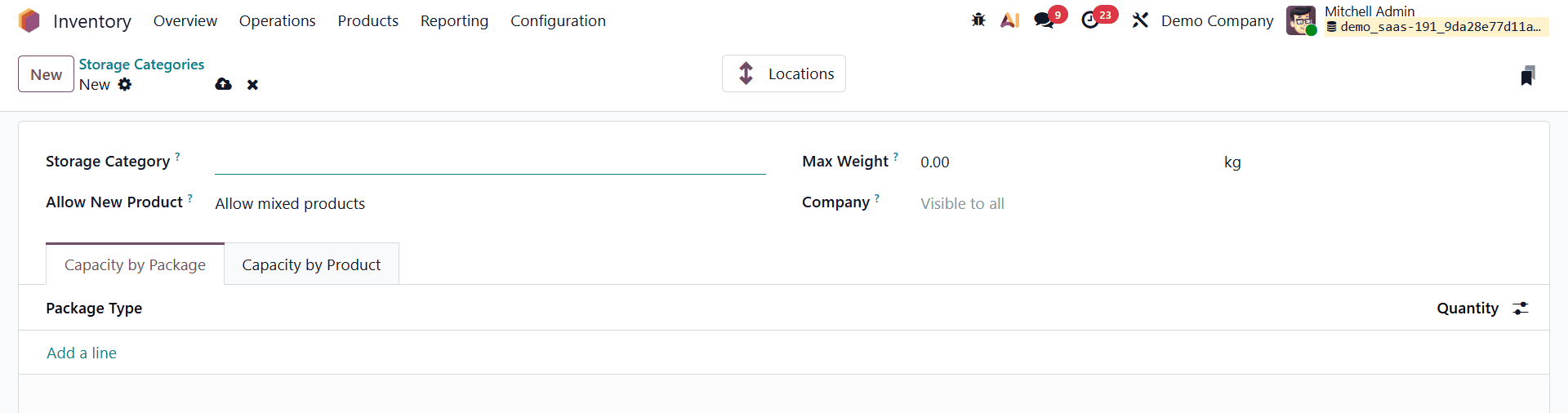
Each storage category form contains several important fields that determine how products are stored. The Storage Category field represents the name of the category and should clearly describe the purpose or nature of the storage, such as “High-Frequency Small” or “Heavy Goods.” The Max Weight field allows you to define the maximum weight that can be stored in any single location associated with this category. This weight limit is applied per location, ensuring that physical capacity constraints are respected and preventing overloading.
Another critical configuration is the Allow New Product option, which controls when a location under this storage category is considered available. If the option If location is empty is selected, products can only be placed in the location when it contains no other items. Selecting If products are the same allows products to be added only if the same product already exists in that location, helping maintain uniformity. Choosing Allow mixed products enables multiple different products to be stored in the same location simultaneously, offering greater flexibility when space optimization is a priority.
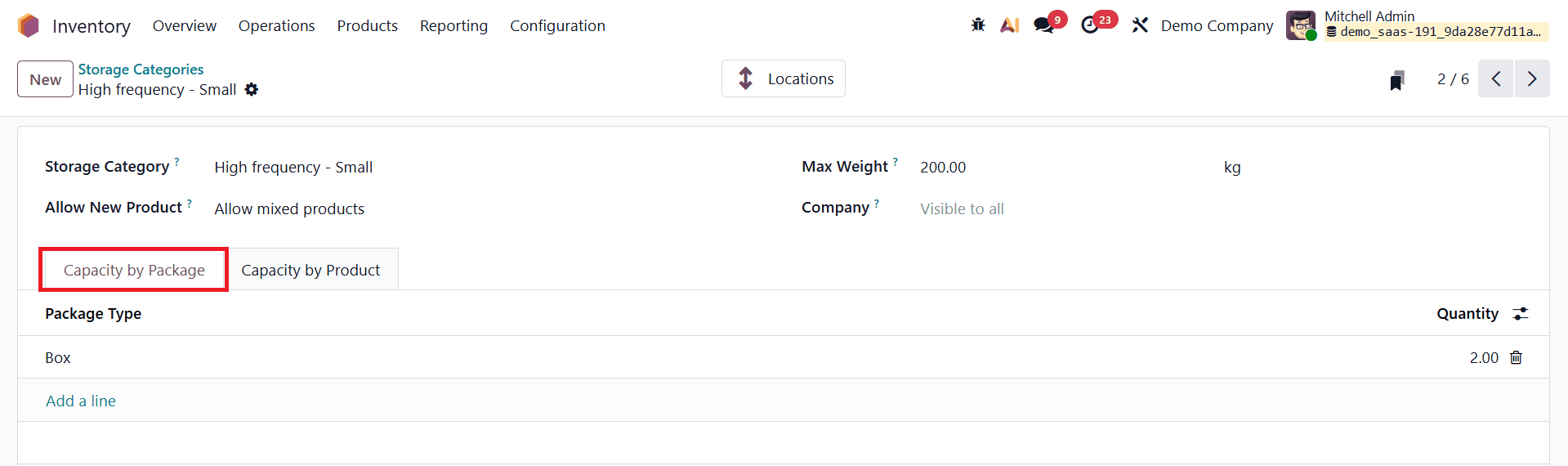
In addition to weight-based capacity, Odoo supports Capacity by Package, which is particularly useful for businesses that manage inventory using packages such as boxes or pallets. Within the storage category form, you can specify a Package Type and define the maximum number of packages that can be stored in a location. For example, you can configure a location to hold only two boxes while also limiting the total weight to 200 units. This dual control allows businesses to track available space more accurately and avoid congestion.
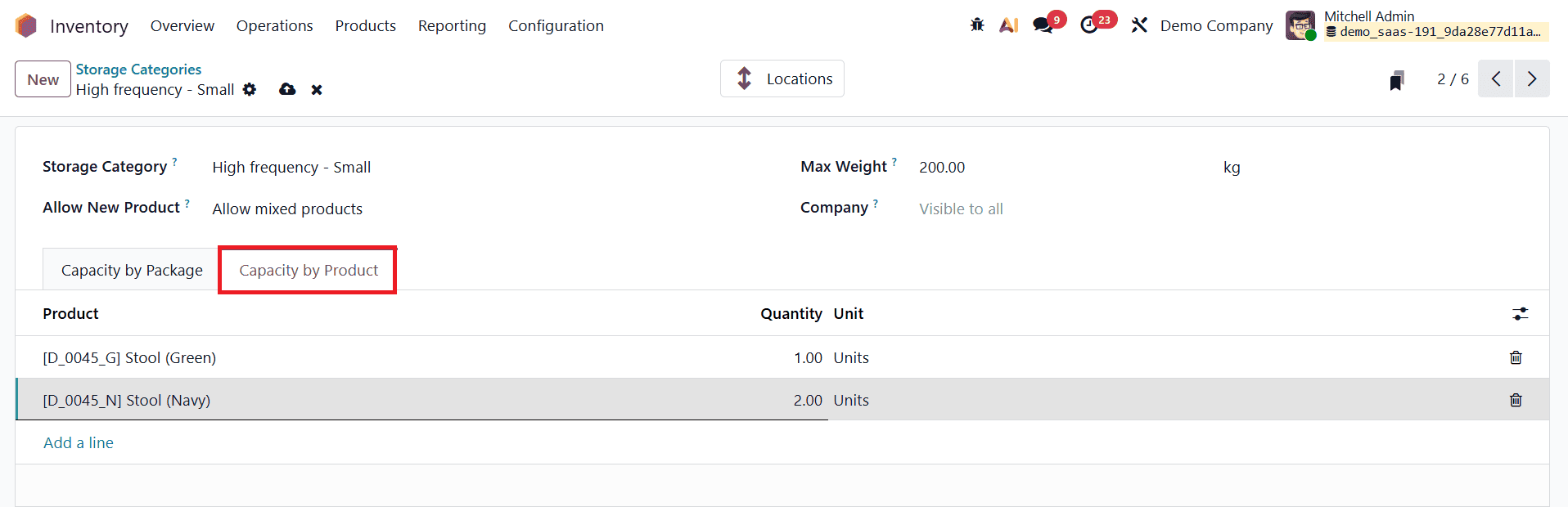
Similarly, Capacity by Product enables you to restrict how many units of a specific product can be stored within a location. By clicking the Add Line button, individual products can be assigned with their own maximum quantities. This feature is especially valuable for warehouses handling products of varying sizes and handling requirements.
After defining the storage category, it must be assigned to one or more storage locations. To do this, navigate to Inventory > Configuration > Locations and create or edit an internal location.
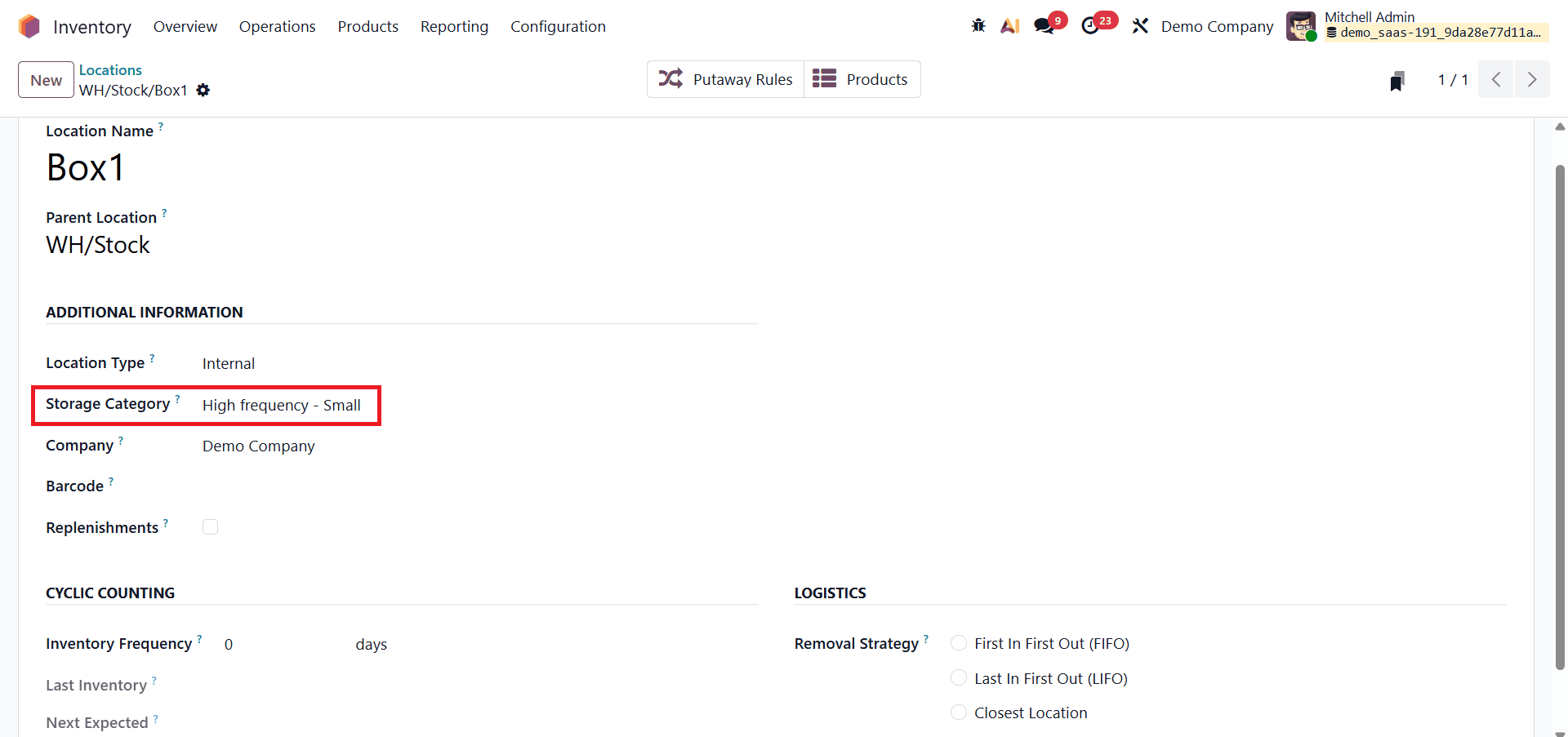
For example, you can create a new location named Box1 under the parent location WH/Stock. Within the location form, select the newly created storage category in the Storage Category field. Assigning the category ensures that all capacity rules and restrictions apply automatically to that location.
Once storage categories and locations are configured, the next step is to create Putaway Rules, which automate the process of directing products to the correct storage locations upon receipt. Putaway rules define how products should be distributed within the warehouse based on product, product category, package type, or storage category. These rules are especially important for warehouses handling high volumes of inventory or specialized goods.

To configure putaway rules, go to Inventory > Configuration > Putaway Rules and click Create. In the rule form, you can specify the To Location, which represents the parent location where the system should search for suitable sublocations. The Having Category field allows you to select a storage category, ensuring that products are placed only in locations that match the defined constraints. For example, setting the “To Location” as WH/Stock/Box1 and the “Having Category” as High-Frequency Small instructs Odoo to place incoming products into sublocations under WH/Stock/Box1 that belong to this category.
Putaway rules play a vital role during the receiving process. When a purchase order is created and products are received, Odoo automatically applies the putaway rules to determine the best storage location. During receipt, users are presented with sublocation options such as No, Last Used, or Closest Location. Selecting Last Used moves the product to the most recently used suitable location, while Closest Location places the product in the nearest available location based on warehouse structure. These options help reduce travel time and improve operational efficiency.
Now, let’s create a purchase order for the product that we mentioned in the storage category and confirm the receipt of the order.
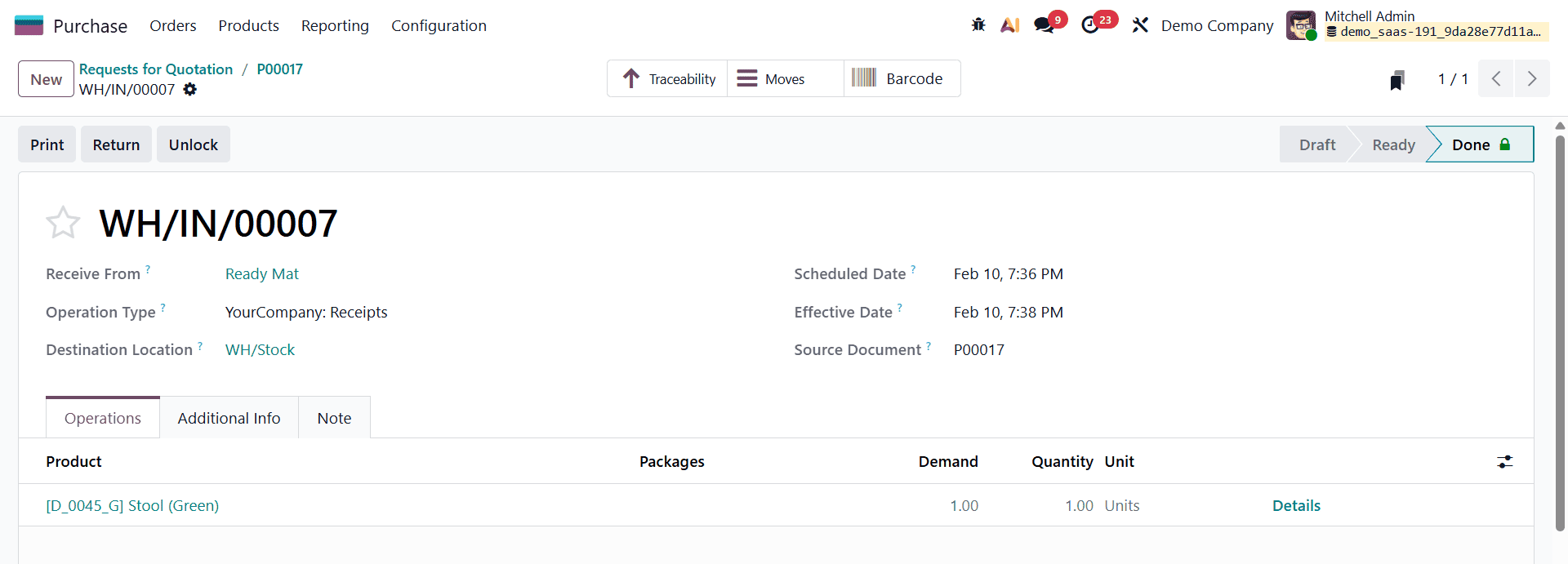
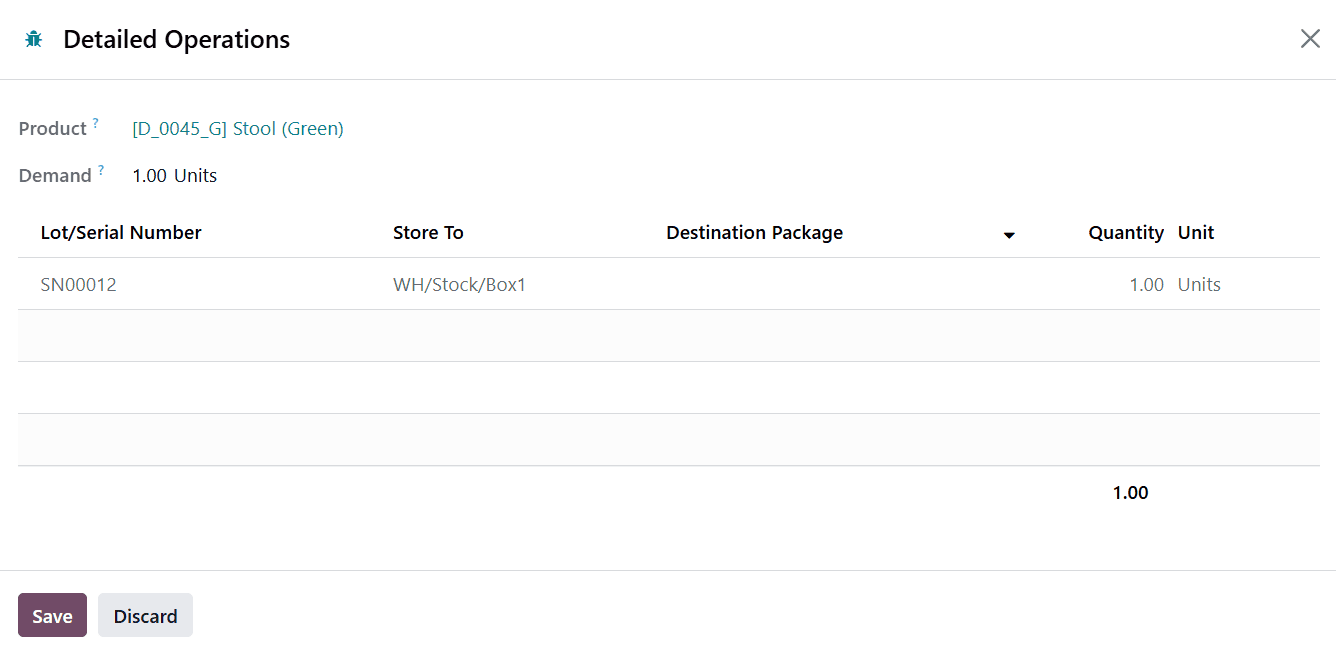
After confirming the receipt, the stock moves clearly show that the product has been placed in the correct location, such as WH/Stock/Box1, based on the configured storage category and putaway rules. This automation eliminates manual decision-making and reduces the risk of misplacement.
The Storage Category feature in Odoo 19 provides a powerful way to organize warehouse storage intelligently. By categorizing locations based on weight limits, package capacity, and product-specific constraints, businesses can optimize space utilization and maintain better control over inventory. When combined with putaway rules, storage categories automate product placement, ensure compatibility, and improve overall warehouse efficiency and accuracy. Proper configuration of these tools streamlines inventory operations, reduces errors, and supports scalable warehouse management in Odoo 19.
To read more about How to Manage Storage Categories & Locations in Odoo 18, refer to our blog How to Manage Storage Categories & Locations in Odoo 18.