Managing subscriptions effectively is critical for businesses offering recurring products or services. In Odoo 19, handling the closing and reopening of subscriptions ensures accurate billing, prevents service interruptions, and maintains customer satisfaction. By leveraging Odoo’s subscription management features, businesses can easily track subscription status, update records, and manage revenue recognition without manual errors. This process is particularly useful when customers temporarily pause services or renew plans. Understanding how to navigate these operations in Odoo 19 empowers companies to maintain financial accuracy, improve workflow efficiency, and provide a seamless experience for subscribers.
Firstly, select the Subscription module from the Odoo 19 dashboard.
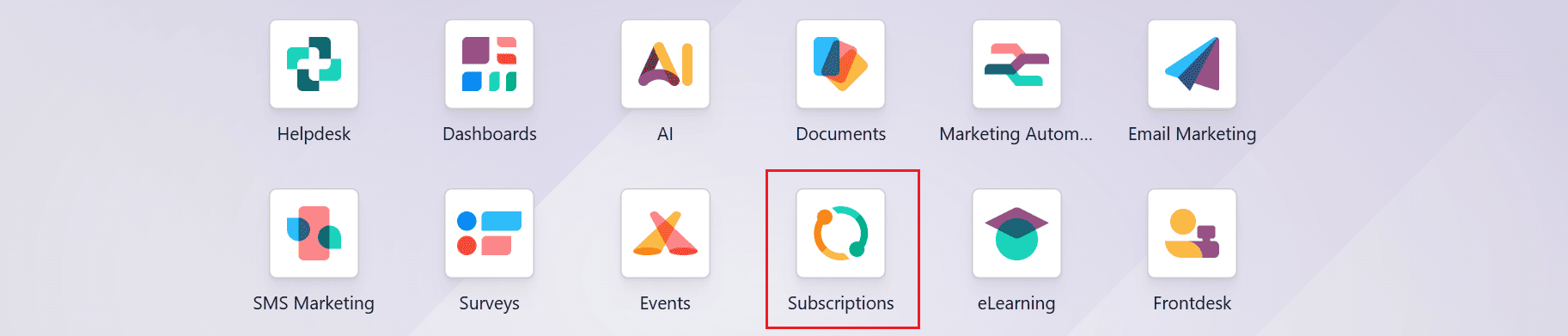
Within the module, go to Configuration > Recurring Plans to either create a new plan or select an existing one from the list, as shown below:
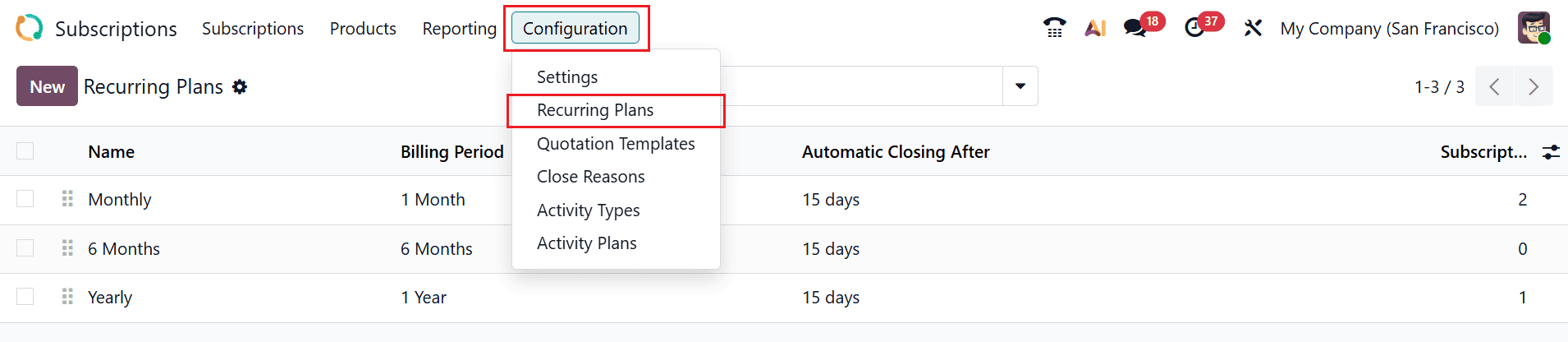
Here, add the details of the recurring plan as shown below. The customer can close the subscriptions by enabling the Closable option under the Self-Service section
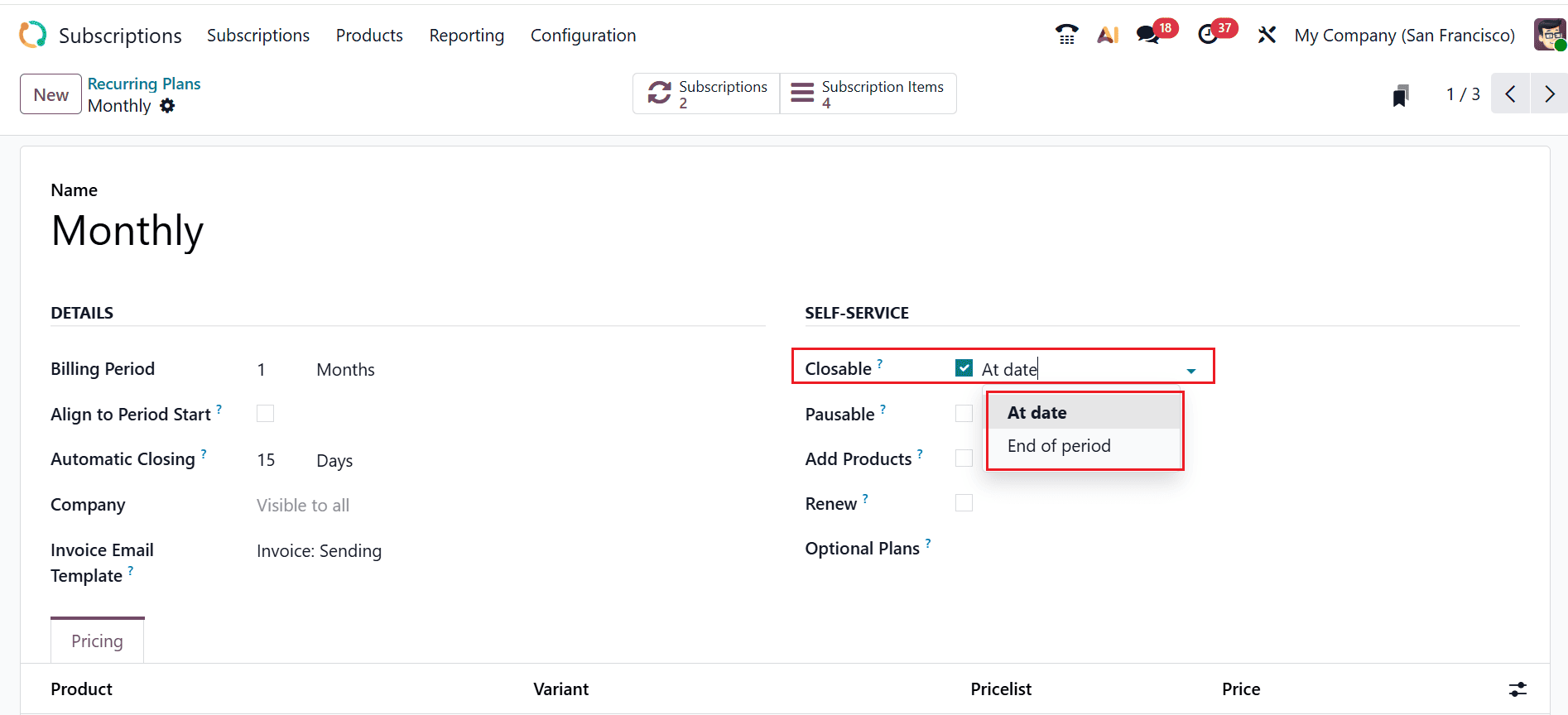
To close a subscription, you need to add a close reason. To create a new close reason or select an existing one from the list, navigate to the Configuration > Close Reasons as shown below:
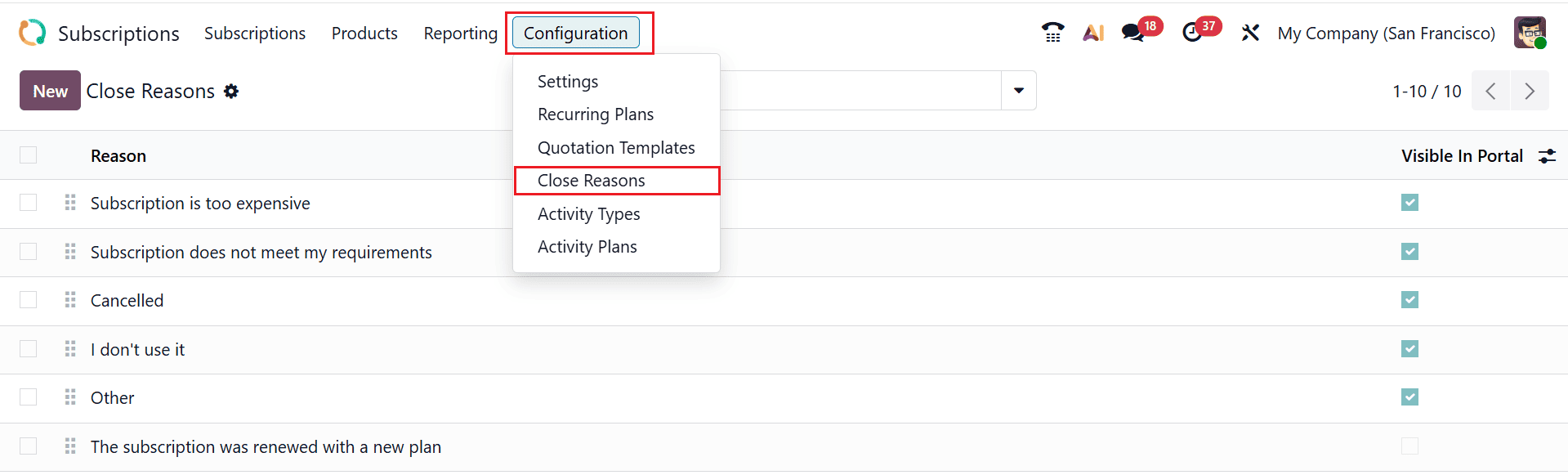
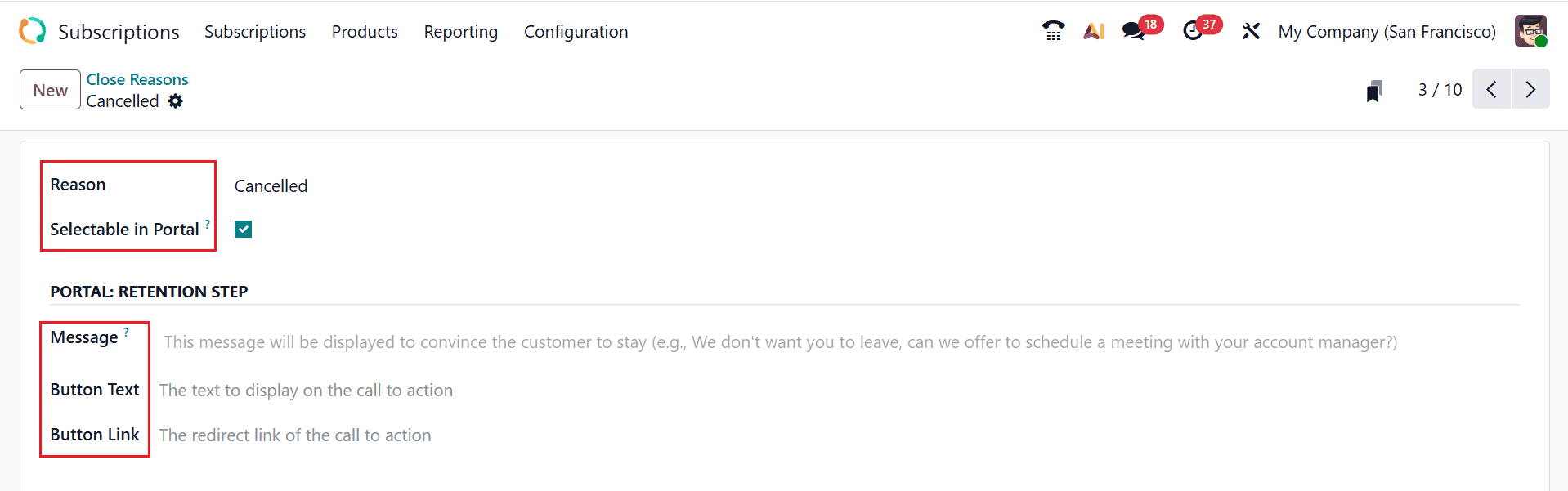
In the Reasons field, add an issue for closing the subscription. Enable the Selectable in Portal field to allow customers to be selected in the portal when they are closing their subscriptions. In the Message field, write a compelling message to encourage customers to continue their subscription. Optionally, add the Button Text and Button Link for the call to action, then click Save.
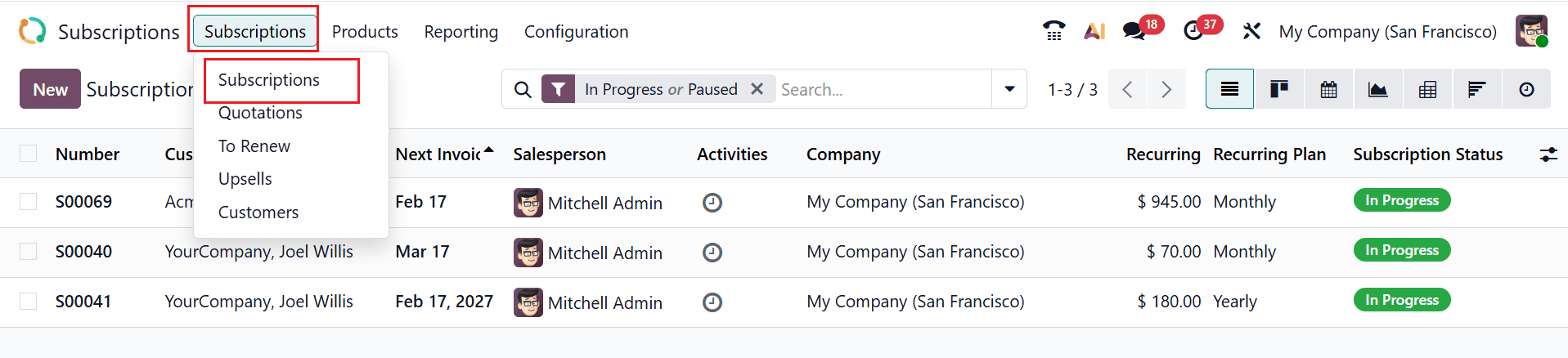
To close a subscription, move to the Subscriptions > Subscriptions and select an existing subscription from the list, as shown below:
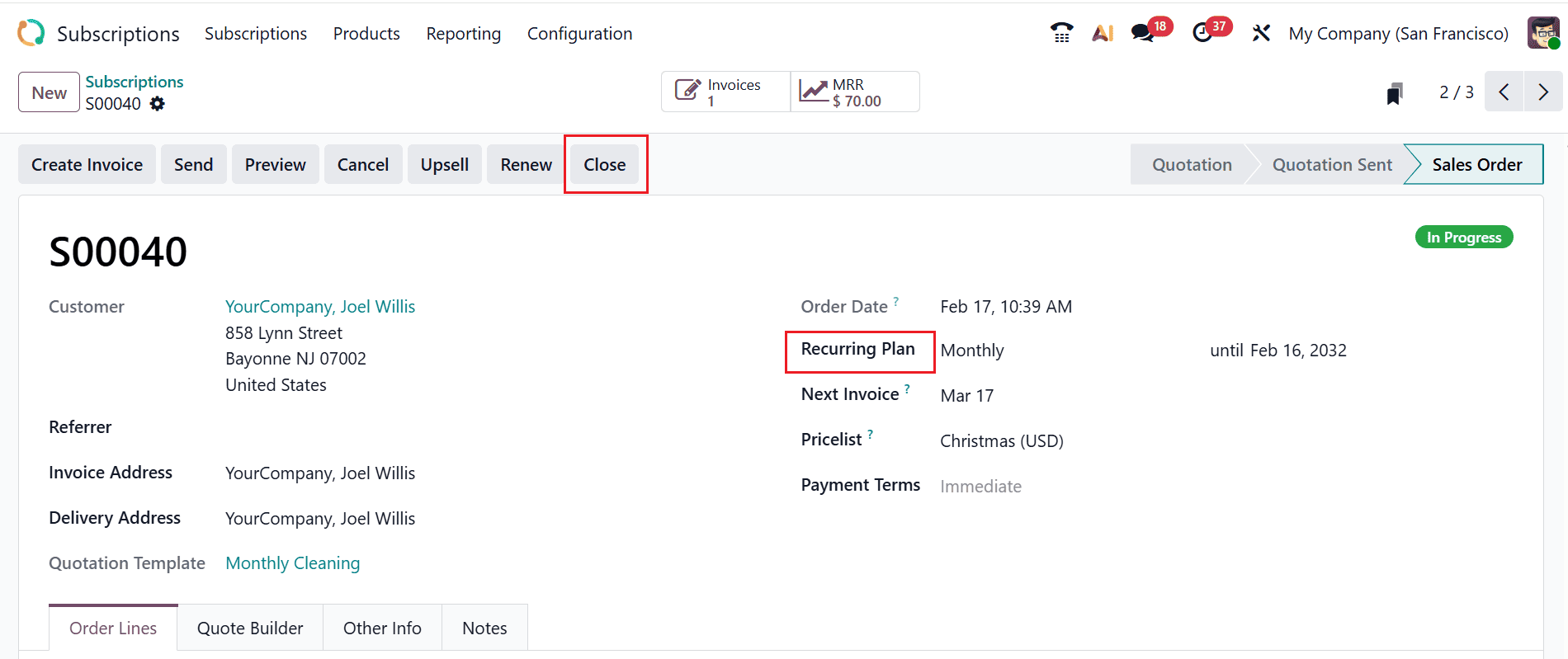
Then, select a subscription from the list and add the above-configured recurring plan in the Recurring Plan field. After that, click the Close button as shown below:
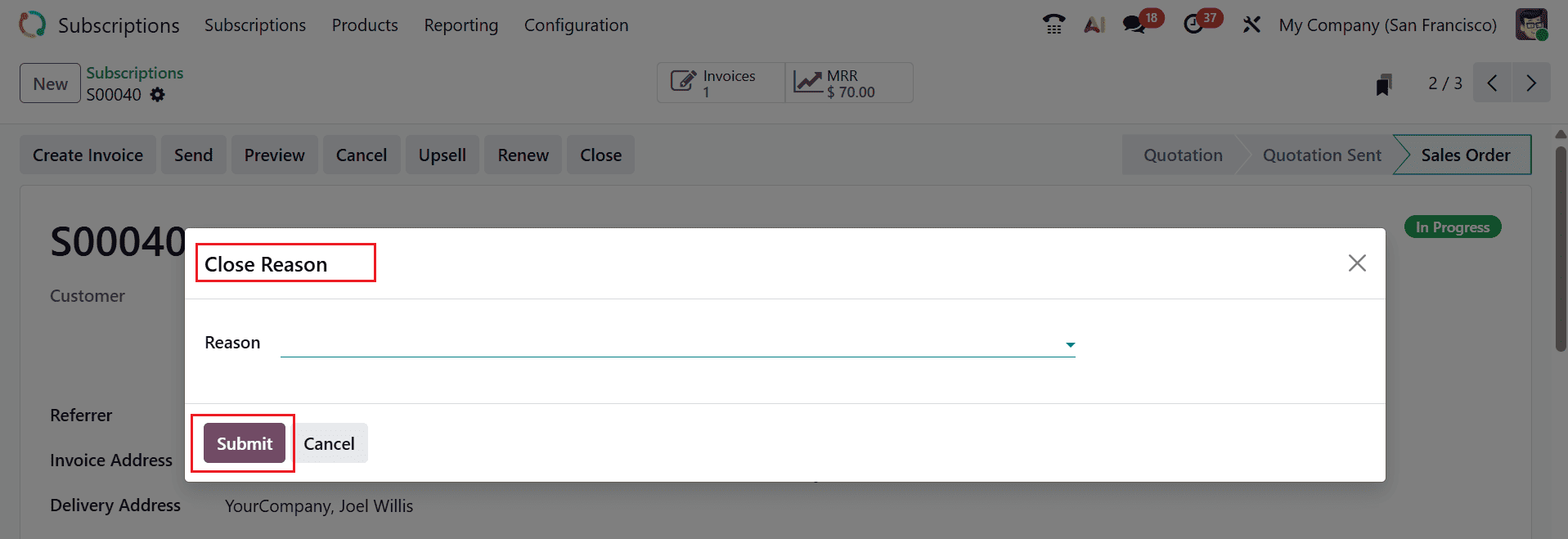
The pop-up screen shown below will appear. Enter the appropriate close reason in the Reason field, and then click Submit.
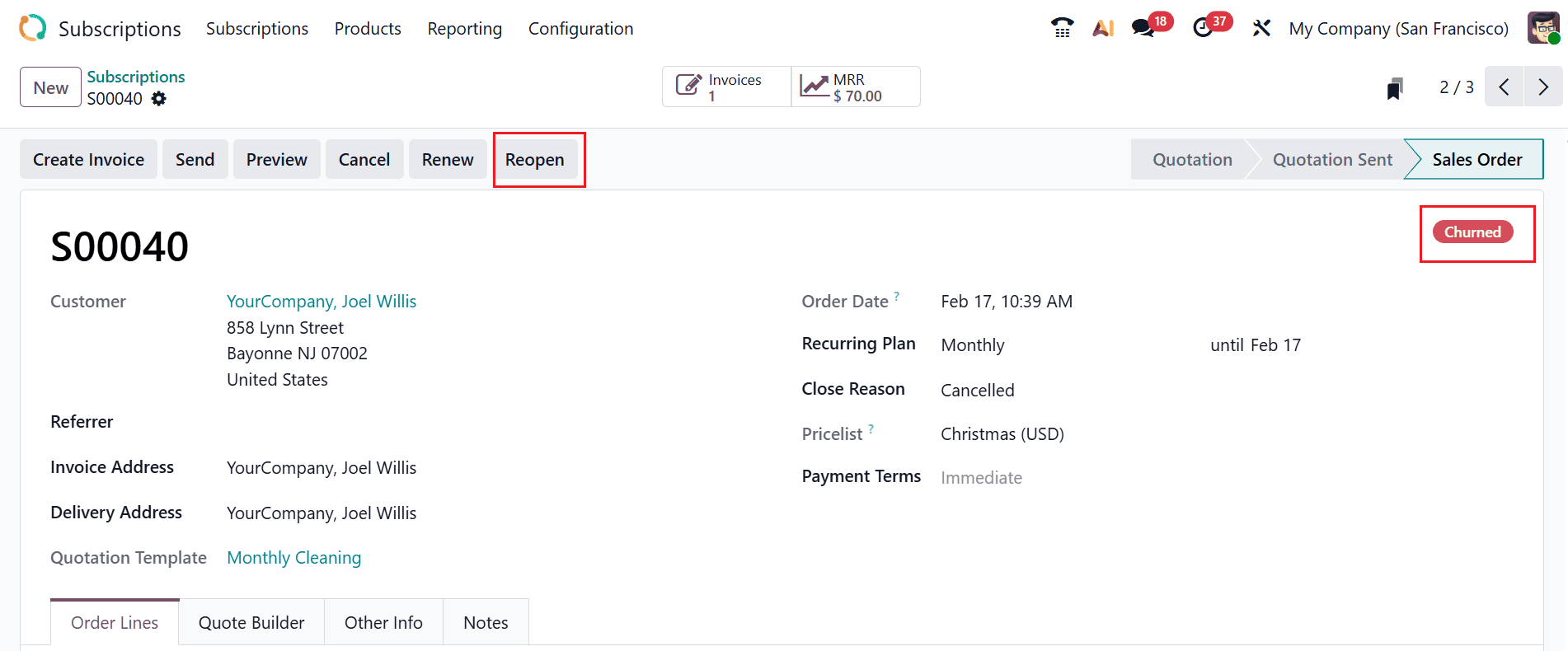
After submitting a close reason, the subscription moves to the Churned stage. To reopen the subscription, select the Reopen button as shown below:
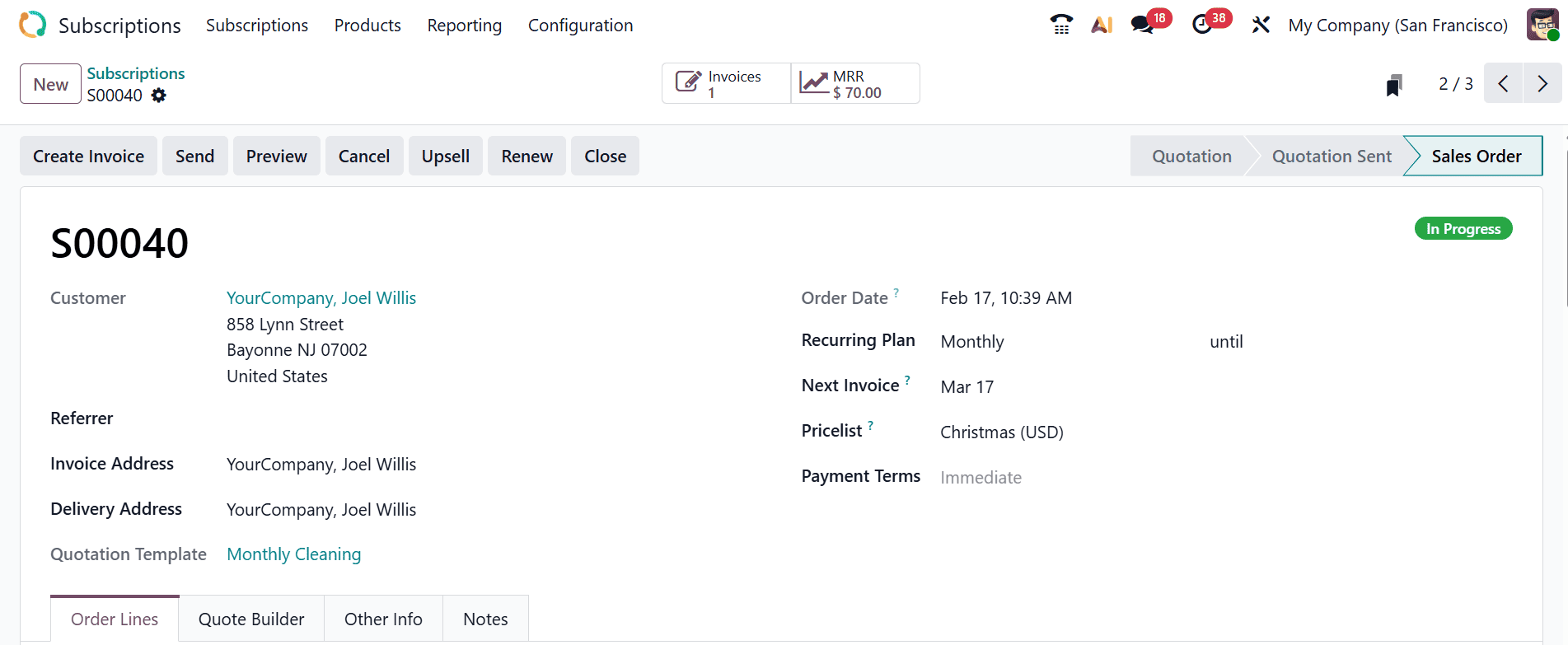
Here, you can see that the closed subscription has been reopened.
Closing and reopening subscriptions in Odoo 19 is a straightforward yet powerful feature that helps businesses maintain precise billing and subscription records. By using these tools, companies can handle temporary suspensions, plan renewals, and adjustments without disrupting service or revenue tracking. Proper management ensures customer satisfaction, reduces errors in invoicing, and simplifies accounting processes. With Odoo 19, subscription management becomes a seamless, automated process, allowing businesses to focus on growth and customer engagement rather than manual updates. Mastering these features enhances operational efficiency and strengthens the overall subscription management workflow.
To read more about How Subscription can be Closed and Re-opened in Odoo 18, refer to our blog How Subscription can be Closed and Re-opened in Odoo 18.