Accurate product costing is essential for maintaining profitability, especially when additional expenses extend beyond the basic purchase price. In Odoo 19, the Landed Cost feature helps businesses calculate the true cost of a product by incorporating all expenses incurred while bringing goods into inventory. These costs include shipping charges, customs duties, insurance, handling fees, and other logistics-related expenses that directly impact the final cost of the product. By capturing these additional charges, Odoo ensures that inventory valuation reflects the actual investment made in each product.
The landed cost functionality in Odoo 19 allows businesses to allocate these extra expenses to individual products or units using different calculation methods, depending on company policies. Costs can be distributed based on quantity, weight, volume, equal split, or current cost price, ensuring flexibility and accuracy in cost allocation. Once calculated, landed costs are automatically applied to inventory values, enabling businesses to adjust product costs at the unit level within the Inventory module. This ensures that product valuation remains consistent and aligned with real-world expenses.
By monitoring and applying landed costs effectively, businesses can determine the correct selling price for their products and avoid hidden losses caused by underestimated expenses. Accurate landed cost calculation helps organizations make informed pricing decisions, improve margin control, and maintain transparency in financial reporting. With Odoo 19, landed costs play a vital role in achieving true product pricing, enabling businesses to remain competitive while safeguarding profitability.
To take advantage of the Landed Cost feature in Odoo 19, you must first enable it from the Inventory module. Navigate to Inventory > Settings and, under the Valuation section, activate the Landed Costs option.
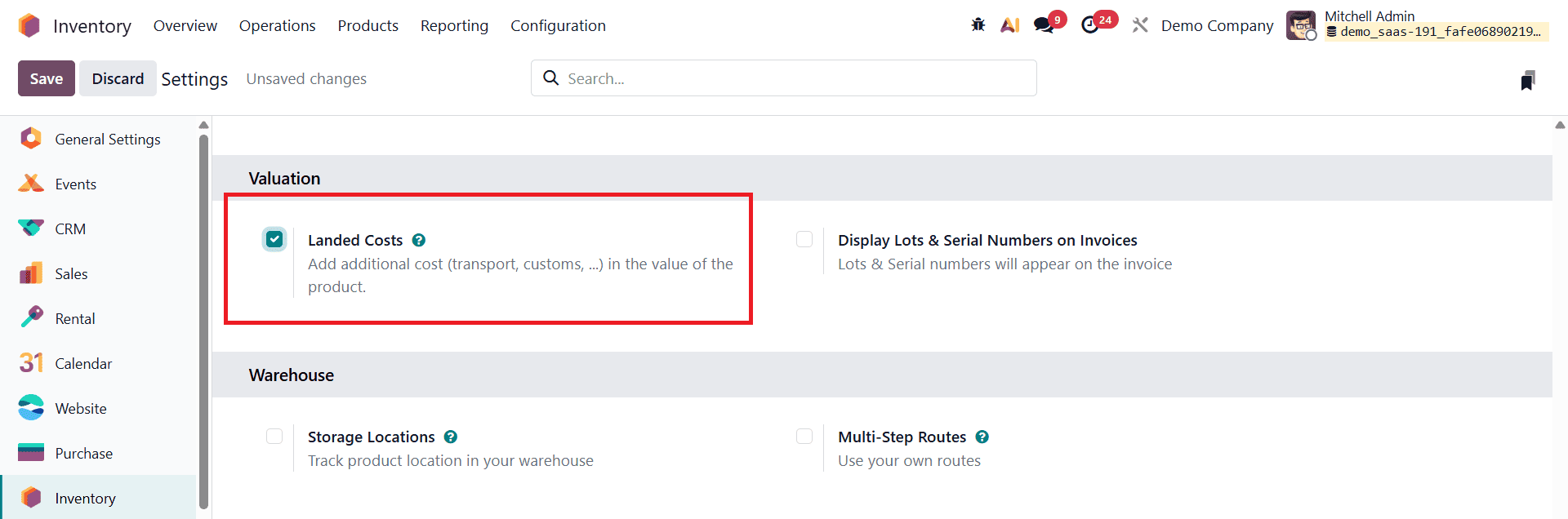
Enabling this setting allows businesses to apply additional expenses, such as freight, customs duties, and handling charges, to products and reflect their true cost. It is important to note that landed costs can be applied only to products that use automated inventory valuation with either the AVCO (Average Cost) or FIFO (First In, First Out) costing method. These costing methods ensure that additional costs are accurately reflected in inventory valuation.
Once landed costs are enabled, the next step is to create a product that represents the landed cost itself.
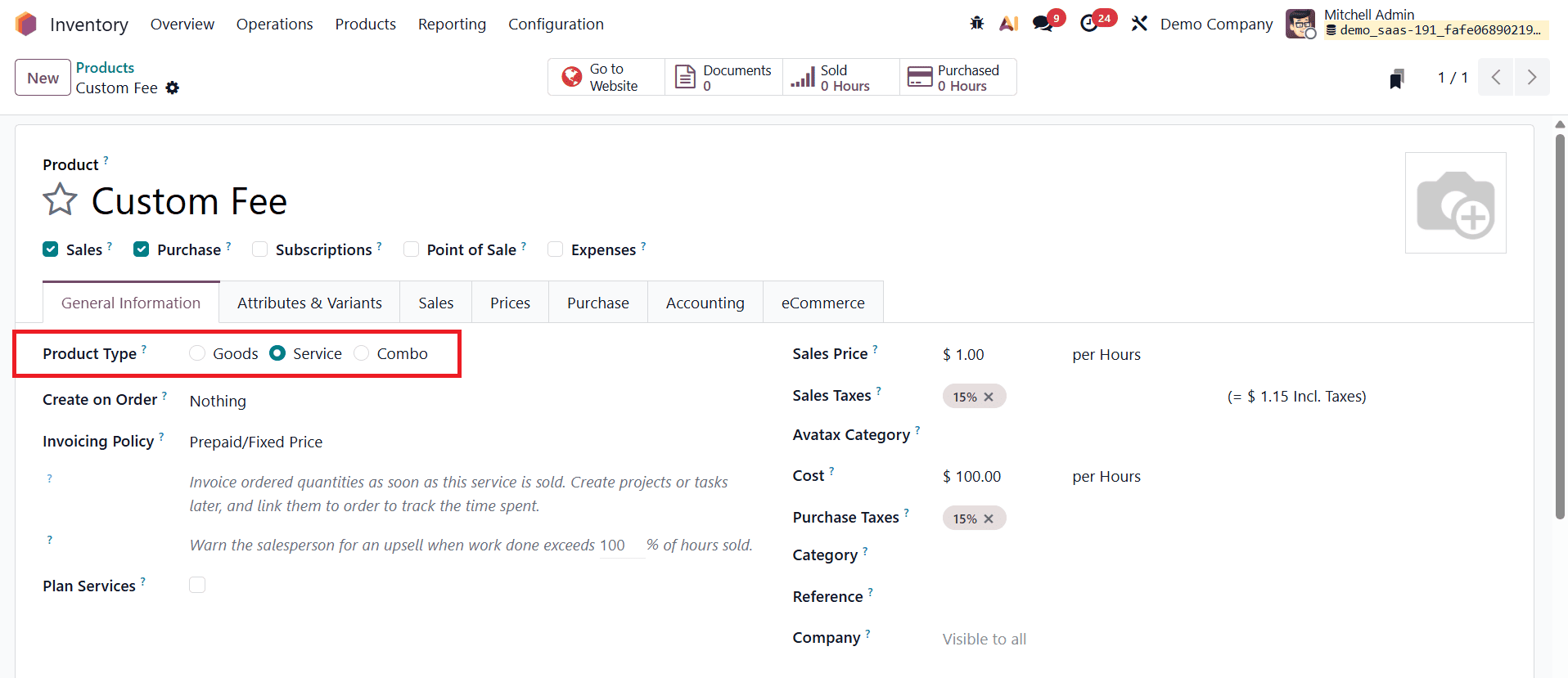
This is typically done by creating a service-type product, which will be used to record extra charges related to procurement. While creating this service product, it can be marked as a landed cost directly from the Purchase tab, ensuring that it is recognized by the system during landed cost computation. This setup allows businesses to seamlessly associate additional expenses with incoming shipments and apply them during inventory valuation.
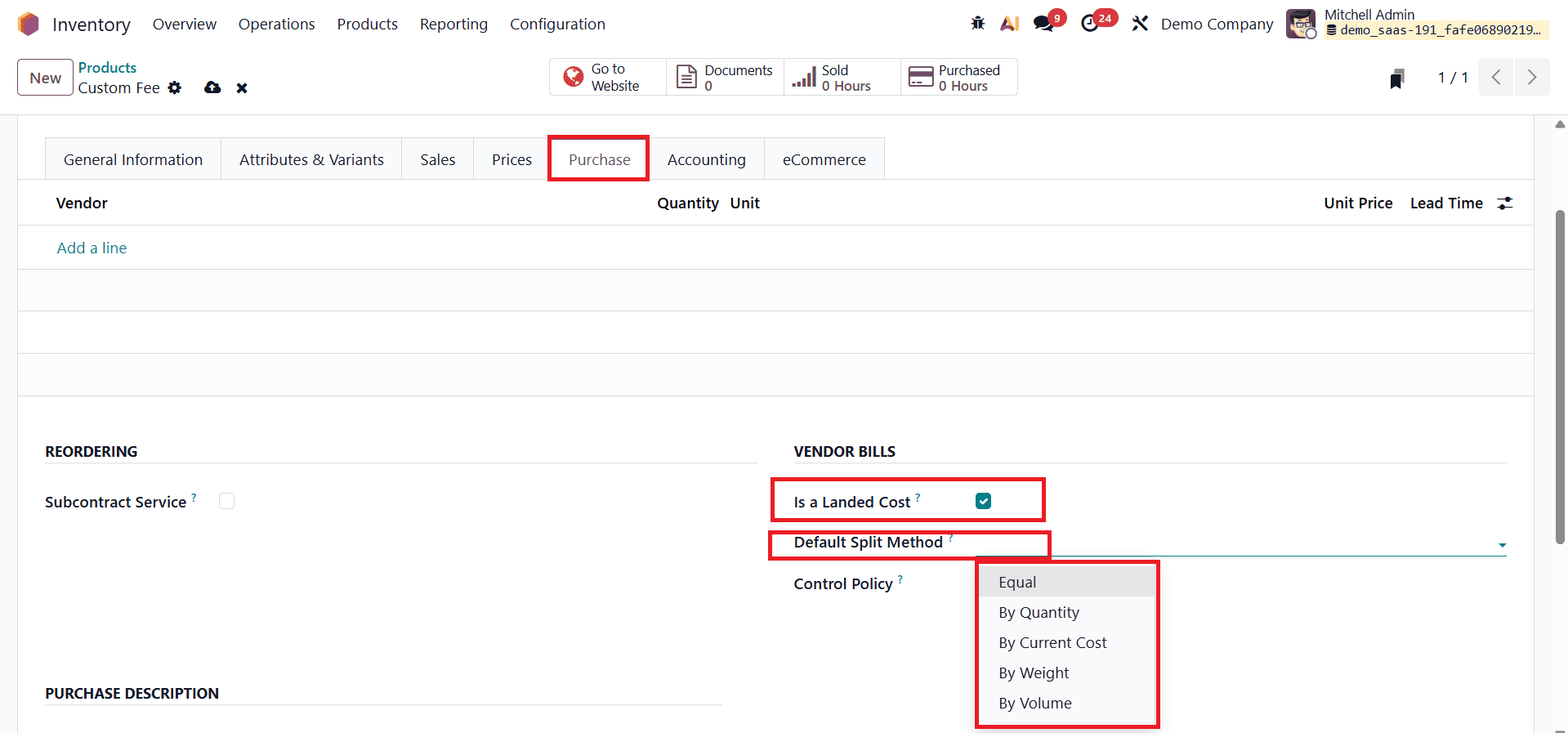
Odoo 19 also provides flexible options for splitting landed costs across products in a receipt. By default, users can choose how the landed cost is allocated, and this split method can be modified at the time of confirming the landed cost. The available splitting methods include Equal, where all products share the cost evenly; By Quantity, which distributes the cost based on the quantity of each product; By Current Cost, which allocates costs according to the product’s current price; By Weight, which splits costs based on product weight; and By Volume, which divides costs according to product volume.
Landed Cost with the Average Costing Method in Odoo 19
To understand how landed costs affect product pricing under the Average Costing (AVCO) method in Odoo 19, begin by configuring the product category. Set the Costing Method to Average Cost.
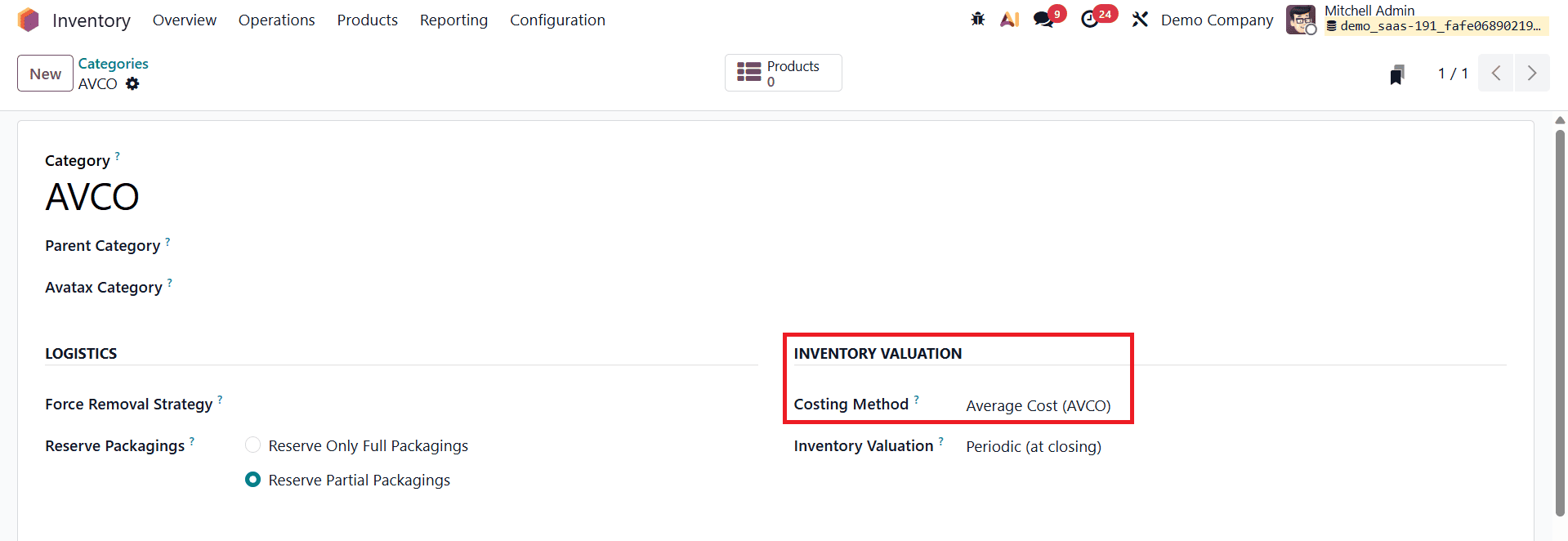
With the AVCO method, the cost of goods sold (COGS) is calculated by averaging the cost of all available inventory units. This means every new purchase, including any additional landed costs, directly influences the product’s average cost.
Next, create a new product under this category.
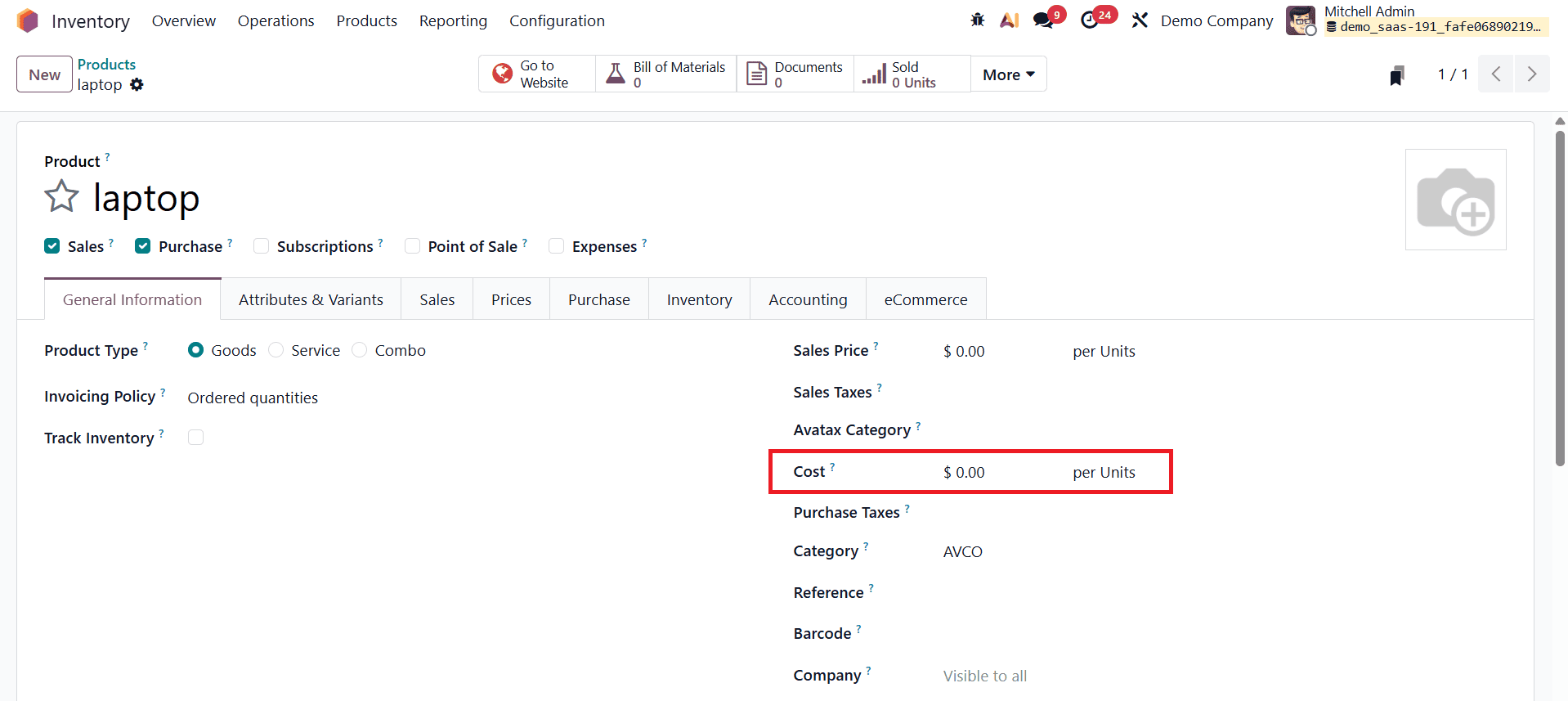
In this example, the product is a Laptop, and initially, no cost is assigned to it. Once the product is created, generate a Request for Quotation (RFQ) for purchasing the item.
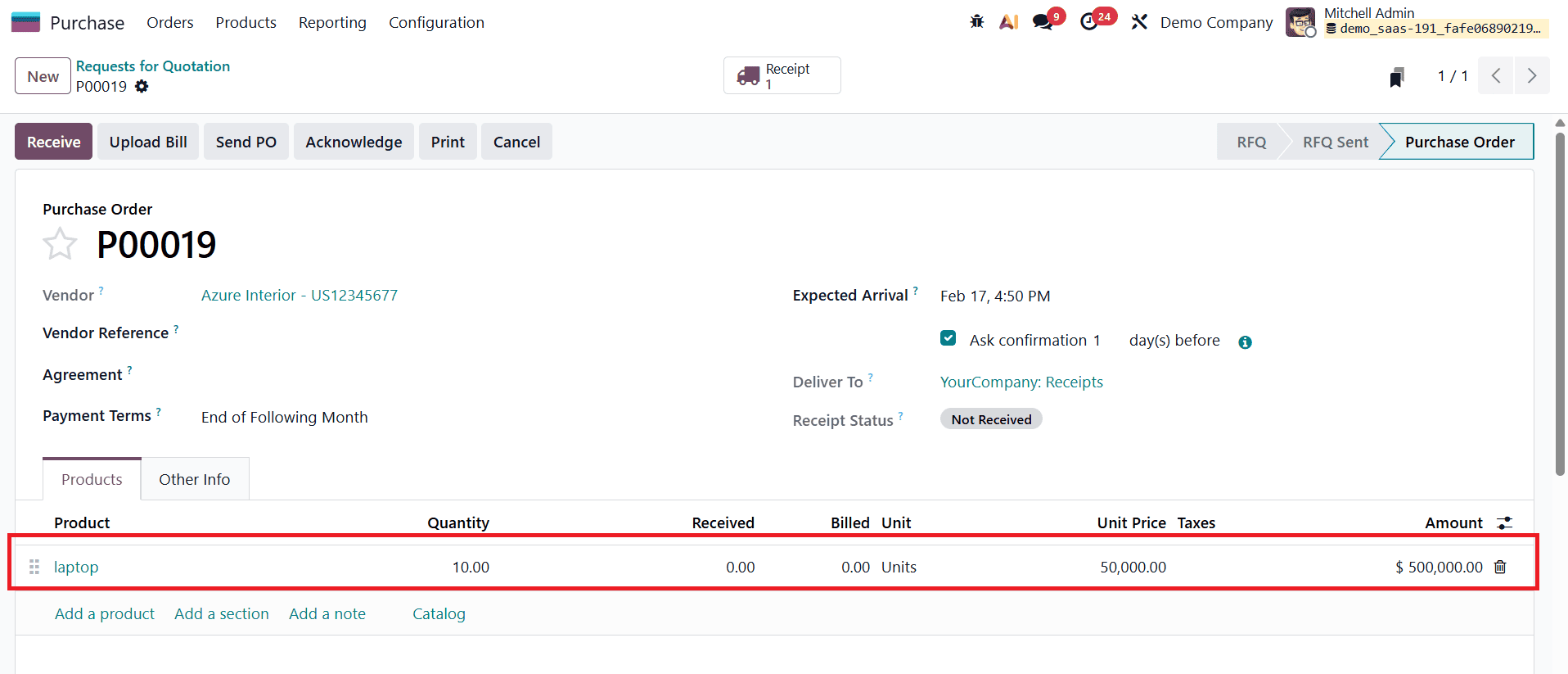
Suppose an RFQ is created for 10 laptops, each priced at $50,000. After confirming the RFQ into a purchase order, validate the receipt to bring the products into inventory.
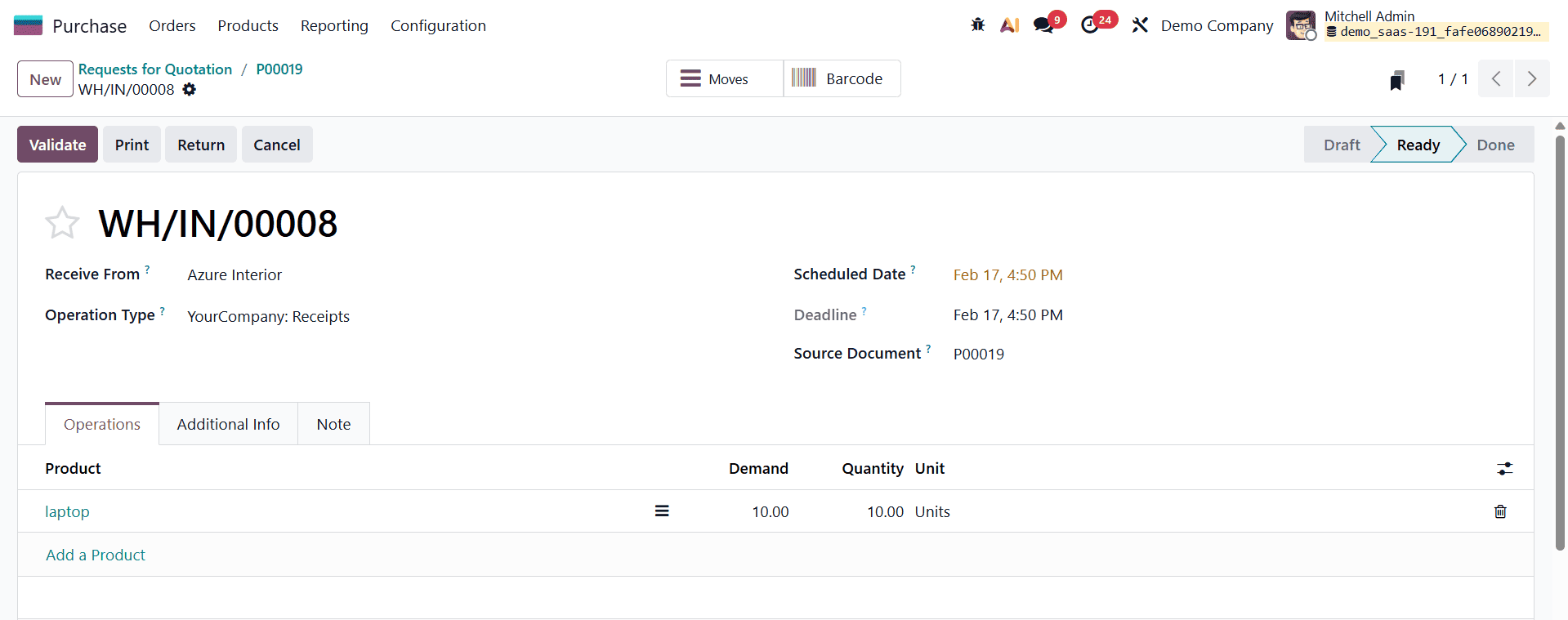
During this process, note the transfer reference number, as landed costs must be applied specifically to this receipt.
After receiving the products, create a vendor bill that includes the additional expense configured earlier as a landed cost service product.
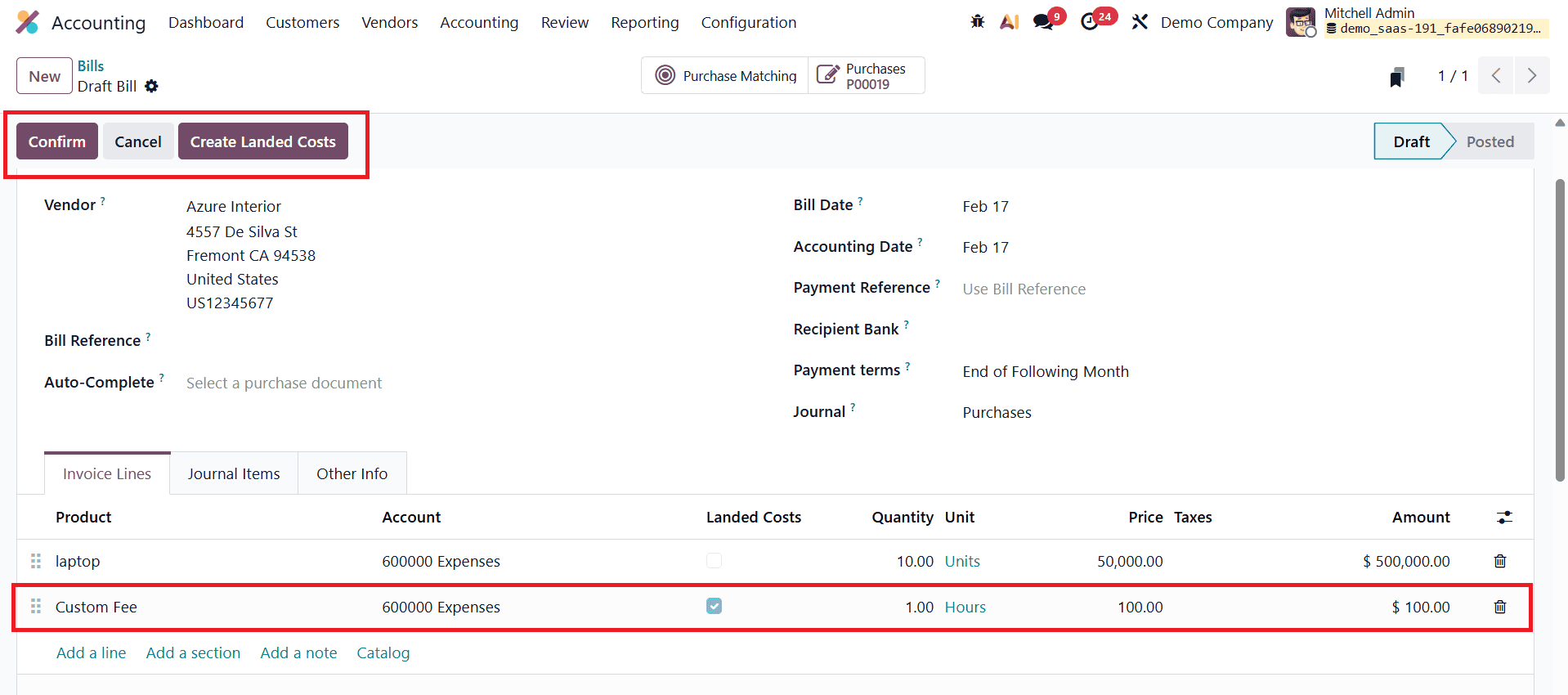
Once the bill is drafted, confirm it and click the Create Landed Cost button. This opens the landed cost form, where the corresponding transfer reference can be selected.
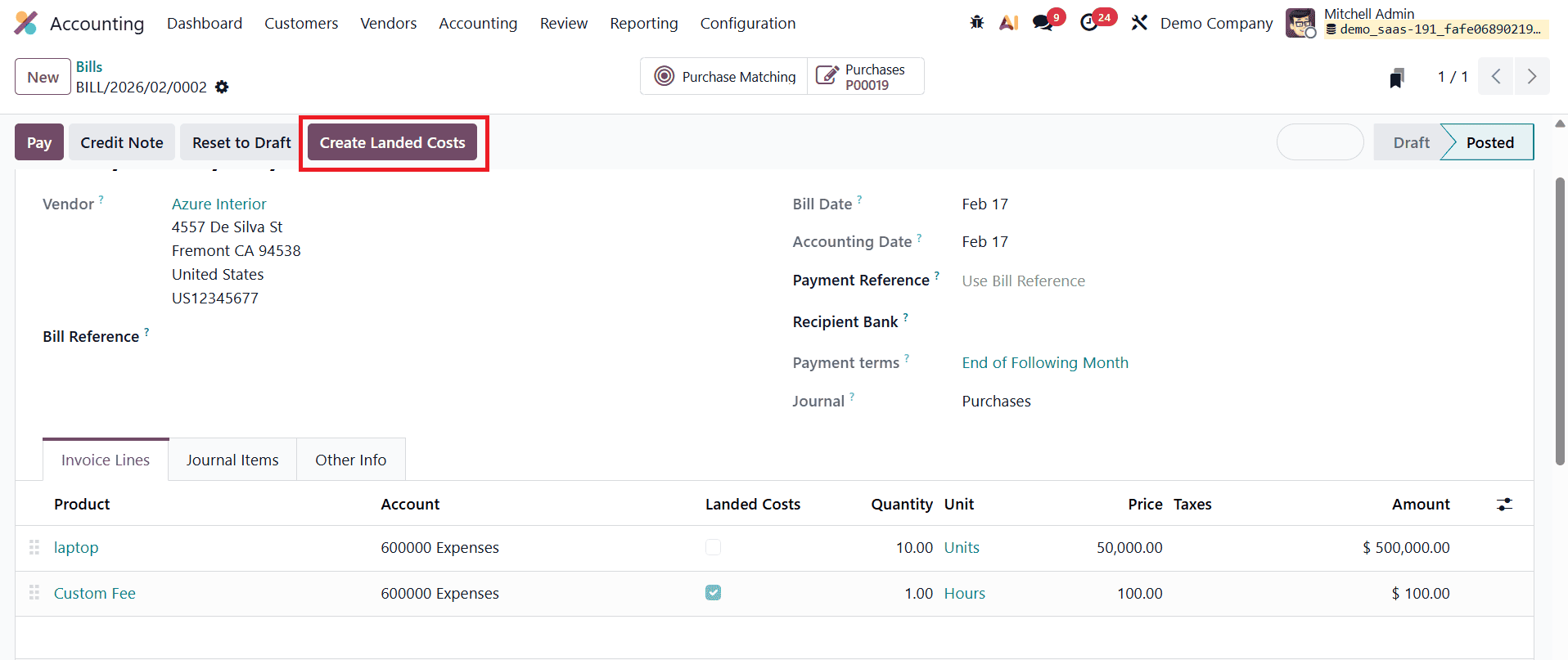
Upon validating the landed cost, the extra charge is distributed across the received quantities. Since the split method used here is Equal, the total landed cost is divided evenly among all units.
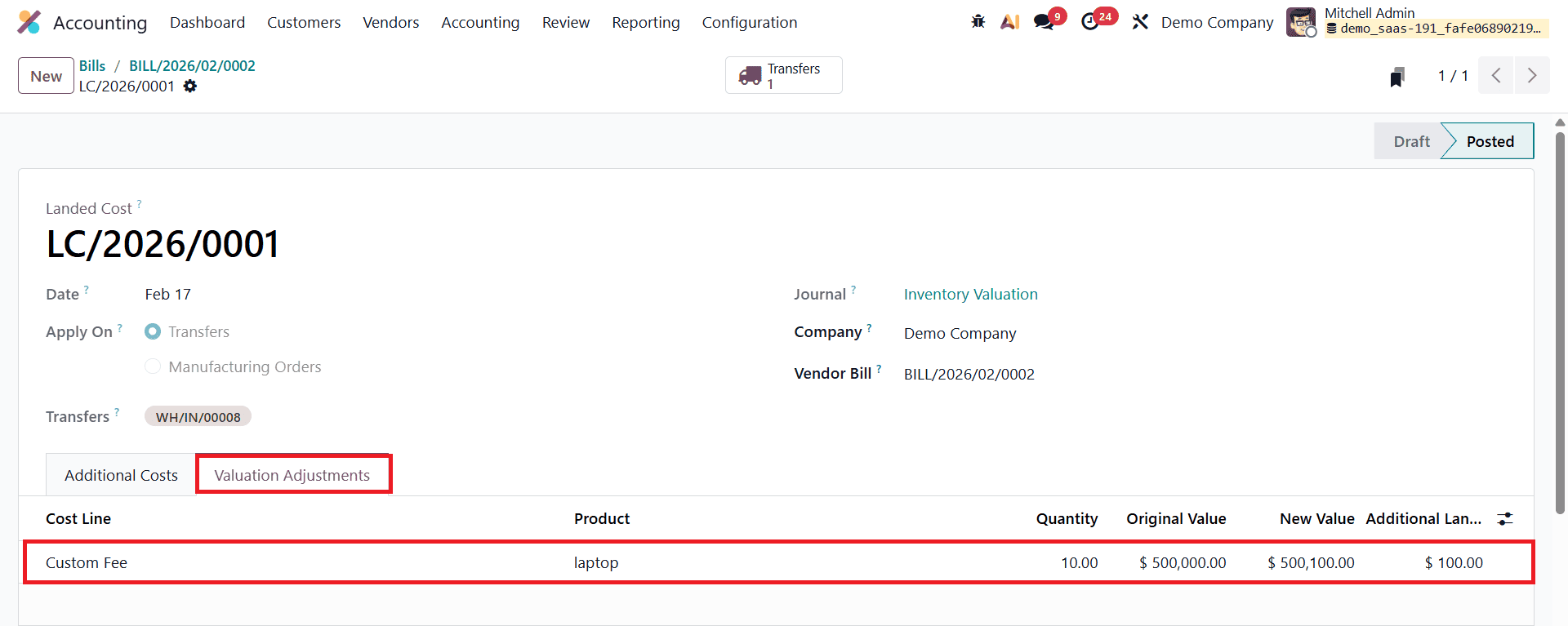
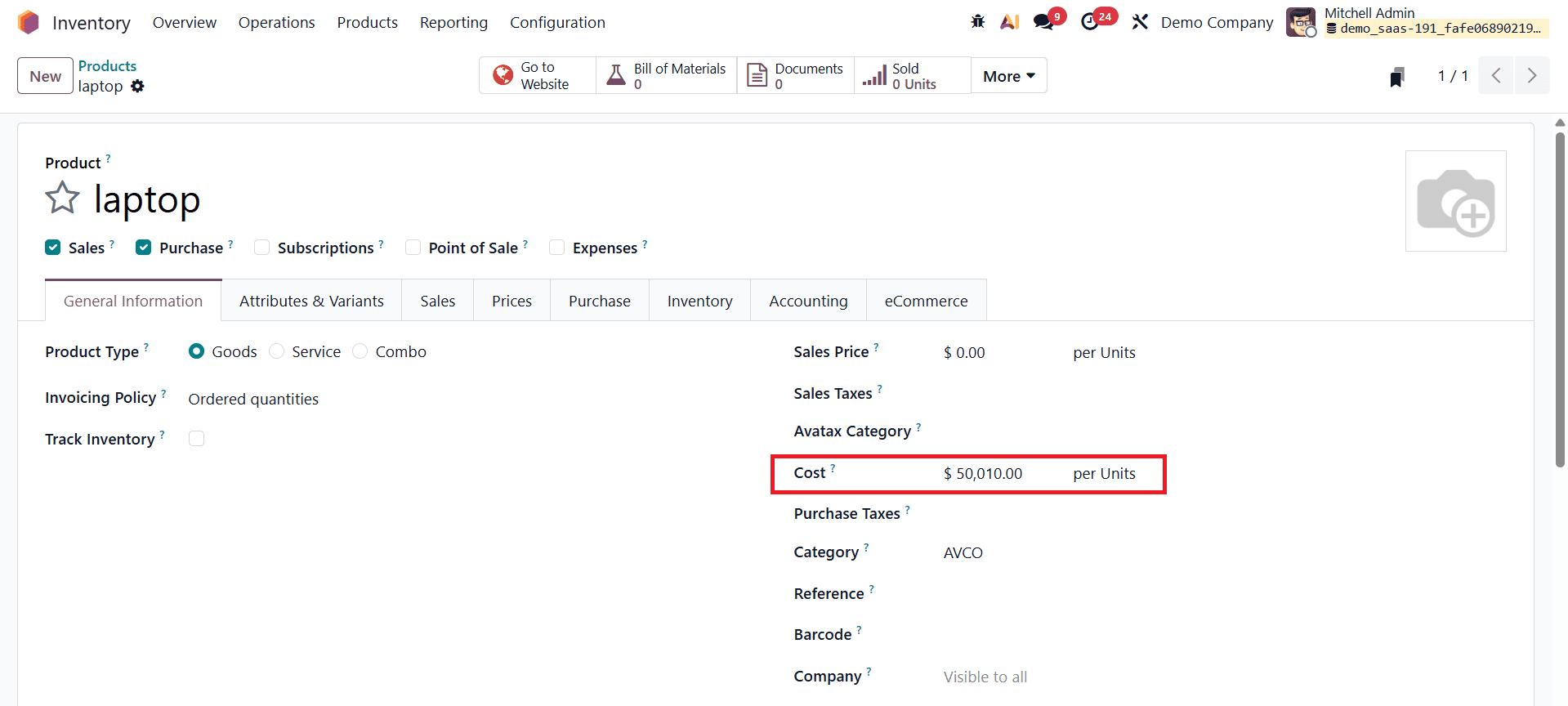
In this case, a $100 landed cost is split across 10 units, adding $10 per unit, increasing the product’s unit cost to $50,010.
Now consider a second purchase of the same product from another vendor. This time, 20 laptops are purchased at $40,000 per unit.
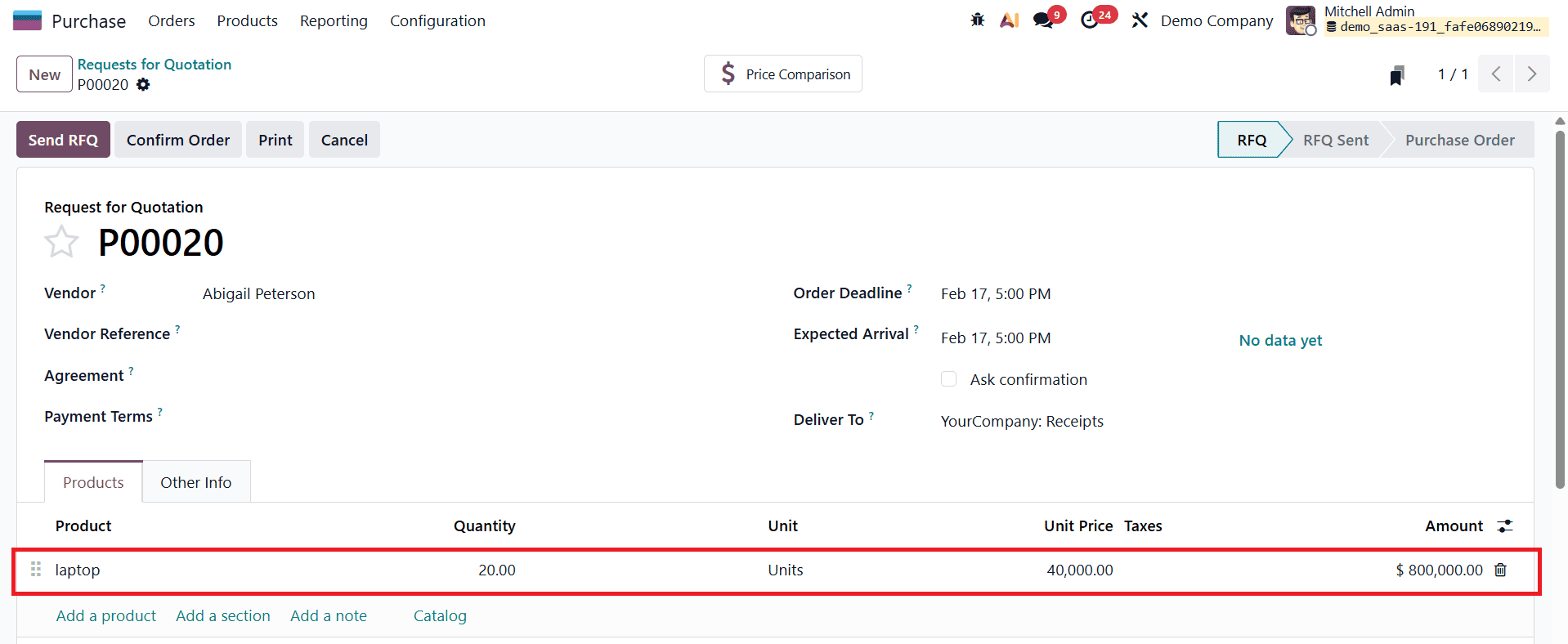
After confirming the purchase order and validating the receipt, a vendor bill is created again with the same $100 landed cost added before posting.
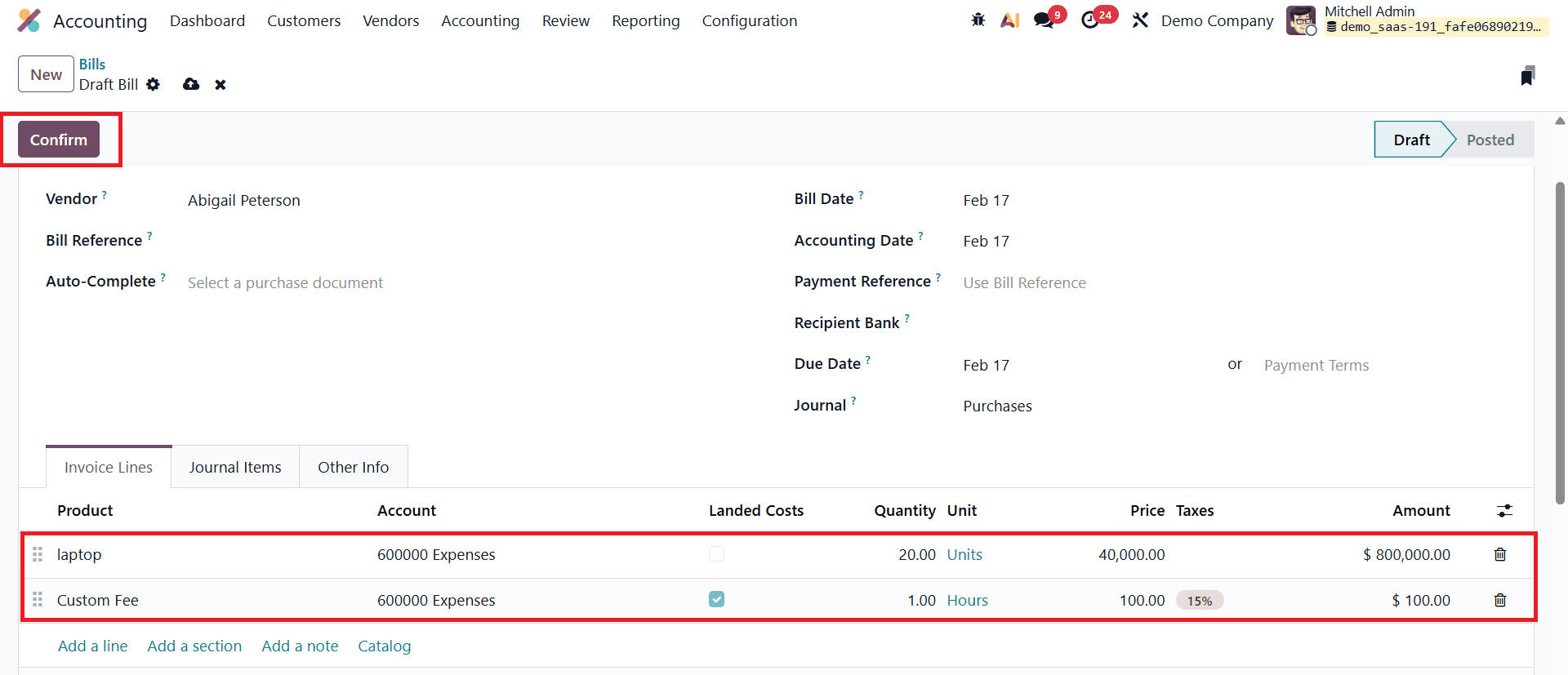
Once the landed cost is confirmed, the valuation adjustment shows that the cost is evenly distributed.
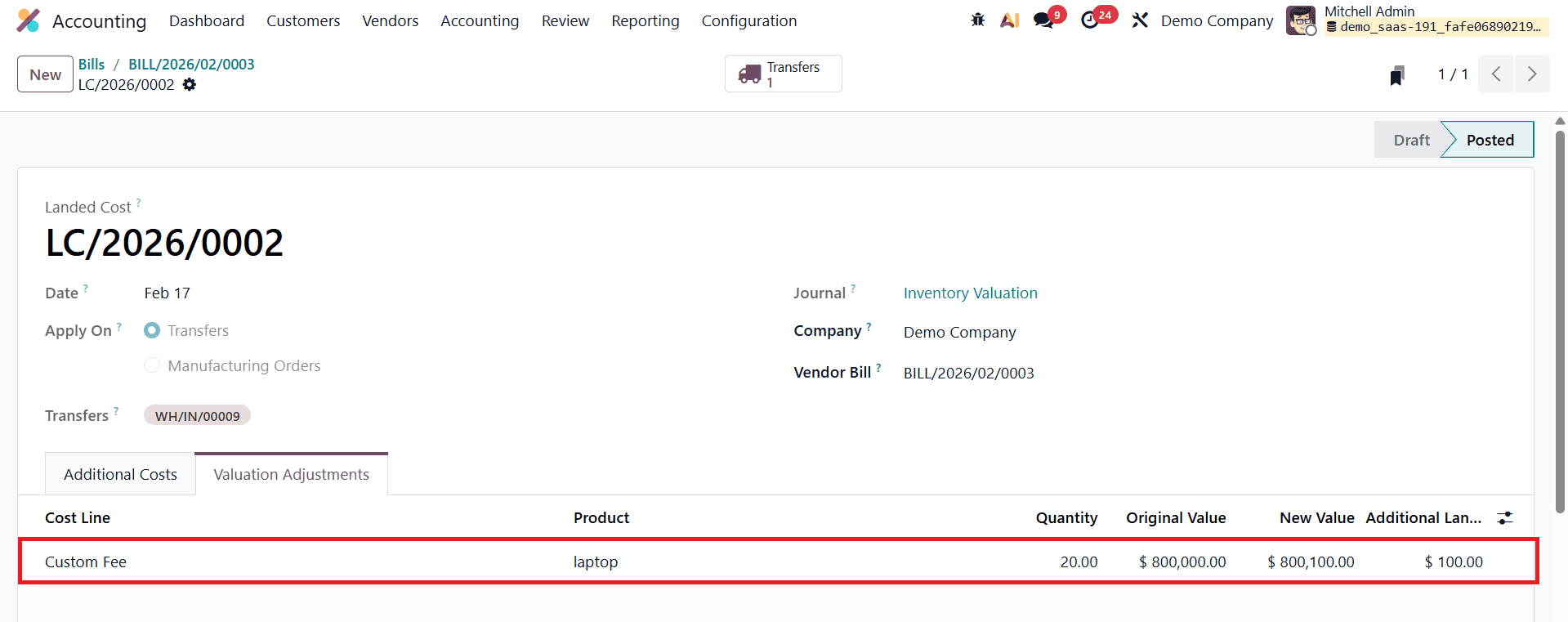
With 20 units, the landed cost adds $5 per unit, resulting in a unit cost of $40,005 for the second purchase.
Since the product uses the Average Costing method, Odoo recalculates the product’s cost by averaging both purchases, including landed costs. The calculation is as follows:
- First purchase: 10 units × $50,010 = $500,100
- Second purchase: 20 units × $40,005 = $800,100
- Total quantity: 30 units
Average Cost = (500,100 + 800,100) ÷ 30 = $43,340.00
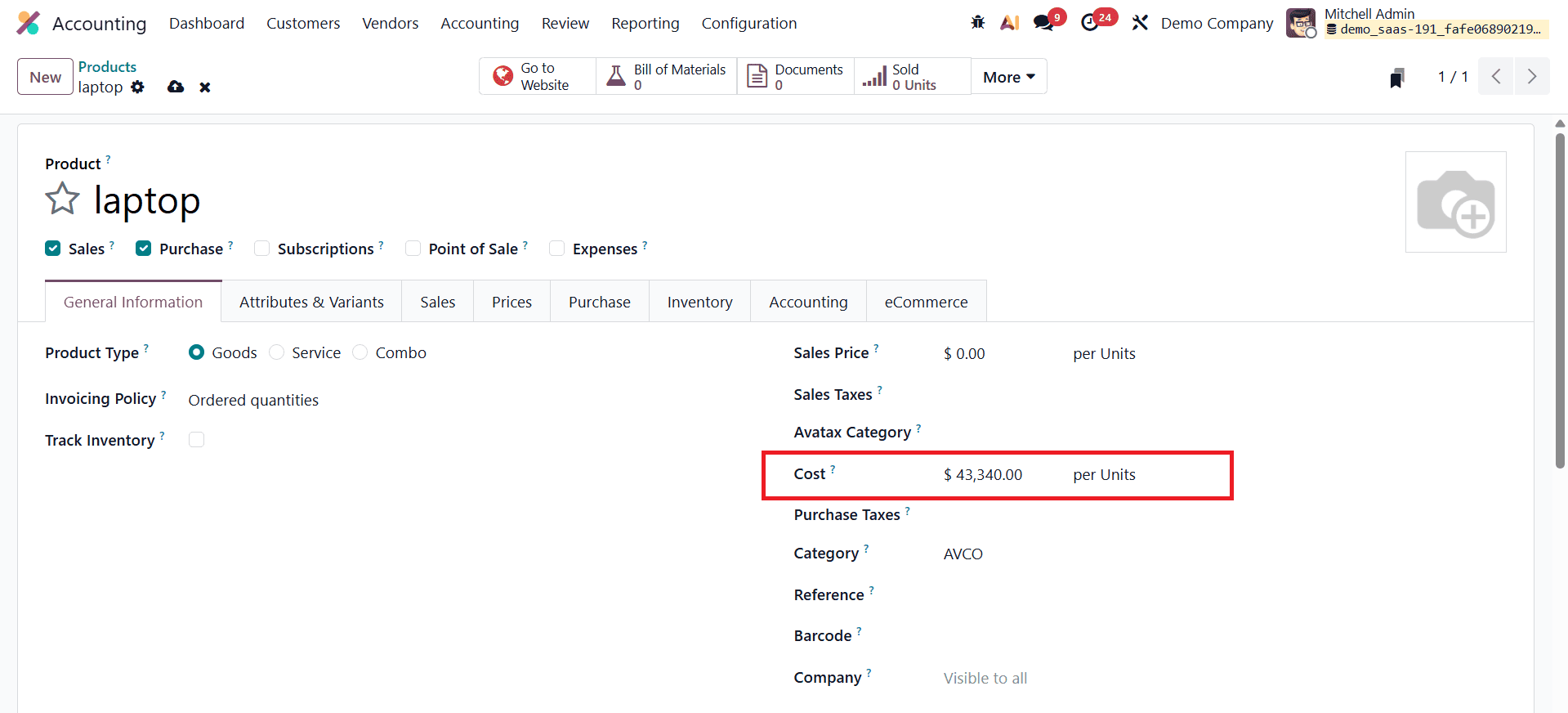
As a result, the product’s final cost in inventory becomes $43,340, accurately reflecting both purchase prices and associated landed costs. This demonstrates how landed costs, when combined with the Average Costing method in Odoo 19, ensure precise inventory valuation and true product pricing.
Landed Cost with the First In First Out (FIFO) Costing Method in Odoo 19
Let us now examine how landed costs affect product pricing when the First In First Out (FIFO) costing method is used in Odoo 19. The FIFO inventory valuation method assumes that the first products purchased are the first ones to be sold. To begin, select or create a product category with FIFO as the costing method and automated inventory valuation enabled. This configuration ensures that each purchase batch (or layer) retains its own cost, including any landed costs applied to it.
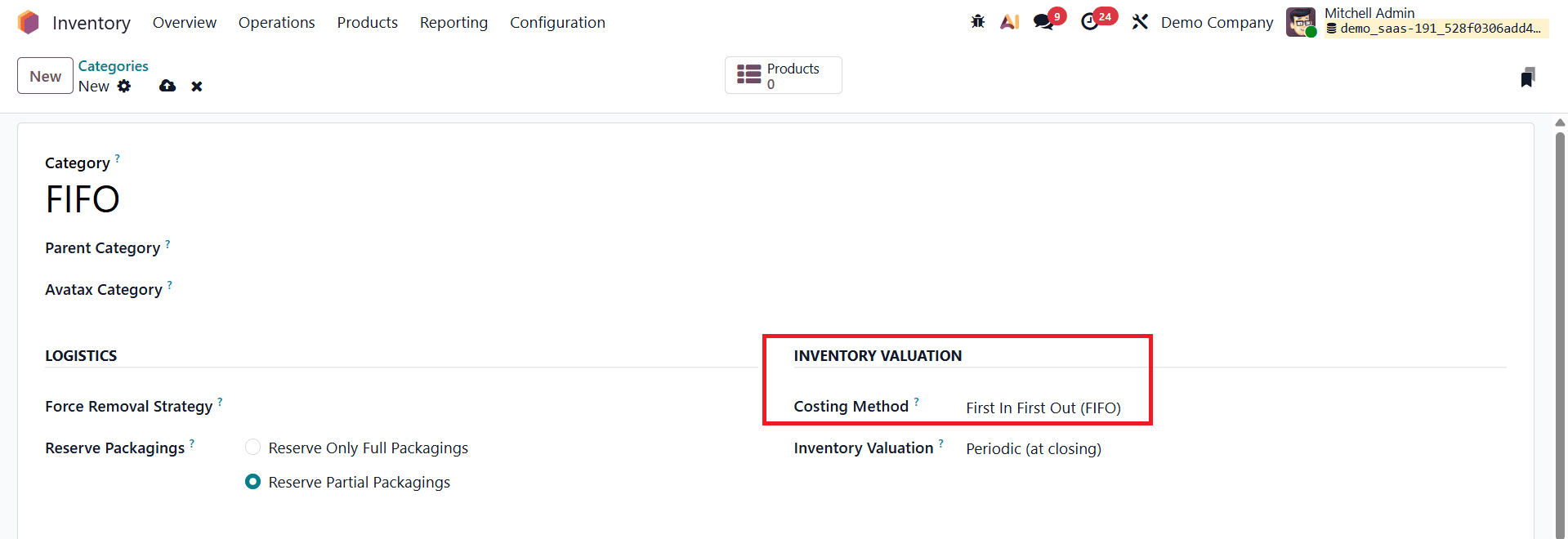
Next, create a new product under this category.
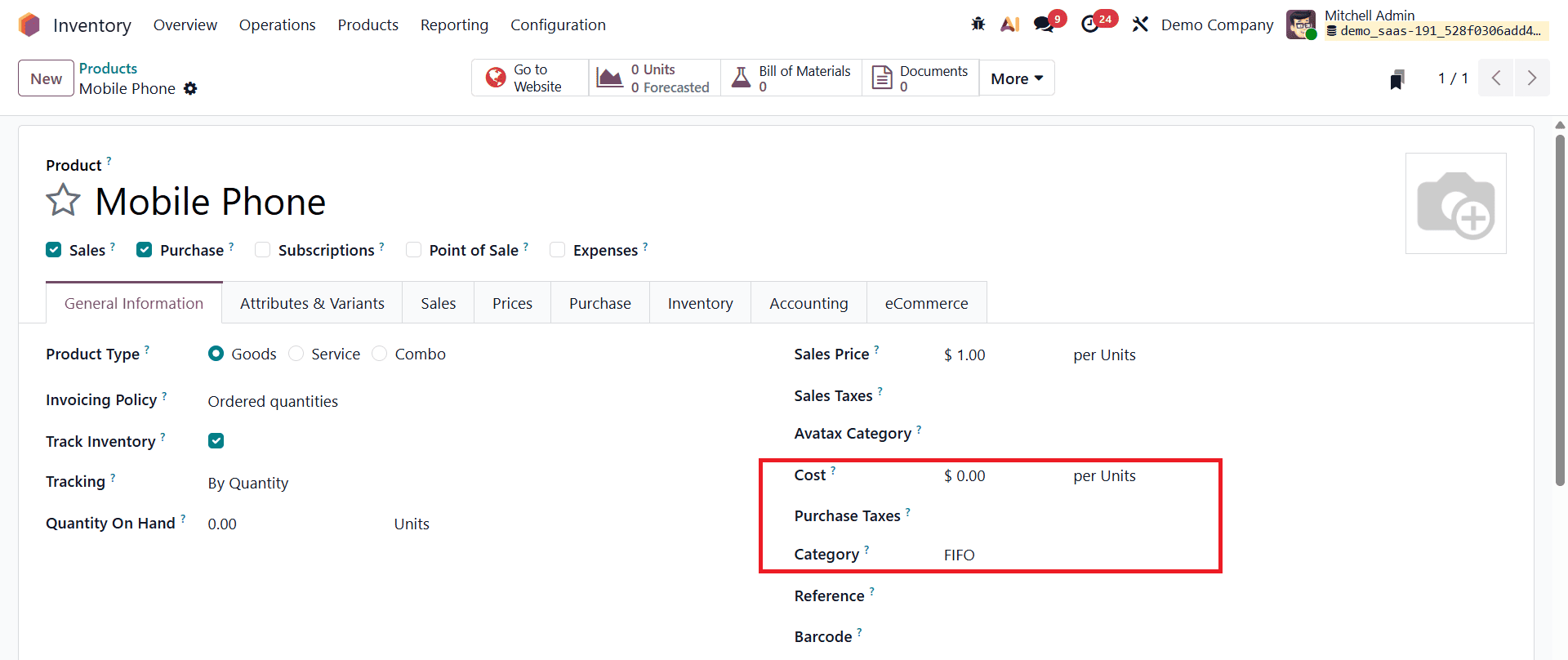
In this example, the product is a Mobile Phone, and initially, no cost is assigned. Create a purchase order for this product with the vendor Aka Foster, requesting 10 units at a unit price of $35,000.
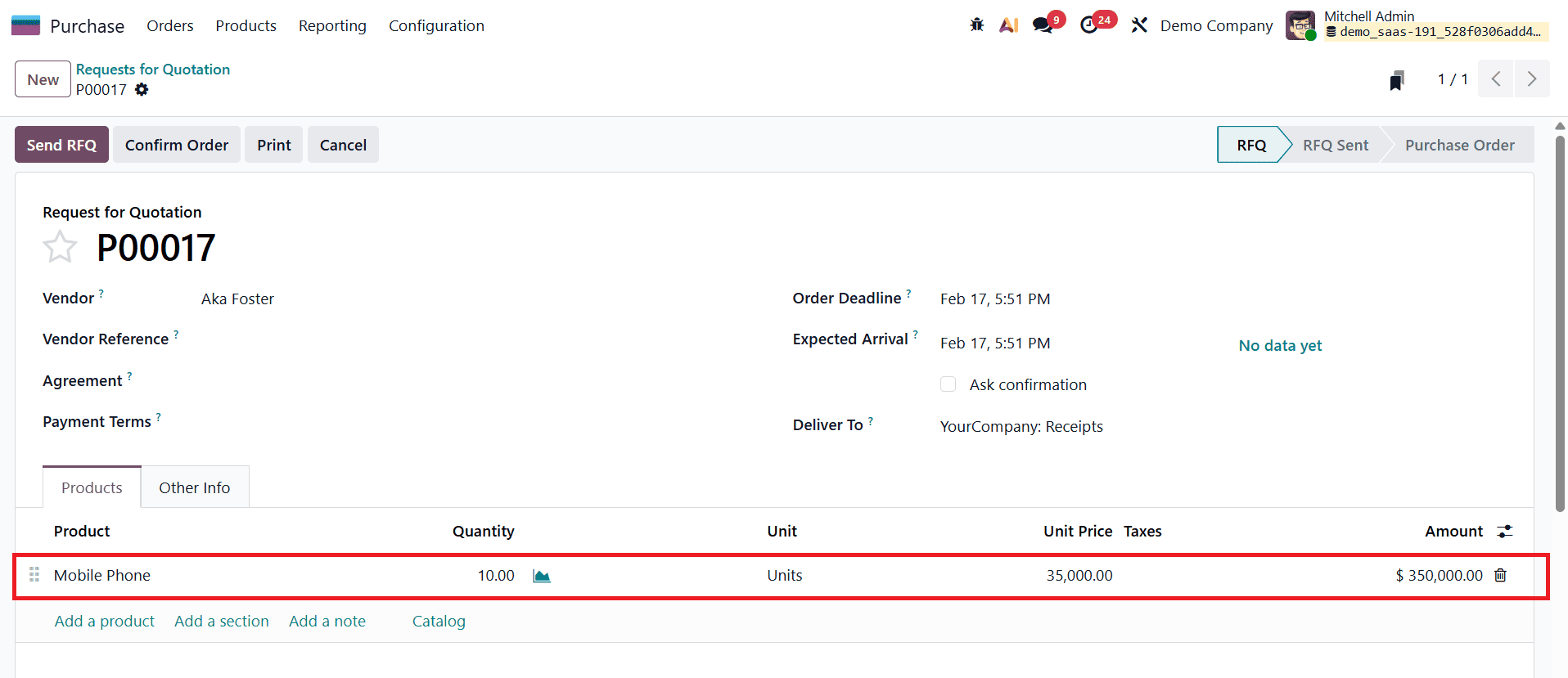
Confirm the purchase order and validate the receipt to bring the products into stock.
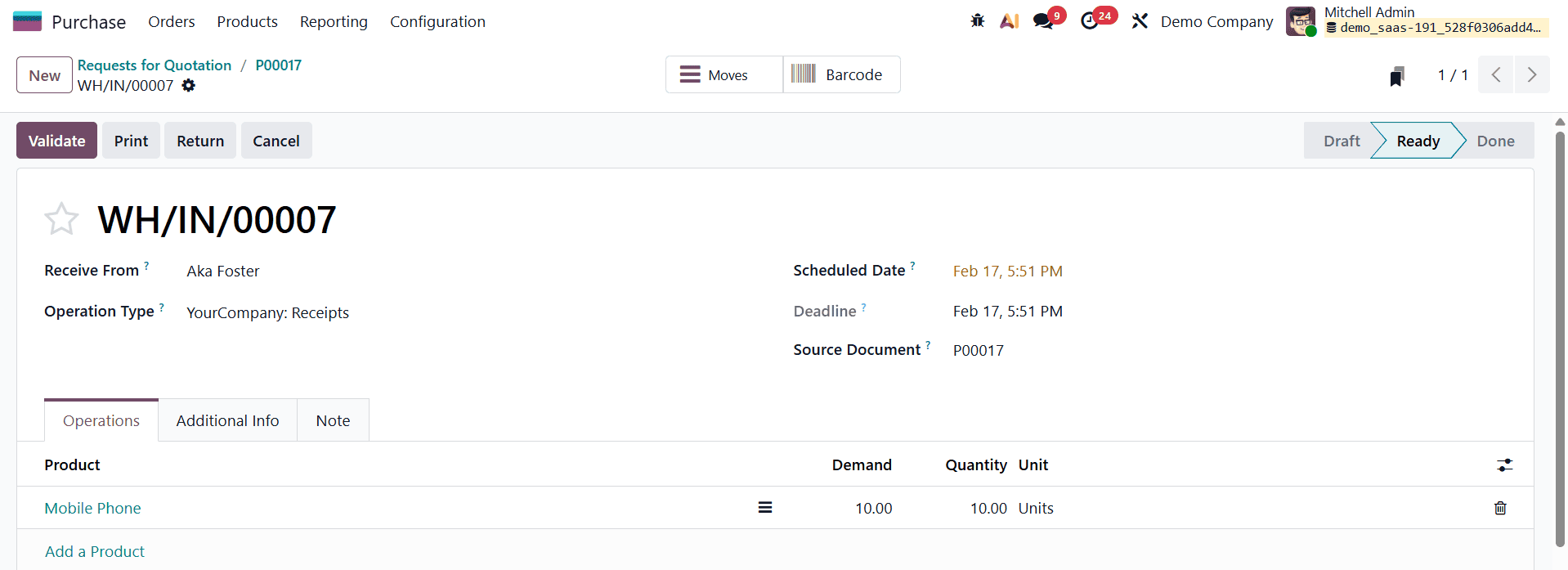
Make sure to note the receipt (transfer) reference number, as the landed cost must be applied to this specific receipt.
After receiving the products, create a vendor bill and add the landed cost service product (for example, Custom Fee).
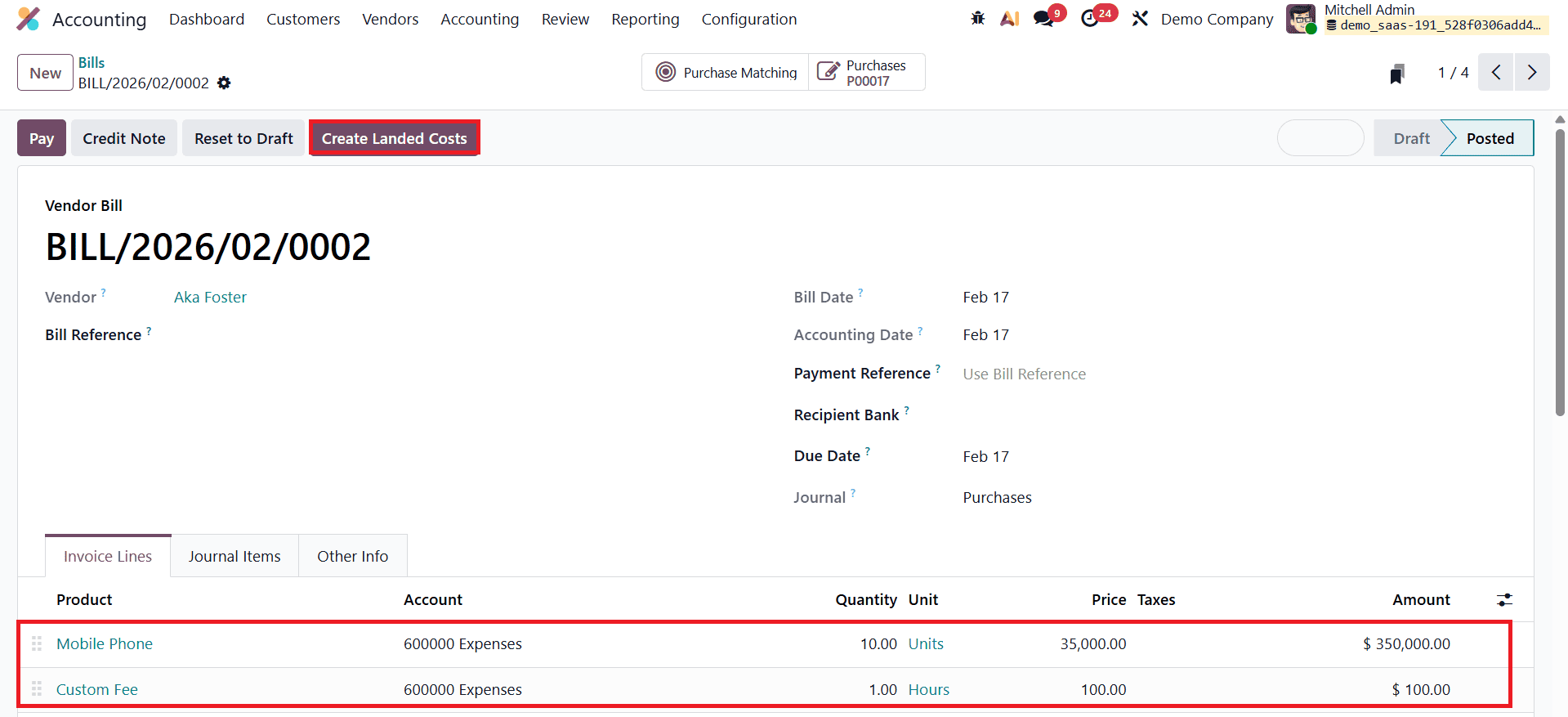
Confirm the bill and click the Create Landed Cost button to generate the landed cost entry. Once the landed cost is validated, review the Valuation Adjustment tab.
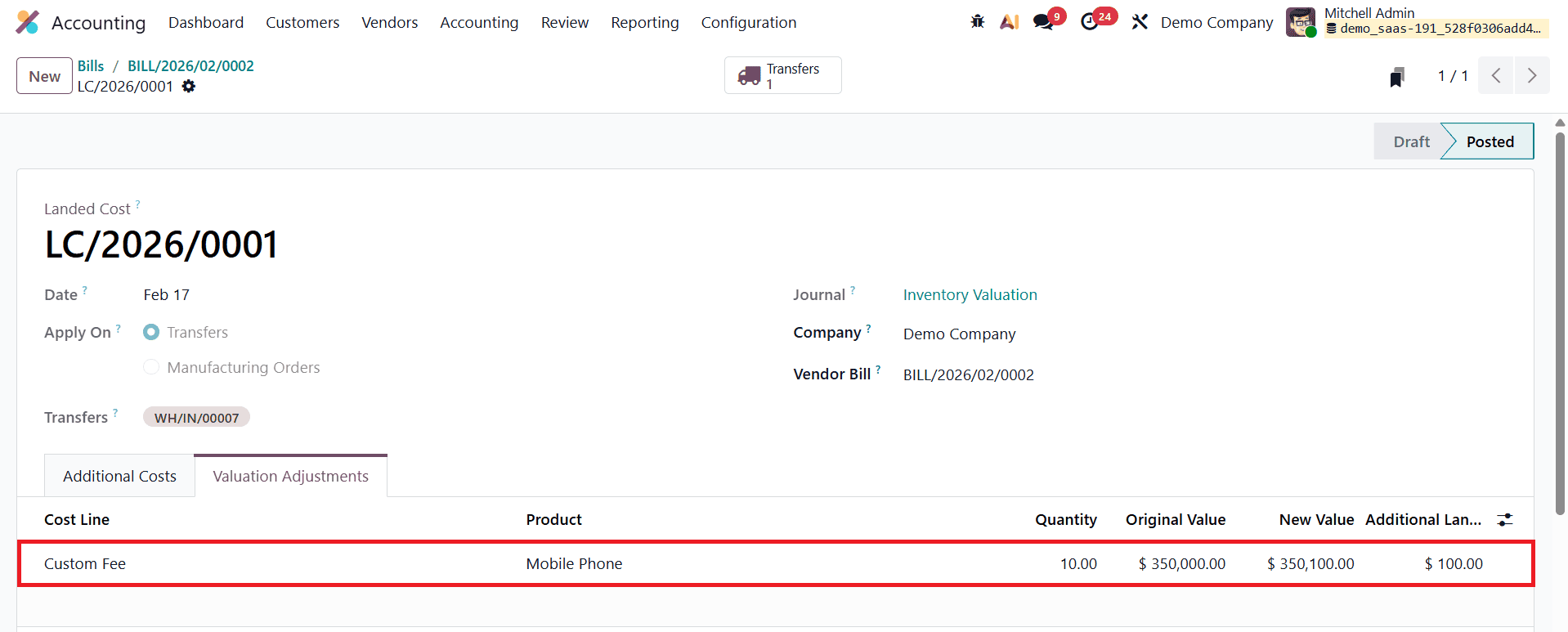
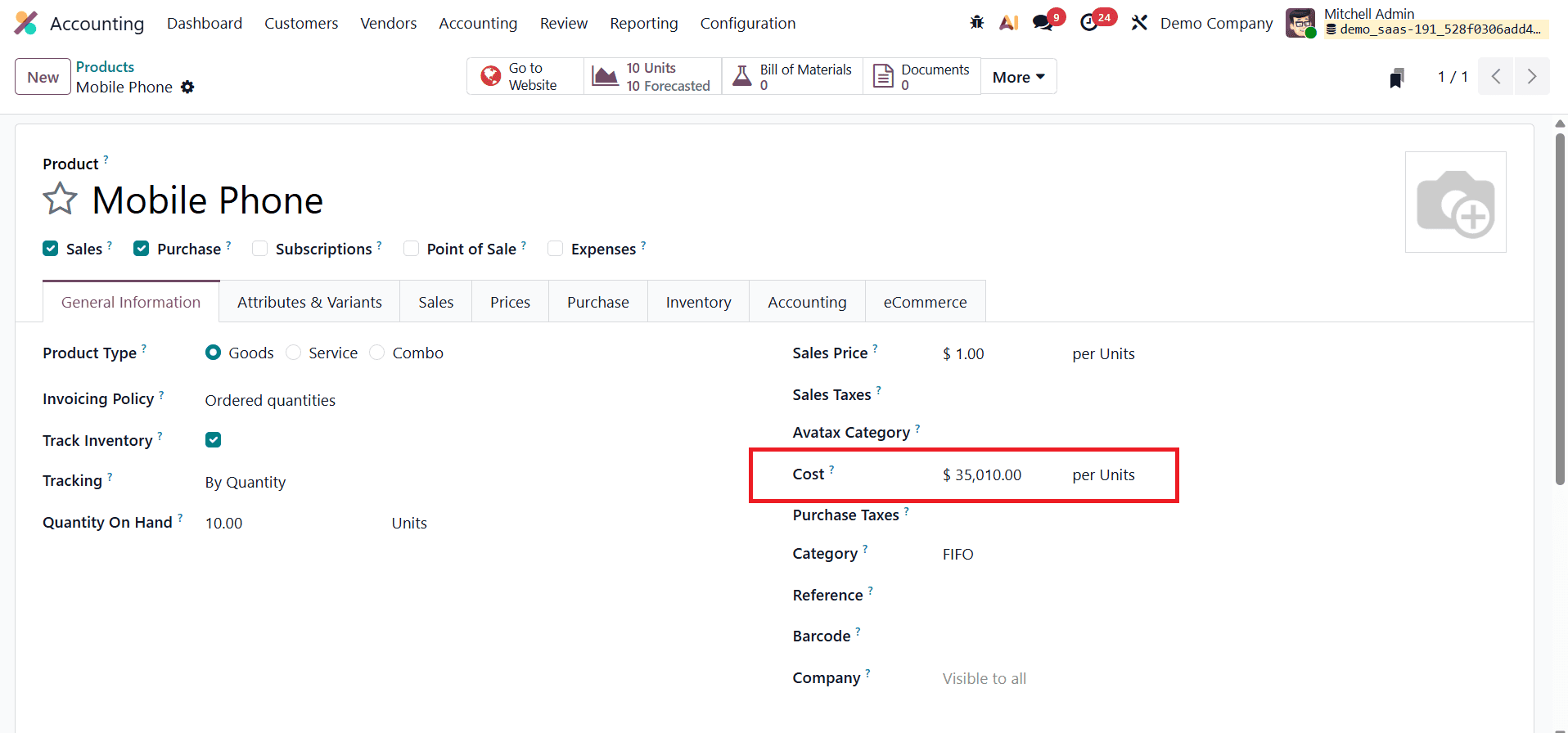
Here, the original unit cost is $35,000, and the additional landed cost is $100. Since the split method used is Equal, the landed cost is divided equally across the 10 units, adding $10 per unit. As a result, the effective unit cost of the Mobile Phone for the first purchase becomes $35,010.
Now, make a second purchase of the same product from another vendor. This time, purchase 5 units at a higher unit price of $45,000.
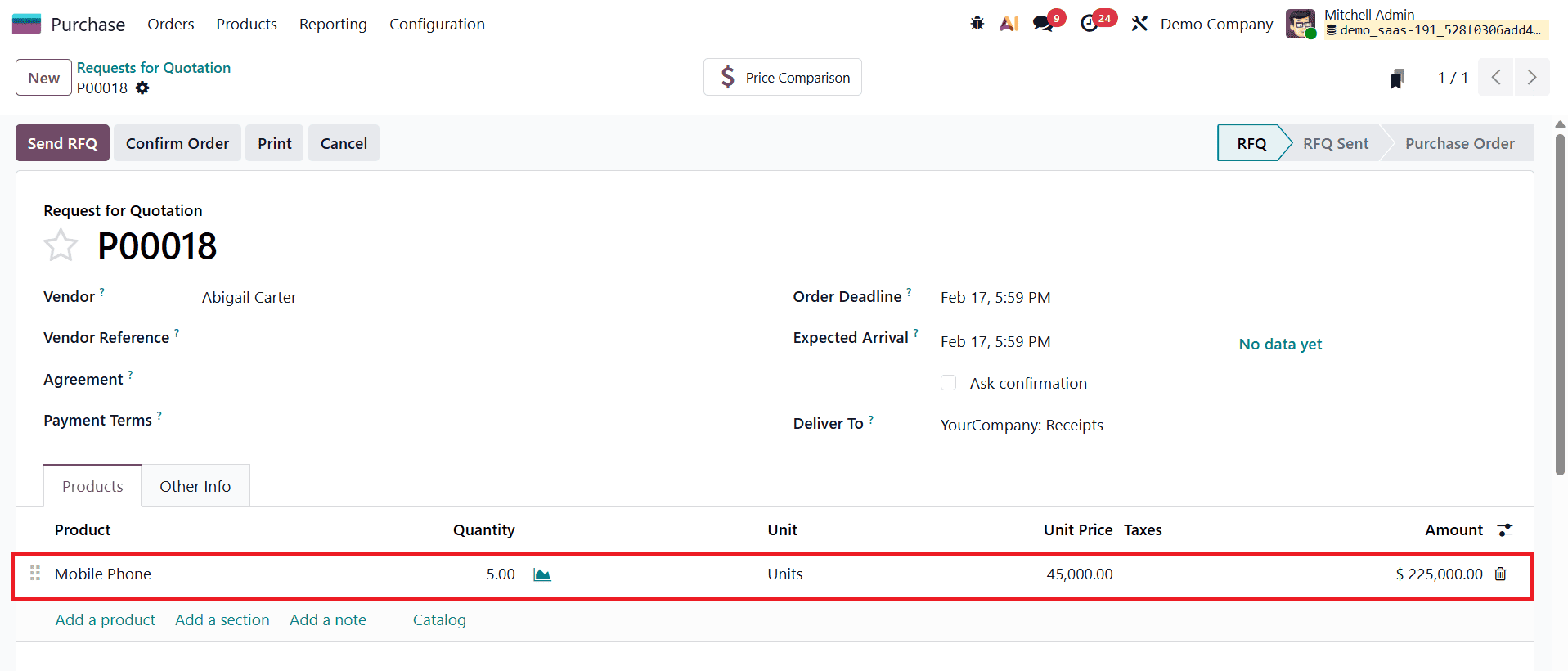
Confirm the purchase order, validate the receipt, and create the vendor bill with the landed cost product included.
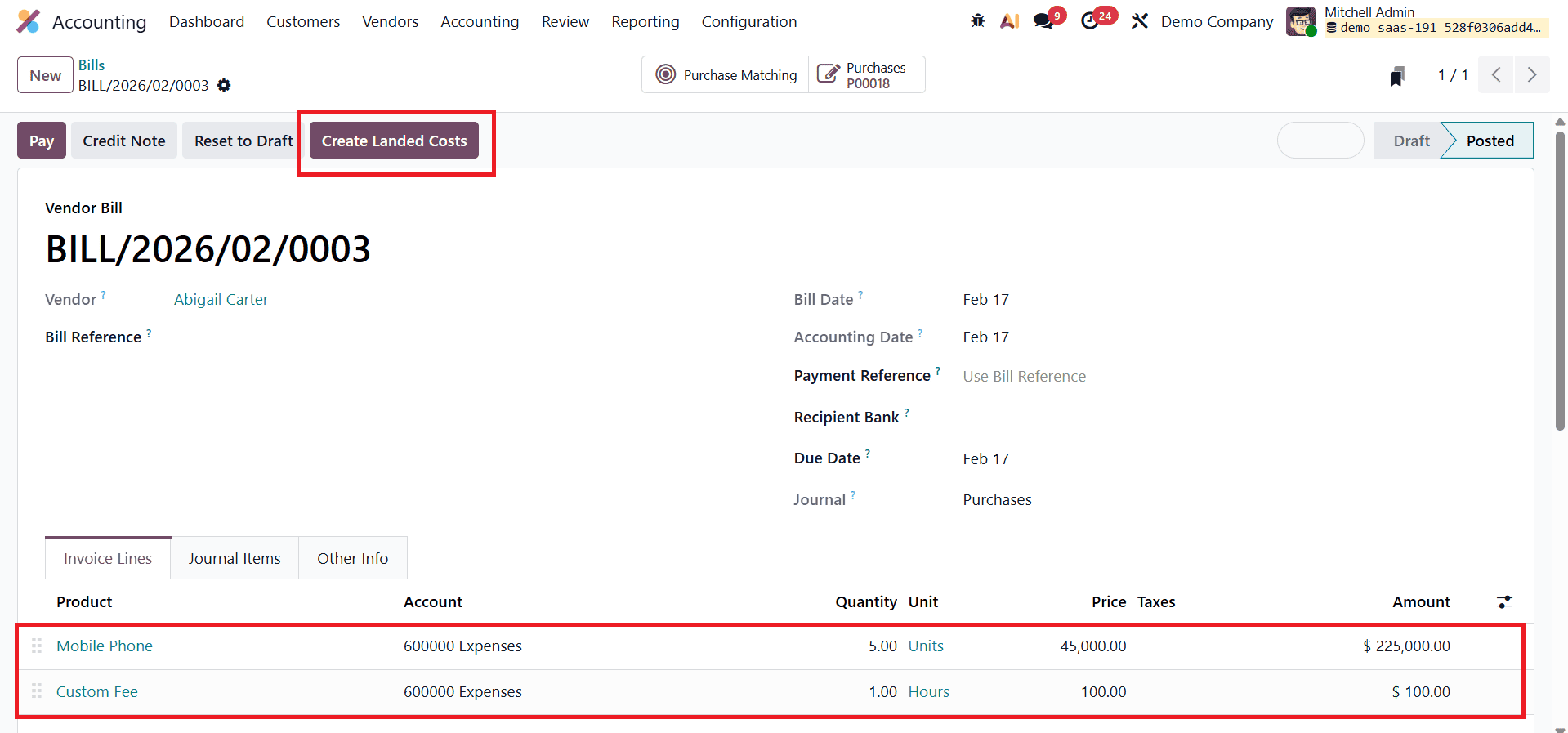
After confirming the bill, create and validate the landed cost.
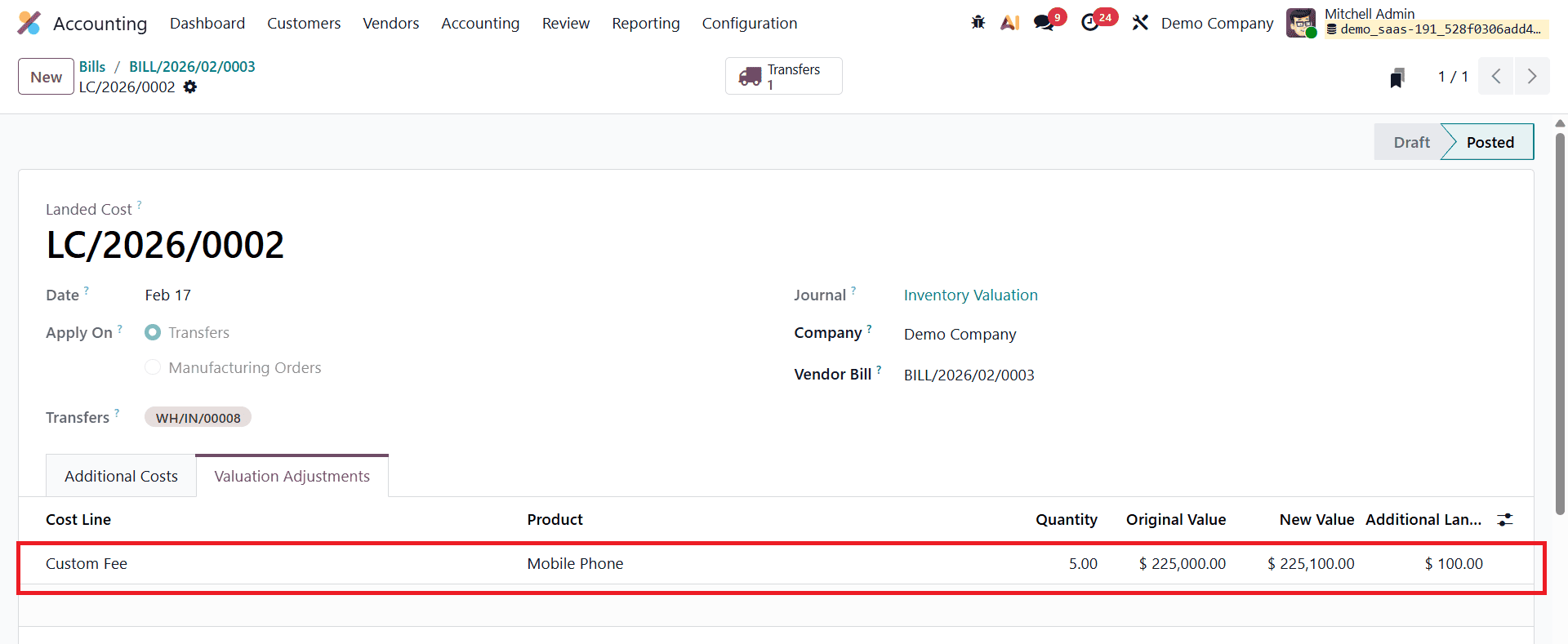
In the Valuation Adjustment tab, you can see that the total value of this purchase is $225,000, with an additional $100 landed cost. When divided equally, each unit receives an extra $20, making the unit cost of the second purchase $45,020.
To review the valuation, open the Inventory Valuation Report from the Reporting menu. The report clearly shows two valuation layers:
- First purchase: 10 units at a unit cost of $35,010
- Second purchase: 5 units at a unit cost of $45,020
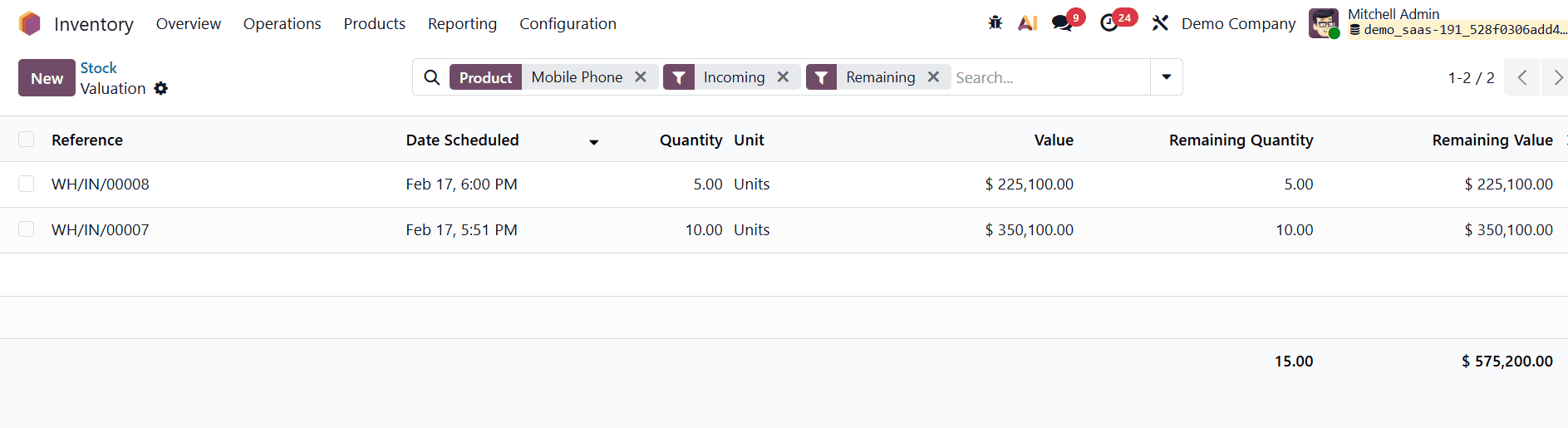
Although the product form may temporarily display a cost calculated using an average formula, (10×35,010+5×45,020)÷15=38,346.67, this does not mean the product is using AVCO.
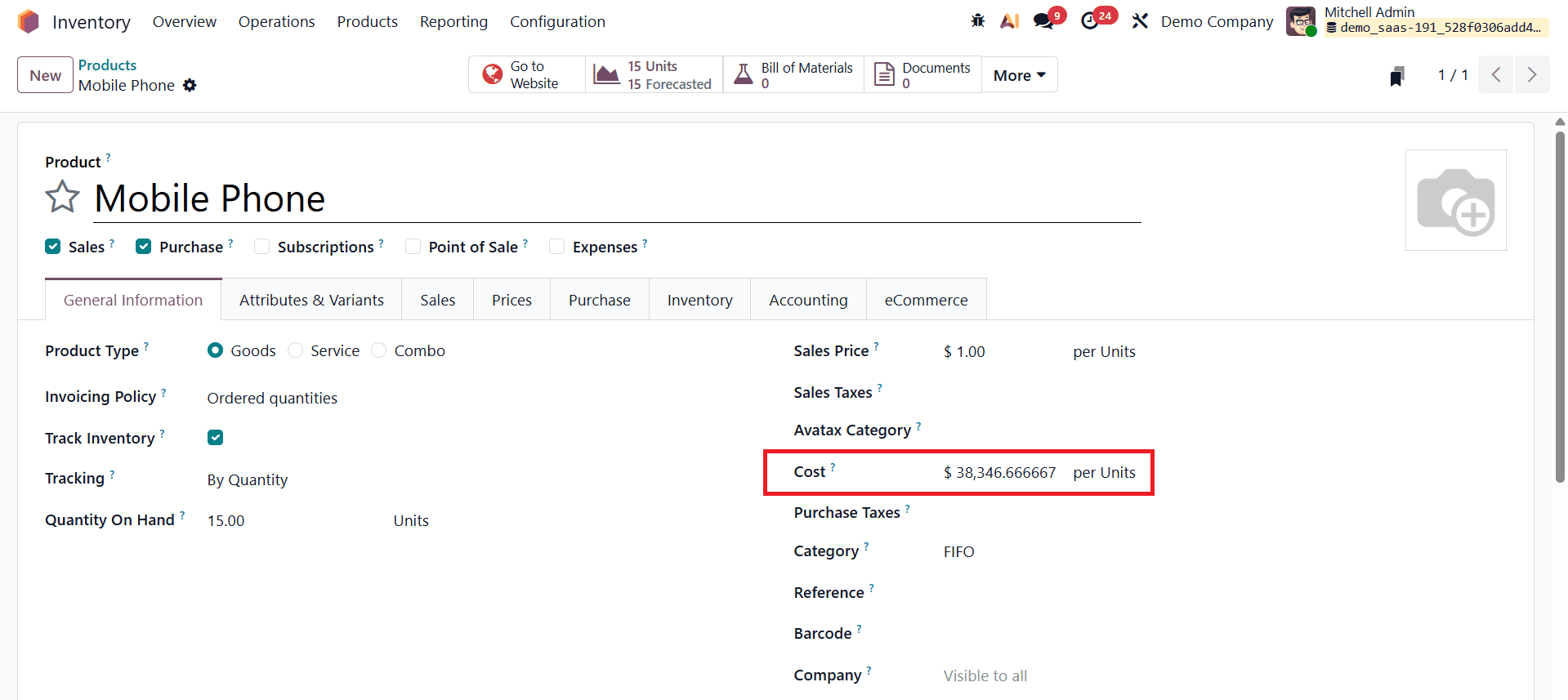
Under FIFO, each purchase layer retains its own cost, and the displayed value reflects the combined inventory valuation rather than the next selling cost.
To demonstrate FIFO behavior, create a sales order for 2 units and confirm it. Validate the delivery to complete the sale.
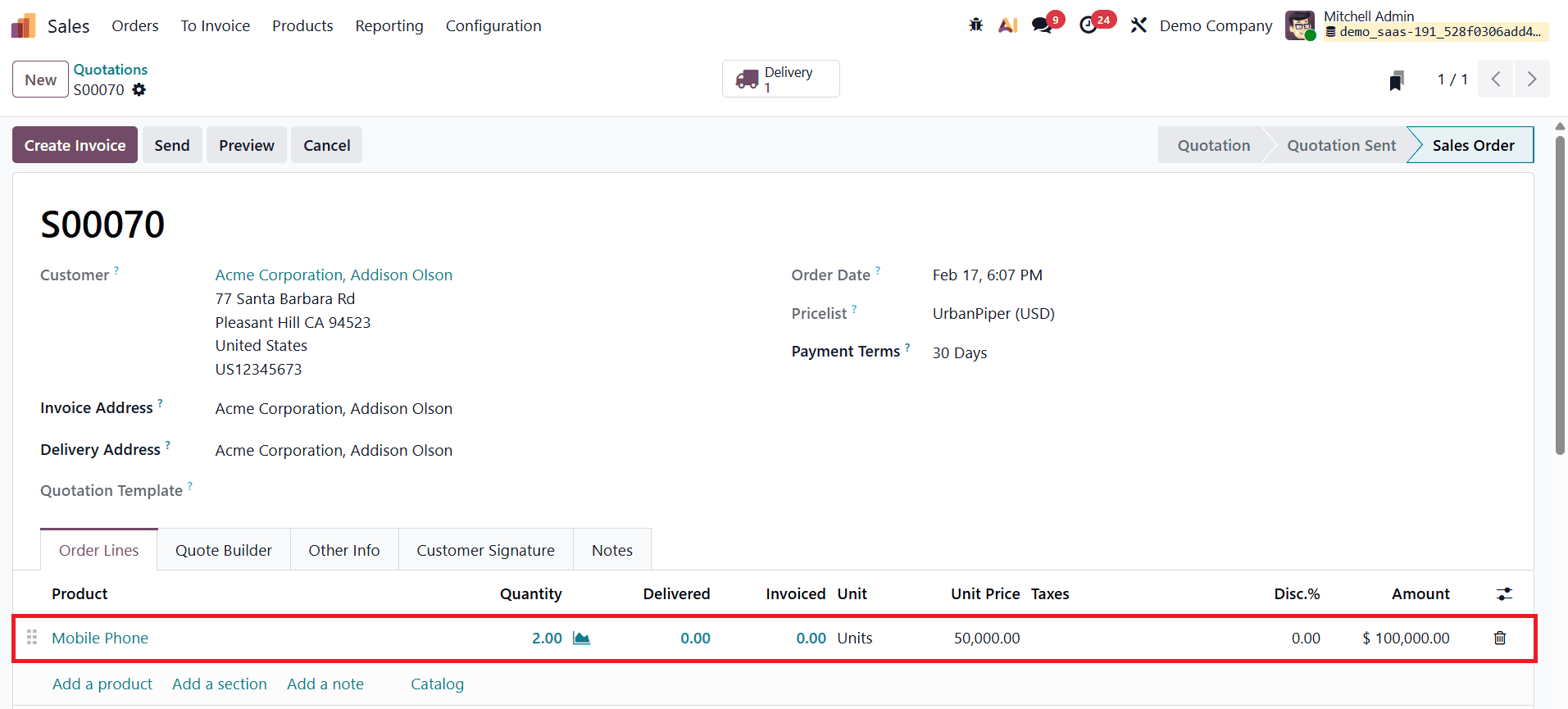
Since FIFO is applied, the 2 units are deducted from the first purchase layer. When you review the Inventory Valuation Report again, the unit value shown corresponds to the cost of the first purchase ($35,010), confirming that FIFO is functioning correctly.
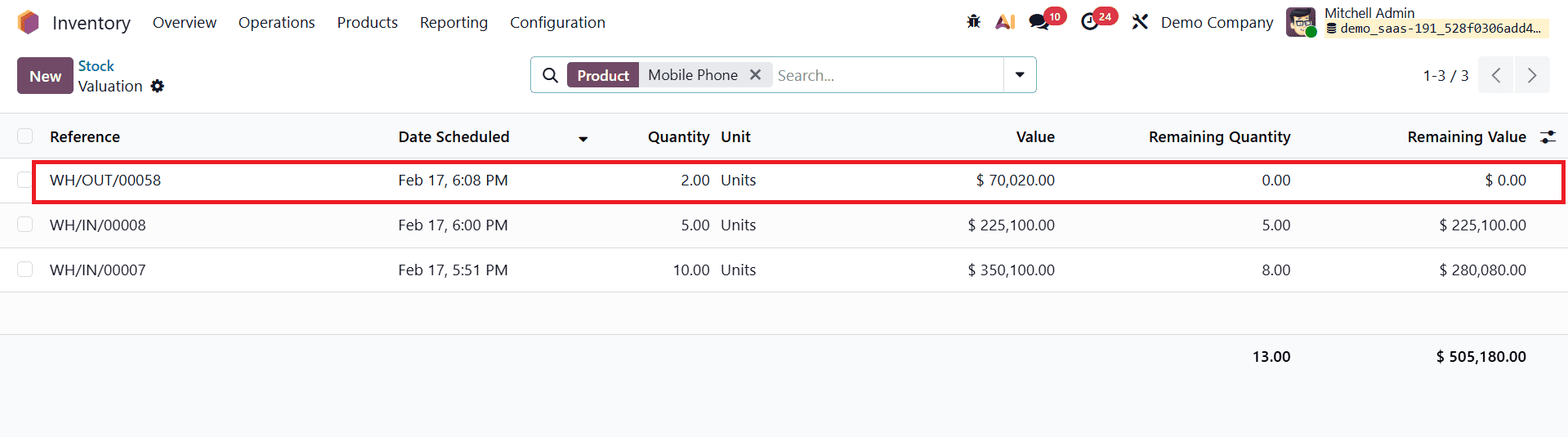
Next, check the product cost after this sale. The remaining inventory consists of 8 units from the first purchase and 5 units from the second purchase, totaling 13 units on hand.
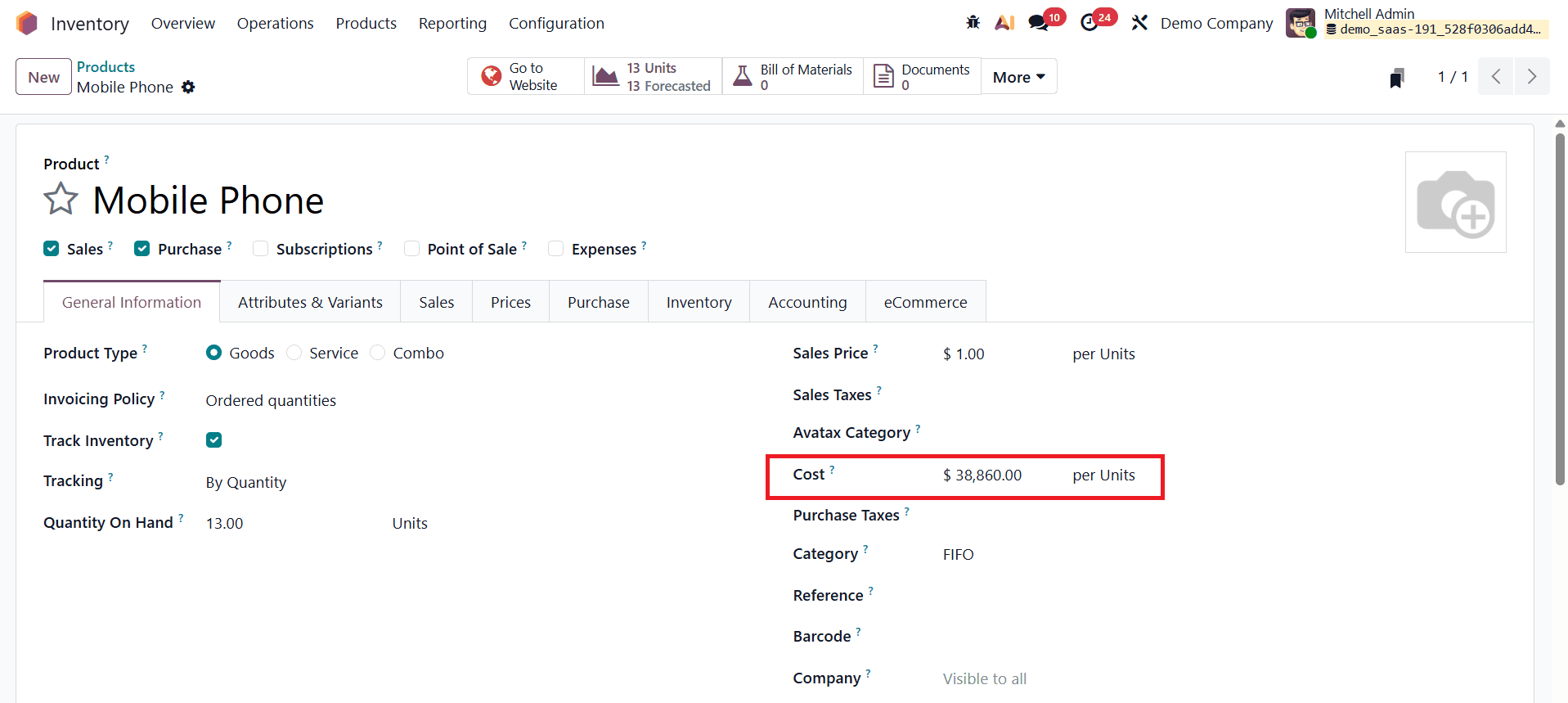
The displayed cost is now recalculated as:
(8×35,010+5×45,020)÷13=38,860
To further validate FIFO behavior, sell the remaining 8 units from the first purchase by creating and confirming another sales order.
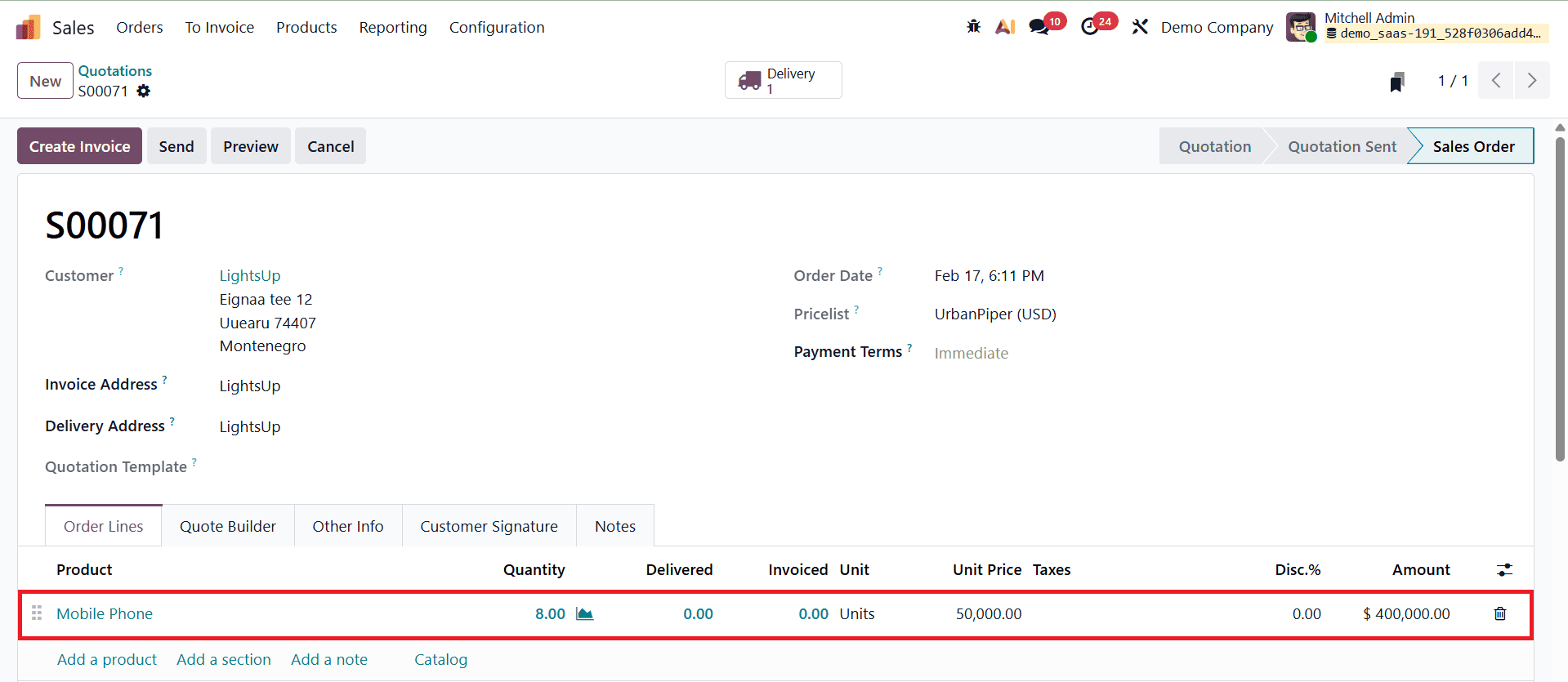
After validating the delivery, open the Inventory Valuation Report once more.
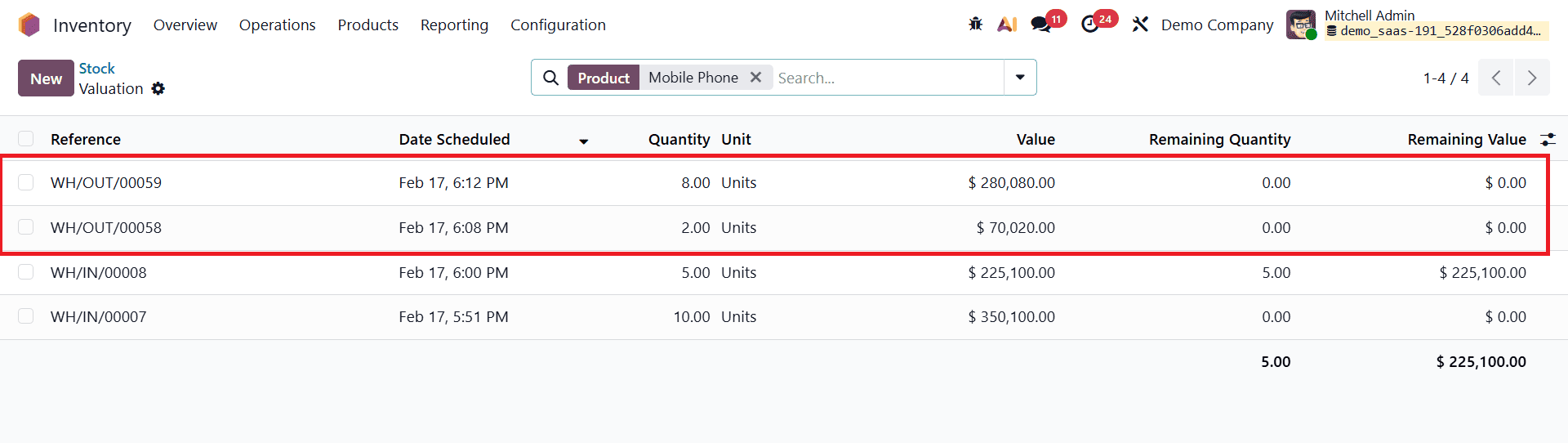
The report shows that all sold quantities were removed from the first purchase layer at a unit cost of $35,010. At this point, only the second purchase layer remains in stock.
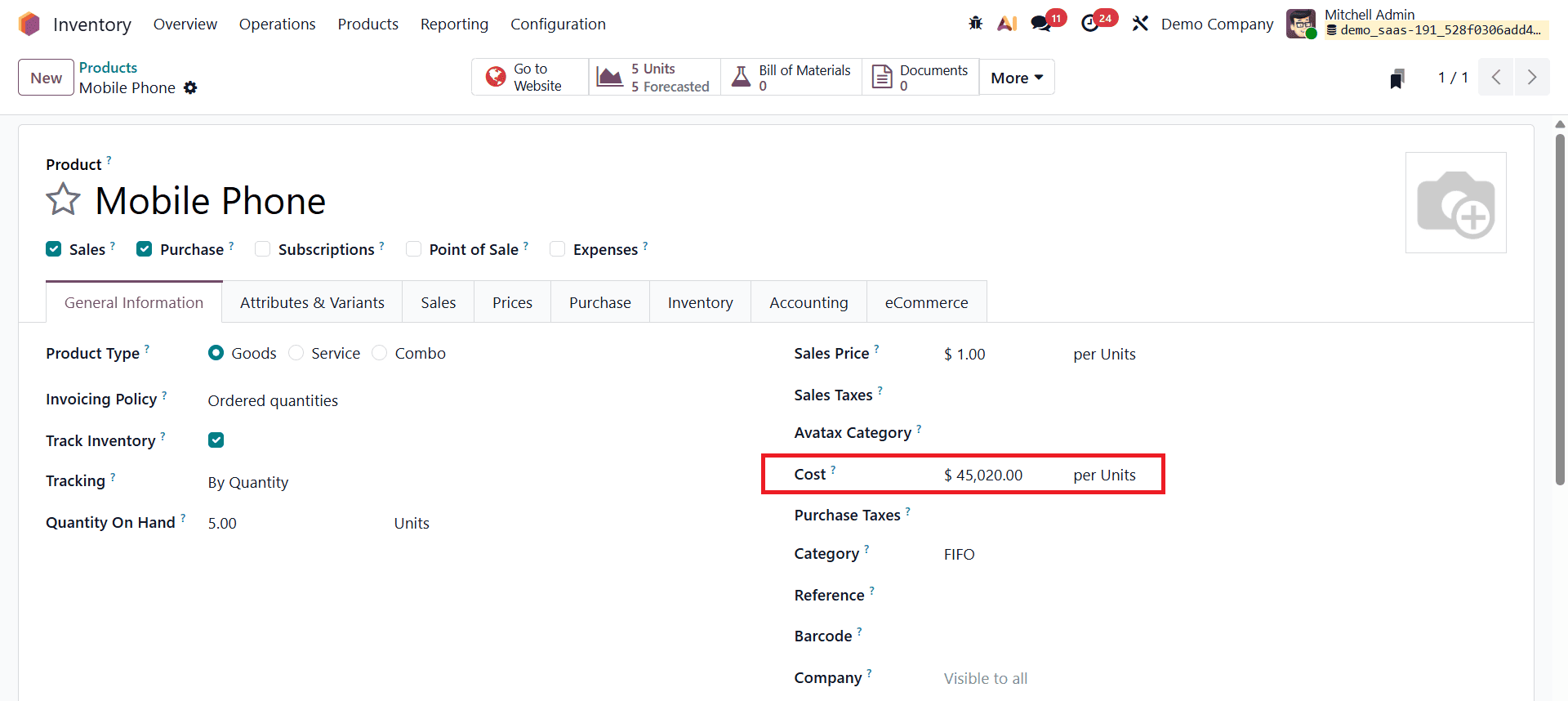
Finally, check the product form again. The on-hand quantity is now 5 units, and the product cost is automatically updated to $45,020, which is the unit cost of the second purchase. This confirms that under the FIFO costing method, the product cost is updated to the next purchase price only after the previously acquired stock has been fully sold.
When using the FIFO costing method in Odoo 19, landed costs are applied to each purchase batch individually. The cost of the product is updated sequentially based on the order in which inventory is sold. Only after the first purchased quantities are completely sold does the cost shift to the next purchase layer. This ensures accurate inventory valuation, precise cost tracking, and realistic profit calculation when landed costs are involved.
Landed cost is a powerful feature that enables businesses to gain a clear understanding of the true cost of their products. By accurately tracking and allocating landed expenses, companies can ensure competitive pricing, protect profit margins, and make informed pricing decisions. Proper management of landed costs also helps reduce the risk of financial losses caused by inaccurate inventory valuation or improper pricing strategies.
To read more about How to Manage Product Pricing with Landed Costs in Odoo 18, refer to our blog How to Manage Product Pricing with Landed Costs in Odoo 18.