Barcodes are an effective instrument that improves the effectiveness of corporate operations in a number of areas, such as sales, procurement, logistics, and inventory management. They are essential in contemporary commercial settings because they facilitate quicker data entry, lower manual error rates, and optimize procedures.
Odoo 19 has a strong platform for incorporating barcode technology into its models, enabling companies to use and modify barcodes to meet their own needs.
In this post, we'll discuss how to dynamically generate and print barcodes in Odoo 19. Although the Sale Order model is used in this example to illustrate the process, the same ideas hold true for other models.
What Makes Barcodes Useful?
- Automation: streamlining data entry for tasks like order processing and stock selection.
- Accuracy: By doing away with human input, errors are reduced.
- Efficiency: Increasing productivity and saving time.
- Traceability: Enabling prompt record tracking and identification.
The following example shows how to combine the order date and reference number into a unique identity when creating barcodes for sale orders in Odoo 19. This can be readily modified to fit different models or to generate barcodes using different logic.
Step 1: Extend the Model to Add a Barcode Field
We first inherit the Sale Order model and add a new barcode field in order to give barcode capabilities. When a record is created, the barcode value will be produced dynamically.
The @api.model_create_multi decorator, which takes a list of value dictionaries (vals_list) rather than a single dict, is required for the create() method in Odoo 19. All new Odoo 19 modules must adhere to this standard.
# -*- coding: utf-8 -*-
from odoo import models, fields, api

class SaleOrder(models.Model):
   """Extend Sale Order to include auto-generated barcode functionality."""
   _inherit = 'sale.order'
   barcode = fields.Char(
       string="Barcode",
       readonly=True,
       copy=False,
       help="Auto-generated barcode combining order date and reference number.",
   )
   @api.model_create_multi
   def create(self, vals_list):
       """Override create to auto-generate barcodes on record creation.
       In Odoo 19, create() receives a list of value dicts (vals_list)
       instead of a single dict. We call super() first to let the ORM
       assign the sequence name (self.name), then write the barcode
       back on each newly created record.
       """
       records = super().create(vals_list)
       for record in records:
           if not record.barcode:
               record.barcode = record._generate_barcode()
       return records
   def _generate_barcode(self):
       """Generate a unique barcode from the order date and reference name.
       Format: YYYYMMDD-<order_name>
       Example: 20250516-S00042
       Override this method in a subclass to apply custom barcode logic
       (e.g. EAN-13 numeric sequences, external sequence models, etc.).
       """
       date_part = fields.Date.today().strftime('%Y%m%d')
       name_part = (self.name or 'NEW').replace('/', '-')
       return f"{date_part}-{name_part}"
Key Points
- Barcode field: The generated barcode string is stored in a Char field. To avoid unintentional changes or duplication, it is marked as readonly and copy=False.
- @api.model_create_multi: The create() overrides standard for Odoo 19. It effectively manages the production of both single and batch records. To ensure that the ORM assigns self.name via the sequence before we read it, always call super() first.
- _generate_barcode(): This specific method creates a unique identification by combining the order reference name and the order date (YYYYMMDD). extracted independently so that this function alone can be overridden by downstream modules without affecting create().
Step 2: Include the Barcode Field in the Form View
To display the barcode field in the user interface, we add it to the current form view of the Sale Order model.
<?xml version="1.0" encoding="utf-8"?>
<odoo>
   <!-- Extend the Sale Order form view to display the barcode field -->
   <record id="sale_order_form_barcode_inherit" model="ir.ui.view">
       <field name="name">sale.order.form.barcode</field>
       <field name="model">sale.order</field>
       <field name="inherit_id" ref="sale.view_order_form"/>
       <field name="arch" type="xml">
           <xpath expr="//field[@name='payment_term_id']" position="after">
               <field name="barcode" widget="barcode_handler" readonly="1"/>
           </xpath>
       </field>
   </record>
</odoo>
Explanation
- inherit_id: Makes use of the sale module's initial form view of the Sale Order object.
- XPath expression: The barcode field comes just after the payment_term_id field. Change this as necessary to move the field to a different area of the form.
Step 3: Make a Barcode Printing Action
To print barcodes, we define a report action that connects to a QWeb template.This report action uses binding_type="report" to automatically wire up the Print menu and create PDF documents with the barcodes.
<?xml version="1.0" encoding="utf-8"?>
<odoo>
   <data>
       <record id="action_report_sale_barcode" model="ir.actions.report">
           <field name="name">Sale Order Barcode</field>
           <field name="model">sale.order</field>
           <field name="report_type">qweb-pdf</field>
           <field name="report_name">sale_barcode_odoo19.barcode_template</field>
           <field name="report_file">sale_barcode_odoo19.barcode_template</field>
           <field name="print_report_name">'Sale Order Barcode (PDF)'</field>
           <field name="binding_model_id" ref="sale_management.model_sale_order"/>
           <field name="binding_type">report</field>
       </record>
   </data>
</odoo>
Explanation
- report_name and report_file: Both use the syntax . to refer to the QWeb template. Change sale_barcode_odoo19 to the technical name of your particular module.
- binding_model_id: Attaches this report to the Print menu of the Sale Order model using the ref sale_management.model_sale_order.
- binding_type="report": This action is automatically added to the Sale Order form and list views under Actions > Print.
Step 4: Define a QWeb Template for the Barcode Report
The barcode's design and placement in the produced PDF are controlled by the template. The cleanest and most Odoo-native method in Odoo 19 is to use the native barcode widget via t-field with t-options, leaving all barcode rendering to the framework.
<?xml version="1.0" encoding="UTF-8"?>
<odoo>
   <template id="barcode_template">
       <t t-call="web.html_container">
           <t t-foreach="docs" t-as="doc">
               <t t-call="web.external_layout">
                   <div class="page">
                       <div class="oe_structure"/>
                       <div>
                           <div class="col-5">
                               <h2>
                                   <span t-field="doc.name"/>
                               </h2>
                               <br/>
                                   <span t-if="doc.barcode" t-field="doc.barcode"
                                         t-options="{'widget': 'barcode', 'symbology': 'EAN13', 'width': 300, 'height': 50, 'img_style': 'width:100%;height:35%;'}">
                                   </span>
                           </div>
                       </div>
                   </div>
               </t>
           </t>
       </t>
   </template>
</odoo>
Explanation
- The Odoo-native method for rendering barcodes in QWeb reports is to use the t-field with t-options barcode widget. Odoo's barcode widget takes care of all rendering internally rather than requiring you to manually create a /report/barcode/ URL.
- Symbology: 'EAN13': Indicates the barcode standard. Here, EAN13 is utilized; if your barcode value (such as the YYYYMMDD-S00042 format from our model) has letters or hyphens, change to 'Code128'.
- width and height: Manages the generated barcode image's pixel dimensions. Modify these to fit the layout of your print.
- img_style: The barcode image element's inline CSS. It is responsively scaled within the col-5 column with width:100% and height:35%.
- t-if="doc.barcode": This guard condition keeps the template from crashing in the event that a sale order does not yet include a barcode..
- oe_structure div: Studio/customization hooks are supported by this Odoo placeholder div. standard procedure for Odoo report templates.
Final Output
After installing the module:
- Open any Sale Order; after it is created, the Barcode field is automatically filled in.
- Navigate to Actions > Print > Sale Order Barcode.
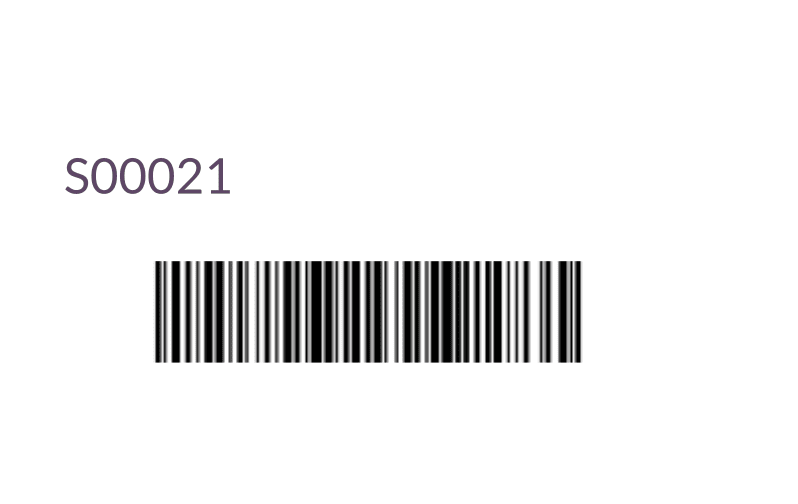
- A PDF is downloaded containing the order name and the rendered barcode image.
Barcodes are a crucial part of any contemporary ERP system since they streamline and expedite company processes. This article illustrated how to dynamically generate and print barcodes in Odoo 19 using the Sale Order model as a useful example.
You can incorporate barcode functionality into any model in Odoo 19 and improve accuracy and efficiency throughout your company by following the steps described here: extending the model with @api.model_create_multi, adding the form view field, defining the report action, and using the native barcode widget in the QWeb template.Barcodes offer a dependable and scalable solution for your operational requirements, whether you are managing shipments, processing orders, or keeping track of inventories. Create a customized barcode system for your company using this tutorial as a starting point.
To read more about How to Create Barcodes in Odoo 18, refer to our blog How to Create Barcodes in Odoo 18.