In many companies, customers expect their queries to be addressed immediately. Responding to every query manually can be time-consuming, which is where chatbots come to the rescue. The Helpdesk module in Odoo 19 enables companies to configure chatbots that can automatically respond to customer queries.
The Odoo chatbot can greet visitors, answer commonly asked questions, generate support tickets, provide links to relevant Knowledge Base articles or documentation, and gather important data before handing the chat over to a live agent. In this blog, we will explain how to set up a chatbot in Odoo 19 that will help you with helpdesk work. Let’s begin with setting up our Helpdesk chatbot.
Go to the Helpdesk application, then Configuration > Helpdesk Teams, and select the appropriate team.
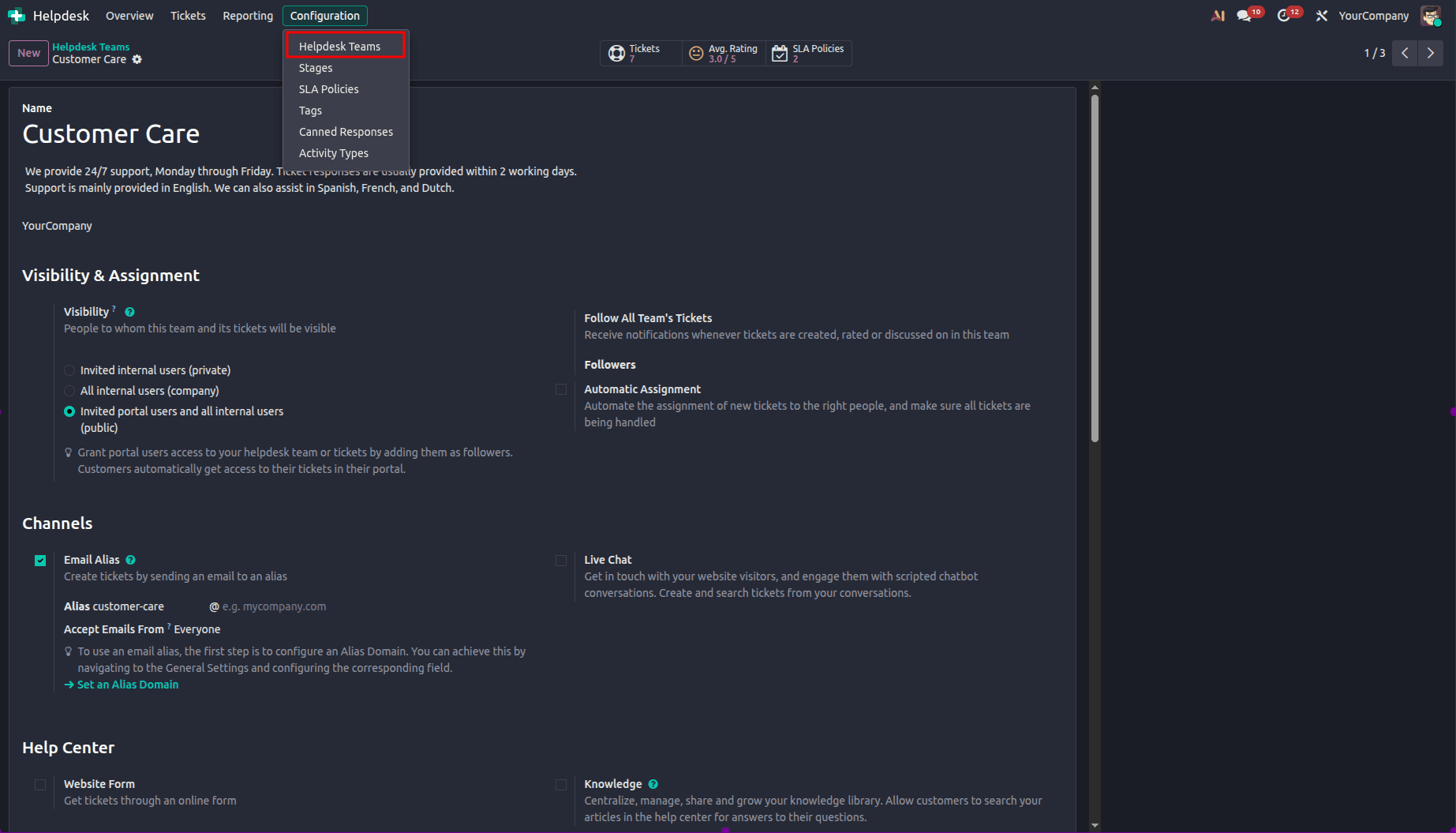
In team format, go to the Channels and make sure that Live Chat is enabled.
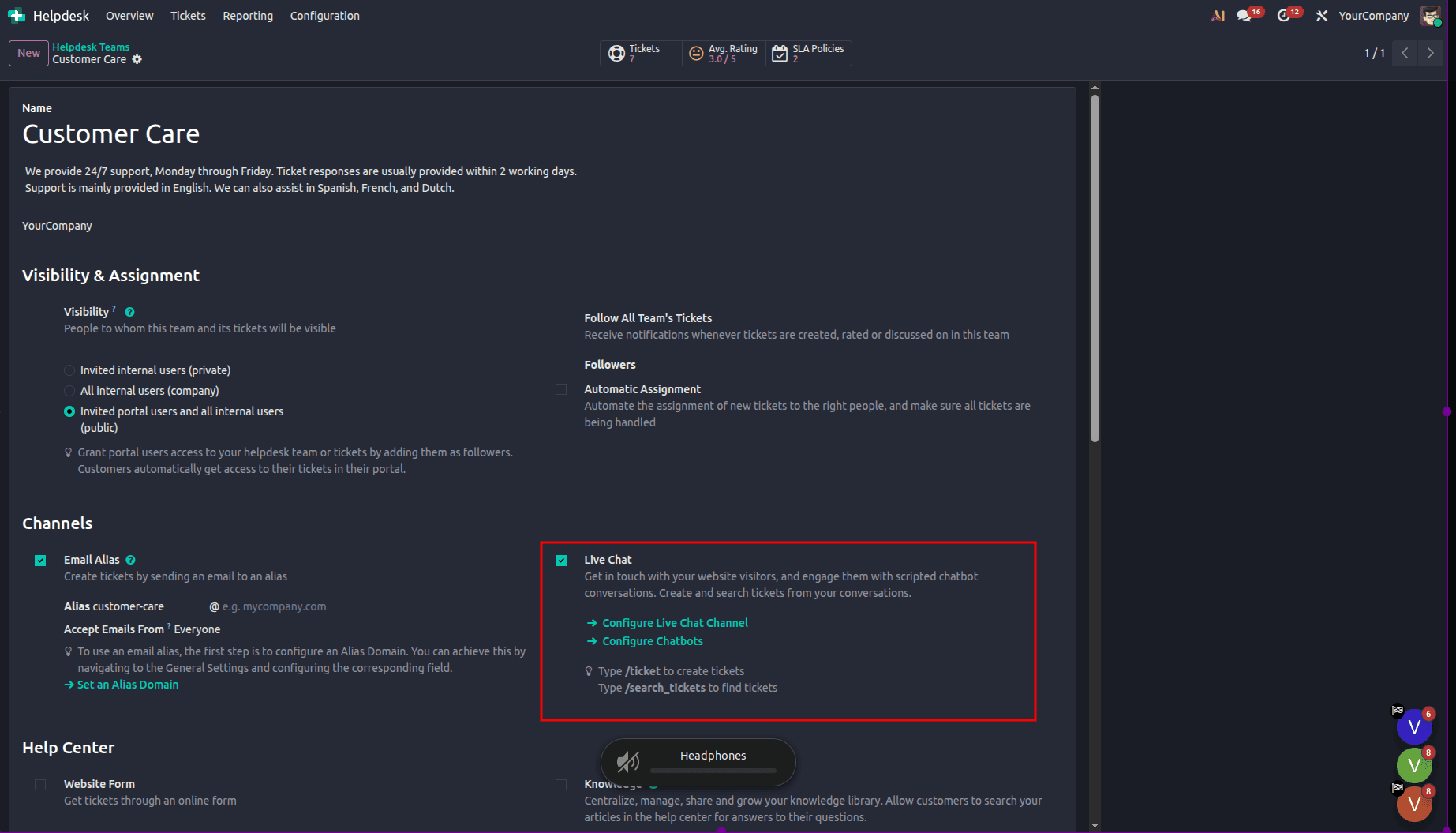
This is where you will see the Configure Chatbot link. Follow the link to the chatbot configuration page where you can create your chatbot.
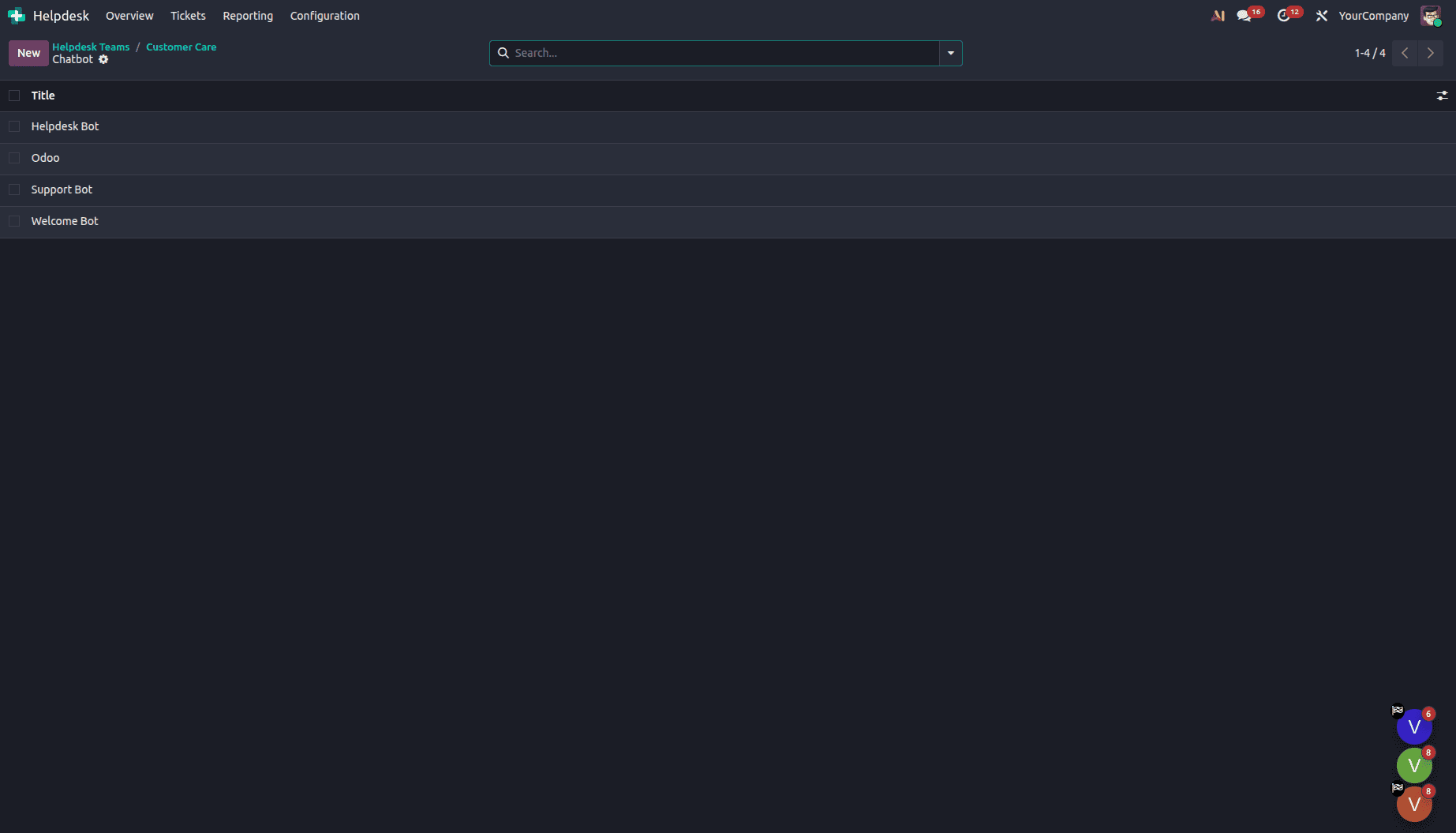
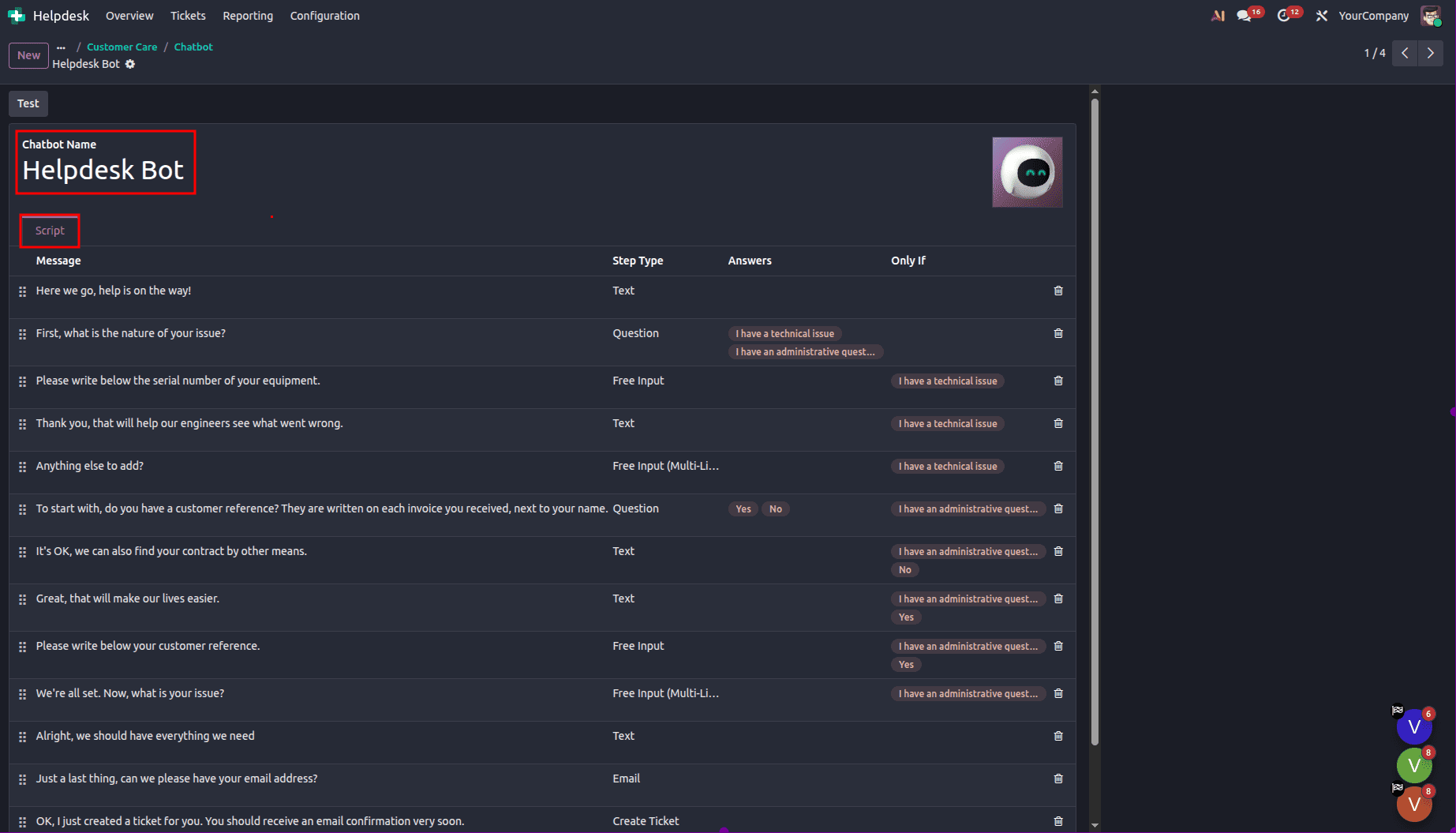
Scripting comes once the bot is developed and named. The conversations in the chatbot follow a specific script. This is done by ensuring that, at each stage, the conversation either provides information or collects information.
For the chatbot Detail Page, go to the Script tab and click on Add a Line to create the flow of the conversation. It opens the Create Script Steps pop-up window.
For each line of dialogue the chatbot may use during a conversation, you need to configure and complete the corresponding form.
Begin by entering the chatbot’s message in the Message field. Then, select the relevant option from the drop-down menus for Only If and Step Type.
A new message can be added using the "Add a Line" button.
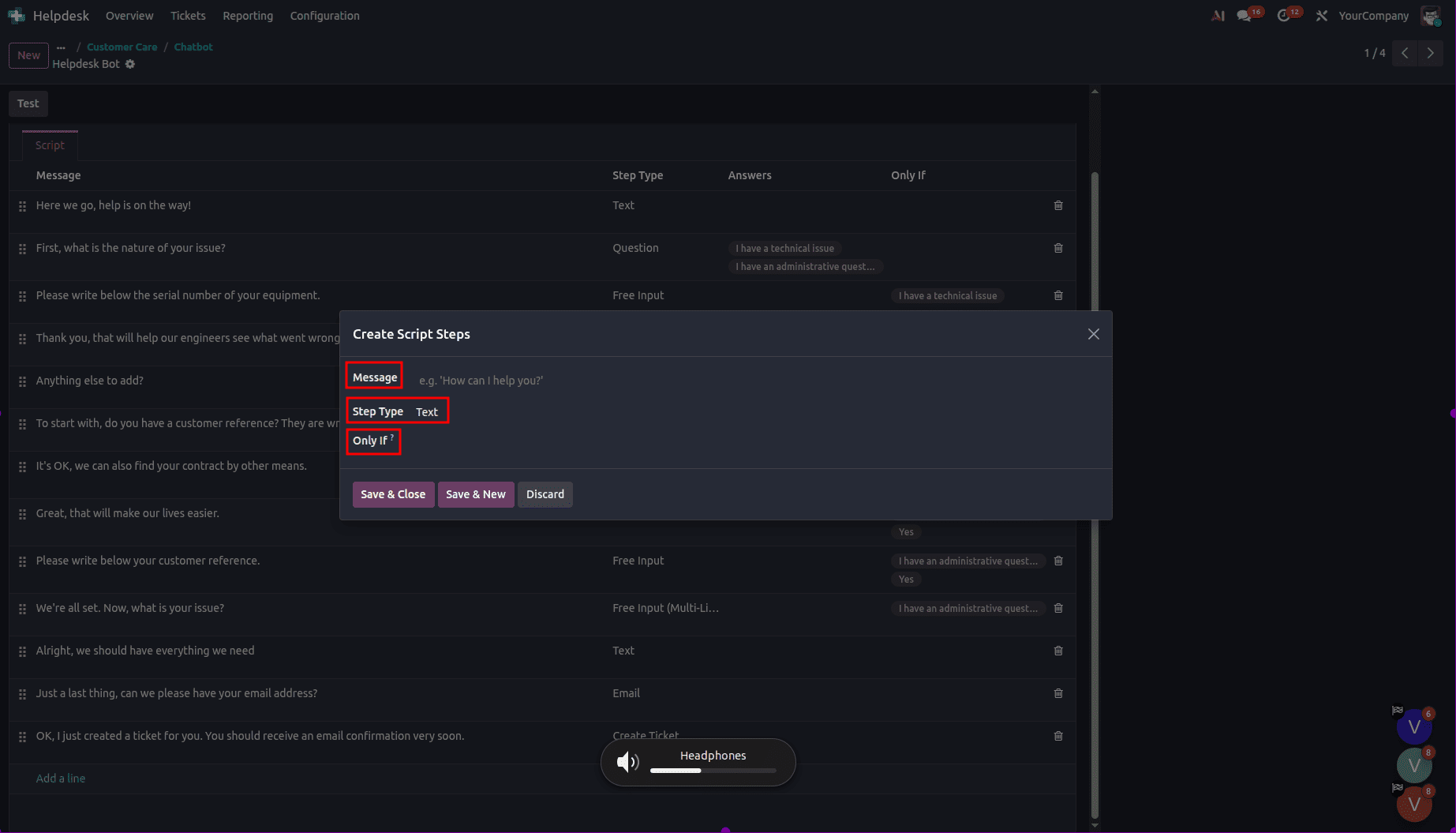
Step one is to input the desired message into the Message box. Next, choose the right selections in the Only If and Step Type drop-downs. The available Step Type options include:
Step Types
The appropriate Step Type is determined by the intent of the message. The section below provides insight into the various step types, along with their use case scenarios and configuration options.
- Text: This approach is adopted when there is no need for the user to respond. This method can be used for displaying information or greeting messages.
- Question: In this case, a question is shown along with different response options. Depending on the visitor's choice, the process may continue further to the next step, or the user may be directed to another website as well.
- Email: In this process, the user is requested to provide their email address, which could then be used by the support team for future correspondence. It accepts email addresses in the right format. When a wrong email address is provided, the chatbot generates a message showing that the input was not understood.
- Phone: This option encourages the visitor to give their phone number, which can then be used to communicate with the visitor, schedule demonstrations, or give them further information.
- Create Ticket: In this way, the chatbot will be able to automatically generate a Helpdesk Ticket. The Helpdesk Team that is needed for assigning the ticket may also be specified.
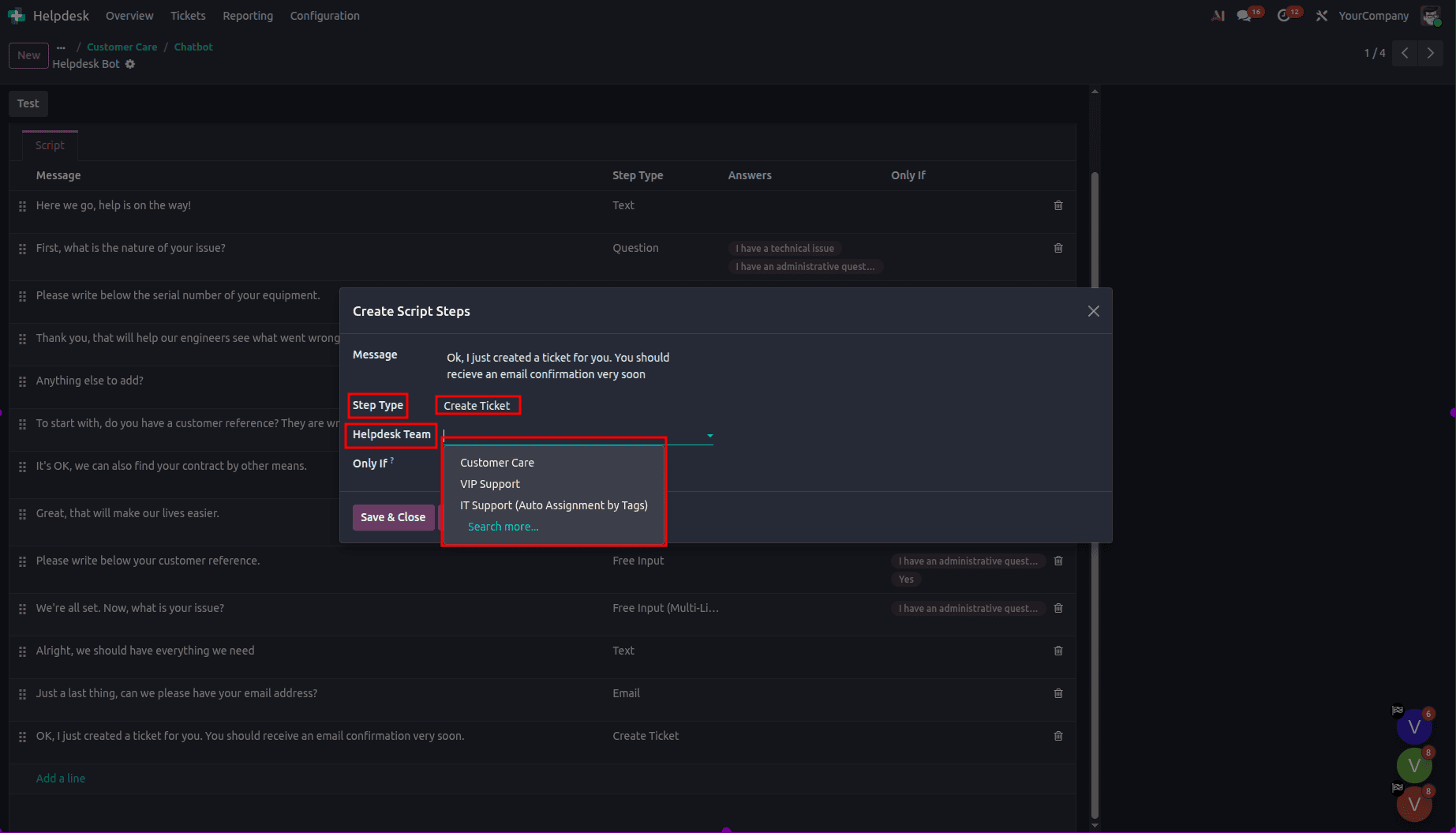
The conversation between the visitor and the chatbot will be based on changing the script of the chatbot depending on the visitor's response to the previous question in Odoo.
Live Chat
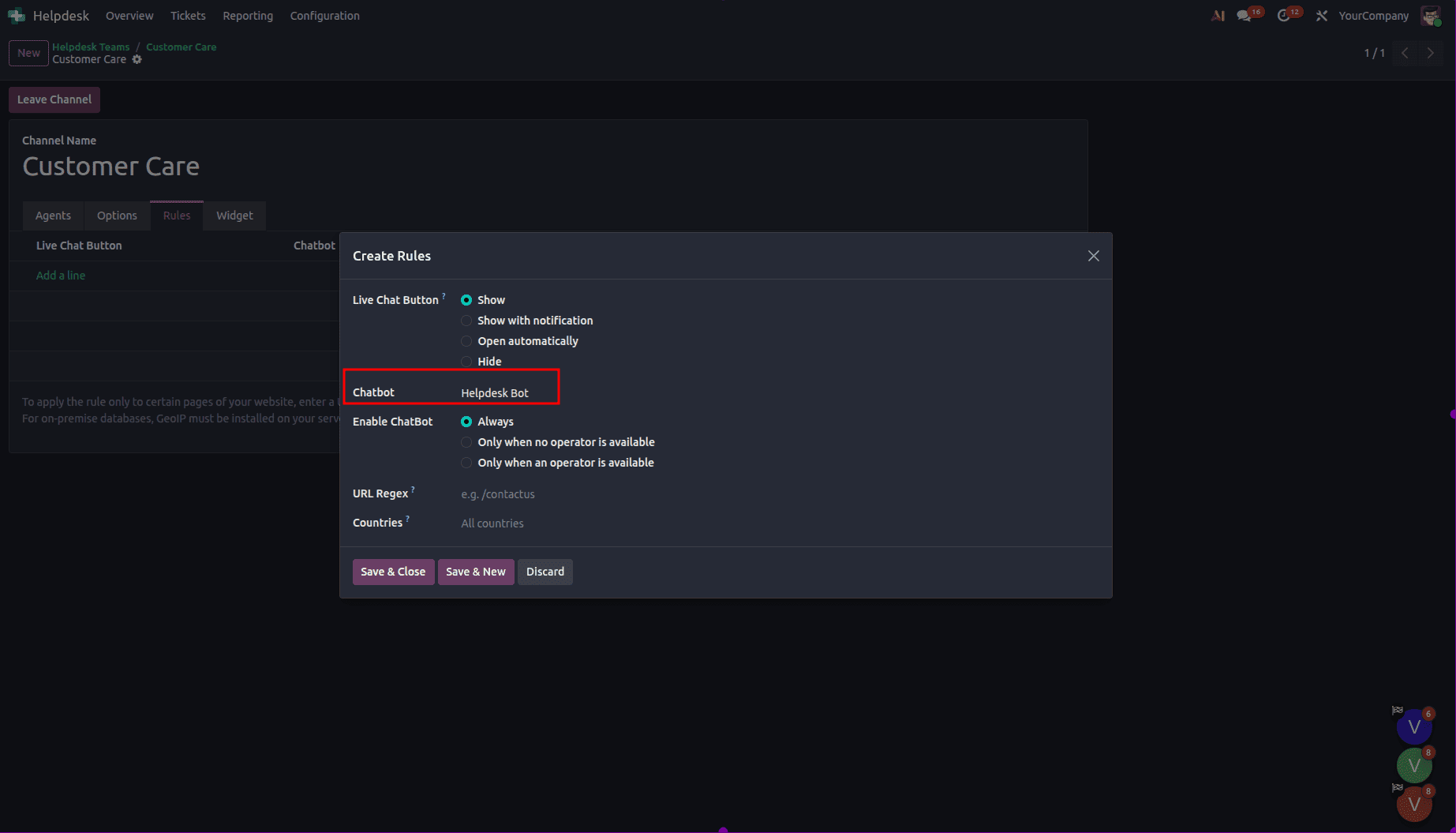
Next, configure the chatbot within the Live Chat channel, to make it available for customer interactions.
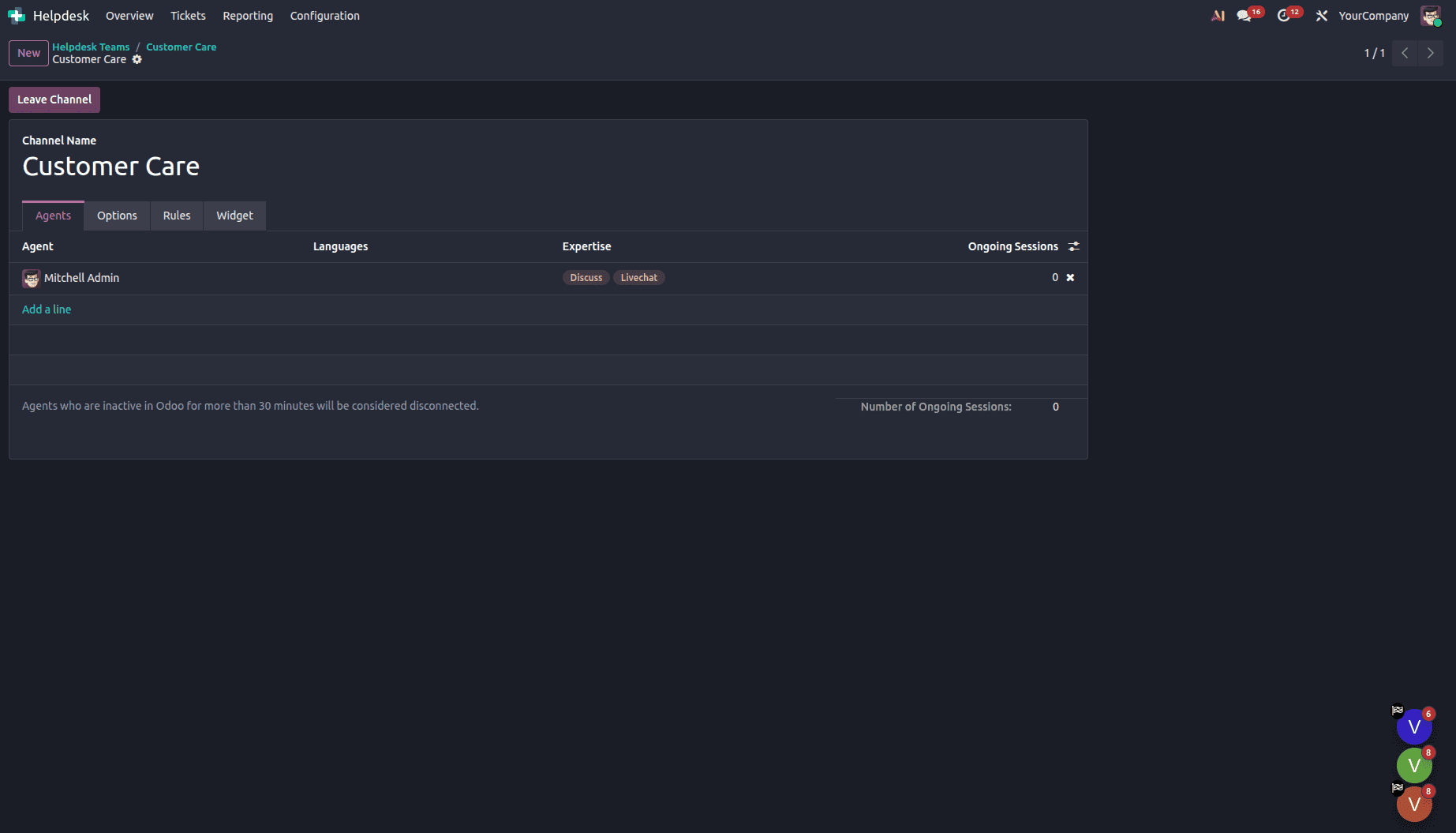
Go to the Channel Rules tab to set up the bot and specify the conditions for its activation by filling out the Open Automatically Timer field.
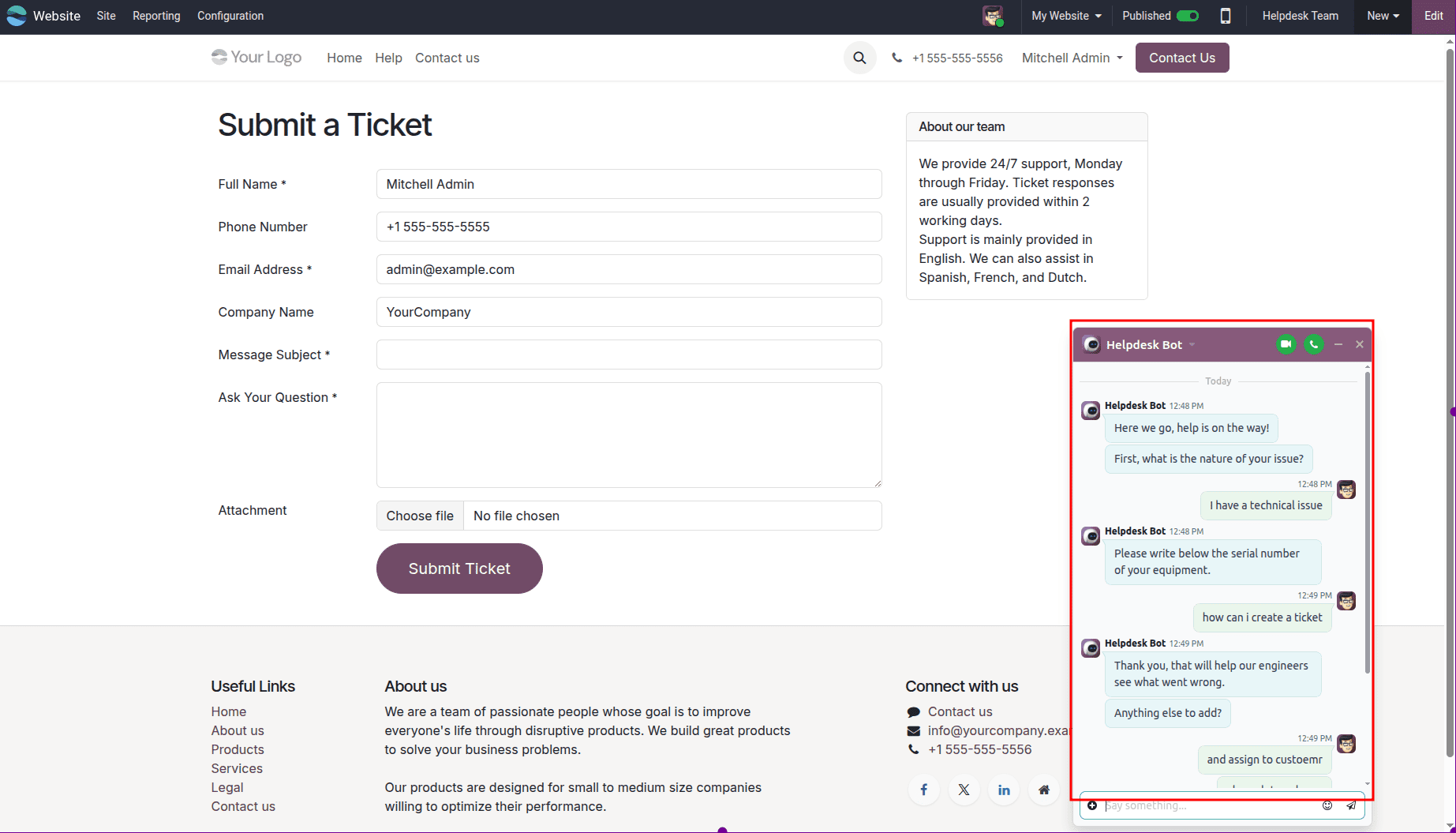
Next, you may test the chatbot on the website.
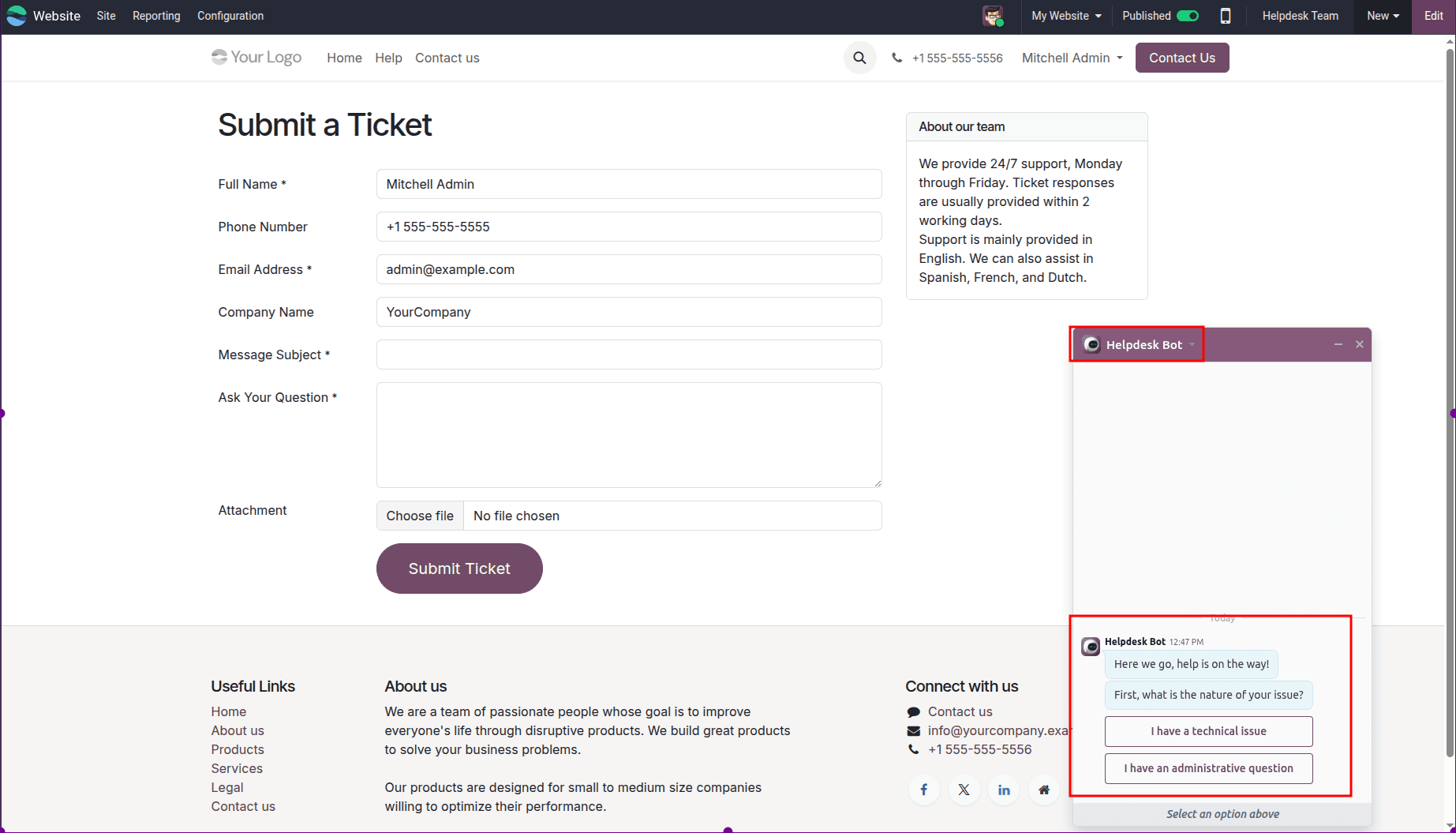
You will find the chatbot to ask any questions.
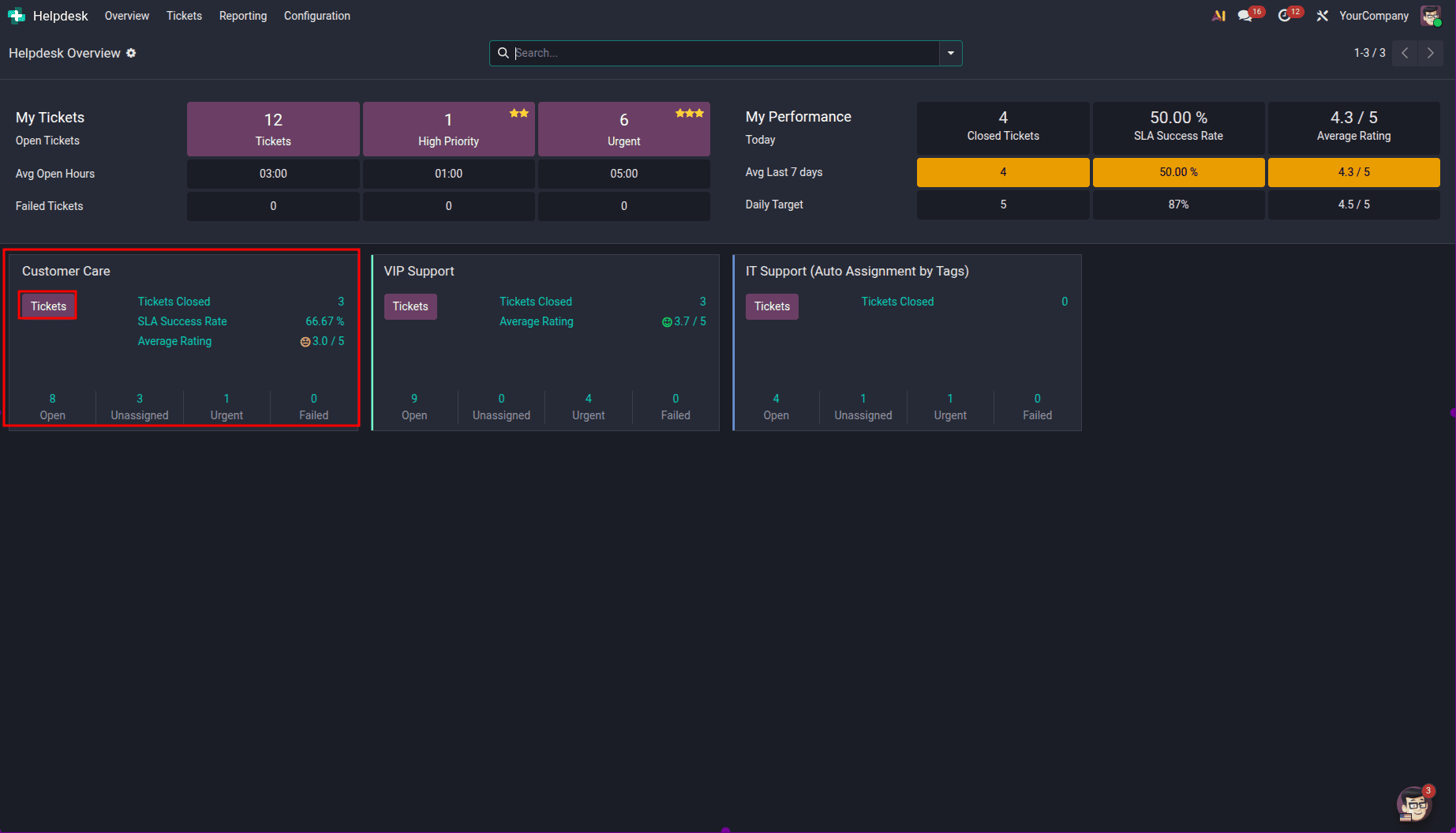
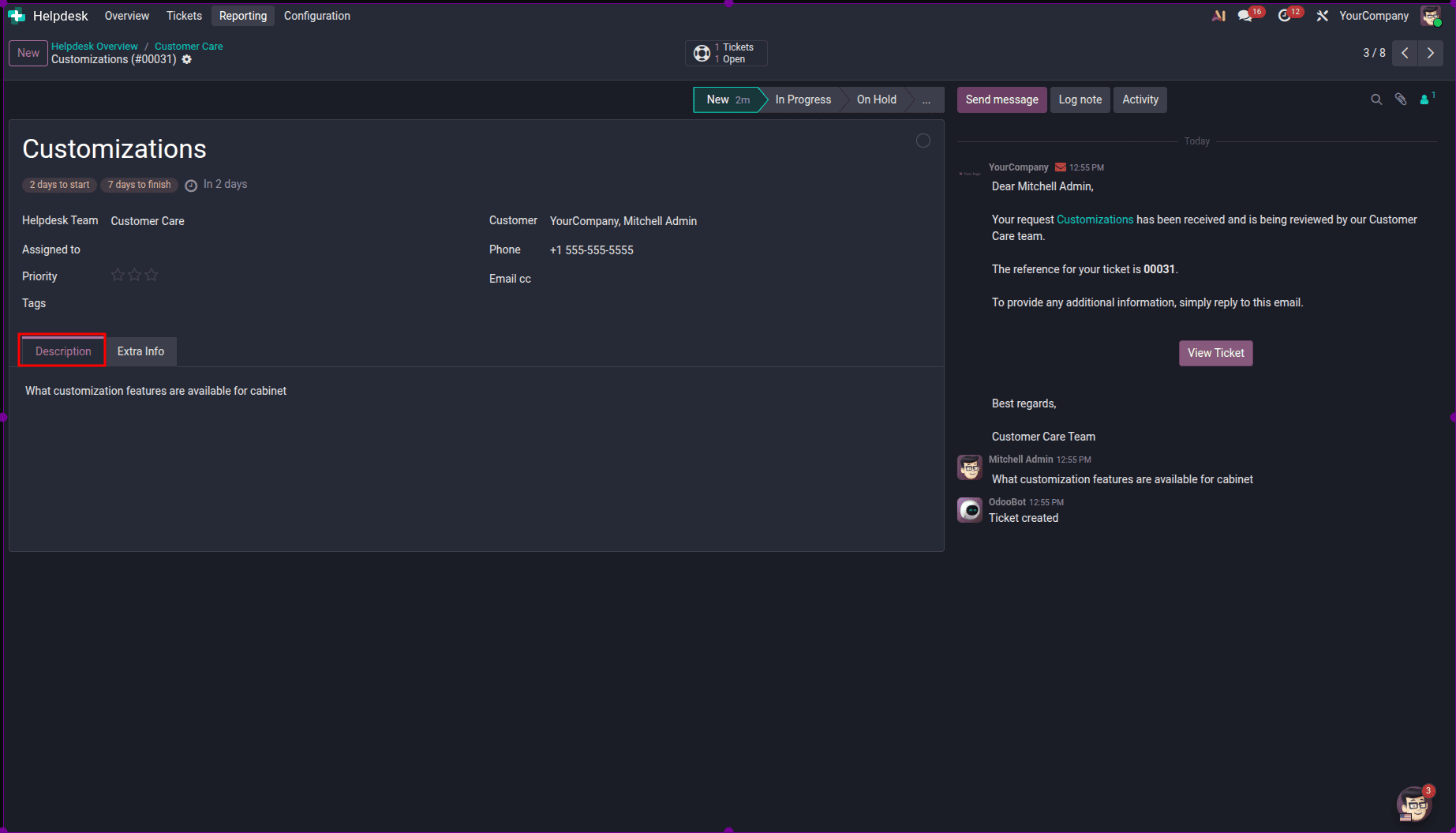
In order to verify that the ticket is created, go back to the Helpdesk module and enter the related Helpdesk Team.
There, you can see all the tickets.
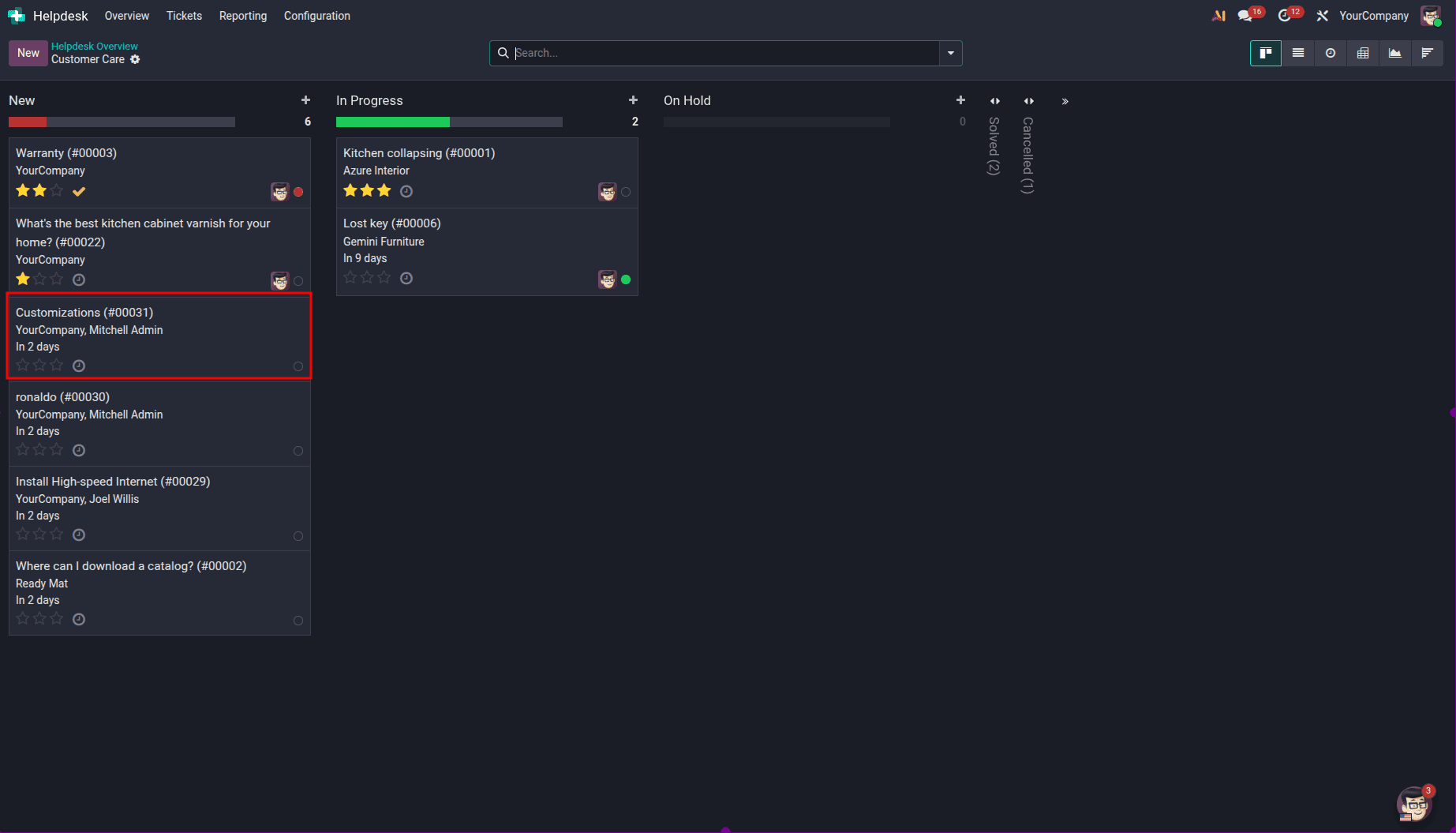
The ticket created through the chatbot will appear here, with the conversation details available in the Description field
Setting up a chatbot in the Odoo 19 Helpdesk module allows organizations to automate customer engagements and make support processes easier while lowering the time taken to respond. This is achieved by developing a flow using an effective script, choosing the right steps, and associating the chatbot with a Live Chat channel, thus guiding visitors on how to handle routine inquiries, gather relevant data, and generate support tickets when needed.
To read more about How to Configure Chatbot for your Helpdesk in Odoo 18, refer to our blog How to Configure Chatbot for your Helpdesk in Odoo 18.