Managing sales efficiently while ensuring timely cash flow is a major priority for organizations. One of the most practical ways to achieve this balance is by collecting advance payments from customers before delivering products or services. This is where the Down Payment feature in Odoo 19 becomes highly valuable. Odoo 19 introduces a more streamlined and user-friendly approach to handling down payments, helping businesses reduce financial risk, improve order commitment, and maintain better control over their sales operations.
A down payment is a partial amount paid by a customer in advance to confirm a sales order, with the remaining balance collected later, usually after delivery or service completion. This practice is common in industries dealing with large orders, customized products, long delivery timelines, or project-based services. Down payments not only secure the order but also provide immediate working capital, allowing businesses to manage expenses more effectively while ensuring customer seriousness and commitment.
In Odoo 19, the down payment feature is tightly integrated with the Sales and Accounting modules, making the process smooth and transparent. Once a sales order is created and confirmed, users can easily generate a down payment invoice directly from the order itself. Odoo allows businesses to choose between a fixed down payment amount or a percentage-based down payment, offering flexibility based on business policies or customer agreements. This removes the need for manual calculations or separate advance invoices, reducing errors and saving valuable time.
When a down payment invoice is generated in Odoo 19, it is automatically linked to the original sales order, ensuring complete traceability. The system records the advance payment in accounting as a liability until the final invoice is issued. At the time of final invoicing, Odoo intelligently deducts the down payment from the total amount, ensuring accurate billing and preventing double charging. This automated handling maintains clean financial records and improves compliance with accounting standards.
Creating New Sales Order
To manage down payments in the Odoo 19 Sales module, you must first create a Sales Order. Navigate to the Orders menu and select the Orders submenu. This will open a list view displaying all existing sales orders created in the Odoo Sales module, where you can view, manage, and select the required order to proceed with down payment processing.
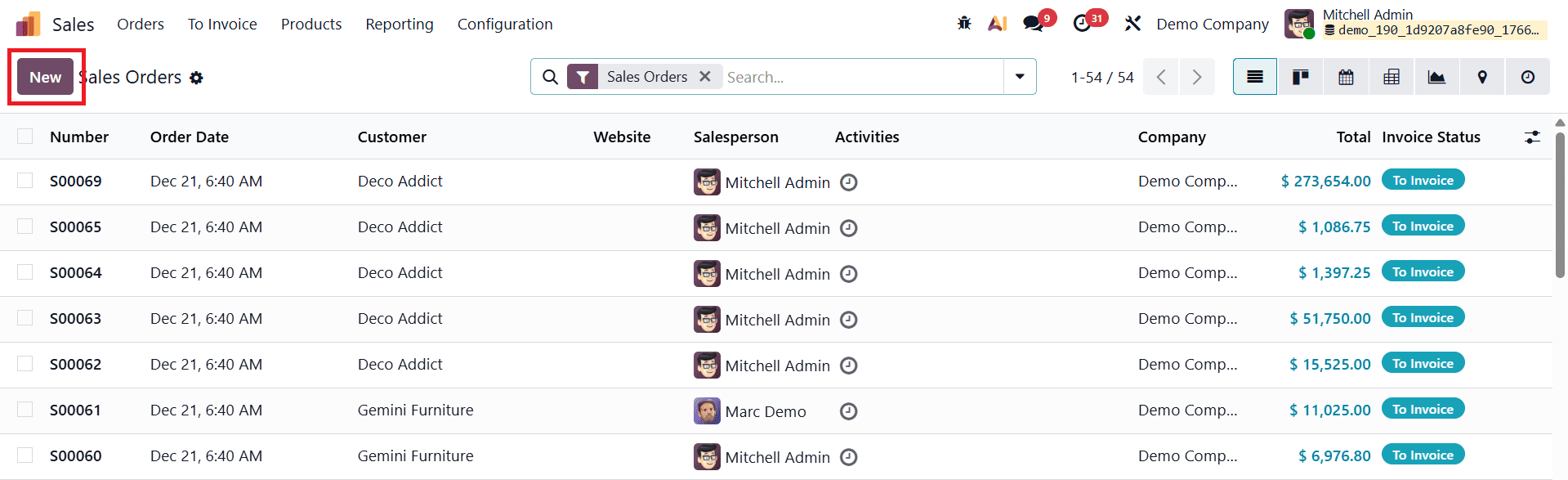
To create a new sales order, click the New button and begin entering the required details in the order form. The key fields to be completed include the Customer, Invoice Address, Delivery Address, Quotation Template, Expiration Date, Quotation Date, Recurring Plan, Pricelist, and Payment Terms.
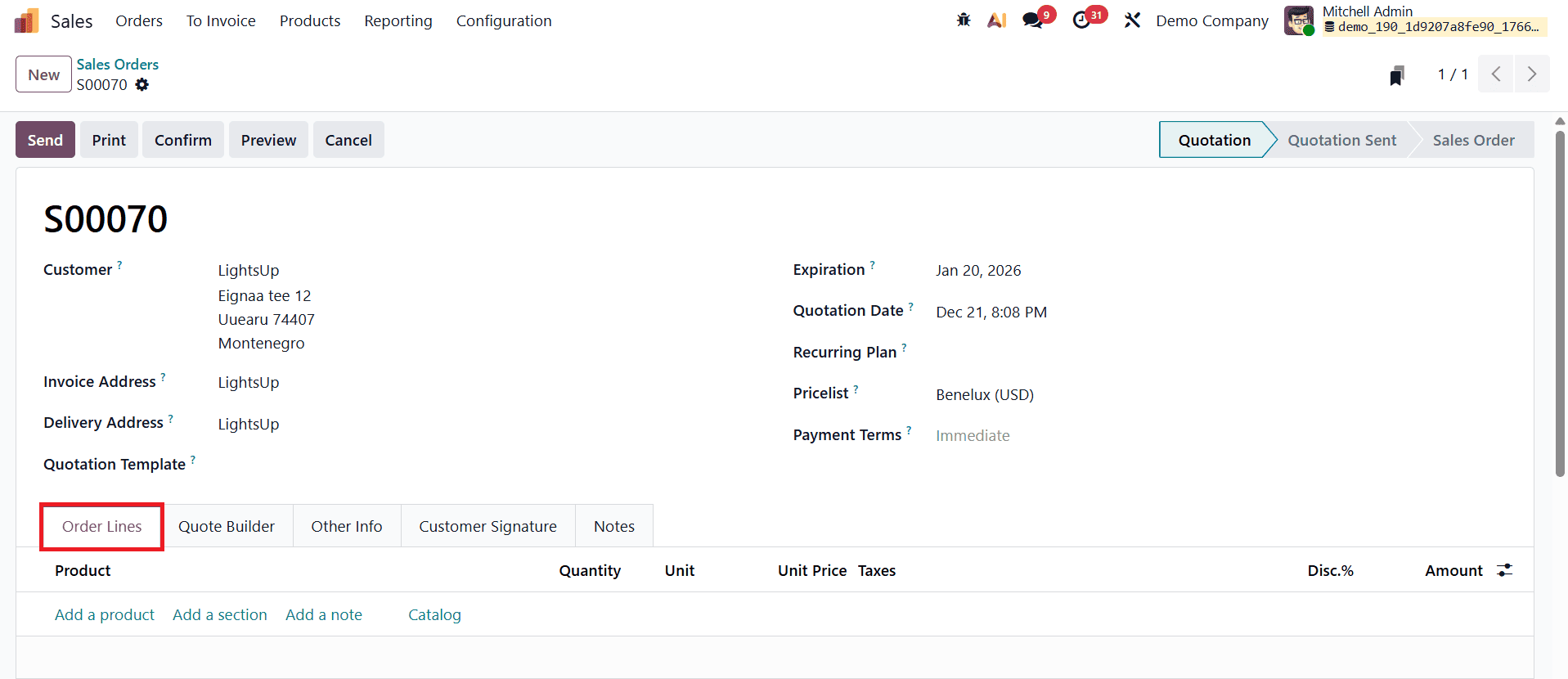
In the Order Lines section of the sales order, add the required product details and specify the quantity.
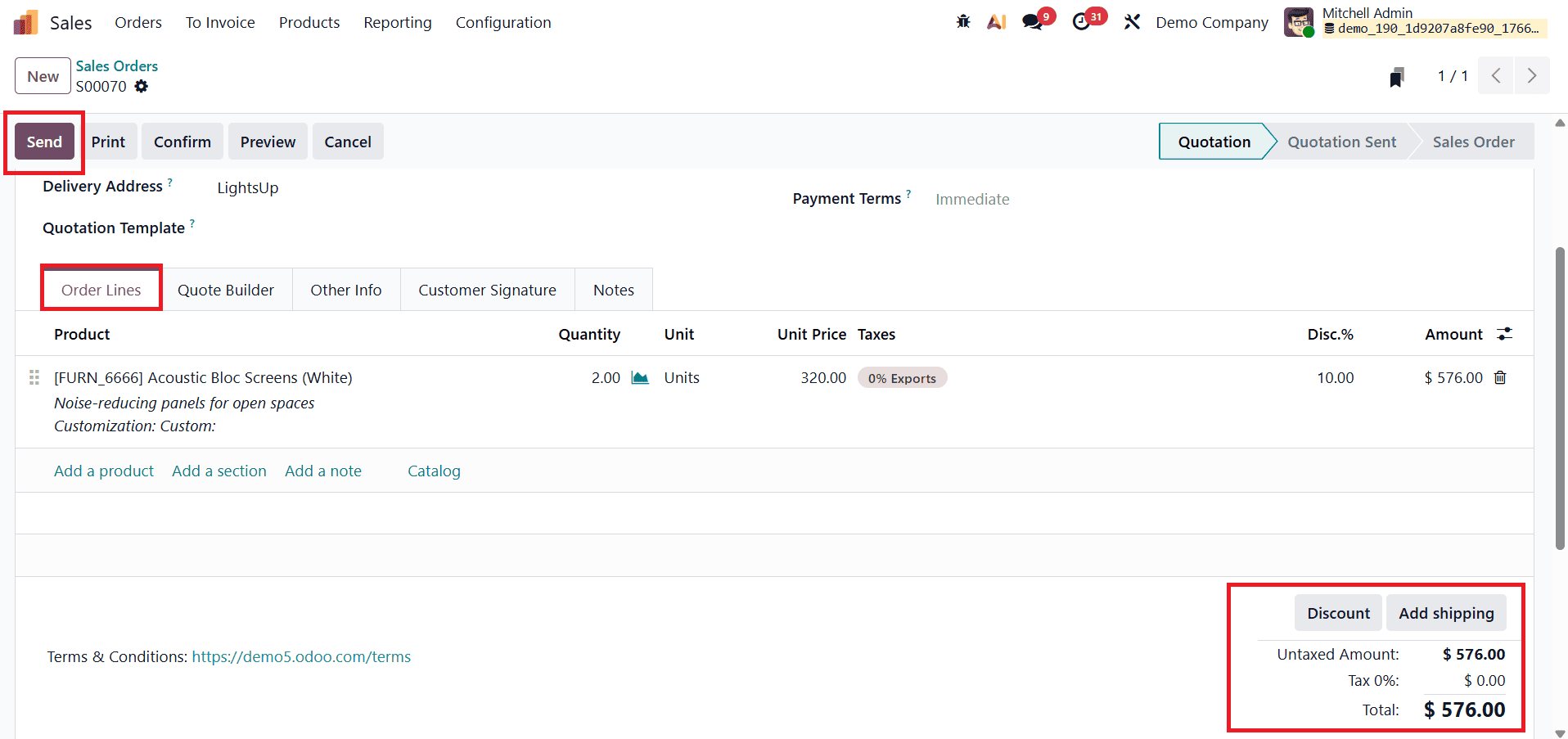
For example, select Acoustic Bloc Screens as the product and set the quantity to 2. Once the product and quantity are entered, Odoo 19 automatically calculates and displays the total price below the product information, ensuring accurate pricing without manual effort. Additional product-related details such as taxes, unit price, and discounts (if applicable) are also reflected in this section.
After entering all the necessary information, save the sales order. To share the quotation with the customer, click the Send button.
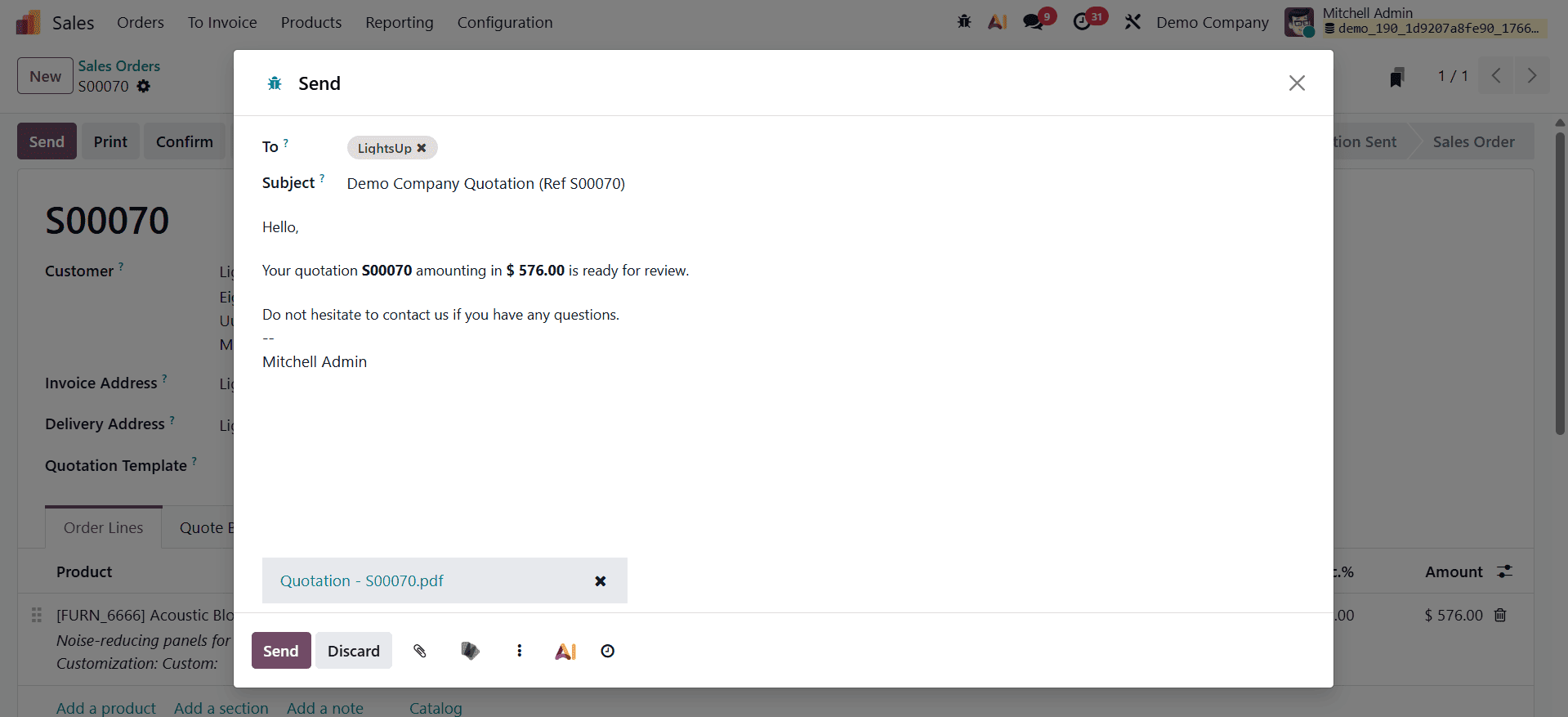
Odoo 19 opens a pre-filled email window containing the quotation details, allowing you to review the content before sending. Once you click Send, the quotation is delivered directly to the customer, and the document status changes from Quotation to Quotation Sent, providing clear visibility into the sales process.

When the customer accepts the quotation and the order is confirmed, Odoo 19 automatically updates the status from Quotation Sent to Sales Order.
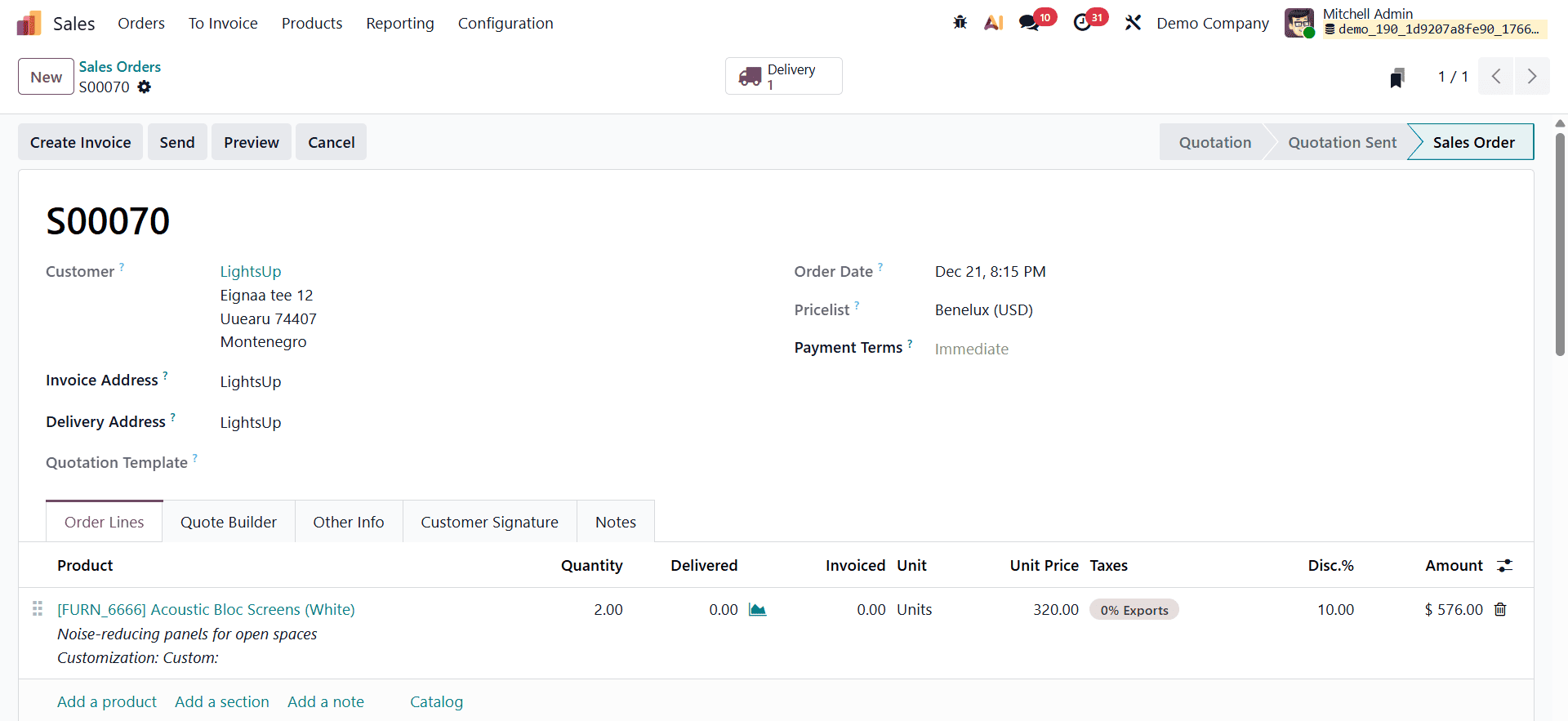
This confirmation indicates that the order is officially approved and ready for invoicing or delivery.
Generating Invoices and Managing Down Payments
To proceed with billing, click the Create Invoice button available on the sales order.
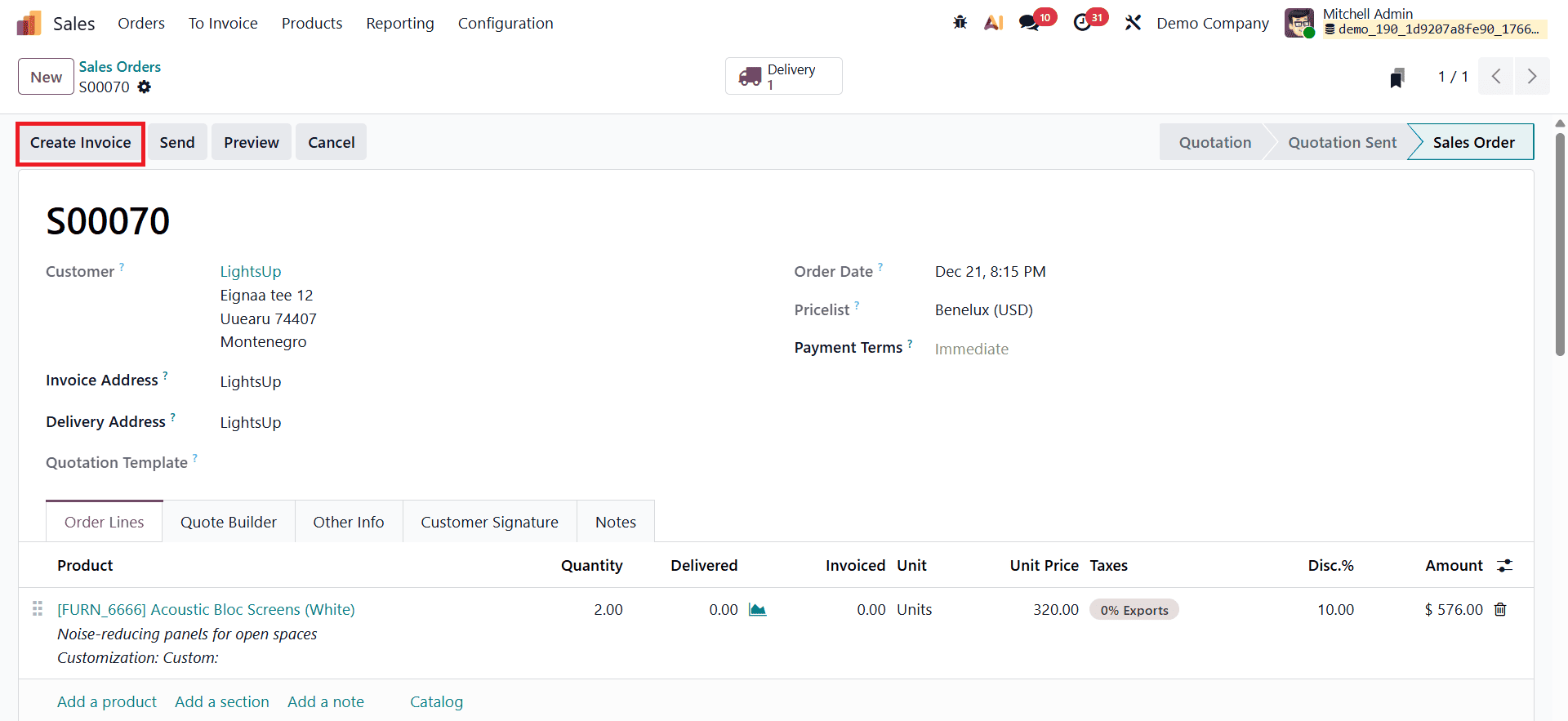
This action opens a pop-up window where you can choose the invoicing method, including options such as regular invoicing or generating a down payment invoice, enabling flexible and efficient invoice management within the sales workflow.

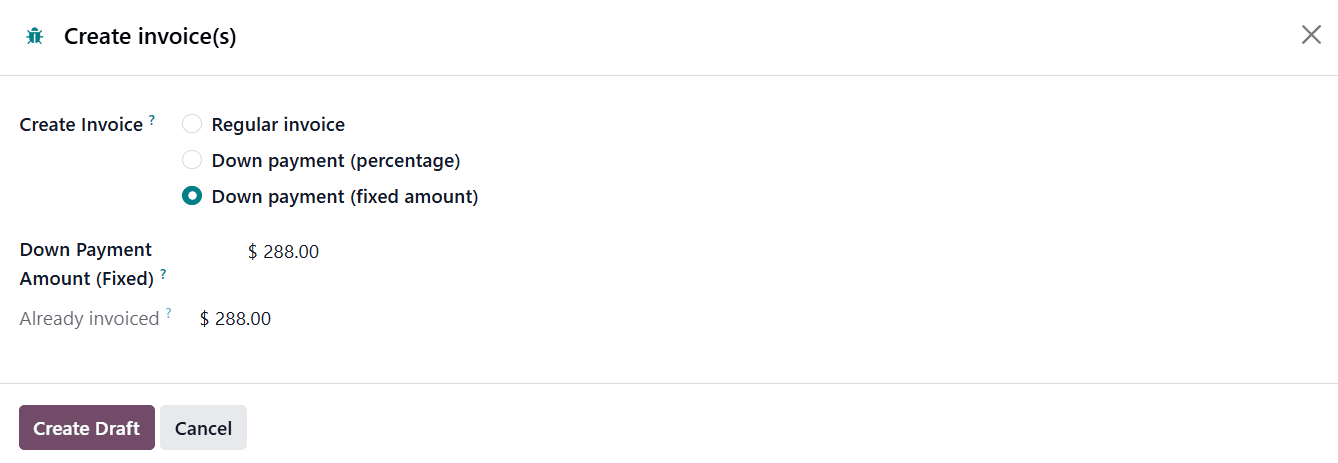
As mentioned above, clicking the Create Invoice button opens a pop-up window that presents three invoicing options: Regular Invoice, Down Payment (Percentage), and Down Payment (Fixed Amount). Selecting the Regular Invoice option generates a standard invoice for the full order value. This option is typically used when payment is collected only after order confirmation, delivery, or service completion, and it follows the conventional invoicing process.
The Down Payment (Percentage) option allows businesses to request an advance payment calculated as a specific percentage of the total sales order amount. This approach is particularly useful for high-value orders or long-term projects, as it ensures partial payment is secured upfront while the remaining balance is invoiced later. Alternatively, the Down Payment (Fixed Amount) option enables users to request a predefined fixed sum as an advance payment, regardless of the total order value. This provides greater control and customization, especially in cases where a standard advance amount is agreed upon with the customer.
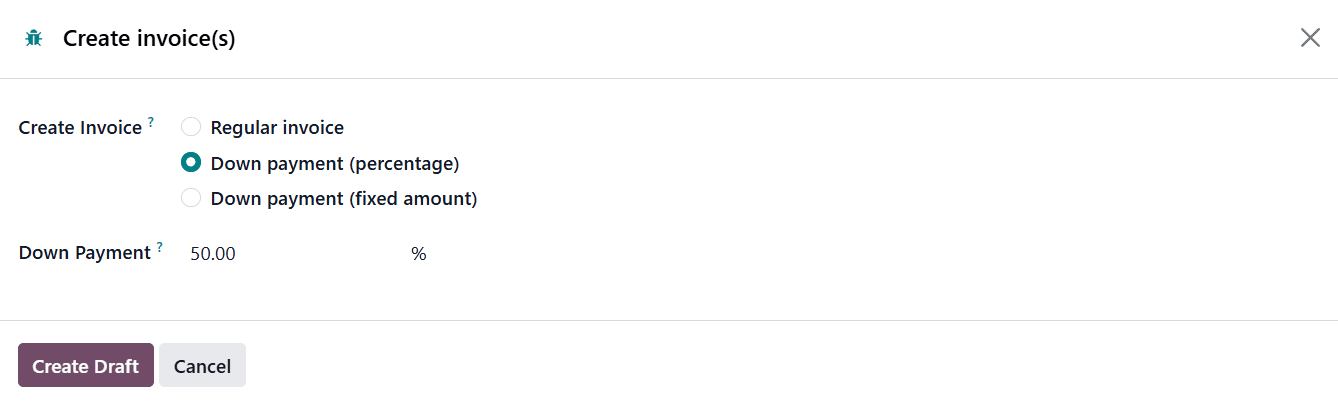
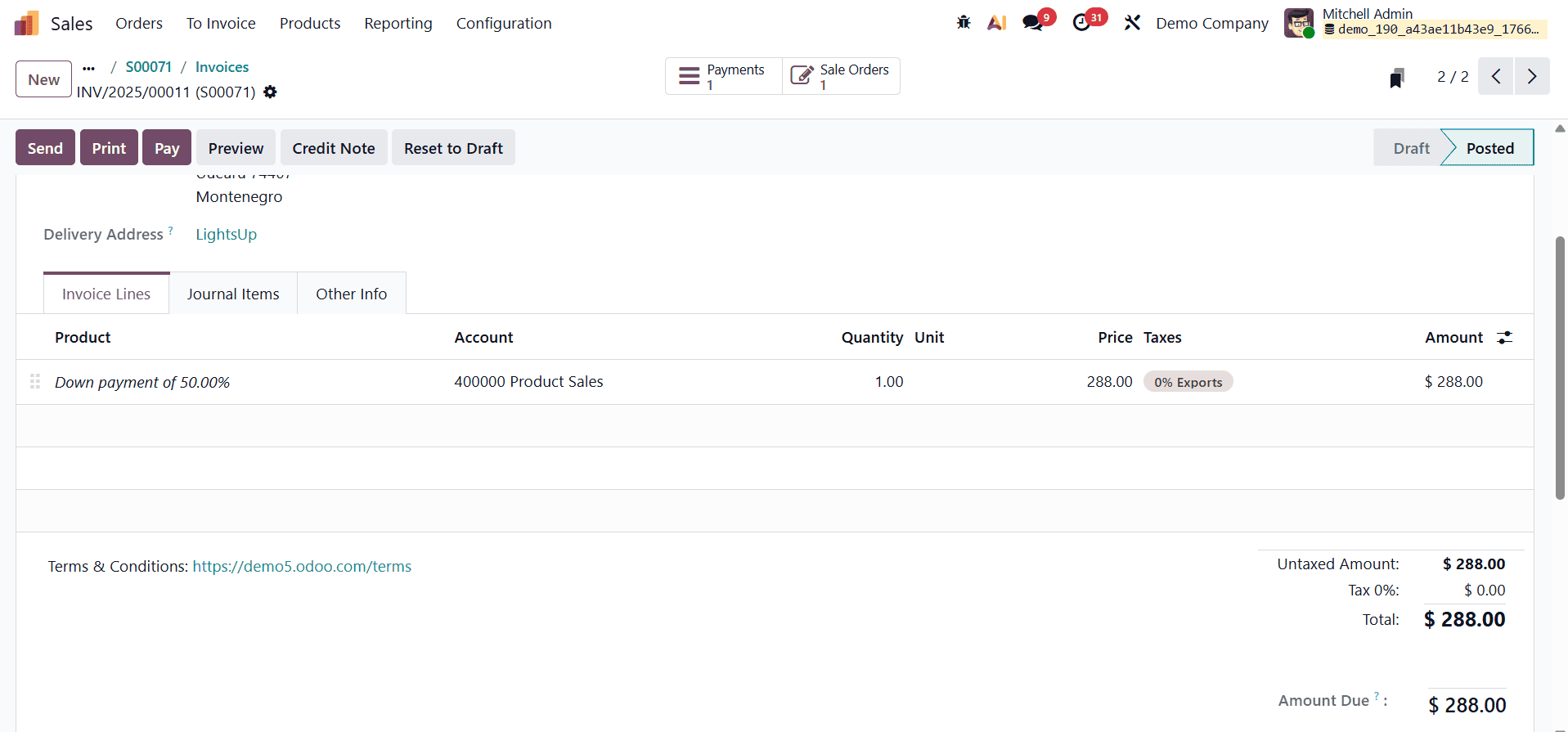
In this step, you can define the down payment as a percentage, for example, 50%. This setting instructs Odoo 19 to generate an invoice for 50% of the total value of the selected sales order. After confirming that all details are correct, click the Create Draft button. You will then be redirected to the Draft Invoice page, where the generated down payment invoice is displayed, allowing you to review the invoice details before validation, as illustrated below.
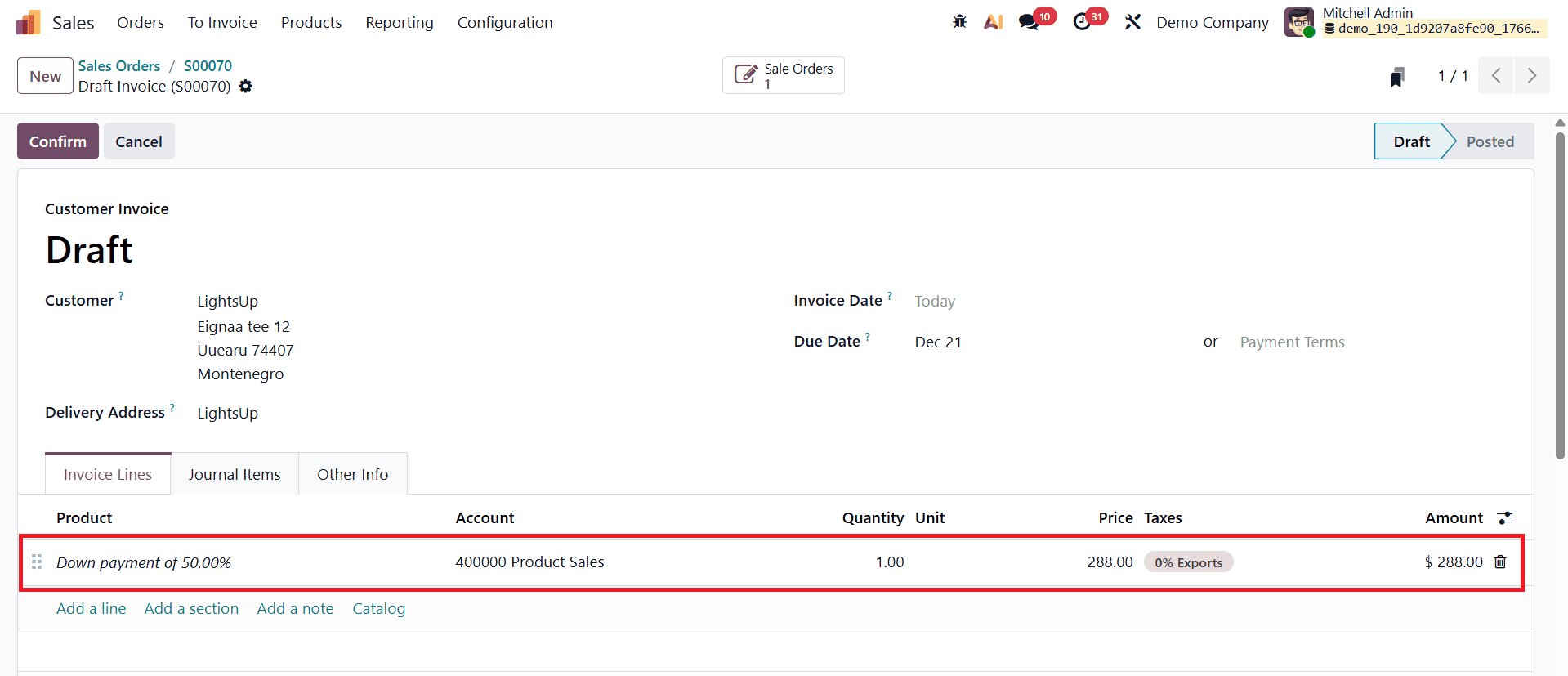
In the Invoice Lines tab, the down payment appears as a separate line item, typically represented as a dedicated down payment product. This line clearly displays essential details such as the down payment percentage, account, unit price, applied taxes, subtotal, and other related accounting information. Odoo 19 automatically calculates the total invoice amount by combining the Untaxed Amount and the Tax Amount, ensuring accuracy and transparency in billing. Once all the details are verified, clicking the Confirm button posts the invoice and changes its status from Draft to Posted.
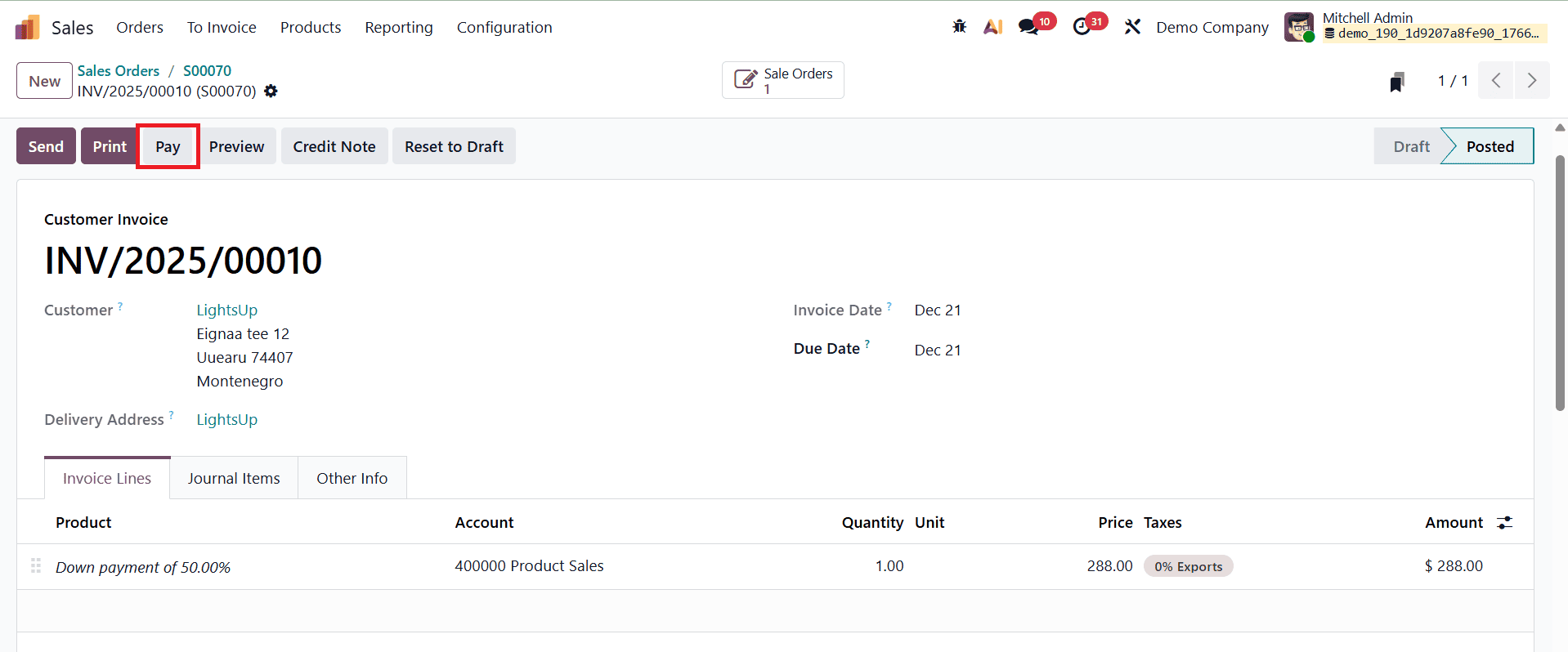
After confirming the invoice, you can proceed to register the customer payment by clicking the Pay button. This action opens a payment pop-up window where key payment-related fields are displayed, including the Payment Journal, Payment Method, Recipient Bank Account, Amount, Payment Date, and Memo.
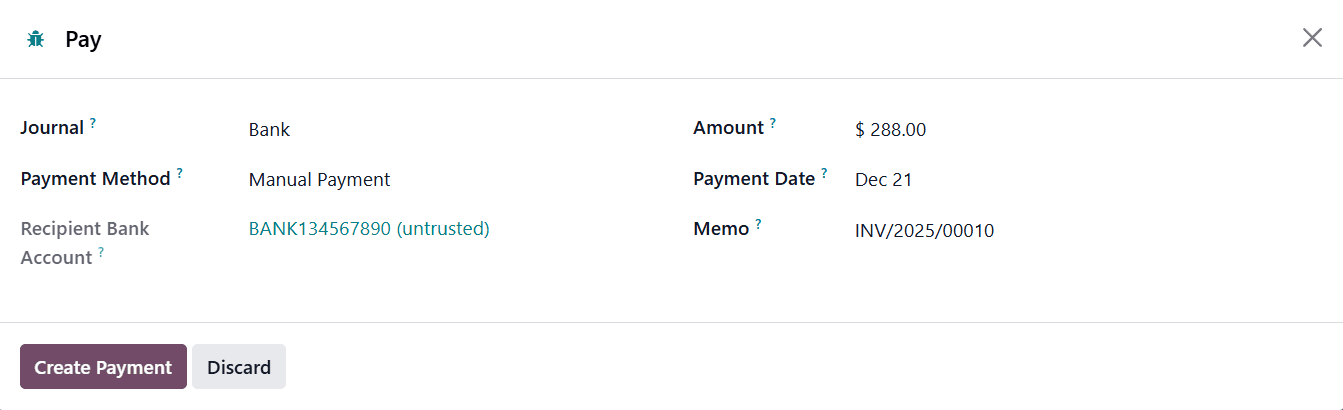
These fields can be reviewed or adjusted based on the payment received from the customer. Once the details are confirmed, click Create Payment to record the transaction.
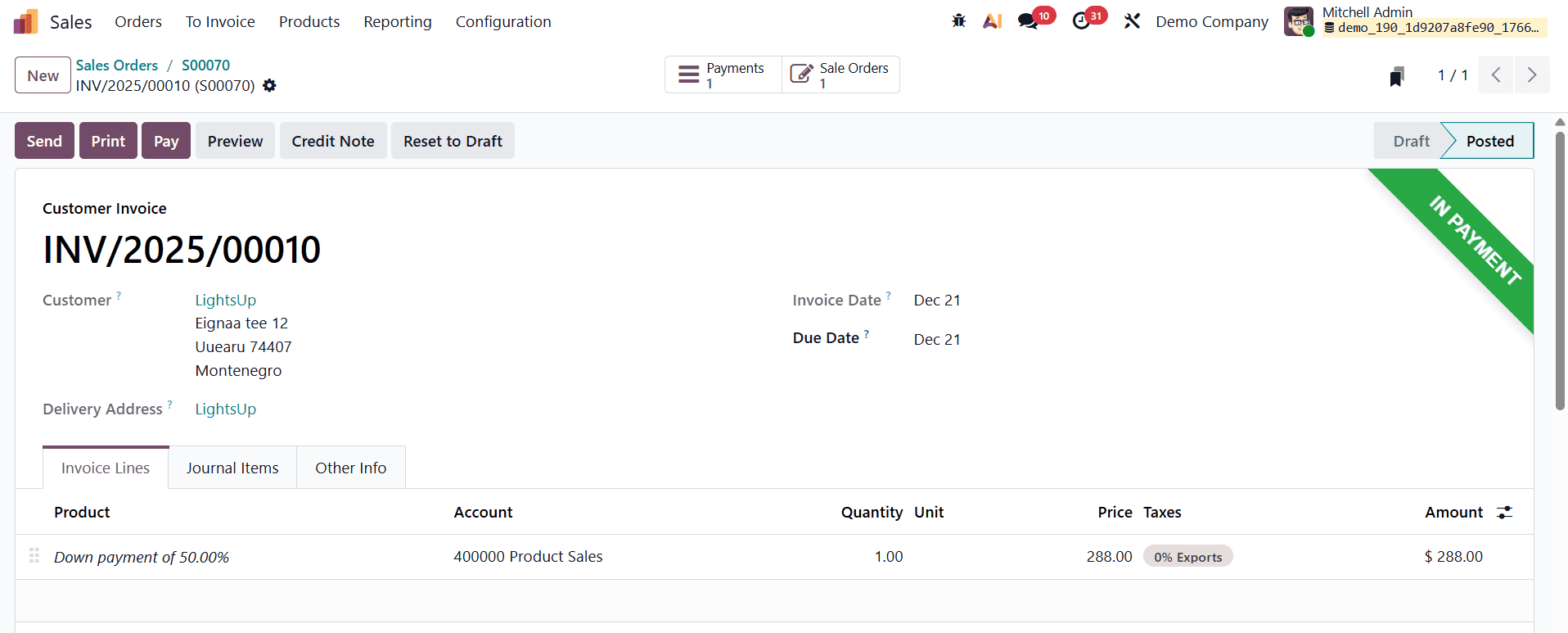
After successful payment registration, an “In Payment” ribbon appears on the invoice form, indicating that the payment process has been initiated.
Returning to the Sales Order, the applied down payment is clearly visible in the Down Payments section, providing instant visibility into advance payments collected for that order.
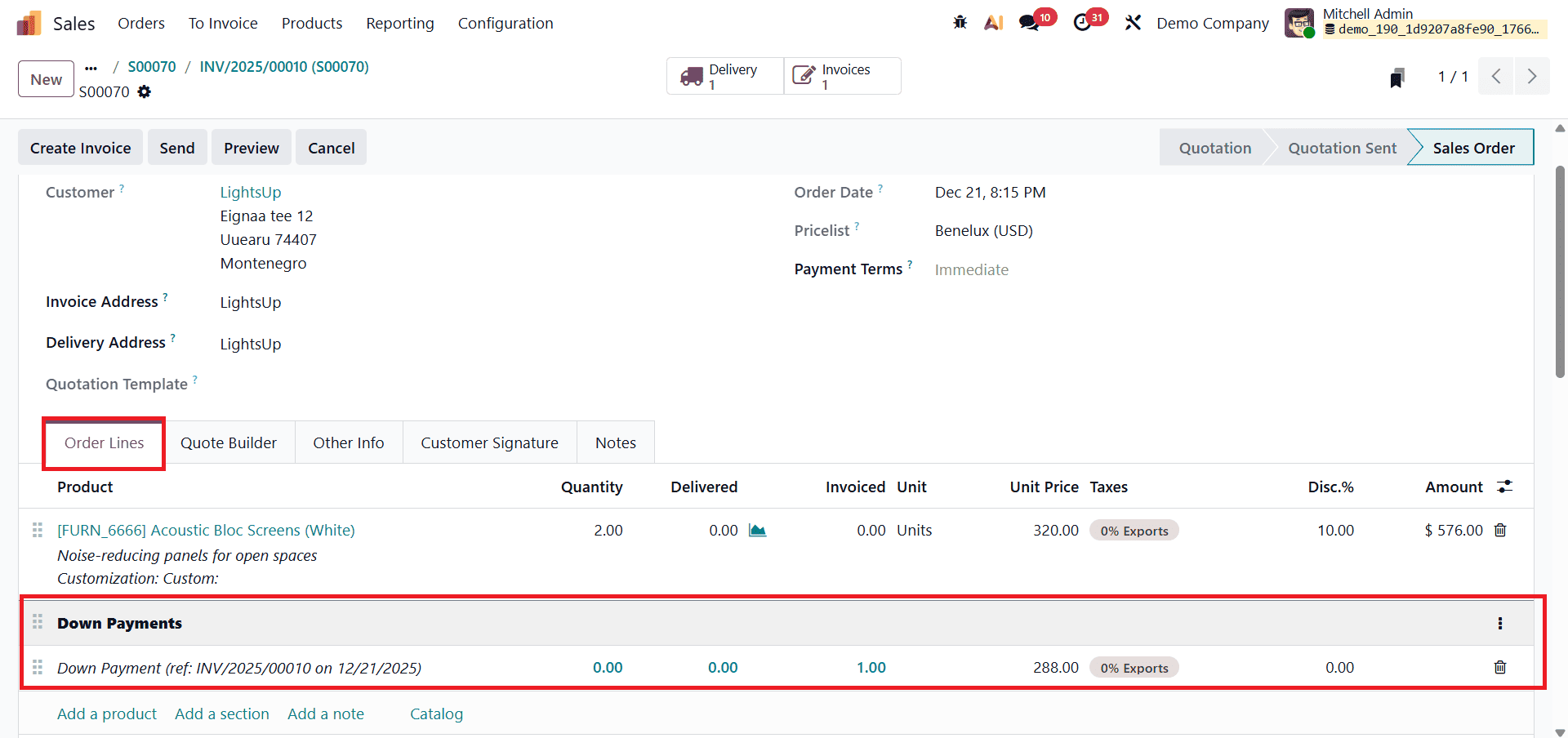
When you click Create Invoice again and select a percentage-based invoice for the remaining amount, Odoo 19 automatically displays the already invoiced amount and deducts it from the total order value. This ensures that the customer is billed only for the outstanding balance, avoiding duplicate charges.
Additionally, Odoo 19 provides smart buttons on the sales order form for easy navigation and control.
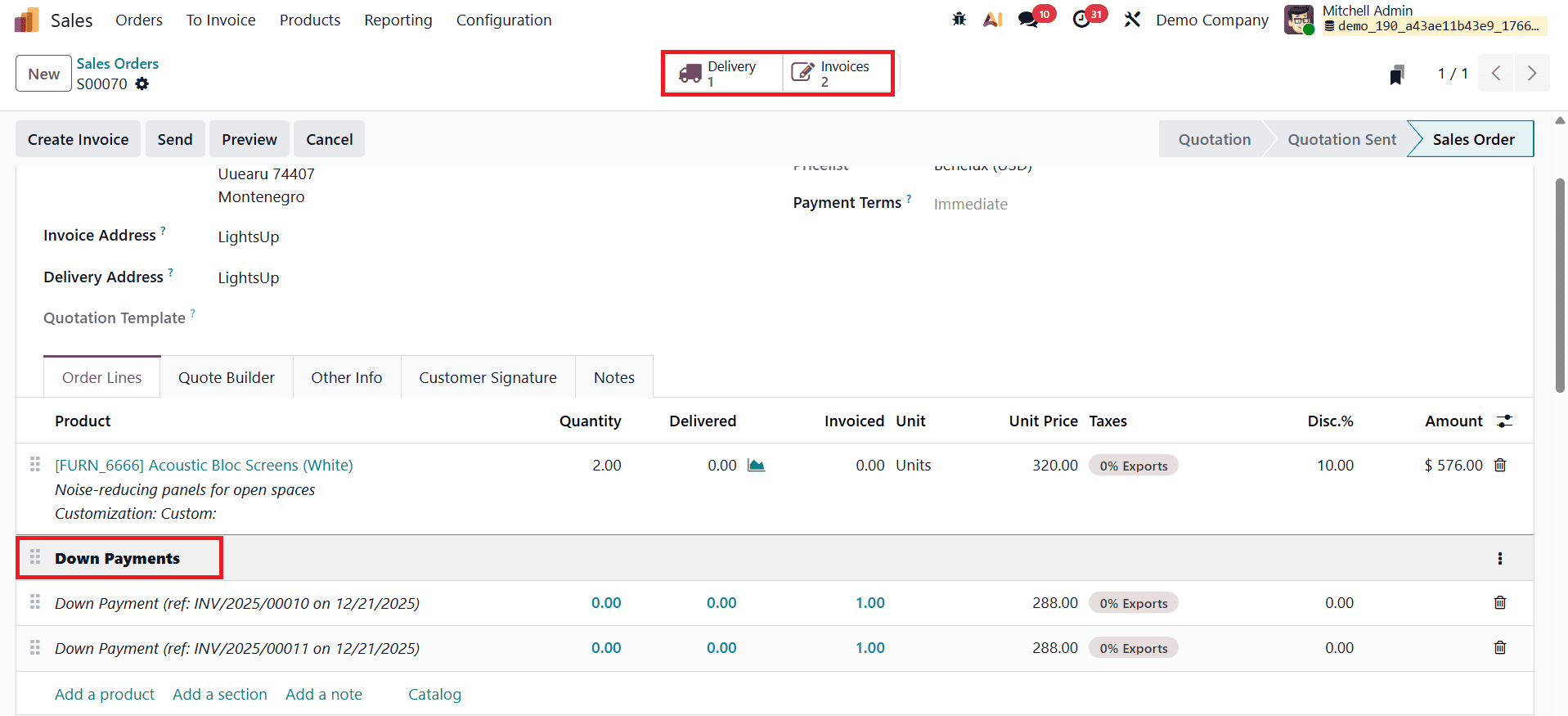
The Invoices smart button allows you to view and manage all invoices related to the order, while the Delivery smart button enables tracking and management of delivery operations.
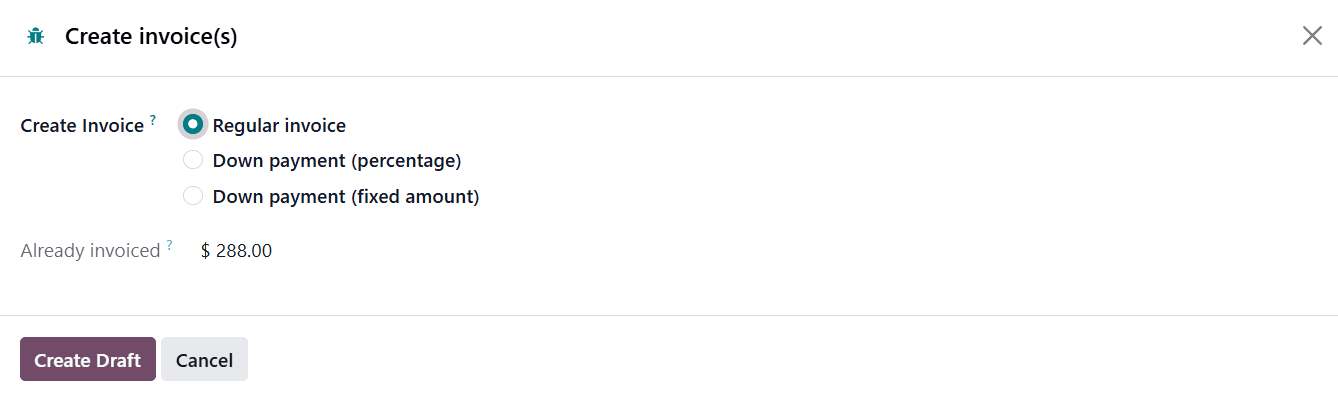
When the customer has already paid a down payment and you proceed to create a regular (final) invoice in Odoo 19, the system automatically adjusts the invoice to prevent double billing. After you confirm the sales order and click Create Invoice again, selecting the Regular Invoice option, Odoo generates the final invoice for the full order value but intelligently accounts for the down payment that was already invoiced and paid.
On the generated regular invoice, Odoo 19 automatically adds a separate line that references the previously issued down payment invoice.
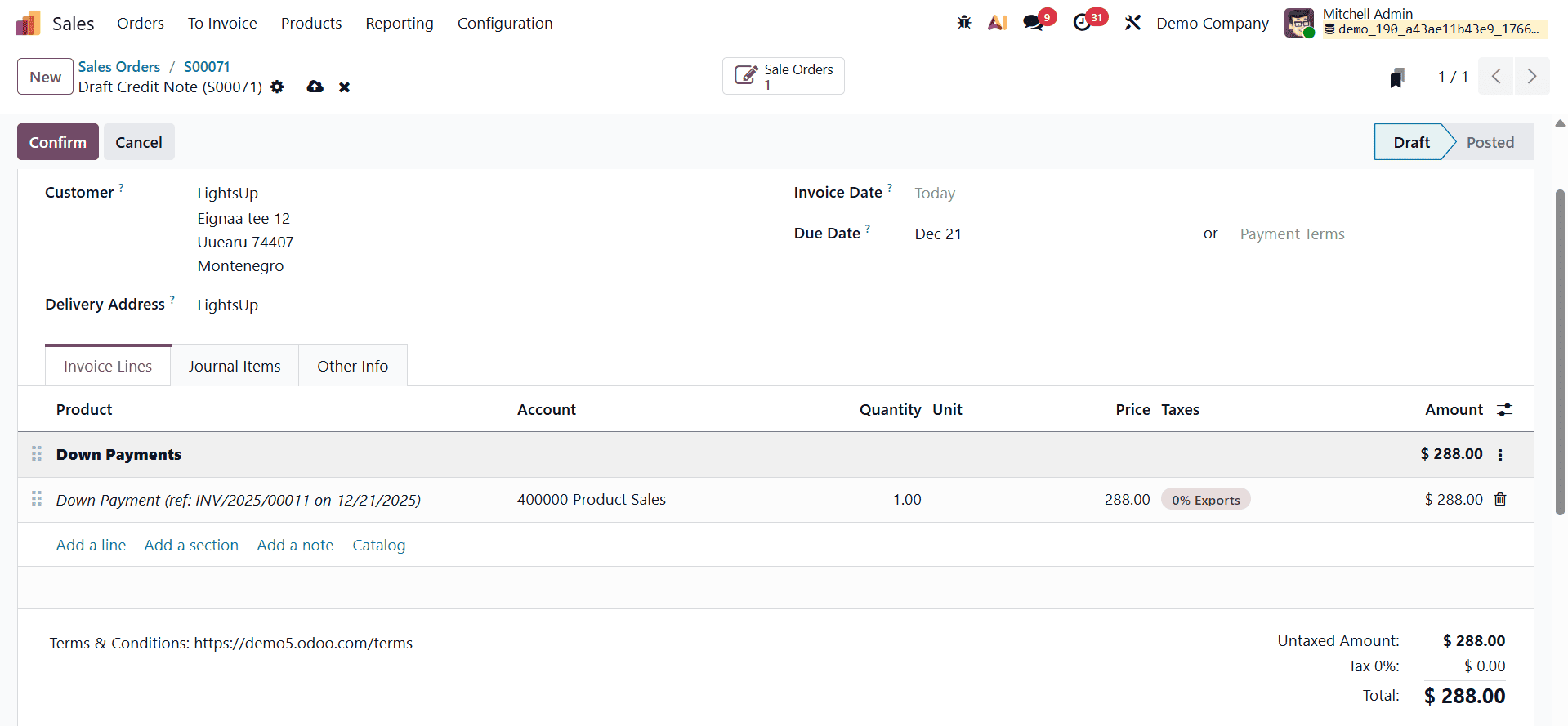
The Amount Due shown on the invoice is only $295, which is the remaining balance that the customer needs to pay. This automated deduction ensures that the customer is not charged twice for the same order.
The Down Payment feature in Odoo 19 plays a vital role in streamlining the sales and invoicing process while ensuring accurate financial control. By allowing businesses to collect advance payments as either a percentage or a fixed amount, Odoo 19 helps improve cash flow, reduce payment risks, and secure customer commitment early in the sales cycle. The system’s automatic handling of down payment invoices and their deduction during final invoicing eliminates manual calculations and prevents double billing. With transparent invoice records, seamless payment tracking, and smart integration between the Sales and Accounting modules, Odoo 19 enables organizations to manage complex sales transactions with greater efficiency, clarity, and confidence.
To read more about How to Set Up and Process Down Payments in Odoo 18 Sales, refer to our blog How to Set Up and Process Down Payments in Odoo 18 Sales.