It is vital to handle taxation effectively in any retail firm because this will facilitate efficient management of the business on a daily basis. Odoo 19 Point of Sale allows businesses to apply taxes to POS orders based on the taxes configured on products and the fiscal positions assigned to the POS order. This helps ensure accurate billing and compliance with applicable tax regulations, especially when using a single tax rate.
In this blog, we’ll explore two important tax features in POS: Default Taxes and Flexible Taxes.
- Default Taxes are standard tax rates that are automatically applied to products when a sale is made.
- Flexible Taxes provide more control by allowing taxes to be dynamically adjusted or remapped based on fiscal positions and specific business requirements.
Understanding these two options can help businesses handle straightforward tax setups while managing more complex tax scenarios efficiently.
Default Taxes
In Odoo 19, Default Sales Tax is a company-wide default tax setting used to automatically populate the Sales Taxes field when creating new products. It isn't simply a POS-specific tax rate that gets added to every POS sale. The default tax will be automatically added to the products when the sale happens via POS unless another tax is defined for that product.
The default sales tax configuration can be done under Point of Sale > Settings > Accounting. Here, choose the tax that needs to be used for POS sales.
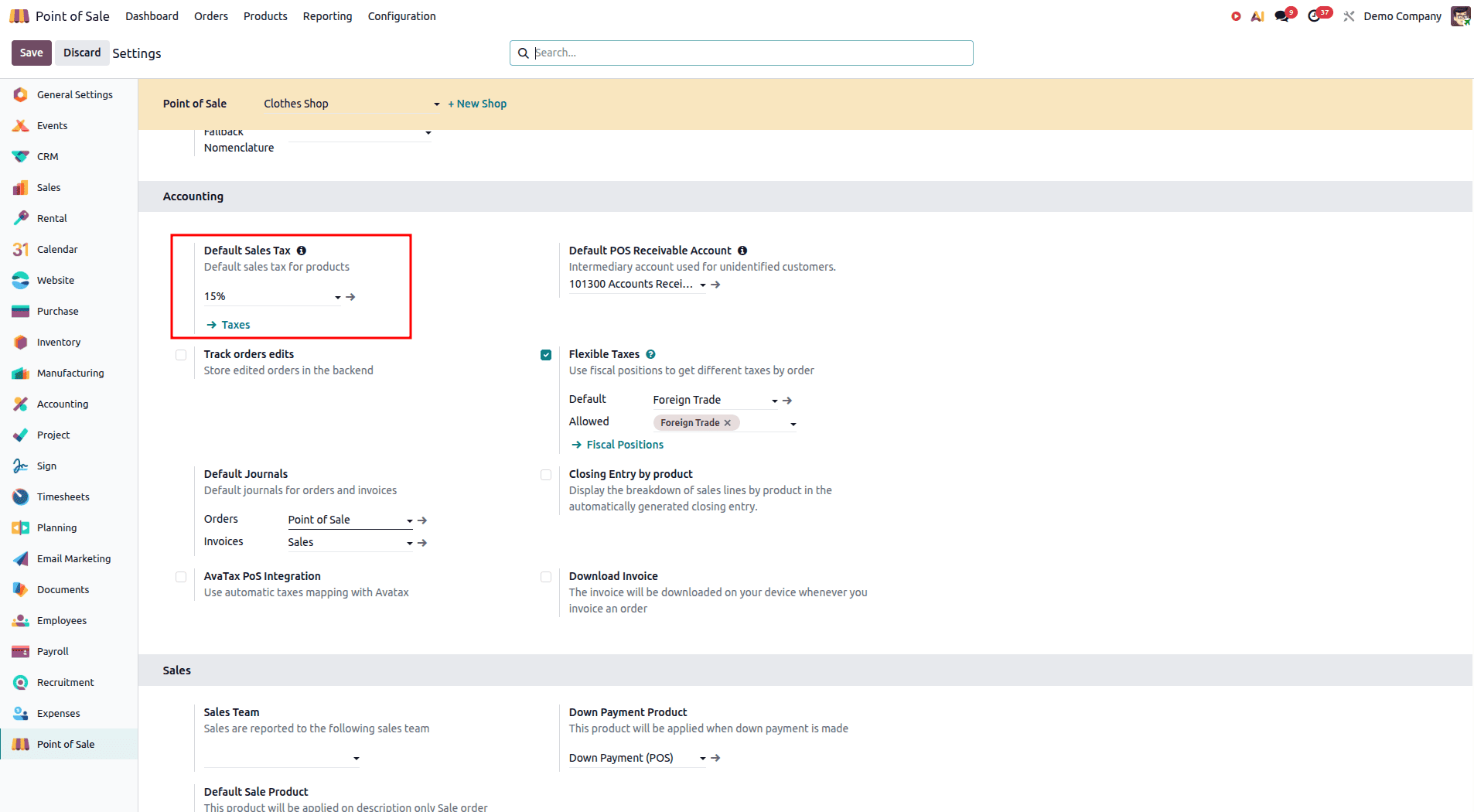
For instance, in the settings illustrated below, the Default Sales Tax has been set to 15% (DZ). This implies that every time a product is sold using the POS system, the 15% tax will automatically be added unless you have another tax setting for that particular product.
To set up a new tax rate, click on Taxes and then choose New. This will allow you to configure your tax as per your business needs. These include:
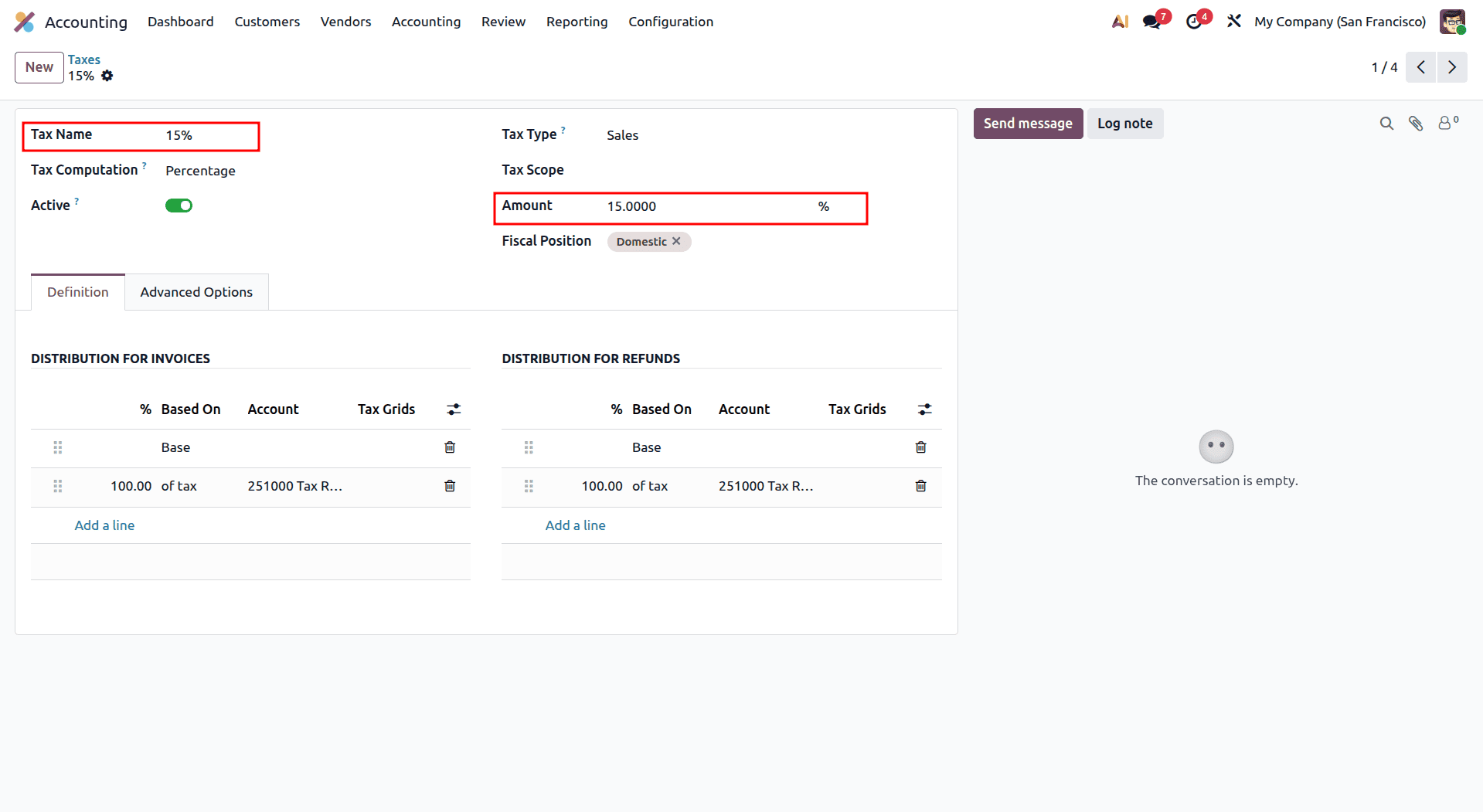
- Enter the Tax Name, such as Tax 5%.
- Set the Tax Type to Sales.
- Specify the Amount, for example, 5%.
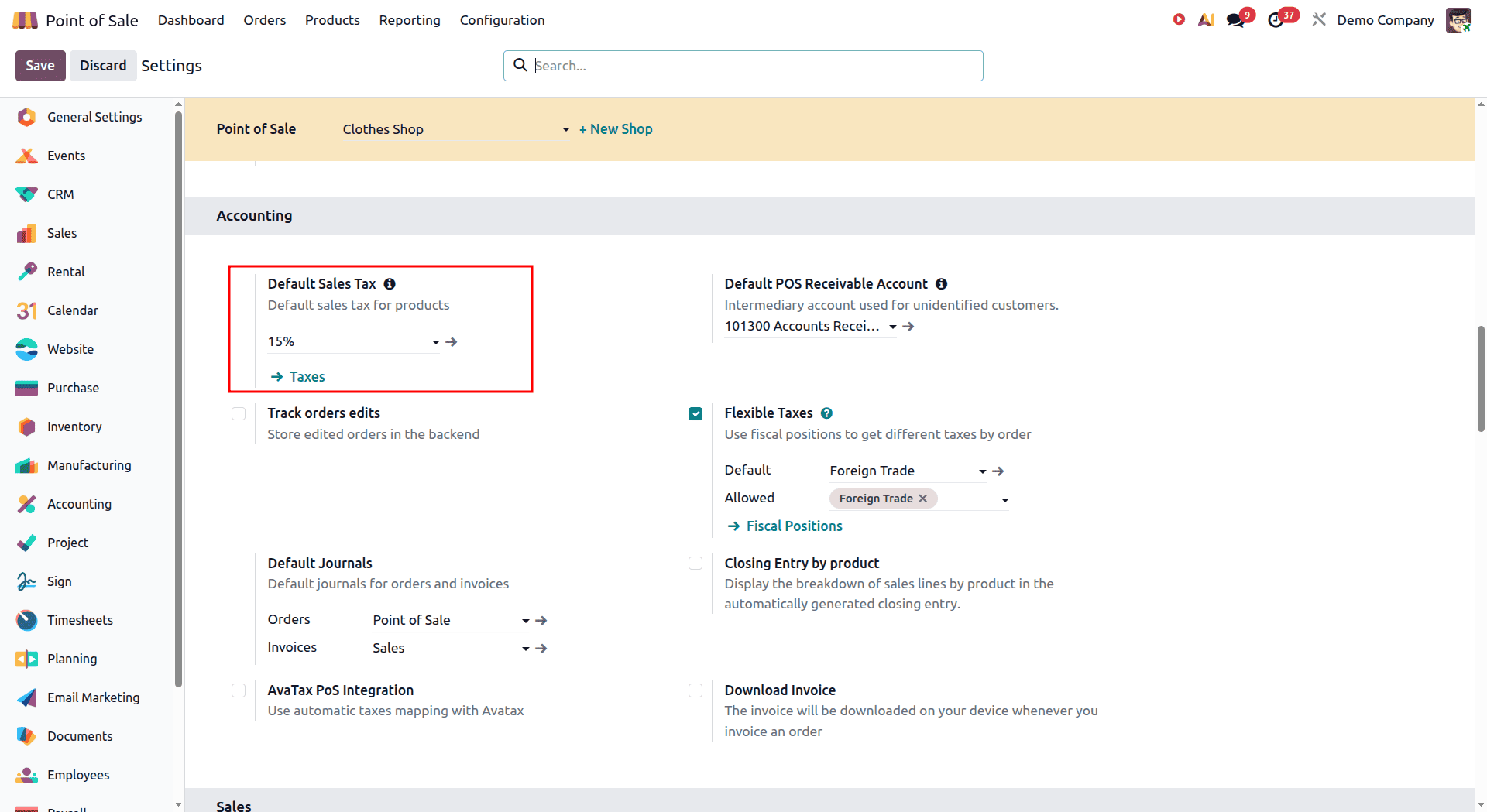
Once the tax has been created, you can set it as the default tax for POS sales. Go to POS Settings > Default Sales Tax and select the newly created tax.
For example, in the configuration shown below, Tax 15% has been selected as the default sales tax. From this point onward, the 15% tax will be automatically applied to POS sales unless a different tax is configured for a specific product.
We shall now proceed to create a new product and check how the Default Sales Tax that we have configured is automatically assigned to this newly created product. This will enable us to understand how the default tax applies to this particular product.
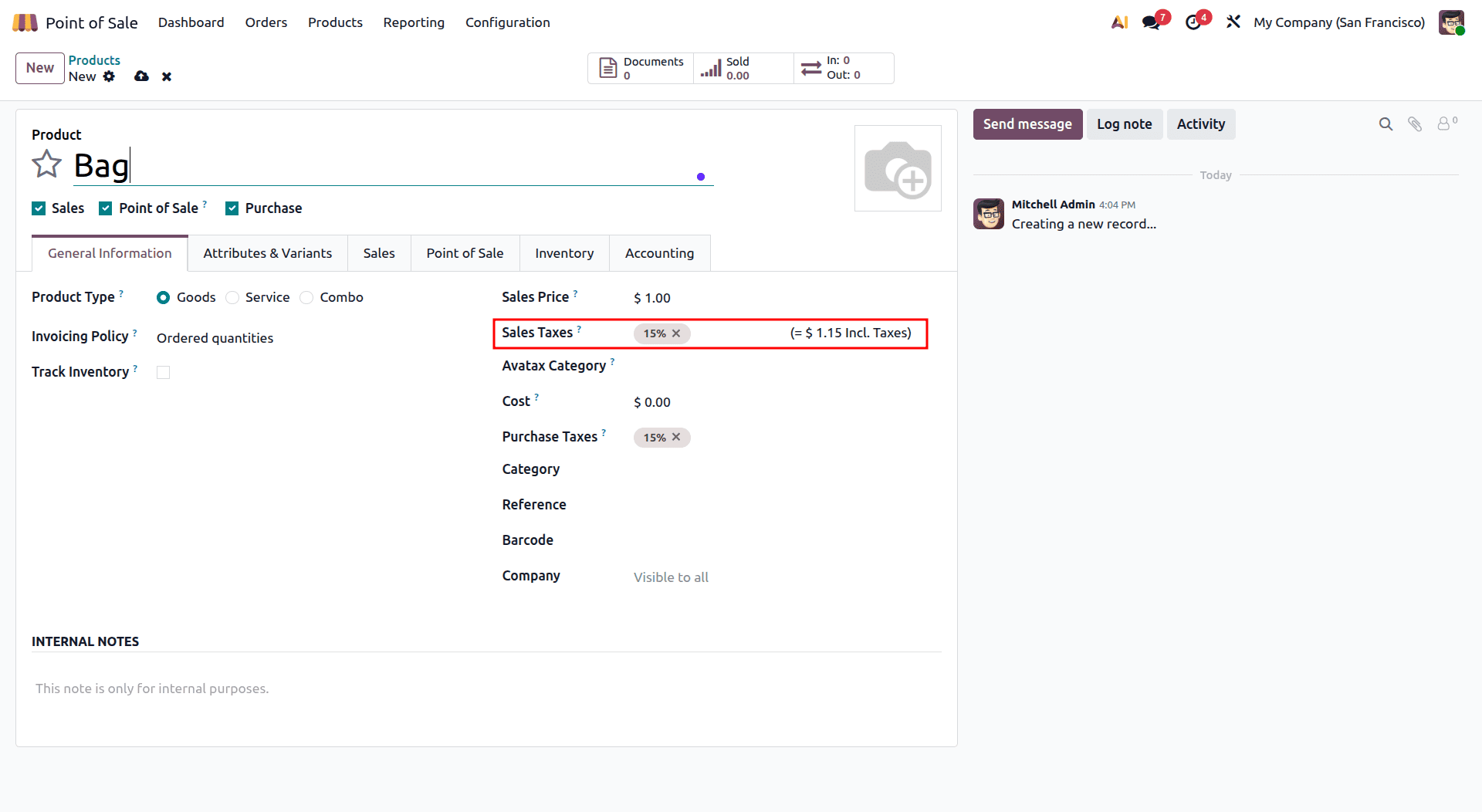
As shown in the example above, when creating a new product, the Sales Tax is automatically set to the tax configured as the Default Sales Tax. In this case, Tax 15% is applied automatically.
Flexible Taxes
Odoo 19 Flexible Taxes gives you better options when applying taxes in varying sales situations, because it no longer uses the default fixed tax rate. With Flexible Taxes, you can create tax mappings and enable your point-of-sale system to calculate the tax based on certain criteria such as the fiscal position of the client.
In fact, this feature makes it easier to deal with clients from different areas and under varying tax jurisdictions.
For example:
- A product may have a 15% tax configured by default.
- If a different fiscal position is applied, the system can automatically replace the 15% tax with a 25% tax.
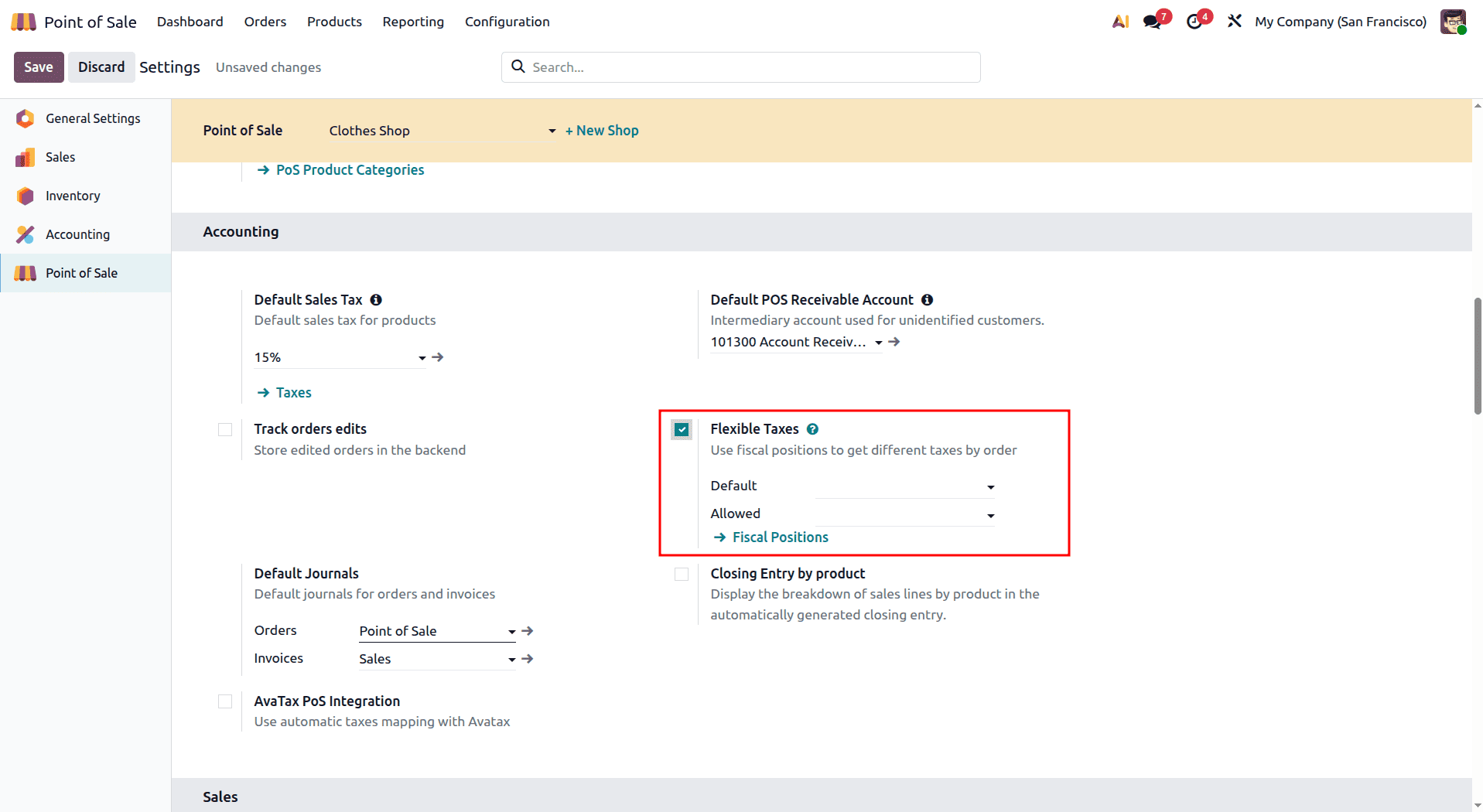
To enable this feature, go to Point of Sale > Settings and scroll down to the Accounting section. Enable the Flexible Taxes option and click Save.
Go to Taxes to set Fiscal Position to specify different taxes. This is where you can configure your own tax mapping settings as per your requirements.
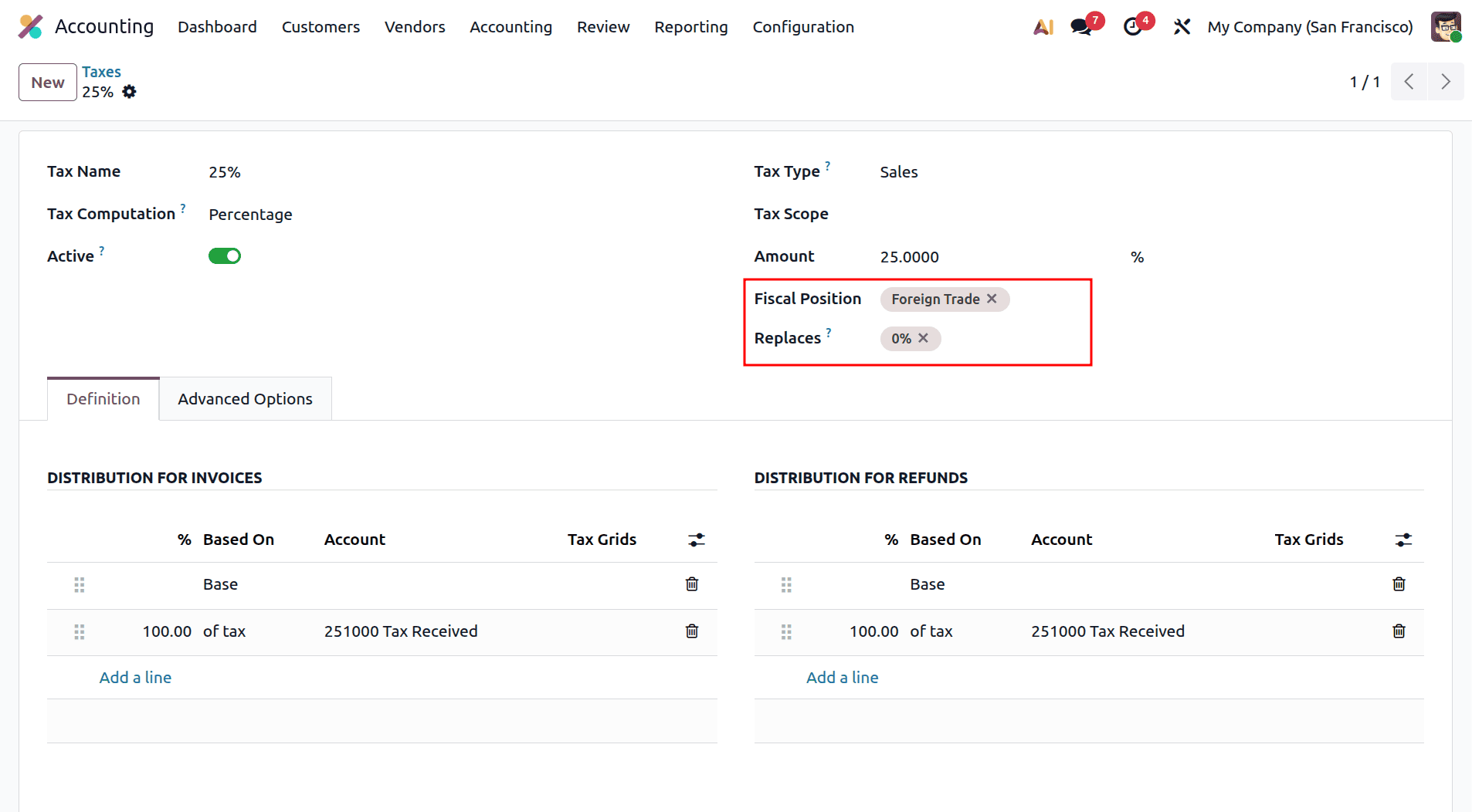
- Fiscal Position: Select the fiscal position for which the tax replacement should apply.
- Replaces: Select the tax that should be replaced by the configured tax.
With this configuration, when the selected fiscal position is applied to a POS order, the configured tax replaces the corresponding product tax. With this configuration, any product that has 15% (Sales) as its sales tax will automatically be mapped to 25% (Sales) when this fiscal position is applied.
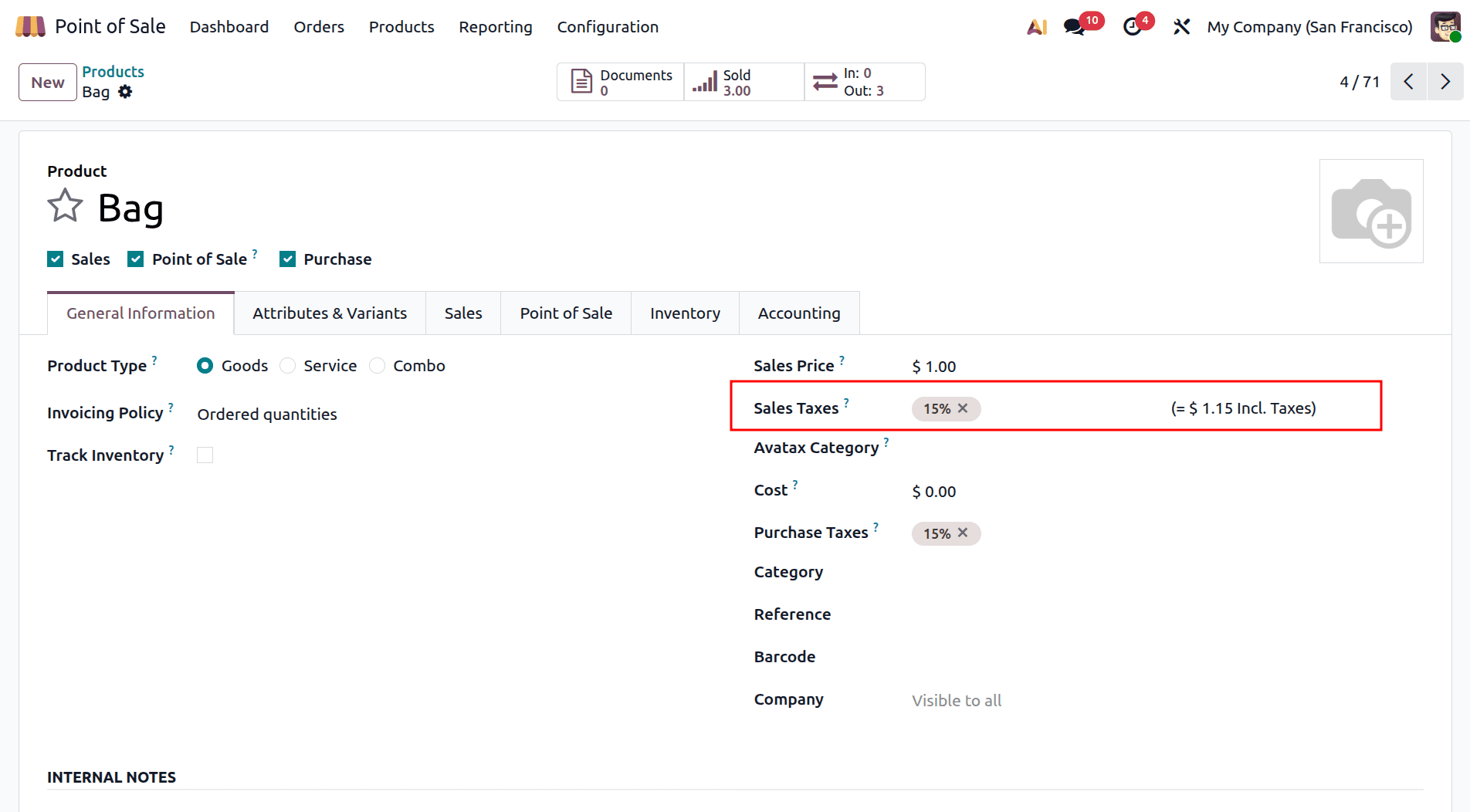
Next, let’s select an existing product or create a new one and set its Sales Taxes to 15% (Sales).
Now, we can configure the Default Fiscal Position and Allowed Fiscal Positions in the Point of Sale (POS) settings, as shown in the image below. This allows us to control which fiscal position is automatically applied and which are available for selection during POS transactions.
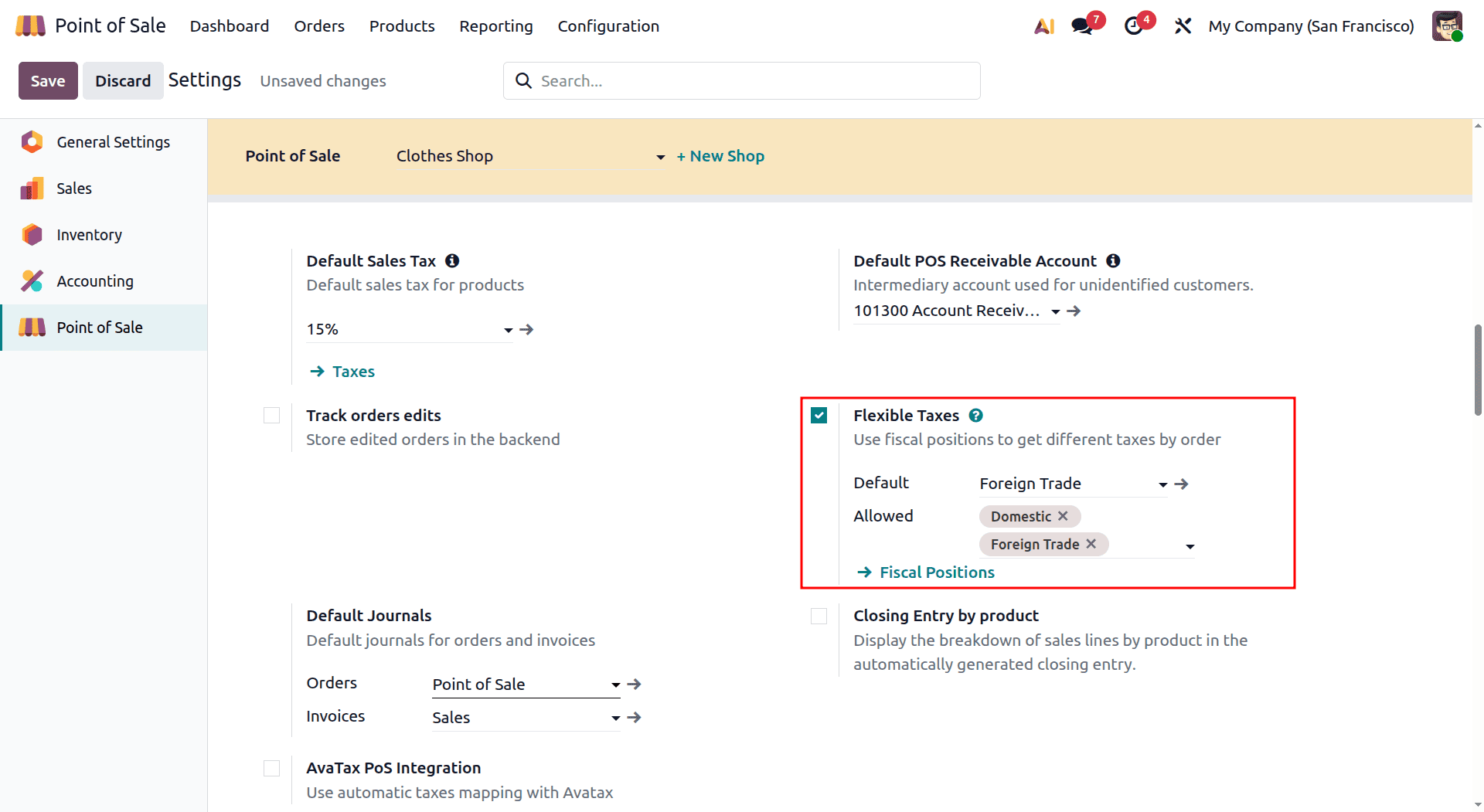
Here, Foreign Trade is considered as the Default Fiscal Position, and Foreign Trade is also considered the Allowed Fiscal Position. So, in this way, the fiscal position will become available and will be applicable on POS orders.
Now, we will create an order from the POS session and check the working of tax mapping. For this purpose, select a product from the Sales category and, then see the tax that is applied to the product.
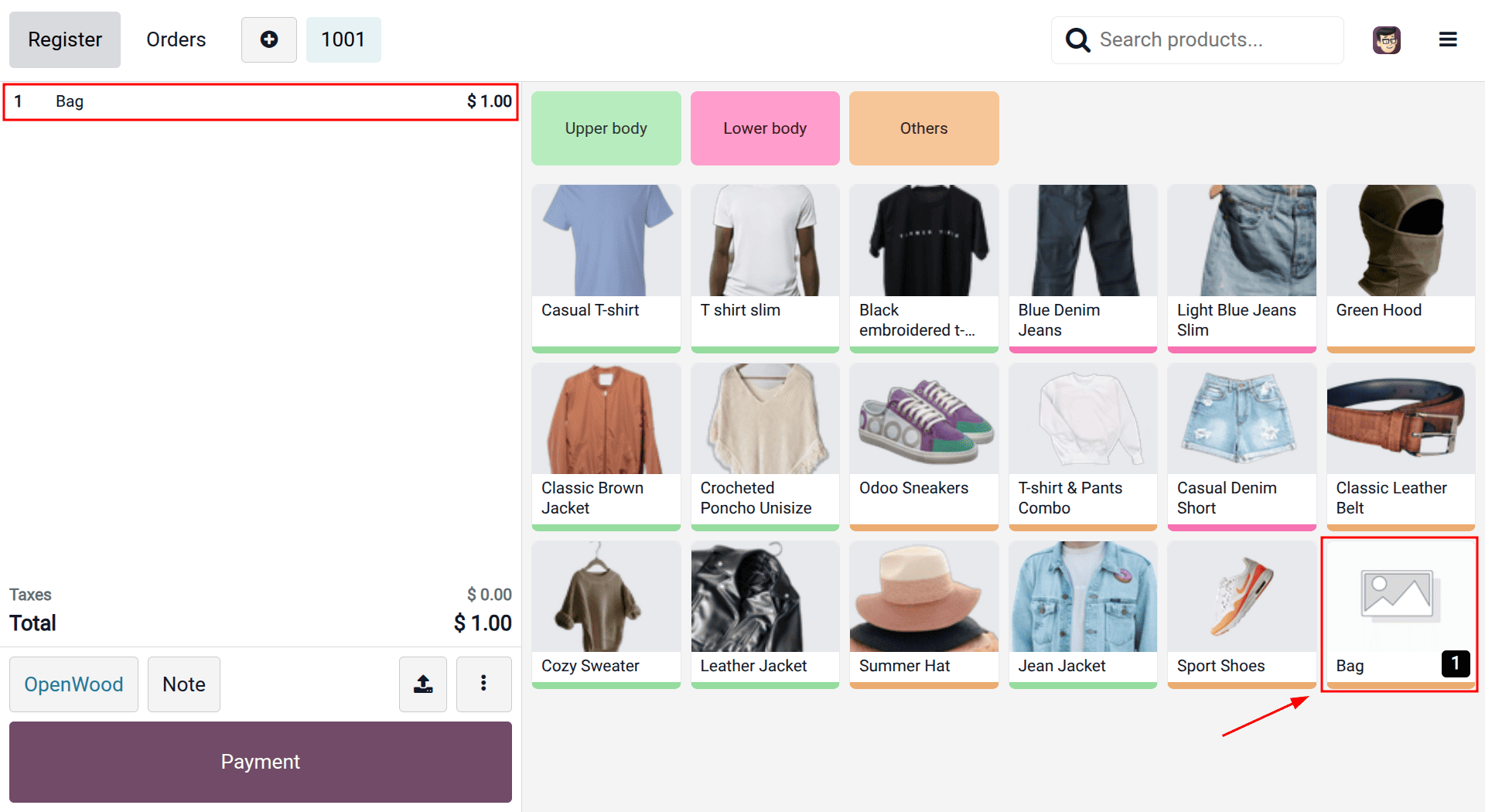
The tax on the item would be 25% compared to the initially configured tax of 15%. This happens because the fiscal position of Foreign Trade is selected by default, and this causes the automatic remapping of the tax on the item from 15% to 25%.
To change the fiscal position during a POS transaction, click the Tax button from the POS register and select the required fiscal position.
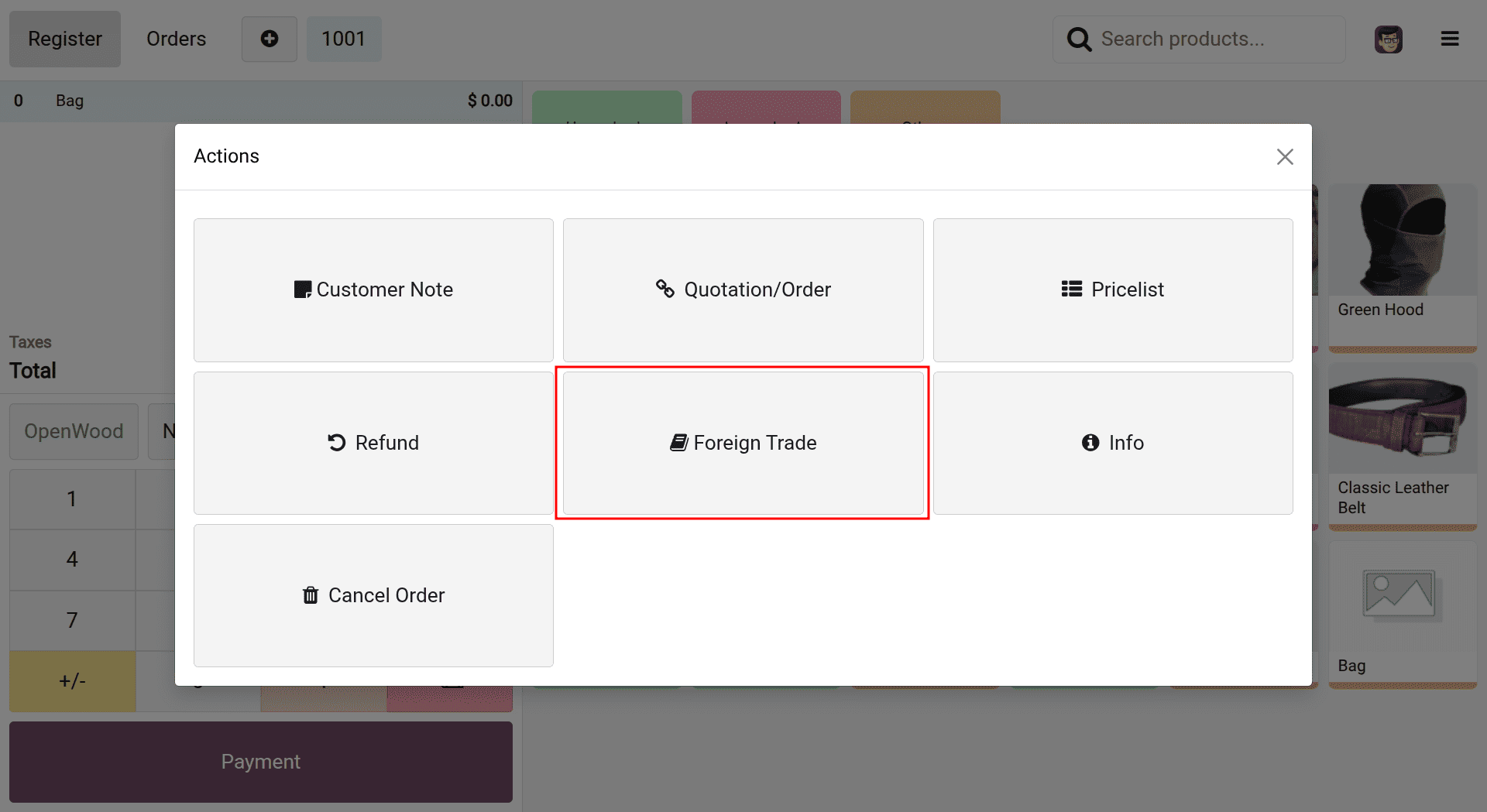
Click the Foreign Trade button; you will be able to access a list of all the Fiscal Positions set up that can be used on the order. Then, you can choose the right fiscal position to assign the tax mapping.
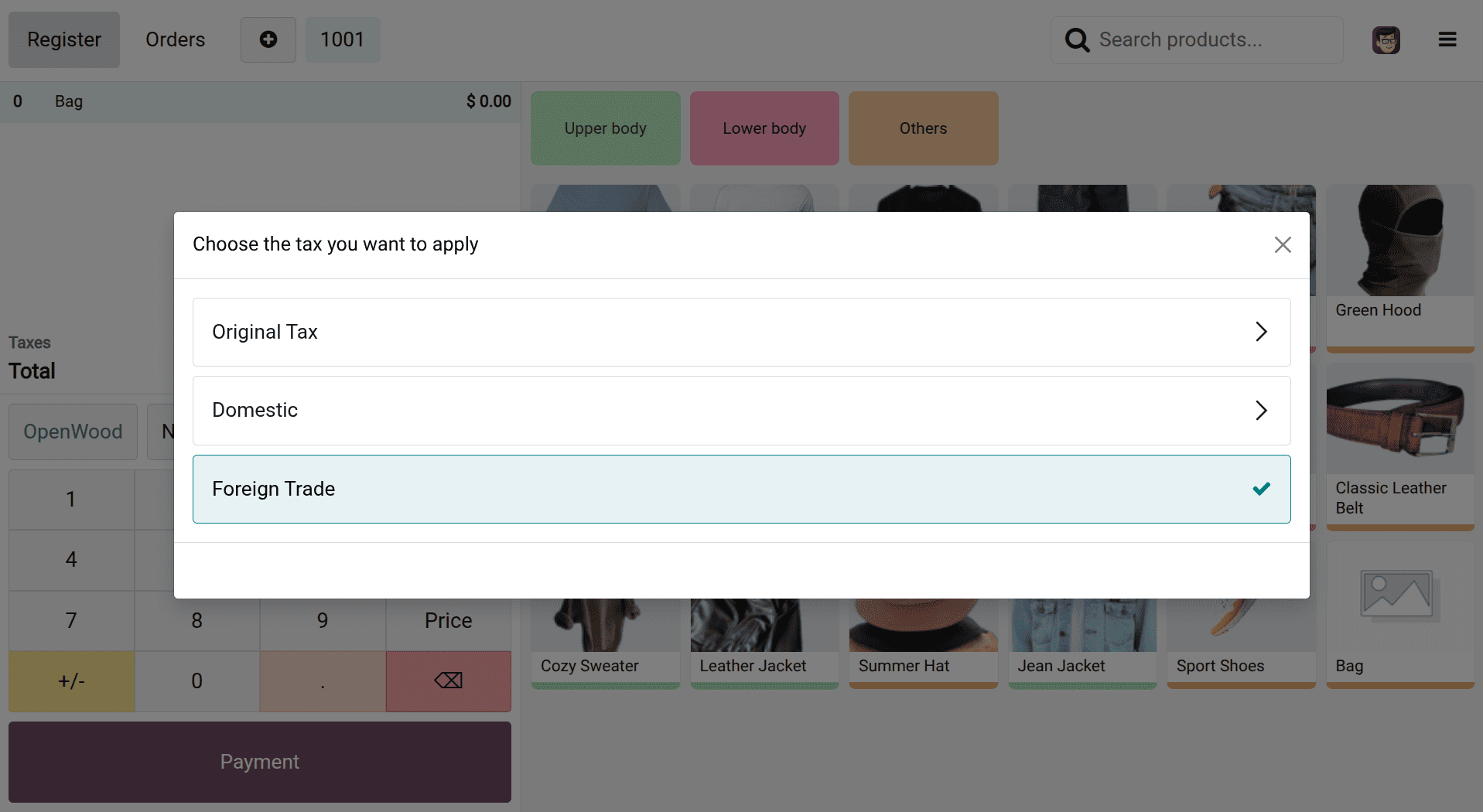
Having chosen the right fiscal position and carried out the tax mapping, you can now go ahead with your POS sales order as well as the payment procedure as usual.
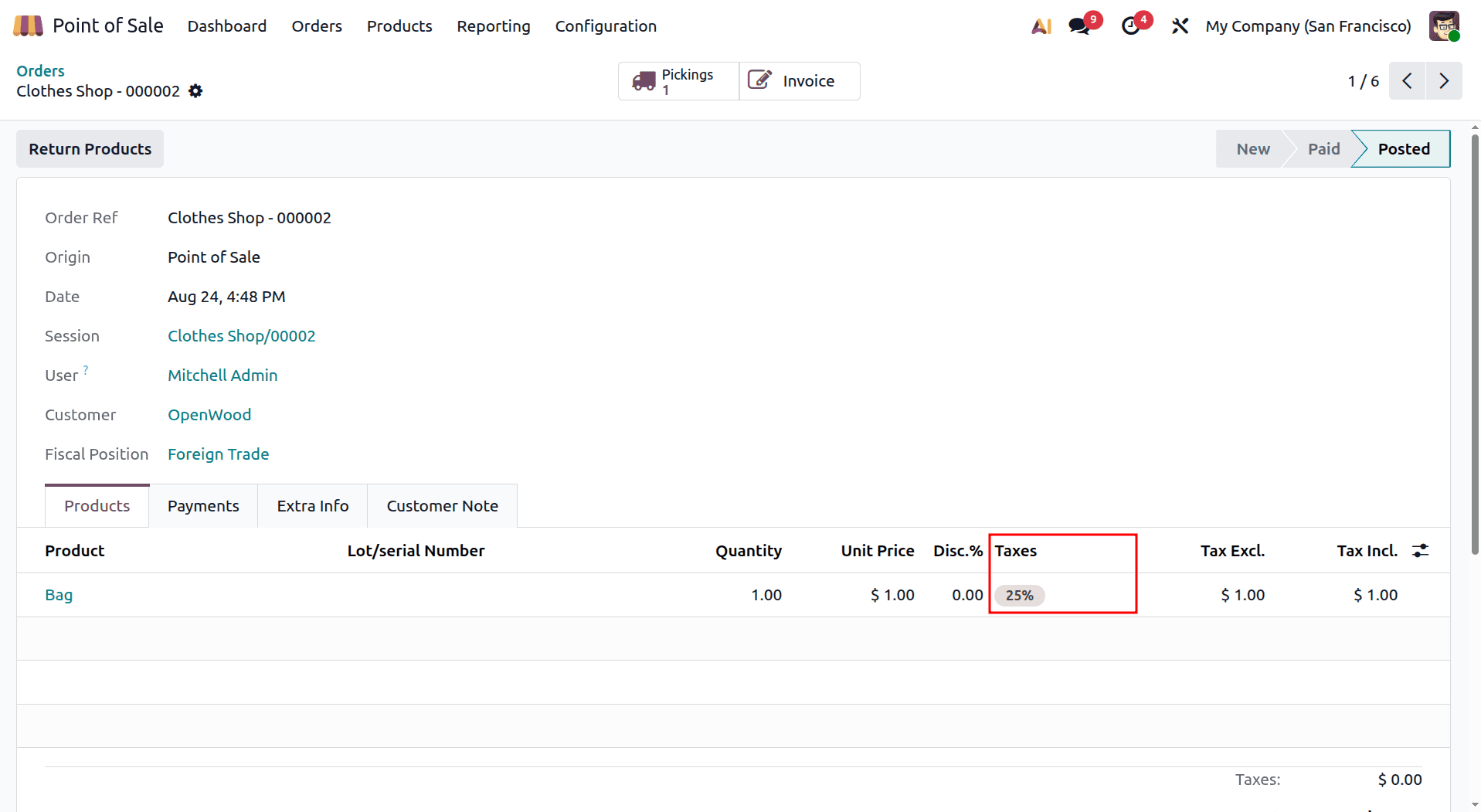
You can see that the Tax is mapped to 25% Exports, as we configured.
The Flexible Taxes feature available in the Point of Sale for Odoo 19 allows users to cater to varying needs related to taxes easily without increasing the complexity in the sales process. The use of Fiscal Positions and correct tax settings will allow businesses to manage their taxes in accordance with varying customer needs and business scenarios.
Irrespective of whether you have a restaurant, retail store, or multi-regional operations, you can use the Flexible Taxes feature in Odoo 19 Point of Sale to simplify your tax management process.
To read more about How to Configure Taxes in Odoo 18 Point of Sale, refer to our blog, How to Configure Taxes in Odoo 18 Point of Sale.