Customers may browse products, add items to a shopping cart, and make purchases straight through the online store with Odoo 19's eCommerce purchasing feature. With features like product variations, pricing guidelines, and safe payment options, it offers a flawless buying experience. Through their online accounts, customers may check their purchase history, track deliveries, and control their orders. Odoo 19 ensures real-time business operations by integrating eCommerce purchases with inventory, sales, accounting, and shipping modules. Businesses may increase customer happiness, streamline order processing, and effectively handle online sales with this interface.
Odoo 19 significantly enhances your website's order tracking and monitoring capabilities. Online order management has never been more effective thanks to a user-friendly interface and smooth connectivity between sales, inventory, and customer data.
Odoo 19 makes sure you keep on top of every order, from placement to delivery, whether you're managing a small number of transactions or a large eCommerce company. We'll look at how you can utilize Odoo 19 to make order tracking easier, increase accuracy, and boost customer satisfaction in this blog.
You must set up a payment provider from the Website app's Settings menu before starting the process.
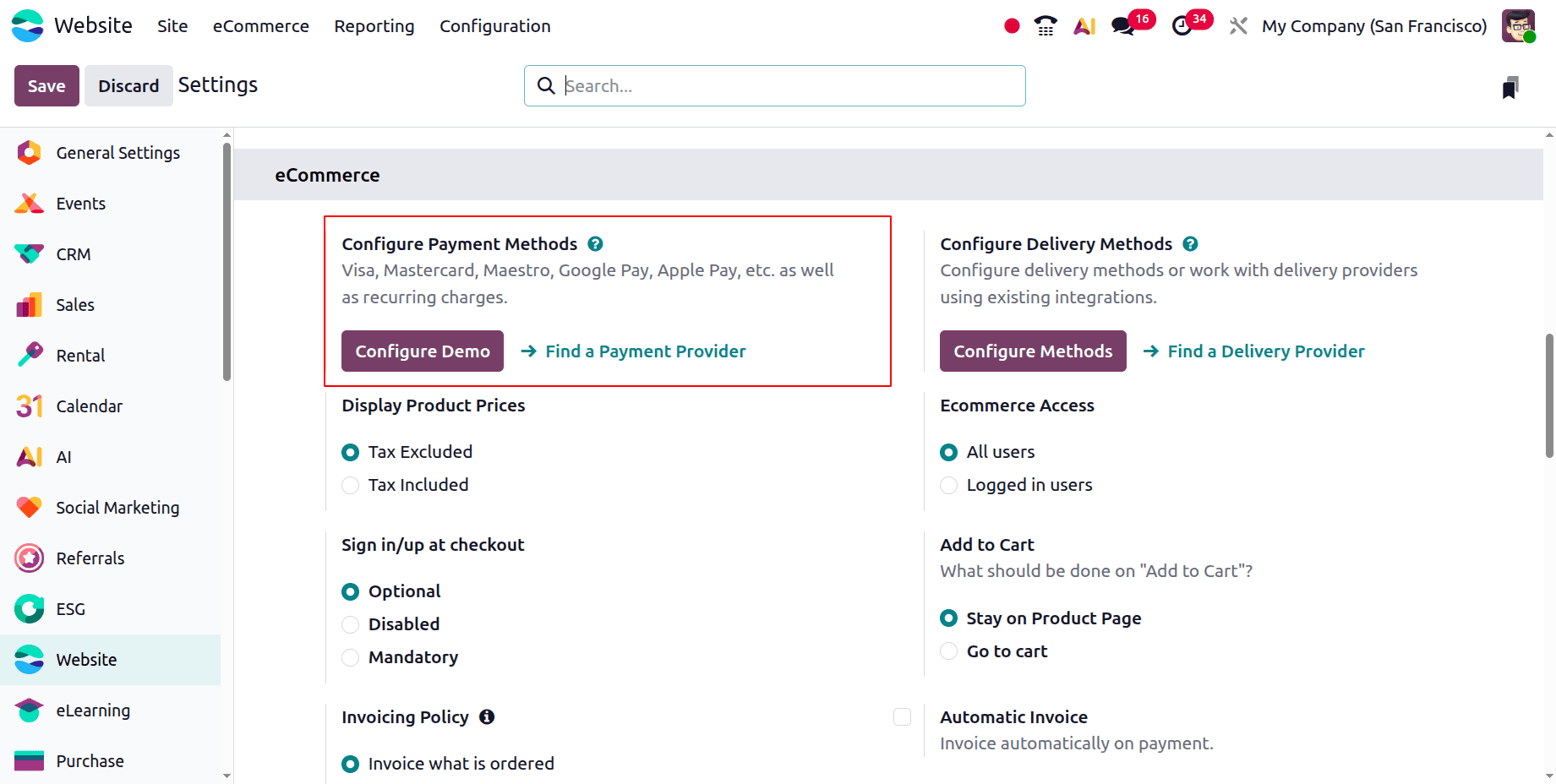
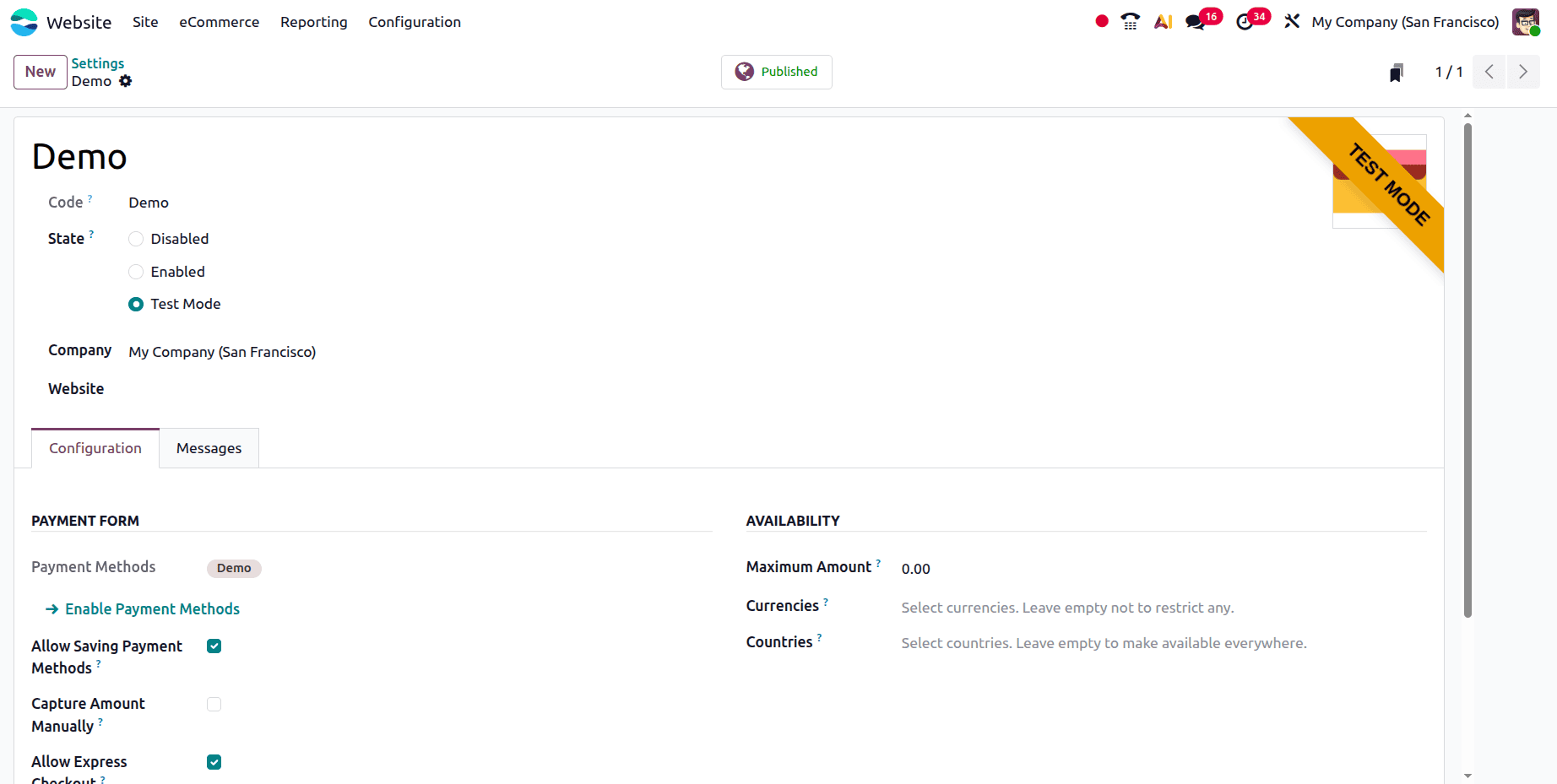
Click on the Configure Demo, then the Demo Payment provider will open as shown below. Set the State as Test Mode.
Streamlining Website Orders: From Cart to Checkout Confirmation
When a customer adds a product to their cart, a quote is created, which initiates the order's journey. These orders may be easily managed in Odoo 19 via the Sales app or the website. E-commerce orders can be automatically allocated to a specific sales team or salesperson for expedited processing, guaranteeing better productivity and unambiguous accountability.
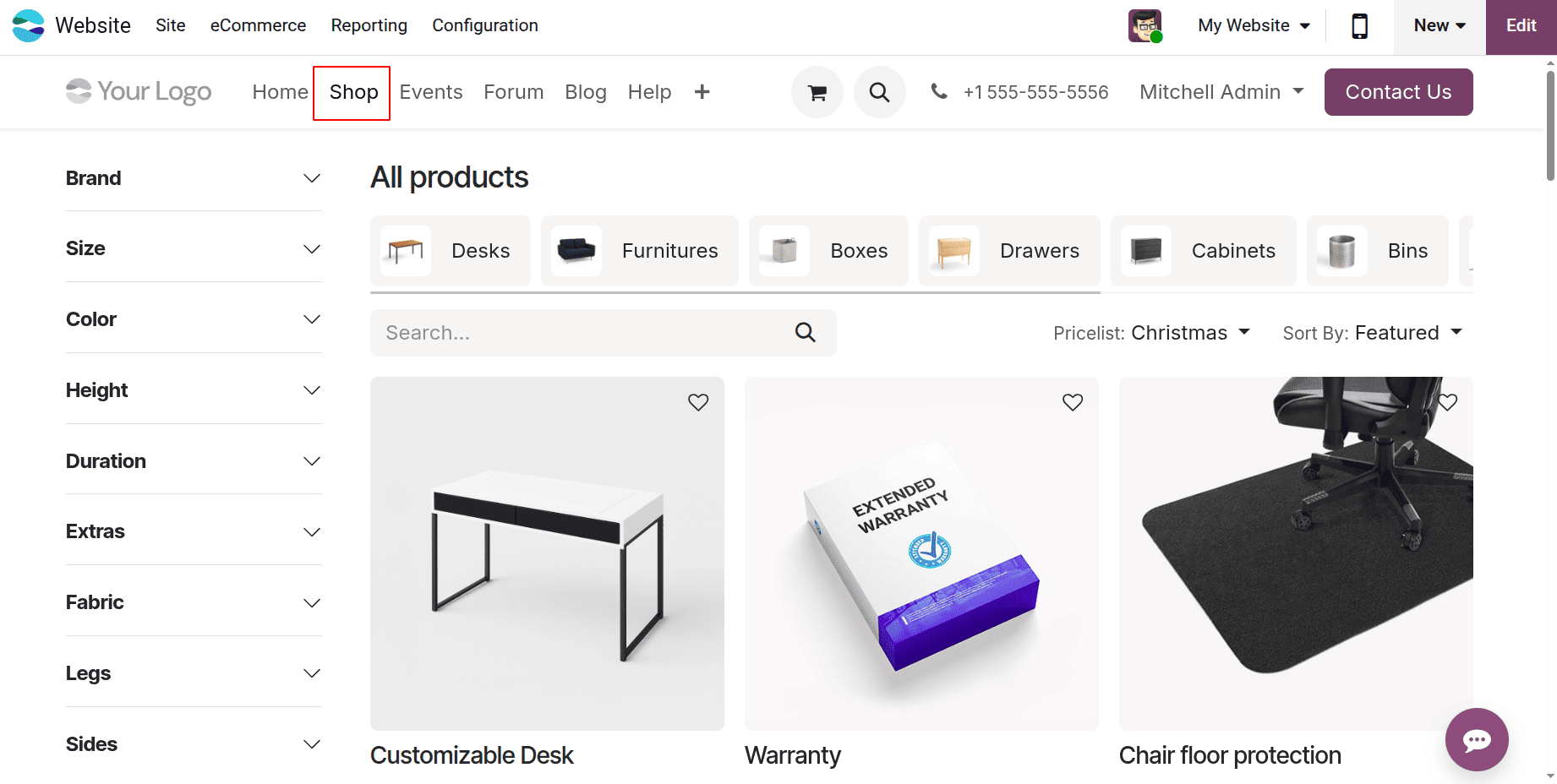
Choosing the desired product is the first step in establishing or managing online orders. The eCommerce Shop menu allows you to accomplish this, as seen below.
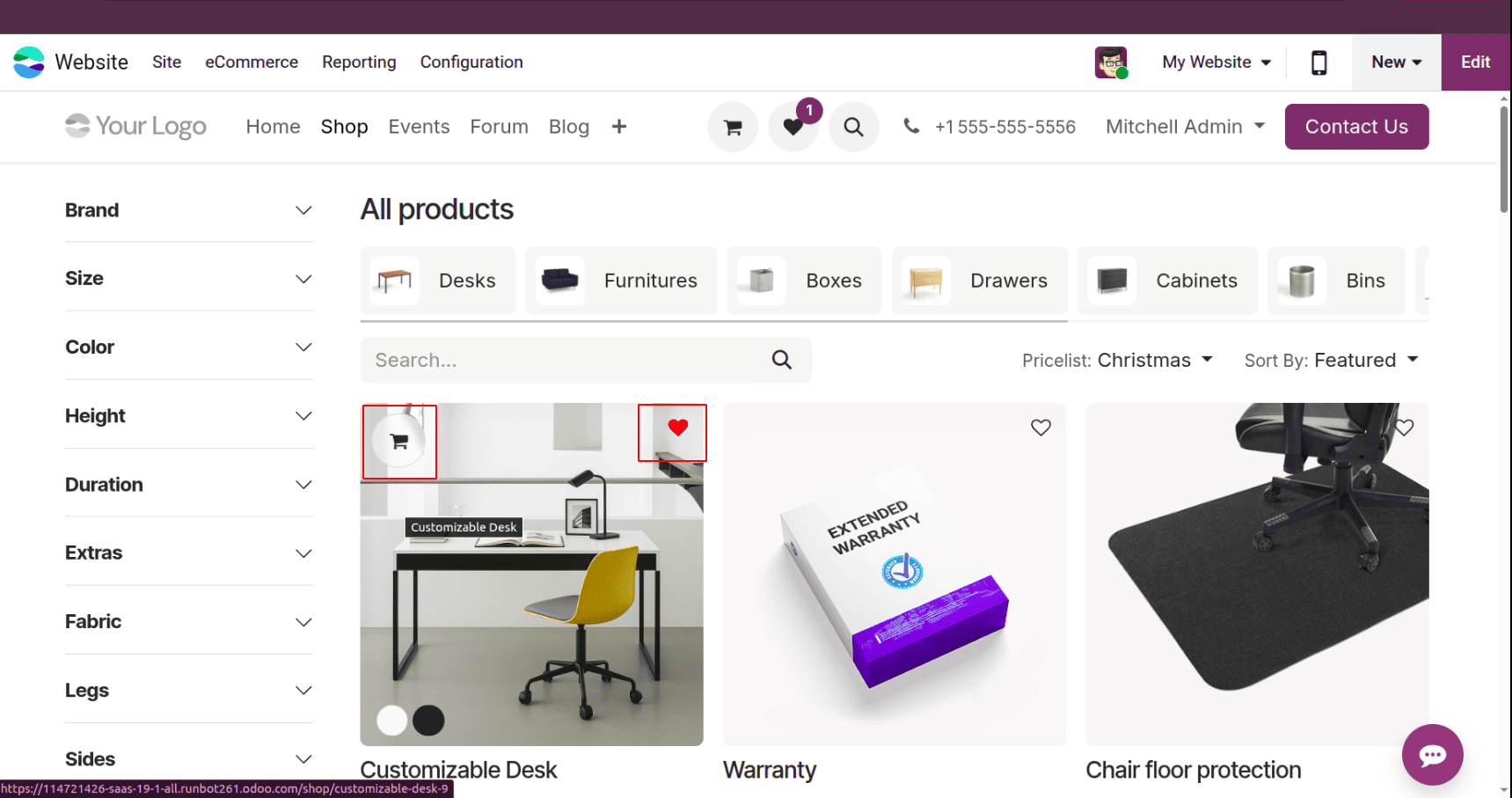
There is a symbol on the product; by clicking on that, the customer can add the product to their Wishlist. And the Cart button allows customers to add the product to the cart.
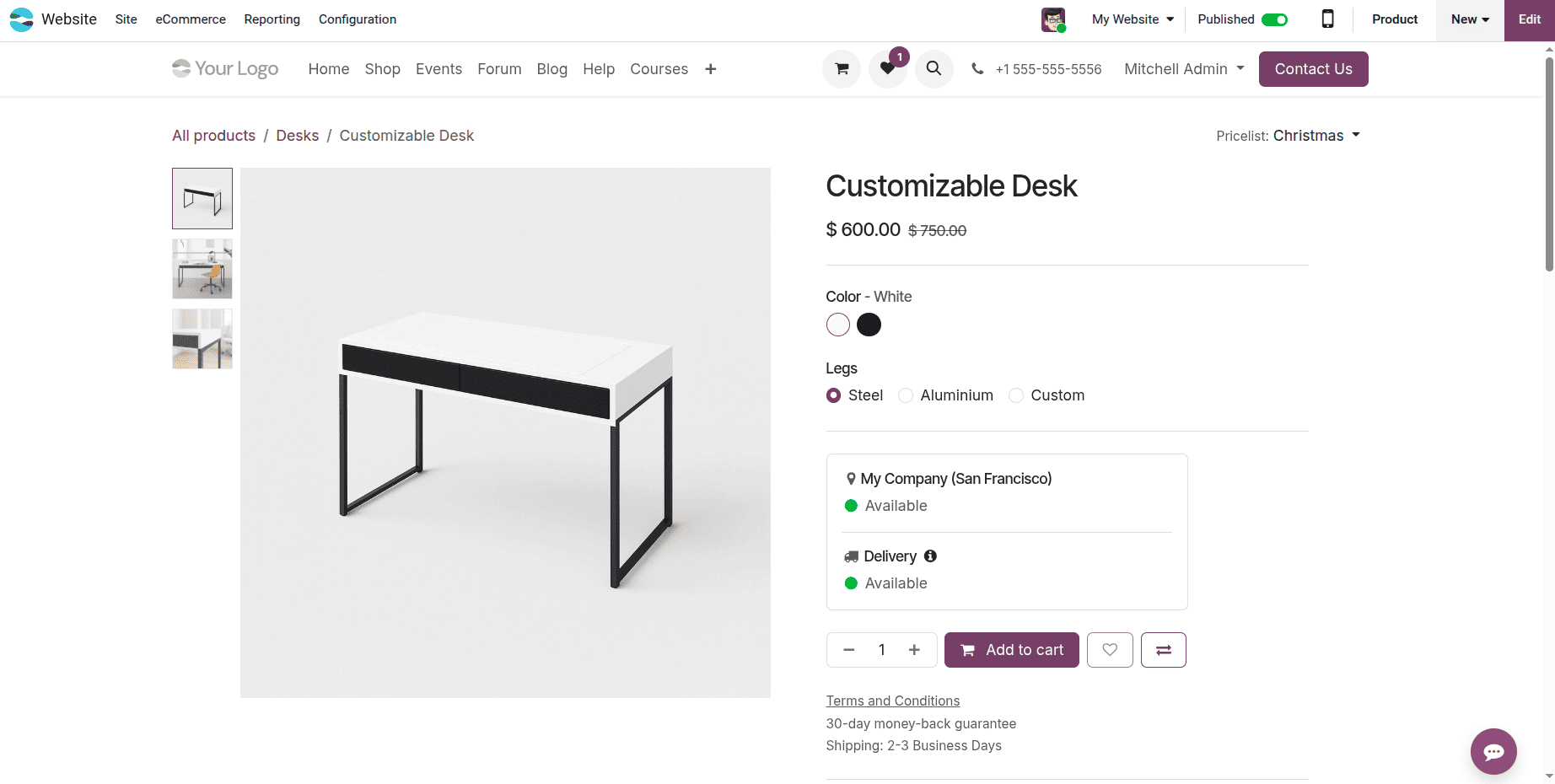
While clicking on the product, another page will open, as shown below. From there, the customers can choose product variants and quantities. Then click on the Add to Cart button.
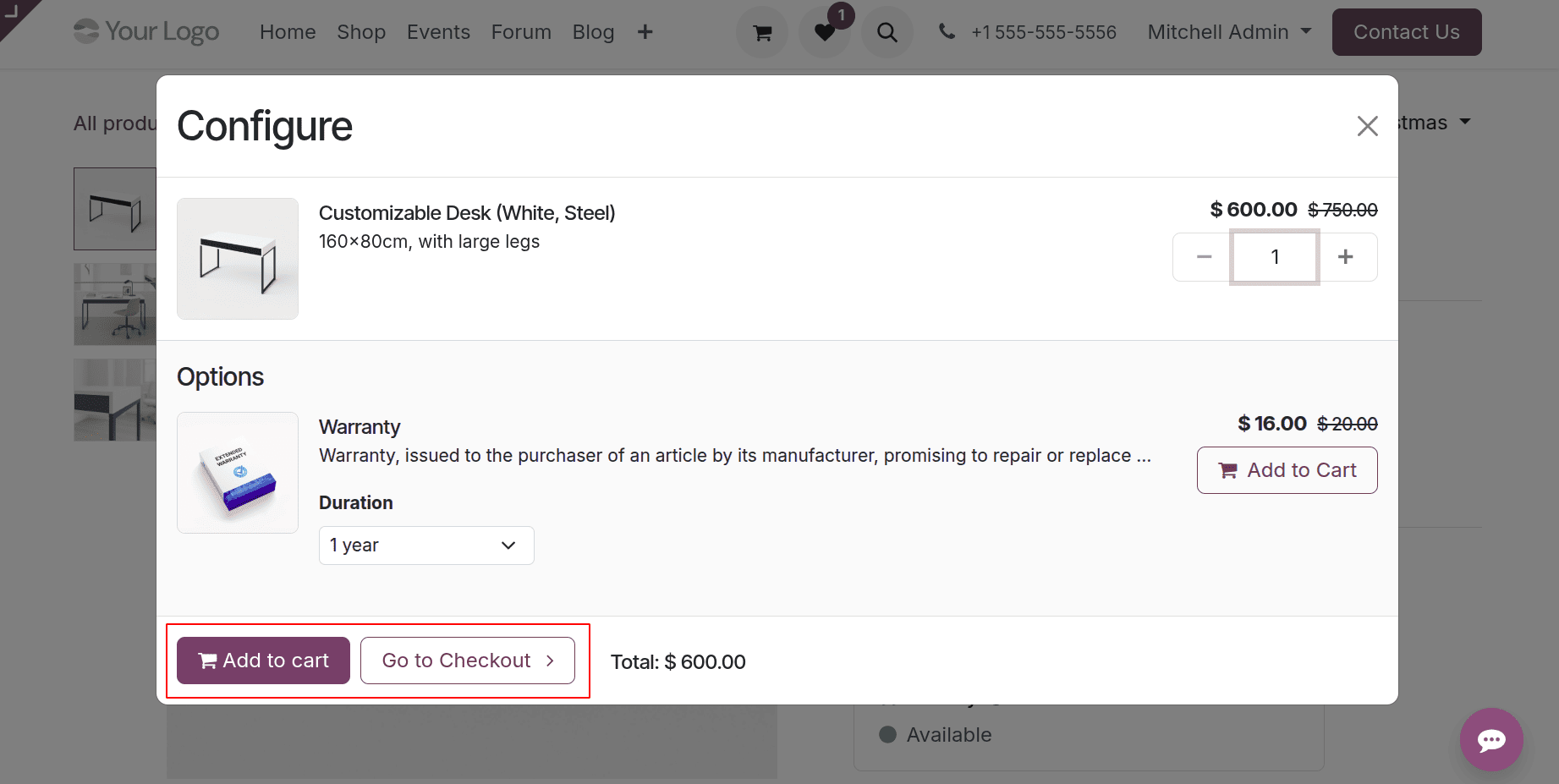
Then the window shows Optional Product. Customers can either choose the Optional Products, or skip that. Click on the Go to Check out button to move to the checkout page.
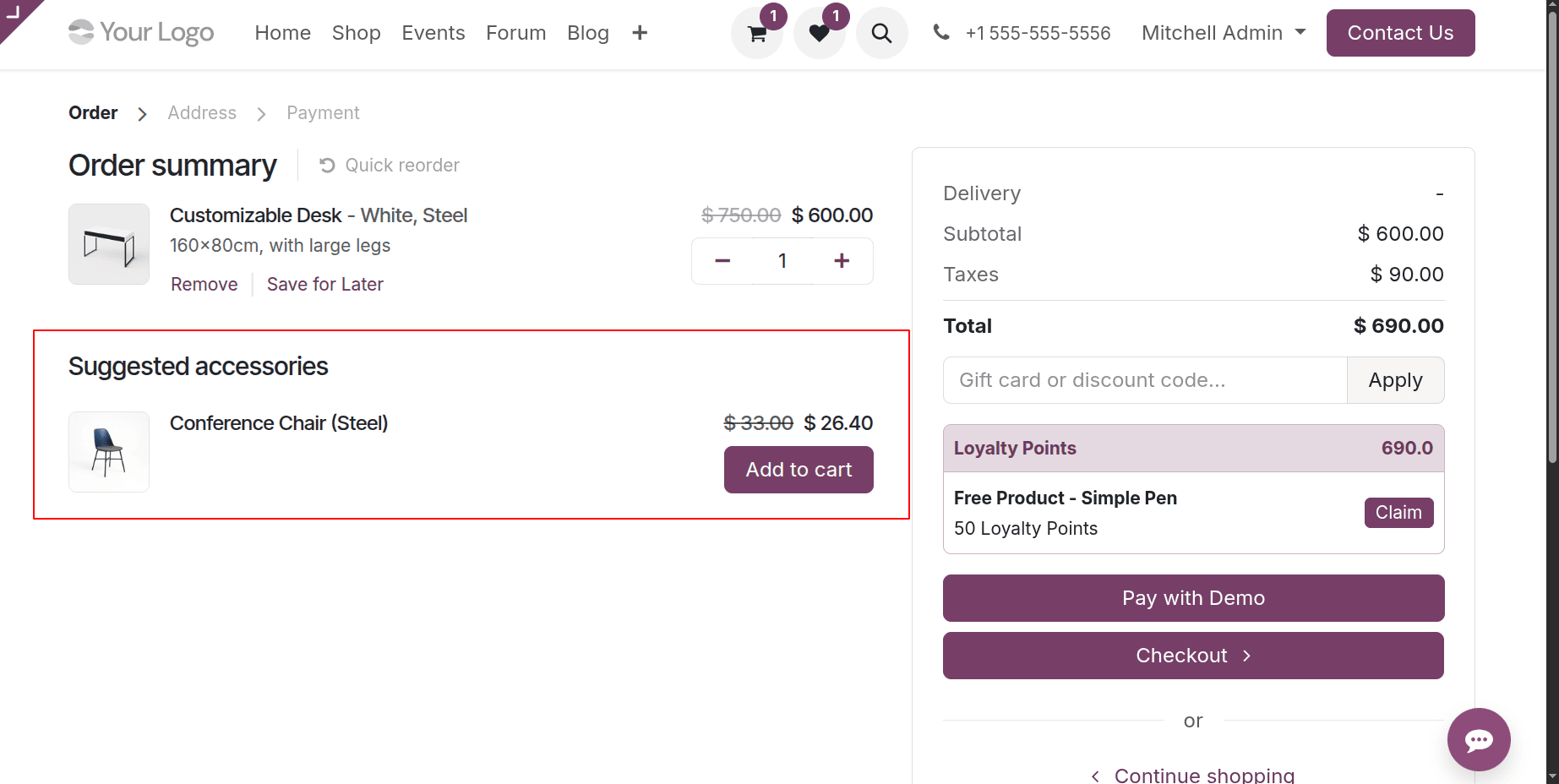
The checkout page shows the Accessory product. Then there are two buttons; the first one is Pay with Demo. It will lead to the payment page. The second one is Checkout, which leads to the checkout page.
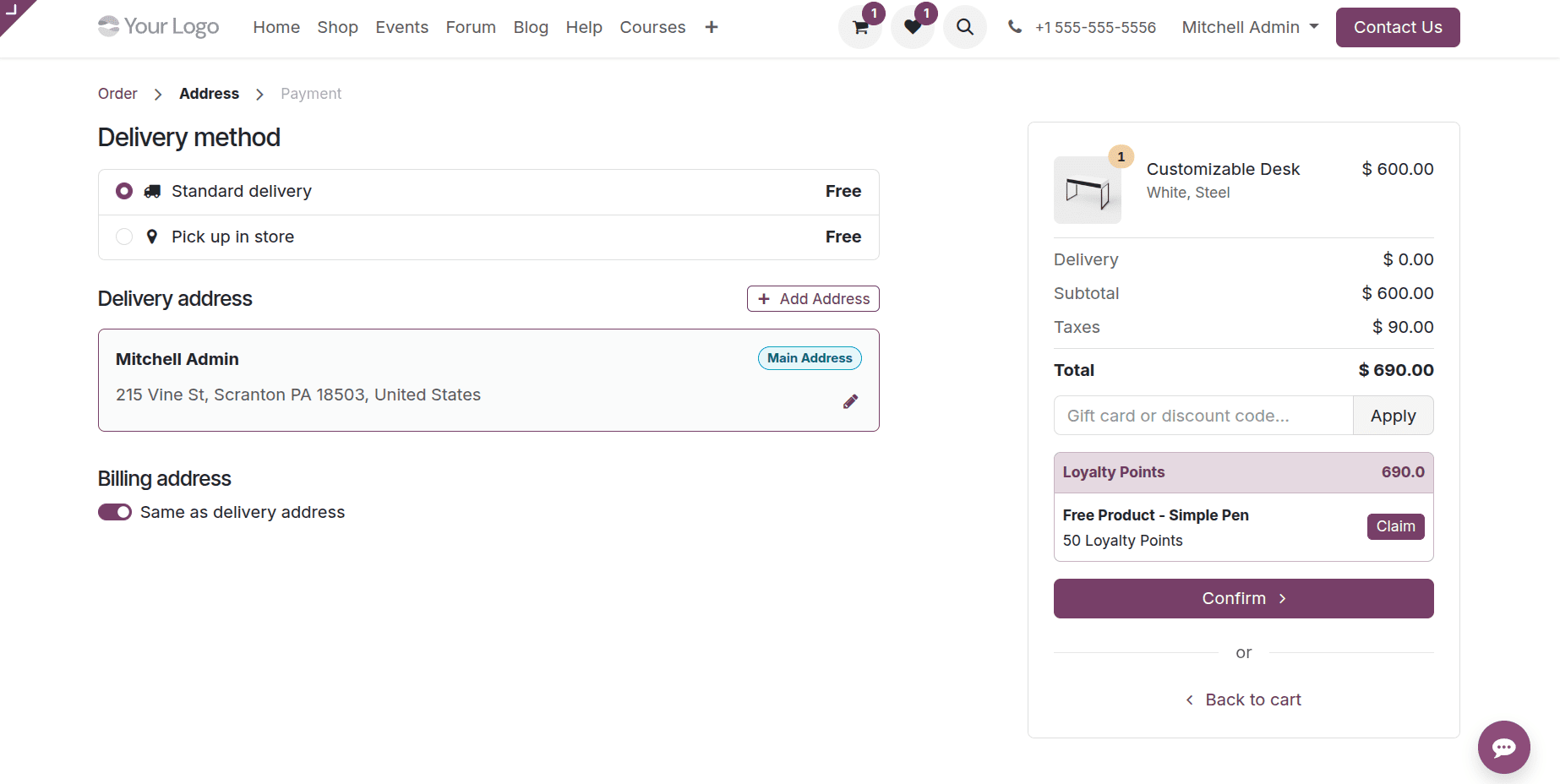
The checkout page shows the delivery details. From there, it shows the delivery methods, address, etc., and click on confirm.
Next is the payment page. From there, the customer can easily choose the payment method and then confirm it.
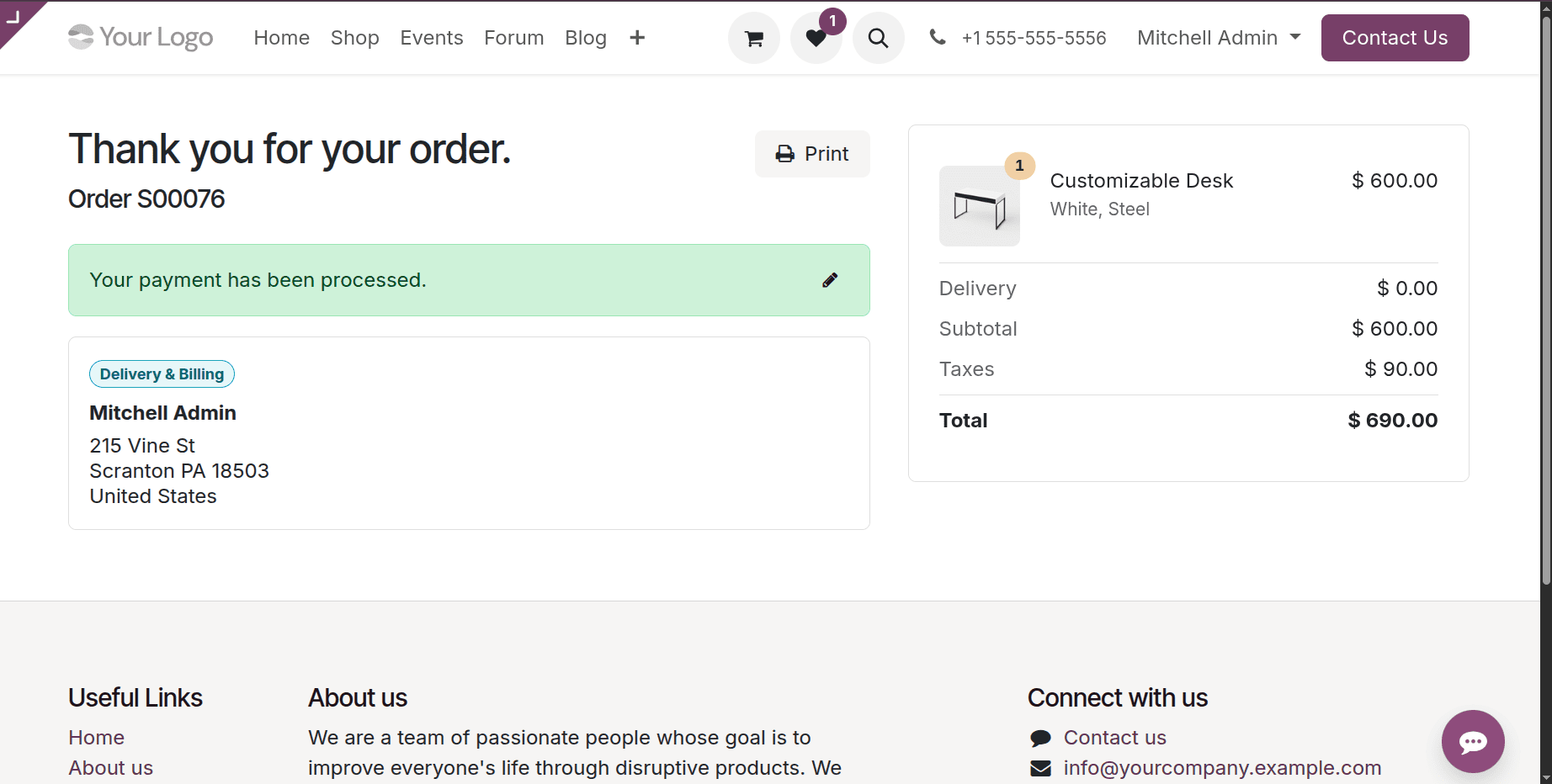
As shown above, the order is now completed. Here, the customer will complete the order. The users can complete the delivery from the backend.
Handling Orders for Delivery
In Odoo 19, a delivery order is automatically generated once a quotation is confirmed. By modifying the Inventory app's settings, businesses may control this procedure and guarantee prompt customer delivery and effective processing.
Key information about a purchase, such as the Order Number, Order Date, Customer, Website, Salesperson, Activities, Company, Total, and Invoice Status, may be viewed in the Odoo 19 e-commerce Orders menu.
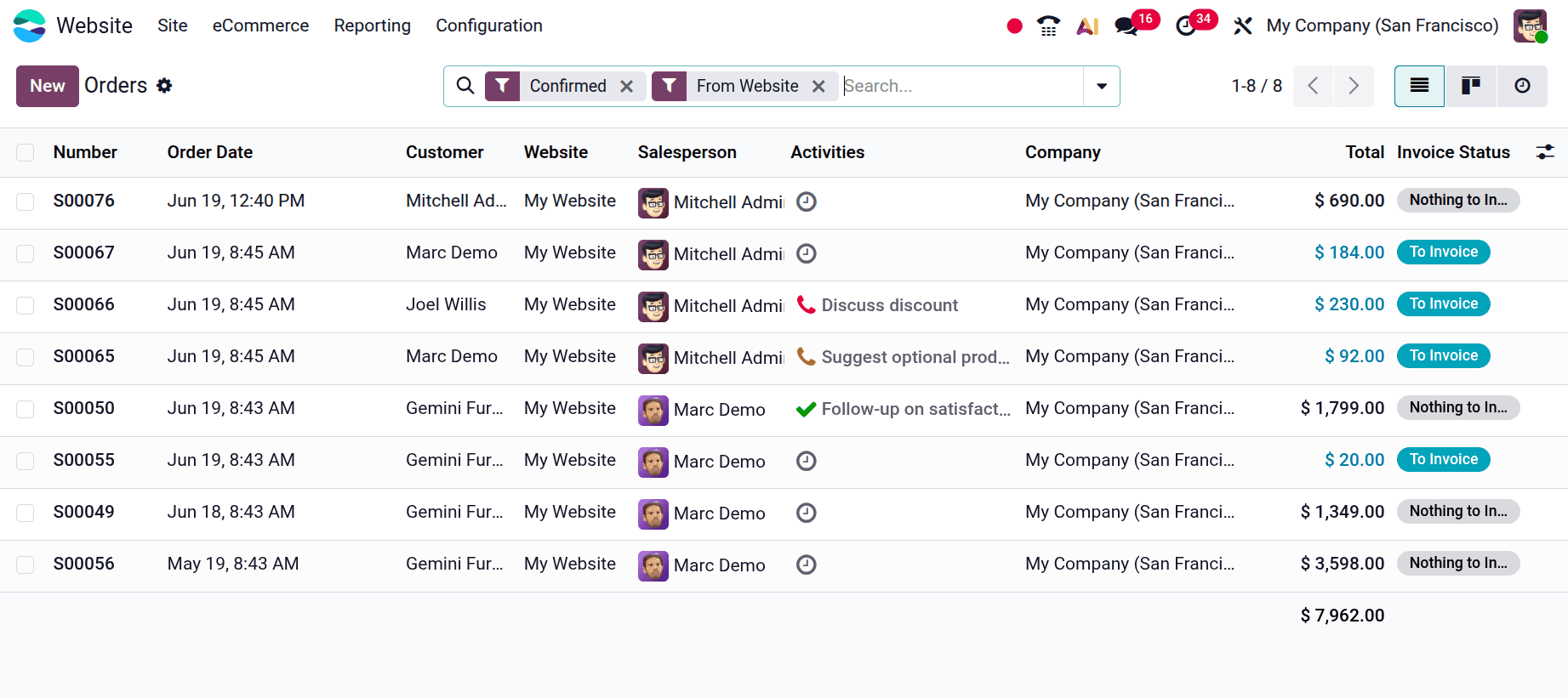
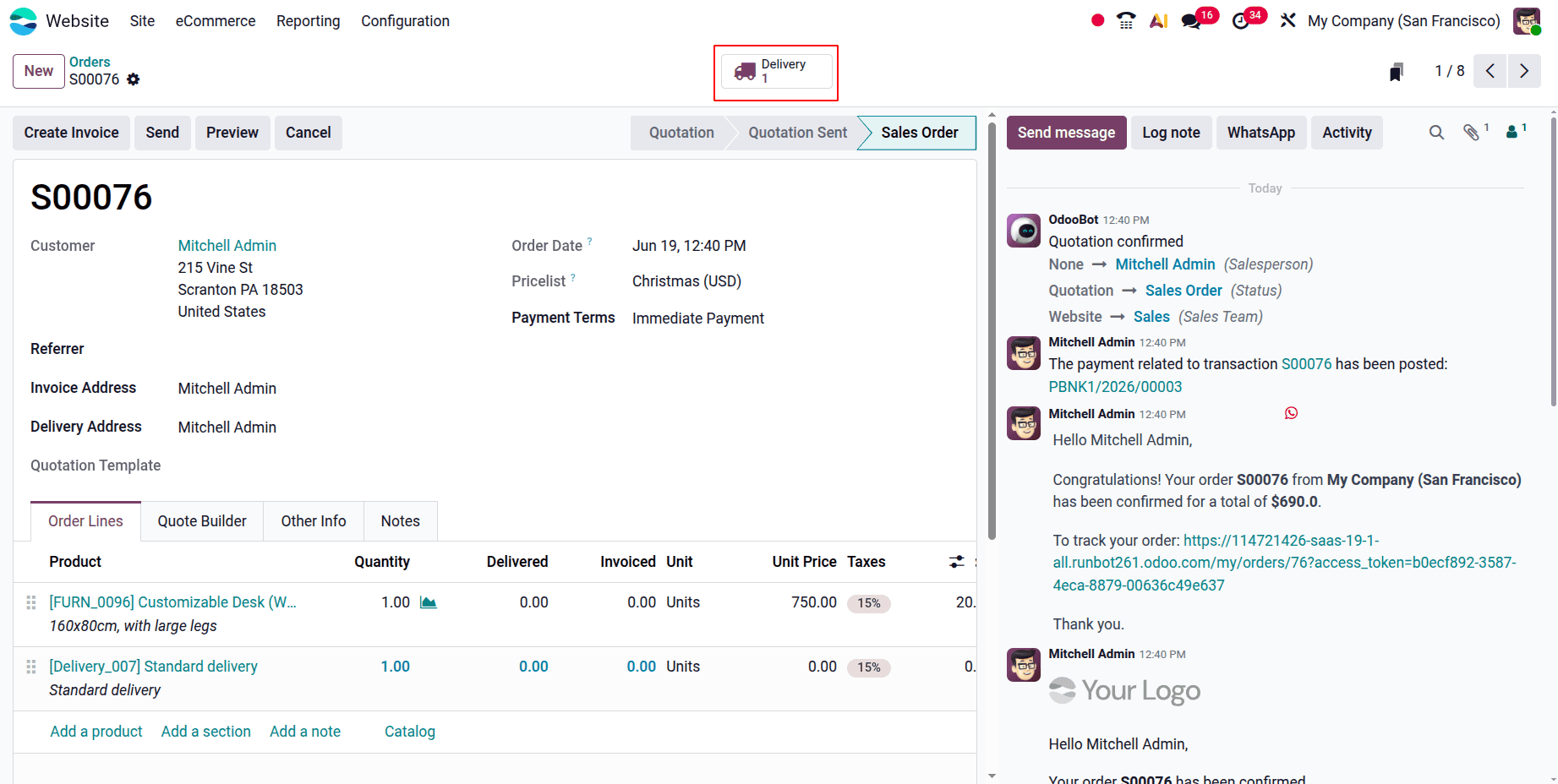
The detailed form view of a particular order can be accessed by clicking on it in the column. The "Delivery" smart button can then be clicked.
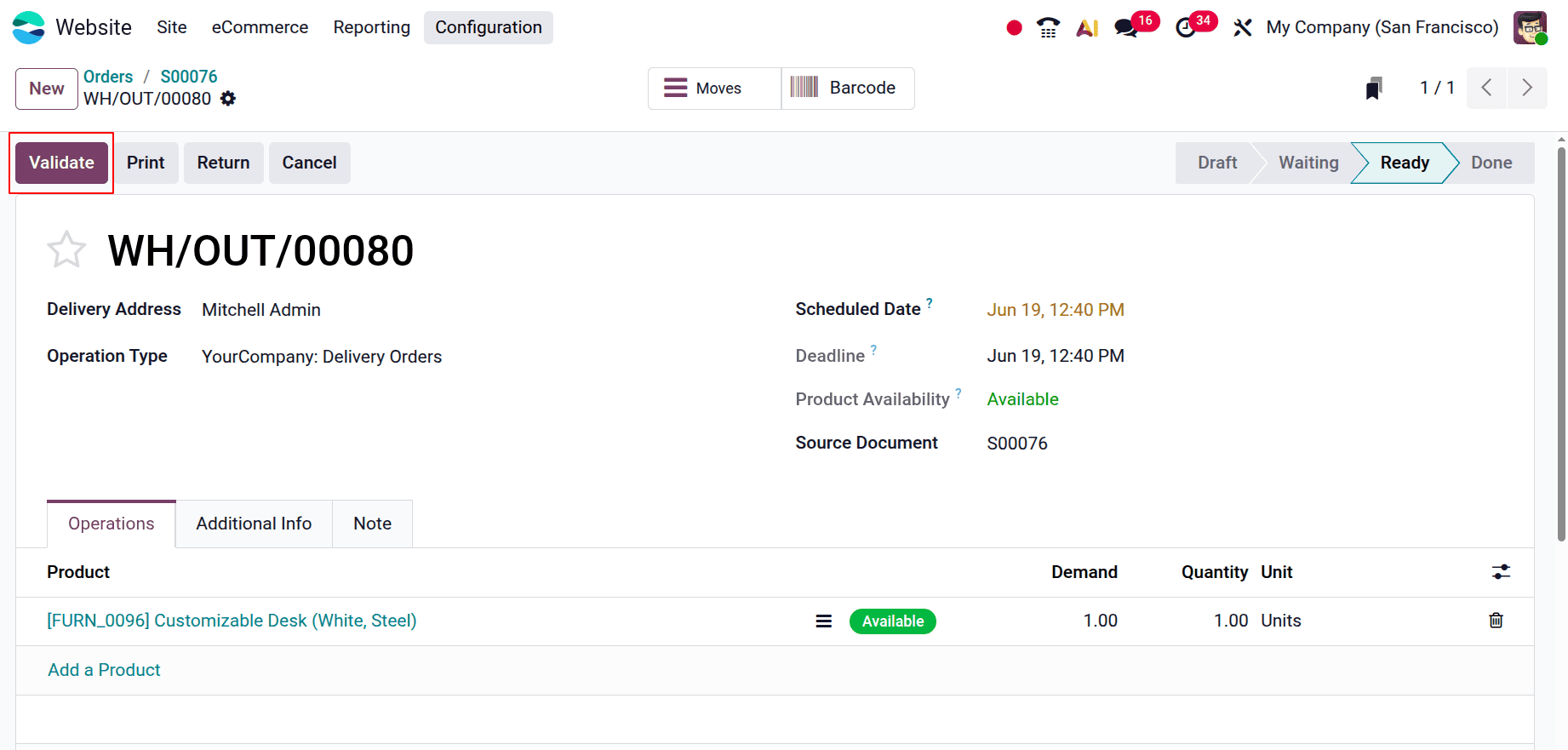
Click on the Validate button to complete the delivery.
Order Monitoring via the Website
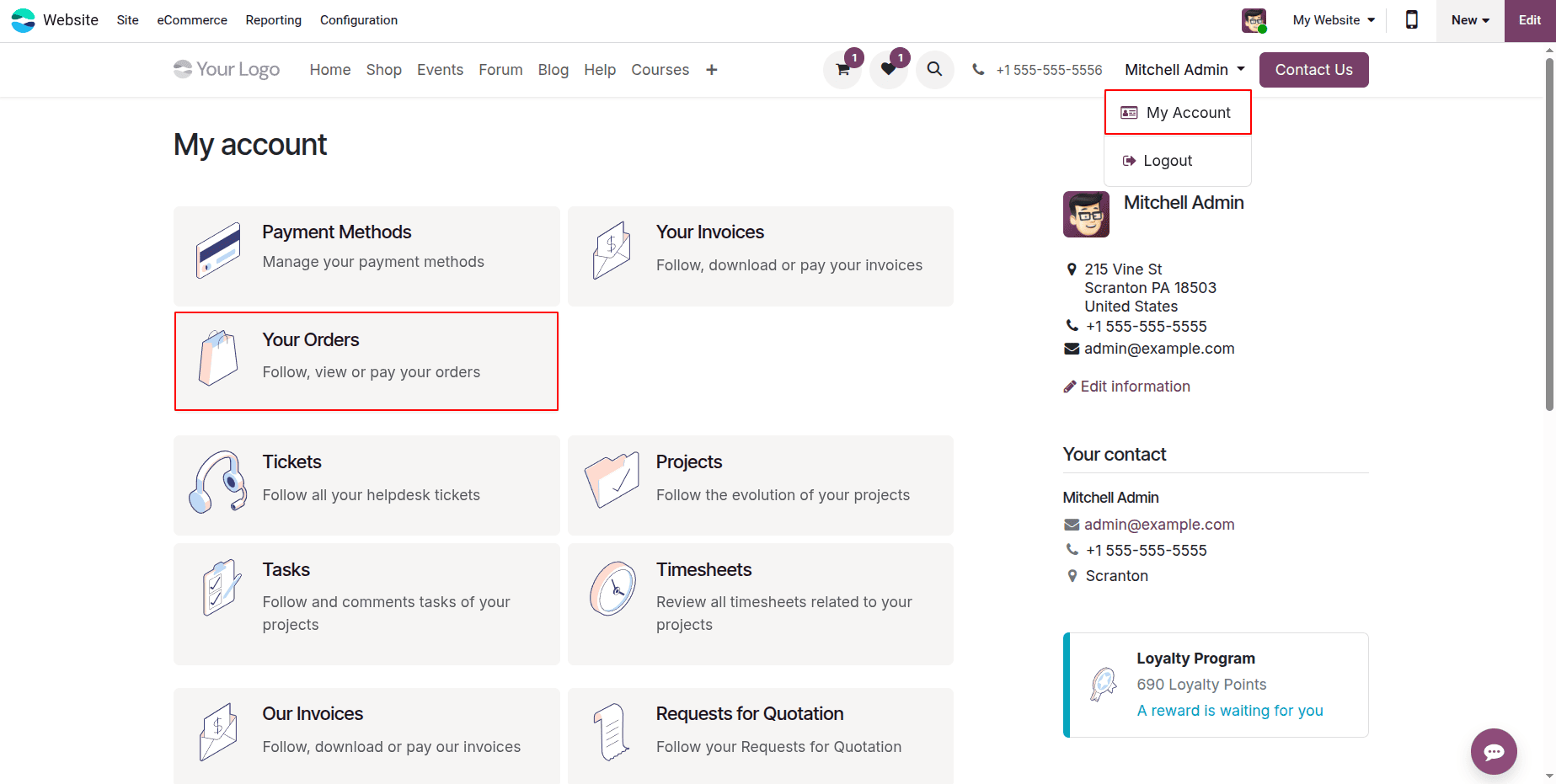
Go to Your Orders in the My Account section of your website to monitor delivery orders.
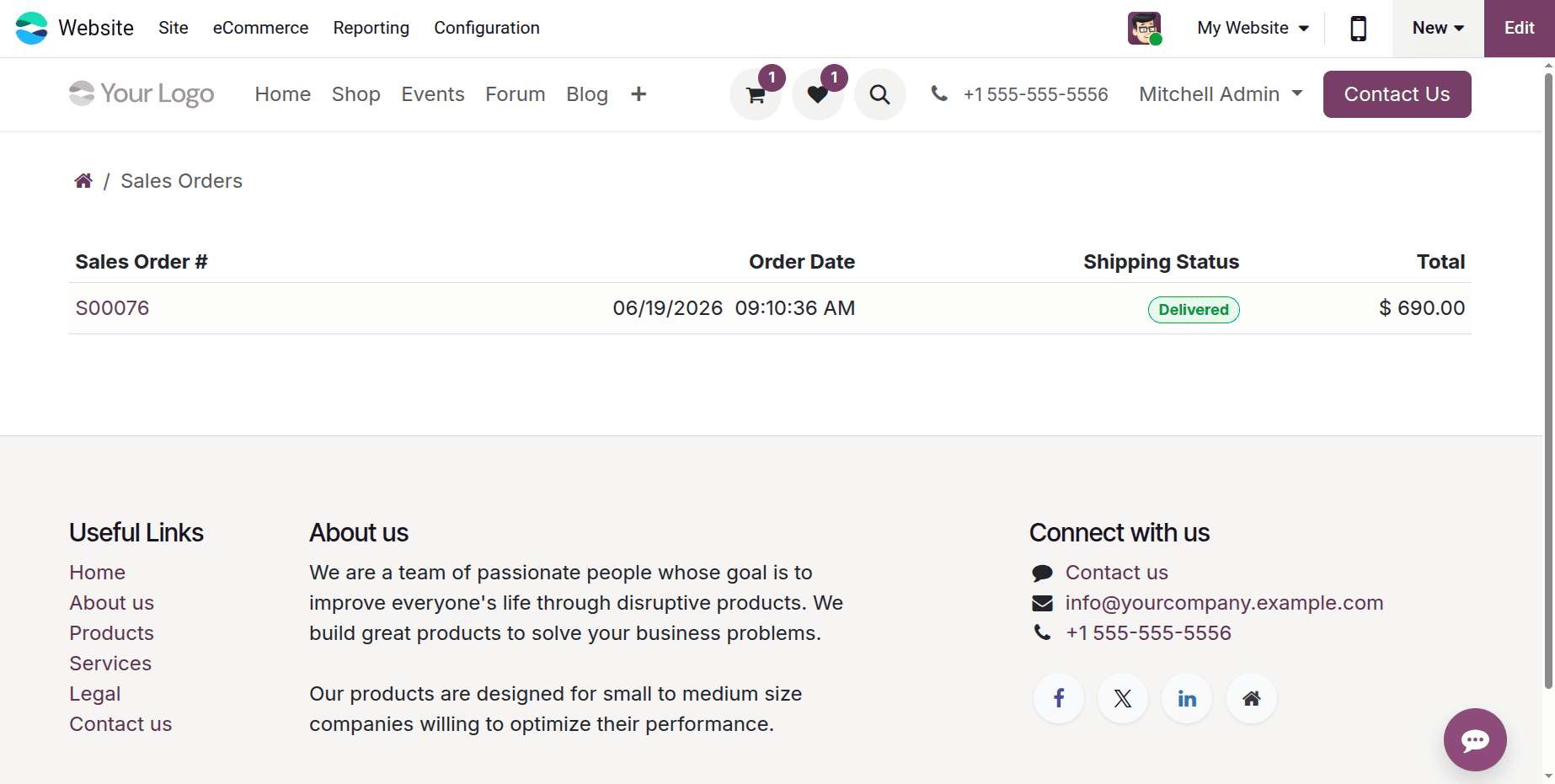
A list of all of your orders will appear as a result. In this instance, I choose a particular order to view its details, which include products, shipping and billing addresses, sales information, and more.
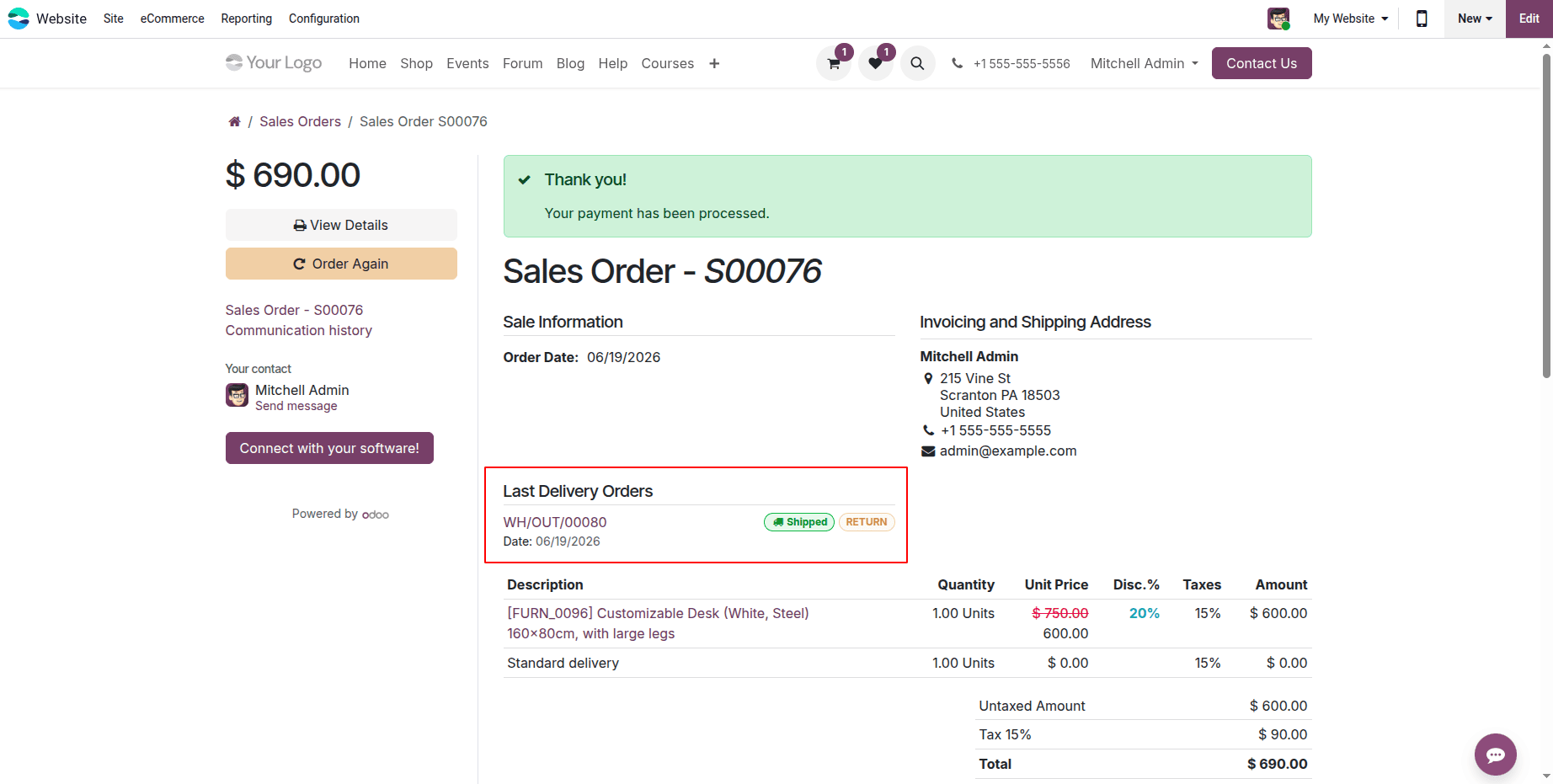
Click the link next to the Tracking field in the Last Delivery Orders section, as indicated below, to view the tracking details.
In conclusion, companies may improve customer happiness, expedite order fulfilment, and keep real-time delivery visibility by leveraging Odoo 19's extensive shipping and tracking features. Businesses can increase operational effectiveness, foster greater consumer trust, and maintain their competitiveness in the quick-paced digital marketplace of today by using these potent characteristics.
To read more about How to Monitor and Track Orders on Your Odoo 18 Website, refer to our blog How to Monitor and Track Orders on Your Odoo 18 Website.