Managing inventory efficiently is at the heart of every successful business, especially as product lines expand and warehouse operations grow more complex, making clarity and control increasingly difficult to maintain. This is where Odoo 19 introduces smarter and more flexible tools for organizing stock, beginning with Product Categories. In Odoo 19, product categories go far beyond simple labels; they serve as the structural backbone of your inventory system, enabling businesses to group similar items, define accounting rules, manage stock valuation, streamline reporting, and automate workflows. Whether you operate a retail store, a manufacturing unit, or a wholesale distribution business, a well-designed category structure can significantly enhance operational efficiency.
In this blog, we’ll explore how Odoo 19 helps you strategically structure your inventory using product categories, why they are essential, how to configure them effectively, and the best practices to ensure your system remains organized, scalable, and performance-driven as your business continues to grow.
An efficient inventory system requires well-organized product classification. Odoo streamlines inventory organization by offering highly adaptable Product Categories, enabling businesses to arrange their products in a clear, logical manner while remaining responsive to changes in product offerings or shifting market needs. This flexibility ensures that companies can easily expand, reorganize, or refine their inventory structure as their operations grow or evolve.
To make use of this functionality, navigate to the Configuration menu and select the Categories option. Doing so will display a list view containing all the categories that have already been set up, allowing for a more systematic and organized overview of how products are currently classified.
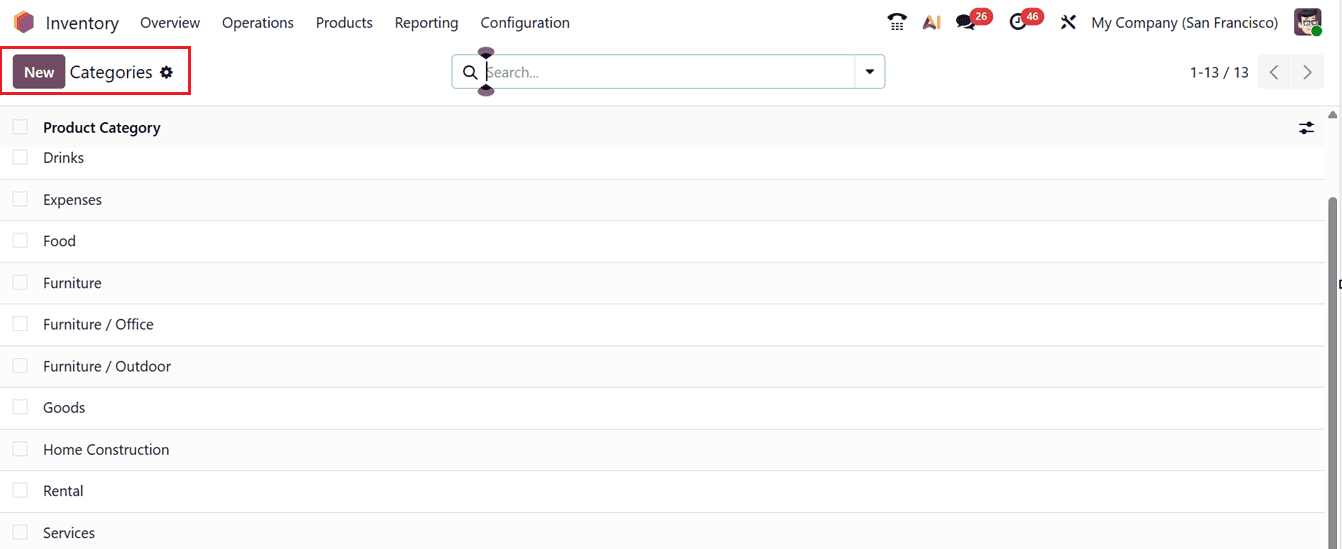
If you want to add a new category, simply click on the New button. You will then be prompted to enter the Category Name and, if relevant, assign a Parent Category. Defining a parent category helps in building a hierarchical framework, making it easier to group related items together and maintain a well-structured inventory system.
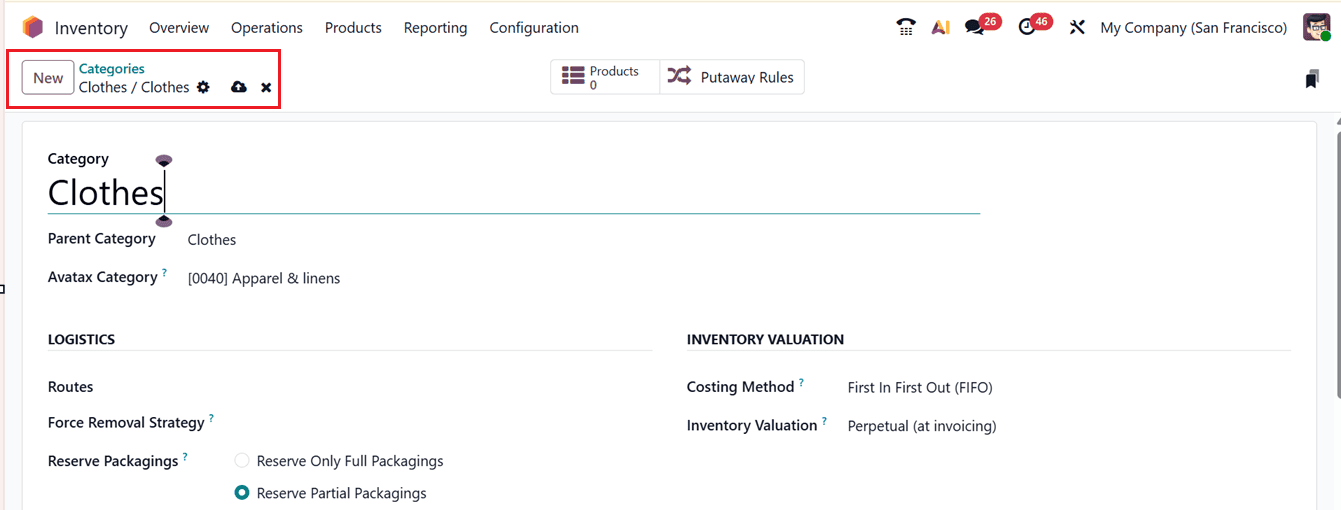

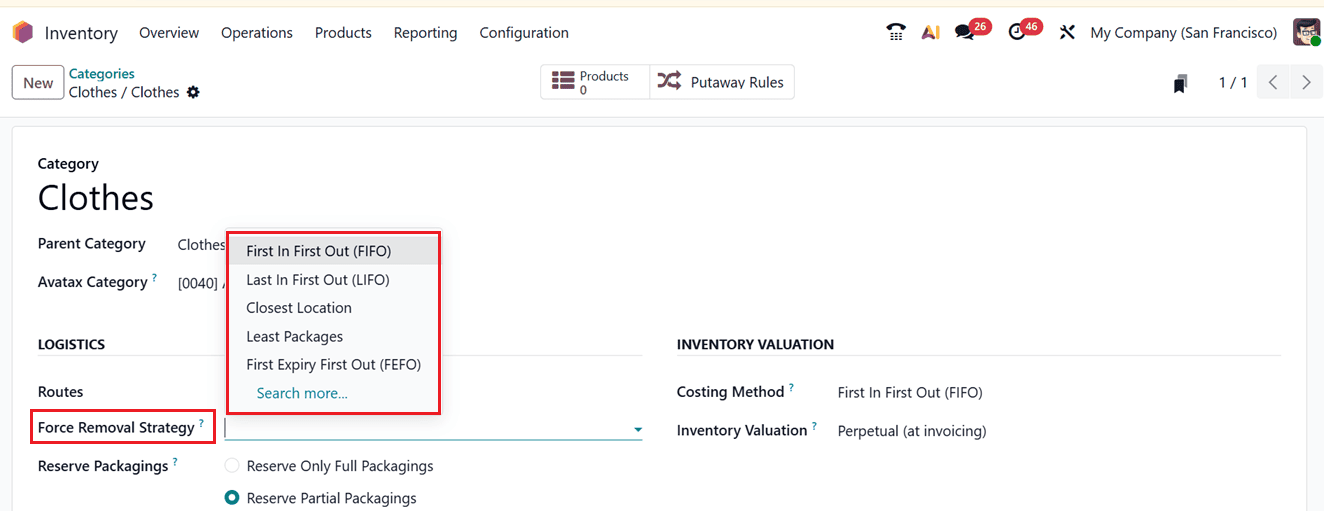
Within the LOGISTICS tab, you have the option to configure the category’s Routes and apply a Force Removal Strategy, which determines the method used for selecting and dispatching products from the warehouse. The available removal strategies are as follows:
- FIFO (First In, First Out): Items that were received into inventory earliest are issued first, making this method particularly suitable for goods that have a limited shelf life.
- LIFO (Last In, First Out): Products that were added to inventory most recently are the first to be picked and removed.
- FEFO (First Expiry, First Out): Priority is given to items with the closest expiration dates, ensuring that products nearing expiry are utilized before others.
- Least Packages: Chooses the smallest available package first to reduce handling.
- Closest Location: Selects the item stored closest to the picking point.
Then you can configure Reserve Packagings to determine whether packages should be reserved in full or partially for deliveries.
In the Category configuration form view, there are two reservation methods are available:
- Reserve Only Full Packagings: Reserves stock only when complete packaging quantities are available.
- Reserve Partial Packagings: Allows partial fulfillment of orders when full packaging quantities aren’t in stock.
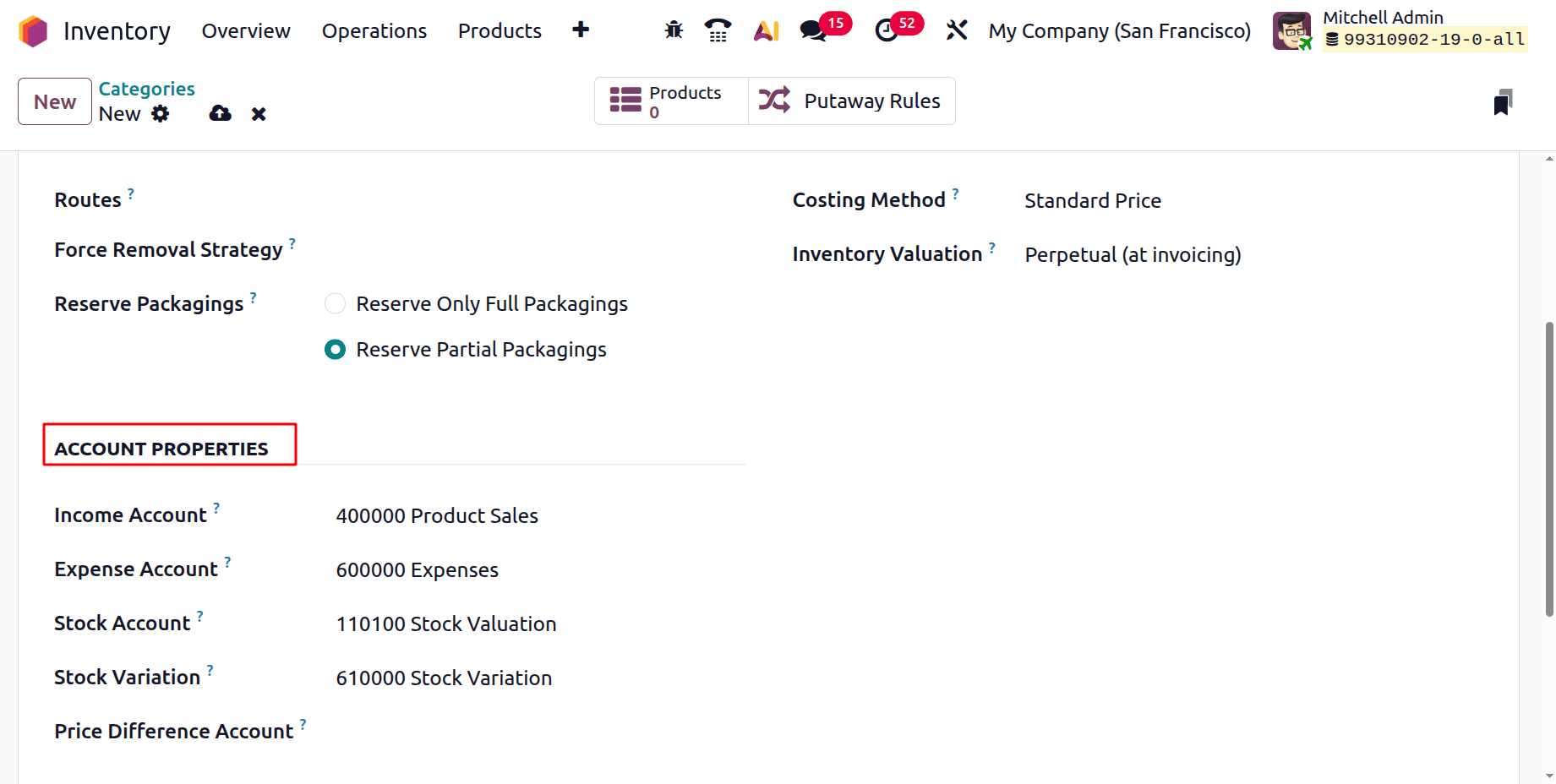
For example, suppose each package holds twelve units and a customer order asks for two packages (totaling fourteen units), while the available inventory is only twenty-two units. In that case, Odoo will allocate 7 units when the Reserve Only Full Packagings option is applied, whereas it will allocate 12 units if Reserve Partial Packagings is selected. Within the ACCOUNT PROPERTIES tab, you should define the Income Account, which is used to record revenue generated from sales, and the Expense Account, which tracks the costs associated with goods or purchases. Additionally, you may specify the Stock Account along with the Stock Variation Account to handle the current valuation of the product and to record inventory fluctuations for a given accounting period.
Then, the Price Difference Account field becomes visible only when the Inventory Valuation setting is configured to Perpetual (at invoicing). This particular account is used to capture any discrepancy between the predefined standard price and the actual billed price.
After that, select an appropriate costing method from the INVENTORY VALUATION tab. The available options includes;
- Standard Price: Keeps a constant cost value, unaffected by changes in market conditions.
- Average Cost (AVCO): Continuously updates the cost based on the weighted average of available stock.
- FIFO (First In, First Out): Assigns costs based on the earliest purchased items being used first.
Finally, in the Inventory Valuation field, determine how inventory values should be recorded.
- Choosing the Periodic (at closing) means that the accounting entries are recorded at the end of the accounting period rather than in real time.
- The Perpetual (at invoicing) option automatically records the accounting entries to value the inventory based on bills and invoicing transactions.
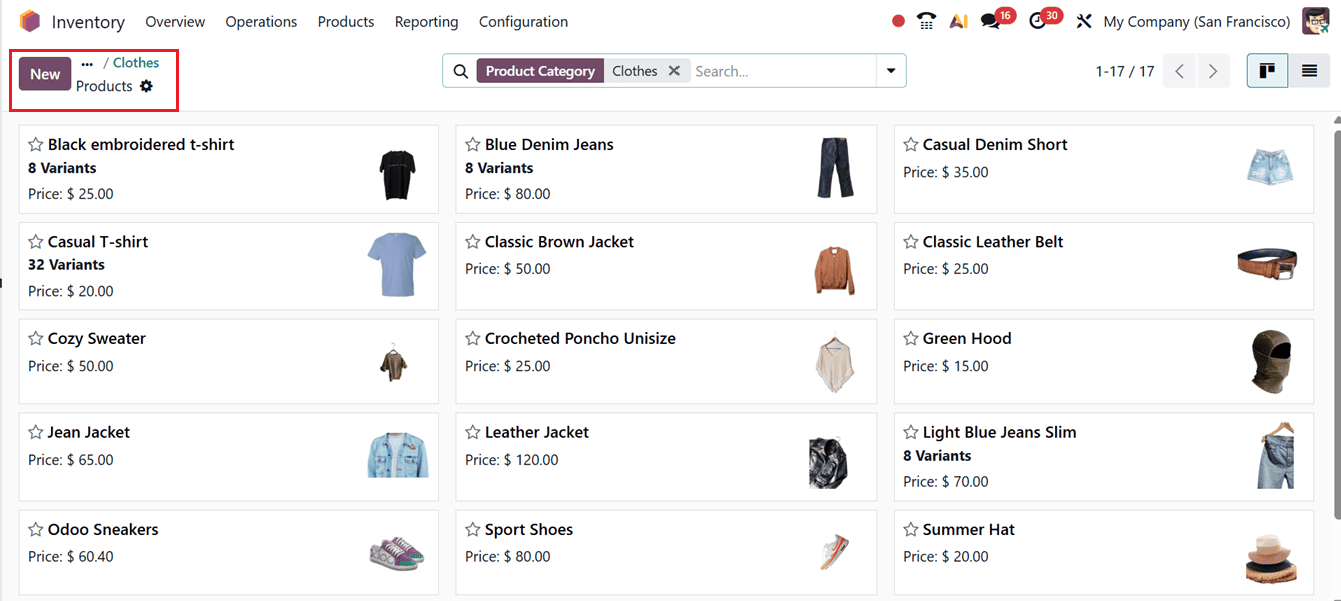
Once the data has been saved, you may manage the putaway rules by checking the "Putaway Rules" smart button and viewing the products that fall under this category from the "Products" smart button.

The ‘Products’ smart button will show the products that come under this particular category as a dashboard view, as shown in the screenshot below.
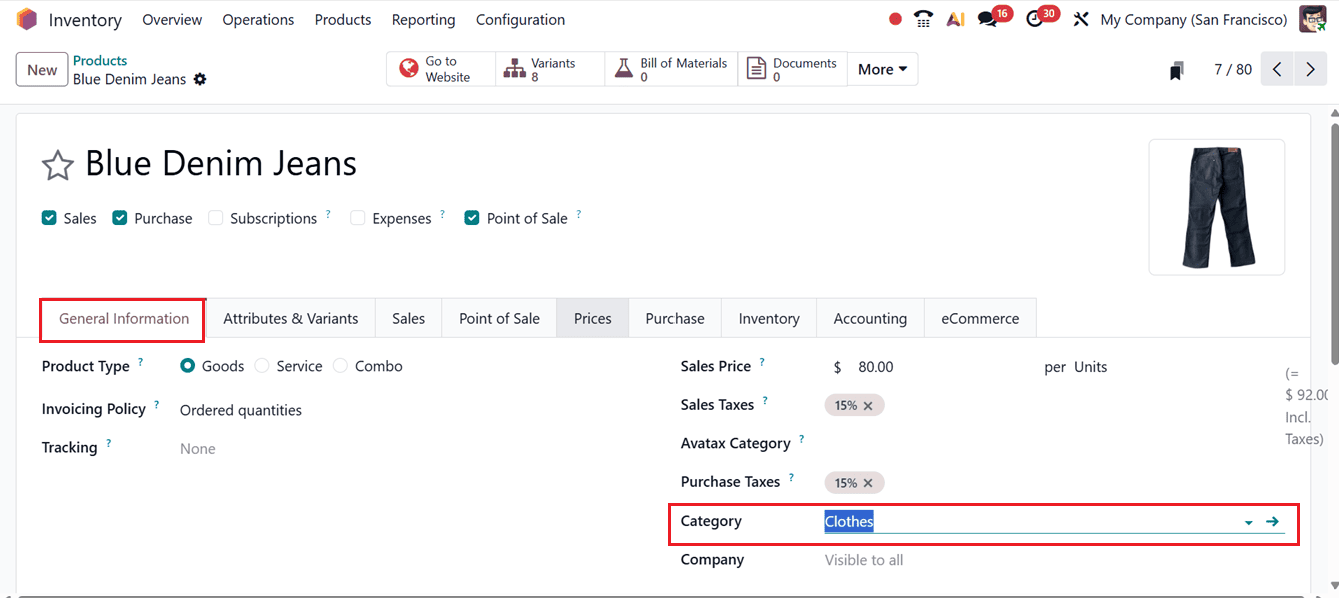
Once the new category has been created, it can be linked to any relevant product by selecting it in the Category field found within the General Information tab of the product configuration form, as illustrated in the screenshot below.
These extensive Odoo configuration options enable companies to modify their inventory structure, optimize warehouse operations, and uphold precise stock control.
In conclusion, Odoo 19 enhances inventory organization by enabling businesses to build a smarter and more scalable structure through well-defined product categories. By carefully managing these categories, companies can streamline stock operations, automate accounting processes, simplify reporting, and gain better visibility across warehouses. Far beyond simple labels, product categories serve as the foundation for effective inventory control, accurate cost management, and efficient procurement workflows. As your business expands, maintaining a clear and consistent category structure in Odoo 19 helps minimize errors, improve operational consistency, and support informed decision-making, ensuring long-term efficiency and scalability whether you manage a small product range or thousands of SKUs.
To read more about How to Organize Inventory with Product Categories in Odoo 18, refer to our blog How to Organize Inventory with Product Categories in Odoo 18.