A responsive online client that automatically adjusts form, list, and kanban view layouts to screen size is included with Odoo 19. Responsiveness, however, merely modifies the same perspective. It cannot determine that a user on a mobile device should choose a view type that is entirely different from that of a desktop user. This is precisely what we require in many real-world applications. While a field executive accessing the same record from a phone is much more at ease with a card-style kanban view that is simple to scroll and tap, a warehouse supervisor seated at a desk prefers a full list view where columns can be sorted and filtered.
Odoo does not include a settings option to open multiple views depending on the device. A smart button or menu action always refers to the same ir.actions.act_window, and the view order specified there is fixed. However, there is a simple way to achieve device-based view switching: because every button click in the Odoo web client generates an HTTP request, we can read the User-Agent header of that request in Python, determine whether the client is a mobile device, and return a different window action accordingly.
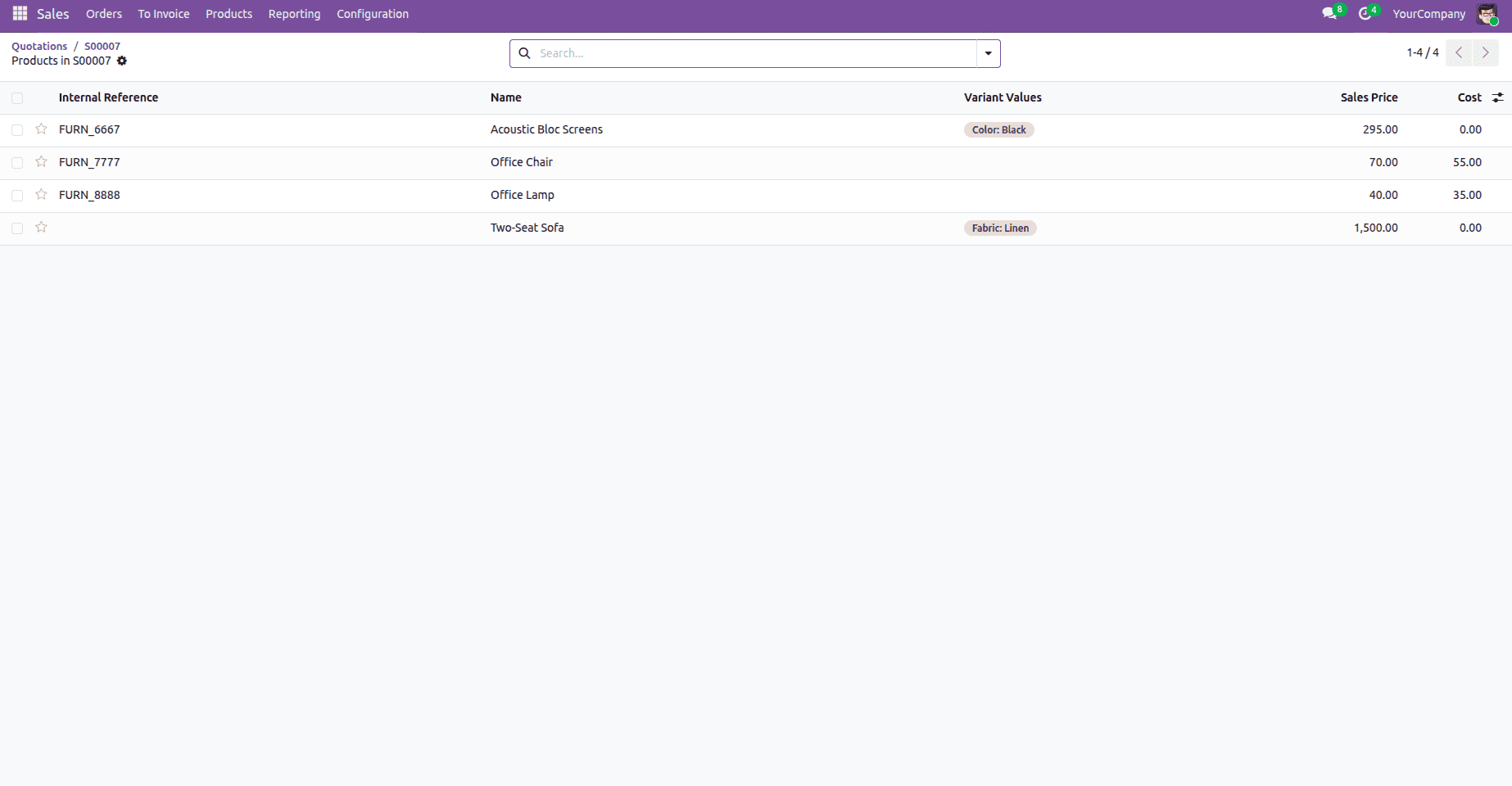
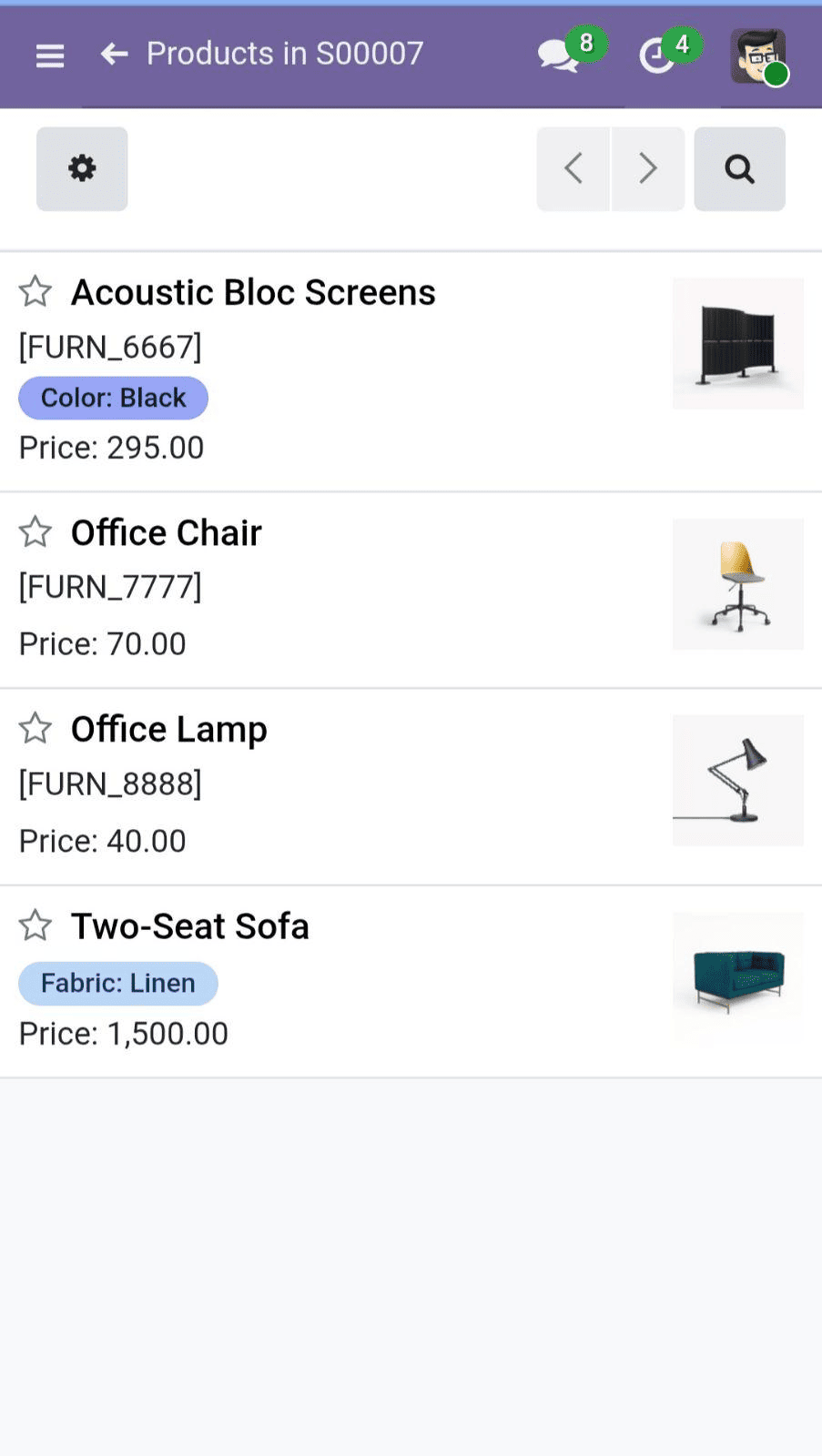
In this blog, we will apply this strategy to the Sale Order form. We'll include a smart button called Products that shows how many distinct products are in the order lines. When you click the button from a desktop browser, the products appear in a list format. When the same button is pressed from a mobile device, the products are displayed in a kanban view, which shows product photos as cards and is significantly more user-friendly on touch screens. Because the entire functionality is on the server side, JavaScript is not necessary.
Detecting the Device and Returning the View from Python
The entire server-side logic resides in a single file, models/sale_order.py. We have inherited the sale.Order model and add three things: a computed field for the smart button count, a helper function that detects the device from the User-Agent header, and a button action that produces a different view based on the outcome.
Python Code:
from odoo import fields, models
from odoo.http import request
MOBILE_KEYWORDS = (
    'mobile', 'android', 'iphone', 'ipad',
    'opera mini', 'blackberry', 'windows phone',
)

class SaleOrder(models.Model):
    _inherit = 'sale.order'
    product_count = fields.Integer(
        string="Product Count",
        compute='_compute_product_count',
    )
    def _compute_product_count(self):
        """Count distinct products in the order lines."""
        for order in self:
            order.product_count = len(order.order_line.mapped('product_id'))
    def _is_mobile_device(self):
        """Return True if the current HTTP request comes from a mobile
        device, detected via the User-Agent header.
        Safe to call from cron/shell contexts where there is no request.
        """
        if not request:
            return False
        ua = request.httprequest.headers.get('User-Agent', '').lower()
        return any(keyword in ua for keyword in MOBILE_KEYWORDS)
    def action_view_order_products(self):
        """Smart button action: open the products of this sale order.
        * Mobile  -> kanban view first (touch friendly, shows images)
        * Desktop -> list view first (sortable columns)
        """
        self.ensure_one()
        products = self.order_line.mapped('product_id')
        action = {
            'type': 'ir.actions.act_window',
            'name': 'Products in %s' % self.name,
            'res_model': 'product.product',
            'domain': [('id', 'in', products.ids)],
            'context': {'create': False},
        }
        if self._is_mobile_device():
            action.update({
                'view_mode': 'kanban,form',
                'views': [(False, 'kanban'), (False, 'form')],
            })
        else:
            action.update({
                'view_mode': 'list,form',
                'views': [(False, 'list'), (False, 'form')],
            })
        return action
Device identification using _is_mobile_device(), Each browser provides a User-Agent string with each request, and mobile browsers add identifying keywords like Mobile, Android, or iPhone. Odoo provides access to the current HTTP request via odoo.http.request, therefore the helper function reads the raw header along with the request. httprequest.headers.get('User-Agent'), lowercases it, then compares it to the MOBILE_KEYWORDS tuple. Because model methods might be executed from cron jobs or shell sessions with no HTTP request, the method first verifies that the request exists. We manually parse the header rather than depending on Werkzeug's user_agent.platform attribute, because that built-in parser has been deprecated and no longer returns platform information in current Odoo releases.
The calculated field product_count. A smart button often displays a count, therefore _compute_product_count() applies mapped('product_id') to the order lines. Because mapped() generates a recordset of distinct products, a product that appears on three different lines is only counted once. If you want to display the number of order lines instead, simply replace the expression with len(order.order_line).
The device-aware action is action_view_order_products(). This is the foundation of the technique. When the user clicks the smart button, the web client sends a call_button RPC to the server, which includes the browser's User-Agent header. This is why server-side detection works for button clicks. The method collects the order's individual products and creates a base action dictionary that targets the product. Product, with a domain that limits the records to those products. The view_mode and views keys are then set based on the outcome of _is_mobile_device(), with kanban-first for mobile and list-first for desktop. Passing False as the view ID instructs Odoo to utilize the product model's default kanban and list views, both of which already display product images in Kanban mode.
If you created a custom compact kanban for mobile, use self.env.ref('module.view_id').id instead of False. The extra 'context': {'create': False} just conceals the Create button in the opened view, as creating goods using this button is rarely useful. One crucial version detail: in Odoo 19, the traditional tree view type has been renamed to list, therefore using 'view_mode': 'tree,form' would result in an error.
Adding the Smart Button to the Sale Order Form in XML
Now we need to add the smart button to the Sale Order form so that users can really initiate the operation. This is accomplished by inheriting the basic sale order form view and adding the button to its button box. Create the file view/sale_order_views.xml.
xml code
<?xml version="1.0" encoding="utf-8"?>
<odoo>
    <!-- Add "Products" smart button on the Sale Order form -->
    <record id="view_order_form_inherit_device_switch" model="ir.ui.view">
        <field name="name">sale.order.form.device.view.switch</field>
        <field name="model">sale.order</field>
        <field name="inherit_id" ref="sale.view_order_form"/>
        <field name="arch" type="xml">
            <xpath expr="//div[@name='button_box']" position="inside">
                <button name="action_view_order_products"
                        type="object"
                        class="oe_stat_button"
                        icon="fa-cubes"
                        invisible="product_count == 0">
                    <field name="product_count"
                           widget="statinfo"
                           string="Products"/>
                </button>
            </xpath>
        </field>
    </record>
</odoo>
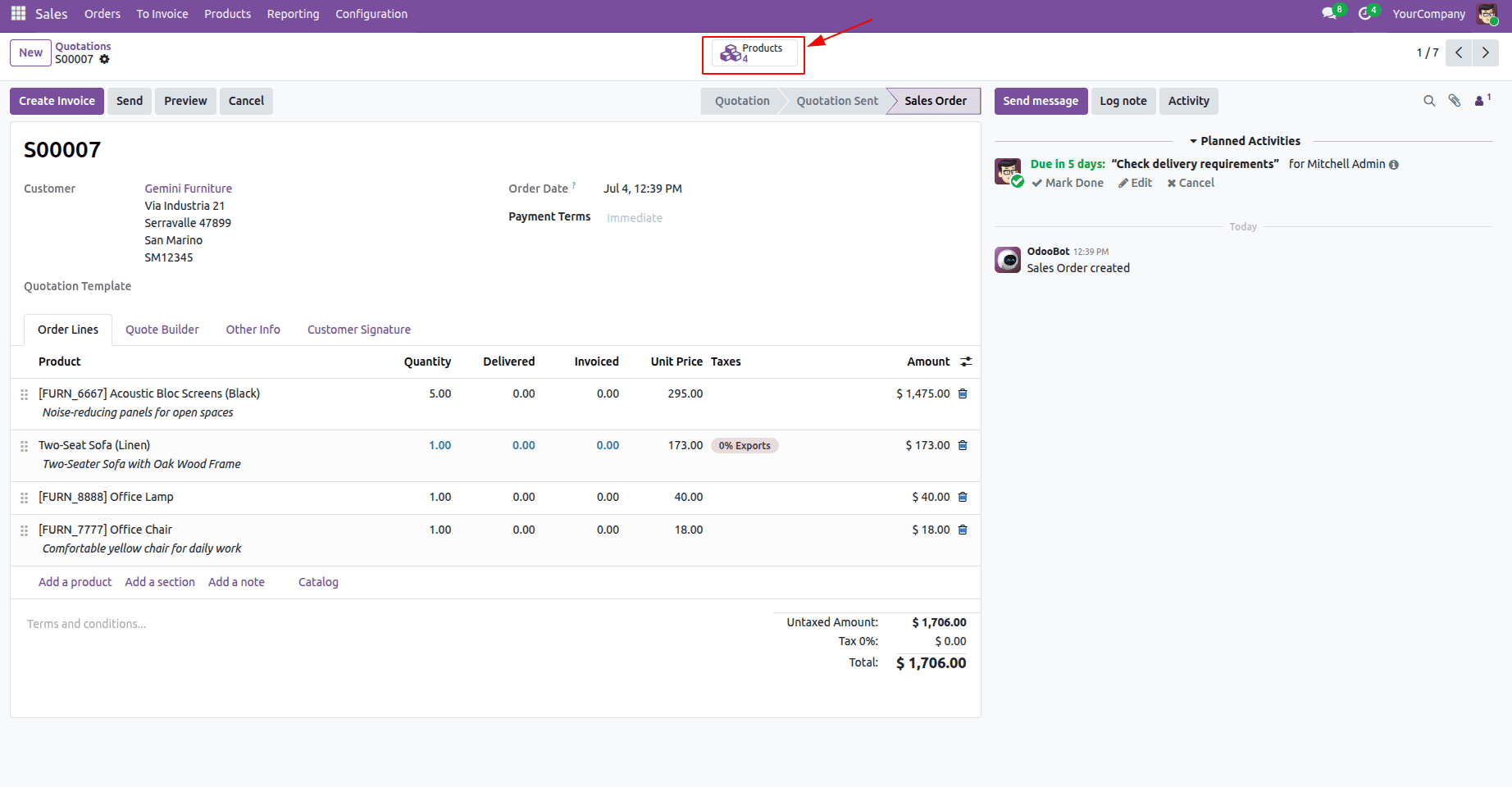
The view record inherits sale.view_order_form and utilizes an XPath expression to target the standard button_box div of the sale order form, adding our button inside it. Because the button is of type="object", clicking it causes the Python function action_view_order_products() to be executed, and the statinfo widget displays the calculated count next to the label, giving it the recognizable smart button look. For sale orders that do not yet have order lines, the button remains hidden.
The screenshots below show what happens after you add these Python and XML files and install or upgrade your custom module.
The Sale Order Form View with Products Smart Button(Desktop View):
Smart button opens the product list view(Desktop View):
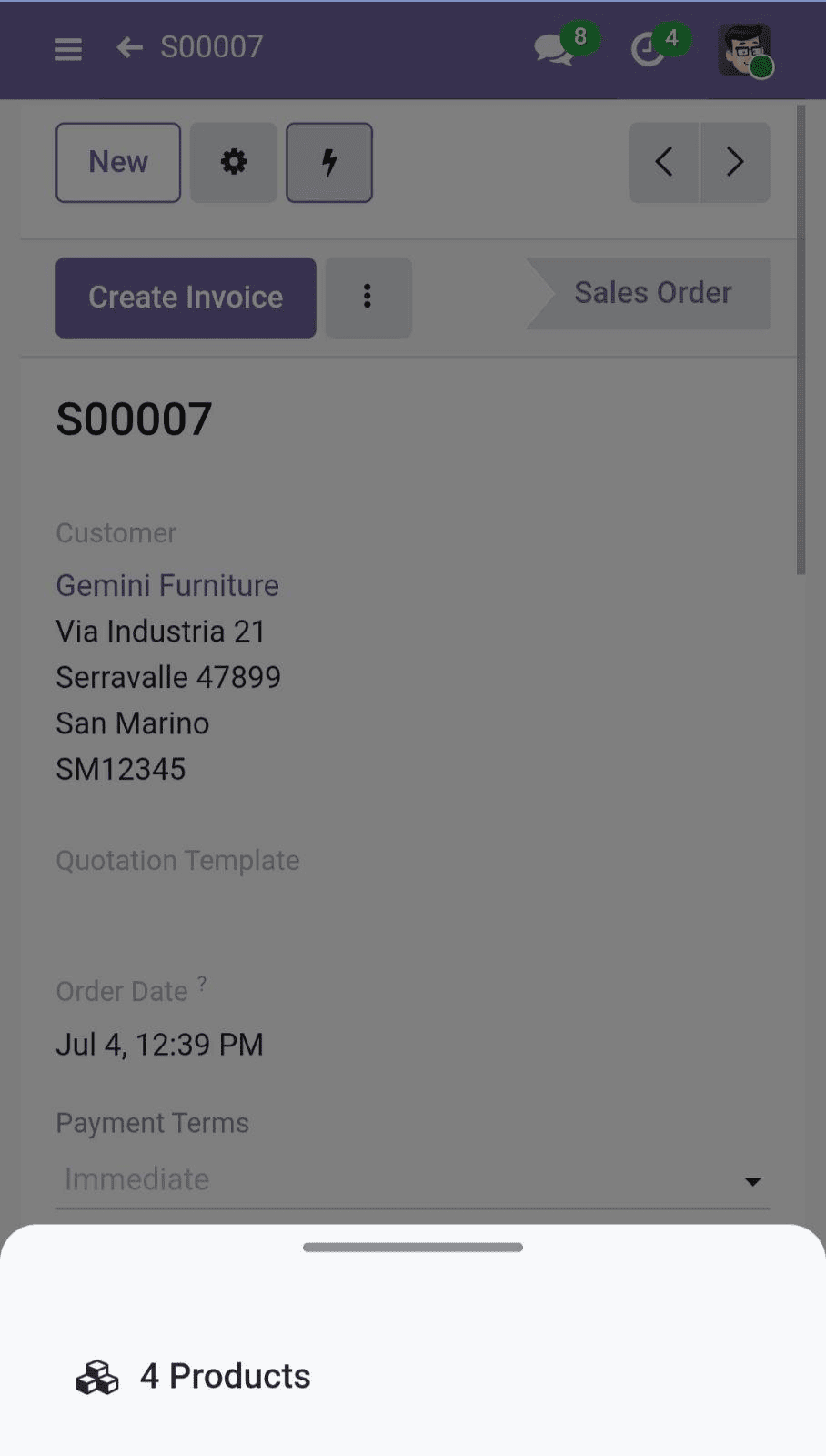
The Sale Order Form View with Products Smart Button(Mobile View):
Smart button opens the product kanban view(Mobile View):
In this blog, we looked at how to read the User-Agent header on the server side and return a device-specific window action to open various views in Odoo 19 depending on the user's device. The sale order Products smart button shown here is only one example; the same pattern may be used and customized for any Odoo model, be it a portal page via a website controller, a menu action via a server action, or a smart button. JavaScript is not needed because Python handles all of the functionality, and it functions flawlessly on both the website and the backend. While desktop users continue to work with sophisticated, data-rich views, you can provide mobile users with a touch-friendly experience using this straightforward method.
To read more about How to Use Different Views to Enhance Sales Operations in Odoo 19, refer to our blog How to Use Different Views to Enhance Sales Operations in Odoo 19.