Activities in Odoo help you stay on top of your daily work. They are reminders or tasks that guide you on what needs to be done next, such as calling a customer, sending a quotation, or following up on a payment. With Odoo 19, managing activities has become smoother and easier to handle across all modules.
You can stay on top of your daily tasks with the help of Odoo activities. They are tasks or reminders that tell you what has to be done next, such as following up on a payment, calling a customer, or sending a quote. Across all modules, activity management has gotten easier and more seamless with Odoo 19.
Activities can be scheduled for particular dates, you can design your own activity types, and you can receive reminders prior to the due date. To ensure that you never overlook a crucial task, Odoo also sends notifications. You can even view activity reports or configure automation to generate them automatically due to specific actions.
Activities in Odoo 19
Activities in Odoo help users keep track of their tasks and reminders. You can use them to plan calls, meetings, follow-ups, or any other action related to your customers or records. In Odoo 19, the Activity View gives you a clear visual overview of all your scheduled activities.
To check activities in the Sales module:
- Go to Sales > Quotations.
- From the different available views at the top (List, Kanban, Calendar, etc.), click on the Activity View icon.
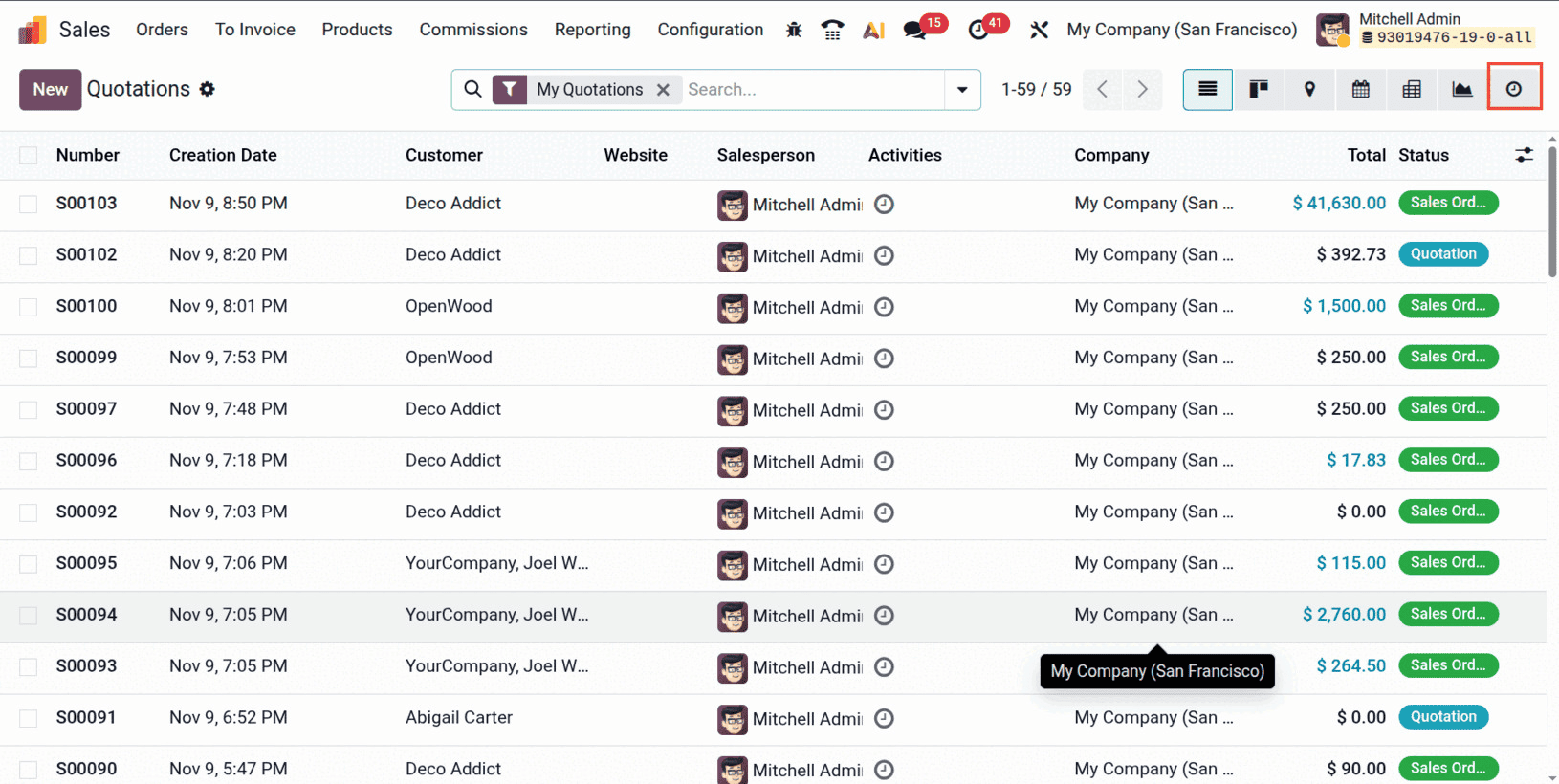
- Here, you can see all quotations listed along with their related activities, customers, and assigned salespersons.
By default, Odoo filters the view as “My Quotations,” showing only the quotations related to your user.
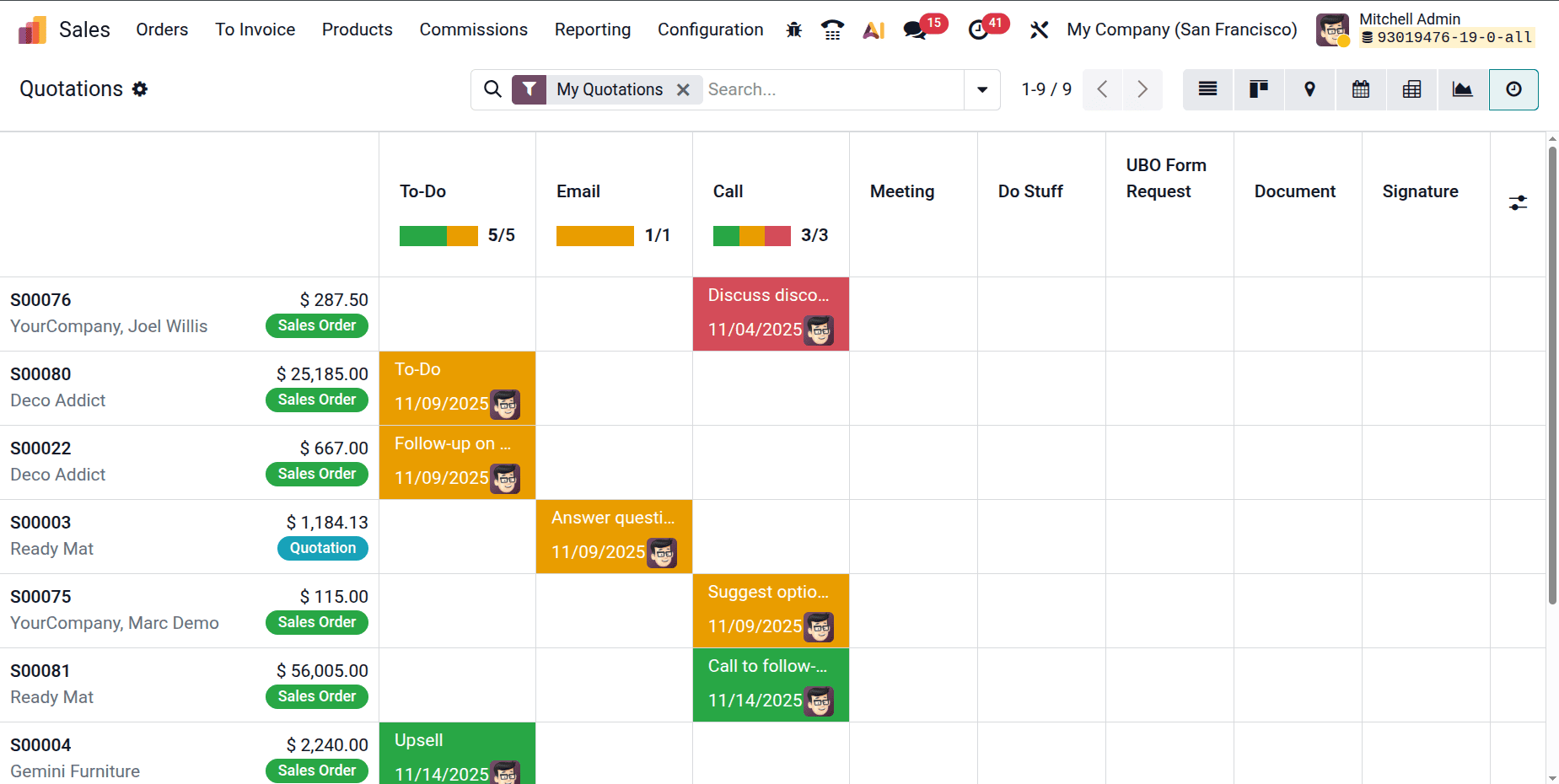
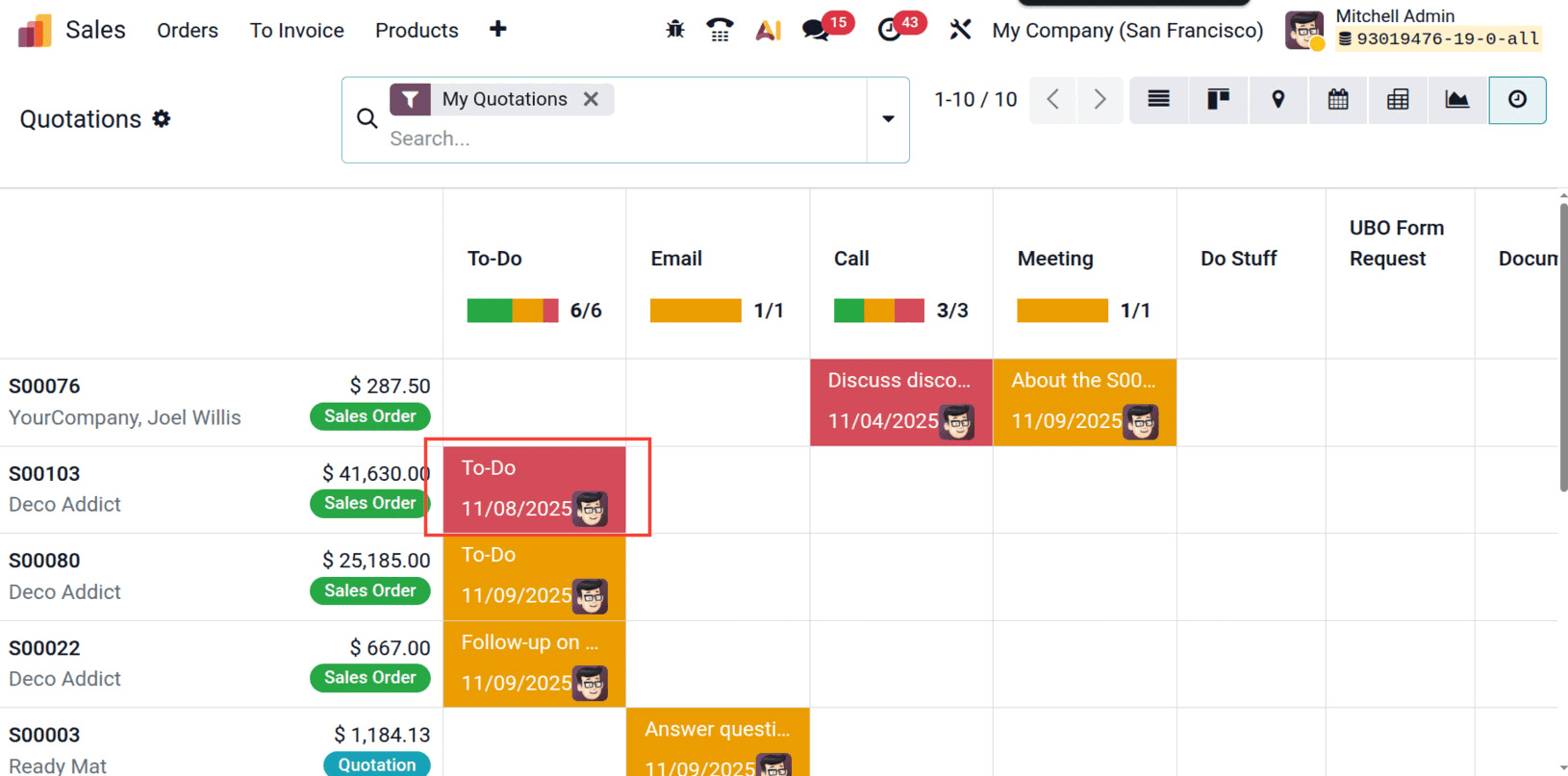
In the activity view, each color represents the status of an activity:
- Red – Overdue activities
- Yellow – Activities scheduled for today
- Green – Planned activities
This color-coded display helps you quickly identify which tasks need immediate attention.
To schedule a new activity, click on any empty cell in the grid. A pop-up window will appear where you can select the Activity Type, set a due date, assign the responsible user, and add a note.
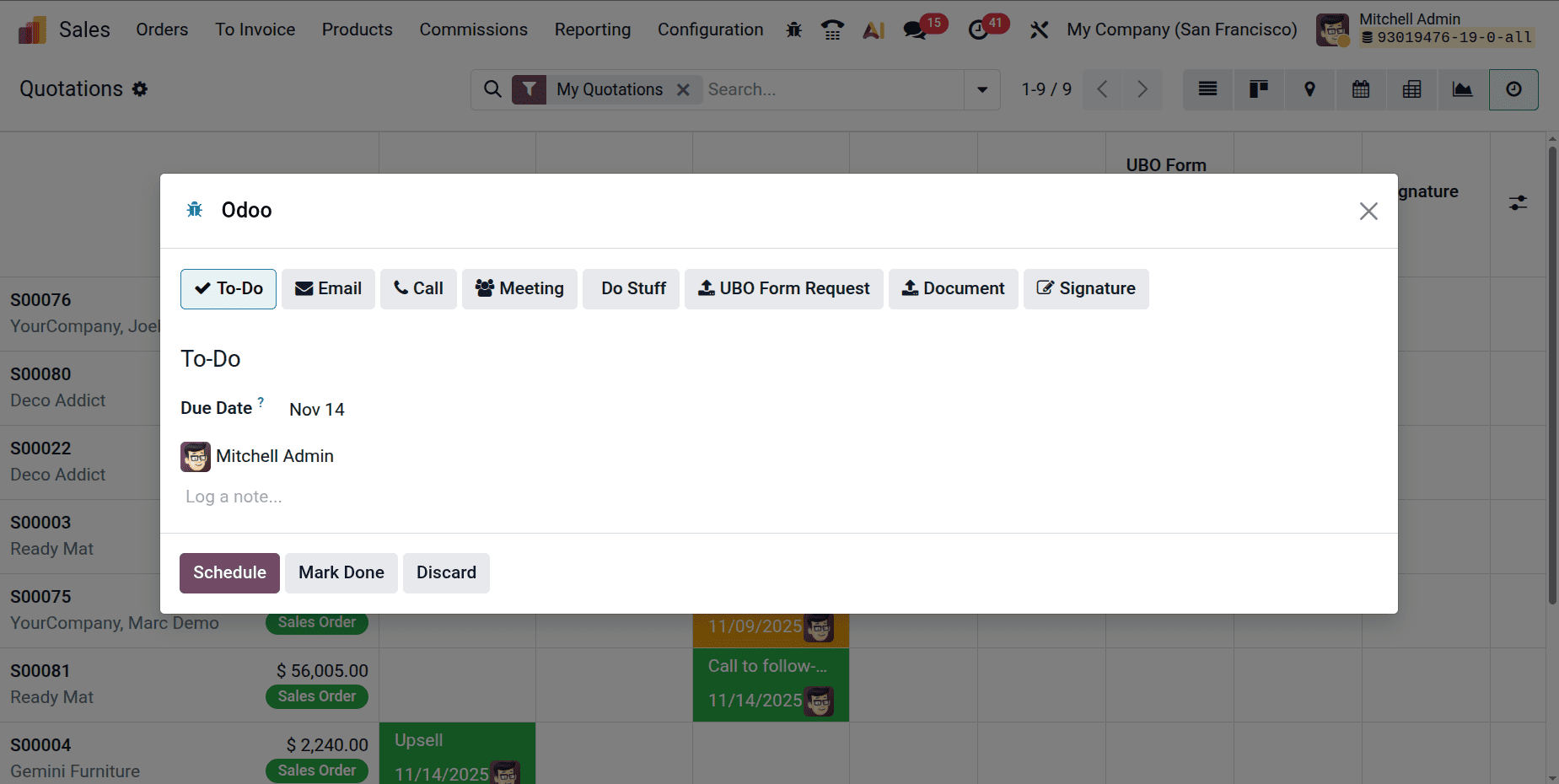
We’ll explore more about Activity Types in the next section.
Activity Types
When scheduling a new activity in Odoo, you can choose from different activity types based on the kind of task you want to perform. Each activity type helps you organize your work better—whether it’s a reminder, a phone call, or a meeting with the client.
You can see these activity types as buttons in the activity scheduling pop-up. Let’s look at each one and understand how it is used.
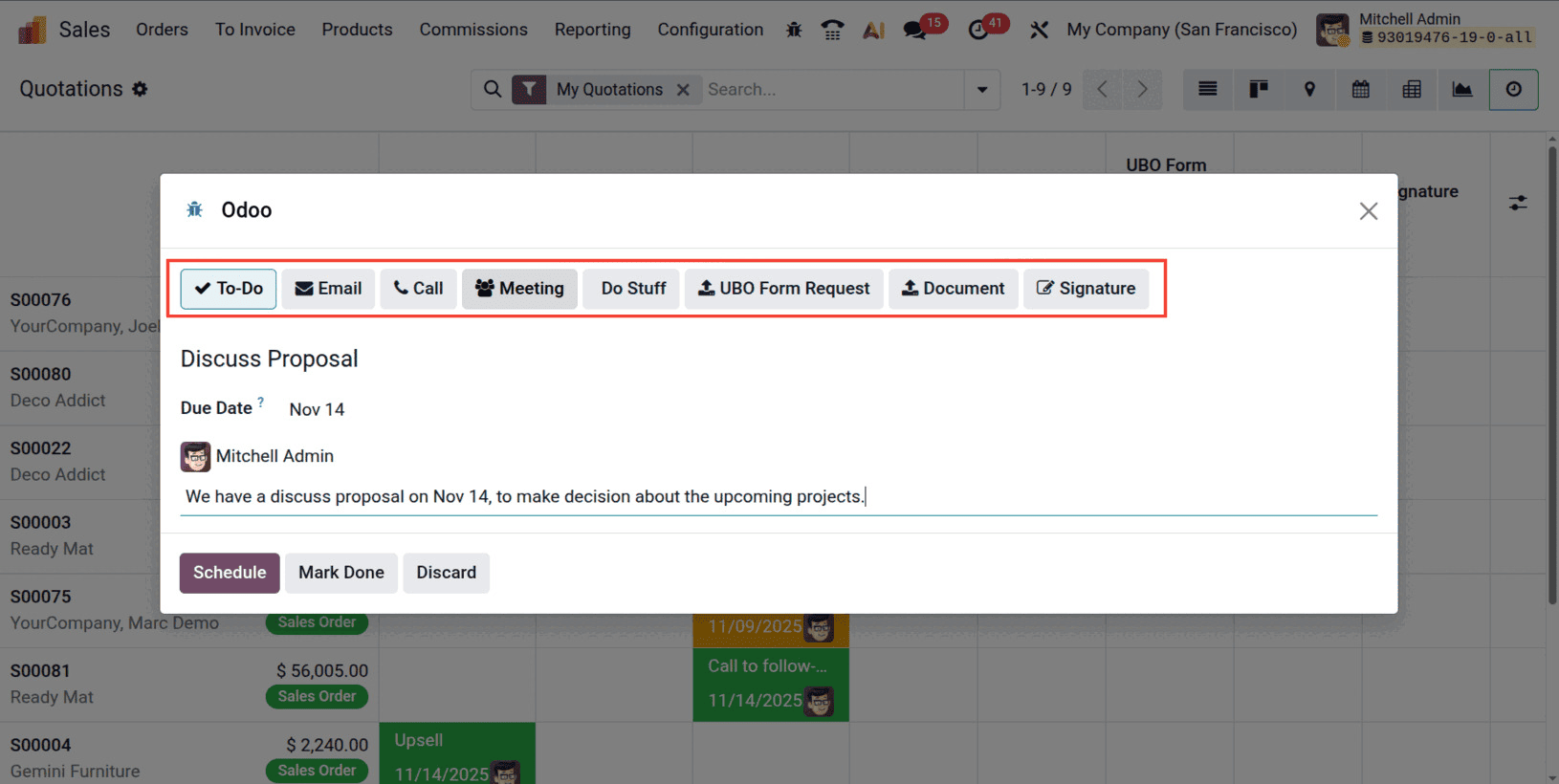
All activity types in Odoo—except for Meeting—share a common pop-up layout that makes scheduling quick and consistent. When creating an activity, you’ll first notice a few key fields that help define what needs to be done and by whom.
You begin by entering a summary, which serves as a short title describing the purpose of the activity, such as “Discuss Proposal” or “Call Client for Feedback.” Next, choose a Due Date, indicating when you plan to complete the task. The Assigned To field determines who will handle the activity, while the Notes section is used to provide additional details or instructions related to it.
At the bottom of the pop-up, Odoo provides three simple yet essential buttons to manage the activity:
- Schedule: saves the activity for later completion.
- Mark Done: marks the task as completed once finished.
- Discard: closes the pop-up without saving any changes.
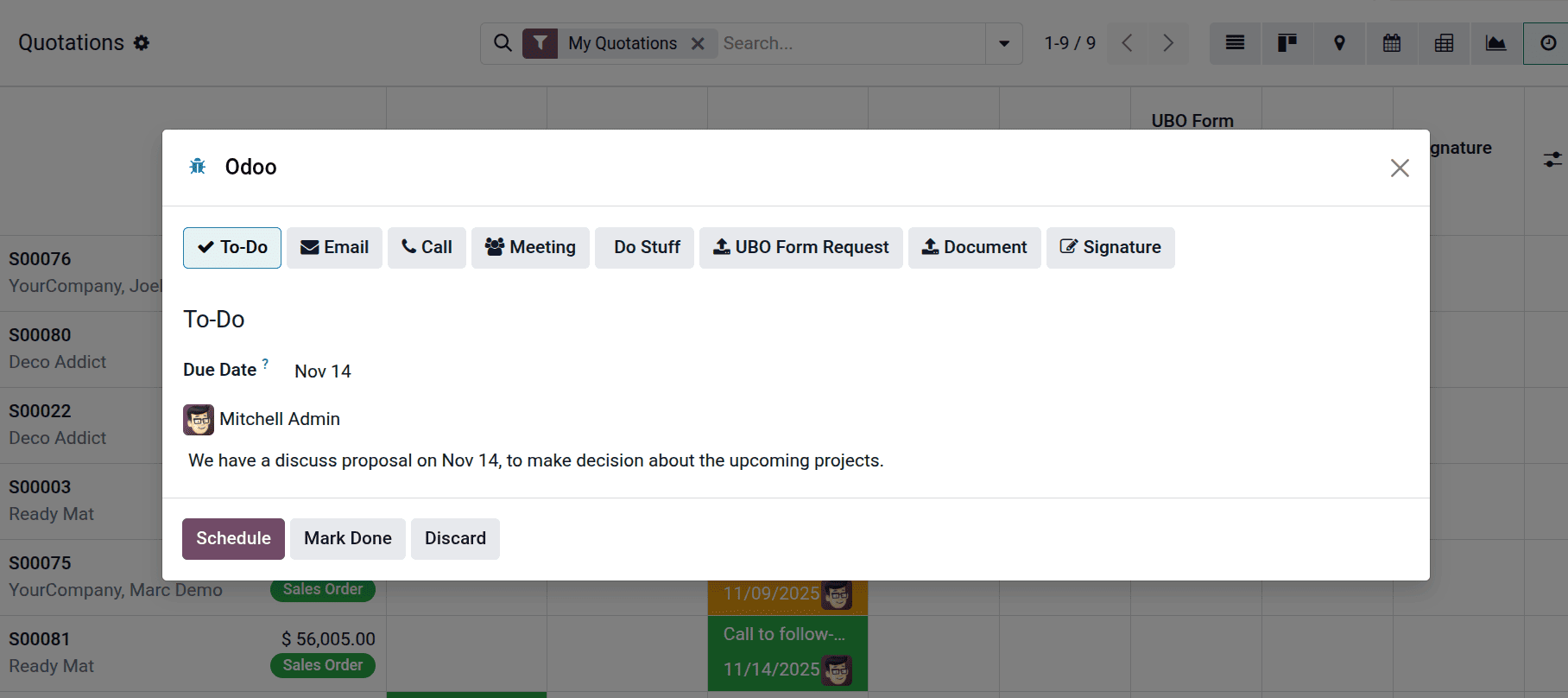
Let’s understand what each type represents:
To-Do
This type is used for general reminders or small tasks that don’t fall under any specific category.
You can add a note describing what you need to do and set the due date.
Call
The Call activity is used to remind you to make a phone call to a customer.
You can include details such as what to discuss, the purpose of the call, or any notes you need to remember during the conversation.
Email
The Email type is used when you need to send an email to a customer or contact directly from Odoo.
Do Stuff
This is a custom activity type, which can be used for any other task that doesn’t fit the default ones.
Admins can create such activity types for internal tasks.
Document / Signature / UBO Form Request
These kinds are primarily associated with particular modules:
- When forms or other information must be obtained from the client, a UBO Form Request is utilized.
- Document: Used to upload or review files related to a record.
- Signature: Assists in obtaining or confirming a digital signature from a client.
Each of these can be triggered from the pop-up depending on the module setup.
Meeting
The Meeting activity type in Odoo stands apart from other activities as it opens a complete scheduling interface.
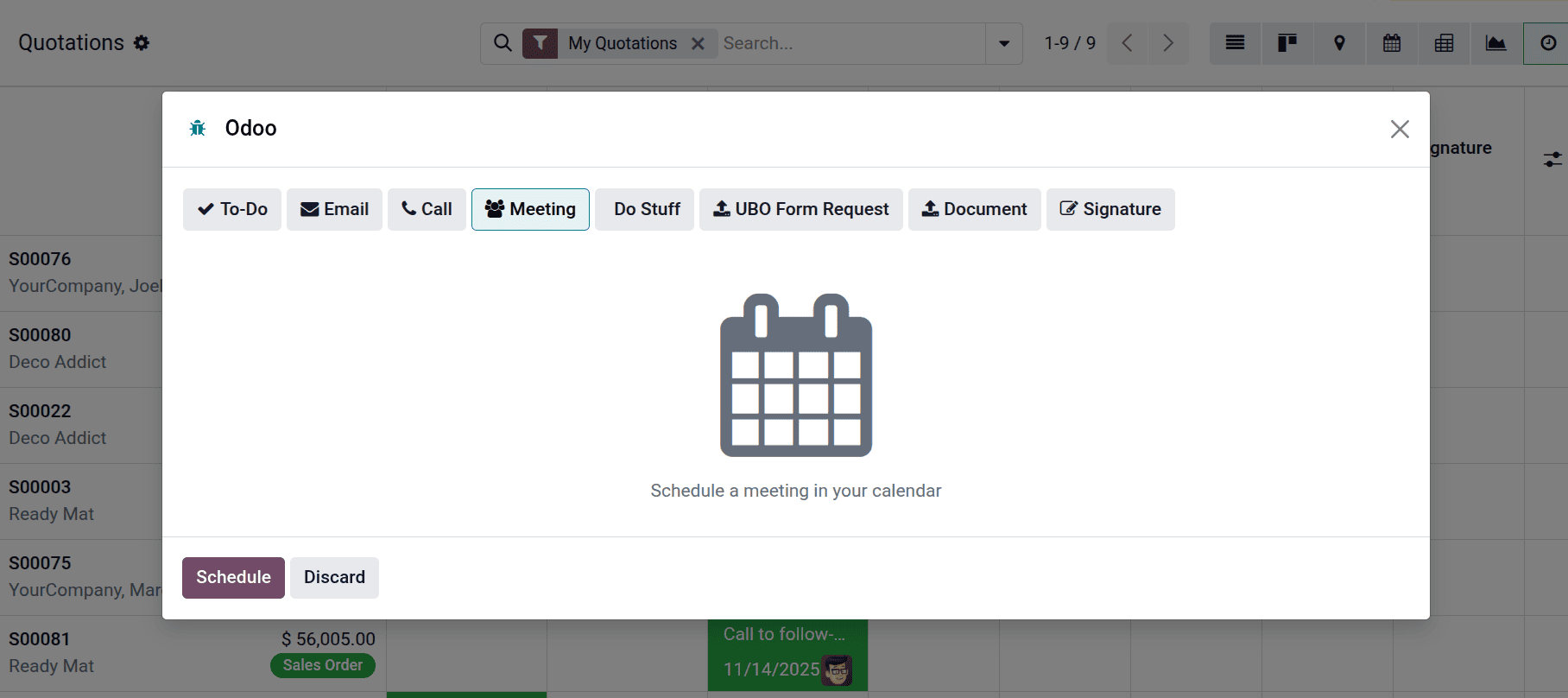
When you select it, Odoo opens a calendar-based interface.
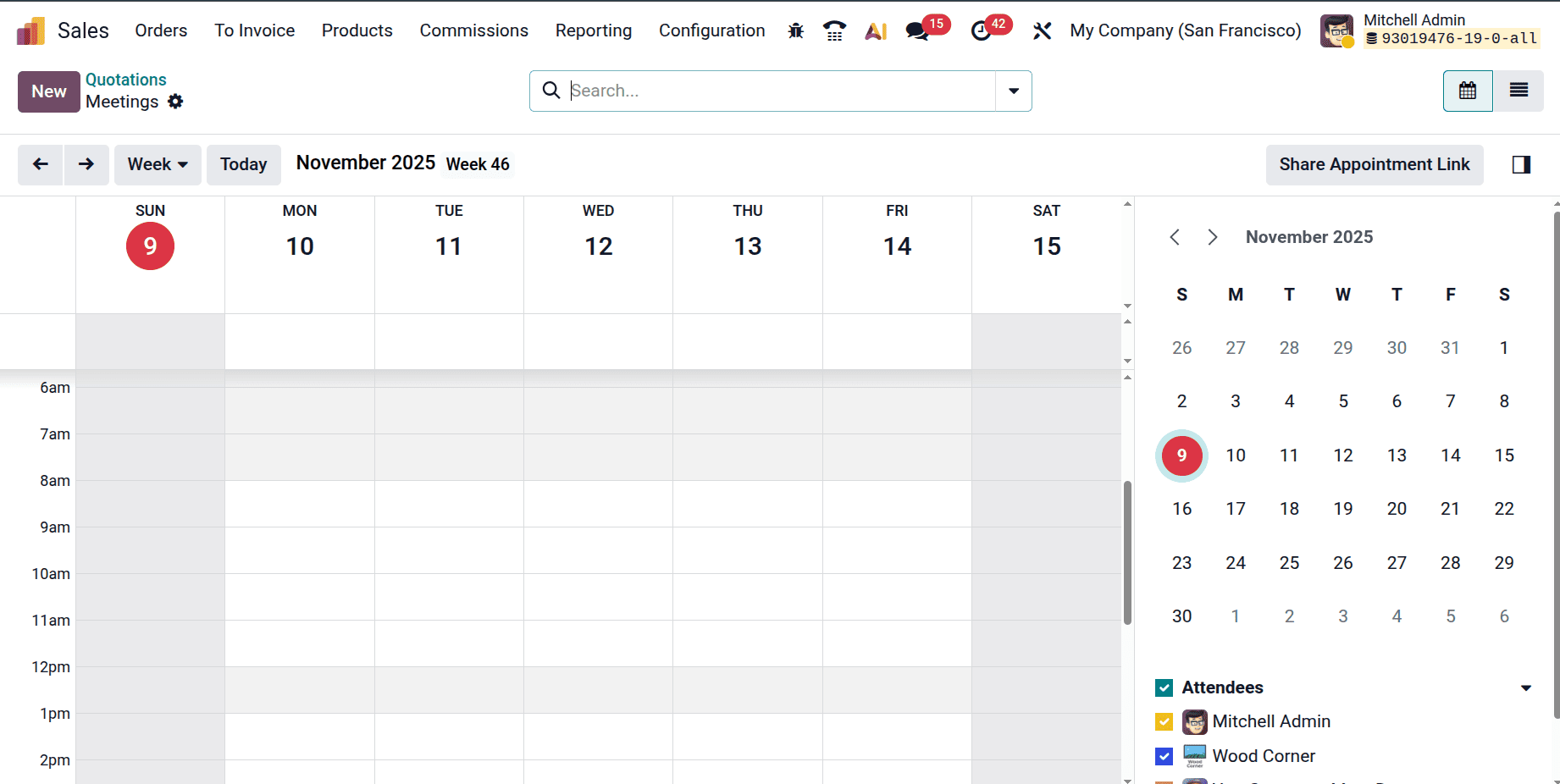
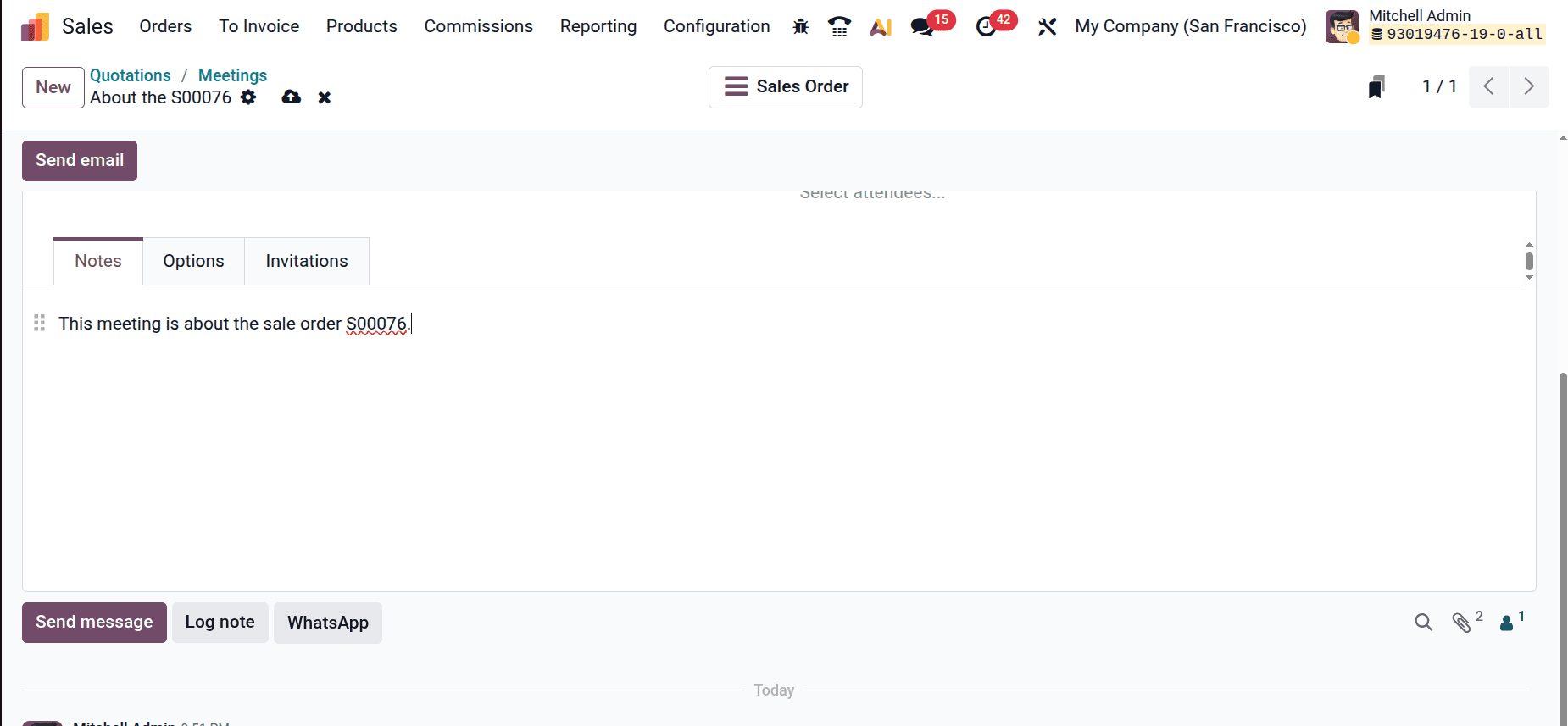
Here, users can specify the meeting subject, start and end time, duration, and location—whether online or offline. You can also link the meeting to a specific record, such as a Sales Quotation (S00076), to ensure proper context.
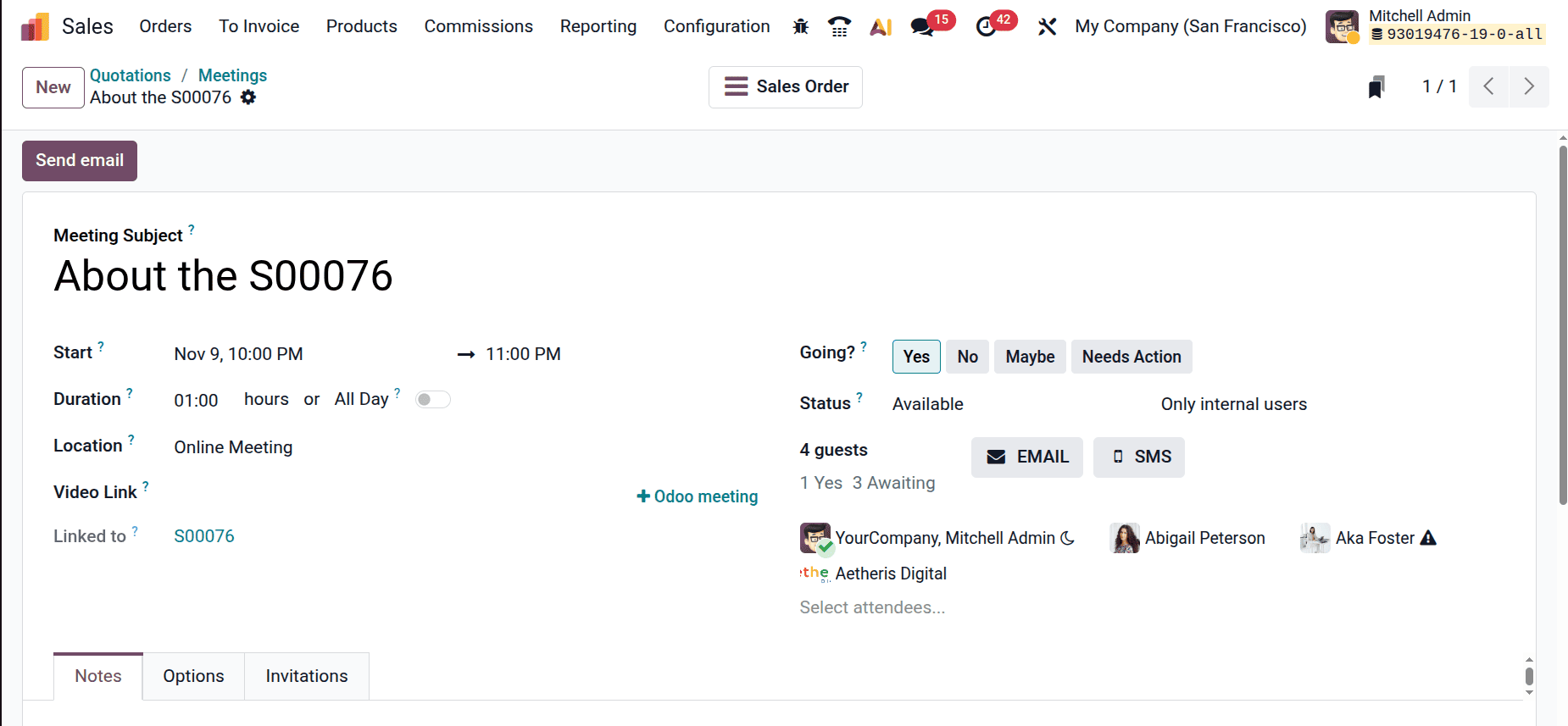
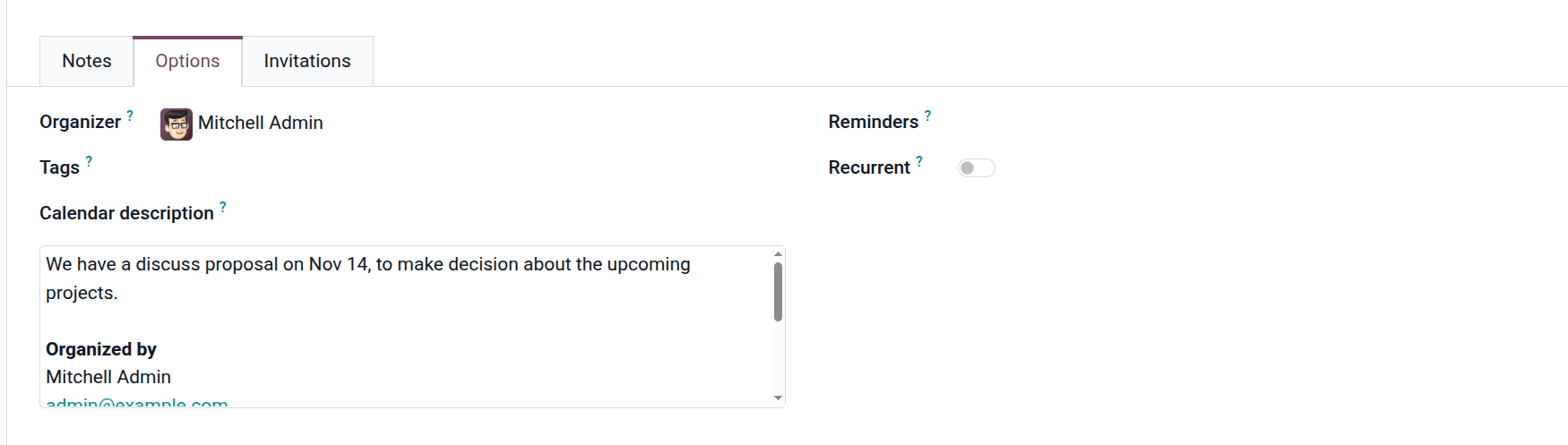
It includes three tabs:
- Notes – for noting down key discussion points or agenda items.
- Options – to assign an organizer, add tags, include a calendar description, and configure reminders or recurrence.
- Invitations – to manage attendees, send invites via email or WhatsApp, and monitor their response status (Accepted, Declined, or Awaiting).
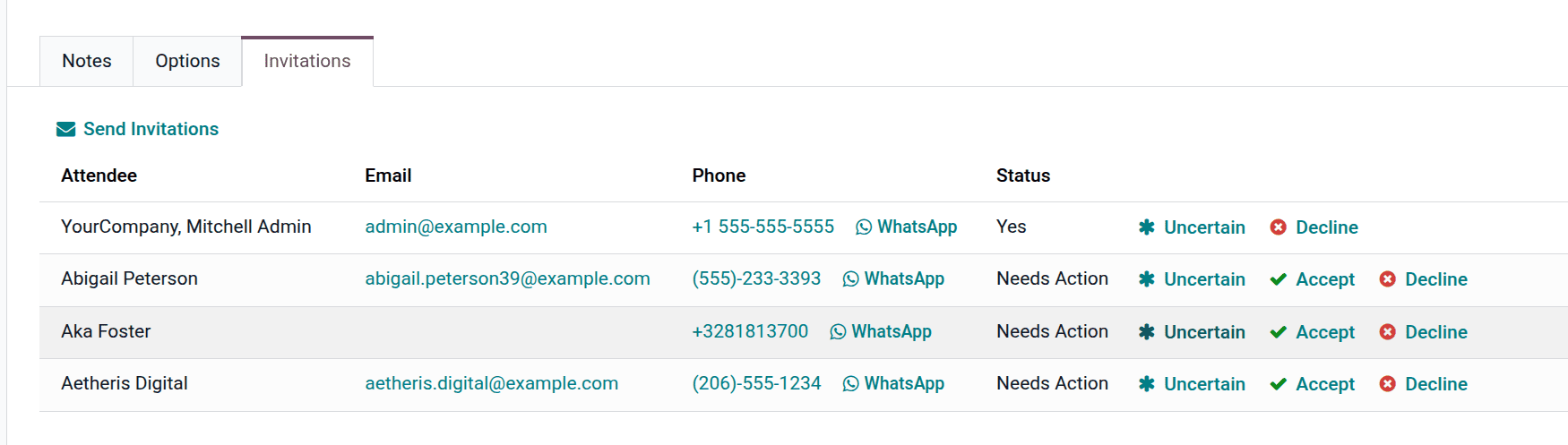
This setup ensures meetings are well-organized, and linked to ongoing business operations within Odoo.
Activity Deadlines
In Odoo, every scheduled activity comes with a due date, ensuring that tasks never slip through the cracks. The deadline serves as a visual reminder; once the date is reached, the activity turns red in the chatter or activity view, signaling it’s overdue.
You can quickly spot missed deadlines from:
- The activities from the chatter of the form view.
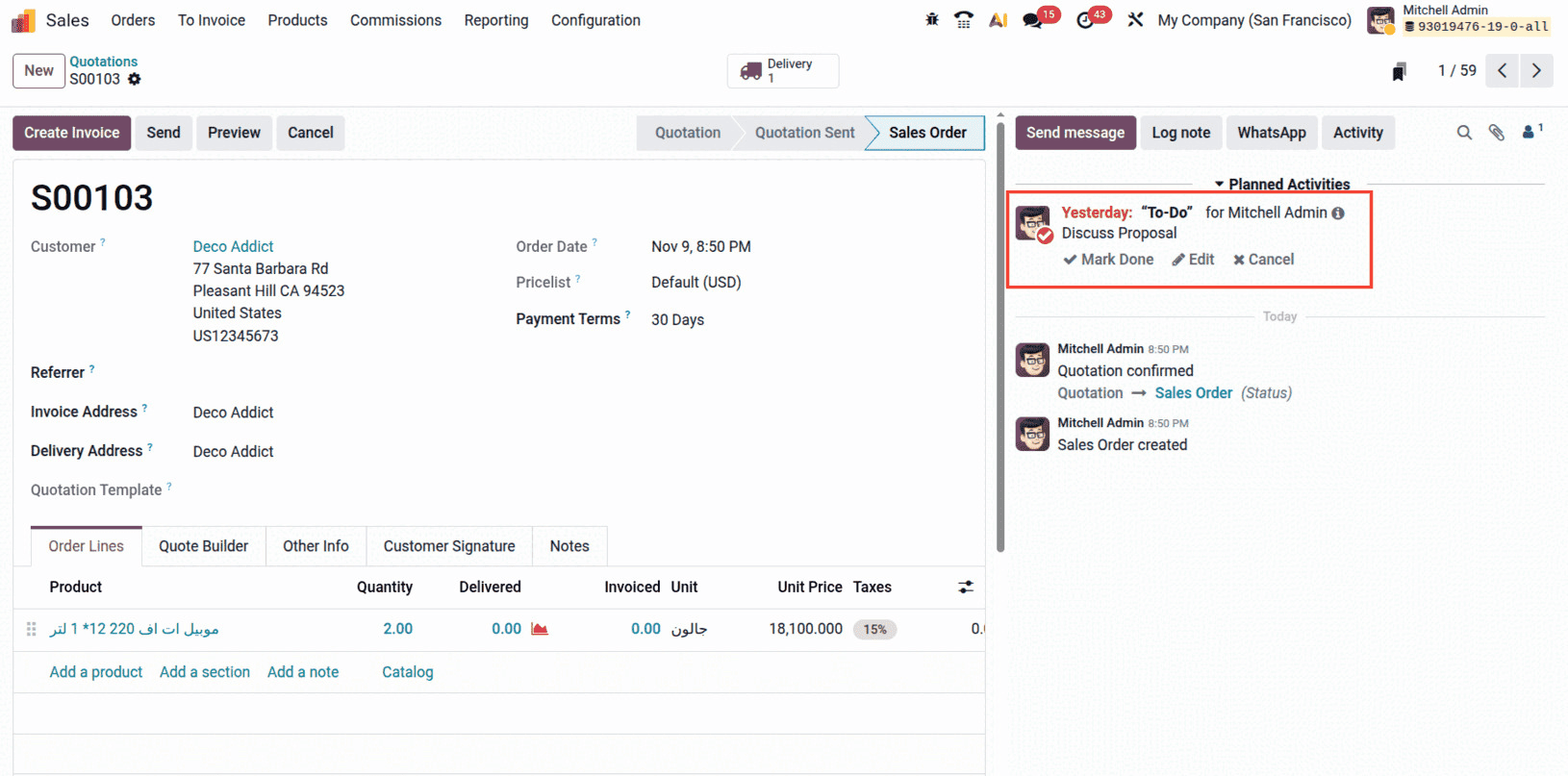
- The Kanban view, where color indicators help track urgency.
Activity Notifications
Odoo keeps users informed about their upcoming and overdue activities through smart notification features. Odoo automatically notifies the designated user prior to the due date once an activity is scheduled.
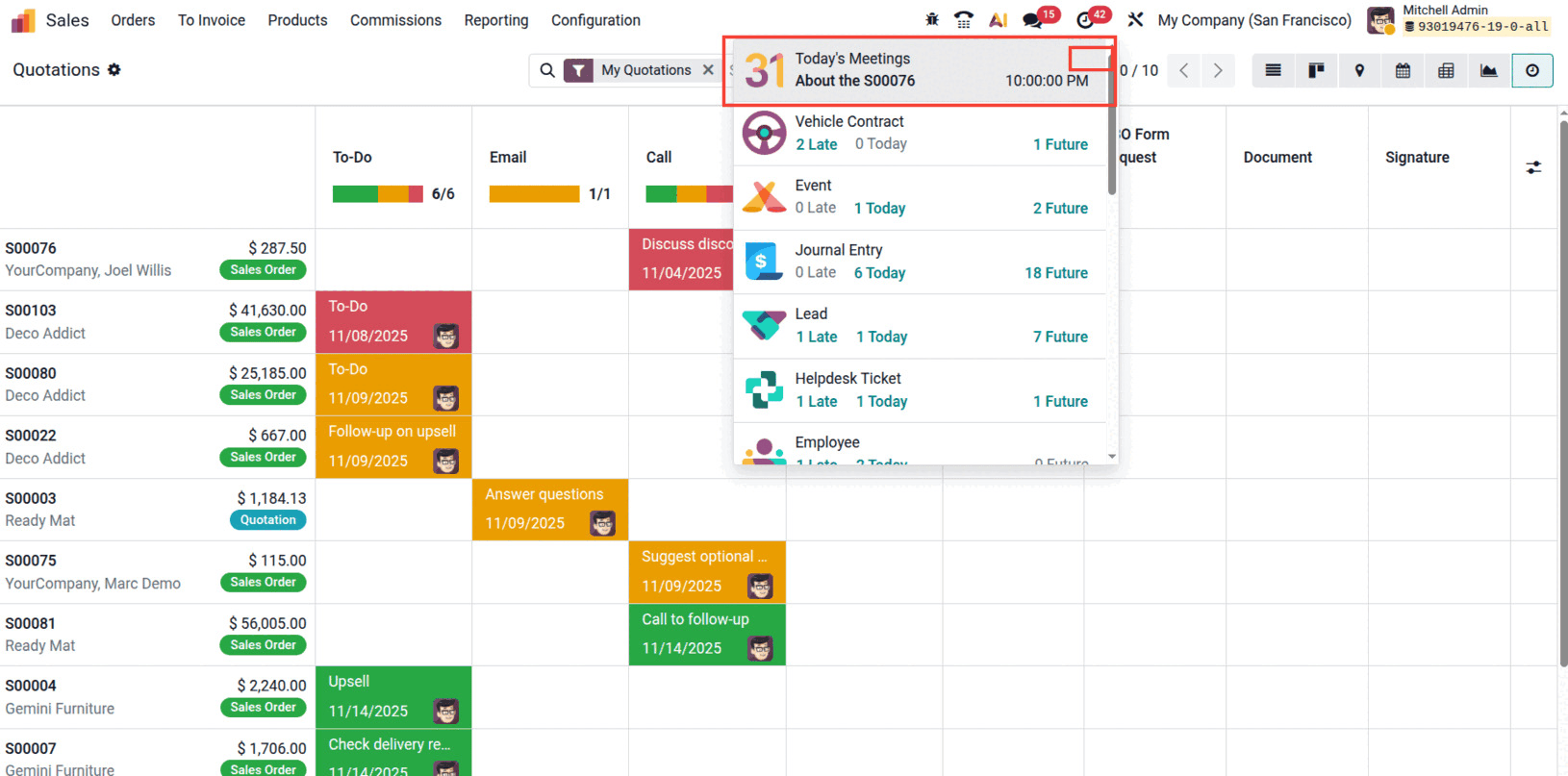
These notifications appear in the Discuss module, the bell icon on the top bar, and directly inside the related record’s chatter.
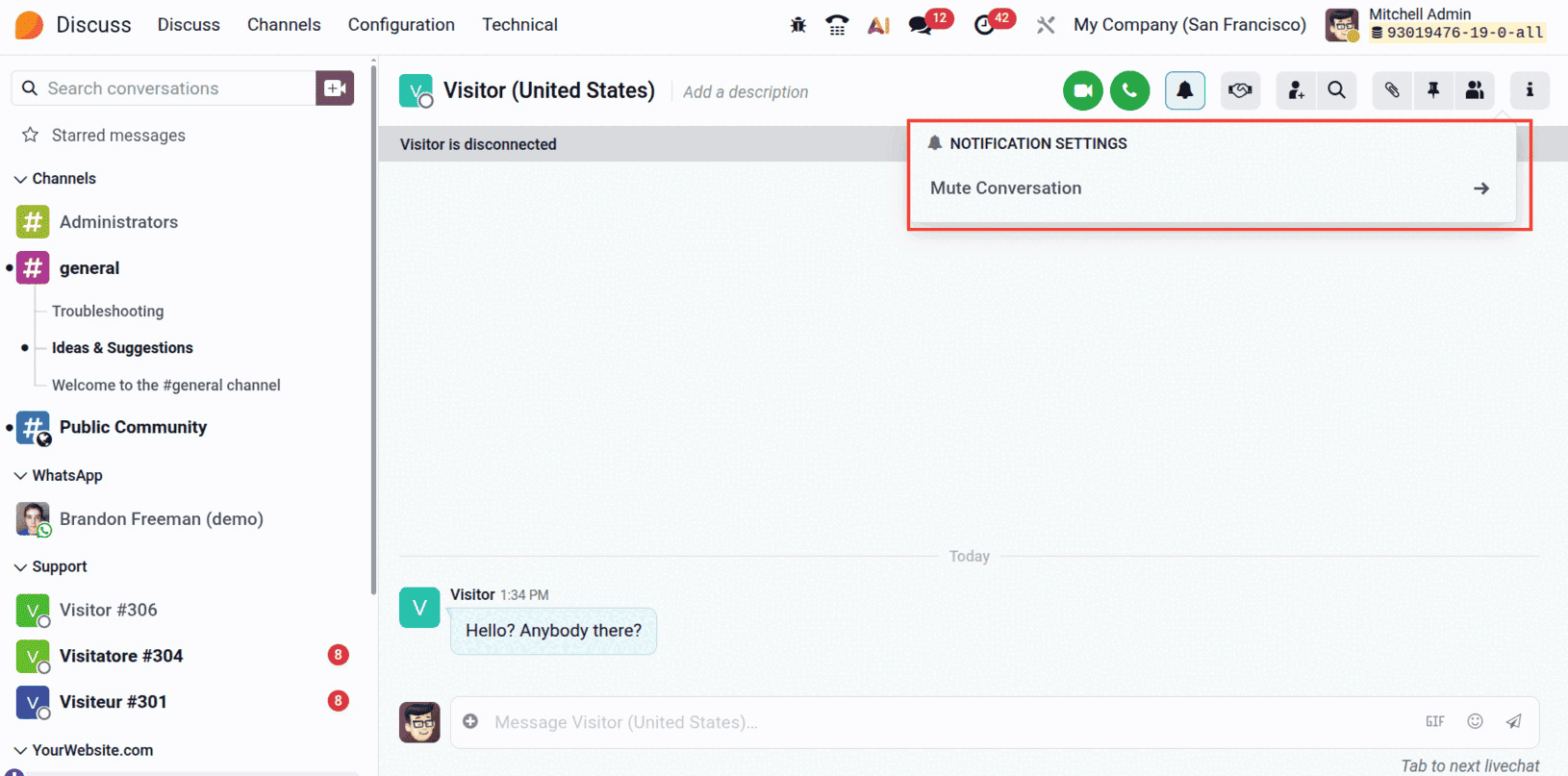
The system alerts users in red when an activity is past due, encouraging prompt action. Users never miss a task, meeting, or follow-up in this manner. These real-time alerts ensure timely communication and help maintain a consistent workflow within the team.
Automating Activities
The ability to automate tasks is among Odoo's most potent features. You can set up automation rules that cause activities to start automatically based on specific actions, saving you the trouble of manually creating follow-up tasks each time. This guarantees that no crucial follow-up is ever overlooked while also saving time.
Setting Up Activity Automation
To automate activities, you need to configure Activity Types with automatic triggers. Let's see how this works step by step.
Step 1: Access Activity Types
Go to Sales > Configuration > Activity Types.
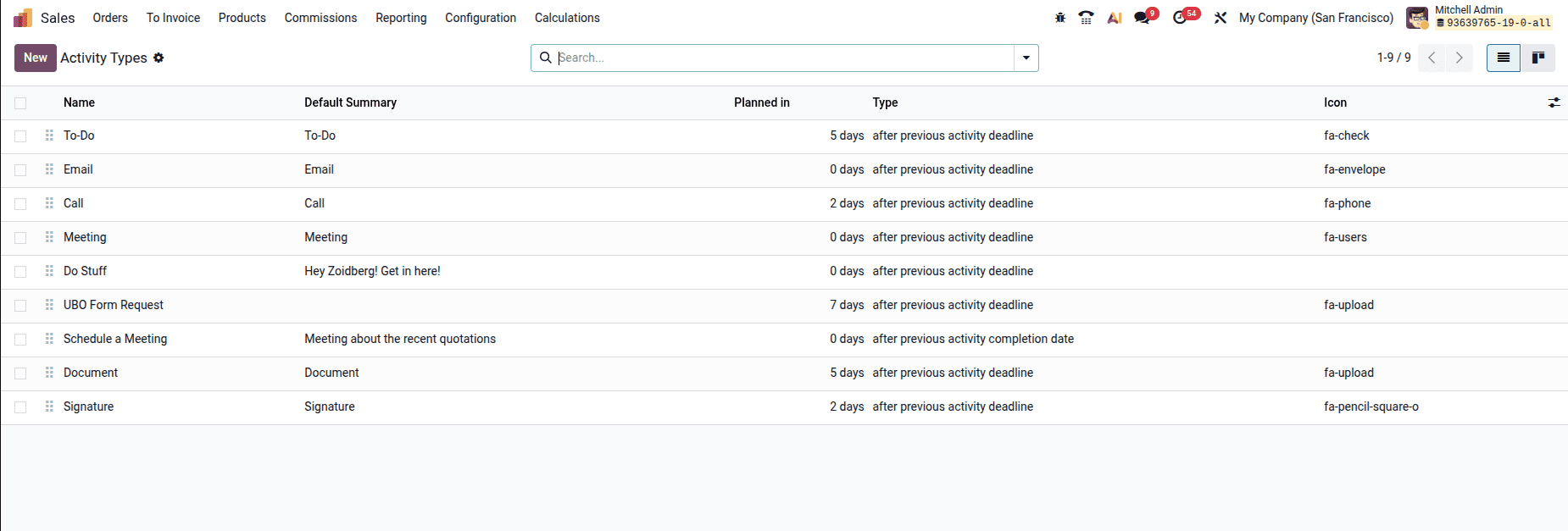
All of the activity types that are available in your system are displayed here. To edit an existing activity type, click on it; to create a new one, click New.
Step 2: Configure the Activity Settings
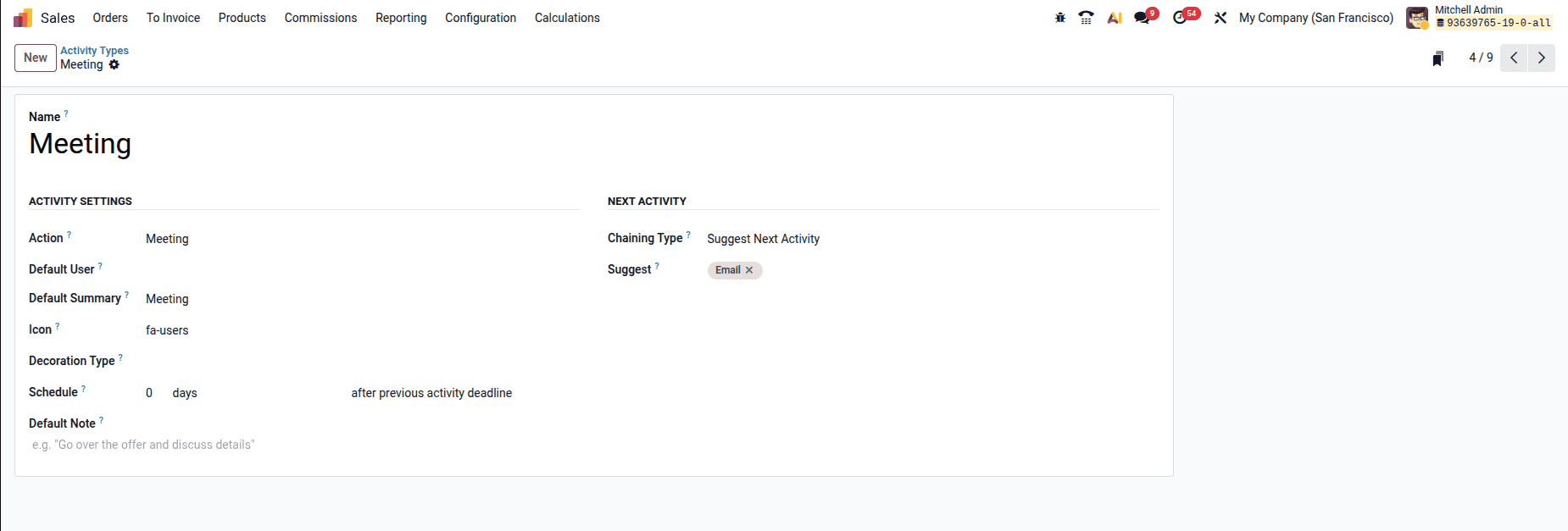
Activity Settings and Next Activity are the two primary sections of the Activity Type form.
In the section on Activity Settings:
- Name: Clearly identify your activity (for example, "Schedule a Meeting").
- Select the action type that this represents, such as a meeting, phone call, email, etc.
- By default, the user decides who should be automatically assigned to this task.
- The default summary: When this activity is created, include a brief description of it.
- Schedule: Decide when this task should begin (for example, 0 days following the conclusion of the last task).
Step 3: Set Up Activity Chaining
This is where you automate what happens after the current activity is completed.
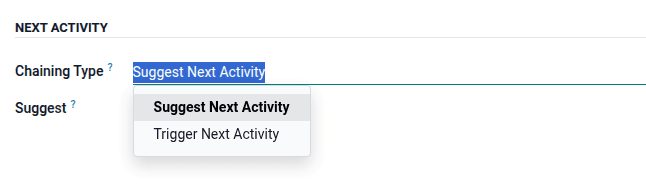
You have two options for Chaining Type:
- Next Activity Suggestion: Odoo will recommend the next task to the user once the current one is marked as completed. They have the option to skip it or schedule it.
- Trigger Next Activity: Odoo will generate the subsequent activity automatically and without prompting when the current one is finished. Workflows where specific steps always follow one another are ideal for this.
Step 4: How Automation Works in Practice
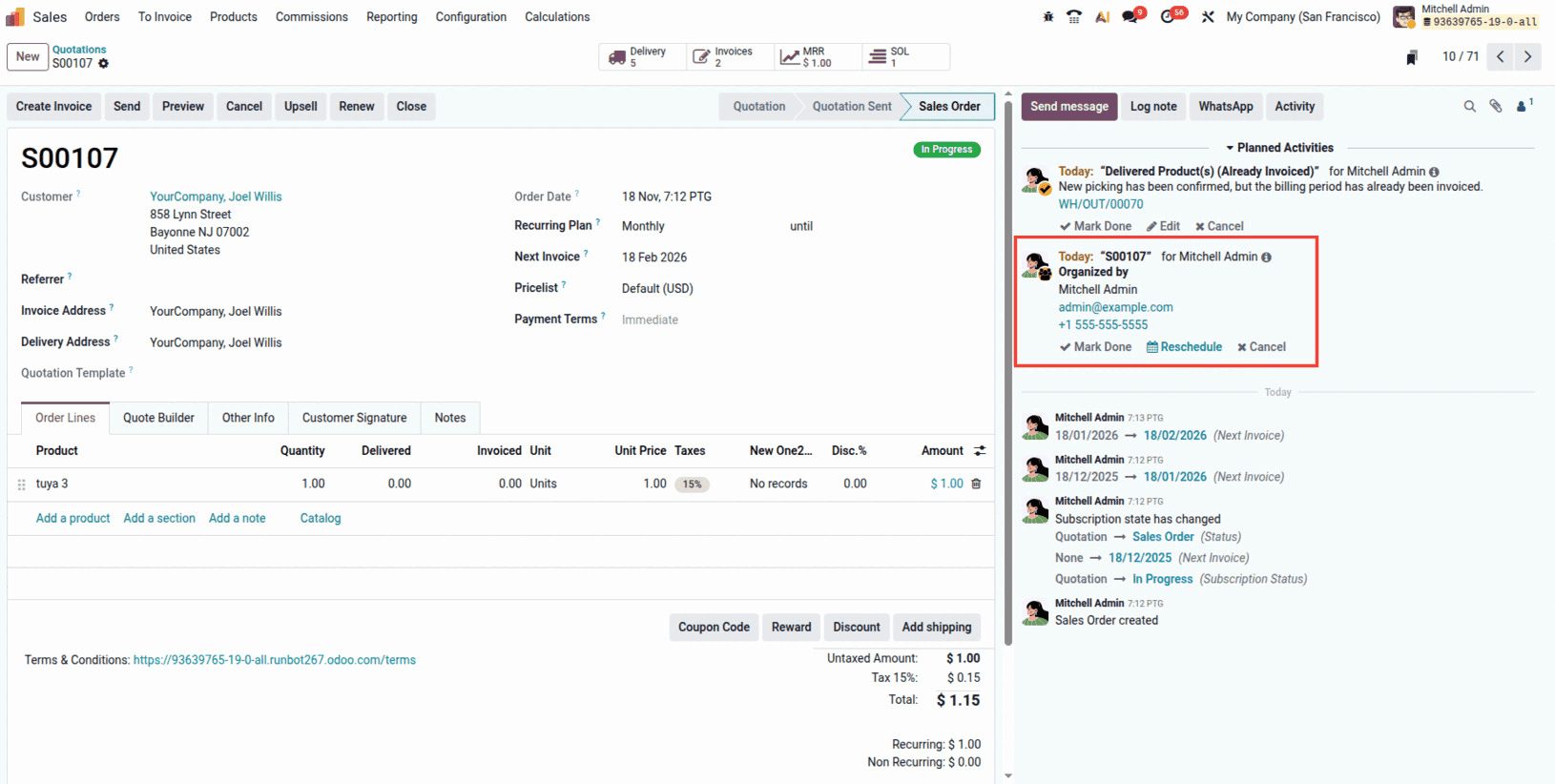
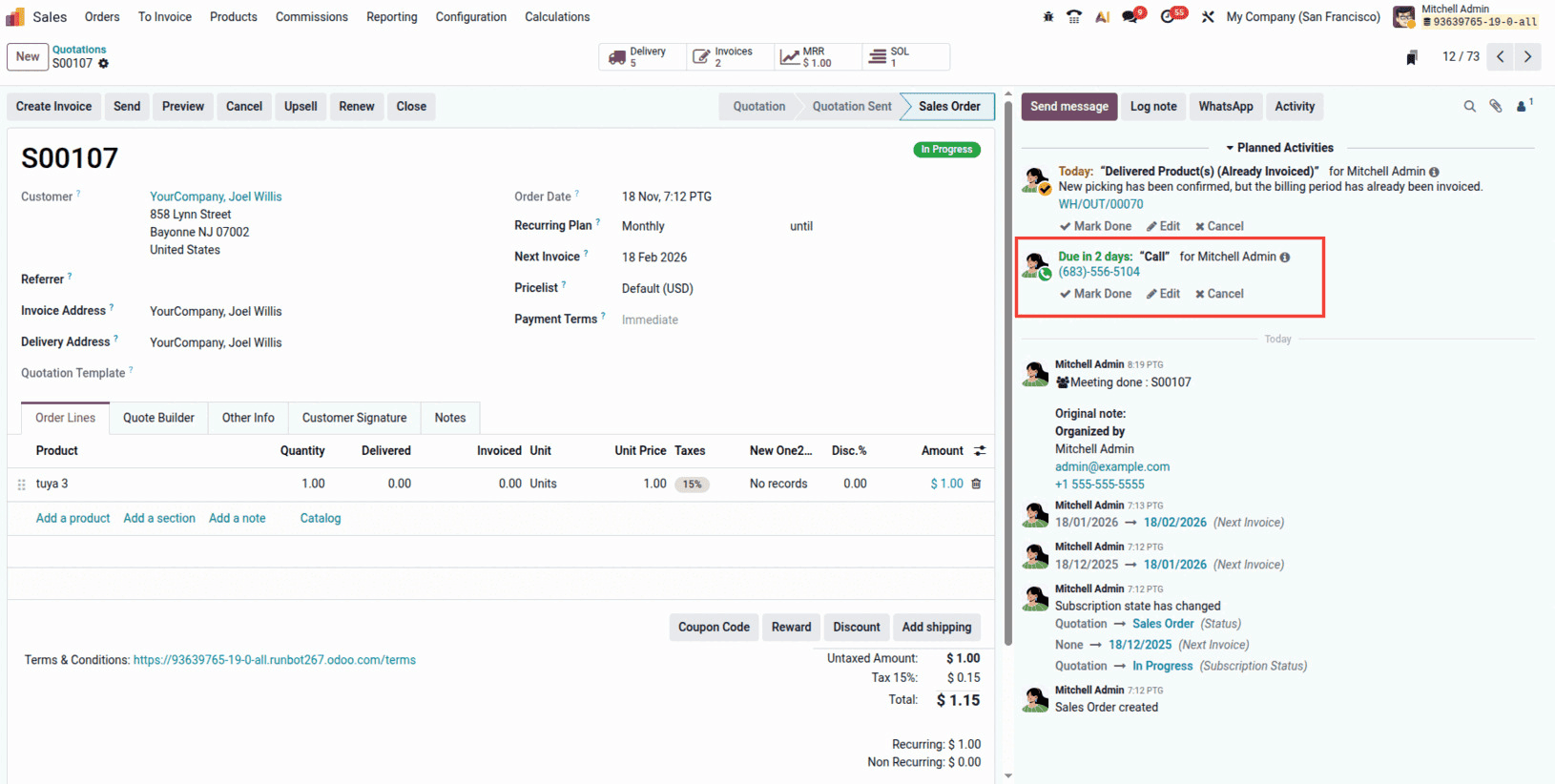
Assume that you have configured the automation as in the previous example. This is what occurs:
- The "Schedule a Meeting" activity is used to arrange a meeting with a client.
- Once the meeting is over, you click Mark Done in the chatter.
- For the same customer, Odoo automatically generates a "Call" activity that is scheduled based on your preferences.
- A notification of the new activity is sent to the designated user.
Your sales team won't have to remember what to do next with this configuration. Odoo ensures consistent follow-up with each customer by guiding them through each step automatically.
Conclusion
Managing activities in Odoo 19 doesn't have to be complicated. As we've seen throughout this guide, activities are simply smart reminders that help you stay organized and never miss important tasks. Whether it's making a phone call, sending an email, or scheduling a meeting, Odoo keeps everything in one place.
Start small—schedule a few activities and see how they work. Then, gradually set up automation for your common workflows. Before you know it, you'll have a system that runs smoothly, keeps your team aligned, and ensures every customer gets a timely follow-up. That's the power of activities in Odoo 19.
To read more about How to Create an Activity View in Odoo 19, refer to our blog How to Create an Activity View in Odoo 19.