Clear communication is vital for smooth company operations. A centralized discussion platform brings together chats, messaging, file sharing, and notes in one place. Odoo 20 Discuss helps communicate and collaborate through direct messages and channels, making it easier to exchange information and gather feedback.
For example, when a team needs to make a quick decision, polls provide a simple way to collect opinions and preferences without lengthy discussions. They can be used to choose a meeting time, plan a team lunch, or gather feedback from colleagues.
In this blog, we will explore how to create polls in Odoo 20 Discuss, configure voting options, set poll durations, and review the results.
Navigating to Odoo 20 Discuss
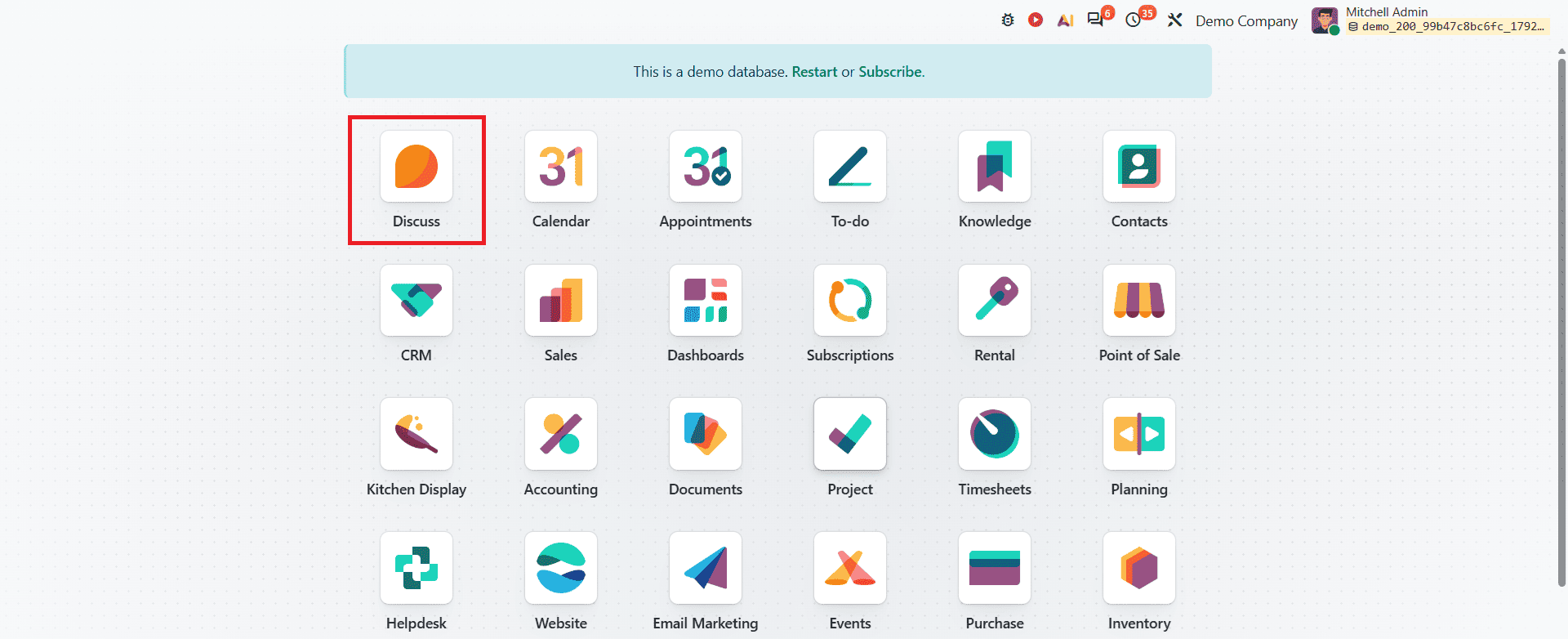
From the Odoo 20 main dashboard, open the Discuss module. This takes you to the messaging interface, where you can access direct messages, group chats, and discussion channels to communicate with other users.
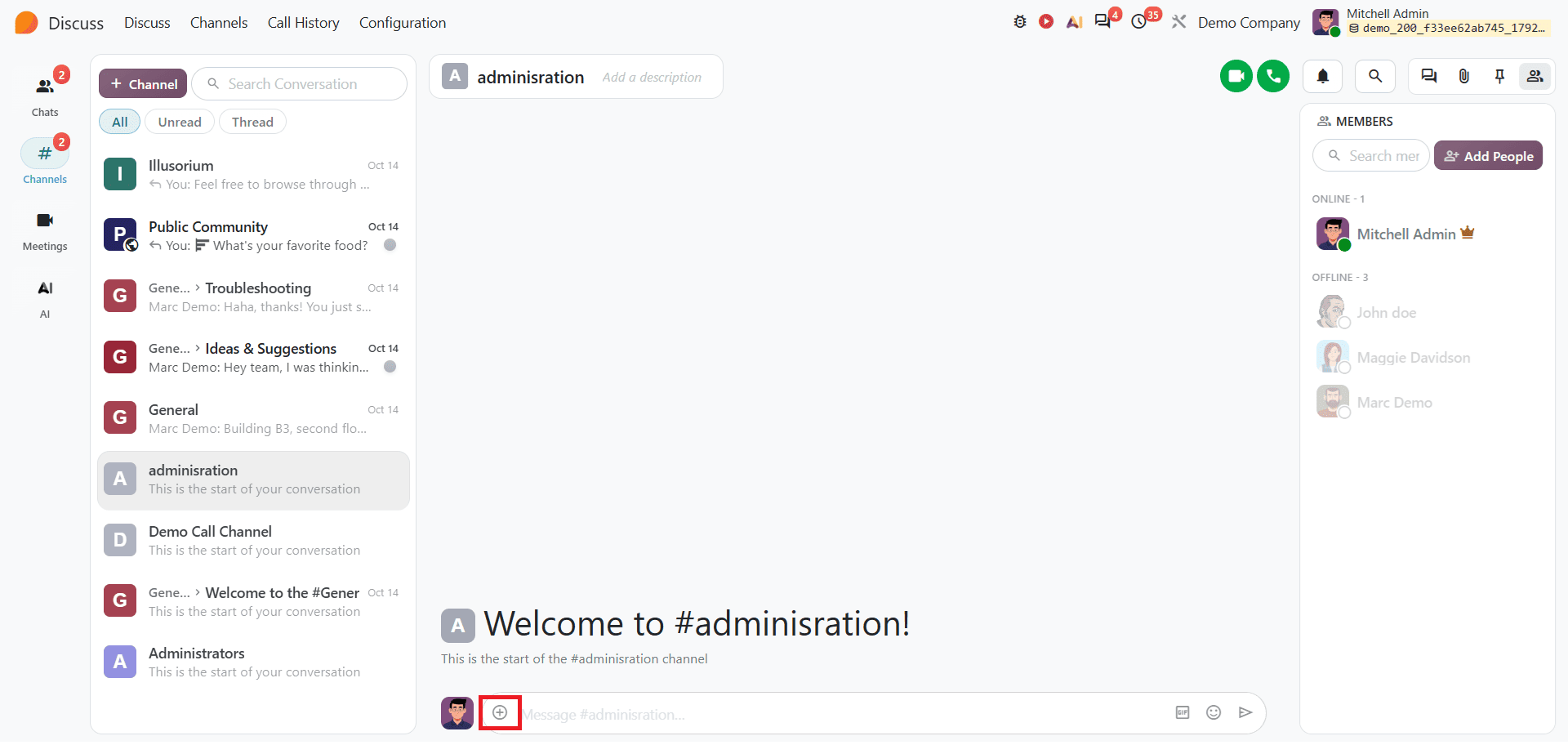
Once you open the Discuss module, select a discussion channel or a group chat where you want to create a poll. Choose a channel to collect responses from a group or a group chat to share the poll with multiple participants. Channels and group chats are useful for gathering opinions and feedback in real time from several team members.
Create a Poll in a Channel
Open a Channel from the Discuss module and click the More Actions option in the message bar.
Once you click this option, you will see options such as Insert Canned Response, Voice Message, Add from Documents, Attach Files, and Create Poll.
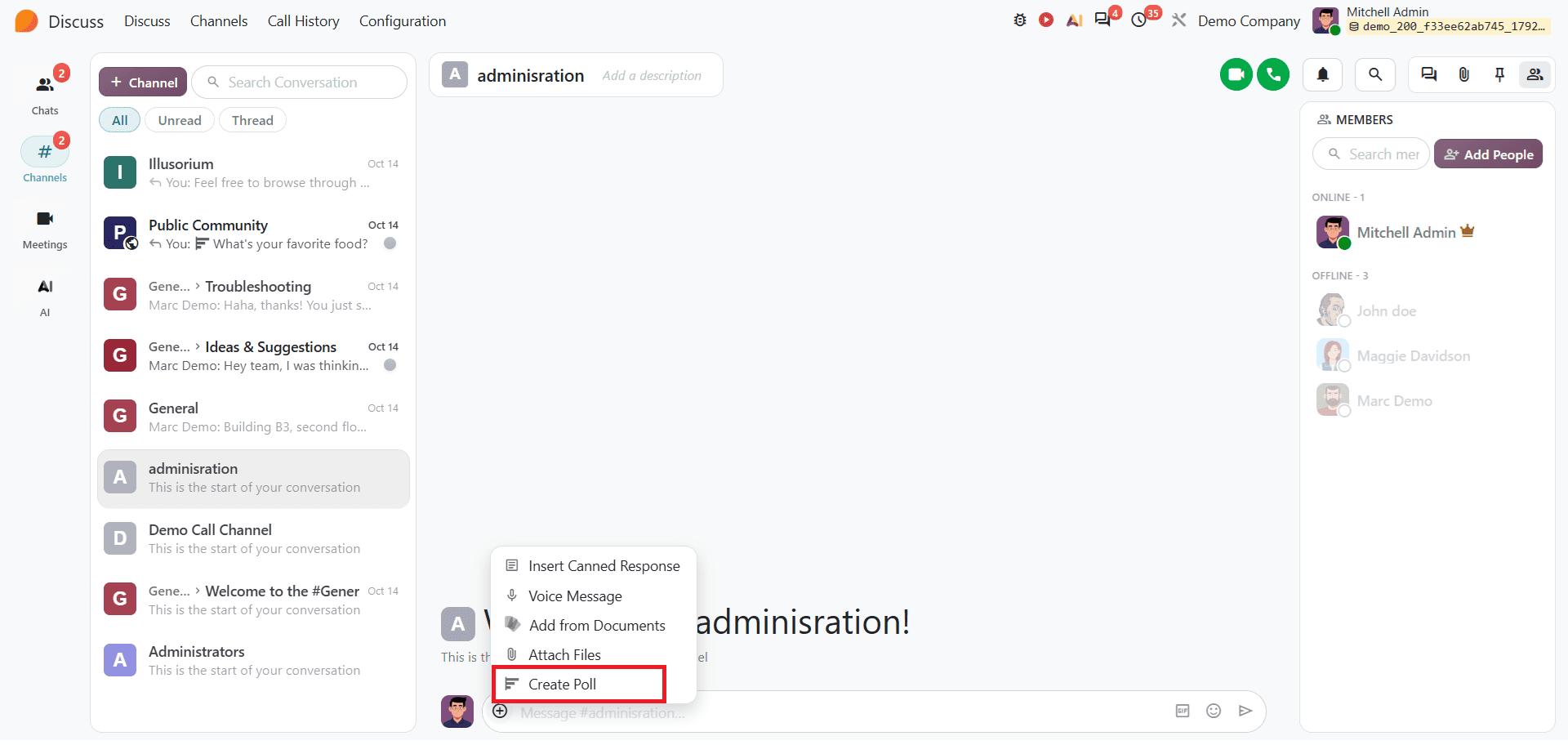
To create a poll, click Create poll. A pop-up window will appear, as shown below.
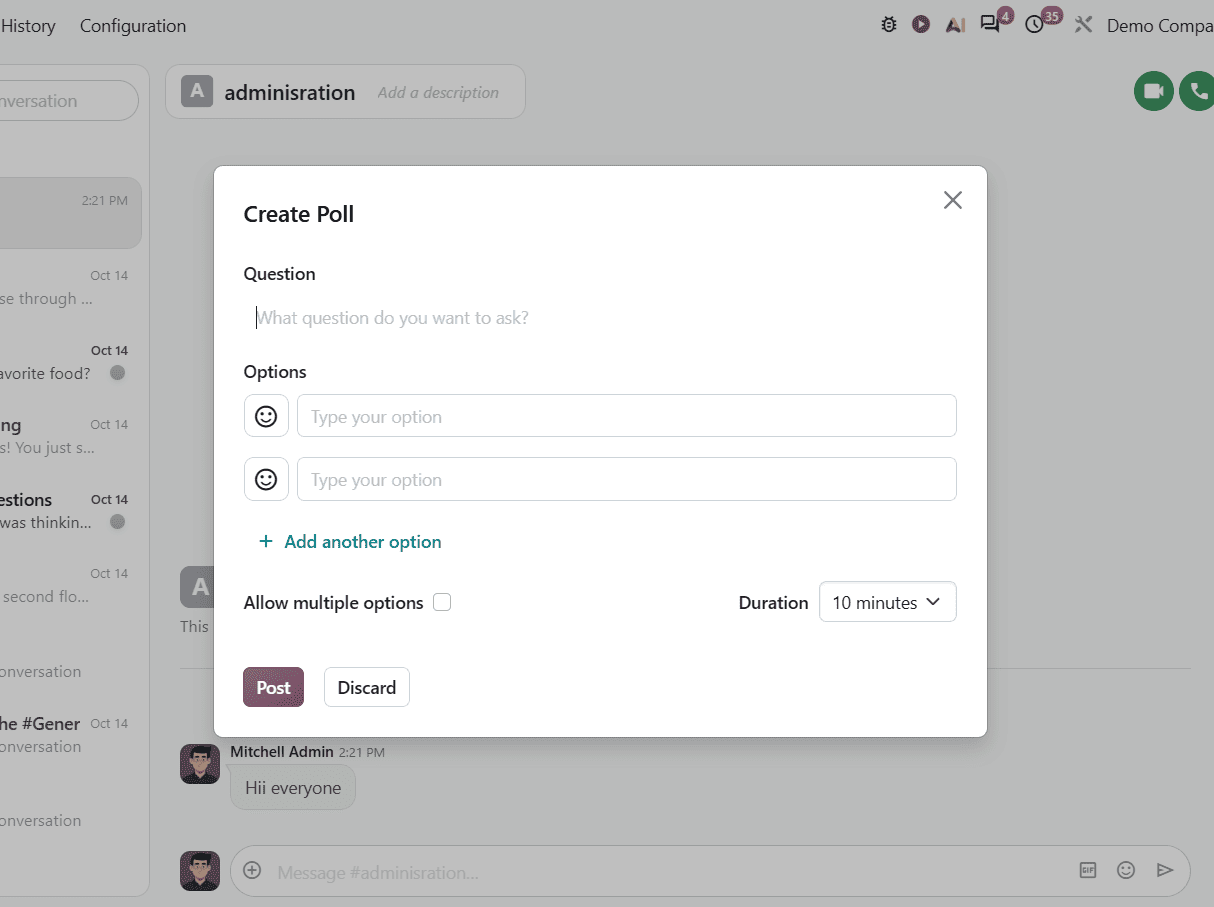
Enter the poll question in the question field and add the available answer options. Channel members can select their preferred answer when participating in the poll. To allow participants to choose more than one answer, enable Allow multiple options.
Use the Duration field to set how long the poll remains open or specify when voting should end. The poll duration helps determine the period for participants to submit their votes. For example, a short duration may be suitable for a quick team decision, while a longer period can be used when employees have different schedules. Setting an appropriate duration helps collect responses within a defined period and makes it easier to finalize decisions without leaving polls open unnecessarily.
You can use the same method to create a poll in a group chat. For example, suppose a team needs to decide on a suitable day for a meeting. Open the chat where you want to create a poll and click the More Actions option. To add a poll, enter your question and available answers, then post it. Team members can vote for their preferred day, helping everyone reach a decision based on the responses received. If members are allowed to select multiple options, they can choose more than one suitable answer.
Once you have configured everything, post that poll in your channel. It will appear as shown below.
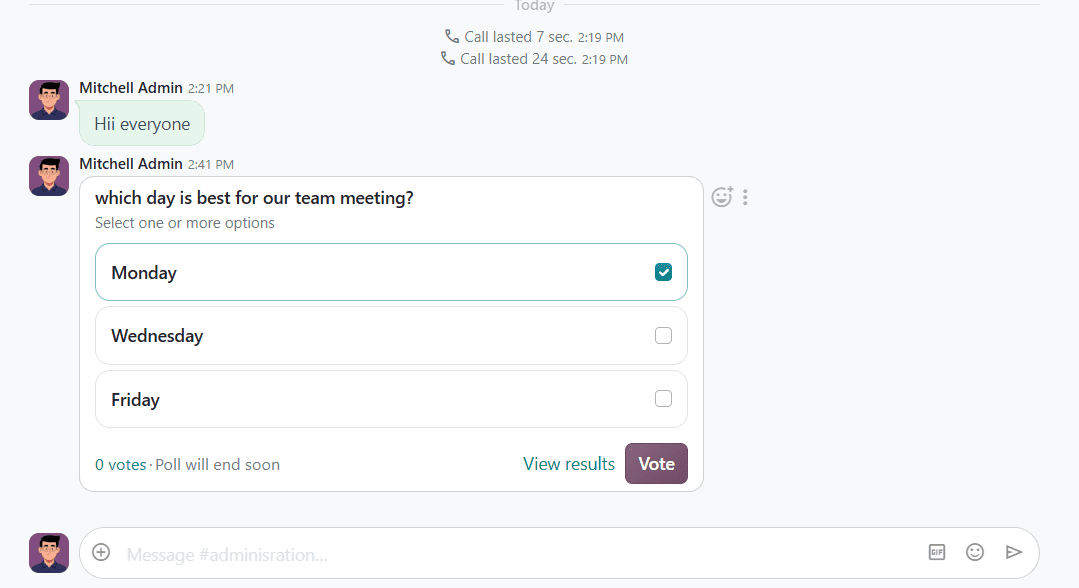
Channel members can participate in the poll by selecting their preferred answer. If the poll allows only a single answer, participants can select one option. When Allow multiple options is enabled, they can select more than one answer according to their preference. After making their selection, members can submit their votes and view the result by clicking View result. Participants can select Remove Vote to withdraw their response and vote again.
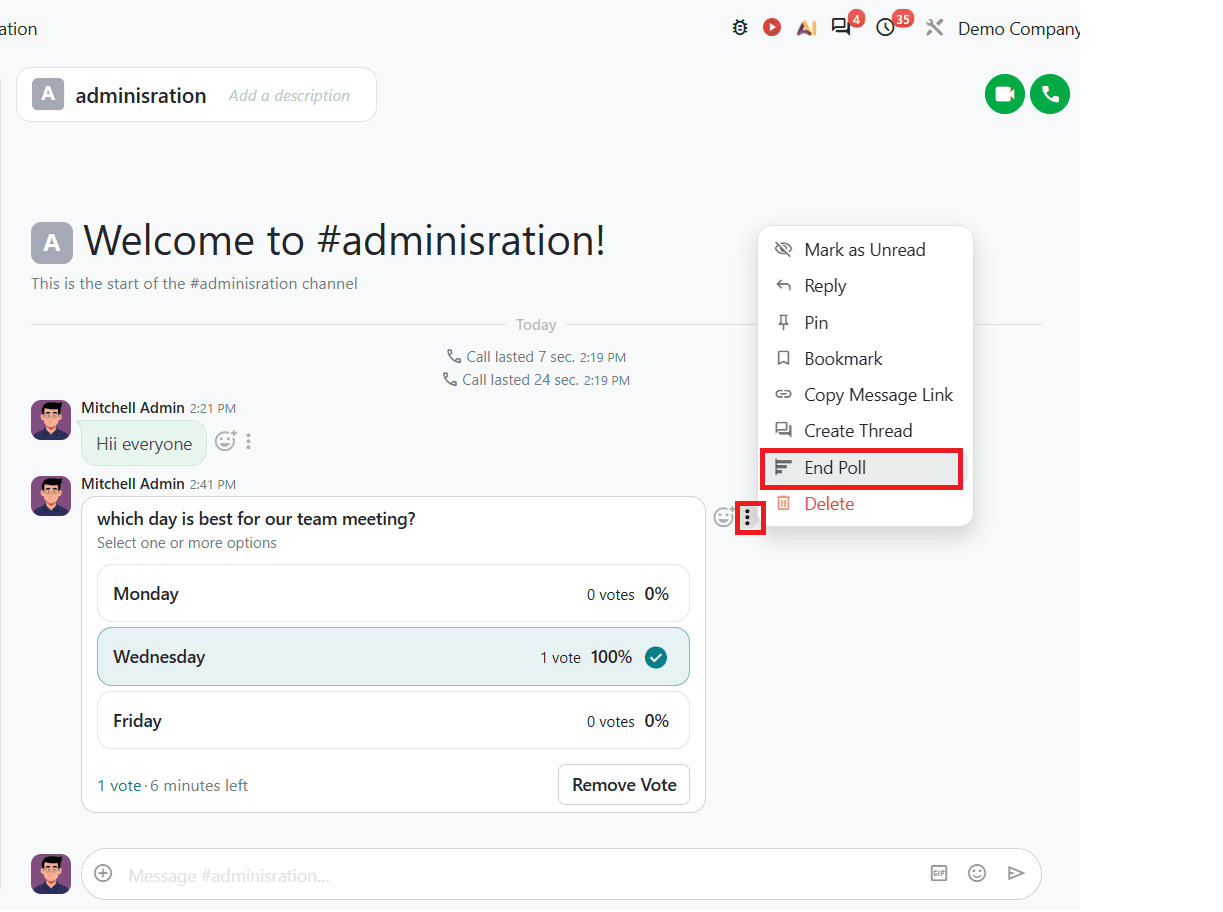
To end the poll manually, click on the More Actions menu on the poll and select End Poll.
After the poll ends, Odoo displays the winning answer below the poll.
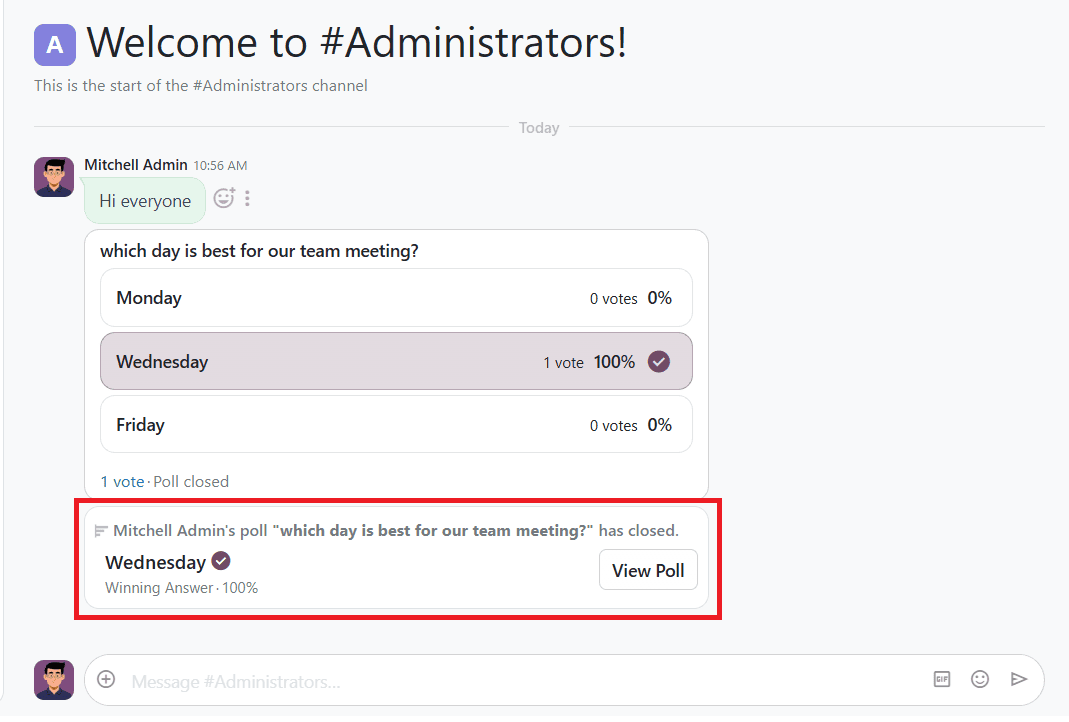
This helps channel or chat members see which option received more votes. The results give participants a better understanding of their colleagues' preferences and help them make a decision based on the responses. For example, if Wednesday received the highest votes in a meeting poll, the team can use the result to decide when to schedule the meeting. Ending the poll prevents additional votes and helps to finalize the discussion.
Polls in Odoo 20 Discuss simplify workplace communication by helping teams to choose a suitable meeting time or location, plan team activities, or collect feedback on internal decisions.
For example, a team can create a poll to choose a meeting topic or ask employees to pick a date for a team lunch. Managers can also use polls to collect opinions before implementing new workflows. These examples show how polls can facilitate decisions by collecting responses in one place.
Choosing the right conversation is also important when creating a poll. Channels are useful when responses are needed from several team members, while direct chats work well to collect opinions from individual colleagues.
Overall, Odoo 20 Discuss module provides a simple way to create polls in channels and group chats to collect opinions and preferences. Users can add questions, configure multiple options, allow multiple selections, and set a duration forvvoting . The results help teams identify preferred choices and make decisions more effectively. Using polls in Discuss can improve collaboration and simplify everyday communication within organizations.
To read more about How to Build Custom Chatbots in Odoo 19 Discussion App, refer to our blog How to Build Custom Chatbots in Odoo 19 Discussion App.