Maintenance is required for equipment and infrastructure to be dependable and long-lasting. By avoiding unforeseen faults, it reduces downtime and costly emergency repairs. Regular maintenance improves safety by identifying potential hazards and addressing them before they become serious issues. It also increases performance and efficiency, allowing systems to operate at peak efficiency. Ultimately, maintenance helps any organization preserve investments and continue to produce.
The basic concepts highlighting the need for maintenance are as follows:
- Reduces the likelihood of unanticipated problems and interruptions.
- Keeps machinery and infrastructure in excellent operating condition, extending the life of assets.
- Increases safety by identifying and resolving potential hazards before accidents occur.
- Energy use and repair expenses are reduced by prompt maintenance.
- Boosts productivity and ensures that systems operate at their best.
- Helps to comply with safety regulations and industry standards.
- Reduces downtime and ensures continuous operations, which boosts production.
- Maintains tangible assets' value and performance.
By using worksheet templates, the process of recording and performing maintenance tasks is standardized. By providing experts with exact, comprehensive instructions, they ensure consistency and quality in all maintenance processes.
The Odoo 19 Maintenance module's worksheet templates are used to guide technicians through standardized maintenance procedures. These templates provide consistency by providing predefined fields, checklists, and instructions specific to specific tools or tasks. By using worksheet templates, businesses can reduce errors, boost compliance, and ensure that every step in a maintenance method is performed precisely. Additionally, by helping to gather accurate and well-organized data during maintenance operations, they offer better tracking and reporting. Templates can be modified with Odoo Studio to meet certain operating needs. All things considered, worksheet templates increase the reliability, effectiveness, and security of Odoo 19 maintenance procedures.
In this post, we'll look at how to set up and use the maintenance spreadsheet in the Odoo 19 Maintenance module. We will walk through the process of activating, customizing, and connecting worksheet templates to maintenance requests. This ensures uniformity, speeds up maintenance tasks, and enhances record-keeping throughout your operations.
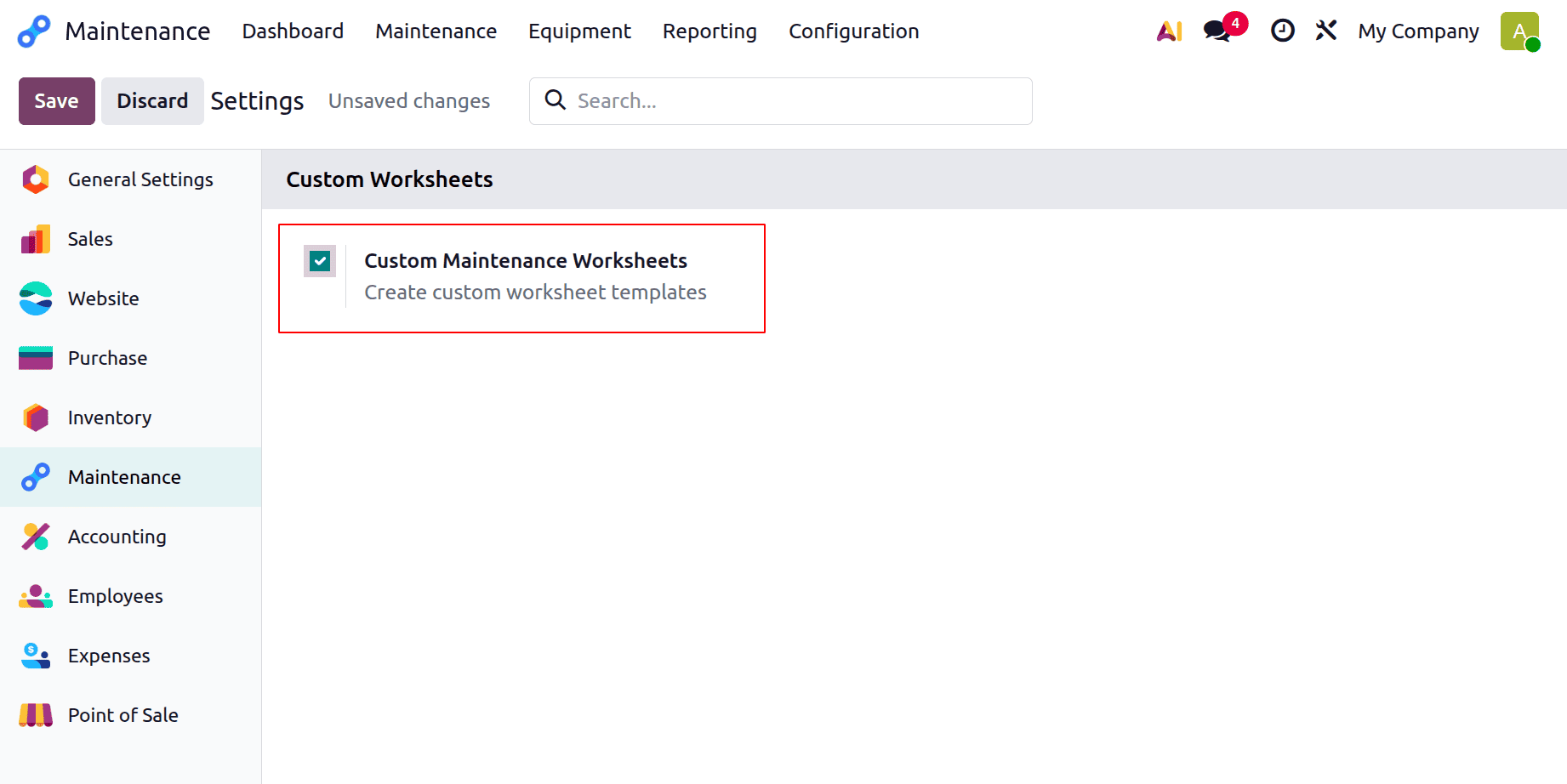
Thus, select the Configuration menu from the Maintenance module. Click the Settings option from the list.
Configuration > Settings > Custom Maintenance Worksheets > Save
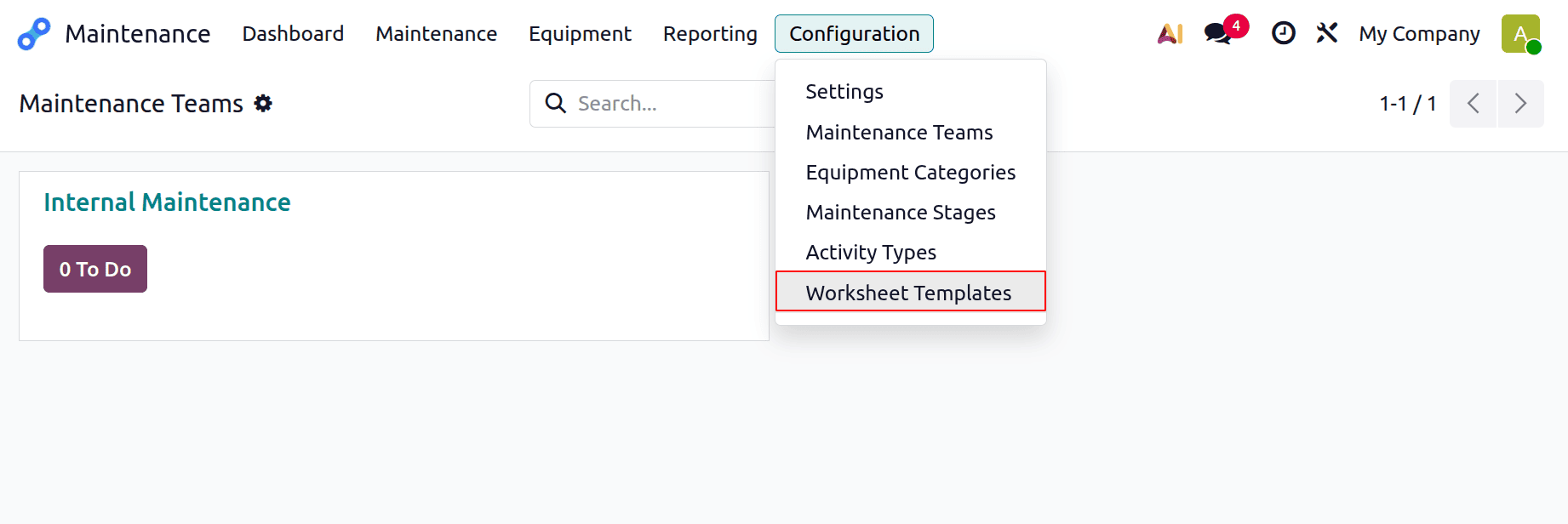
Next, take another look at the Configuration menu. There is now a new one called Worksheet Template. Press it.
There is a list of worksheet templates displayed. Worksheets and names are displayed. Click the "Design Template" button to create the template. Click the New button to add a new one.
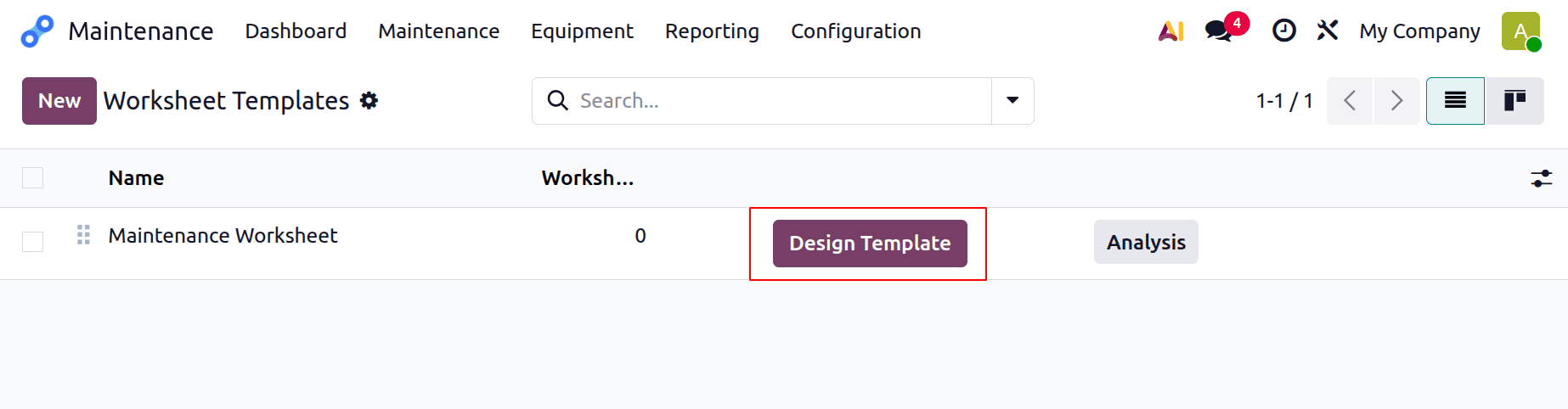
A new line will show up at the bottom of the list if the New button is clicked. First, add the name of the worksheet template. "Worksheet Template for Workcenter Maintenance" is the name of this template. To alter the template, click the Design Template option.
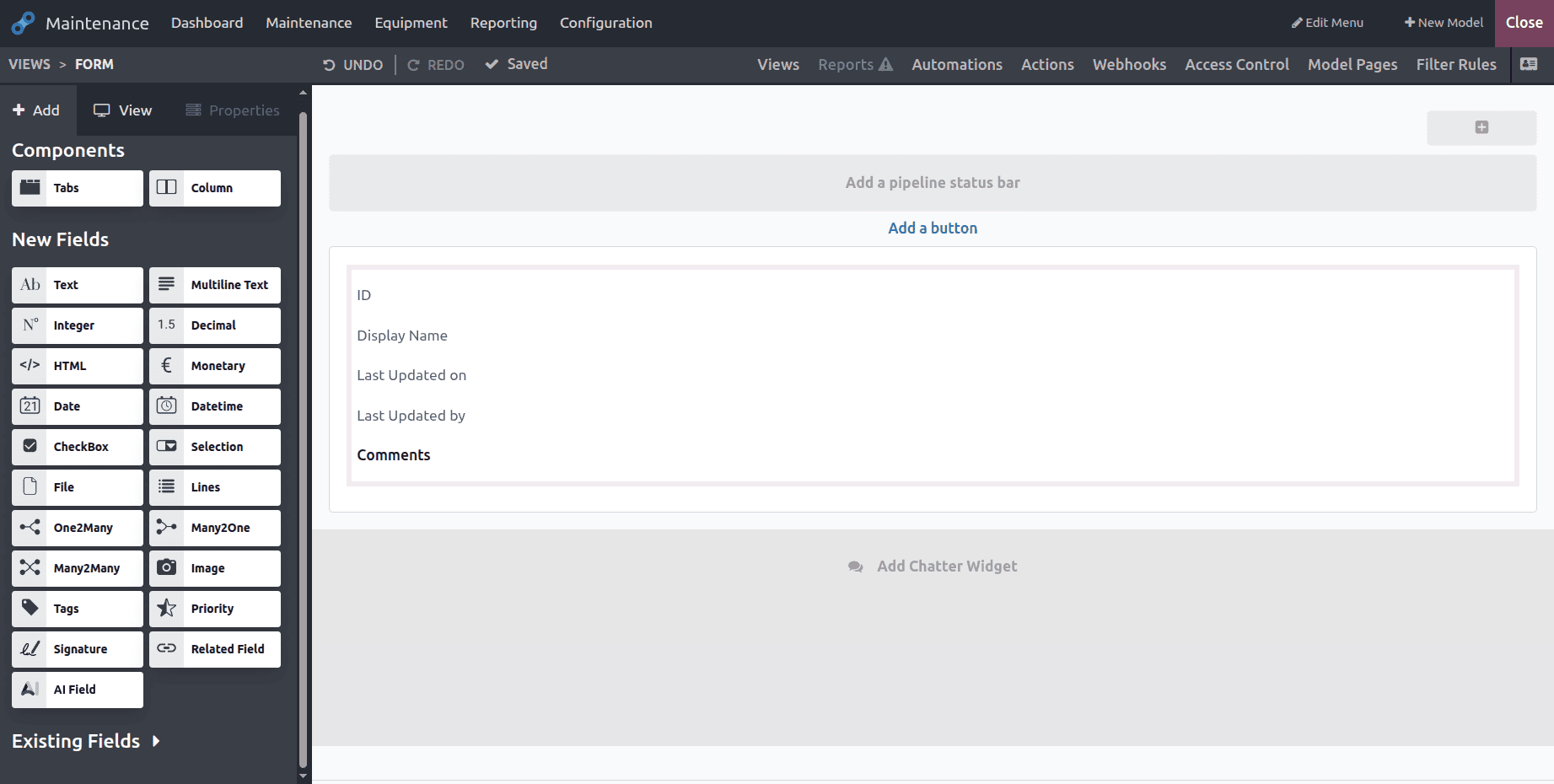
Next, as seen below, another window will open. The template can be customized using the fields on the left side of the screen. Simply drag and drop the required fields.
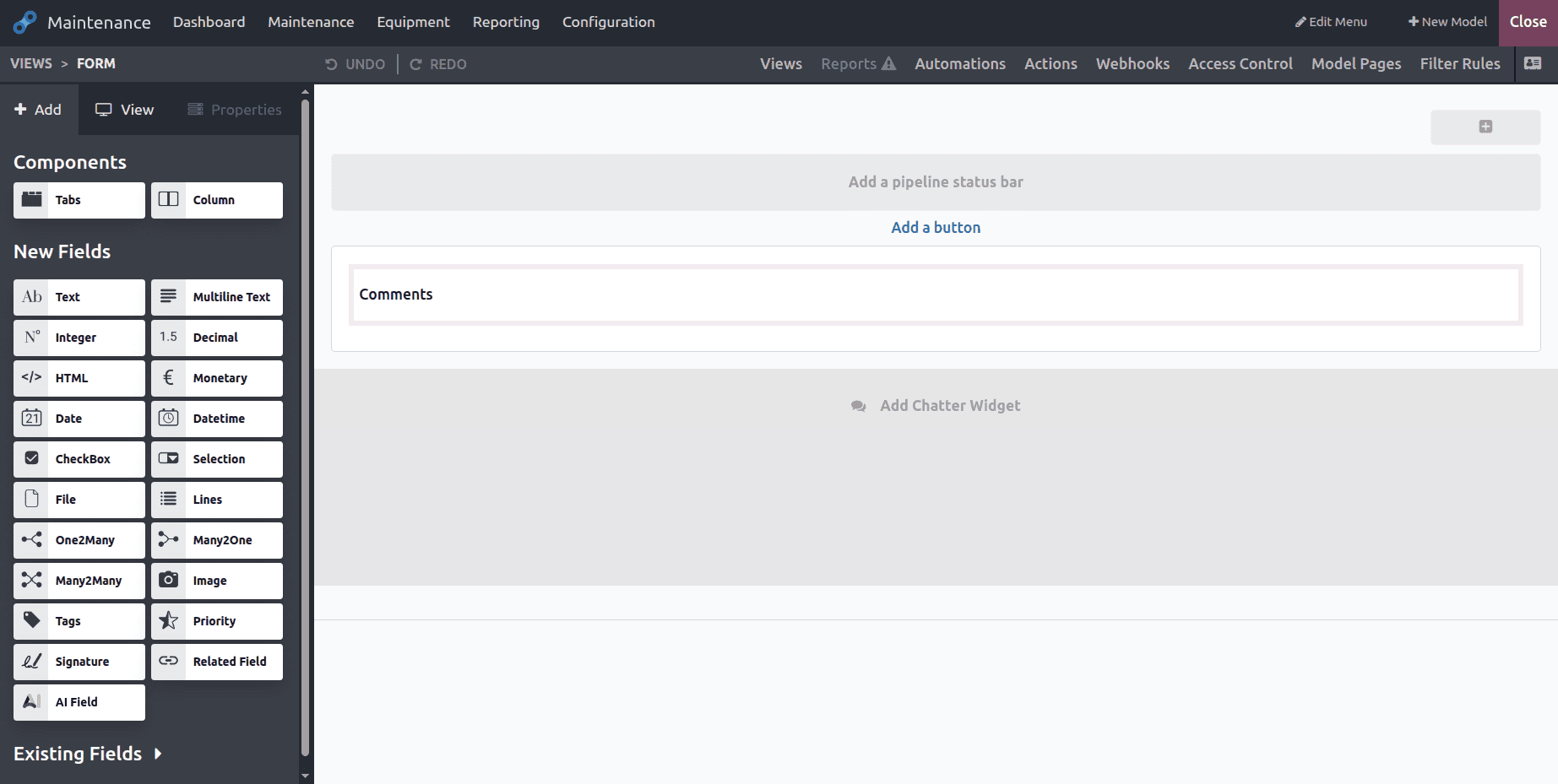
There were several fields that were already there when you scrolled down. From there, users can simply drag and drop the fields.
Let's include a few fields. Here, some of the current fields include ID, Display Name, Last Updated on, and Last Updated by.
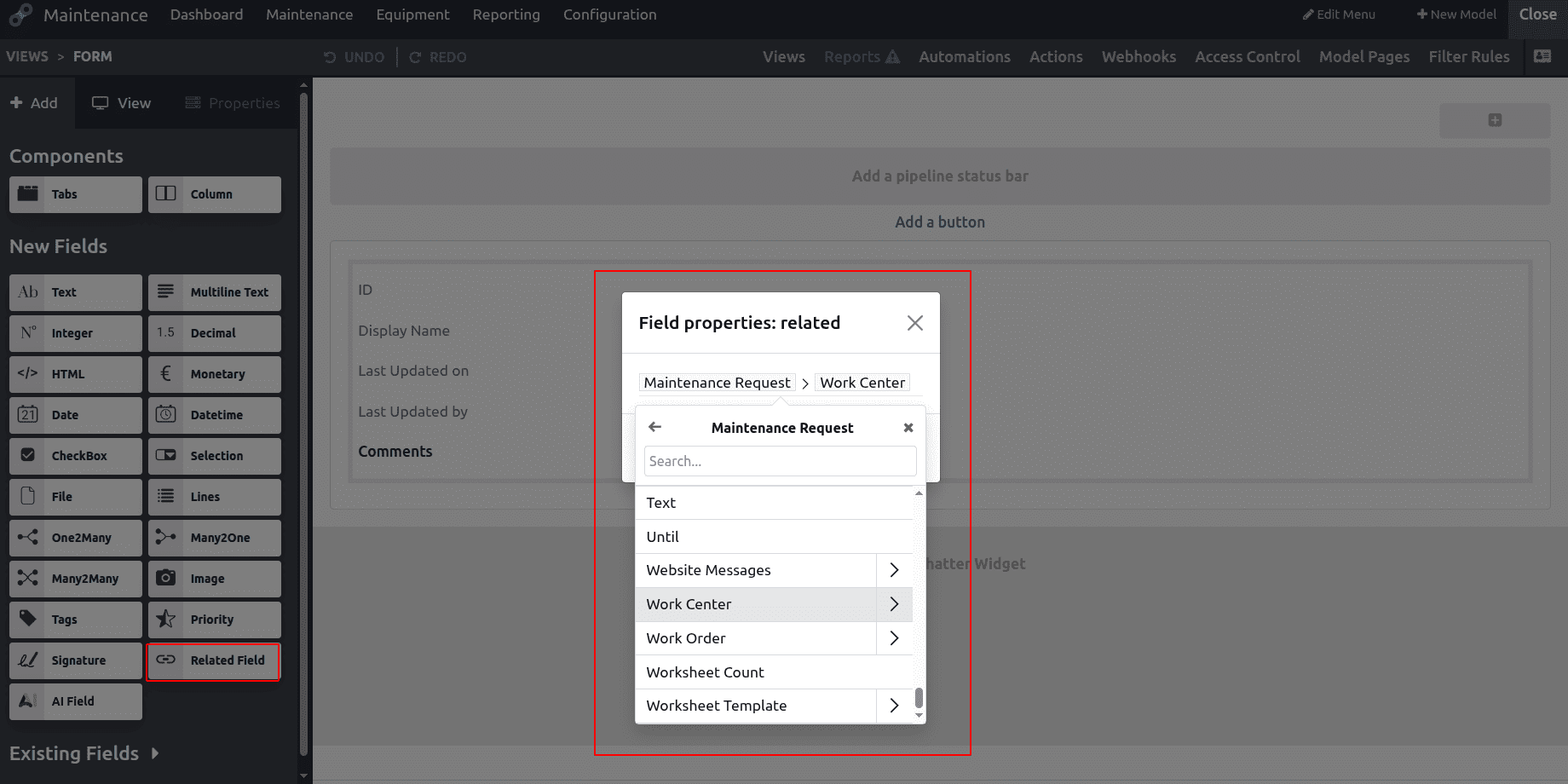
Next, a new Related field was added. Simply drag and drop to the appropriate screen. Next, select the relevant field properties from the window. Here, a field to input the name of the work center was added. Press the "Confirm" button.
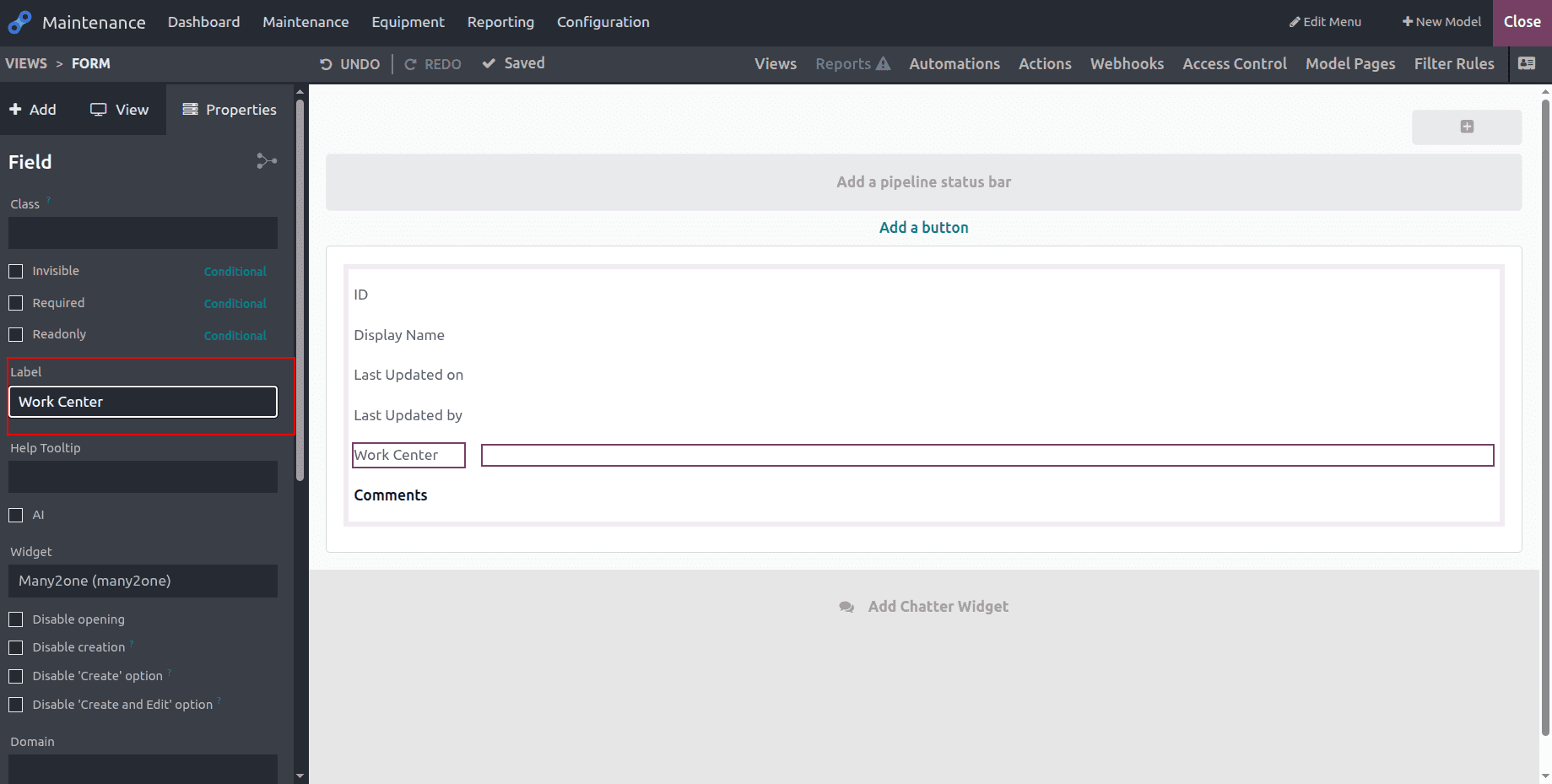
Next, as indicated below, add the Label as Workcenter and the Help tooltip as Workcenter name.
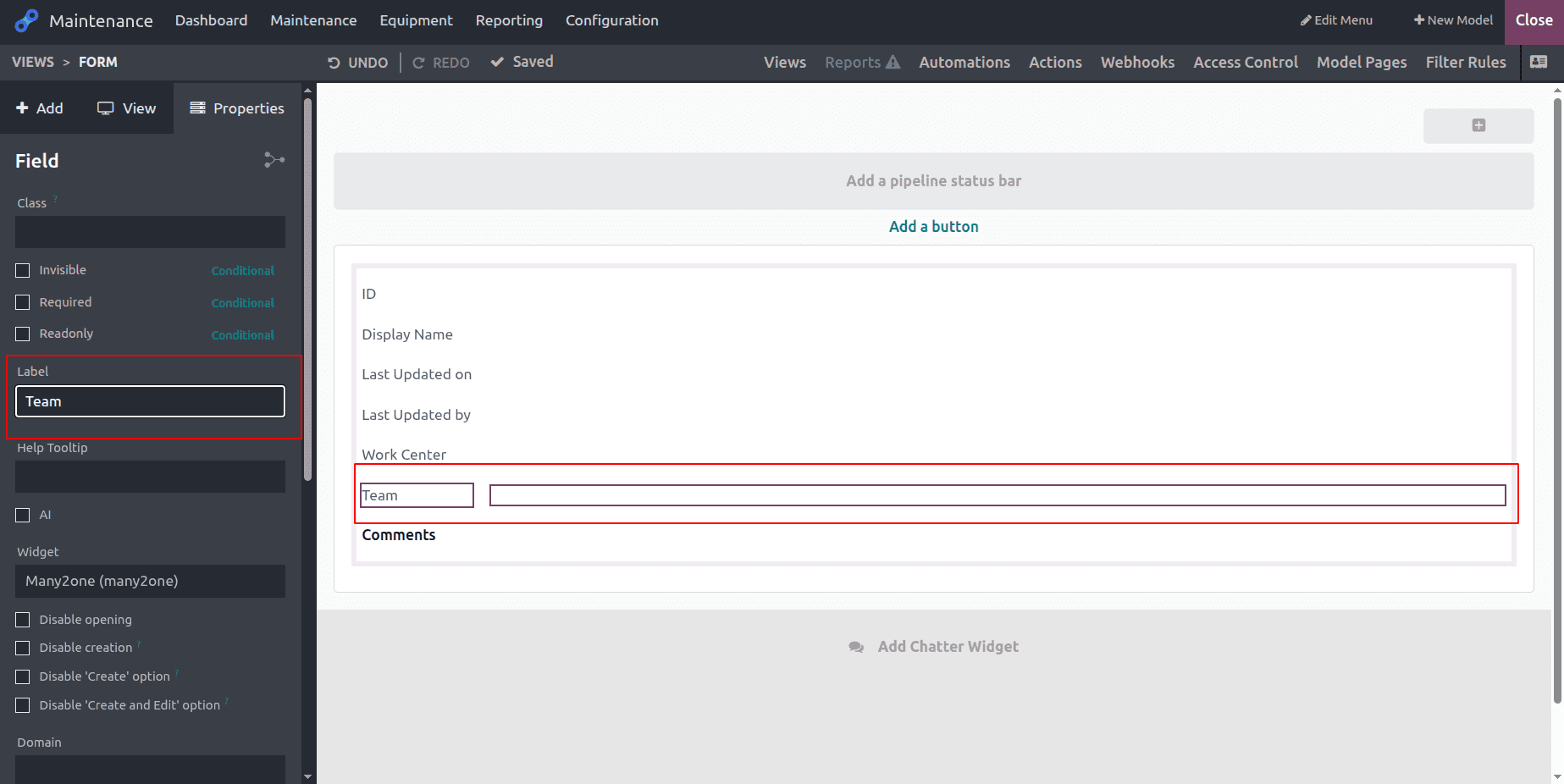
The Maintenance Team name can be updated in the next Related Field. Which is designated as the Maintenance Team, then?
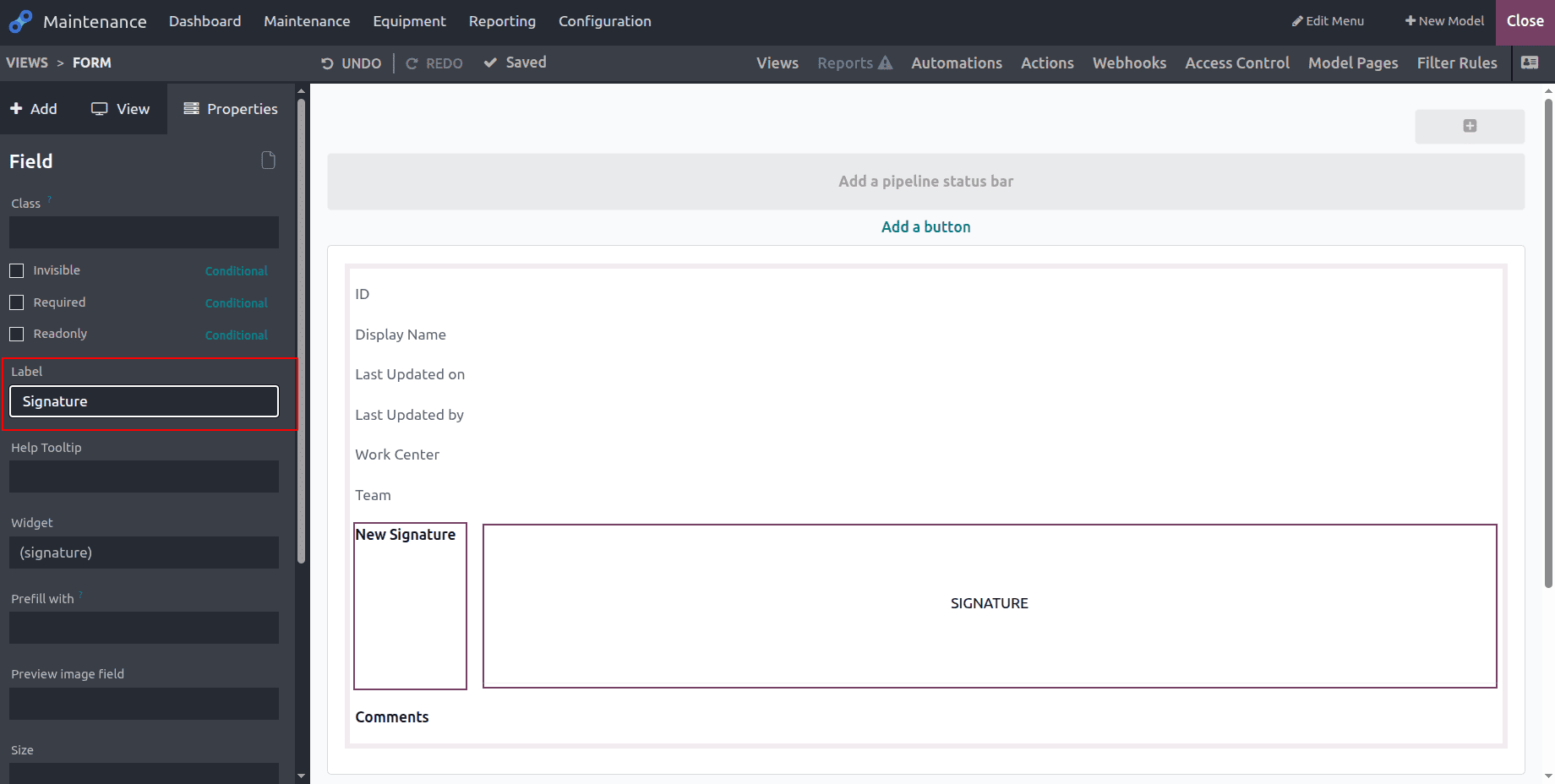
To add the user's signature, a Signature field was added. Mention the Label as Signature and drag and drop the signature fields.
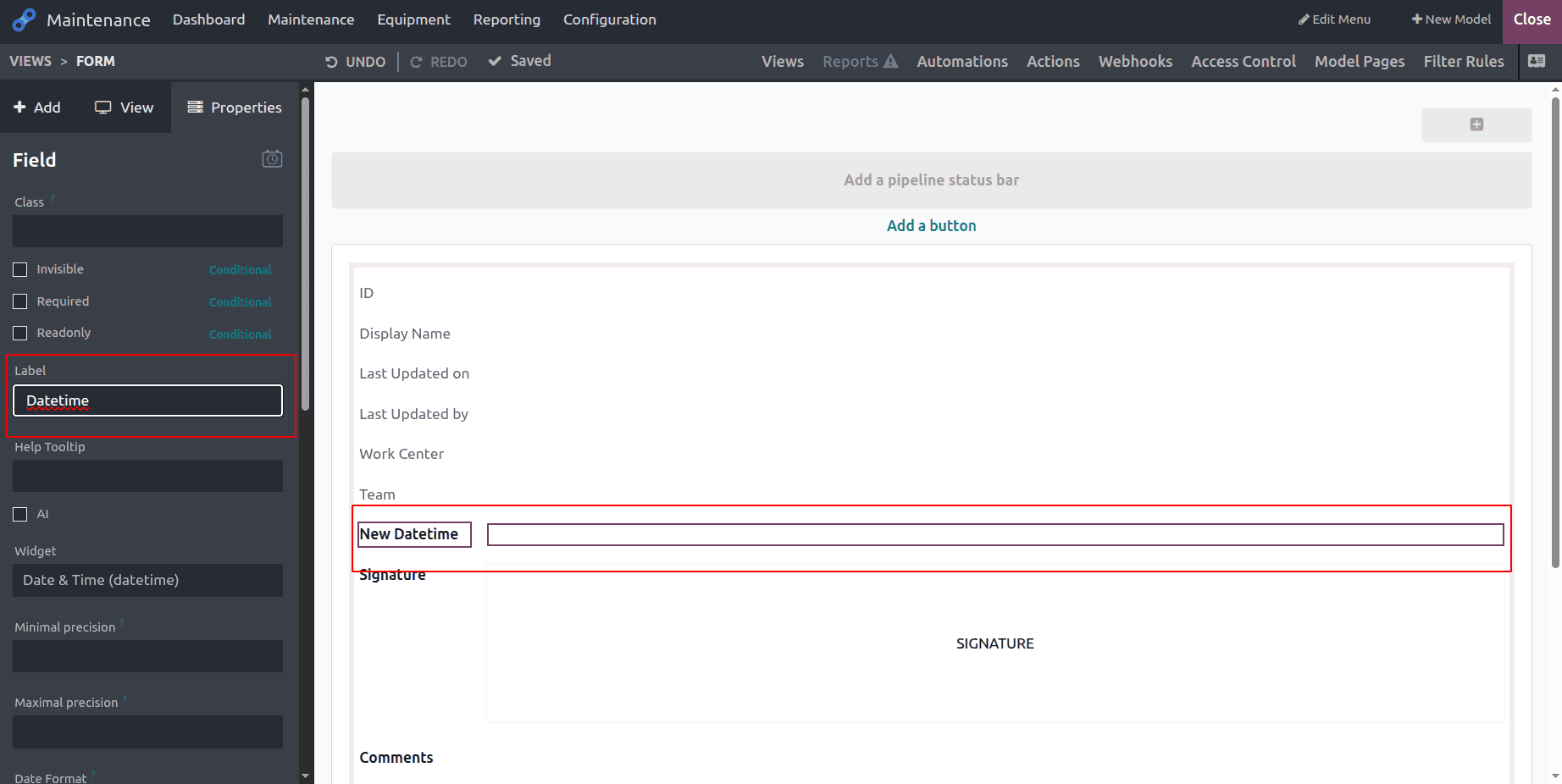
The Date and Time field comes next. Add the label "Datetime" after dragging and dropping the field. The current date and time are added by the Helptool. Next, click the Close button located in the upper-right corner of the screen to end the customization.
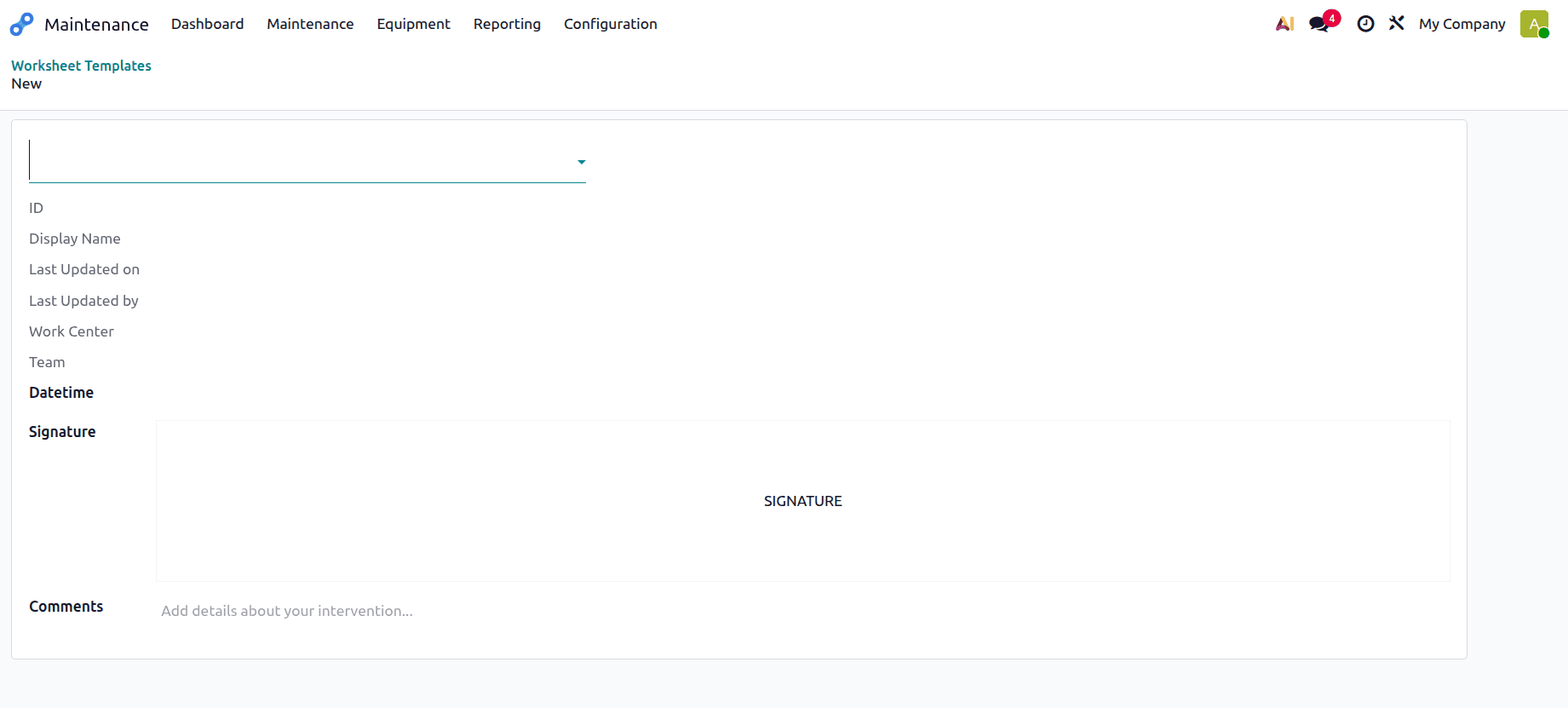
The customization is now finished. The worksheet template containing the fields ID, Display Name, Last Updated on, Work Center, Maintenance Team, Date & Time, Comments, and Signature is displayed below.
Let's see how it functions. Make a new maintenance request for a work center in order to accomplish that. In this case, "Work Center Maintenance" was formed by the maintenance request. The work center is selected when the request is made for it.
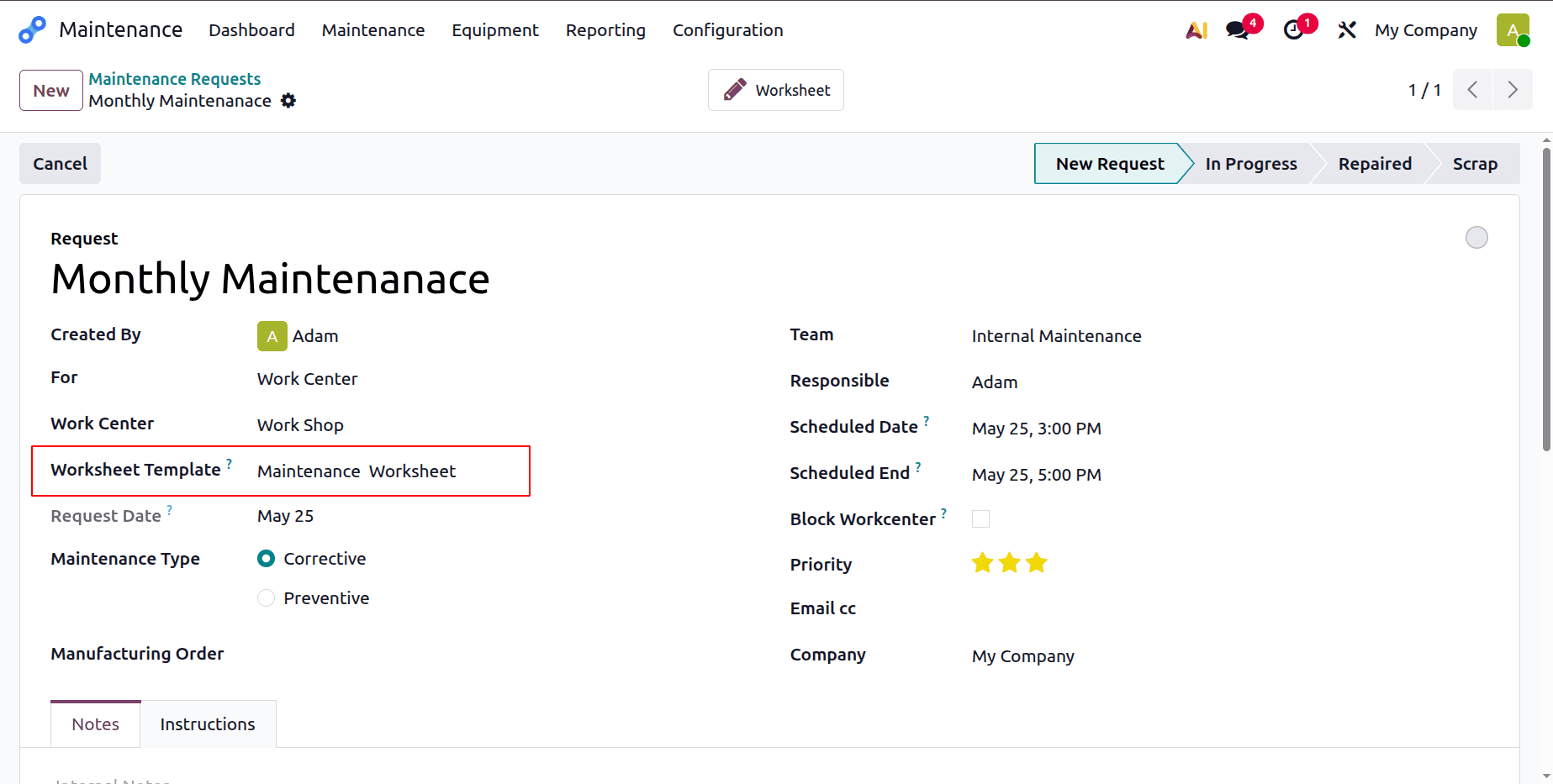
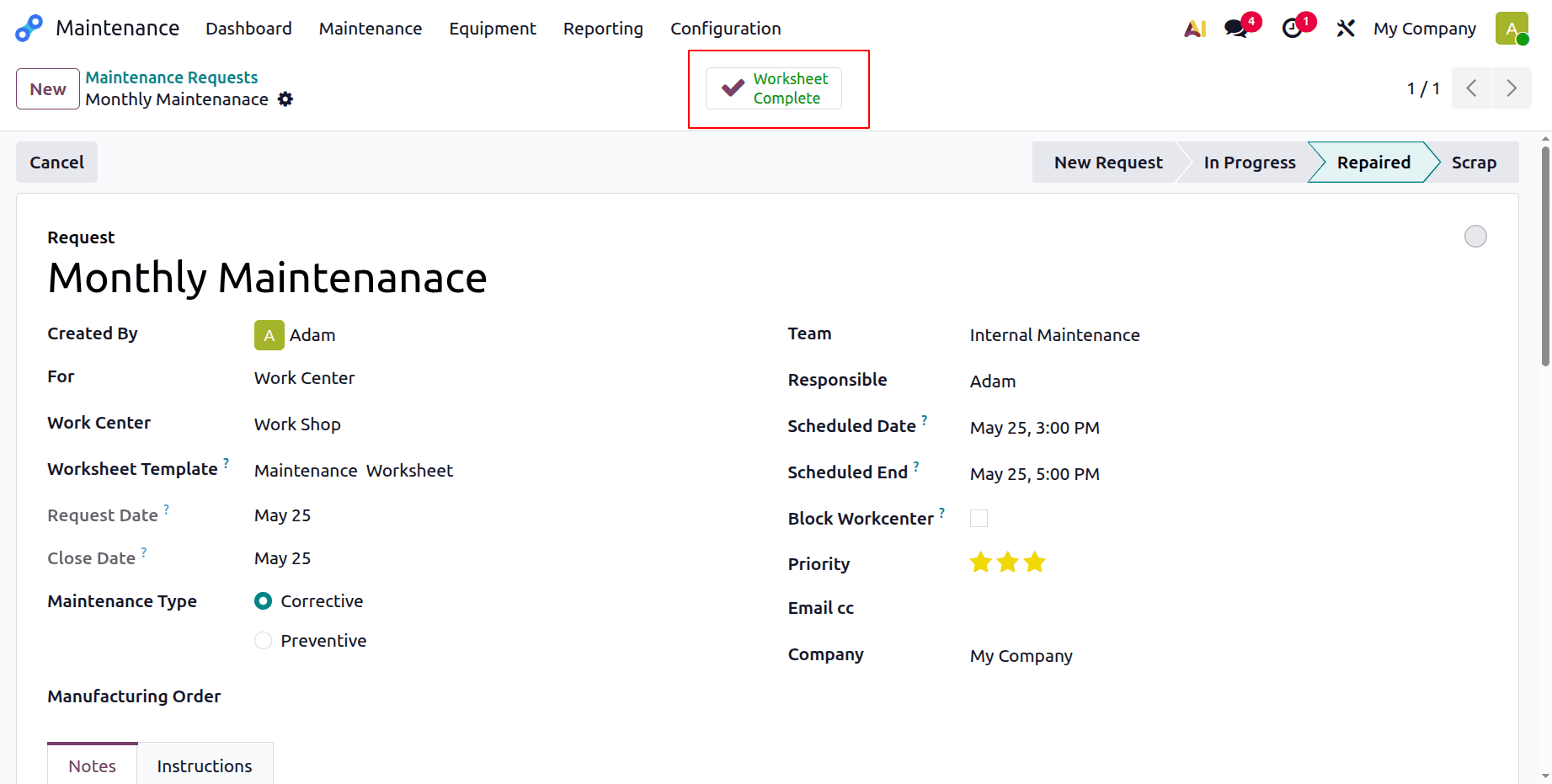
The request is currently at the New Request stage. Add further information, such as Team, Responsible Person, Scheduled Date, etc. Change the stage to "In Progress" while maintenance is still underway. Once the request is finished, move it to the Repaired stage.
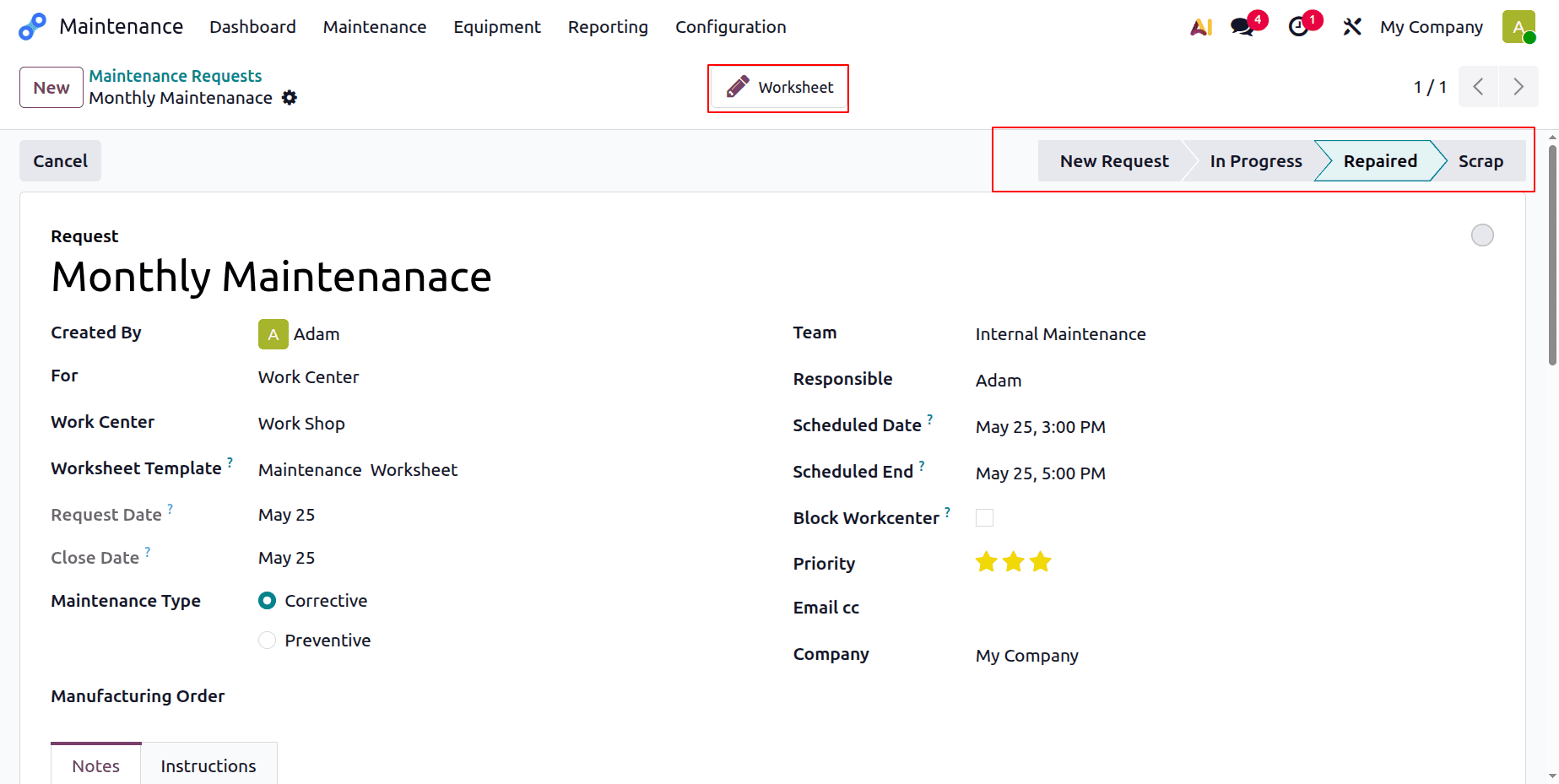
Next, select the Worksheet smart tab. Launch the worksheet. First, add the date and time. Display Name, Last Updated on, and Workcenter are examples of fields that are automatically updated.
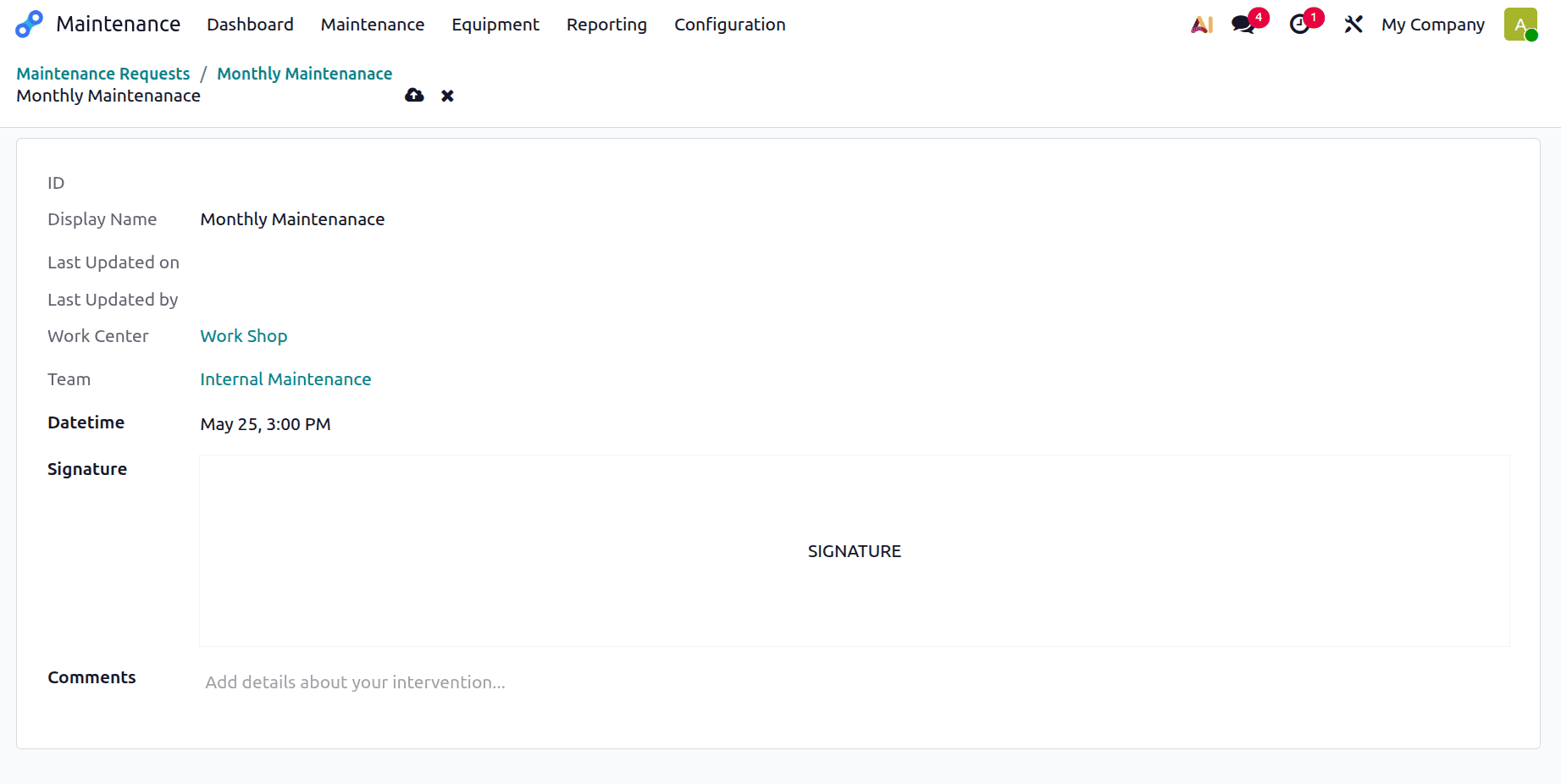
To add a signature, click the Signature button. A window will then open. Users can choose to either upload or draw the signature. Users can upload the signature from the system by clicking the Load option.
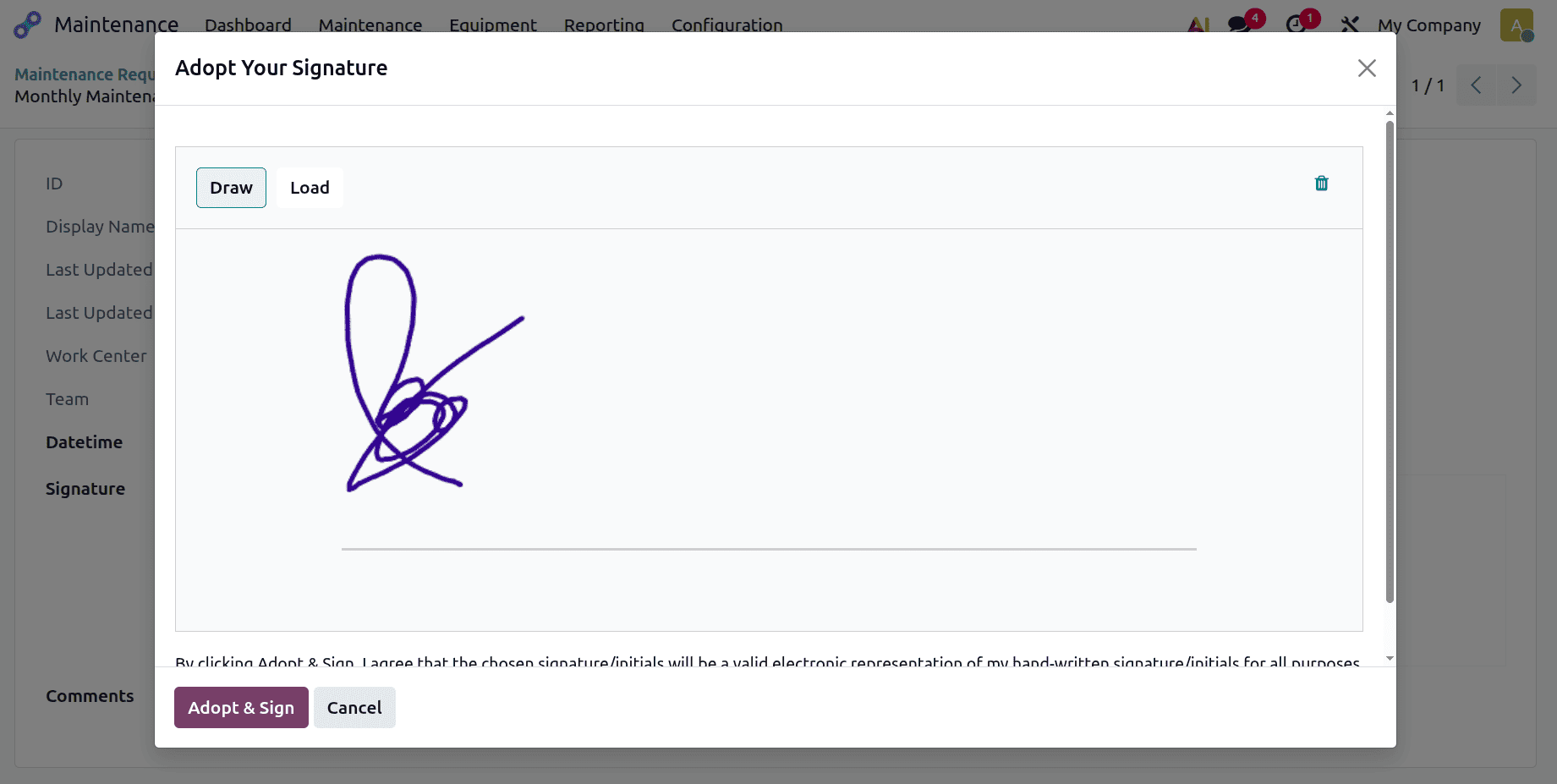
Click the Adopt & Sign button after manually drawing the signature if the Draw button is selected.
The worksheet is now finished. Comments can also be added by users. After that, every field is filled out as indicated below.
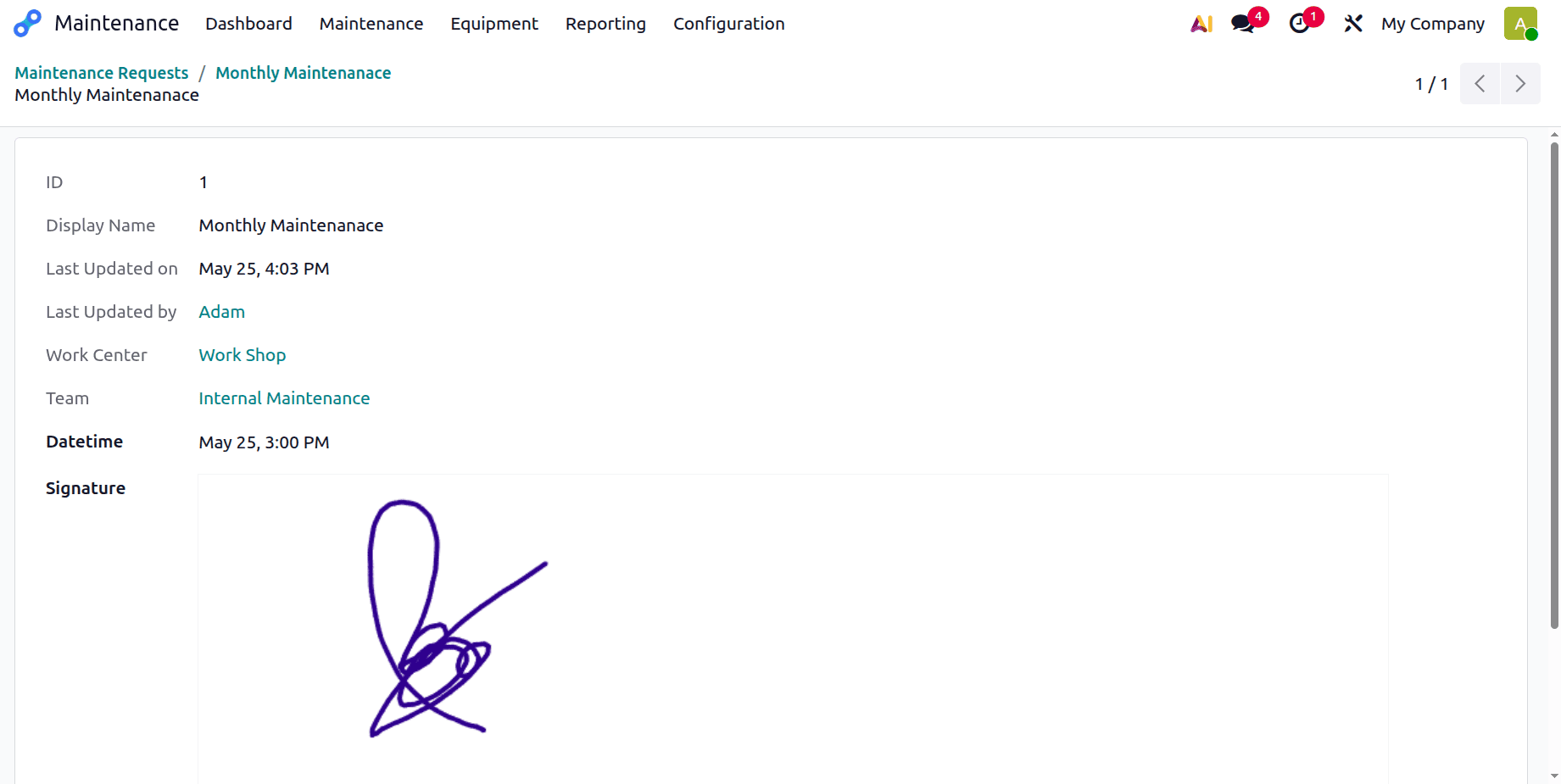
Additionally, when examining the maintenance request, the completed worksheet—which is highlighted in green—is displayed.
In conclusion, the customized worksheet templates in Odoo 19 Maintenance offer a powerful way to standardize and optimize maintenance processes. They improve accuracy, accountability, and efficiency by helping technicians adhere to structured procedures. Using this feature helps businesses maintain equipment more effectively and ensures high-quality, consistent maintenance practices.
To read more about An Overview to Maintenance Module in Odoo 18, refer to our blog An Overview to Maintenance Module in Odoo 18.