The Odoo 19 Helpdesk module lets support teams capture, organize, and resolve customer tickets from a single workspace that integrates natively with Sales, Inventory, Project, and Timesheets. There have been more improvements to the Helpdesk Module of Odoo in the latest Odoo version - Odoo 19.
Overview of the Odoo 19 Helpdesk Module
The Odoo Helpdesk module is designed to assist companies in managing the queries, tickets, and requests of their clients in an efficient manner. The Helpdesk module assists in handling all the issues within one interface. Due to the changes that have been made in Odoo 18, the Helpdesk module has become very user-friendly.
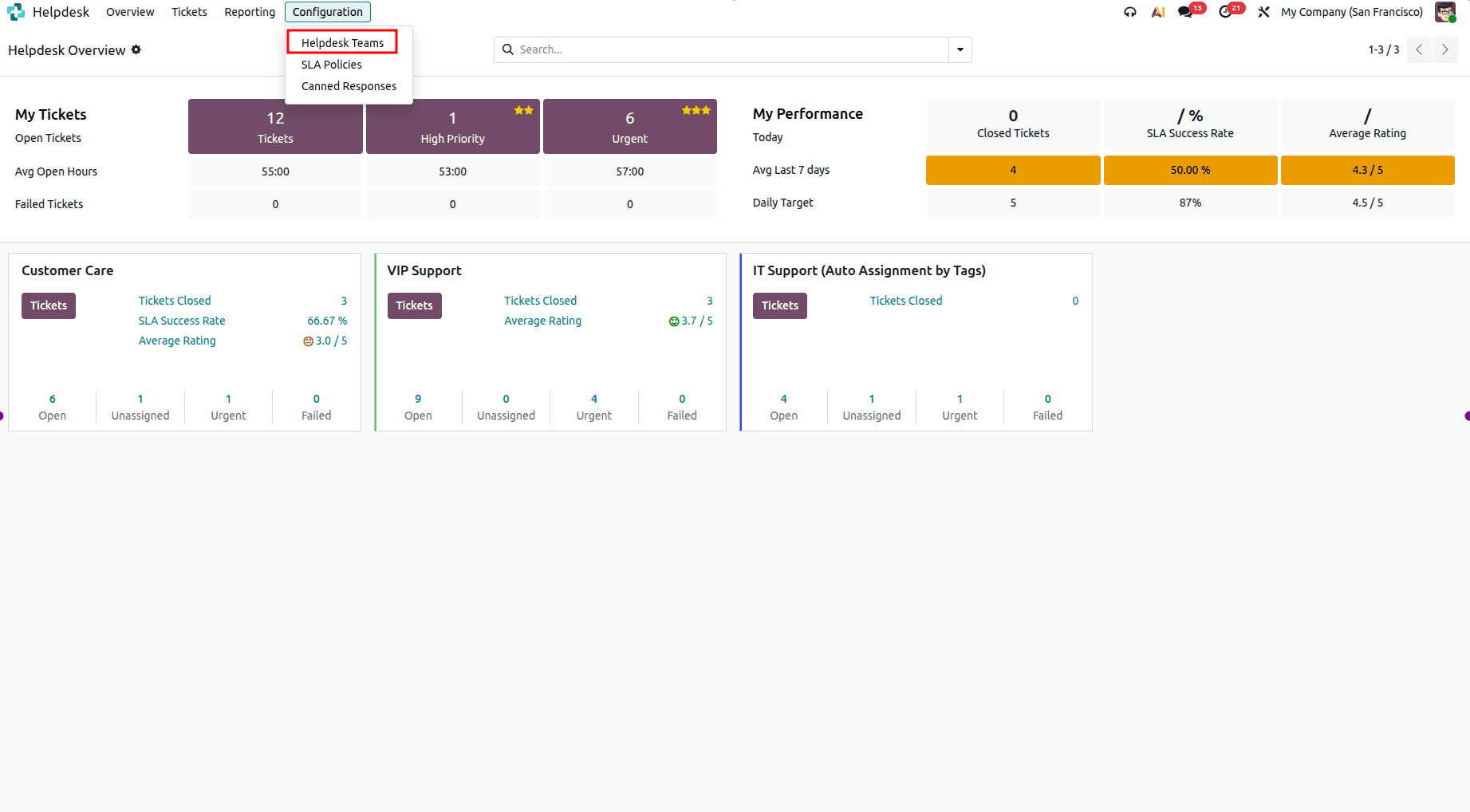
The Helpdesk Module in Odoo 19 provides improved ticket assignment and visibility functionalities that increase the efficiency of customer support operations. Ticket assignment automates the process and assigns tickets to the right agents, thus speeding up the process of resolving the issue and making customers happier. Visibility enables the tracking of the ticket's progression, performance analysis, identification of inefficiencies in the workflow, and better resource allocation. With company growth, the mentioned capabilities allow for maintaining high service quality and efficient operation. Before being able to use these options, one must create a Helpdesk Team by going to Helpdesk > Configuration > Helpdesk Teams.
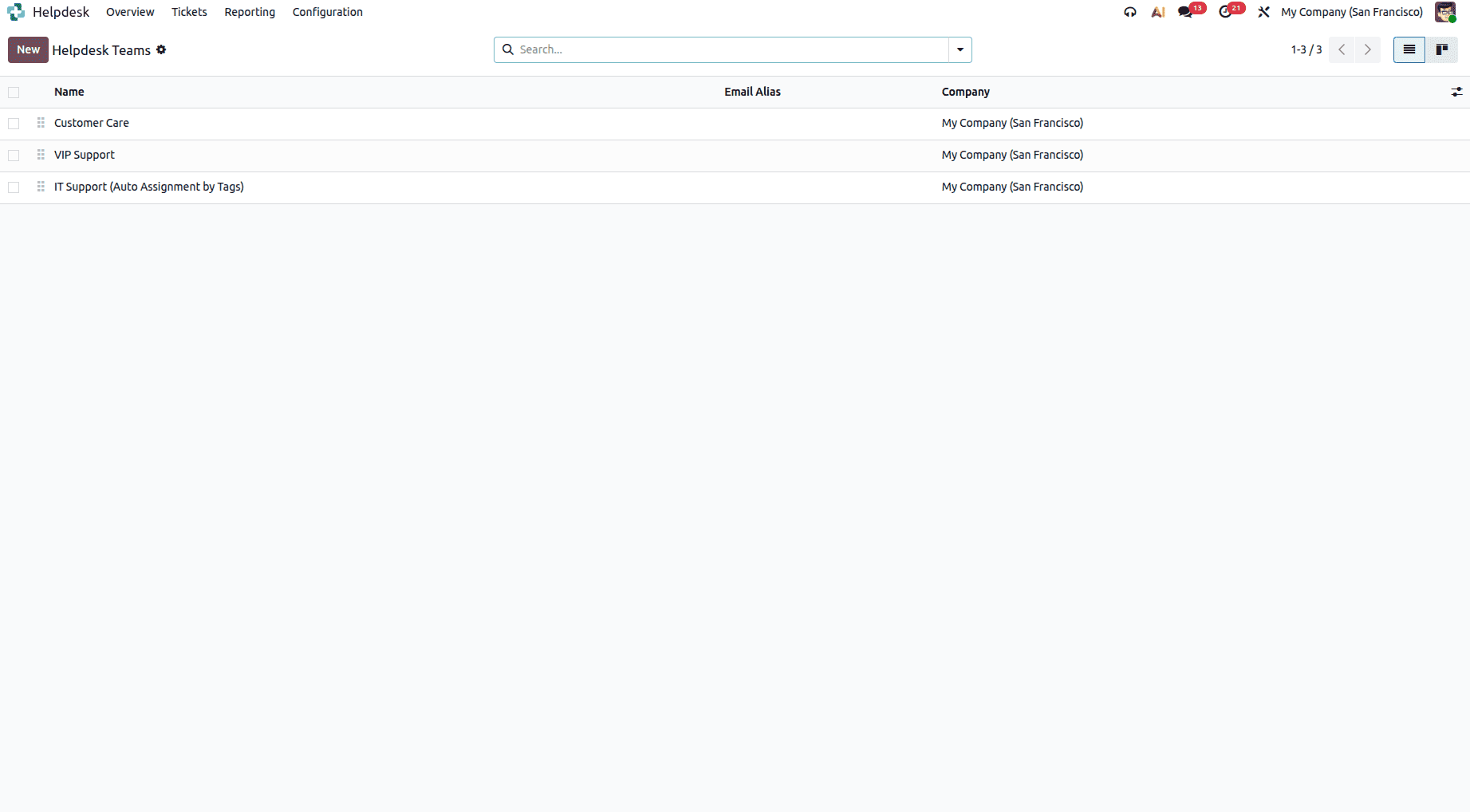
Team View shows a list of all the teams that were created before, including important information like the team name, email alias, and company.
The Customer Care team configuration information is contained within the Customer Care team records.
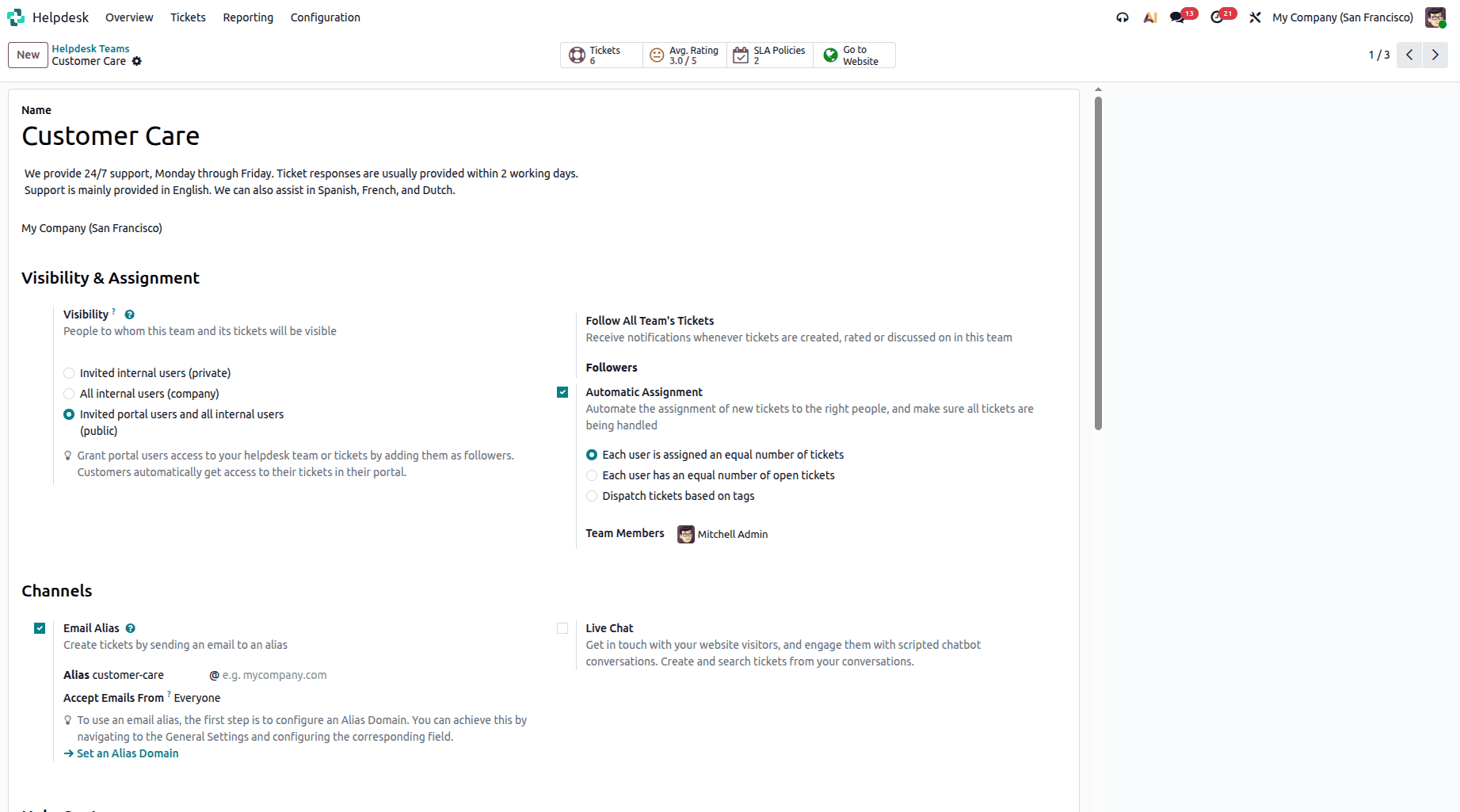
The Customer Care teams feature the Visibility & Assignment setting that allows you to configure ticket assignment and access for users. The visibility setting provides three ways to configure settings:
- Internal Users Invited – Access to the team and the tickets following them is only permitted for invited internal users. Access is set individually for each ticket by adding or deleting users as followers. HelpDesk Admins can always view all the tickets irrespective of whether they are following that particular ticket or not.
- Internal Users – All internal users have full access to the team and all tickets linked to the team.
- Portal Invitees and All Other Internal Users – All the internal users can see all the tickets, but the users that have been invited can see only the tickets that they track. Portal user access is configured individually by adding or deleting users as followers for certain tickets.
Automatic Assignment
The Automatic Assignment feature makes sure that the tickets that come in get allocated evenly to the team members. Using the Automatic Assignment feature, the Odoo Helpdesk can cut down on manual efforts and ensure that the workload is balanced and there are no bottlenecks, and thus provide efficient customer service.
When it comes to the use of the Automatic Assignment feature within a Helpdesk group, it automatically assigns tickets to relevant people. The employees who have been flagged as being on Time Off automatically do not get tickets.
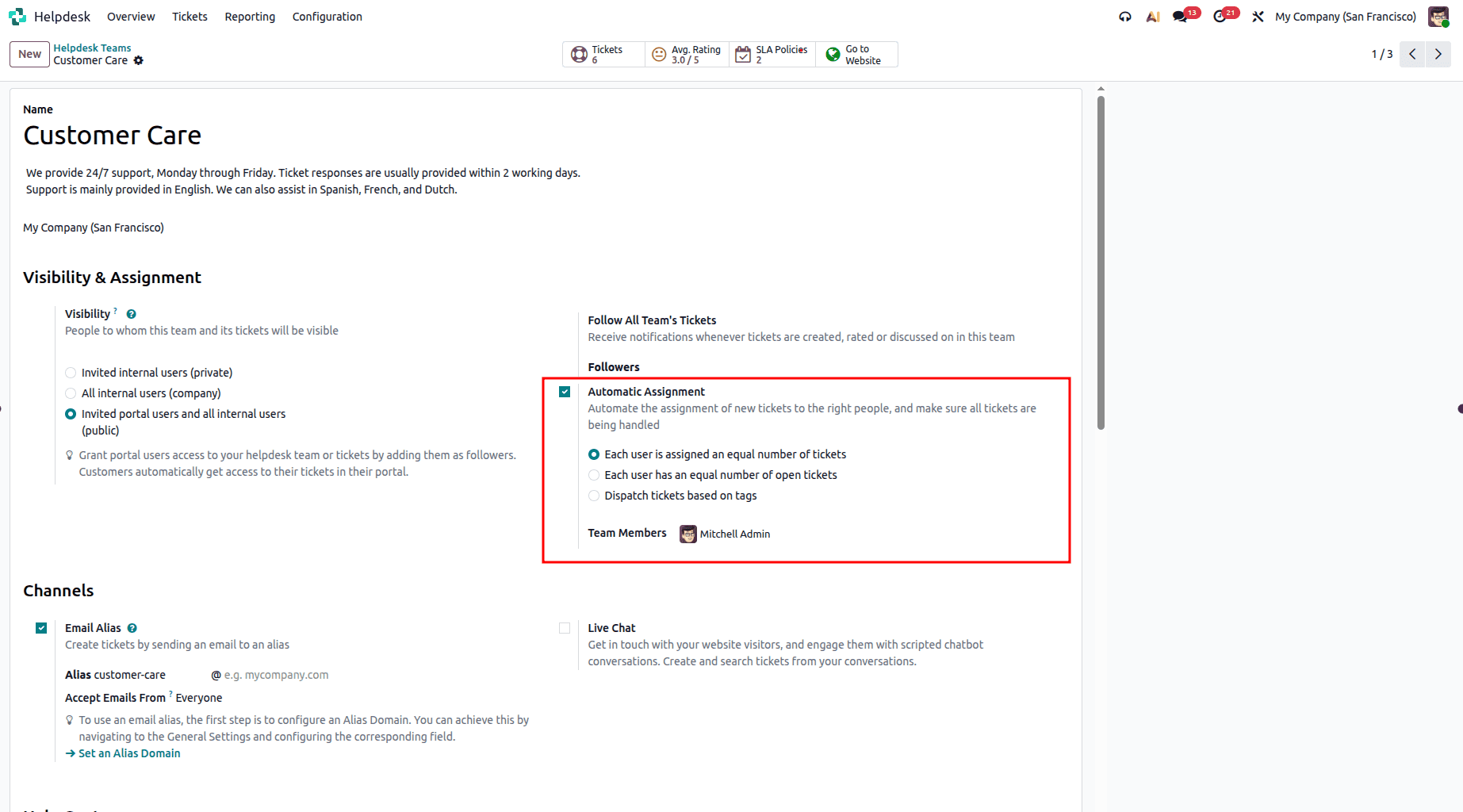
1. Each user is assigned an equal number of tickets
Odoo considers all tickets created over time and distributes new tickets to ensure that each team member receives an equal number of tickets throughout their lifetime.
Example: If ten tickets are created for a team of two agents, Odoo will assign around five tickets to each. The assignment is based on the total number of tickets handled over time, rather than the current status of previously assigned tickets, ensuring a fair historical distribution of work.
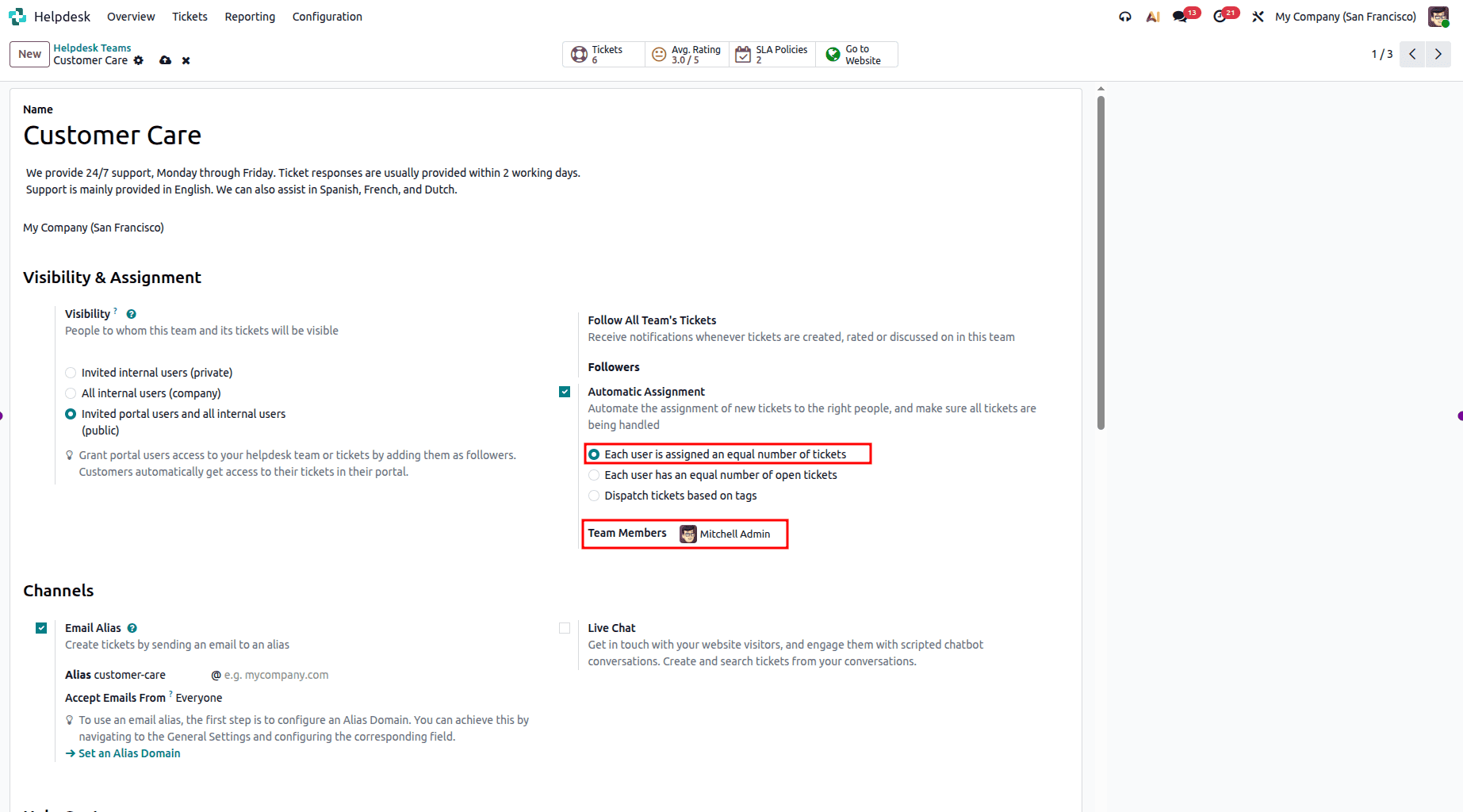
Team Members refers to the list of agents who may be eligible for automatic assignment of tickets. Ticket assignment can only be done to those users who have been set as team members. For instance, when the Helpdesk team consists of Mitchell Admin and Marc Demo, the tickets would be assigned to Mitchell and Marc alone.
Assuming that two tickets are received. One ticket will be assigned to Mitchell and another one to John. In case a third ticket is received, it will automatically be assigned to Mitchell.
Example Ticket 1:
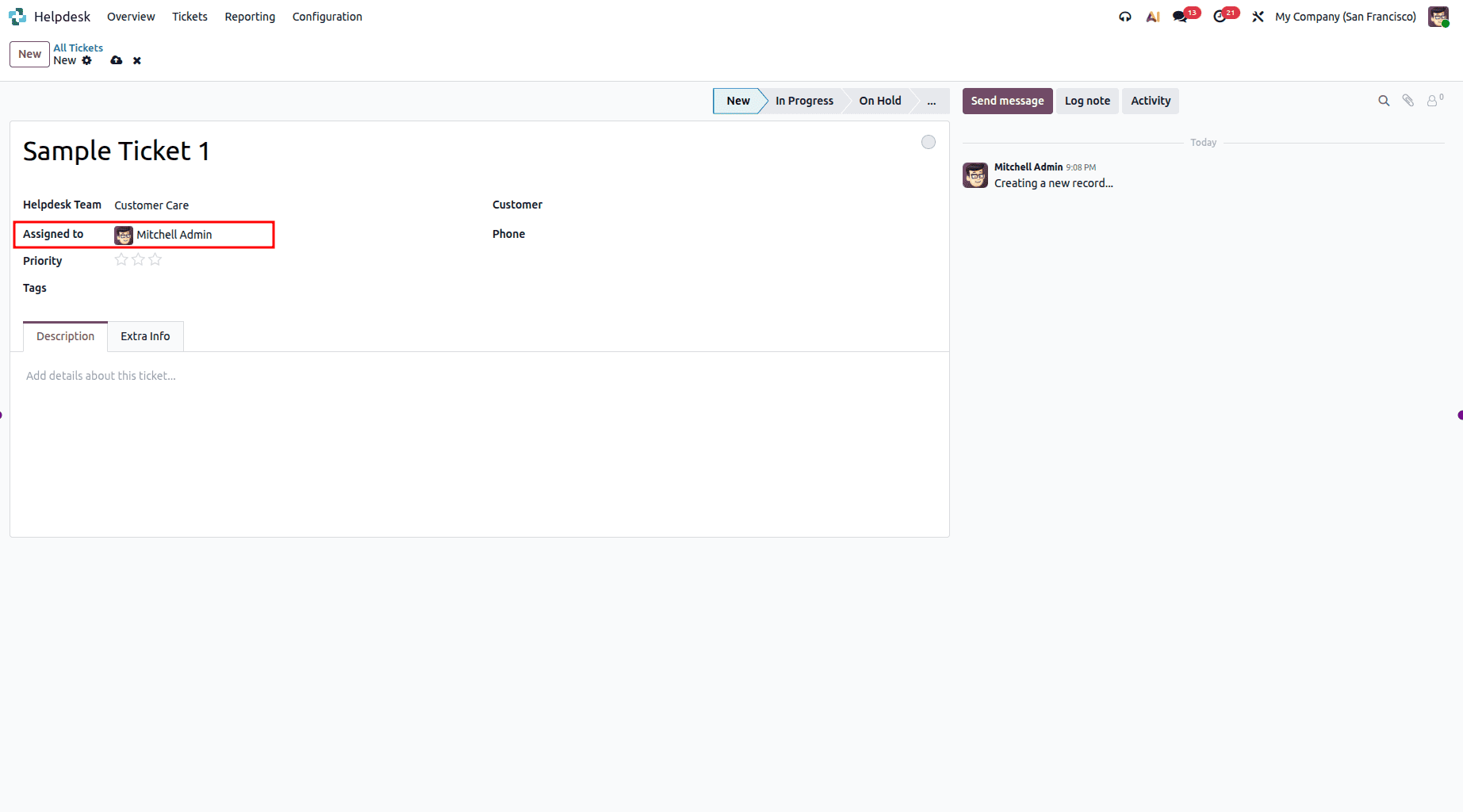
When a new ticket is created in the Customer Care Helpdesk team, Odoo automatically assigns it to Mitchell Admin because he is a team member, and the system distributes tickets evenly among all eligible members.
Ticket 2:
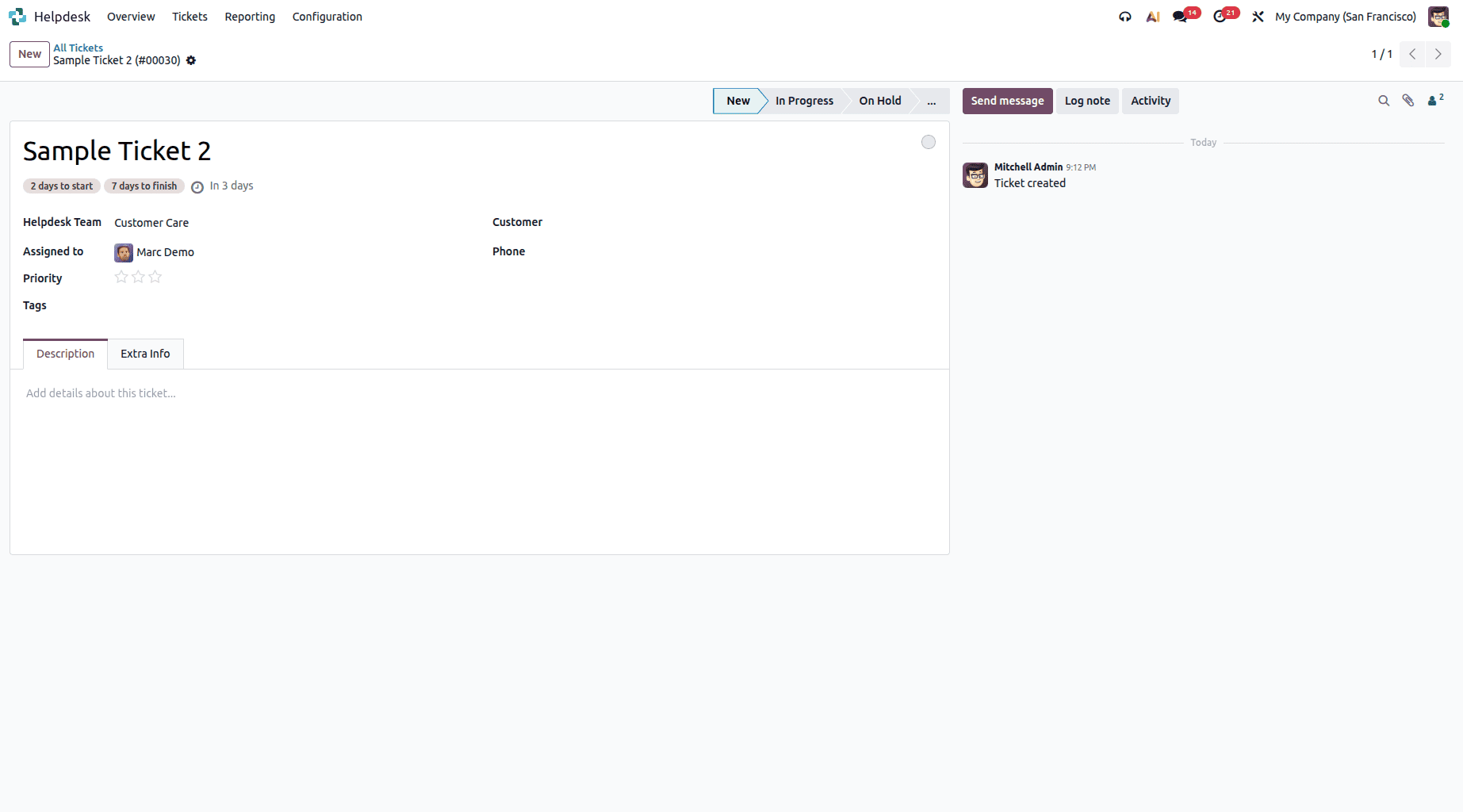
As seen above, the second ticket (Sample Ticket 2) in the Customer Care Helpdesk team is automatically assigned to John Doe. Since the first ticket was assigned to Mitchell Admin, Odoo assigns the next ticket to John to maintain an equal distribution of tickets among team members.
2. Each user has an equal number of open tickets
Odoo only takes into account the tickets that are open while assigning tickets. Each new ticket is assigned to the team member with the fewest open tickets, ensuring a balanced active workload.
Example: If User A is handling five open tickets while User B has only two, Odoo assigns the next ticket to User B to help balance the active workload.
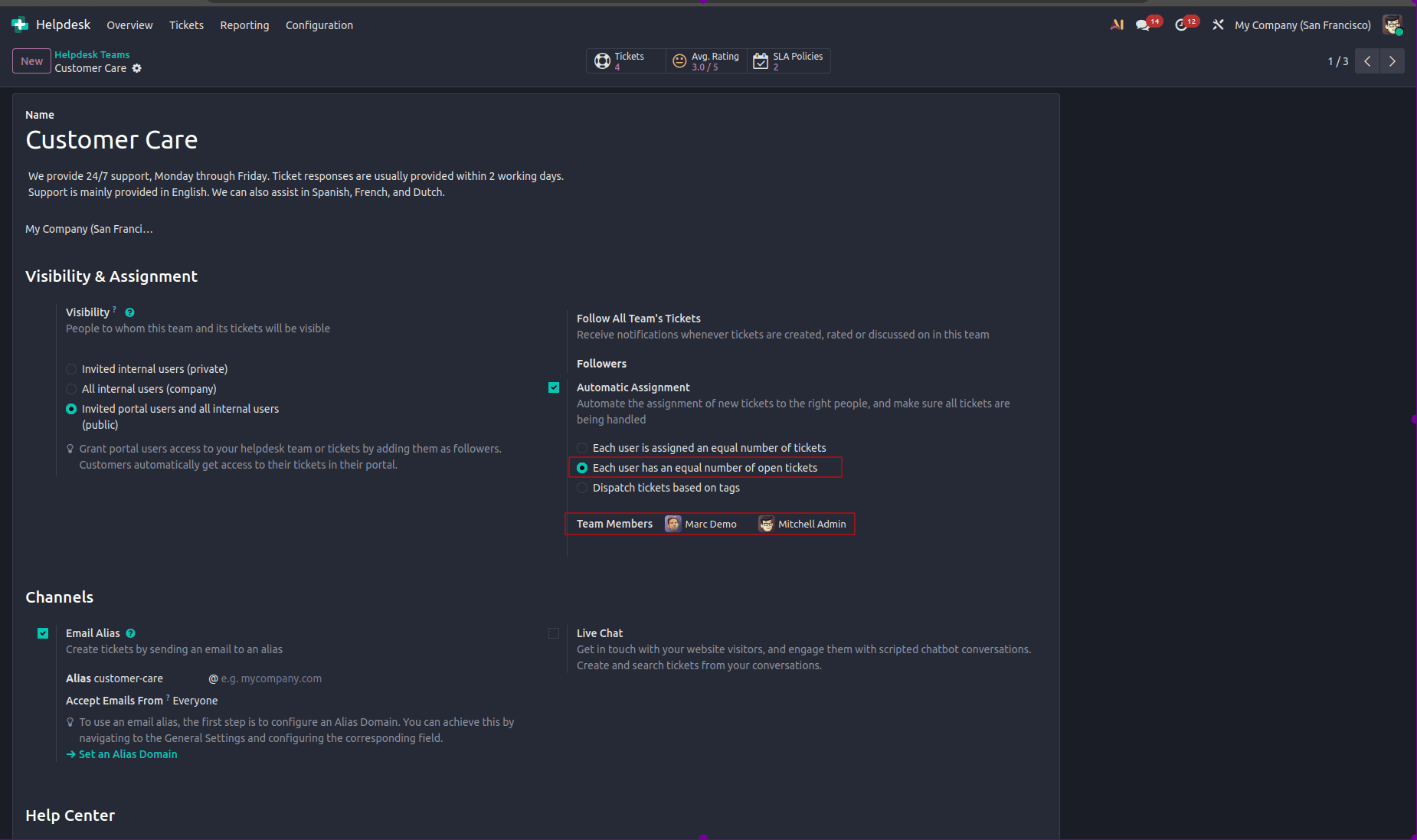
Team Members means the list of agents who can automatically receive ticket assignments. Assignment of tickets can be performed only for those agents who have been added as team members. For example, if the helpdesk team comprises Mitchell Admin and Marc Demo, then the tickets will be assigned to Mitchell and Marc Demo.
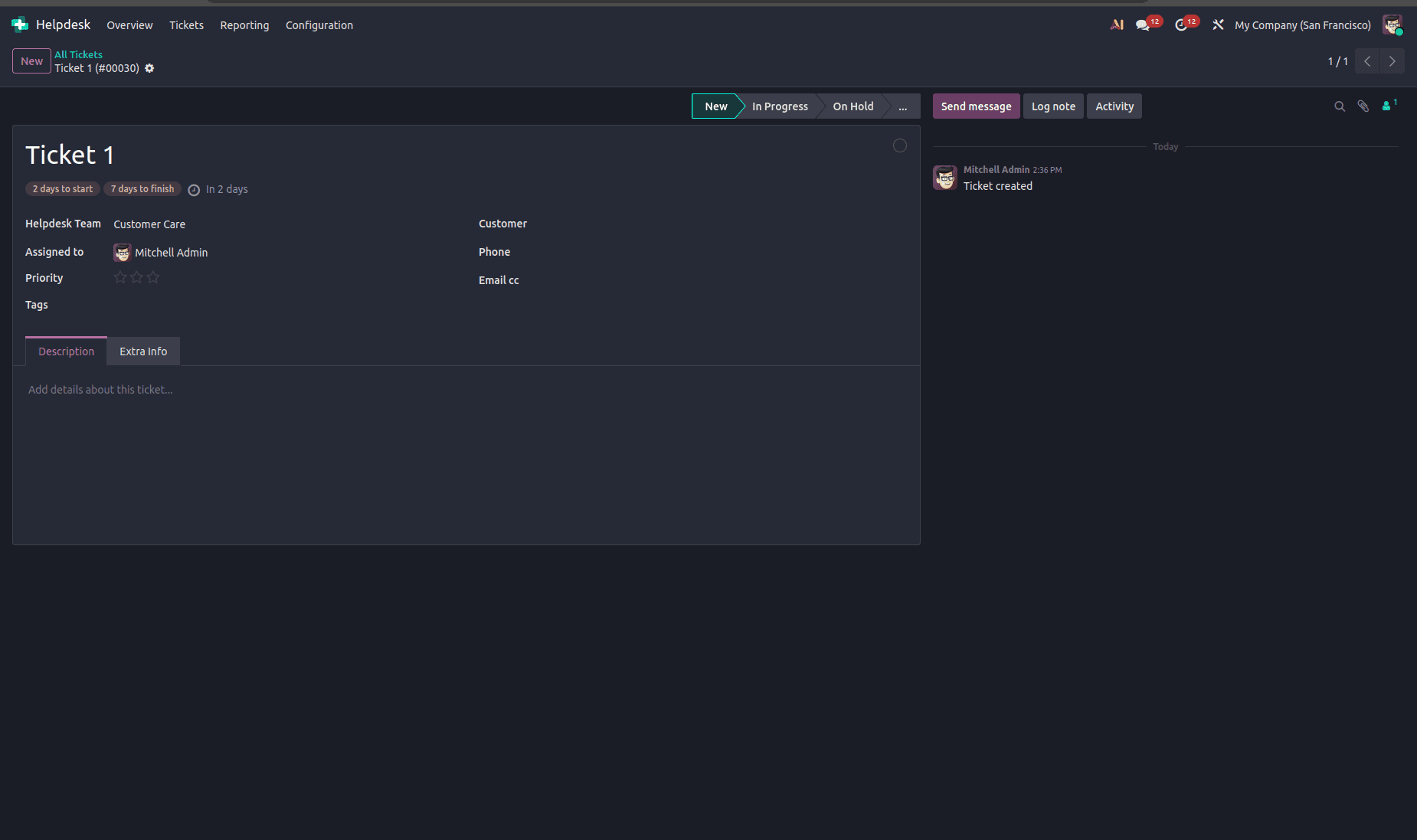
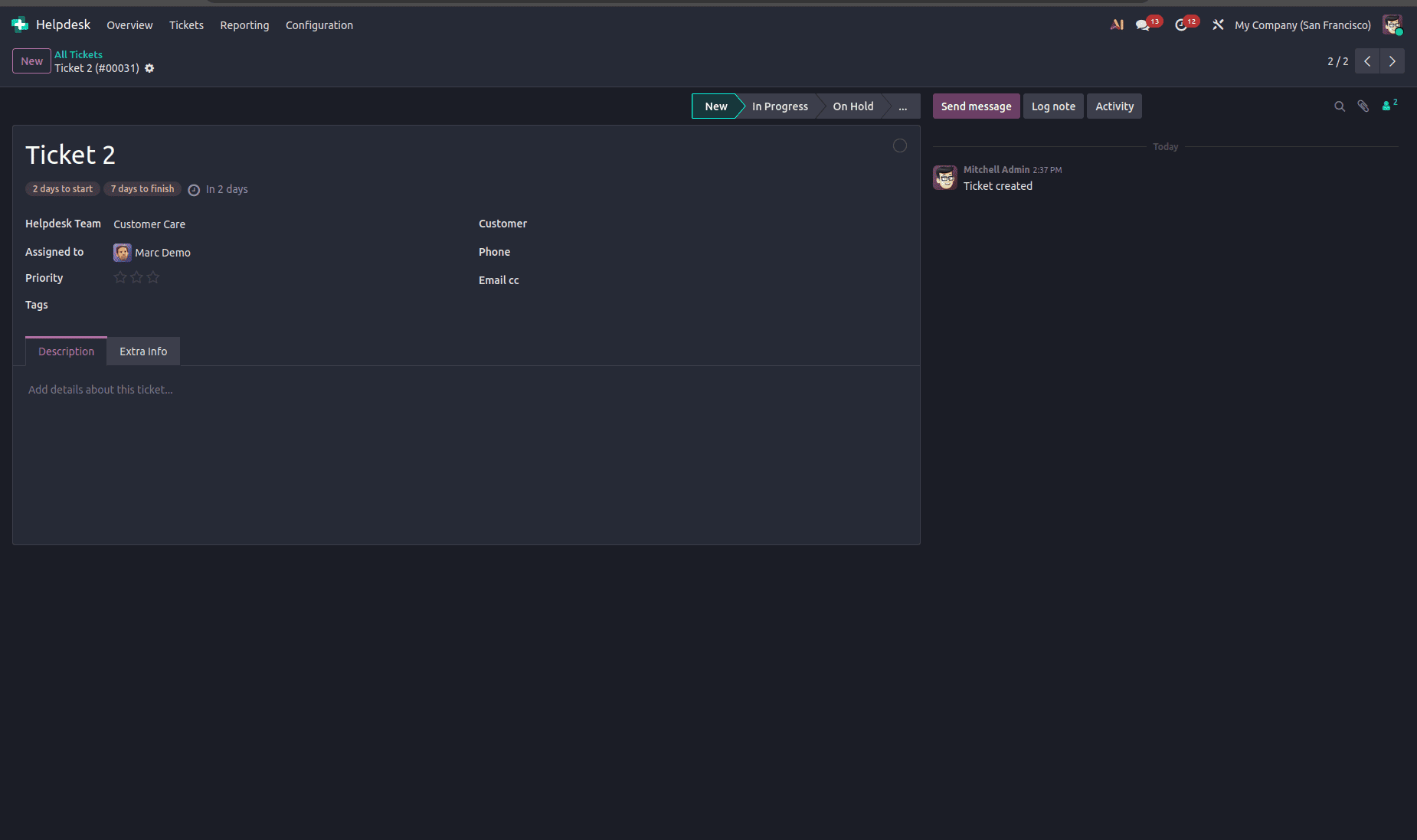
Suppose two tickets are received while both Mitchell Admin and Marc Demo have no open tickets. The first ticket is assigned to Mitchell, and the second to Marc Demo, so each now has one open ticket.
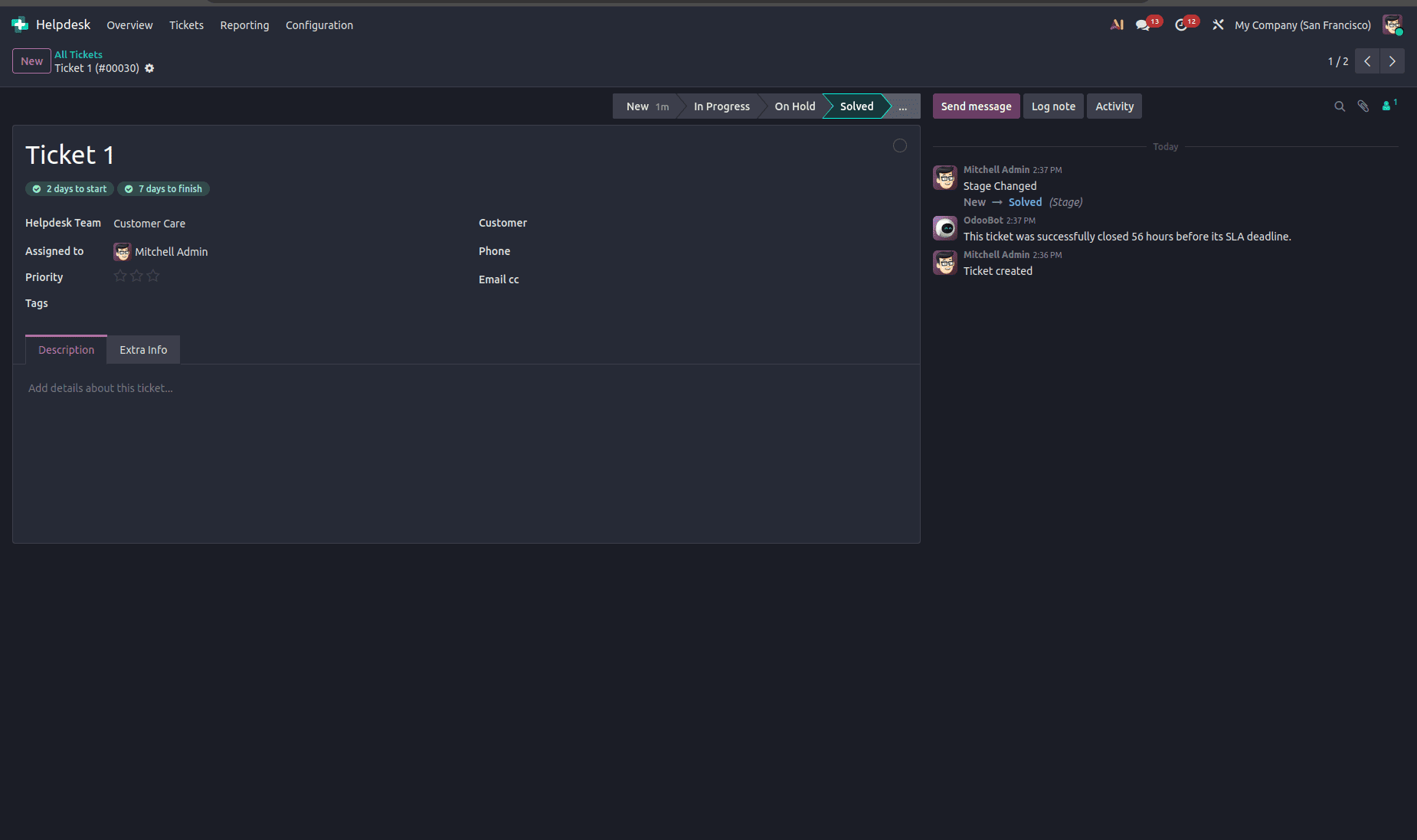
Open the ticket assigned to Mitchell and move it to a closing stage (e.g., Solved or Cancelled). Now, Mitchell has 0 open tickets, and Marc Demo has 1.
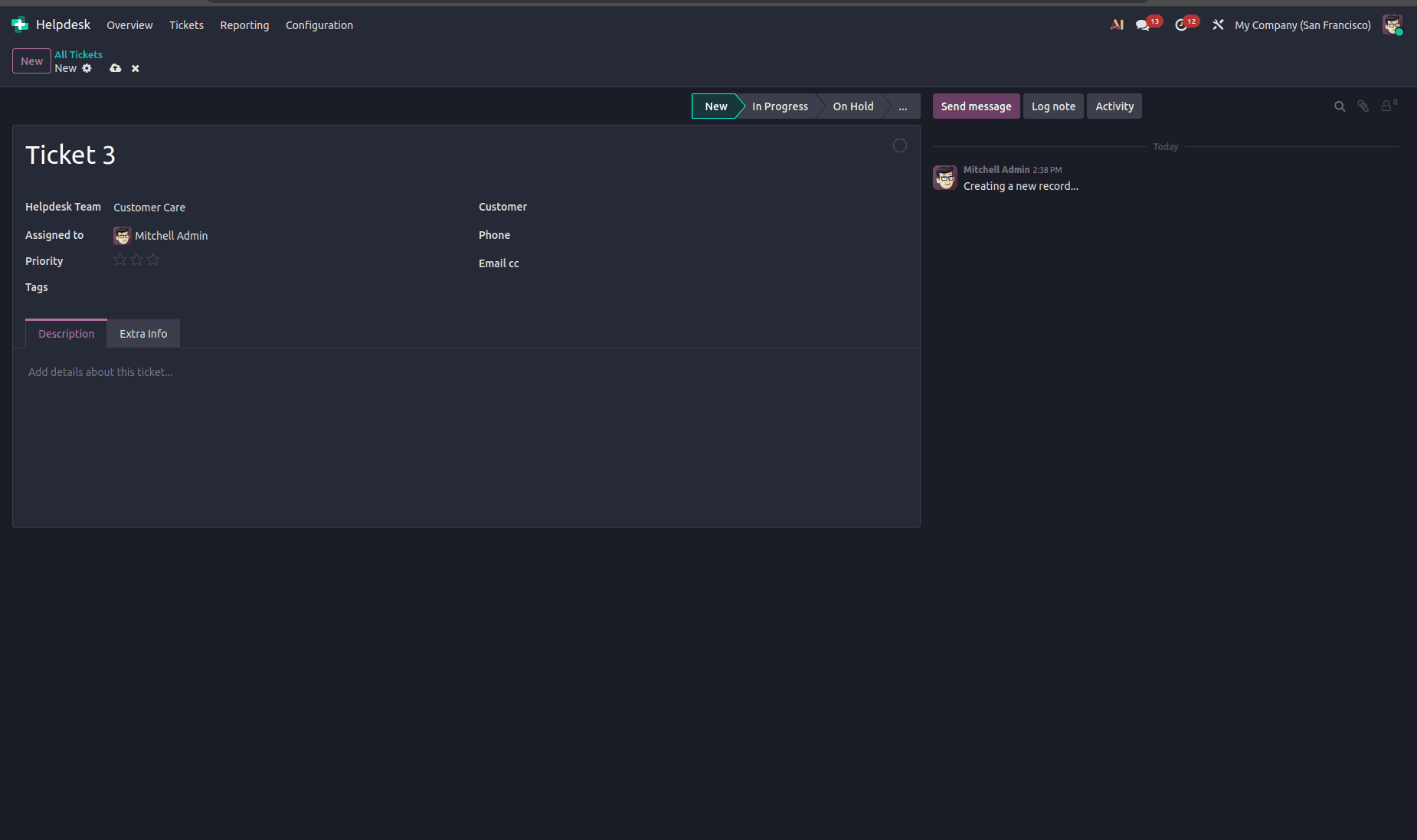
Create a new ticket. It should be assigned to Mitchell because he has fewer open tickets.
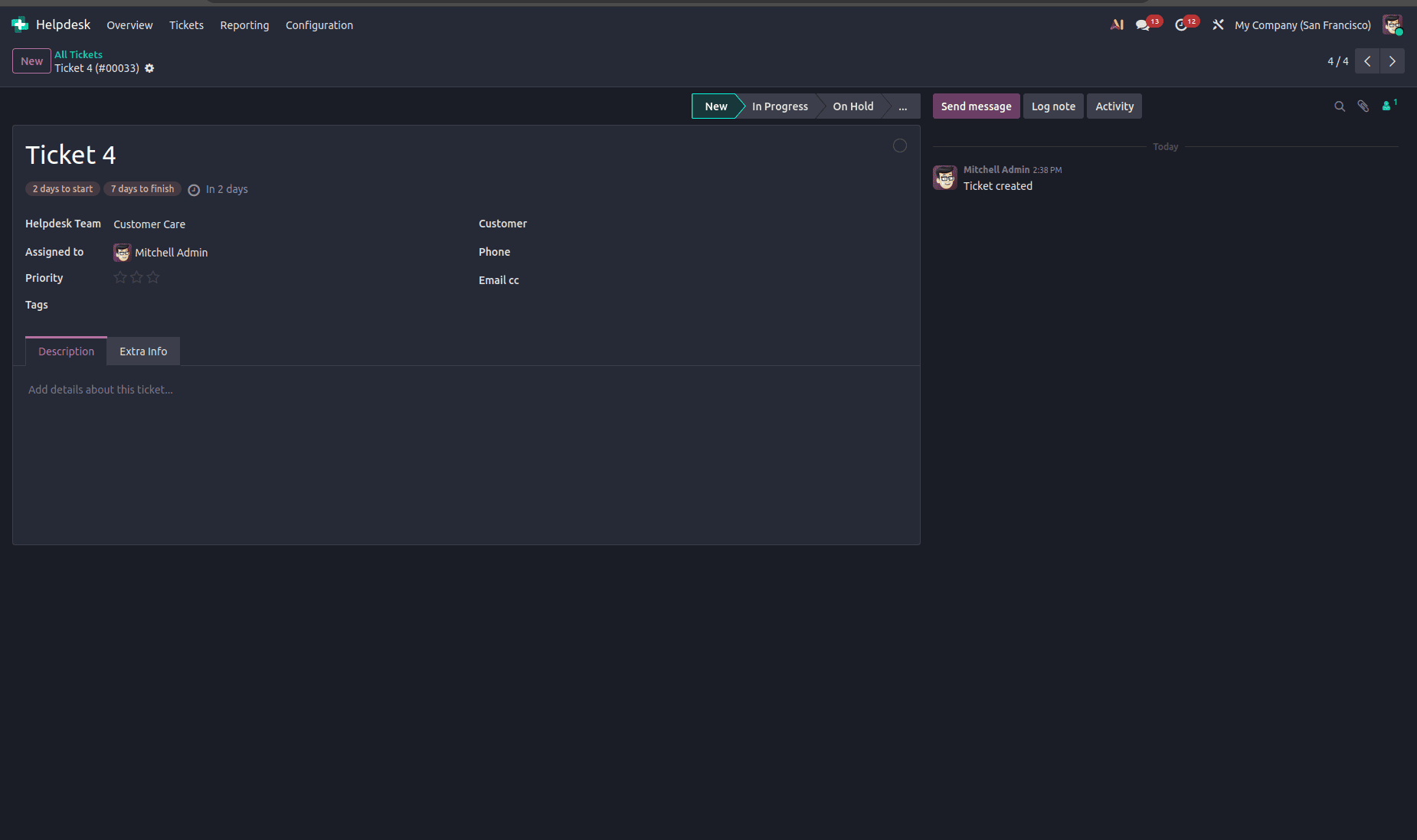
Create another ticket. Now, both have 1 open ticket, so it can go to either one.
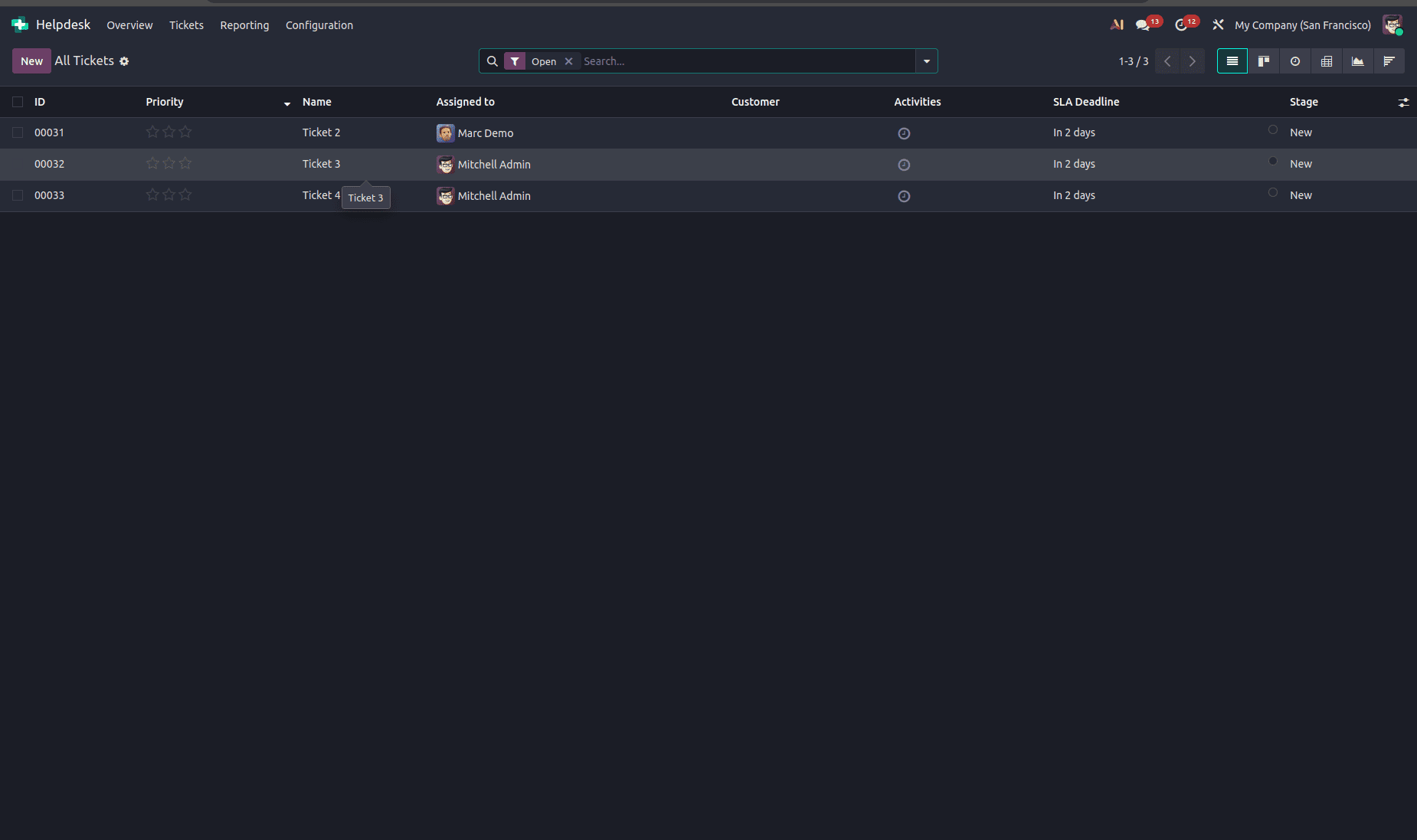
Now, Mitchell Admin has 2 open tickets, and Marc Demo has 1 open ticket. When a new ticket is created, Odoo automatically assigns it to Marc Demo because he has the fewest open tickets.
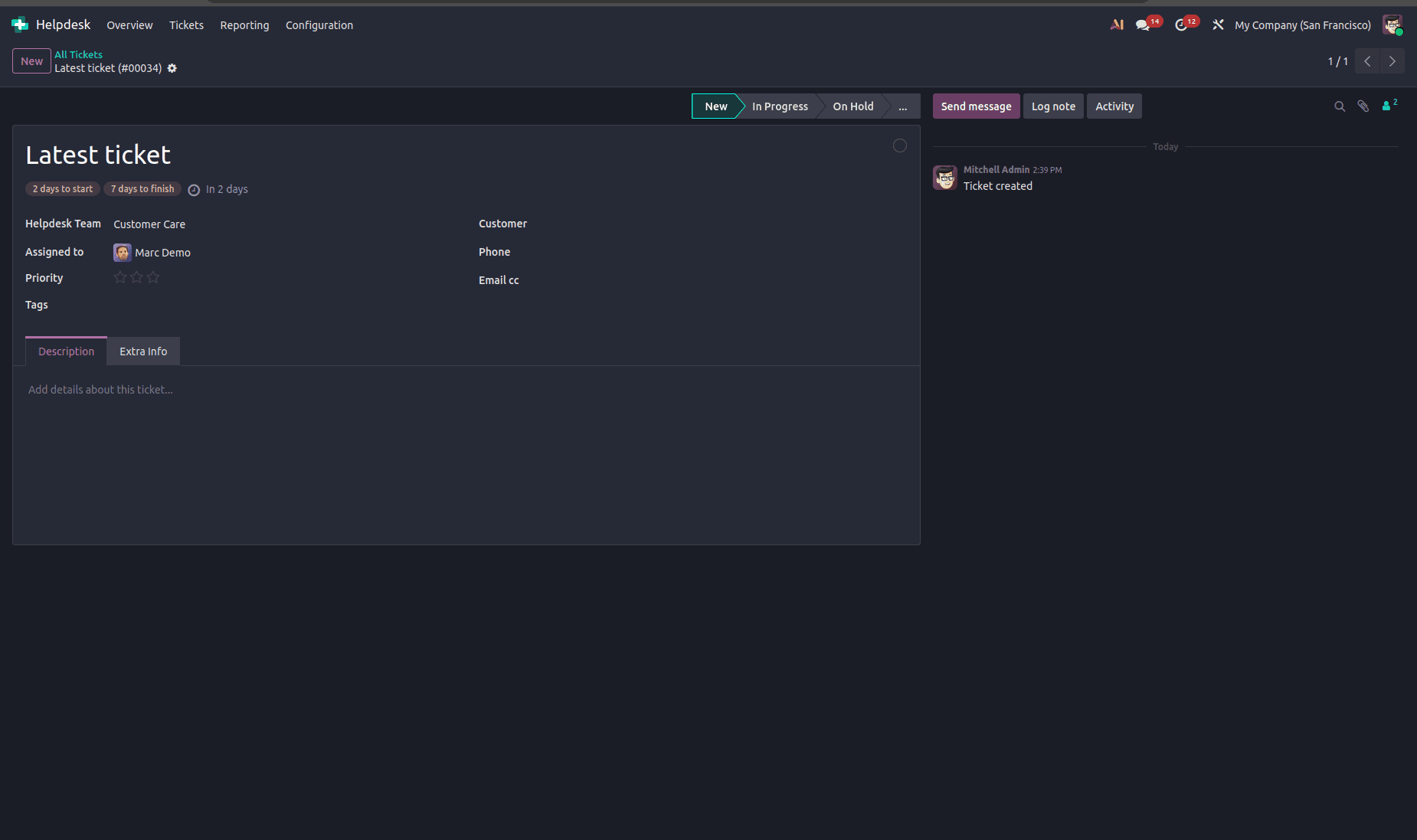
3. Dispatch tickets based on tags
Odoo assigns incoming tickets based on their tags. Each team member can be associated with specific ticket tags, and when a new ticket is created, it is automatically assigned to a team member who is configured to handle those tags. This makes sure that the tickets are sent to the most appropriate agent depending on their skills.
Example: Suppose User A is responsible for tickets tagged Technical, while User B handles Billing tickets. If a new ticket is created with the Technical tag, Odoo automatically assigns it to User A. Similarly, a ticket tagged Billing is assigned to User B.
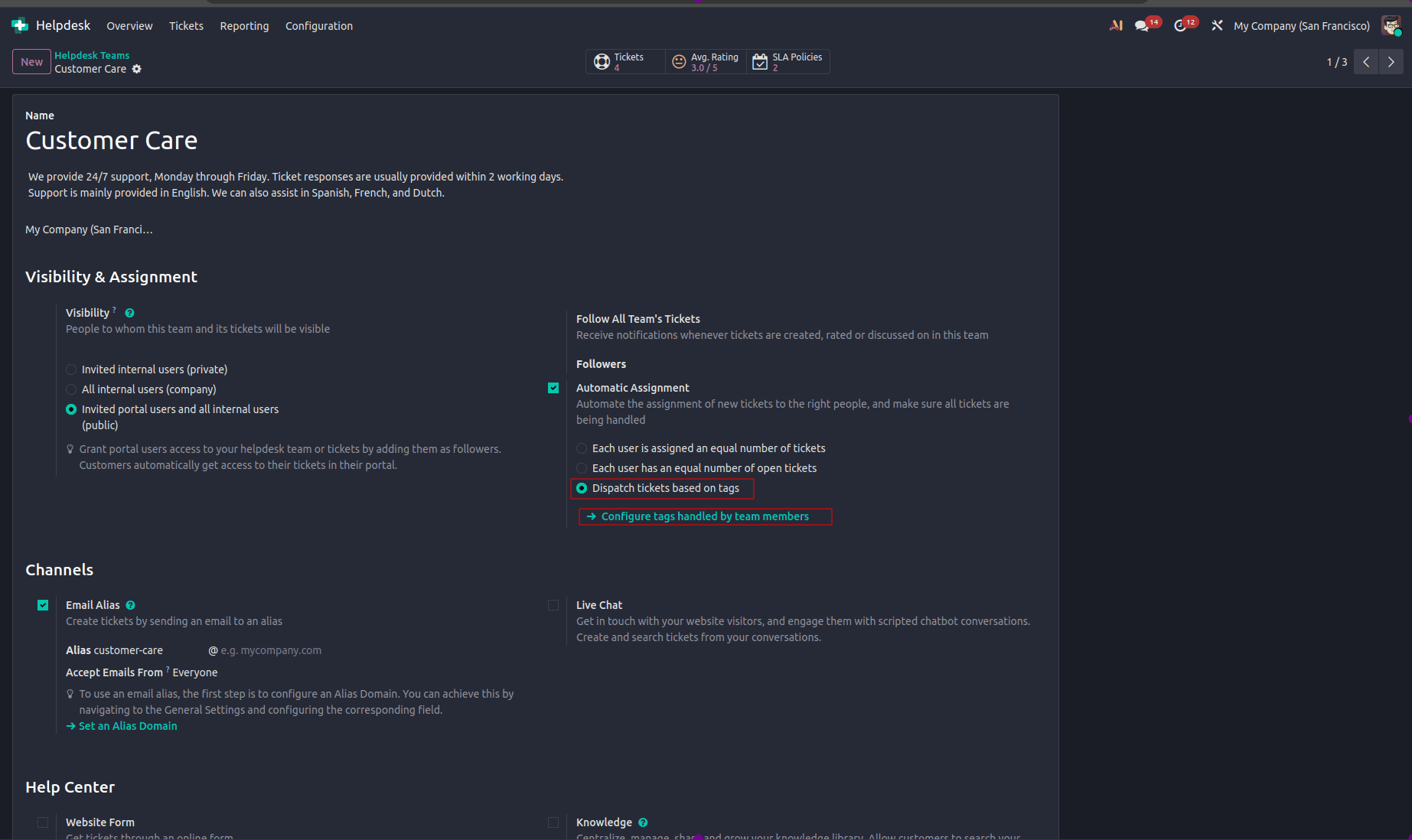
After selecting Dispatch tickets based on tags, click Configure tags handled by team members to assign specific ticket tags to each agent. Odoo uses these tags to route new tickets to the right person automatically.
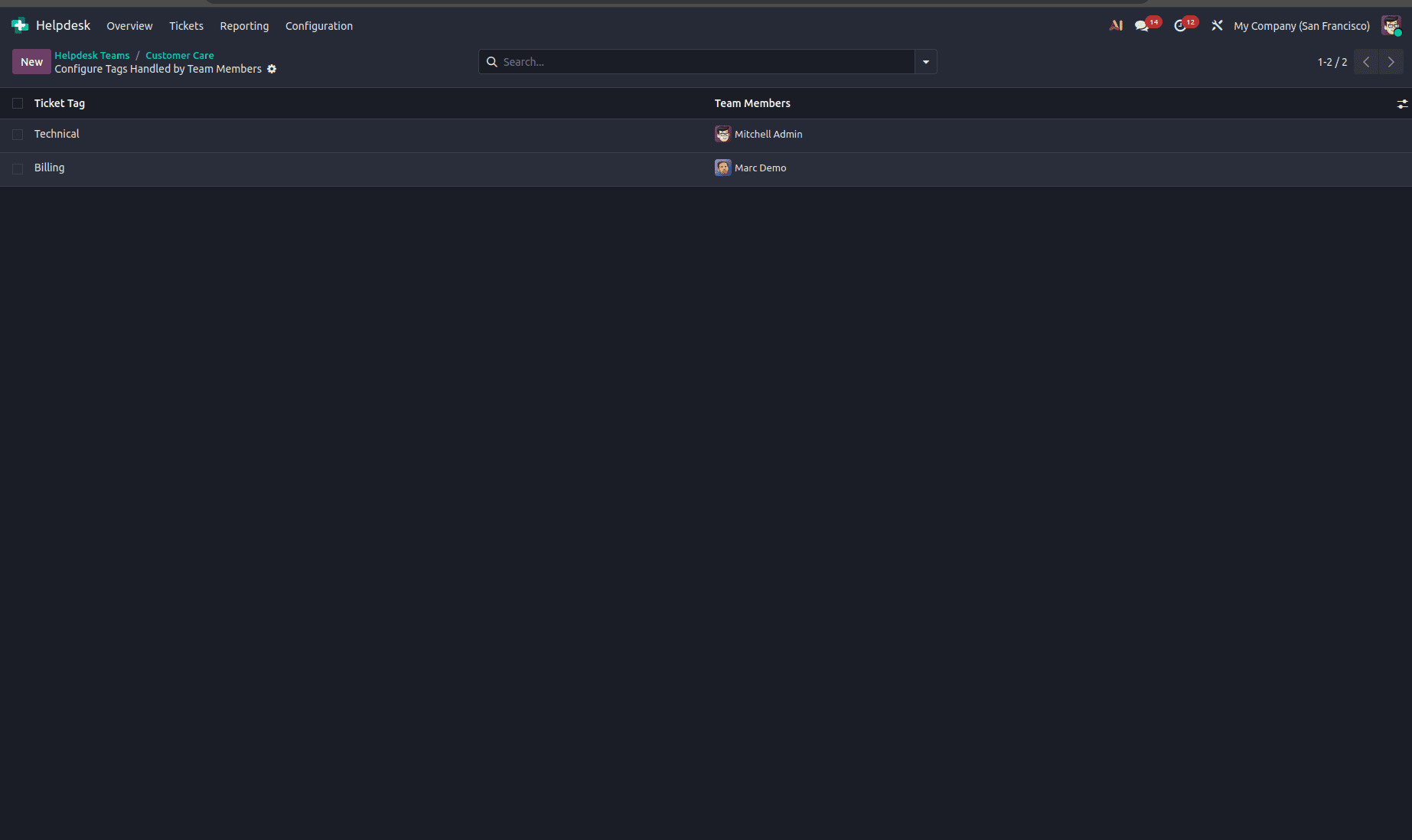
Assign the ticket tags to each team member accordingly. Mitchell Admin handles tickets tagged Technical, while Marc Demo handles tickets tagged Billing.
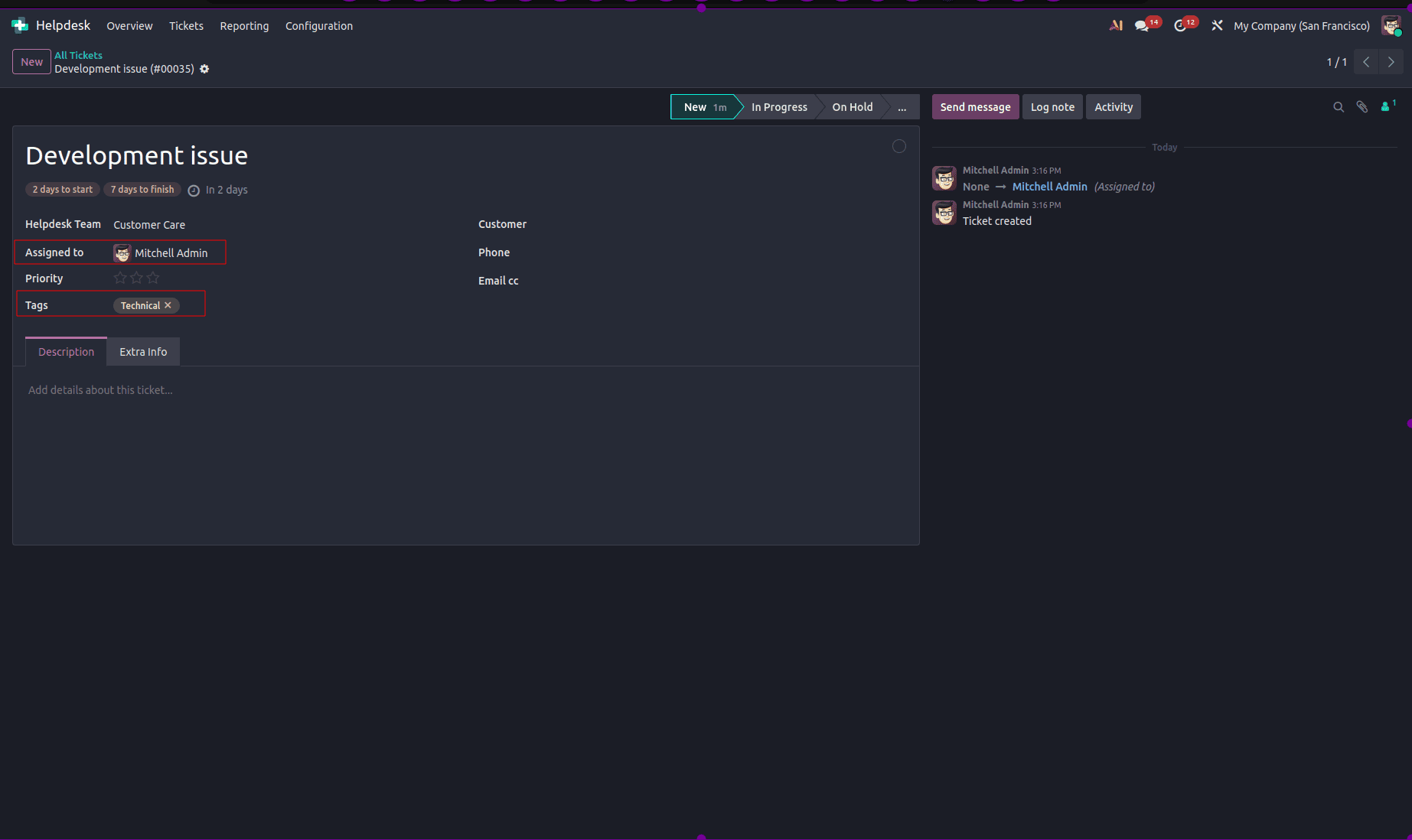
When a new ticket is created with the Technical tag, Odoo automatically assigns it to Mitchell Admin.
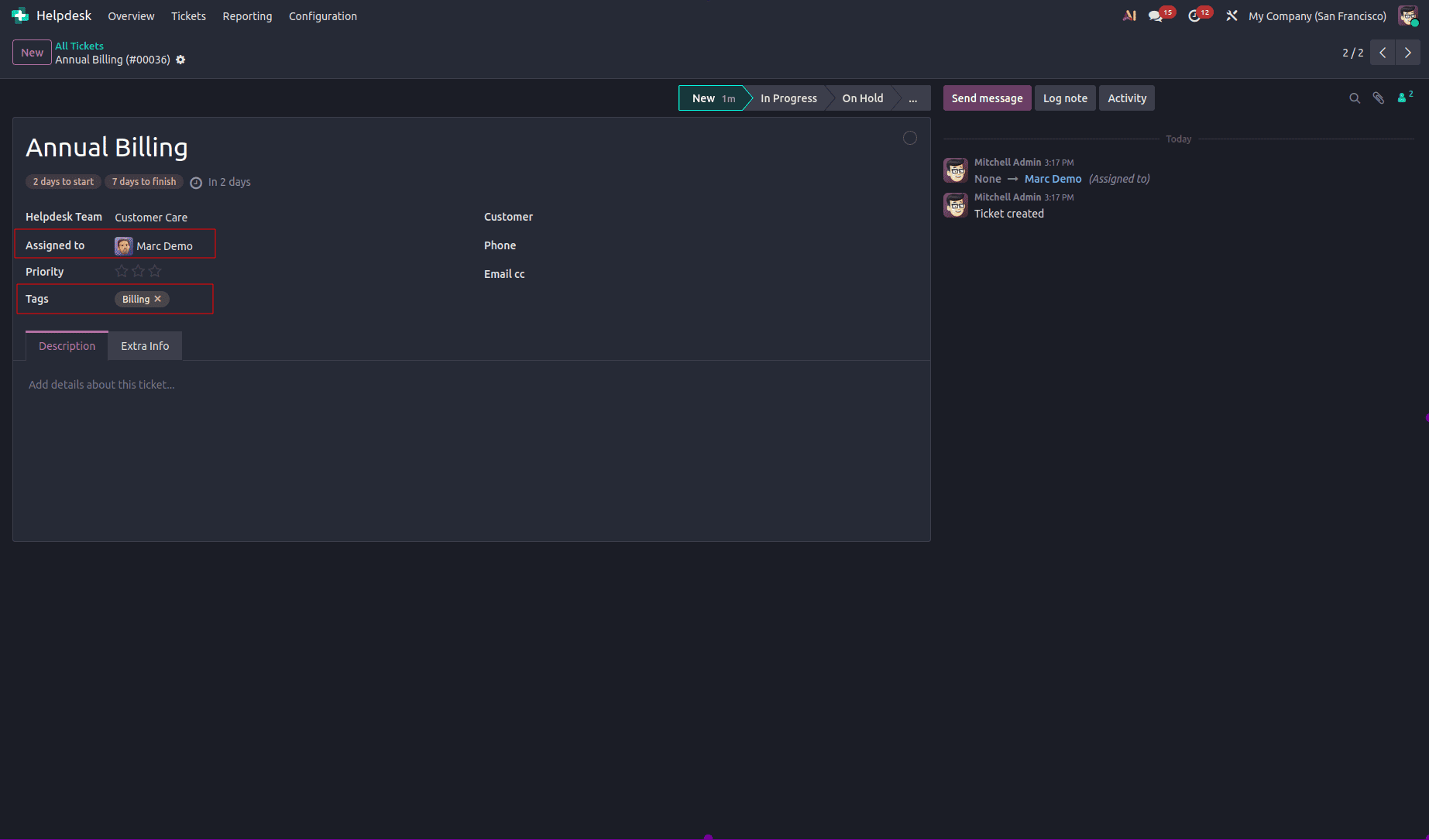
When a ticket is created with the Billing tag, Odoo automatically assigns it to Marc Demo.
Automatic Assignment in Odoo 19 Help Desk is an important tool in ensuring equal distribution and effective processing of tickets for customers. With automatic assignment of tickets through the selected strategy, Odoo ensures less manual effort and bias while evenly balancing workload among different support teams. Management may select between evenly distributing tickets over time and allocating tickets depending on existing open tickets.
With its functionalities such as the auto-exclusion of users who are on Time Off, customizable ticket visibility, tagging for ticket allocation, and scalability while growing, Odoo 19 assists companies in ensuring that their support process is effective, transparent, and customer-oriented. Through the automation of ticket allocation and optimization of workload distribution, organizations will be able to respond faster and enhance agent performance.
To read more about How the Automatic Helpdesk Ticket Assignment Handled in Odoo 18, refer to our blog How the Automatic Helpdesk Ticket Assignment Handled in Odoo 18.