Field service usually works like this: you get a customer's request, make an appointment, designate a technician, and then set up the task for them. Delays, duplications, and overlooked details are common outcomes of manually completing these tasks. When a customer books online, the system automatically creates a Field Service task with all the appointment details.
Create the Appointment Type
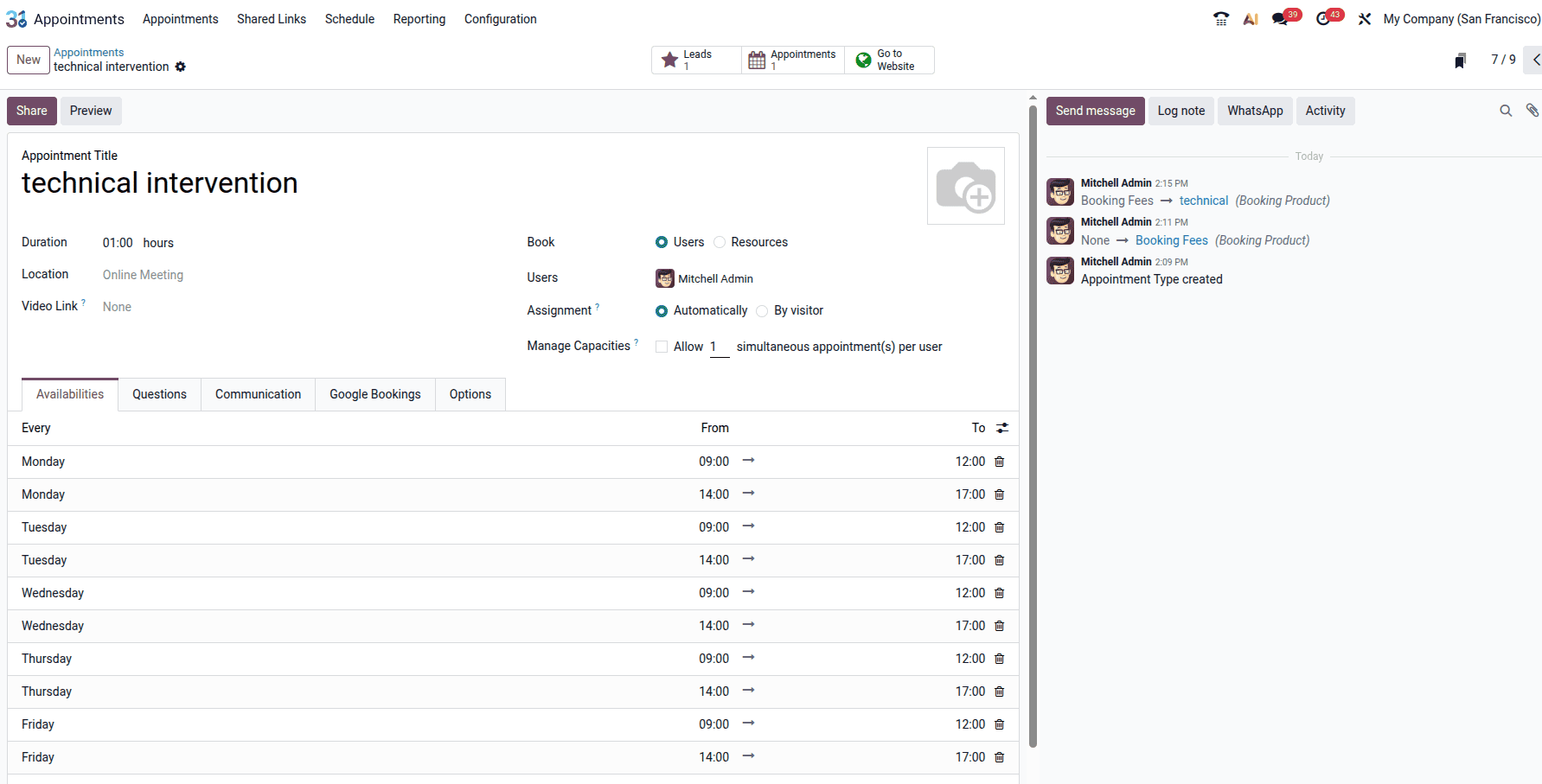
Create the appointment type, including its duration, and select 'Automatically' for the assignment method.
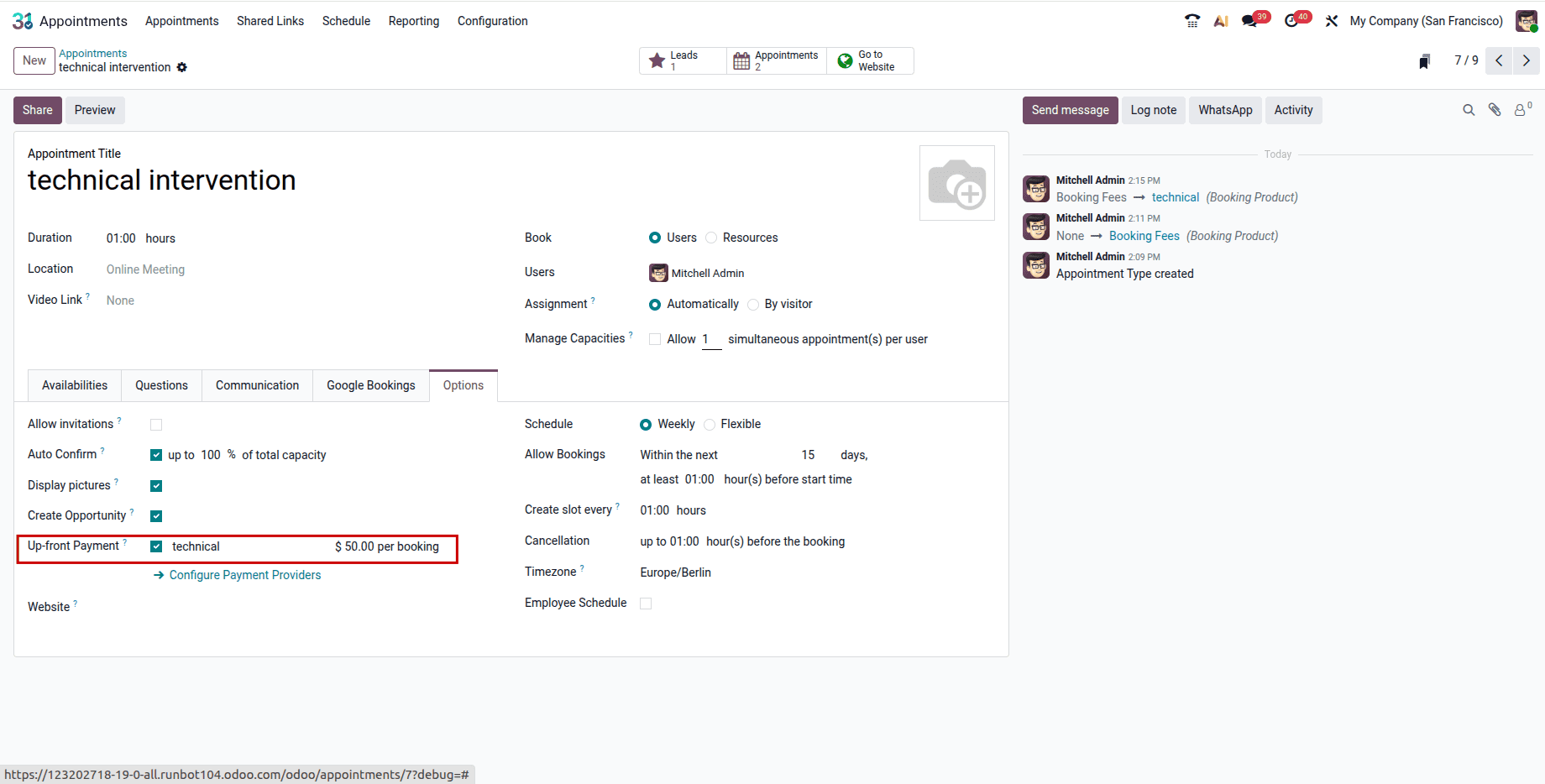
Go to the Options tab and add the service product that visitors must pay for to confirm their booking.
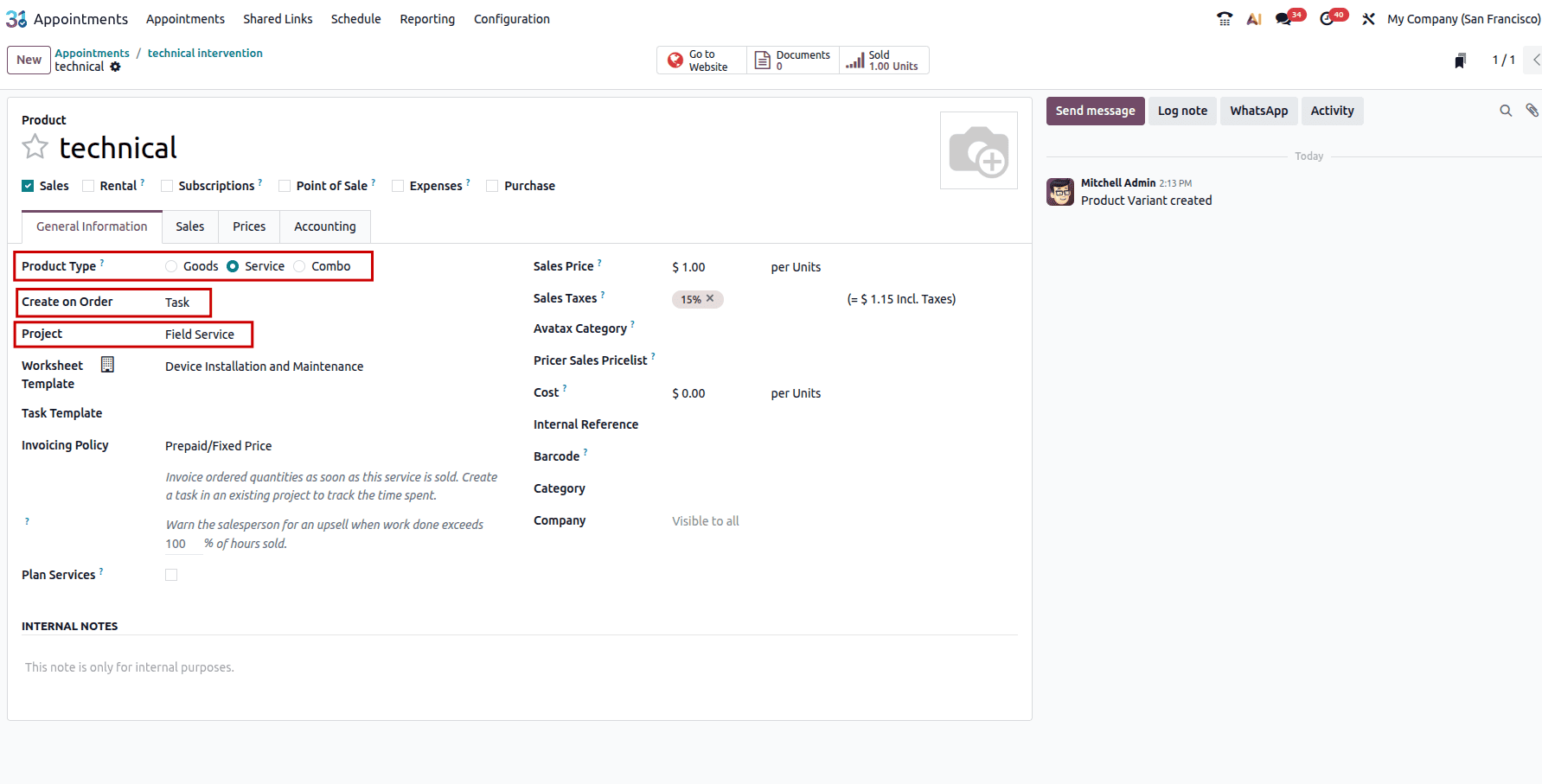
Configure the Service Product
Click the internal link on the product to set it up as a service product, and set Create on Order to Task. Then, set the Project field to Field Service.
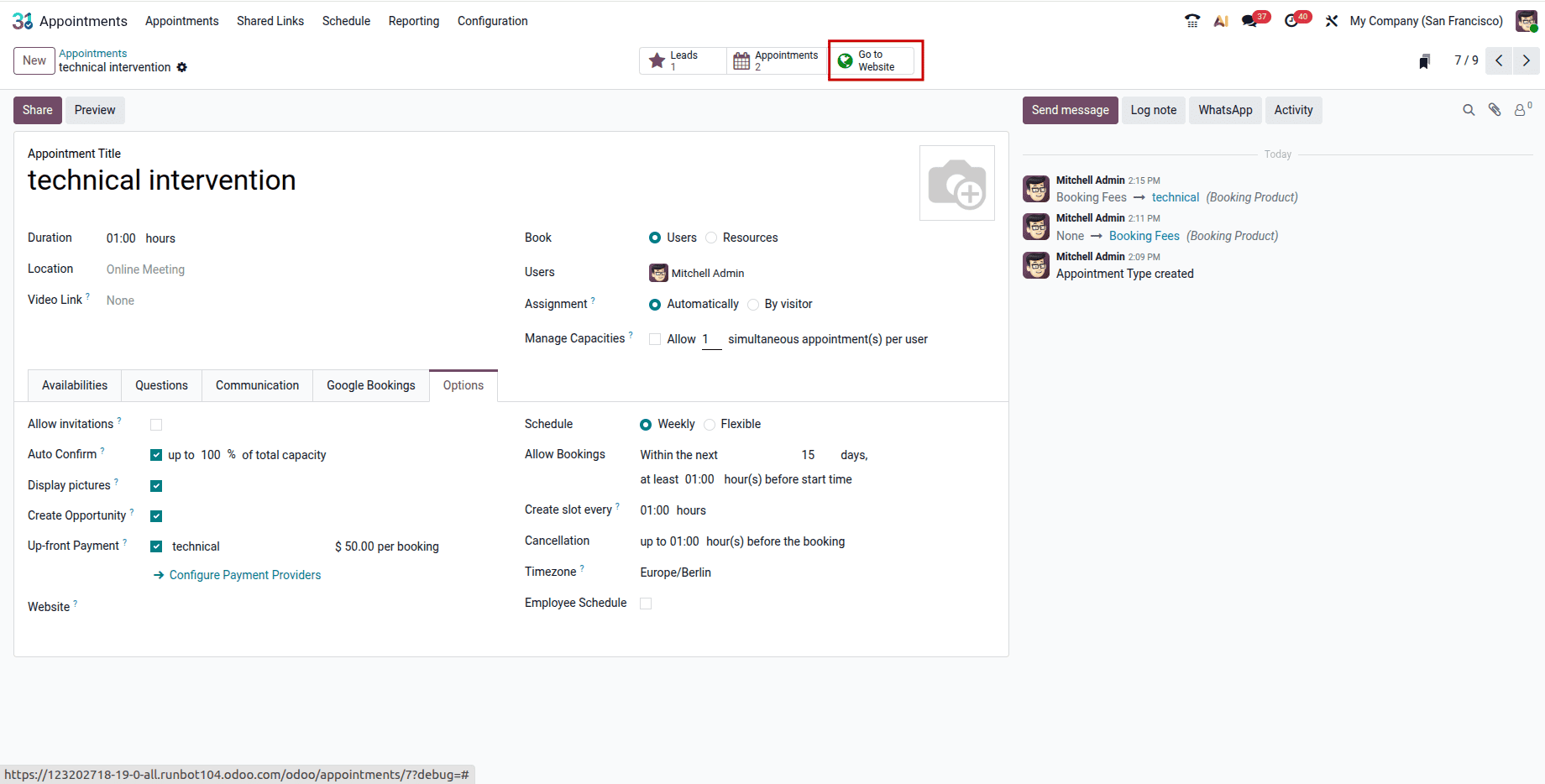
After configuring the service type, click the Go to Website smart button.
Then, publish it on the website and select a date and time.
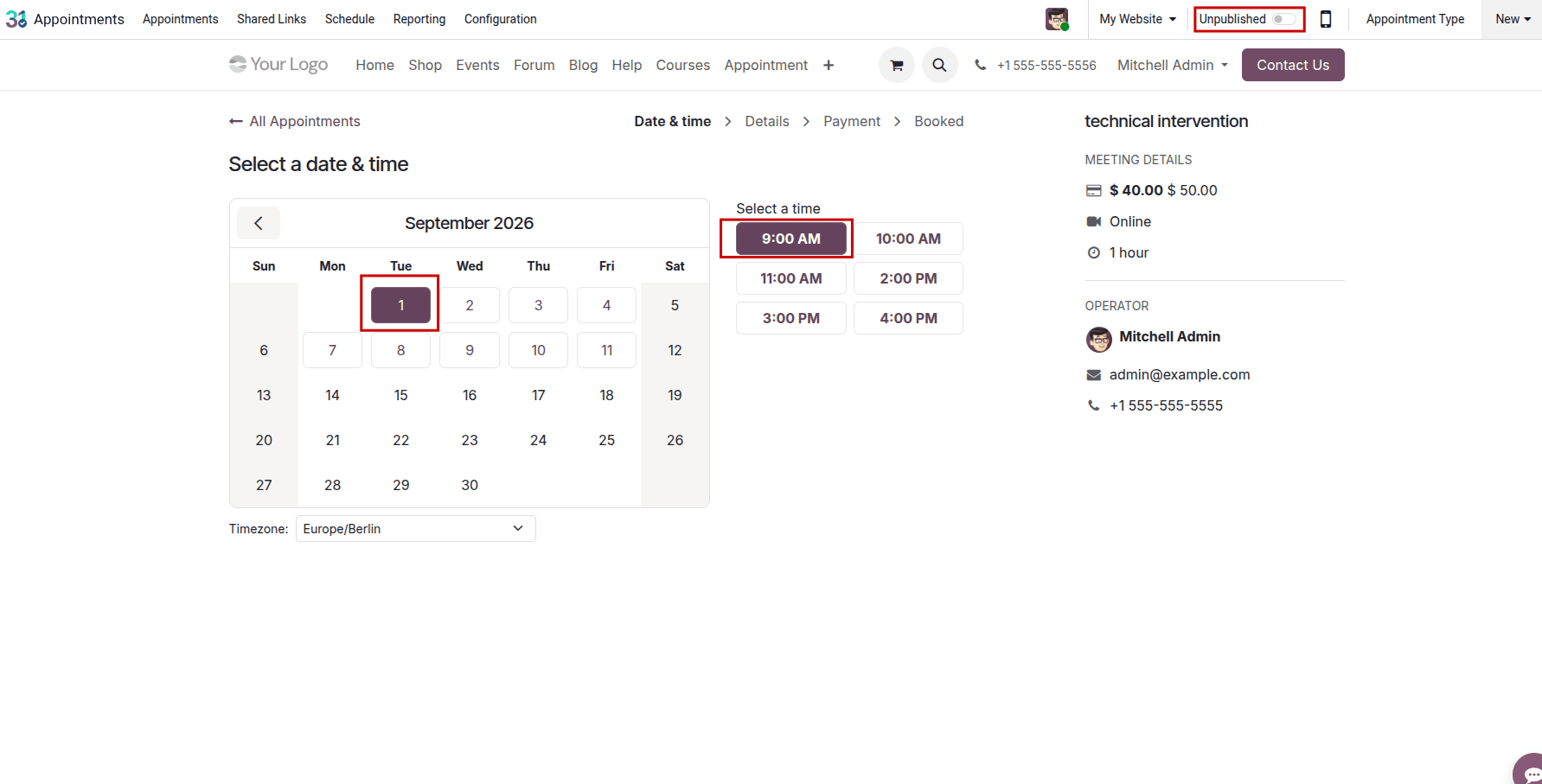
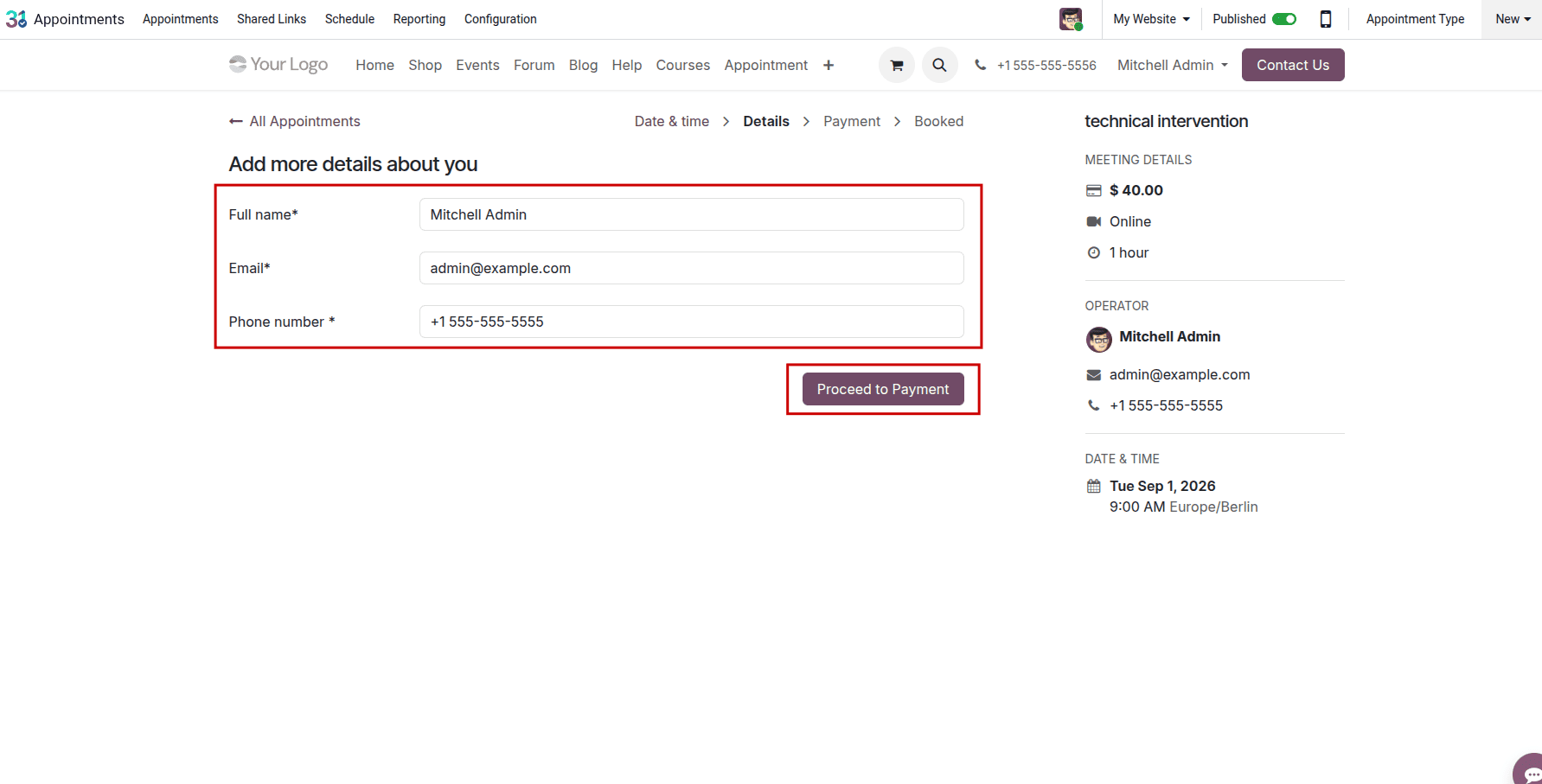
Click Proceed to Payment after entering the customer's information.
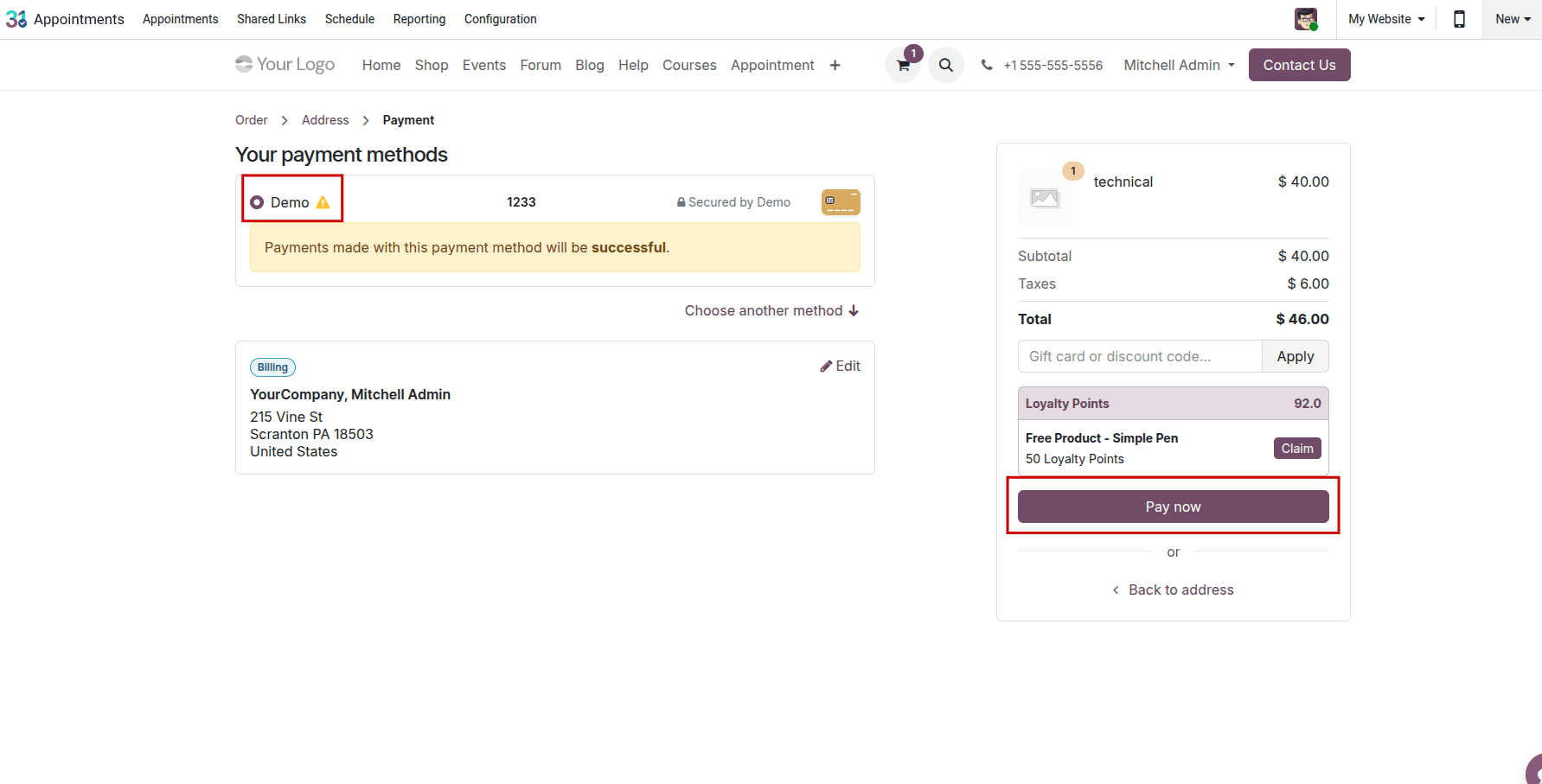
Select a payment method and complete the payment process.
Once the appointment is confirmed and the associated sales order is confirmed, Odoo automatically creates a Field Service task from the service product. The task is available in the configured Field Service project.
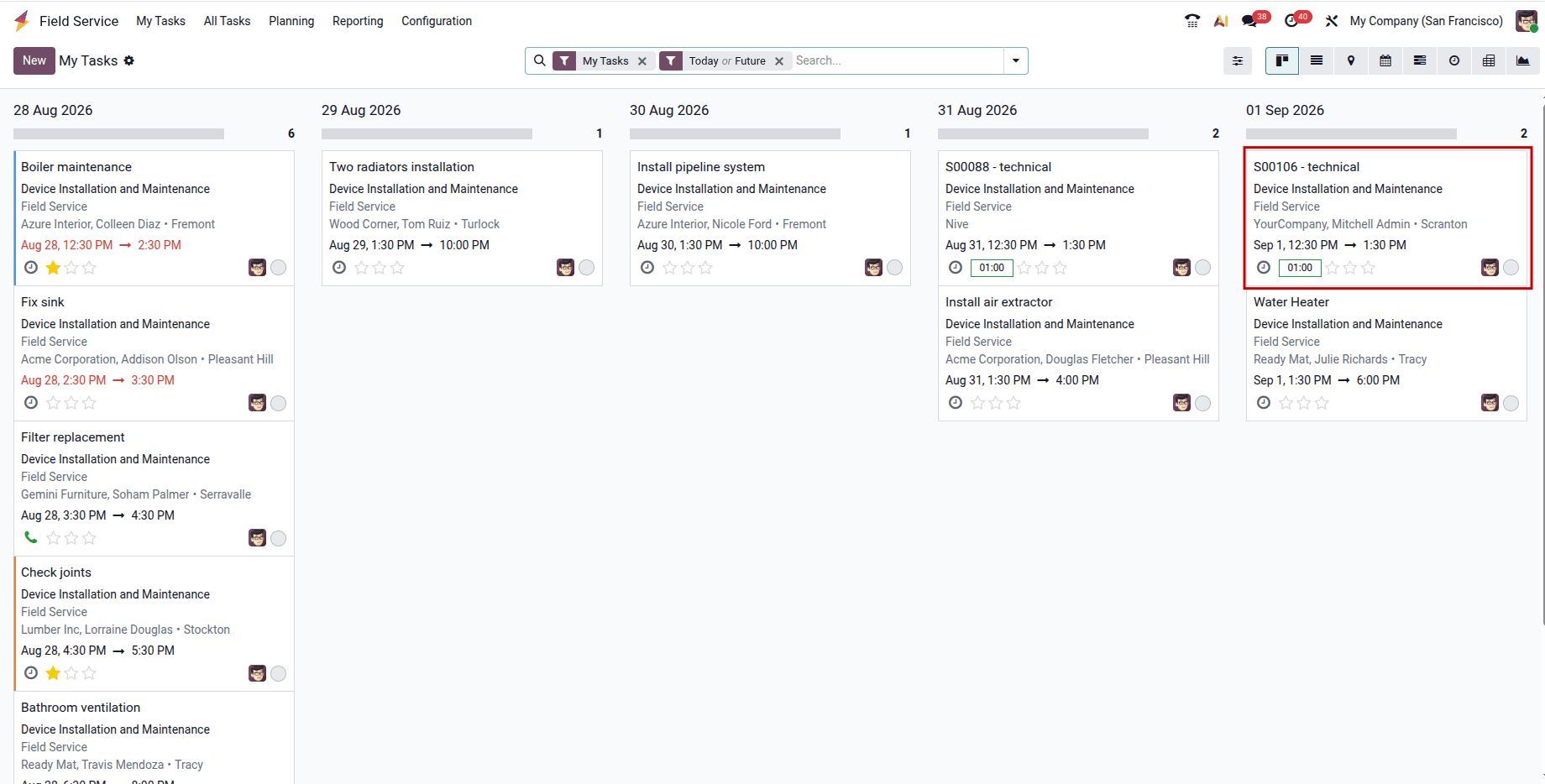
With this setup, everything from a customer’s online booking to the technician’s task list flows automatically—no one has to lift a finger in between. Once the appointment type is matched to the correct service product, every confirmed and paid booking instantly becomes a complete task in Field Service—with customer info, schedule, and everything included.
It's not just quicker—it stops bookings from falling through the gaps, getting delayed or needing to be typed in by hand. For any business that takes appointments online, this small change makes a difference in how reliable everything is and how quickly you can send out service teams.
To read more about How Field Service Tasks are Managed in Odoo 18, refer to our blog, How Field Service Tasks are Managed in Odoo 18.