Odoo makes it simple to enhance your website portal by providing users with personalized sorting options that facilitate more effective information browsing. In this blog post, we'll walk you through adding sorting features to your Odoo website portal so users can find the information they need more easily.
Adding a Custom Menu in the Customer Portal
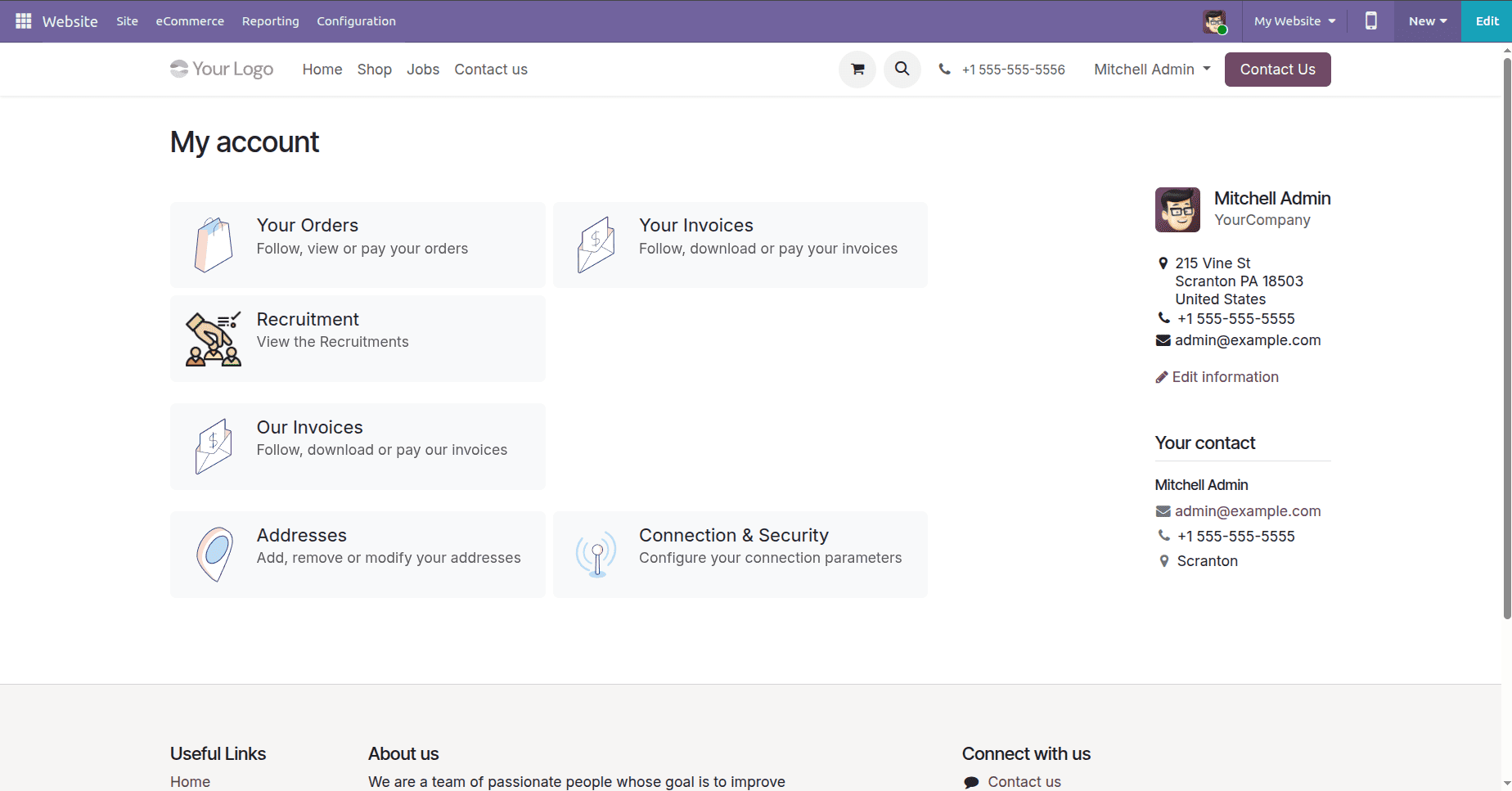
Clicking "My Account" in Odoo allows users to see their purchase orders, sale orders, and quotations. We now intend to add "Recruitment" as a new custom menu to this section. In order to put this into practice, we must define and add the new menu item to the portal using an XML template.
<?xml version="1.0" encoding="UTF-8" ?>
<odoo>
    <template id="portal_recruitment" name="Recruitment"
              inherit_id="portal.portal_breadcrumbs" priority="30">
        <xpath expr="//ol[hasclass('o_portal_submenu')]" position="inside">
            <li t-if="page_name == 'recruitment'"
                t-attf-class="breadcrumb-item #{'active ' if recruitment else ''}">
                <a t-if="recruitment"
                   t-attf-href="/recruitment?{{ keep_query() }}">Recruitment
                </a>
                <t t-else="">Recruitment</t>
            </li>
        </xpath>
    </template>
    <template id="portal_my_home_menu_recruitment" name="Recruitment"
              inherit_id="portal.portal_my_home"
              customize_show="True" priority="30">
        <xpath expr="//div[hasclass('o_portal_docs')]" position="before">
            <t t-set="portal_client_category_enable" t-value="True"/>
        </xpath>
        <div id="portal_client_category" position="inside">
            <t t-call="portal.portal_docs_entry">
                <t t-set="icon"
                   t-value="'/portal_recruitment/static/src/img/recruitment.png'"/>
                <t t-set="title">Recruitment</t>
                <t t-set="url" t-value="'/recruitment'"/>
                <t t-set="text">View the Recruitments</t>
                <t t-set="placeholder_count" t-value="'portal_recruitment'"/>
            </t>
        </div>
    </template>
    <template id="portal_my_home_recruitment_views" name="Recruitment">
        <t t-call="portal.portal_layout">
            <t t-set="breadcrumbs_searchbar" t-value="True"/>
            <t t-call="portal.portal_searchbar">
                <t t-set="title">Recruitment</t>
            </t>
            <t t-call="portal.portal_table">
                <thead>
                    <tr class="active">
                        <th class="text-left">Applicant</th>
                        <th class="text-center">Create Date</th>
                        <th class="text-center">Job Position</th>
                        <th class="text-end">Status</th>
                    </tr>
                </thead>
                <t t-foreach="recruitment" t-as="record">
                    <tr>
                        <td class='text-left'>
                            <span t-field="record.partner_name"/>
                        </td>
                        <td class='text-center'>
                            <span t-field="record.create_date"/>
                        </td>
                        <td class='text-center'>
                            <span t-field="record.job_id.name"/>
                        </td>
                        <td class='text-end'>
                            <span t-field="record.stage_id.name"/>
                        </td>
                    </tr>
                </t>
            </t>
        </t>
    </template>
</odoo>
Adding Sorting Functionality in the Python Controller
Next, we need to build a Python controller that will fetch and display the recruitment entries on the portal. Along with that, we’ll add a sorting feature so users can easily sort the recruitment list based on their preference.
To display the recruitment data, we need a function in the Python controller that supports the custom menu.
from odoo import http, _
from odoo.http import request
from odoo.addons.portal.controllers.portal import CustomerPortal, \
    pager as portal_pager

class WebsiteEvents(CustomerPortal):
   """To get the recruitments in the website portal"""
   def _prepare_home_portal_values(self, counters):
       """To get the count of recruitments in portal"""
       values = super()._prepare_home_portal_values(counters)
       if 'portal_recruitment' in counters:
           values['portal_recruitment'] = request.env[
               'hr.applicant'].sudo().search_count([('user_id', '=', request.env.uid)])
       return values
Next, we should add a controller function that handles the URL specified in the template.
@http.route(['/recruitment', '/Recruitment/page/<int:page>'], type='http',
               auth="user", website=True)
   def portal_recruitment(self, sortby=None):
       """To sort the recruitments in the portal"""
       searchbar_sortings = {
           'date': {'label': _('Date'), 'order': 'create_date desc'},
           'stage': {'label': _('Status'), 'order': 'stage_id'},
       }
       if not sortby:
           sortby = 'date'
       order = searchbar_sortings[sortby]['order']
       recruitment = request.env['hr.applicant'].sudo().search([
           ('user_id', '=', request.env.uid)], order=order)
       return request.render('portal_recruitment.portal_my_home_recruitment_views',
                             {
                                 'recruitment': recruitment,
                                 'searchbar_sortings': searchbar_sortings,
                                 'sortby': sortby,
                                 'page_name': 'recruitment',
                             })
When we click on the custom menu, the list view is displayed, and on the top-right corner we can see the “Sort By” option.
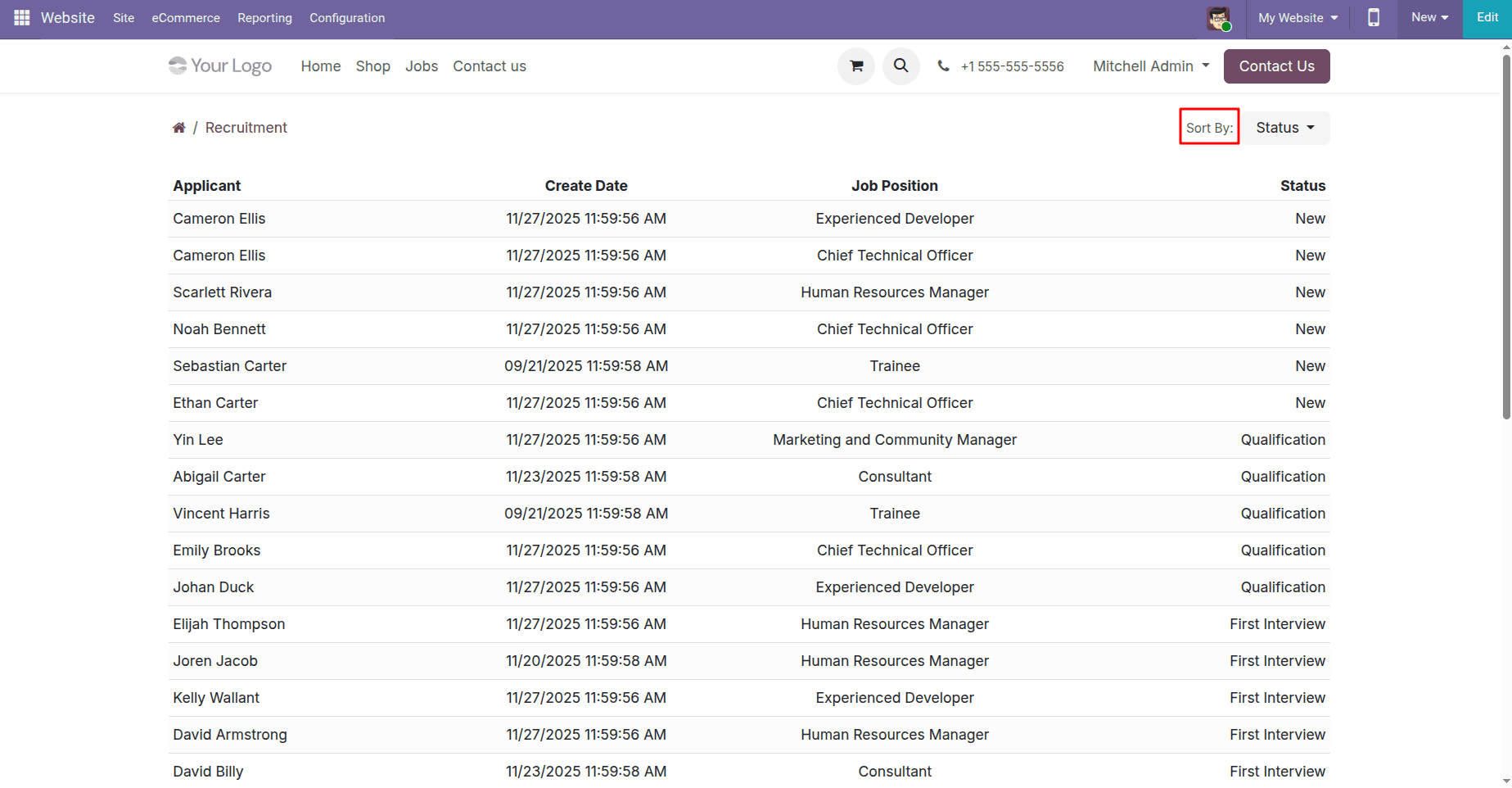
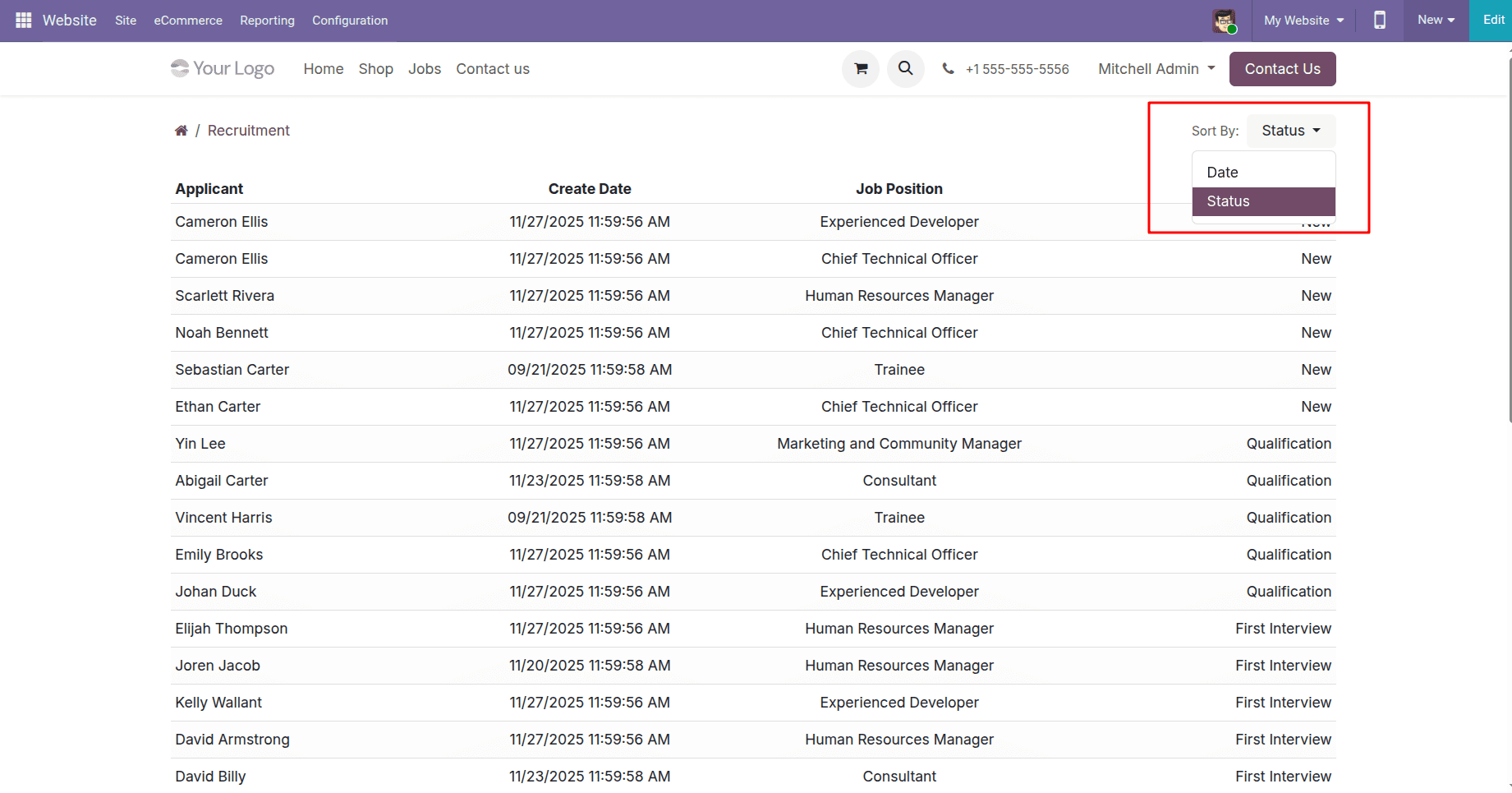
Sorting on the Odoo website portal can be enabled by adding a “Sort By” feature that lets users arrange records by chosen fields. In this case, recruitment entries are ordered by their stages. By applying these steps, you can implement sortable lists in your portal and adapt the functionality to your specific requirements.
Understanding the Sorting Logic
1. Define Sorting Options:
This dictionary sets up the sorting choices, where each key identifies a sort option and its value provides the display label along with the sorting order.
 searchbar_sortings = {
           'date': {'label': _('Date'), 'order': 'create_date desc'},
           'stage': {'label': _('Status'), 'order': 'stage_id'},
       }
2. Set Default Sorting Option:
If no sort option is selected, the system automatically uses ‘date’ as the default sorting method.
if not sortby:
   sortby = 'date'
3. Apply Sorting When Fetching Data:
The order parameter uses the selected sorting option to determine how the records are retrieved.
order = searchbar_sortings[sortby]['order']
recruitment = request.env['hr.applicant'].sudo().search([
    ('user_id', '=', request.env.uid)
], order=order)
Conclusion
You can quickly add a sorting feature to your Odoo 18 website portal by following the instructions above. This improves the portal's usability by enabling users to arrange recruitment records by date or status. If your company requires it, you can extend this feature to other areas of the portal.
To read more about How to Add a Sort Option in Website Portal Odoo 18, refer to our blog, How to Add a Sort Option in Website Portal Odoo 18.