Odoo’s Gantt view is a practical and intuitive way to plan, organize, and monitor tasks over time. In many real-world projects, users often want the Gantt view to open with tasks already grouped—for example, by project, stage, or assigned user—so the data is immediately easier to understand.
In this blog, we’ll explain how to set up a default Group By option in an Odoo Gantt view and what you need to know before doing so.
Before applying a default grouping, it’s important to understand how grouping works in Odoo. Gantt view grouping is handled at the SQL level, which means only fields that are stored in the database can be used. Supported field types include Many2one fields (such as project_id or stage_id), Selection fields, and stored Char, Date, or Datetime fields. One2many fields—like task_ids—cannot be used for grouping because they are not stored as individual SQL columns.
Default Group By in the Gantt View
For example, suppose you want the Gantt view to automatically group tasks first by Project and then by Stage as soon as the view is loaded.
<?xml version="1.0" encoding="utf-8"?>
<odoo>
  <record id="project_project_view_gantt_res_partner" model="ir.ui.view">
       <field name="name">project.project.view.gantt.inherits</field>
       <field name="model">project.project</field>
       <field name="inherit_id" ref="project_enterprise.project_project_view_gantt"/>
       <field name="arch" type="xml">
           <xpath expr="//gantt" position="attributes">
               <attribute name="default_group_by">stage_id</attribute>
           </xpath>
       </field>
  </record>
</odoo>
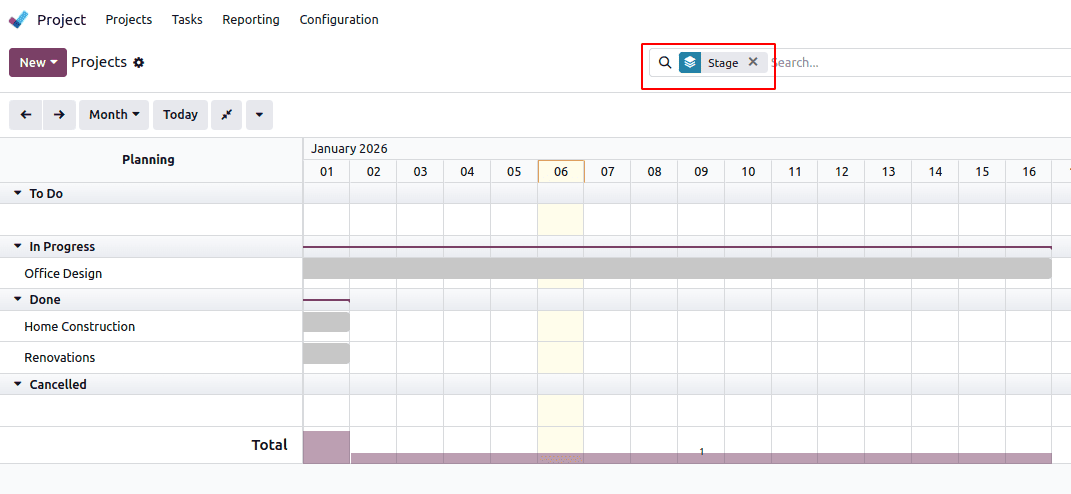
When the Gantt view opens, projects are grouped by Stage.
Multiple Groupings (Nested Groups)
Odoo allows multiple groupings by separating fields with commas:
<attribute name="default_group_by">
    user_id,stage_id
</attribute>
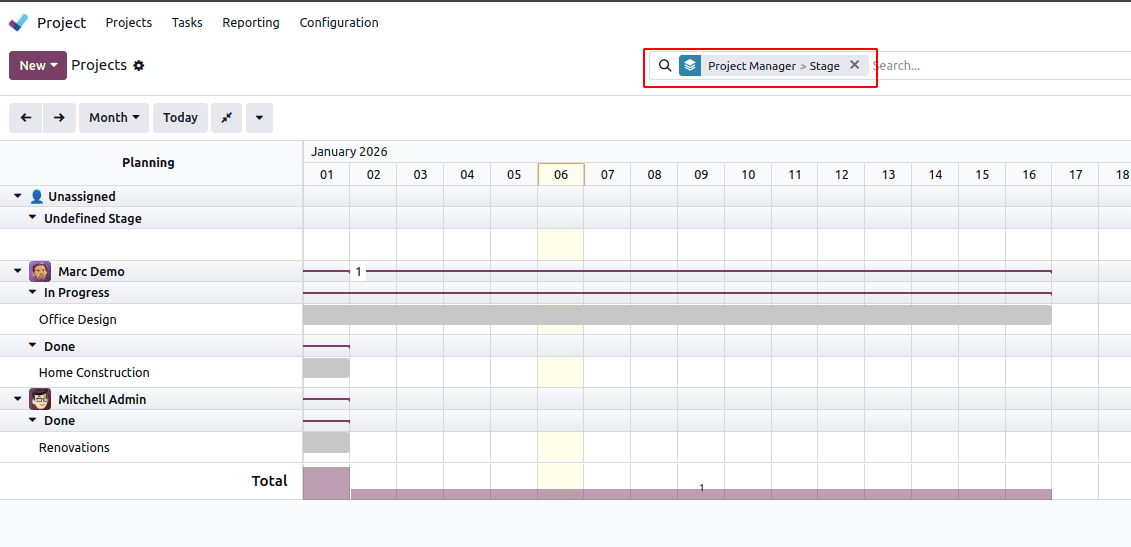
When the Gantt view opens, projects are first grouped by User, and within each project, they are further grouped by Stage.
Adding a default group by in the Odoo Gantt view is simple once you understand how grouping works. By relying on stored fields and selecting the appropriate model, you can create clear and well-structured Gantt views that align with real business needs.
To read more about How to Create a Gantt View in Odoo 19, refer to our blog How to Create a Gantt View in Odoo 19.