A company's underutilized stock of tangible products with intrinsic worth that are held in its custody in a number of ways until they are eventually packaged, stored, converted, used, or sold is referred to as "inventory." Every company that manufactures or sells products depends on its inventory. Odoo 19 Inventory Management can manage thousands of procedures or various transactions. It makes it possible for companies to effectively manage their inventory of products or assets.
You can optimize your warehouse and organize items for quicker access by using an inventory system and understanding which things sell the best. By dividing your stock, you can further enhance your categorization and purchase processing.
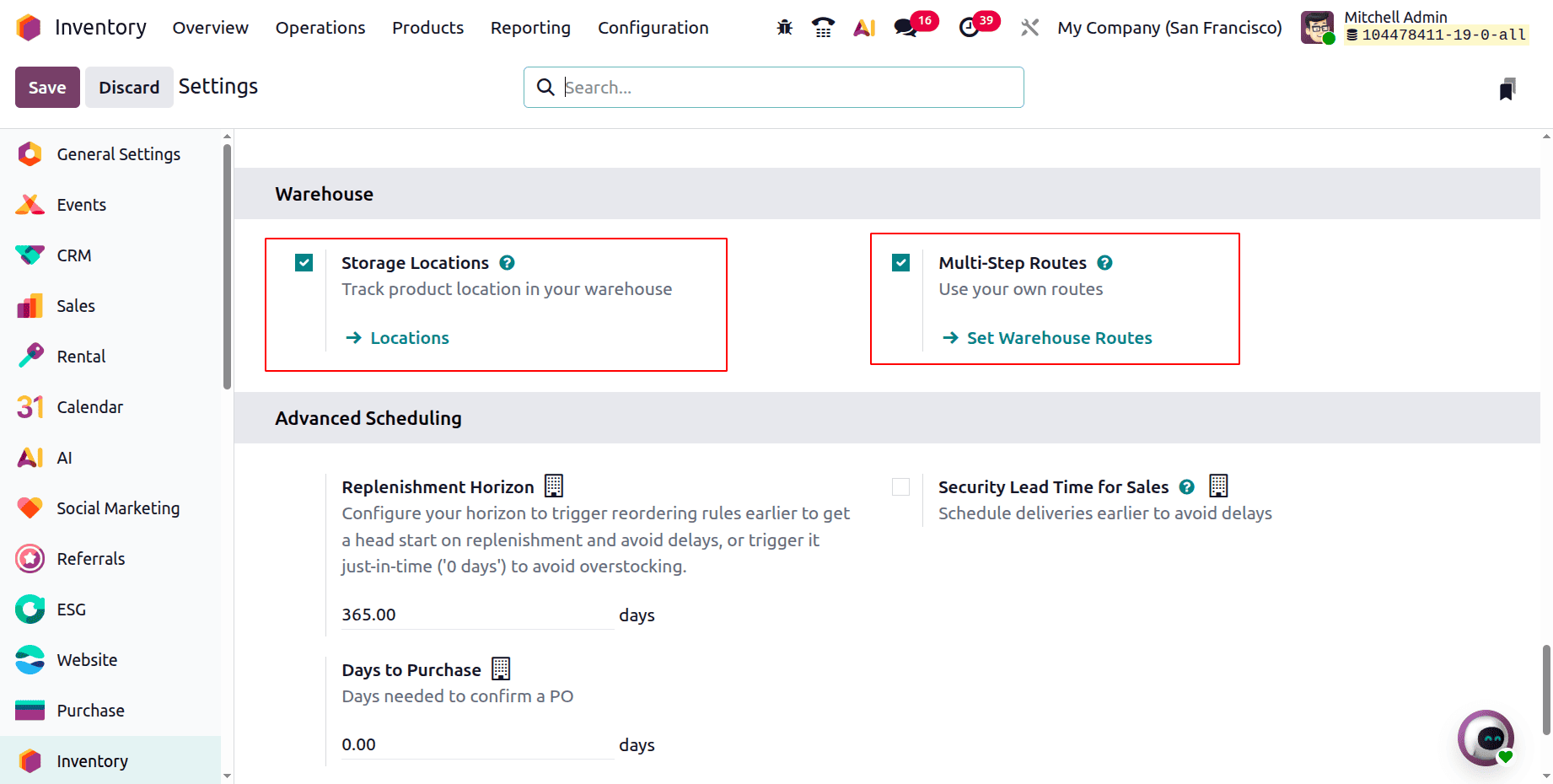
The process of withdrawing goods from receiving shipments and putting them in the right location is known as putaway. Enabling the Multi-Step Routes feature in the Inventory module Settings will allow you to construct the putaway rule. This will also activate the Storage Locations feature in the settings, as seen below.
Let's examine an example to verify that the putaway rule works as intended. Think about a beverage company that sells a range of drinks that must be stored in various places, like a freezer, dry storage, or refrigerator. Let's look at how the Odoo 19 putaway rule might be used in this specific situation.
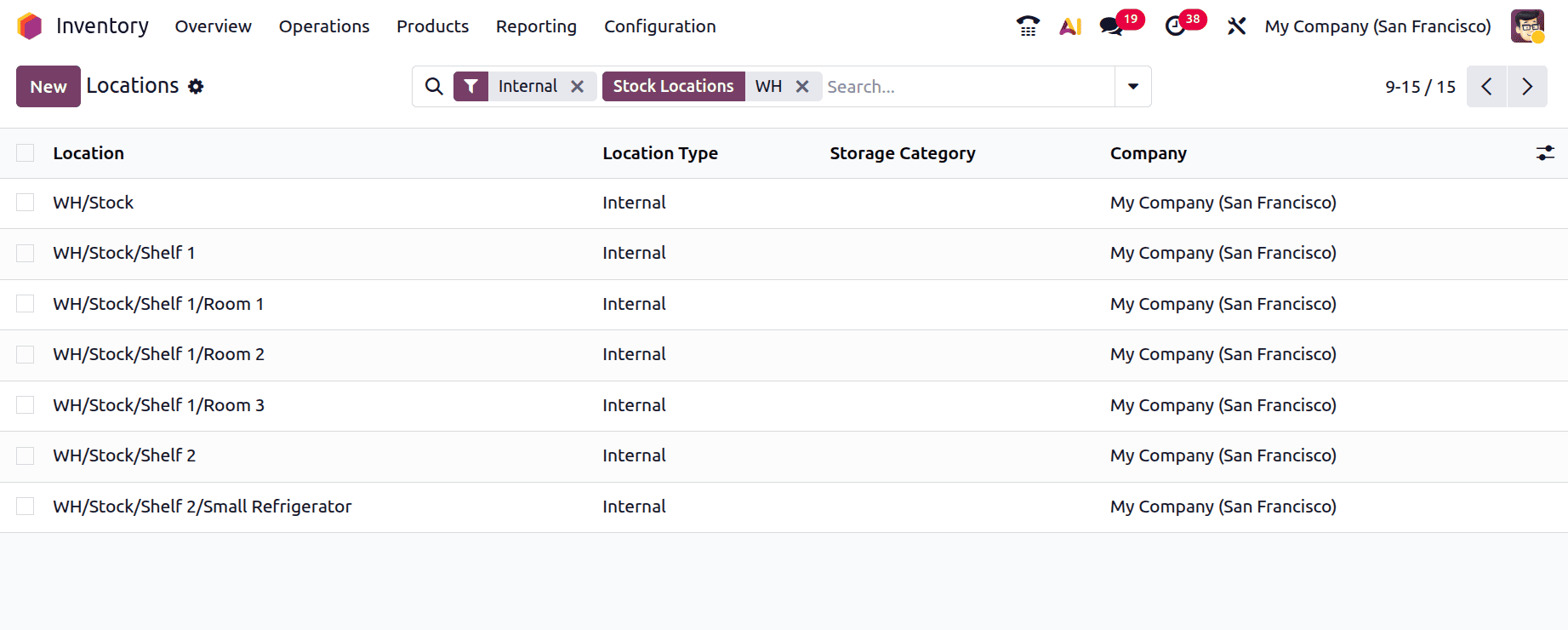
For example, let's say we have a warehouse location called WH/Stock. We can then build its sublocations, such as
- WH/Stock/Shelf 1,
- WH/Stock/Shelf 1/Room 1,
- WH/Stock/Shelf 1/Room 2
- WH/Stock/Shelf 1/Room 3
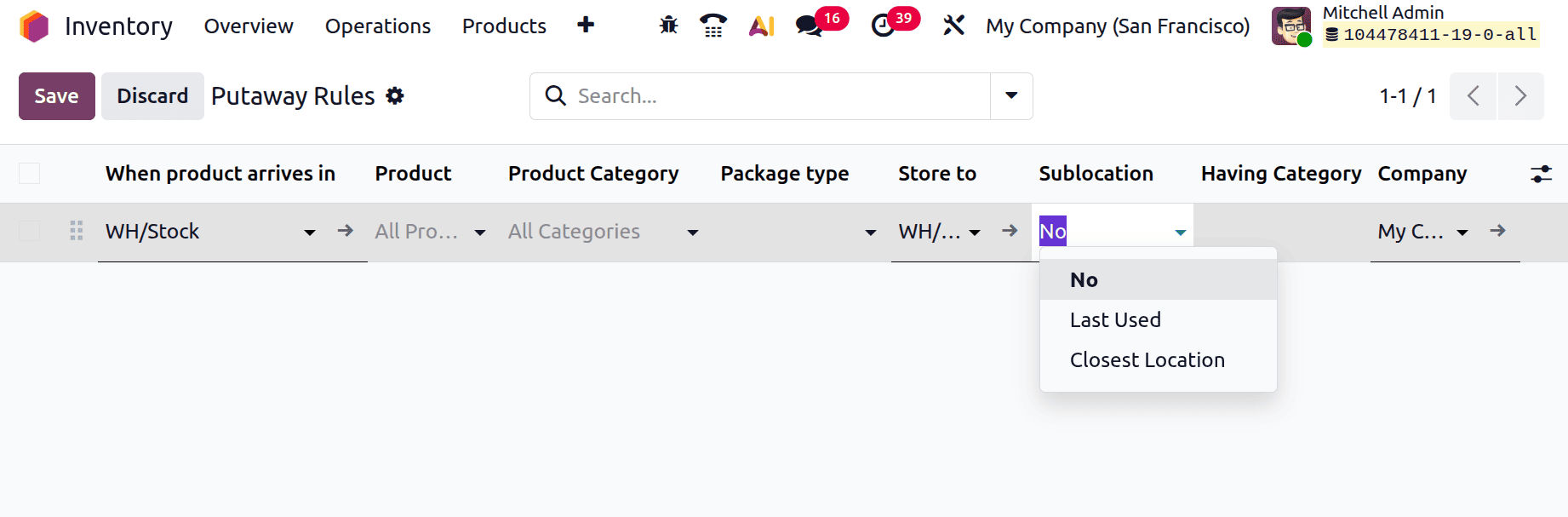
Let's now apply putaway rules where the Inventory module's settings demand them. The Configuration menu contains put-away rules. Next, choose New and click to create a putaway rule.
As seen below, this will display the product's original location prior to directing it to the proper storage space. Next, state the product and category. A store is where the goods are intended to be kept. There are three options for selecting the sublocation: Closest Location, Last Used, and No. Next, mention the storage category.
1. Sublocation as No
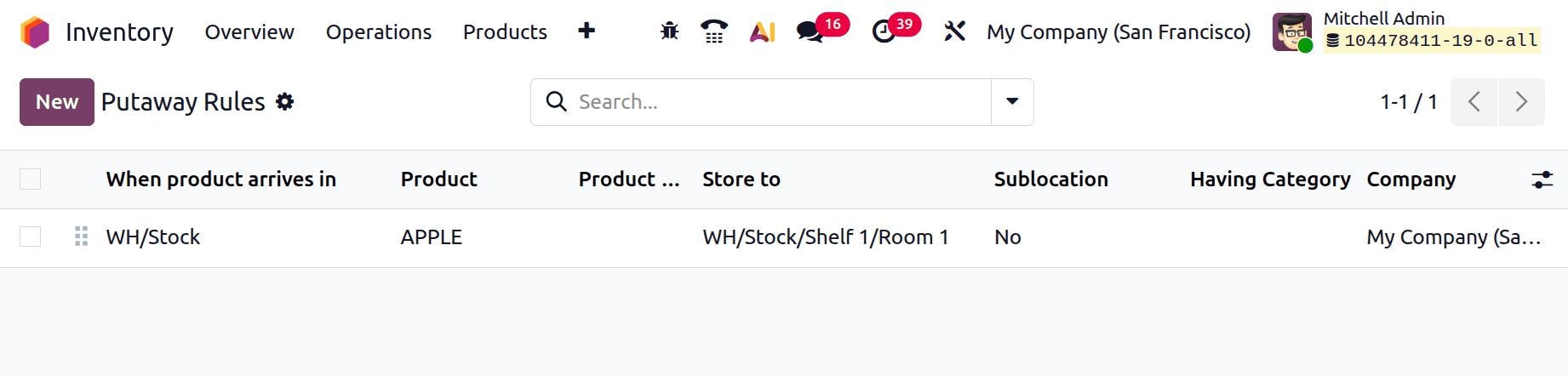
Let's set up a fresh Putaway rule for a product named APPLE. The configured rule is displayed in the screenshot below. The product Apple will be kept in WH/Stock/Shelf 1/Room 1 upon arrival at the WH/Stock location. There is no category listed, and the sublocation is set to No. First, save the rule.
Let's examine the rule's operation. Make a new receipt for that. The Operations menu had the receipts. Click on it, then select the New button to add a new receipt.
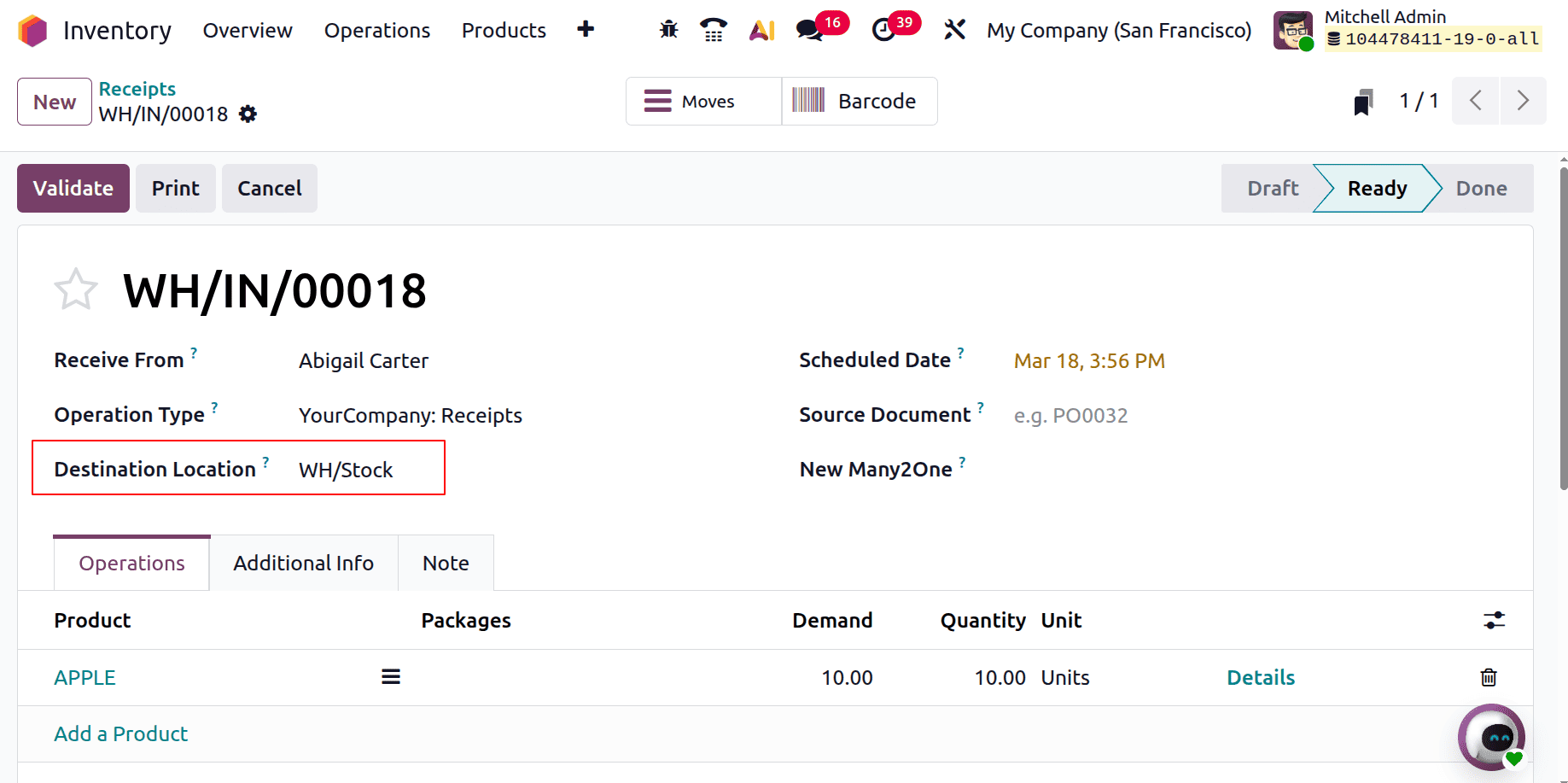
These are the goods that Abigail Carter, the merchant, sent. WH/Stock is the destination location. Five quantities of the product were added to the Operations tab. First, click the Mark as Todo option. After that, the transfer will transition to the Ready stage. To finish the transfer, click the Validate button.
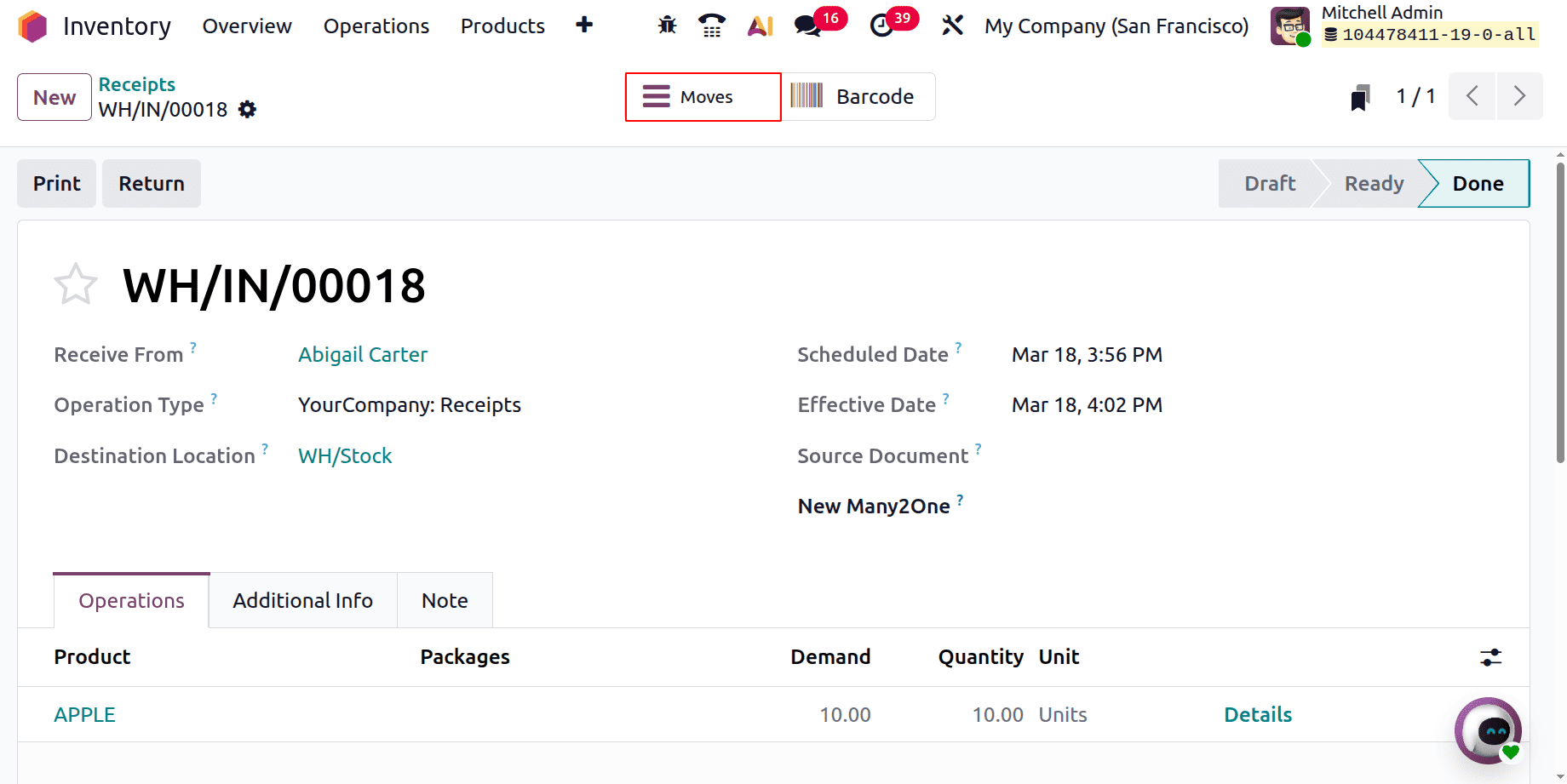
Click on the Moves smart tab to see how the product is moving. WH/Stock was the transfer's destination; however, the merchandise kept there was called WH/Stock/Shelf 1/Room 1. The configured Putaway rule is the reason for this.
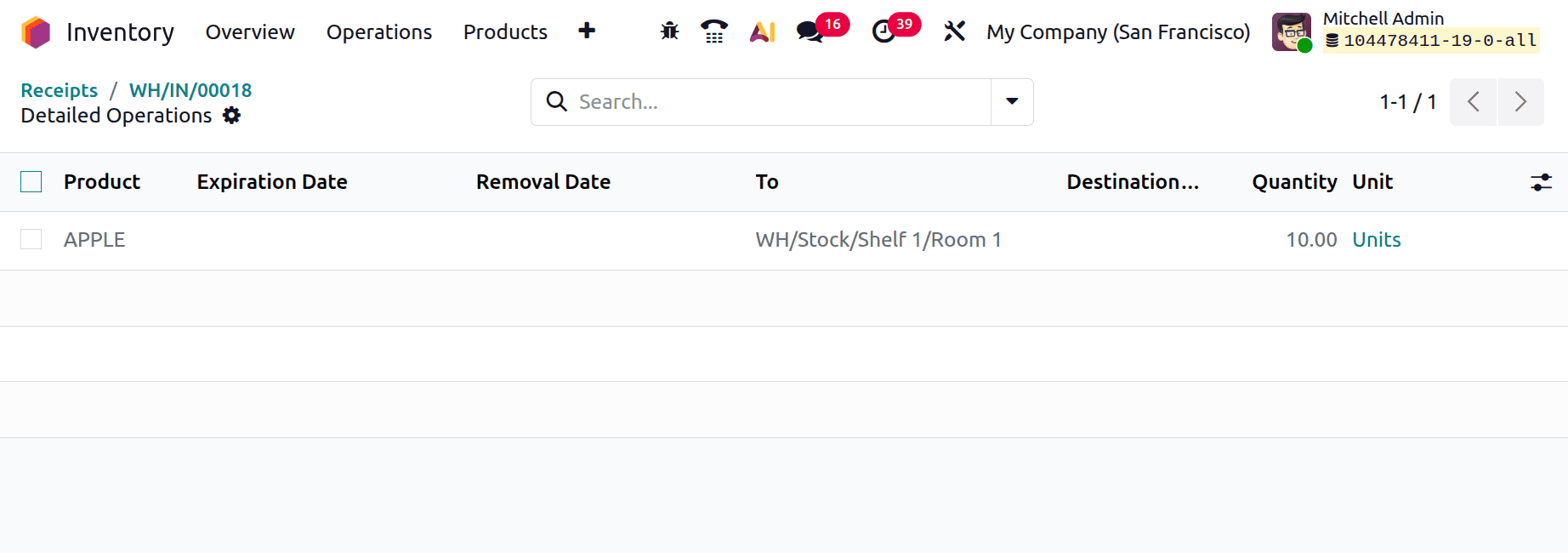
Sublocation as Last Used
Modify the putaway rule in a few ways. This time, the sublocation is set to Last Used, and the store location is changed to WH/Stock/Shelf 1. The location WH/Stock/Shelf 1 has two sublocations: WH/Stock/Shelf 1/Room 1 and WH/Stock/Shelf 1/Room 2.
As a result, once the product reaches the "WH/Stock" location, it will be kept in the last-used sublocation of the "WH/Stock/Shelf 1" location. The most recent sublocation to be used was "WH/Stock/Shelf 1/Room 1".
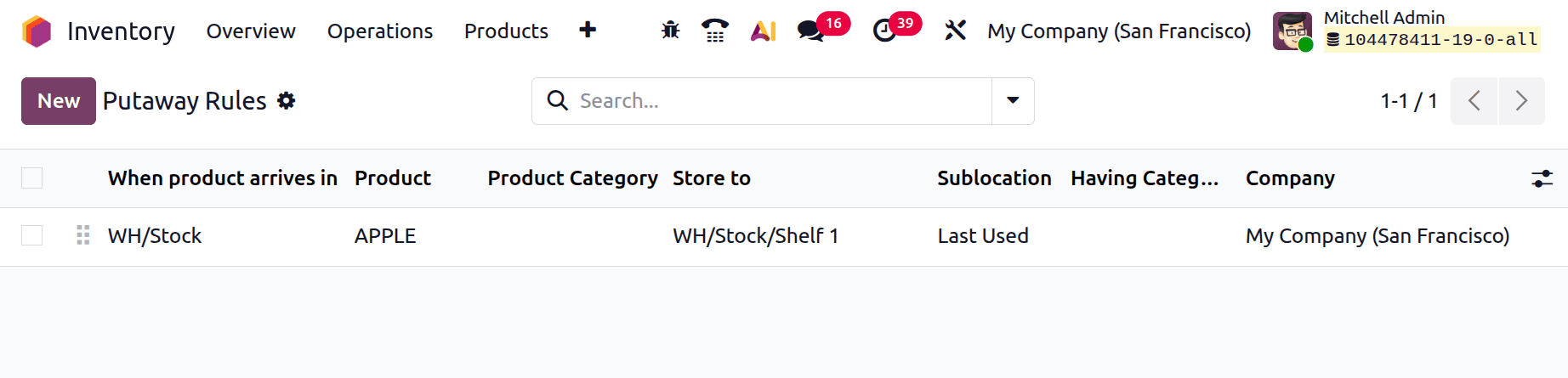
Make a fresh receipt. Abigail Carter is the vendor. The product's destination is designated as WH/Stock. 10 APPLE product amounts are needed. After selecting "Mark as Todo," confirm the transfer.
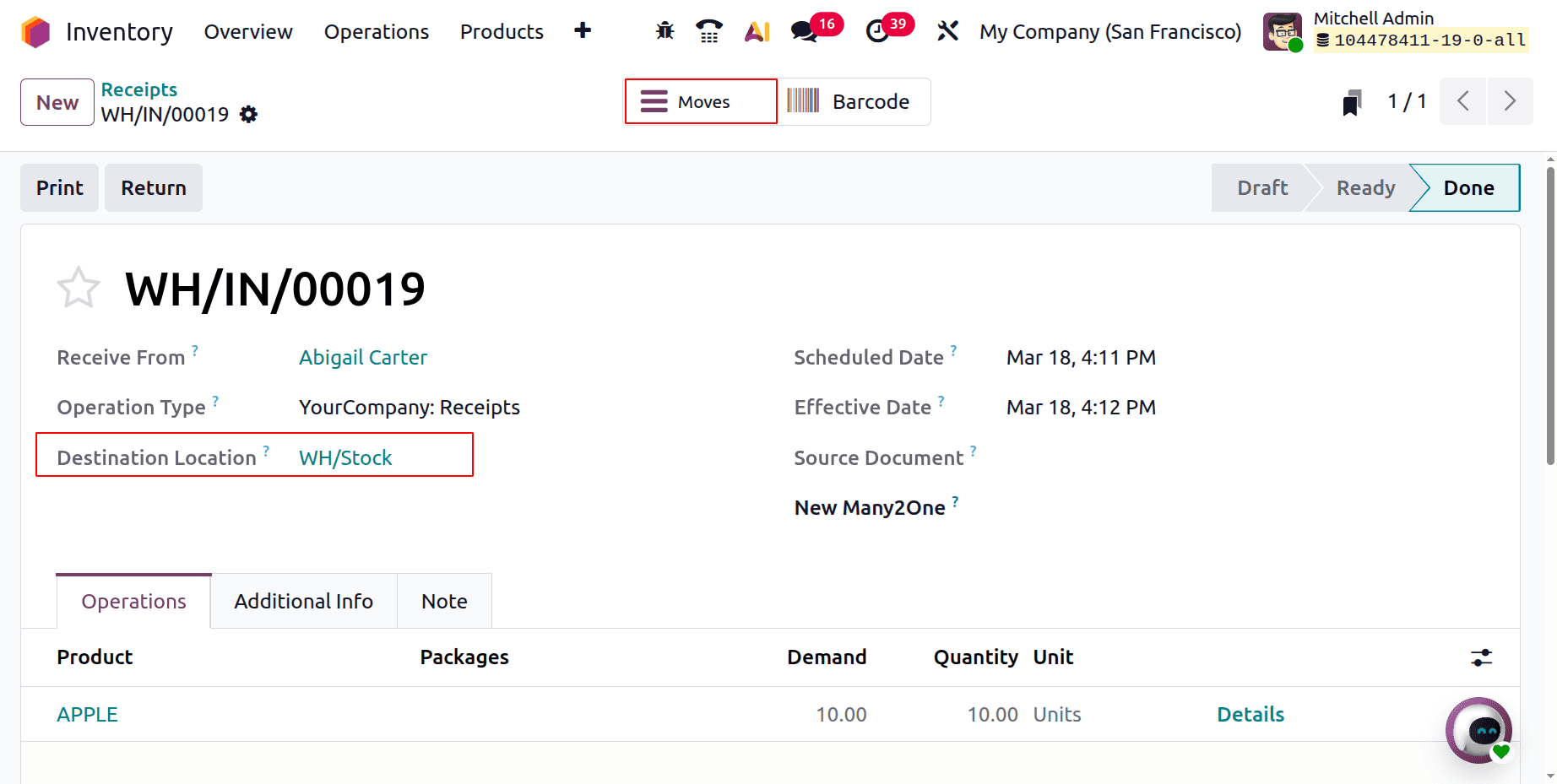
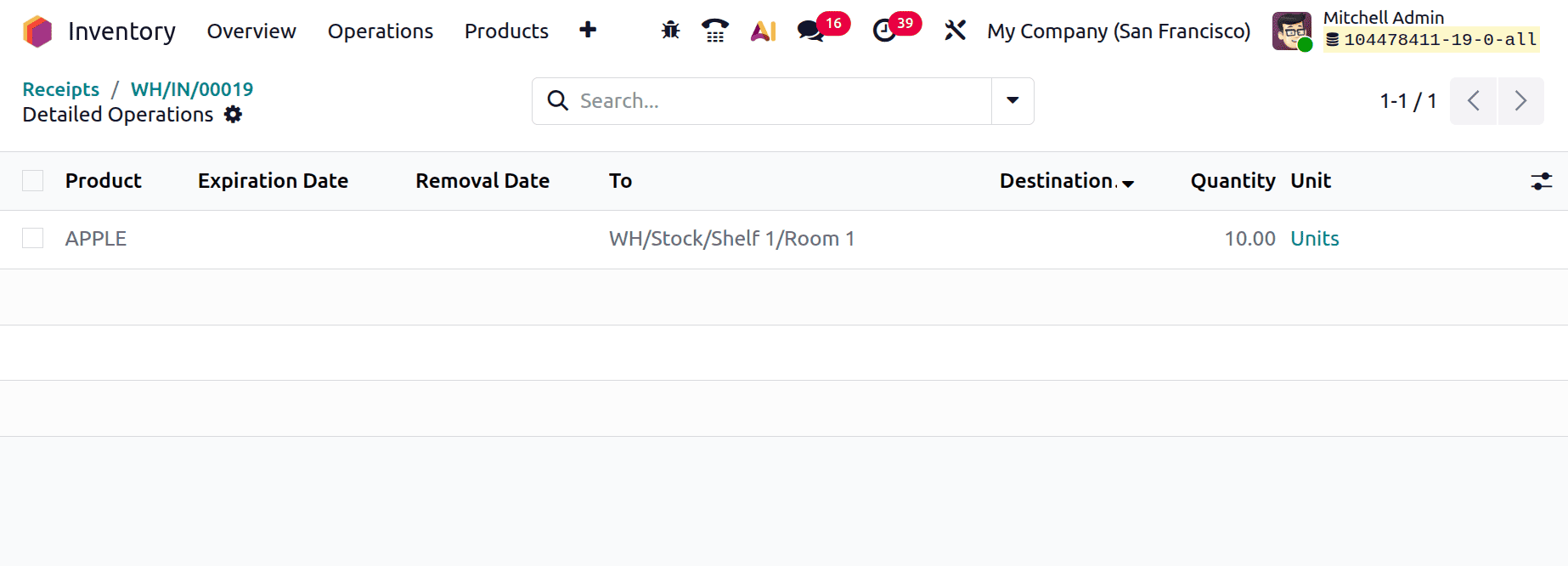
To see the product movement, select the smart tab Moves. It is evident that the merchandise is kept at WH/Stock/Shelf 1/Room 1, which is WH/Stock/Shelf 1's most recent sublocation.
Sublocation as Closest
Odoo 19 uses storage categories and putaway rules to automatically suggest the optimal locations for products to be stored based on specific attributes, including weight limitations, product types, or package types. By assigning these categories to storage locations, Odoo increases warehouse productivity and ensures that products are stored in conditions that meet certain criteria, like temperature or accessibility.
Set up a new storage category first. From the Configuration, select the Storage Categories. Press the "New" button. First, include the category name as “Cooler”. Next, state the capacity by product under the Capacity by Product tab. There, Apple's 100 amounts are set.
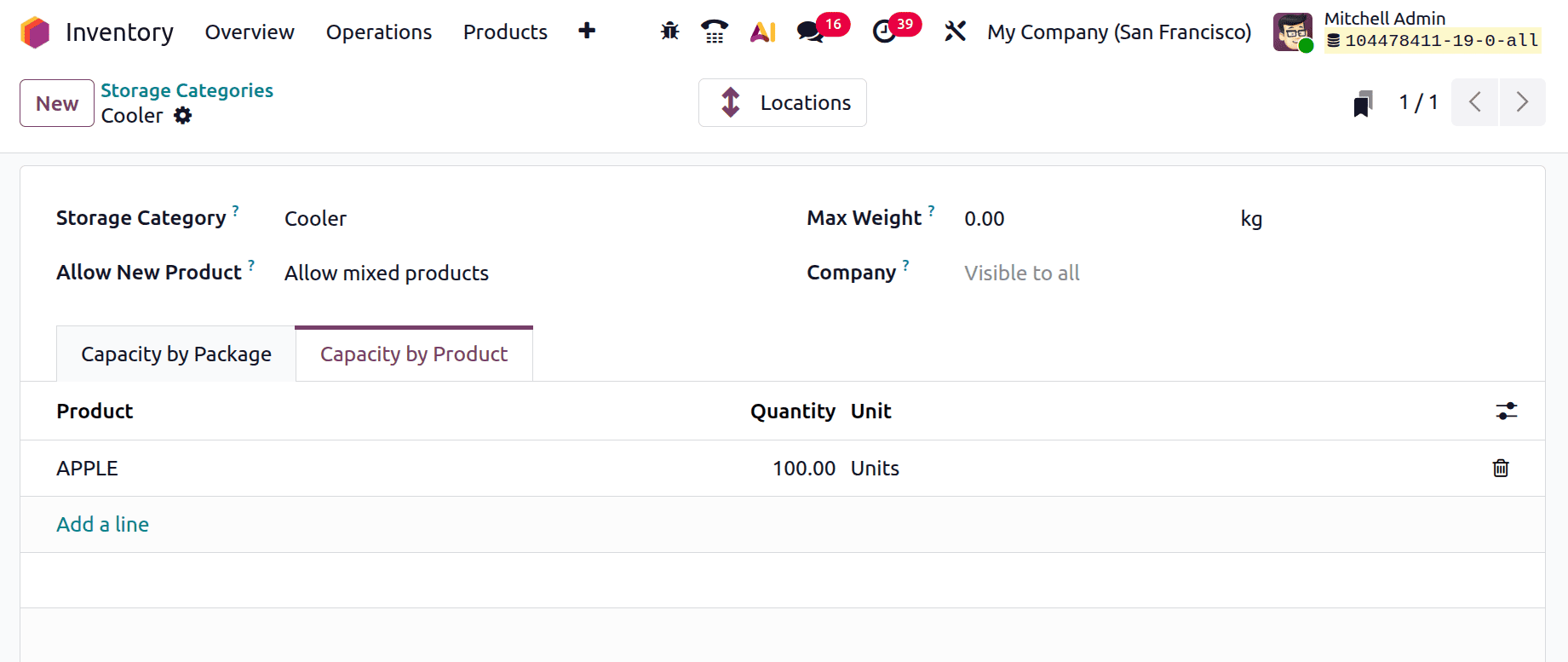
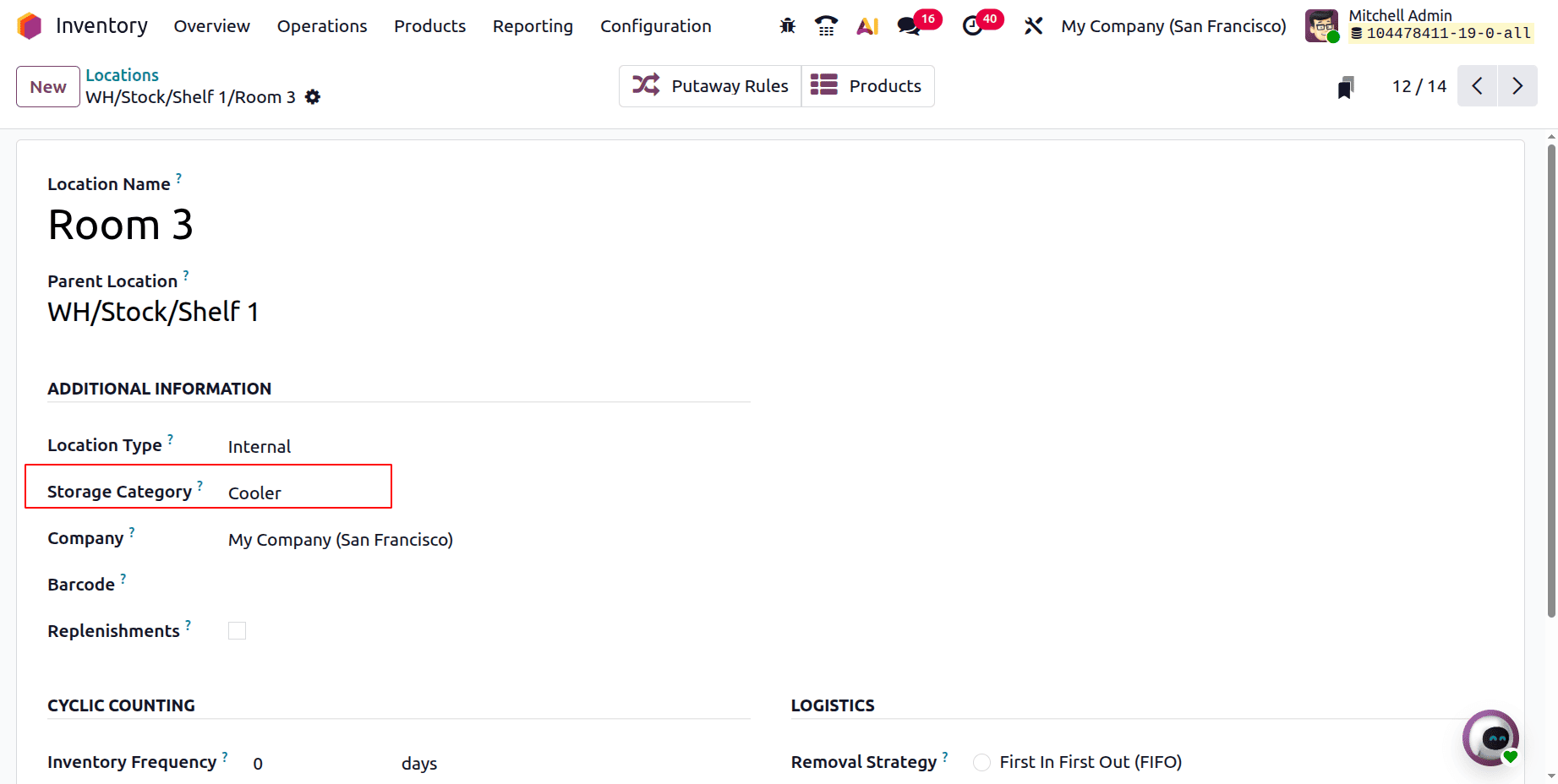
The generated storage location should then be added to a single location. Make a location available. Set the generated Storage Categories inside the location, which is WH/Stock/Shelf 1/Room 2.
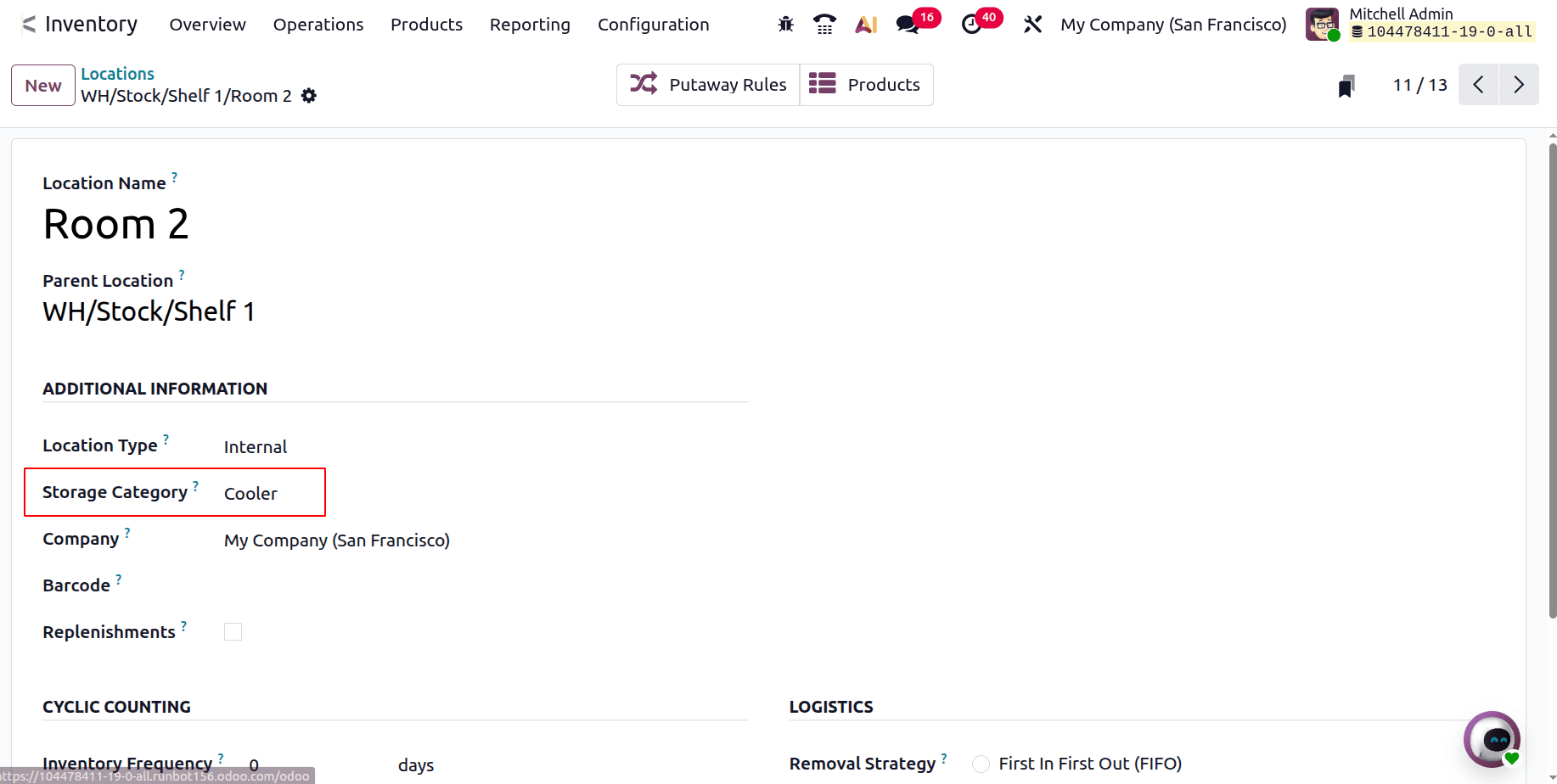
WH1/Stock/Shelf 1/Room 3 is the second location. Additionally, the location sets the storage category.
Select the Putaway Rule once more. The product is stored to WH/Stock/Shelf 1 and its arrival location is assigned to the same WH/Stock as in earlier instances. Having Category is set to Cooler Category, and Sublocation is selected as Closest Location.
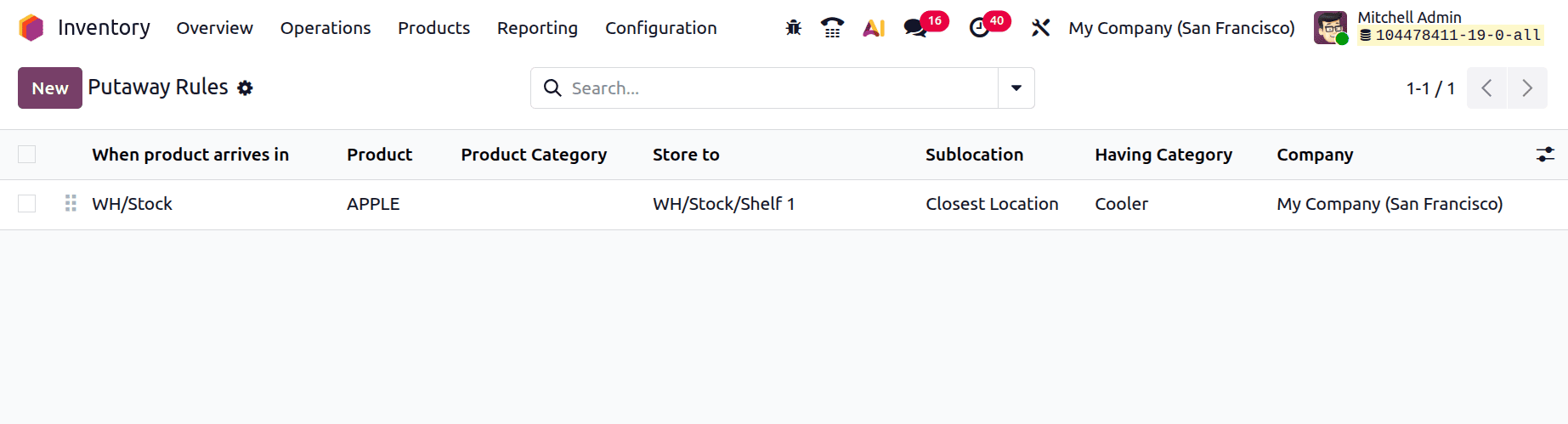
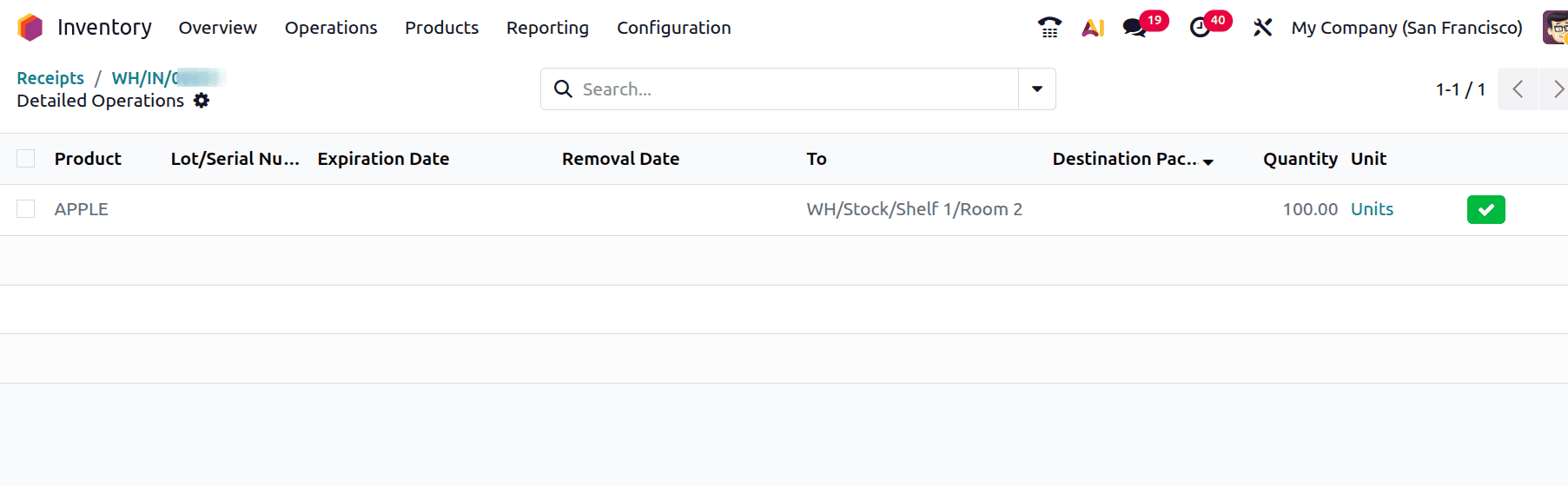
As a result, once the product APPLE reaches the location "WH/Stock," it will be stored with the storage category Cooler in the closest sublocation of "WH/Stock/Shelf 1." The closest sublocations of "WH/Stock/Shelf 1" with the storage category Cooler are "WH/Stock/Shelf 1/Room 2" and "WH/Stock/Shelf 1/Room 3". The storage capacity at each location is fixed at 100 quantities. The closest location, "WH/Stock/Shelf 1/Room 2," will therefore house the first 100 quantities. After that, "WH/Stock/Shelf 1/Room 3" will automatically store the remaining 100 quantities.
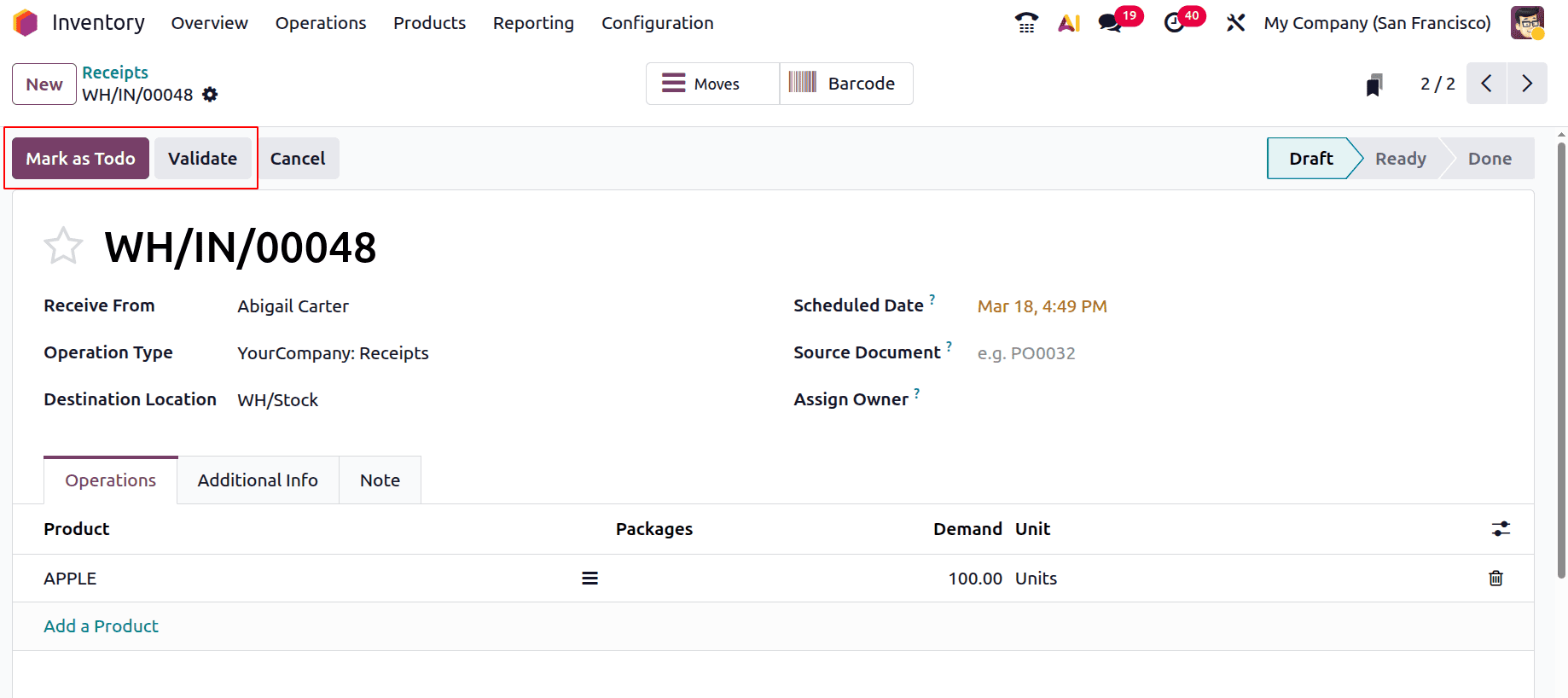
Make a fresh receipt. The vendor in this case is Abigali Carter. Thus, 100 units of Apple were demanded by the vendor company. WH/Stock is selected as the destination location. Verify the receipt to find out the product's storage location.
The sublocation "WH/Stock/Shelf 1/Room 2" is where the 100 quantities of received APPLE are kept, as can be seen from the smart tab Moves.
Make a fresh receipt for 100 units of the same item once more. "WH/Stock" is the destination place. Verify the product movement and validate the transfer.
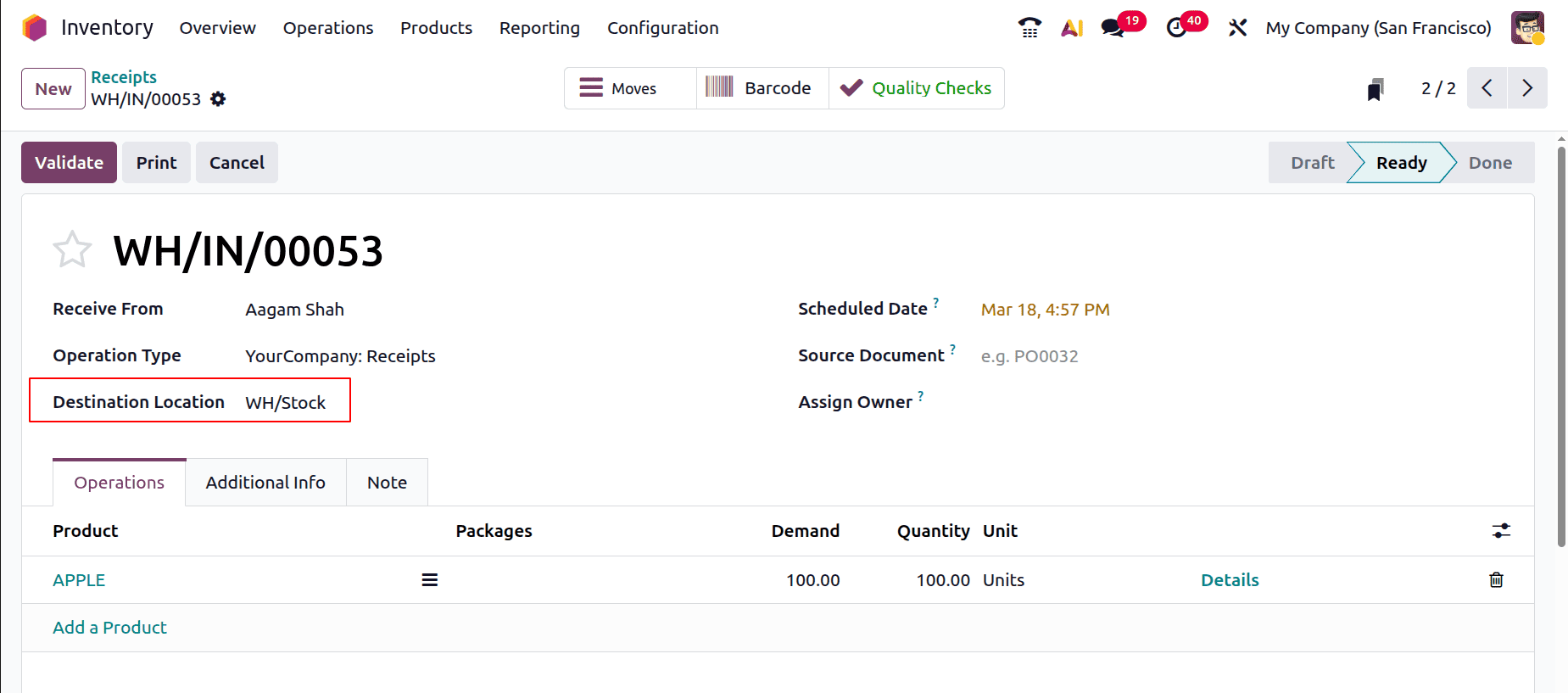
This time, the merchandise is kept at "WH/Stock/Shelf 1/Room 3." The location "WH/Stock/Shelf 1/Room 2" has reached its capacity since the storage capacity is set at 100 quantities. Thus, the next nearest location with the storage category "Cooler" category is selected automatically.
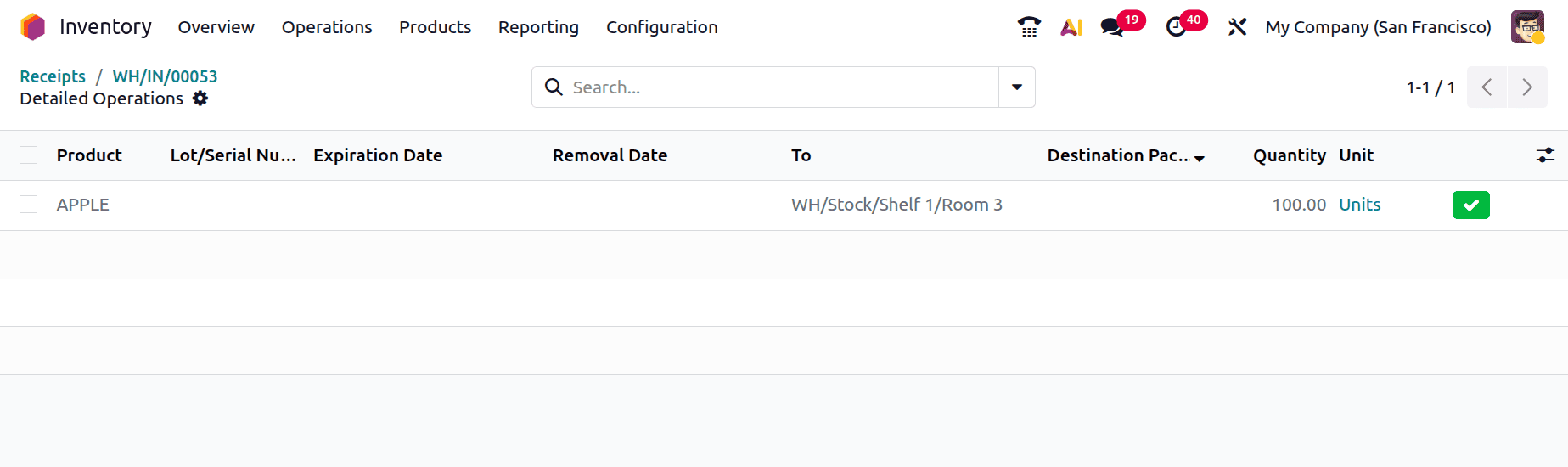
This is how the putaway rule in Odoo 19 operates. To avoid a chemical reaction, some products in a warehouse containing volatile components should be kept away from each other. In this case, putaway laws are employed to keep things from being improperly stored.
To read more about How to Set Up Efficient Putaway Rules in Odoo 18 Inventory, refer to our blog How to Set Up Efficient Putaway Rules in Odoo 18 Inventory.