For companies managing several projects, efficient task management is essential. Businesses may streamline repetitive tasks using the repeating task function, which guarantees timely completion and minimizes manual labor.
Weekly meetings, monthly reports, and sporadic maintenance duties are examples of recurring tasks. Odoo 19 enables users to automate the procedure, saving time and guaranteeing consistency, rather than manually repeating the same tasks each time.
Make sure the feature is enabled. For that go to the project’s settings available for each Project.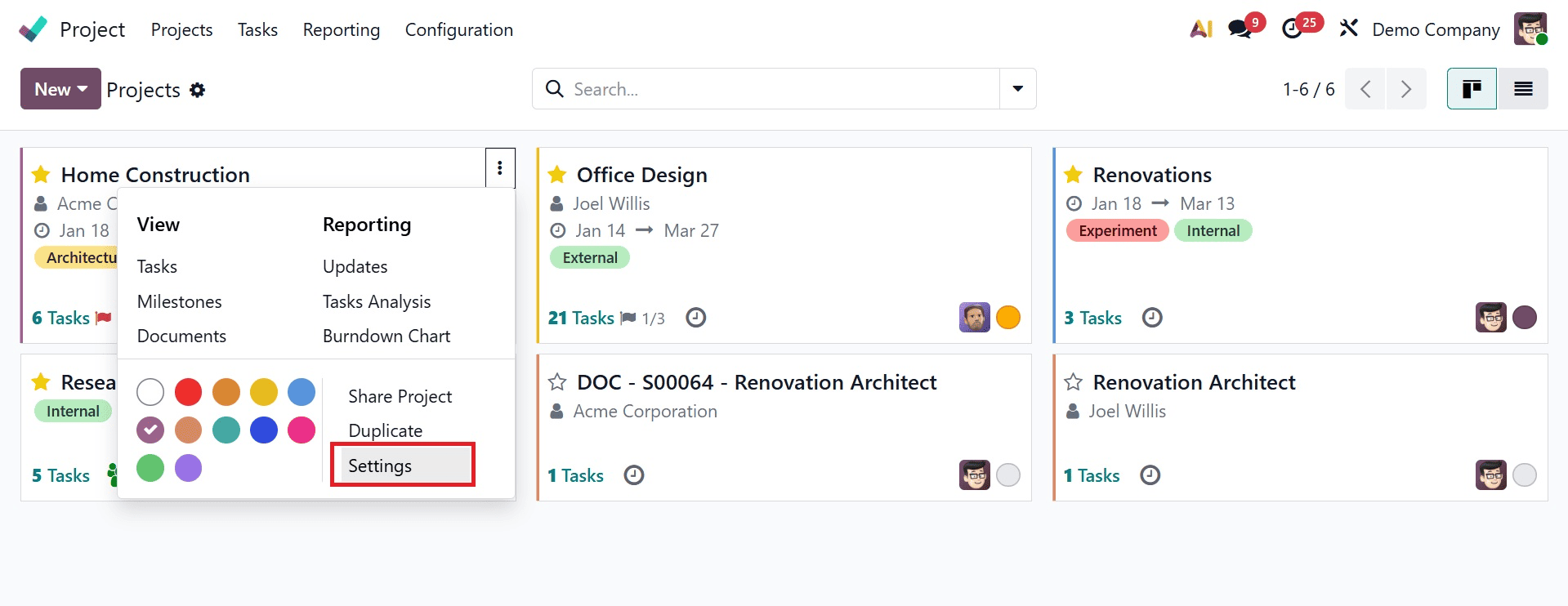
Go to the settings tab of the project and enable the Recurring Tasks option under the Tasks Management section. When this function is enabled, the task for repetitive regular actions is automatically generated.
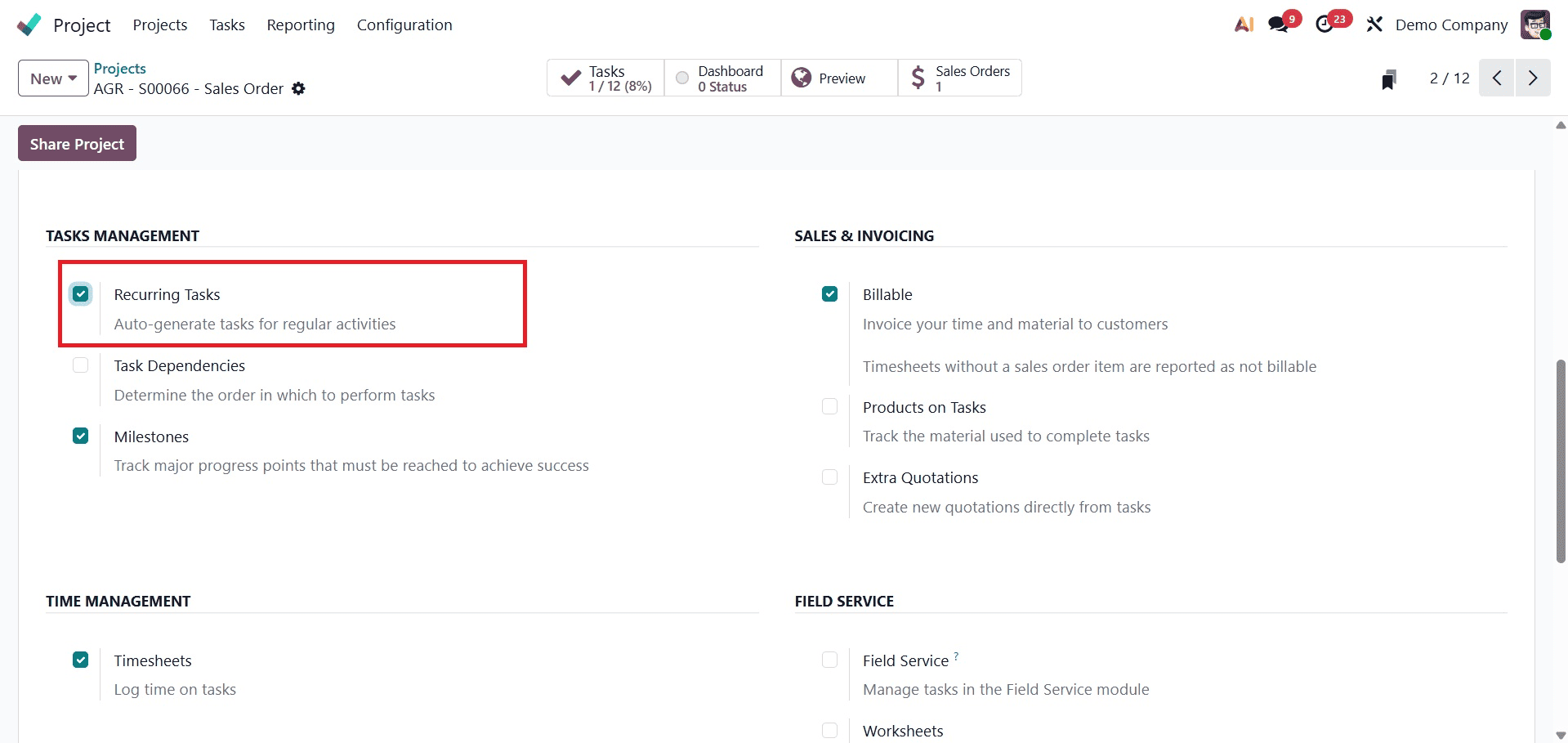
Click the New button to start a new project or choose an appropriate project from the Project module's dashboard.
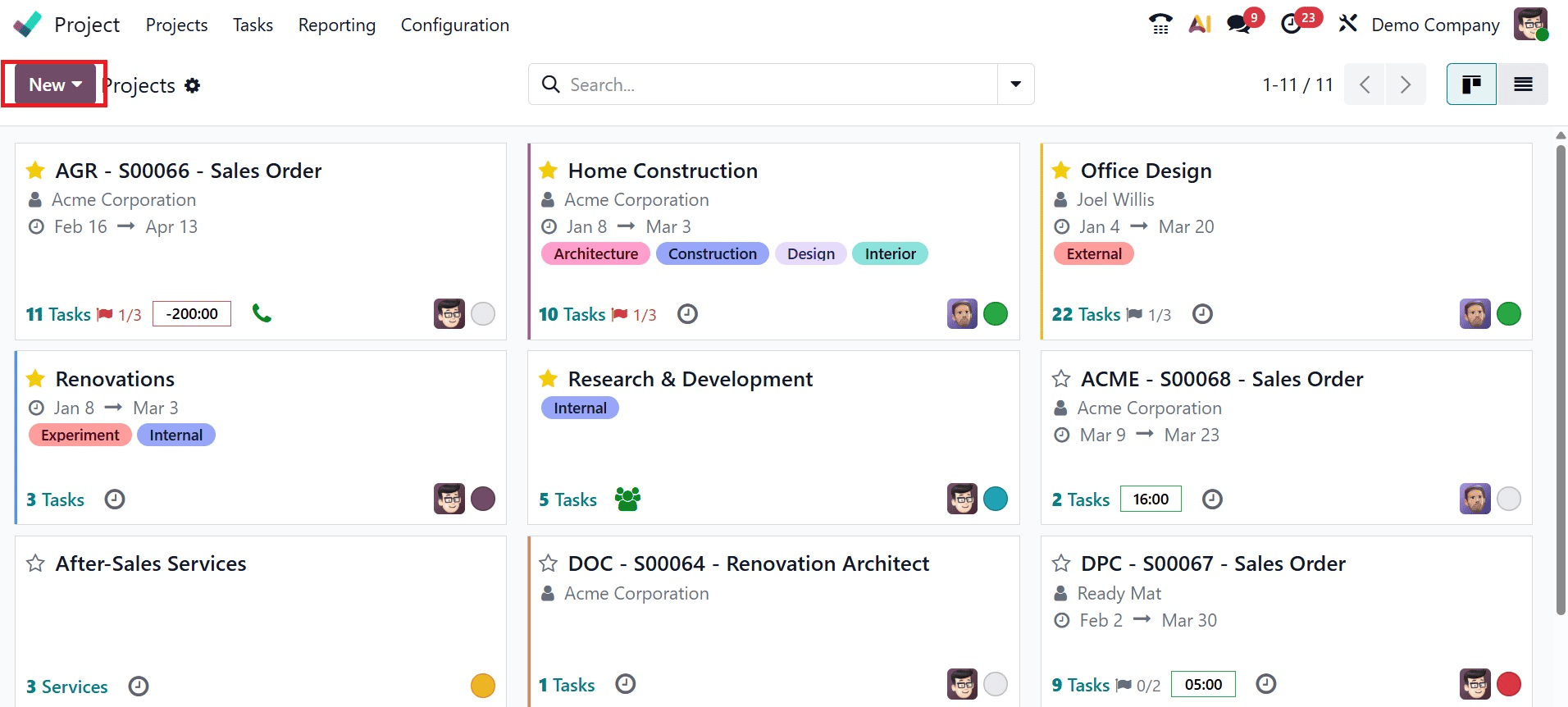
The Create a Project wizard shows up. Enter the project name in the Name field of the form. Turn on the Billable option to enable time and material billing, and enable the Timesheet option to keep track of time spent on tasks. Assign a client to the project so that supplies and billable time can be billed appropriately. To enable automatic task creation when emails are sent to the specified alias, specify an email alias in the Create tasks area.
Clicking the Create Project button opens a new page where you can add task stages by entering the name of the stage in the designated field and then selecting Add.
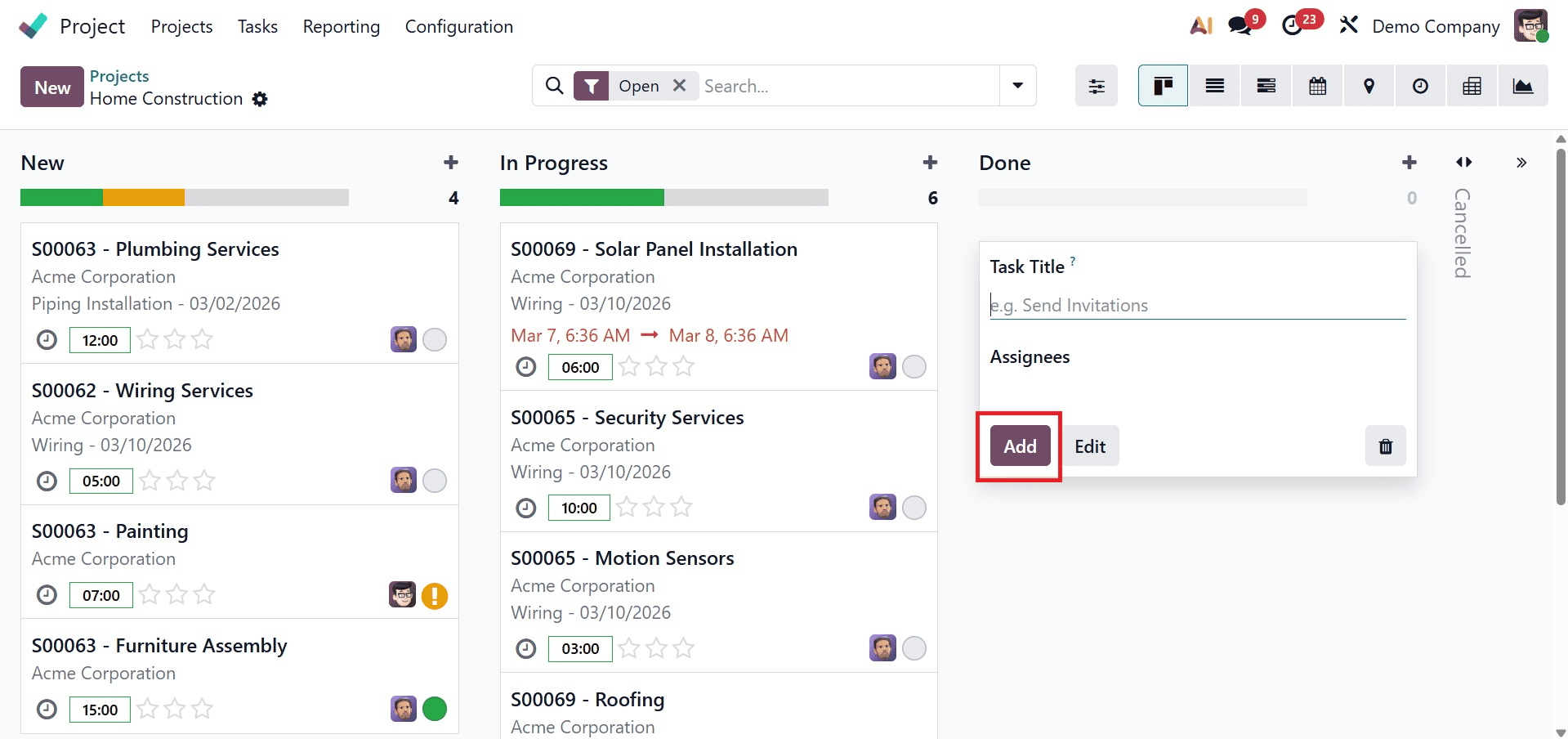
The tasks can now be added under the stages that have been added to the project. To do that, either click the New button to add a task to the first stage or the + icon that is available for each stage to add the work under that specific stage.
Let's assume that the job "Monthly Security Audit" needs to be completed each month after all necessary tasks have been added. Therefore, this activity can be set up as a recurring task rather than making a new one every month.
Setting Up a Recurring Task
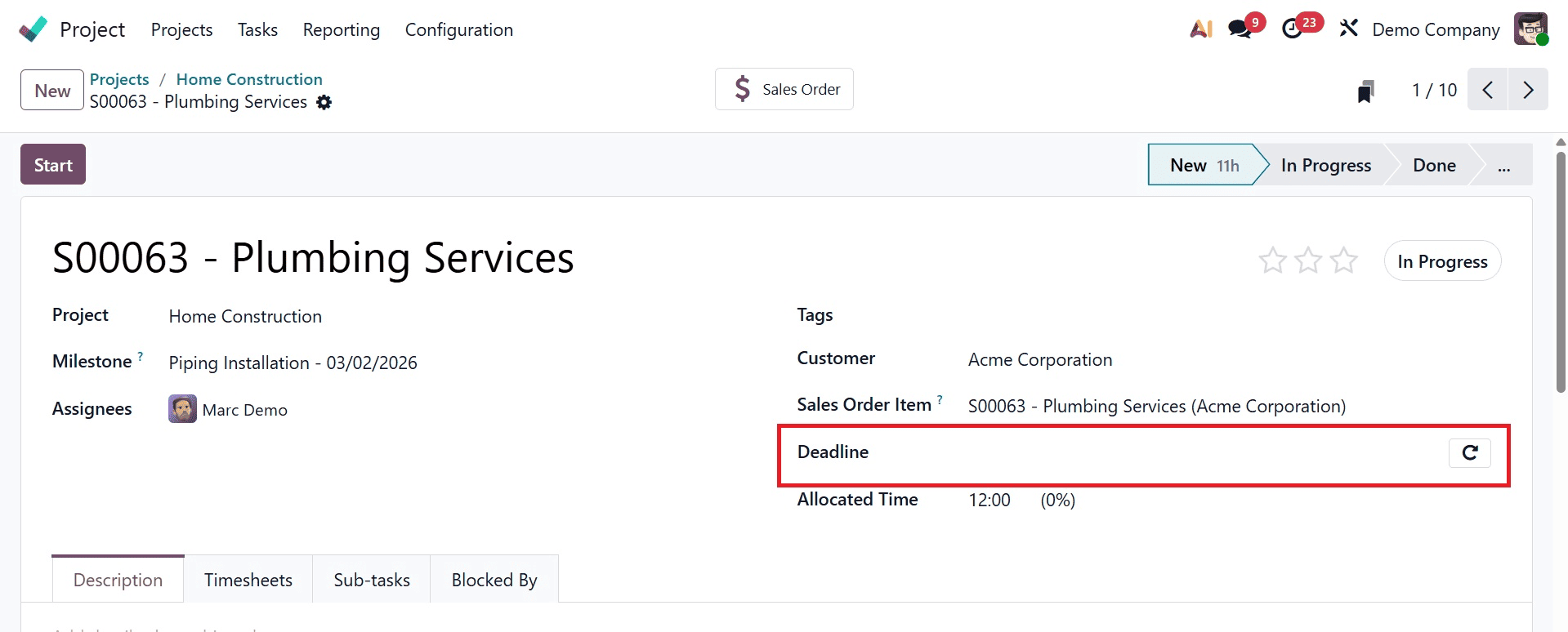
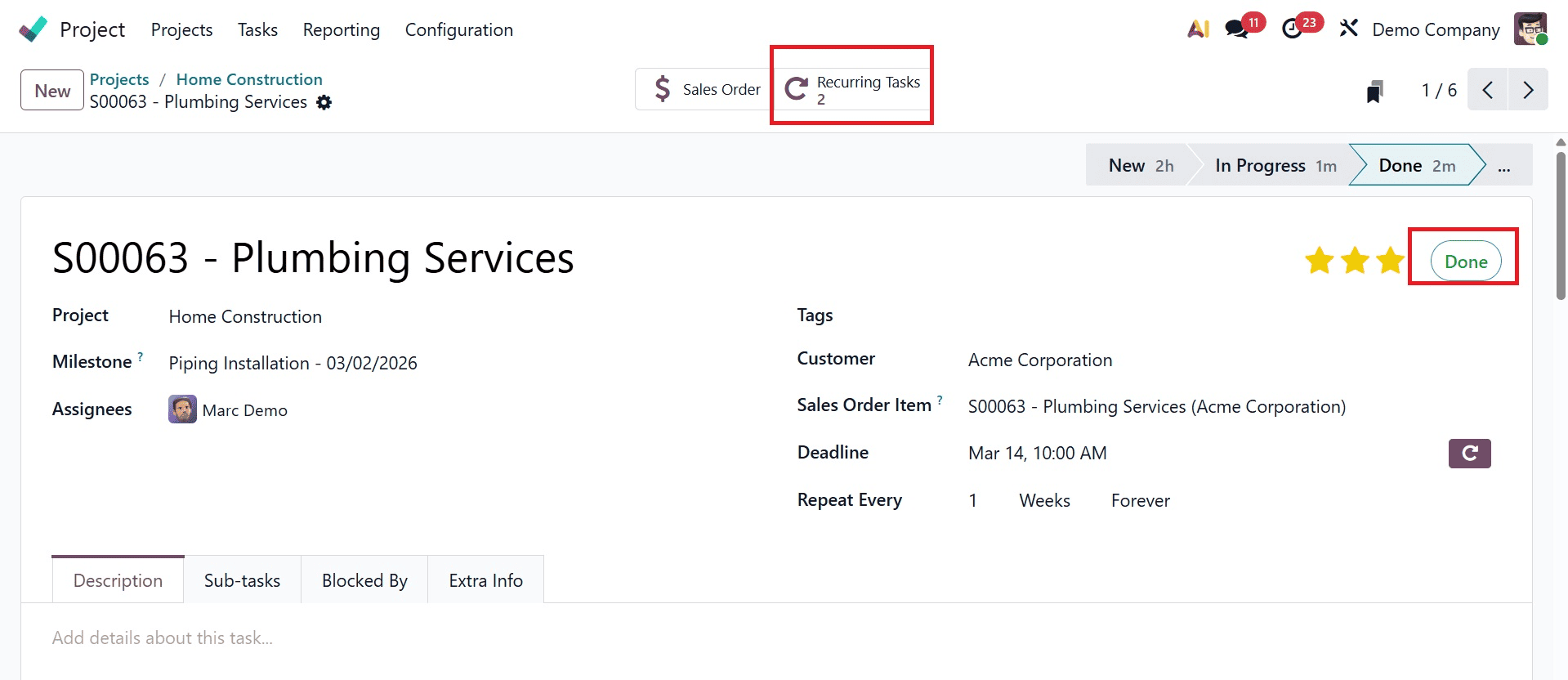
Choose the task "Plumbing Service," which must be established as a recurring task. The task form has a field labeled "Deadline," and next to that field is a recurrent icon, as seen in the image below.
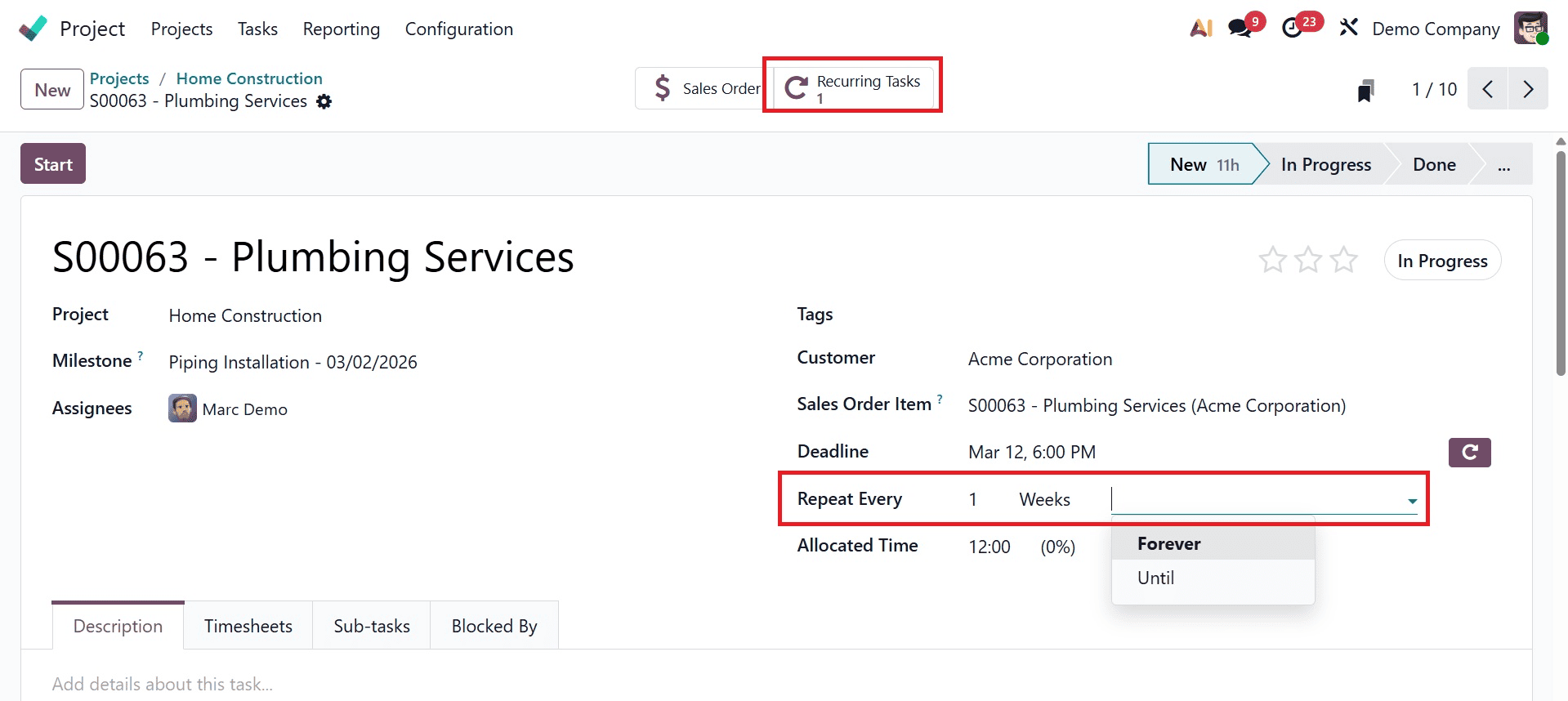
An extra field named Repeat Every displays when the recurring icon is clicked. You can specify how often the task should be repeated in this area (e.g., days, weeks, months, years). There is also a box where users can specify an end date or set the task to recur indefinitely. A date field that allows users to specify the most recent instance of the recurring task appears if the Until option is used.
Add the remaining information for the task, such as the customer, if any, the project's deadline, its allotted time, tags, and milestones. In the timesheets tab, add the task's timesheet.
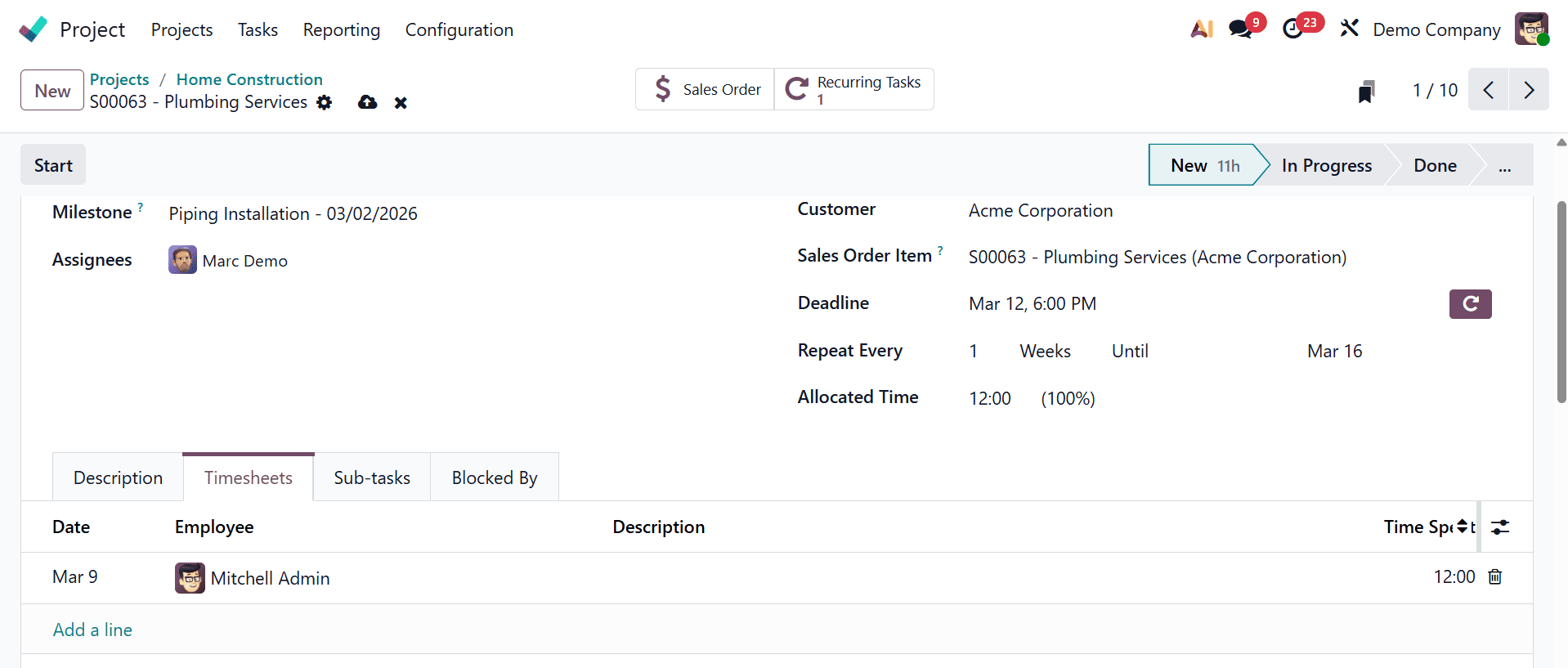
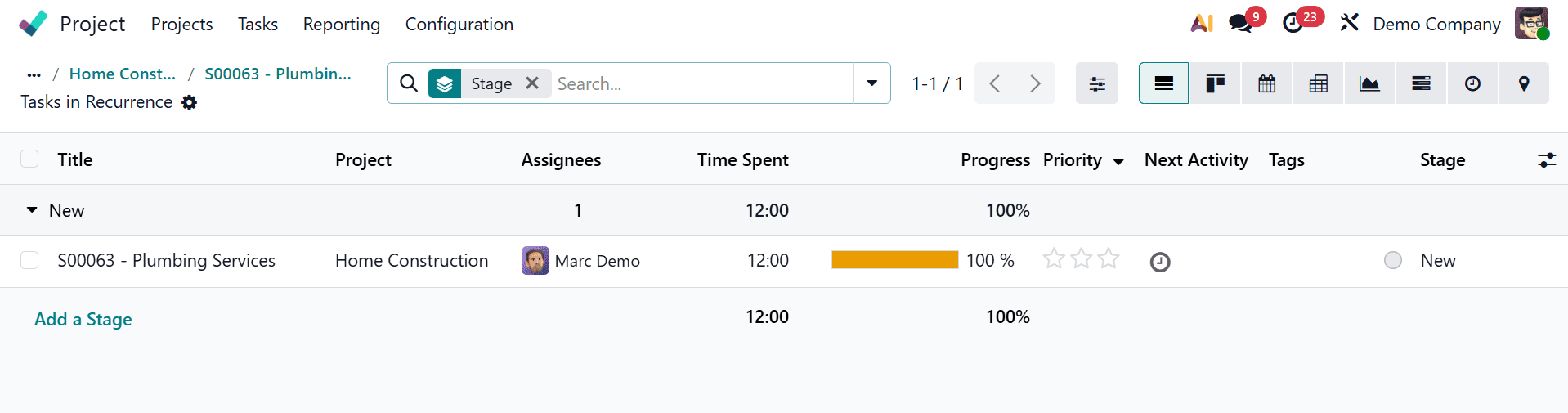
Additionally, there is a Recurring Tasks smart tab where the task that has been designated as a recurring task can be viewed along with the task's current stage, the task's assignees, and any time that has been logged to the recurring task can be viewed in the Time Spent field. The task's progress will also be displayed based on the time spent. By selecting the clock symbol under the Next Activity, you may also set any activity that needs to be completed for the job. This is also where you can view the tags that have been added for the assignment.
The task's state can be changed from In Progress to Done once it is finished. Another recurring task will be created as soon as the task is in the Done state, and the smart tab will display two.
As soon as the first recurring task is finished or canceled, the second one will be generated. Additionally, the recurring task will be generated in the first stage, and the new task will have the same characteristics, including the client, tags, assignee, and allotted time.
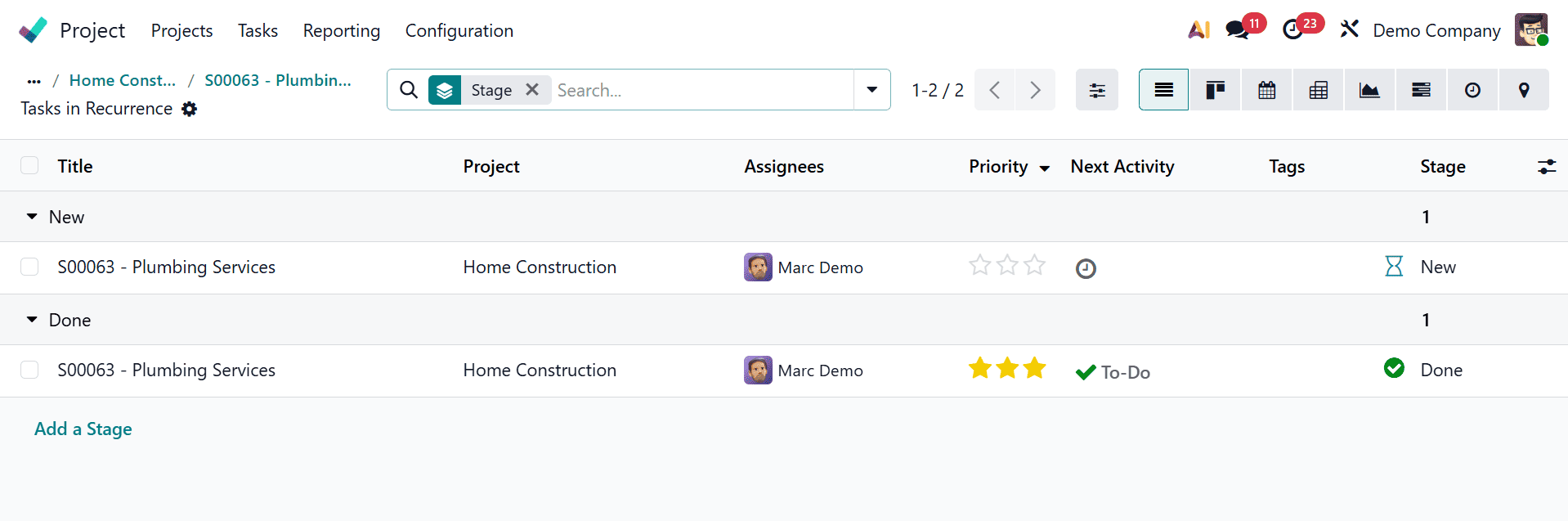
No information from the prior task will be duplicated, including the milestone, timesheet, chatter, activities, and subtasks. To modify the recurrent task, access the most recent recurrent tasks and make the required changes, which will also be applied to all subsequent tasks. Go to the most recent task and click on the recurrent icon to end the recurrence.
This is how the Odoo 19 Project module's recurrent task can be set up. By enabling users to automate task creation based on predetermined intervals, Odoo 19 streamlines the administration of recurring tasks. Users have the option to choose an end date, establish a recurrence frequency, or allow tasks to run endlessly. However, if the recurrence rule is incorrectly defined or the deadline is met, tasks cease to repeat. Maintaining smooth task automation requires making sure the right settings and planned actions are in place.
To read more about How to Manage Recurring Tasks in Odoo 18 Project, refer to our blog How to Manage Recurring Tasks in Odoo 18 Project.