In modern business environments, managing cash flow efficiently is as critical as closing a sale. In Odoo 19, the Sales module is tightly integrated with Accounting, enabling businesses to handle flexible payment scenarios with precision. One such essential feature is partial payment processing during sales confirmations, which allows customers to pay in installments rather than settling the full invoice amount upfront.
When a sales order is confirmed in Odoo, it can generate invoices based on predefined invoicing policies, such as ordered quantities or delivered quantities. With partial payments, businesses can register multiple payments against a single customer invoice, ensuring accurate tracking of outstanding balances. This functionality is particularly useful for industries that operate on advance payments, milestone-based billing, or customer credit terms.
Odoo’s smart reconciliation mechanism automatically links partial payments to the corresponding invoices, updating the receivable status in real time. Additionally, features like payment terms, follow-ups, and aged receivable reports provide complete visibility into pending dues. By leveraging partial payments in Odoo 19, organizations can enhance financial control, improve customer relationships, and maintain transparency across their sales and accounting workflows.
Online payment management
In Odoo 19, advance payment management enables businesses to collect upfront payments directly through the customer portal, ensuring improved cash flow and reduced payment risks. Customers can securely pay a portion of the total amount online before order fulfillment. These payments are automatically recorded and linked to the corresponding invoices, allowing accurate balance tracking, seamless reconciliation, and enhanced transparency in the overall invoicing and sales process.
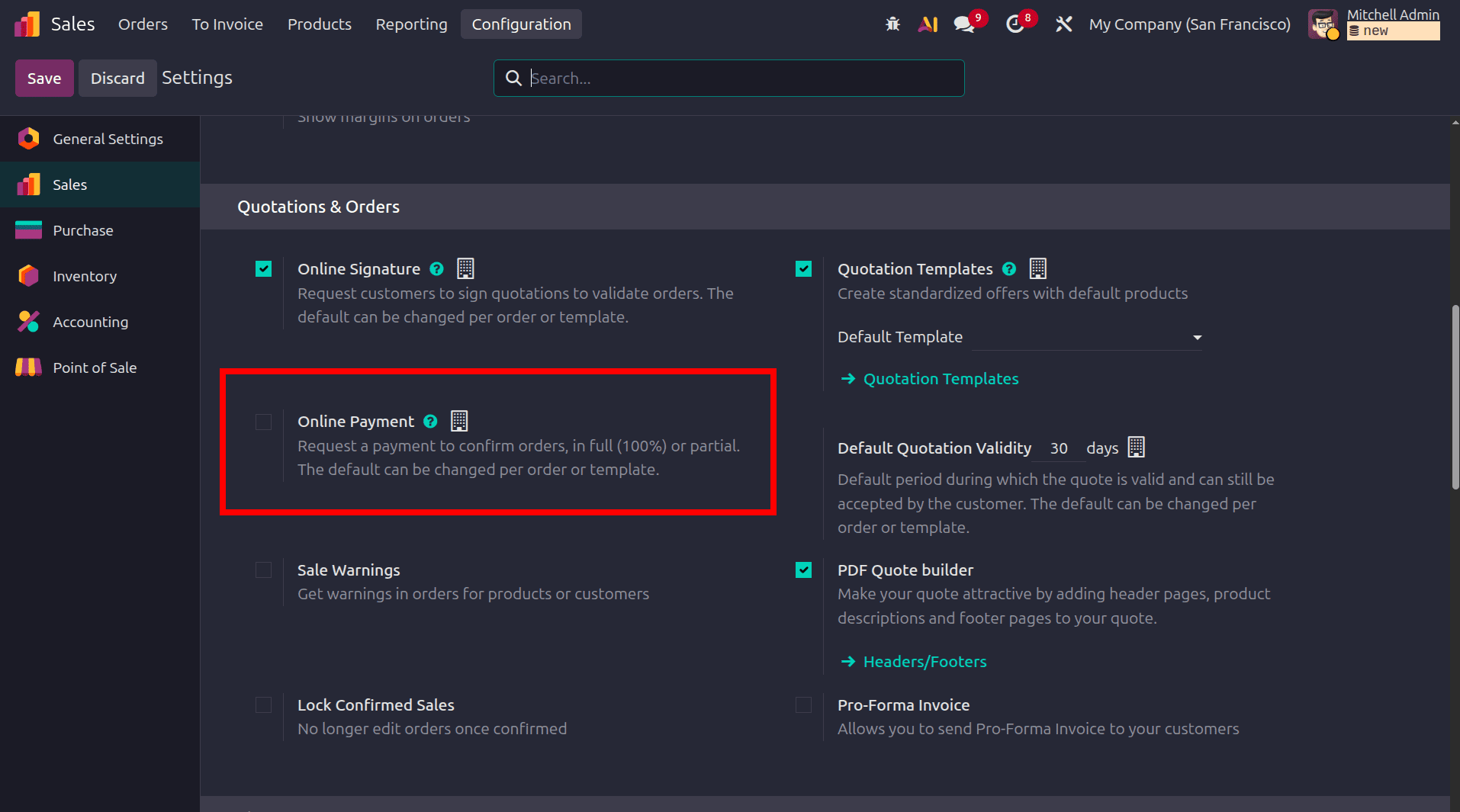
To set up online payment, move to the configuration settings of the Sales module and under the Quotations & Orders section, there is the option to add Online Payment. To activate online payment, enable that checkbox.
Once the Online Payment option is enabled and the settings are saved in Odoo 19, the system provides an additional field to define the online payment percentage, allowing you to specify whether the customer should pay fully (100%) or partially at the time of order confirmation. Within the same section, Odoo also offers direct access to configure and activate payment providers through options like Configure Demo or View Other Providers, enabling seamless integration of online payment methods for customer transactions.
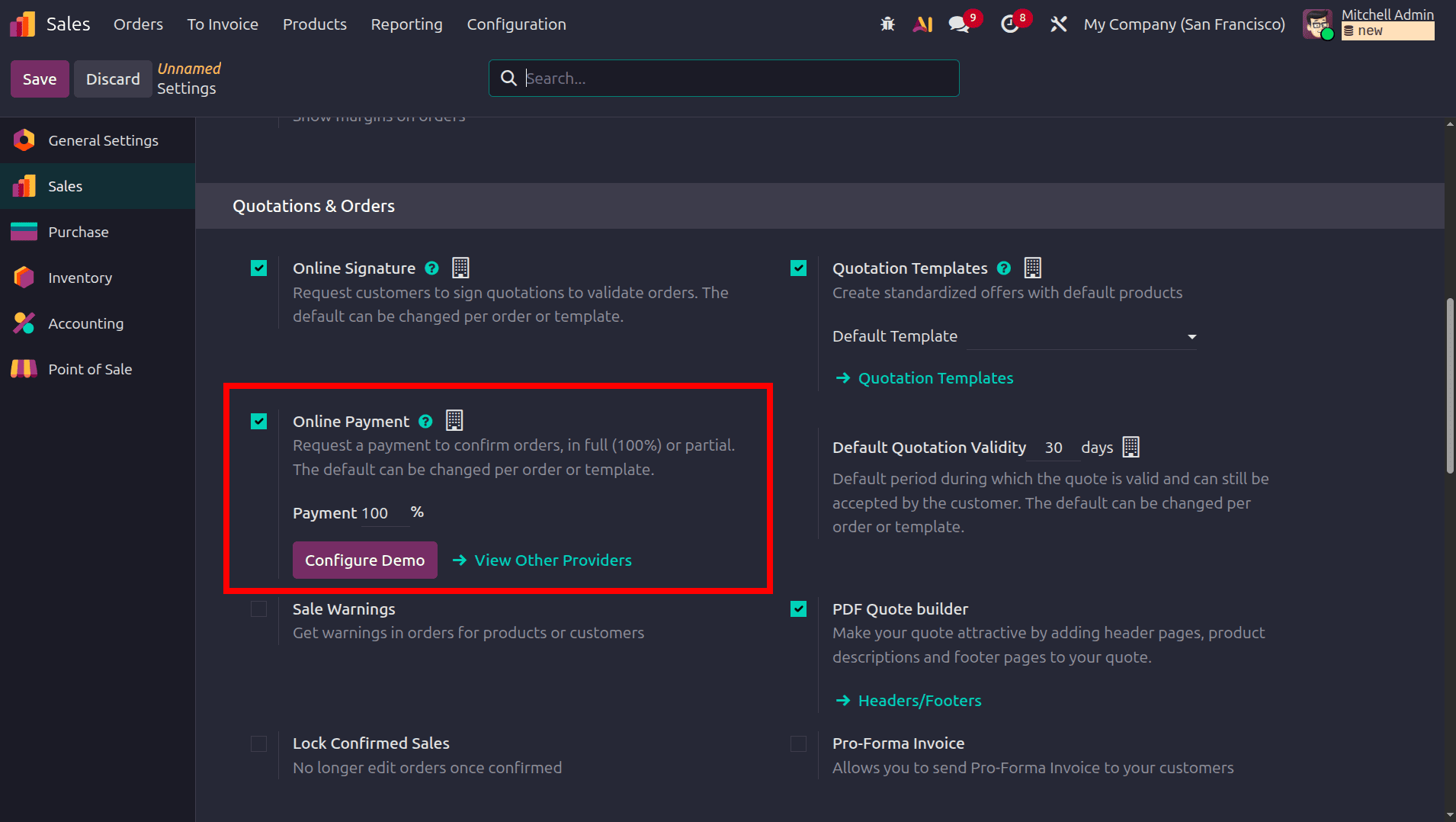
Here, the online payment percentage is set to 100%. In this scenario, the customer is required to pay the full invoice amount through the customer portal at the time of order confirmation. Since the payment requirement is fixed at 100%, the system does not allow the customer to make a partial payment or choose any lower percentage; only the complete payment can be processed to proceed with the order.
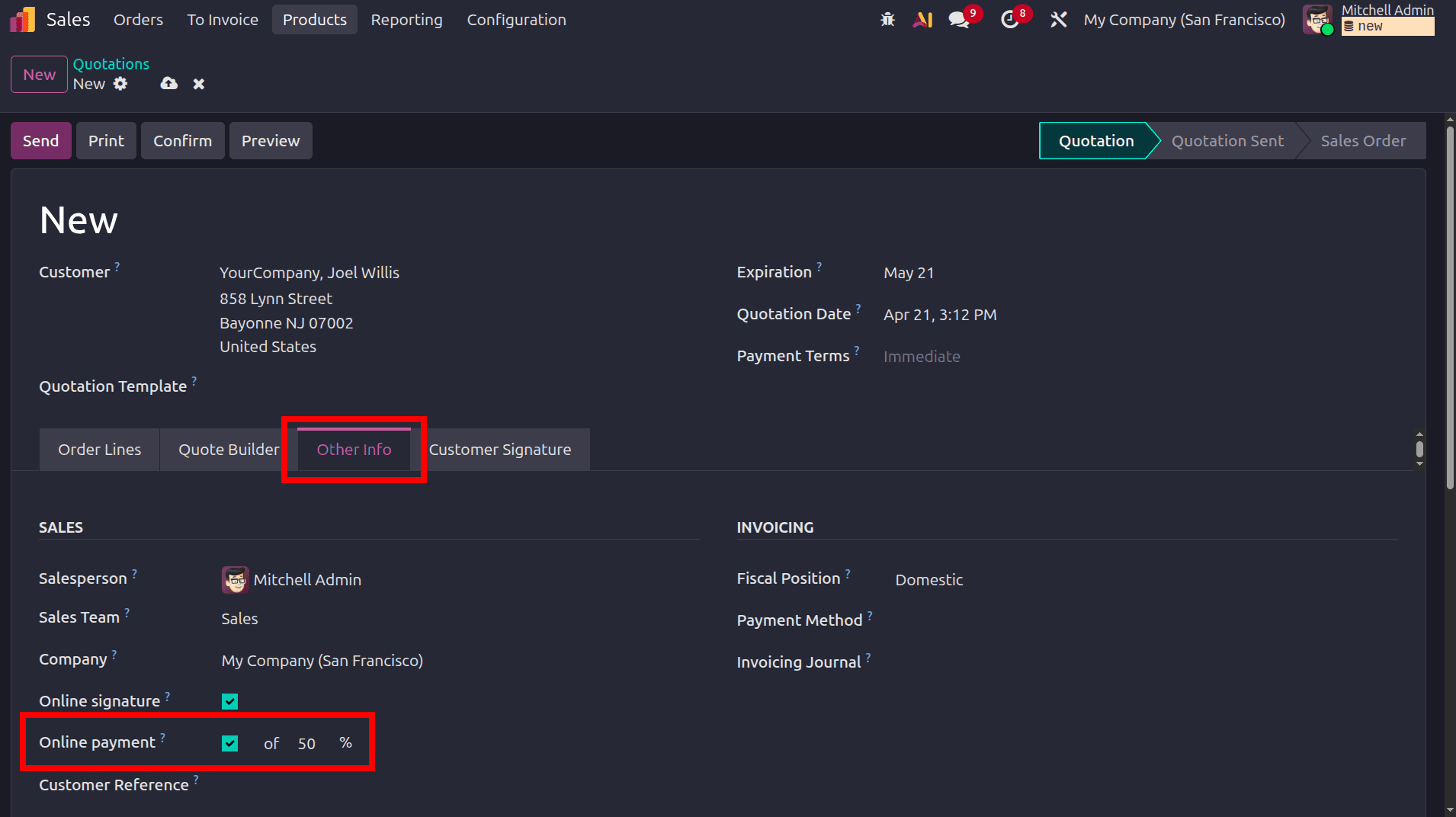
Move to orders and create a new sale order, move to the orders menu > Quotations, then click the New button to create a new order. Once we have added all the details in the order, like customer, products, price, and quantity, we can move to the other info tab of the quotation. There, we can see that the online payment gets enabled automatically as we enabled it in the configuration settings.
Then we can send the created quotation to the customer, which is in the state Quotation. Once we send the quotation, the customer can pay the amount of the order, so click the Send button, and then the quotation will move to the status Quotation sent. The next step is to log in to the user's profile, and then we need to make the payment from the customer's portal.
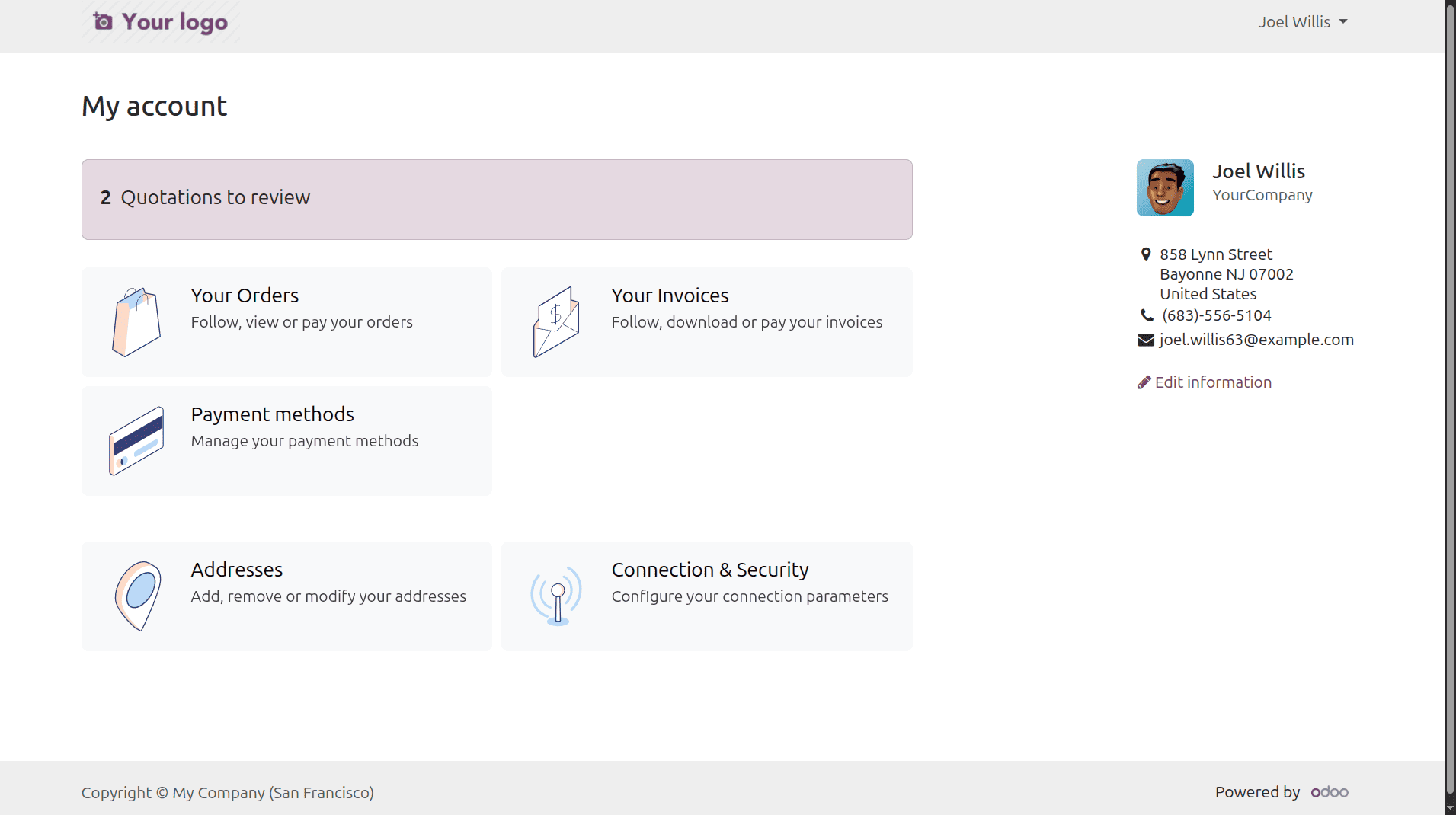
Here in the user's profile, we can see all the quotations of the user that have not been opened yet. Click the 2 Quotations to review option and open the recently created and shared quotation of that partner.
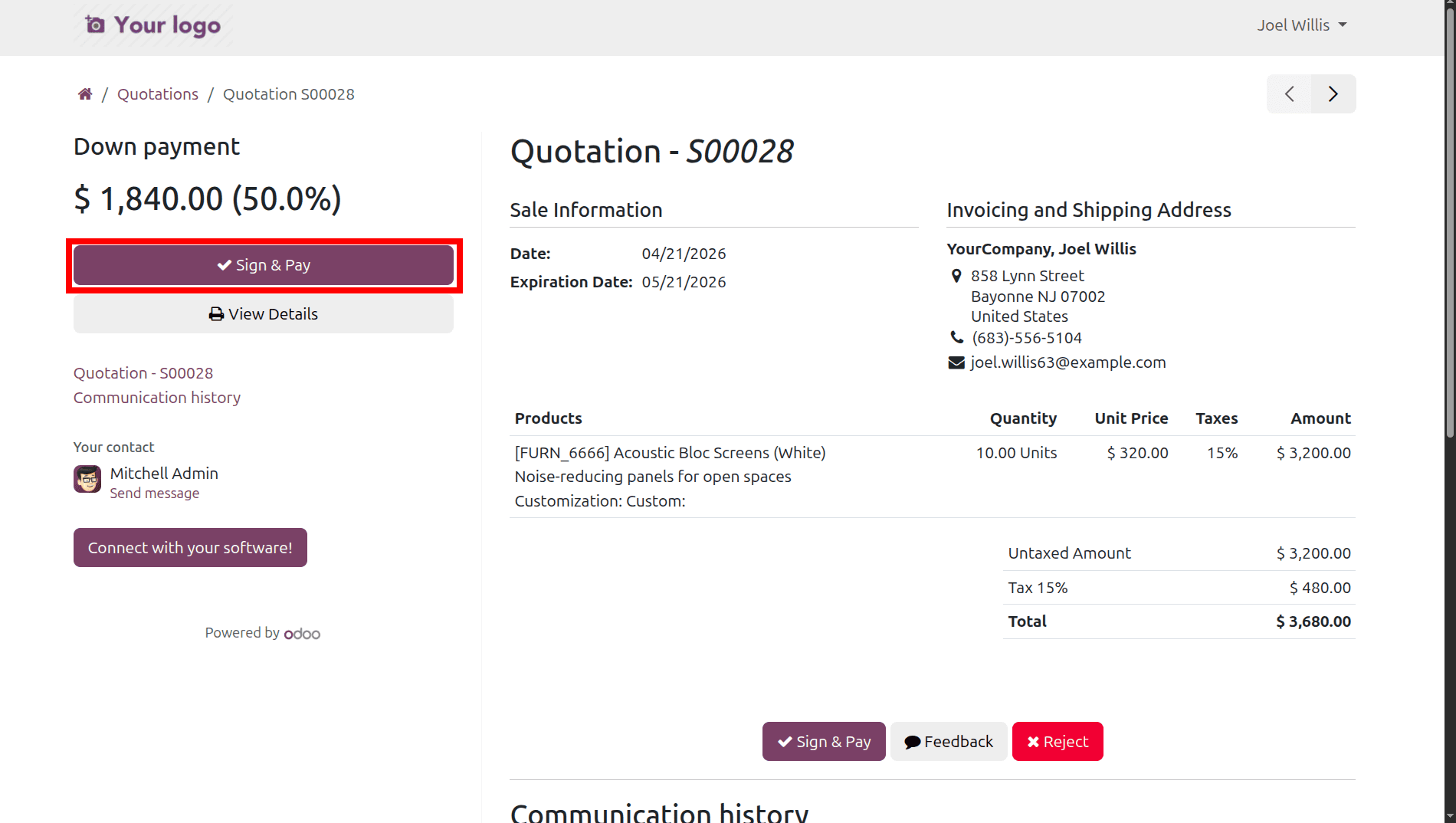
Here we can see the sign and pay button is available. If we enabled only the Online payment option in the portal, only the pay button would be available, but now in our Odoo, we have also enabled the online signature option in the configuration settings. Click the Sign & Pay option from the customer's portal. First, we need to sign the order, and after validating the signature, another pop-up window will be displayed. In this pop-up window, we can either choose the full amount for the online payment or a partial amount as we have given, and then click the Pay button.
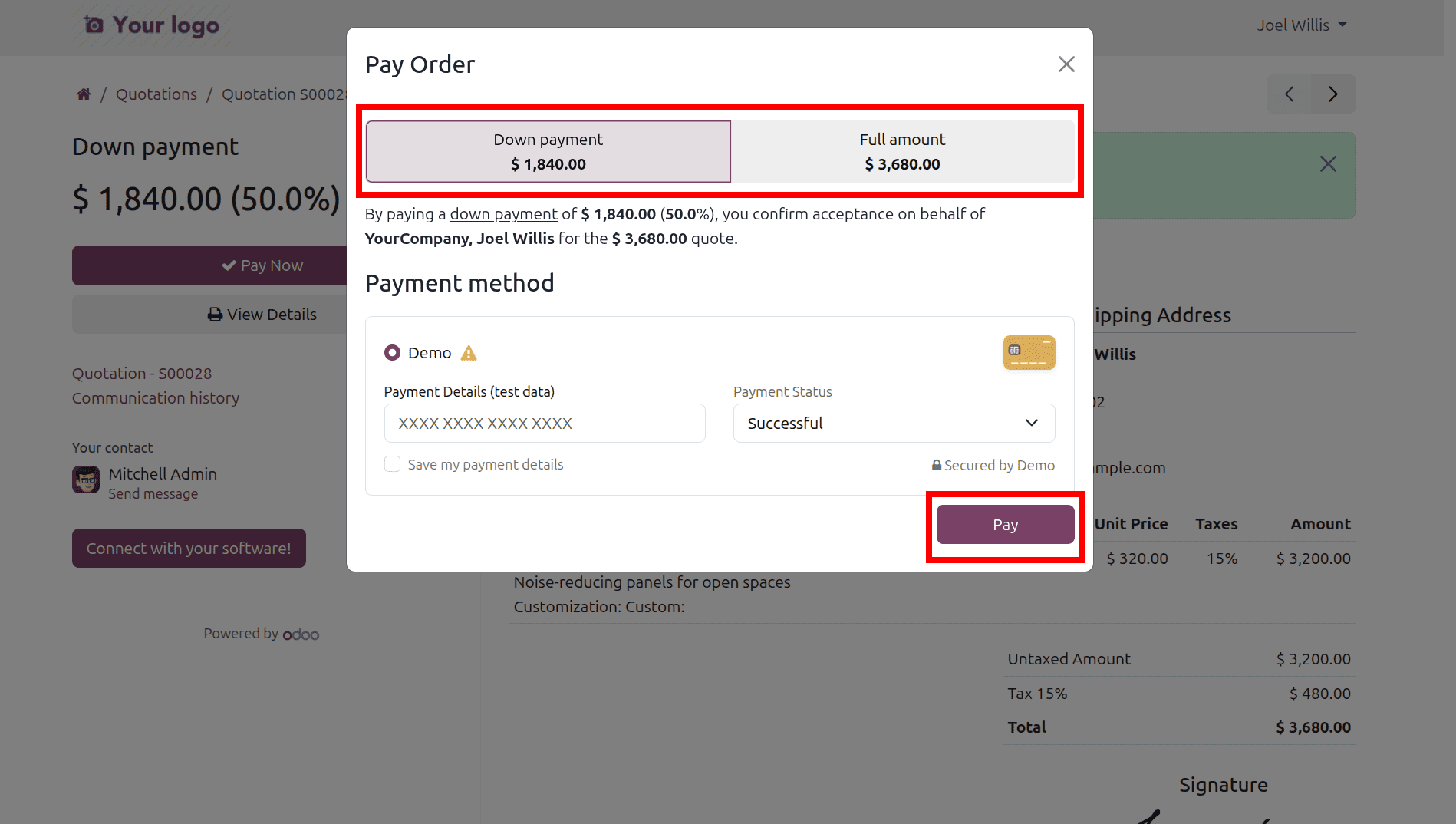
After the completion of the payment, we can move to the administrator's profile and open the same sale order of that customer.
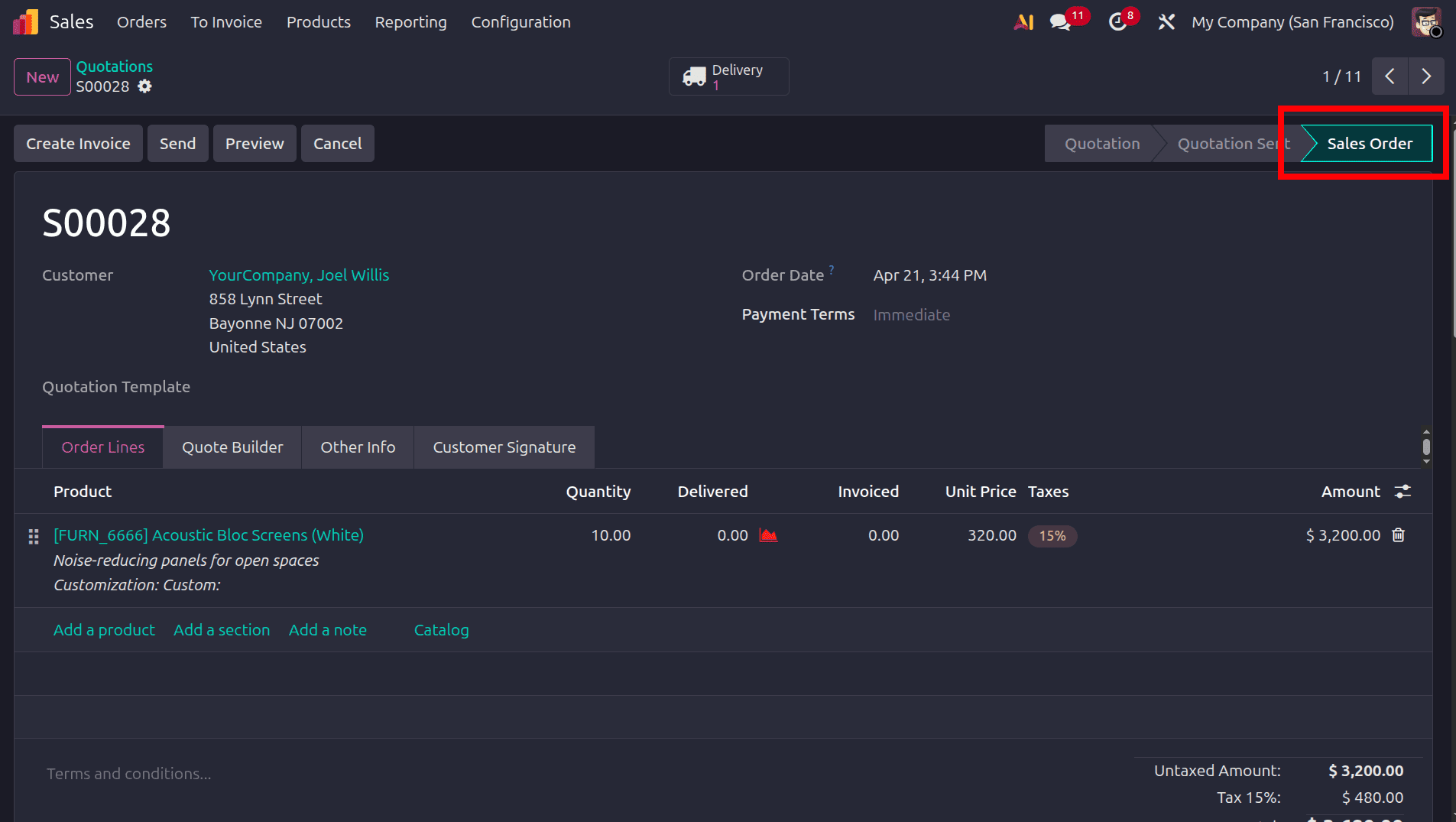
Here we can see that the status of the order is moved from the status quotation sent to the sale order on confirmation of the partial payment from the customer portal. After the completion of the delivery, we can click the create invoice button to create an invoice for this order.
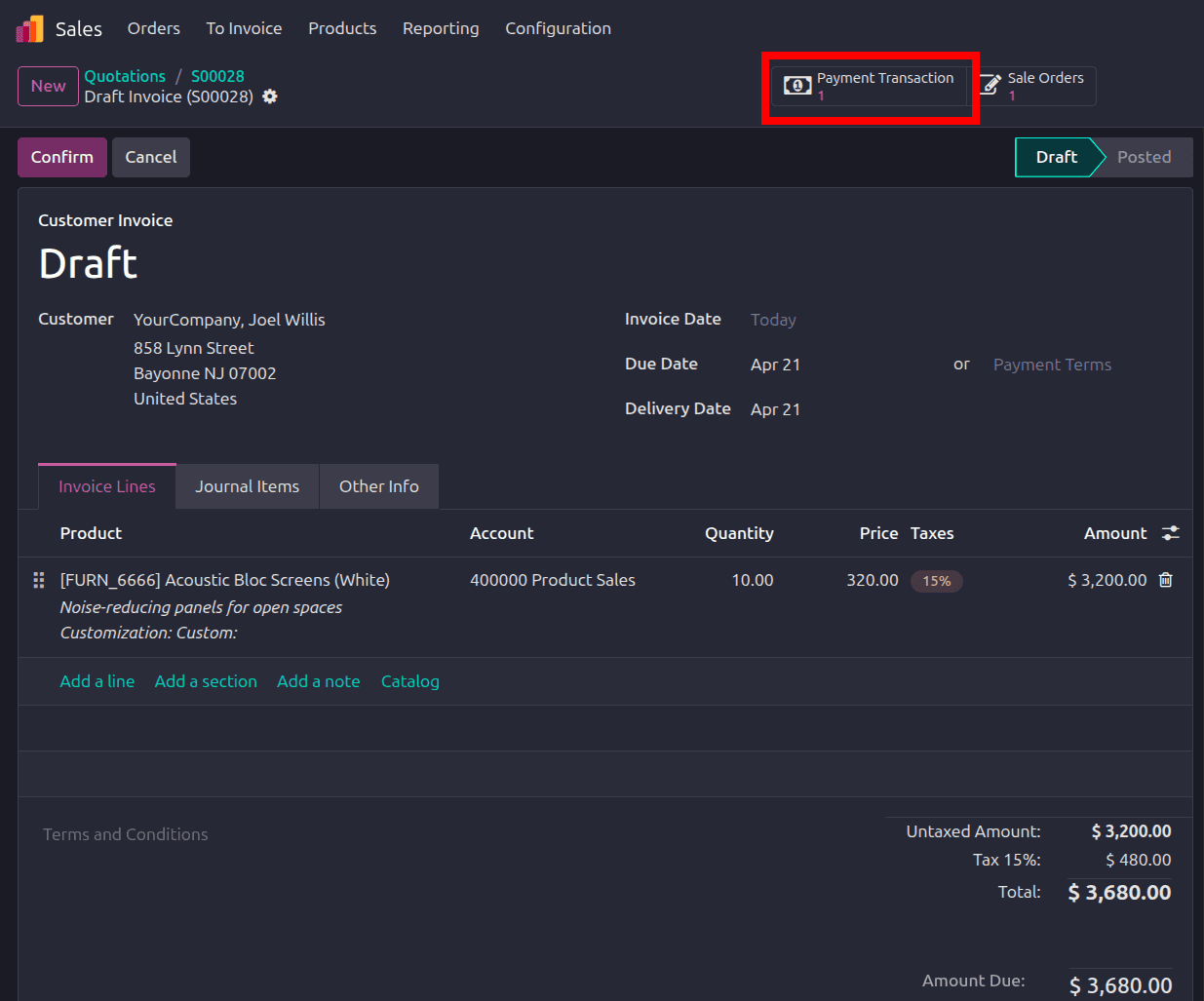
In that invoice, we can see that the payment transaction that the customer had done through the customer portal will be shown here.
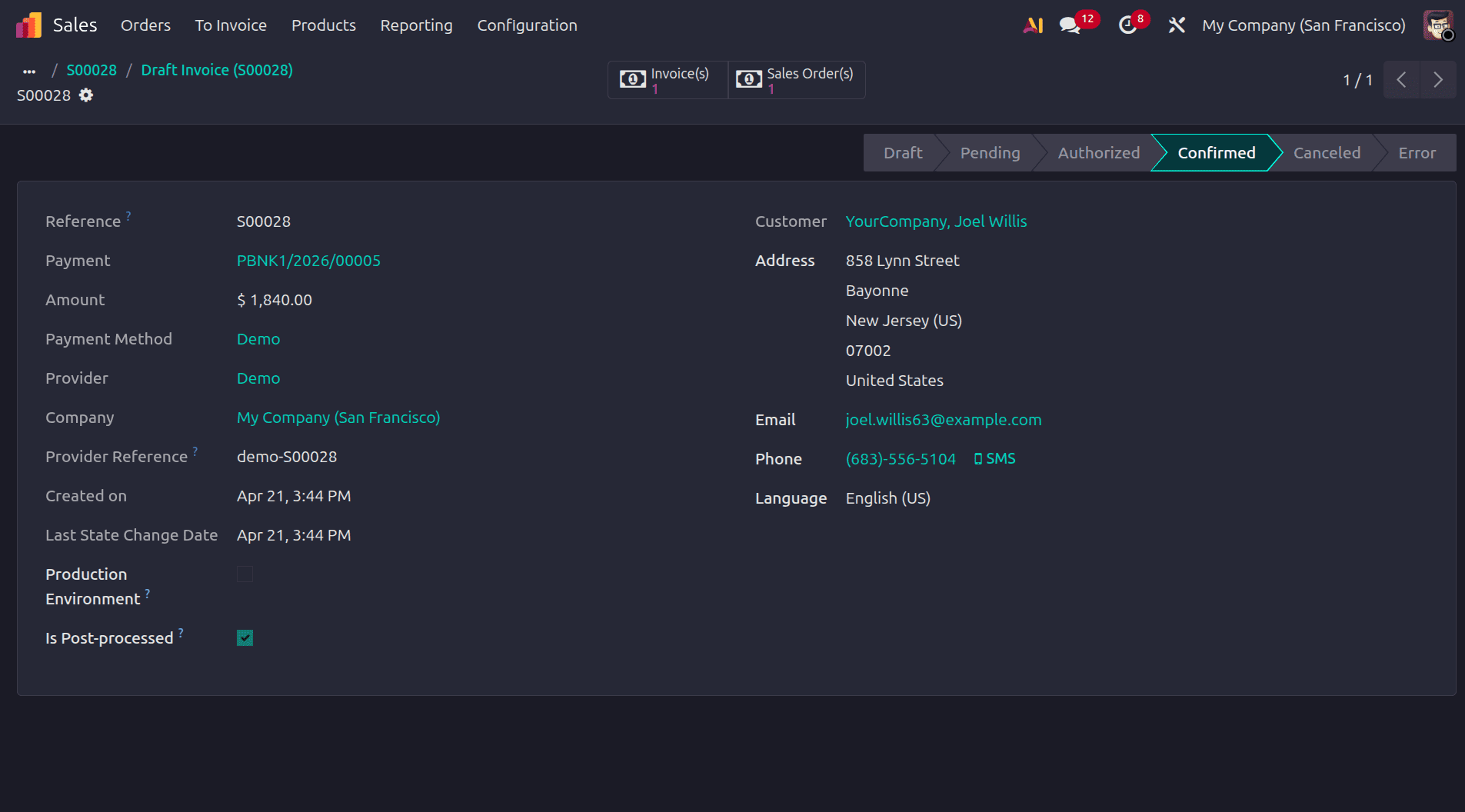
On clicking the payment transaction smart tab, we can see all the details of the transaction easily. After confirming the invoice, click the pay button to complete the payment of the order.
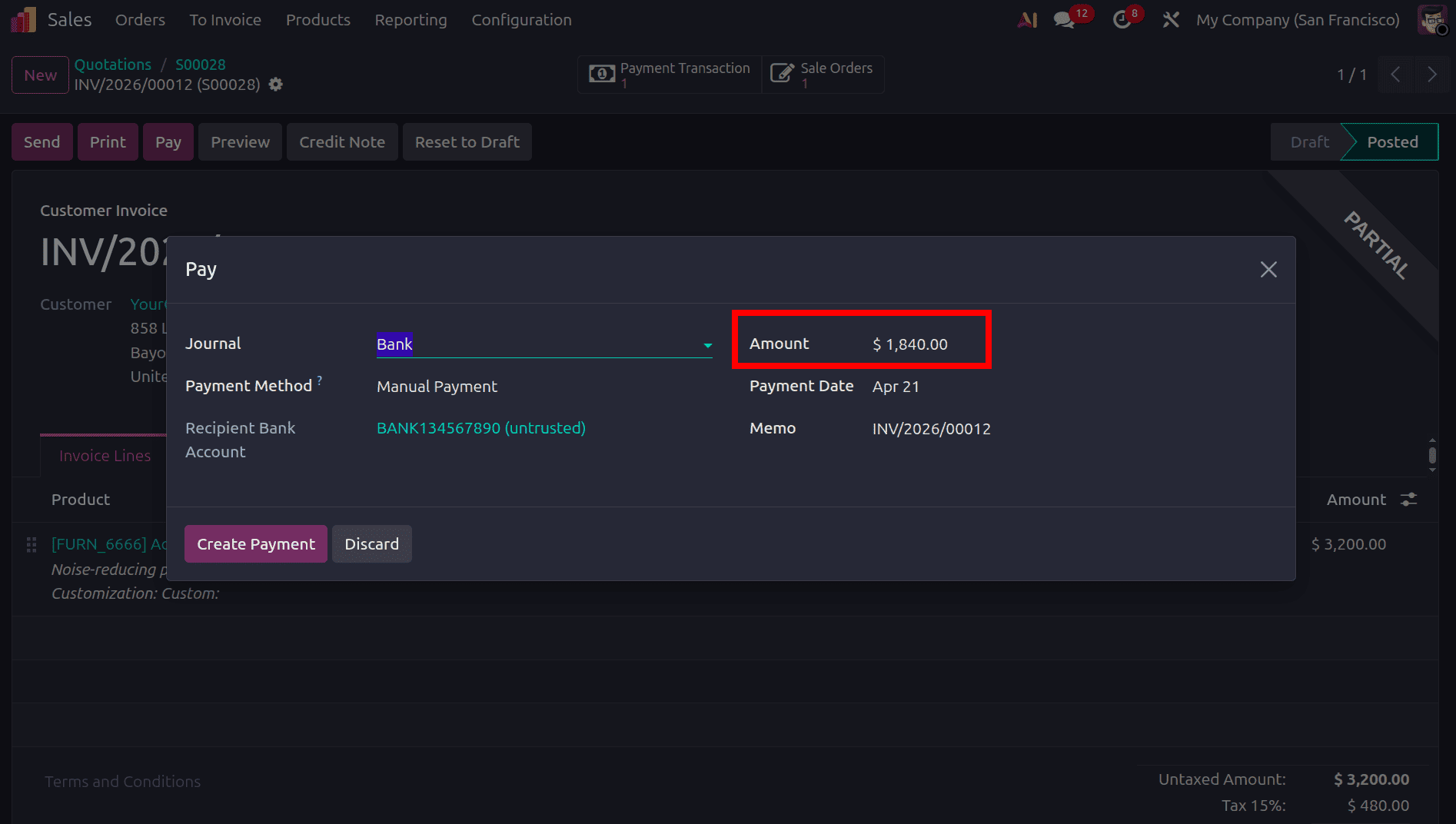
In this payment, we can see that the remaining amount of the invoice will be automatically added as the payment amount. Click the create payment button to complete this second transaction. So at last, the due amount of the invoice will be zero as we completed the transaction.
Odoo 19 streamlines advance payment management by enabling online payments through the customer portal with configurable payment percentages. This ensures faster order confirmation, accurate invoice linkage, and clear payment tracking. By supporting partial and full payments, businesses can improve cash flow while maintaining transparency across the Sales and invoicing process.
To read more about How Down Payment Features in Odoo 19 Simplify and Accelerate Sales, refer to our blog How Down Payment Features in Odoo 19 Simplify and Accelerate Sales.