With respect to manufacturing in today's business world, precision and control are paramount. The new Odoo 19 allows for an effective way of optimizing manufacturing operations by having three stages of warehouse management, which are basically picking parts, producing, and moving finished products to the final stock location.
This blog post will take you through the whole process of manufacturing in Odoo 19, from product creation, Bill of Materials (BoM) configuration, work center setup, three-step routing configuration, and finally, analysis of cost and journal entry.
At the end of it all, you will have seen the process involved in the consumption of raw material, as well as the final product accounting.
Step 1: Enabling Multi-Step Routes & Storage Locations
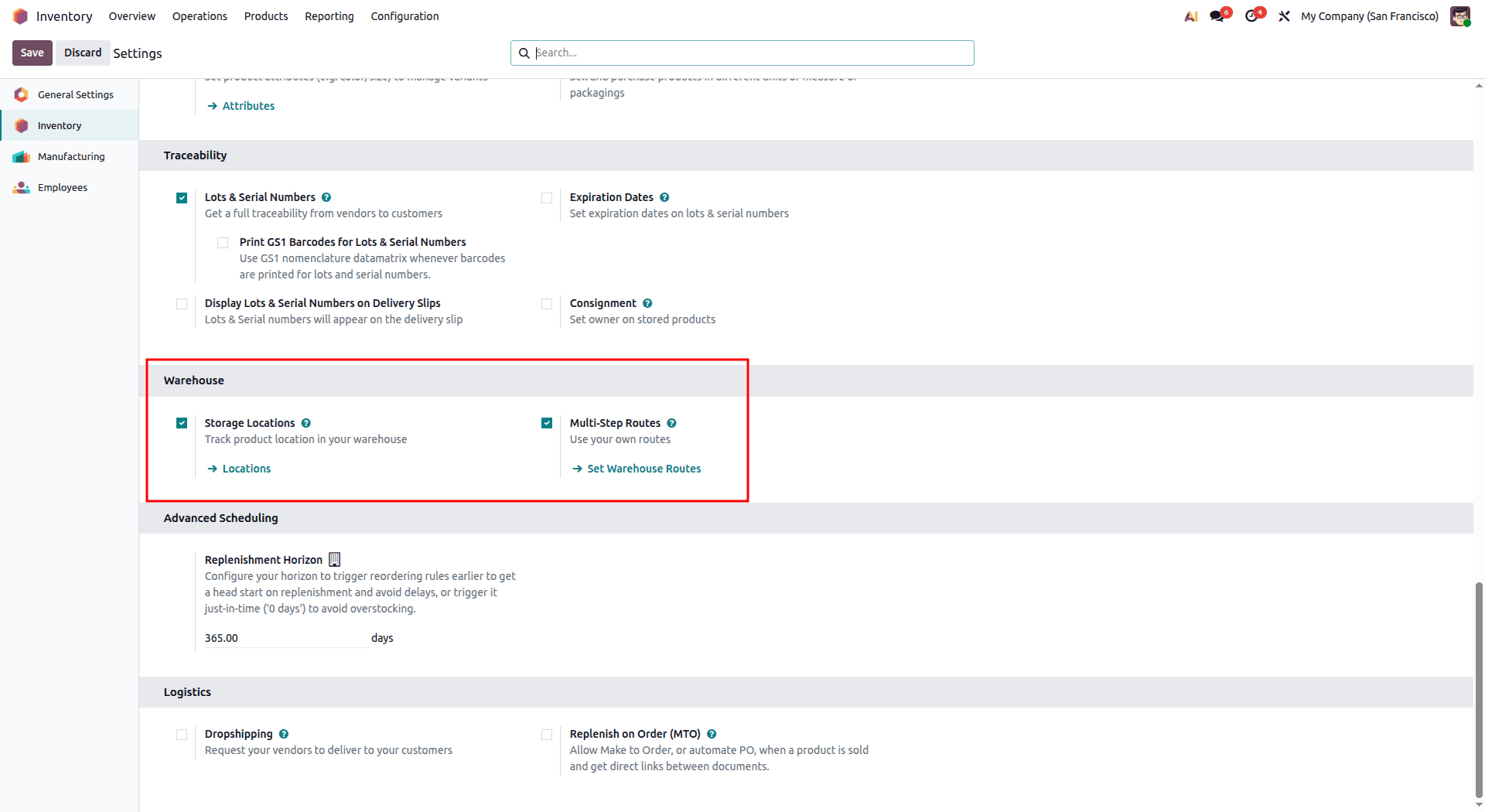
To get started with the three-step warehouse process in Odoo 19, you have to activate two vital features, which include: Multi-Step Routes and Storage Locations.
Navigate to Inventory > Settings:
- Multi-Step Routes: This feature helps you track the transfer of products through different levels of stages (e.g., picking, packing, shipping, or receiving materials in multi-levels).
- Storage Location: With this feature, you will be able to set up your warehouse by creating different storage sub-locations (such as raw materials storage [WH/Stock], pre-production sub-locations [WH/Pre-production], post-production sub-locations [WH/Post-production], and virtual production location [Virtual Locations/Production])
This setup ensures full visibility and control of product locations across all stages of the manufacturing process.
Step 2: Configuring the Warehouse for 3-Step Manufacturing
After enabling Multi-Step Routes and Storage Locations, configure your warehouse to support the three-step flow.
- Go to Inventory > Configuration > Warehouses.
- Select your main warehouse (e.g., San Francisco or WH).
- Scroll to the Manufacturing section.
- Select “Manufacture in 3 steps: pick components, manufacture, then store products”.
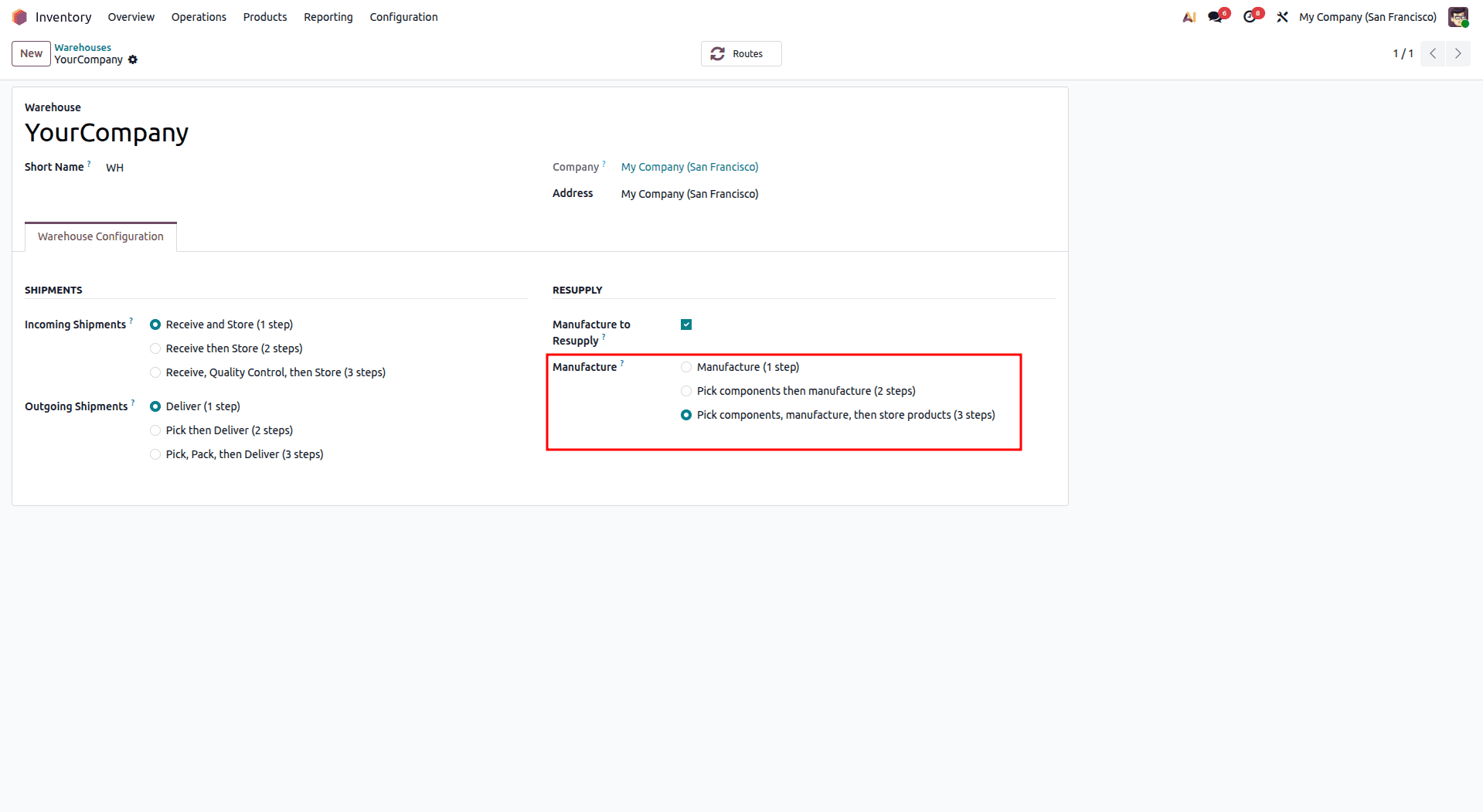
The layout ensures that the raw materials are selected from the main storage and taken to the pre-production stage. The manufacturing process is done, resulting in the placement of the finished products in the post-production stage. Finally, the finished products are transported to the main stock.
Step 3: Product Configuration & Route Setup
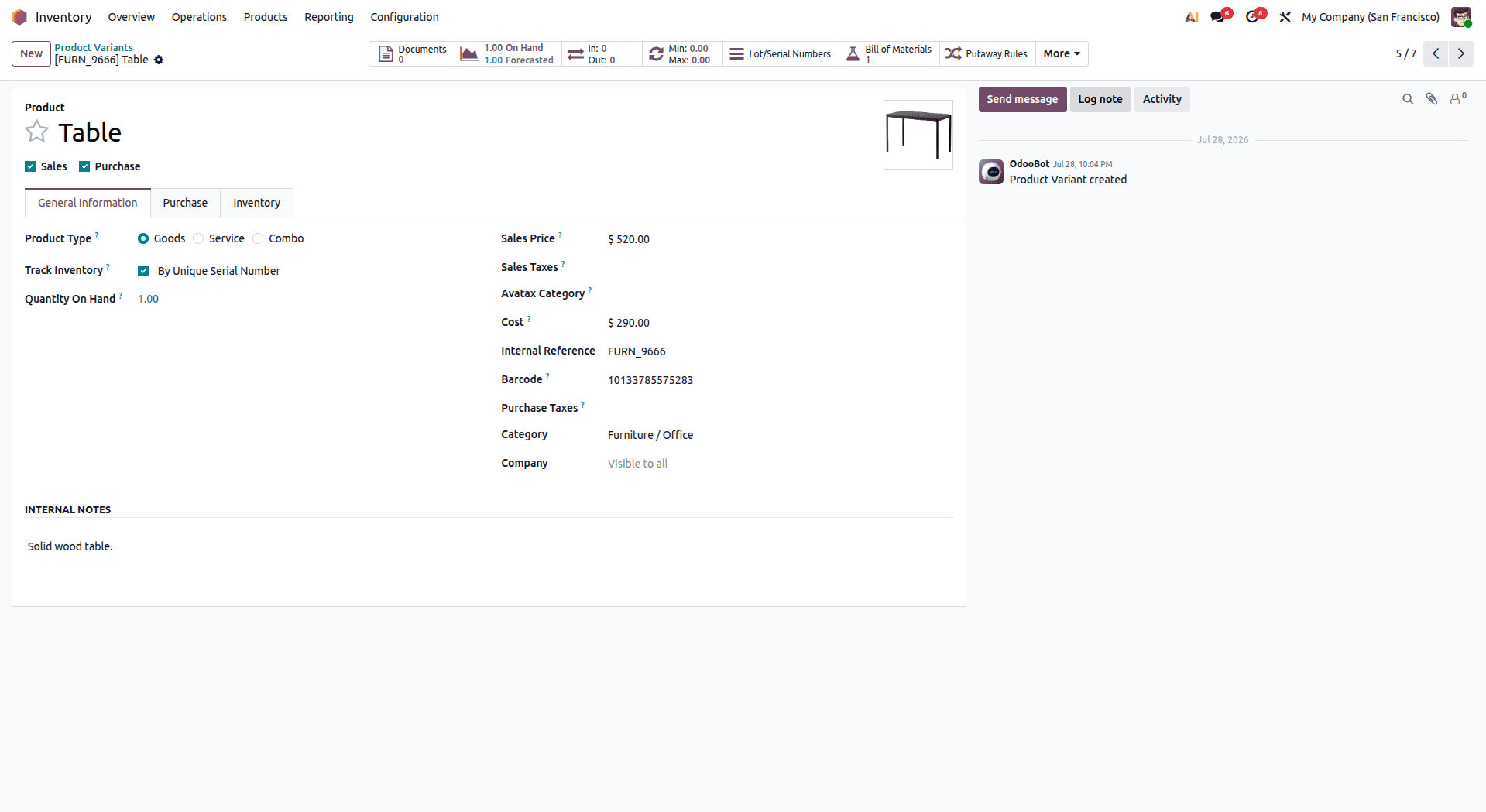
Navigate to Manufacturing > Products > Products (or Inventory > Products > Products) and select the product:
Manufactured Product: Wooden Table
- Open the product record for Wooden Table.
- Set Product Type to Goods and ensure Track Inventory is enabled.
Product Category Accounting Setup
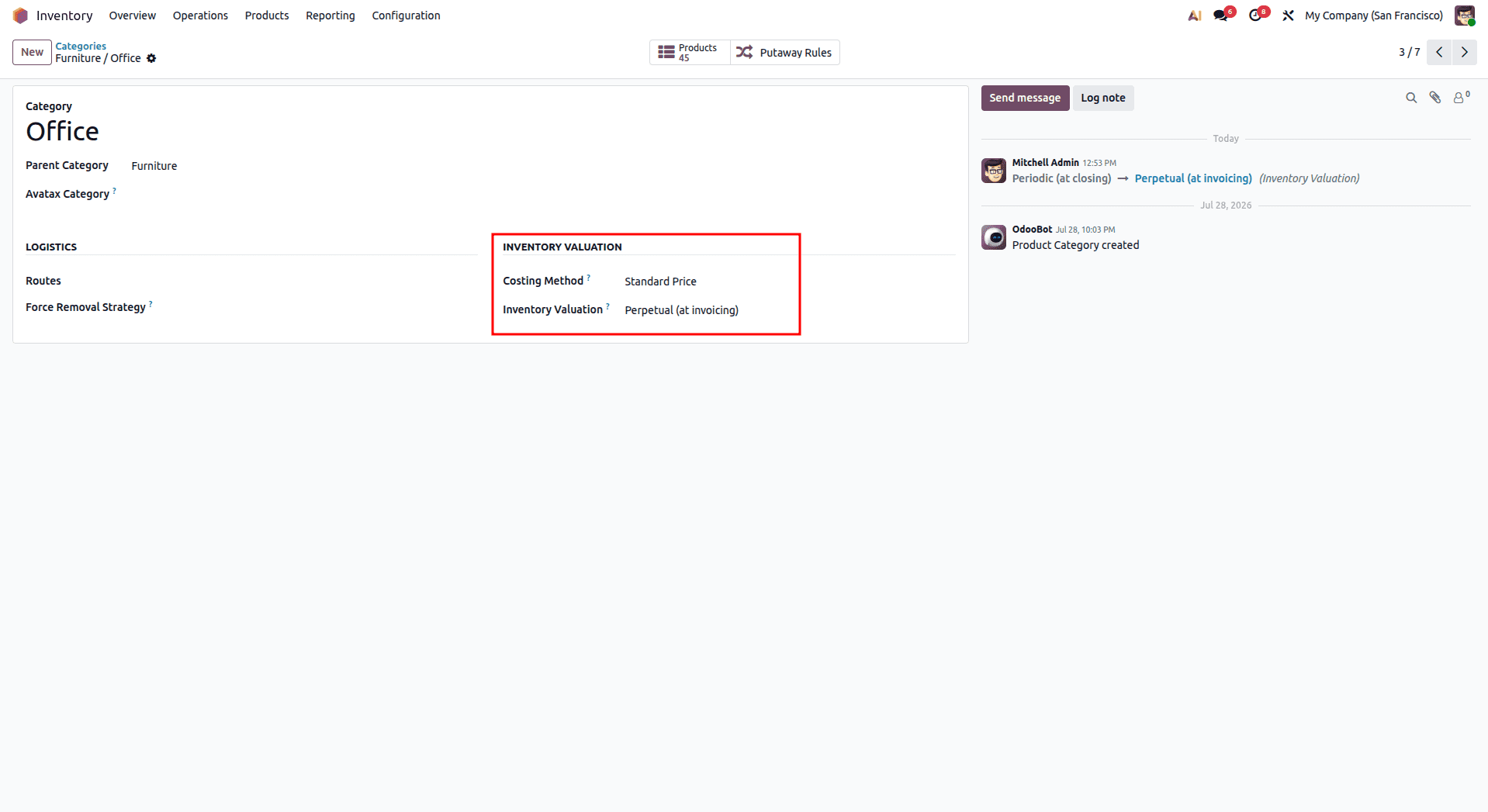
For Odoo 19 to post journal entries for raw materials consumed and products stocked:
- Navigate to Inventory > Configuration > Product Categories.
- Choose the category that applies to the Wooden Table and the other products.
- Enter Perpetual for Inventory Valuation.
- Set the Stock Valuation Account, Stock Input Account, and Stock Output Account.
Step 4: Bill of Materials & Work Centers
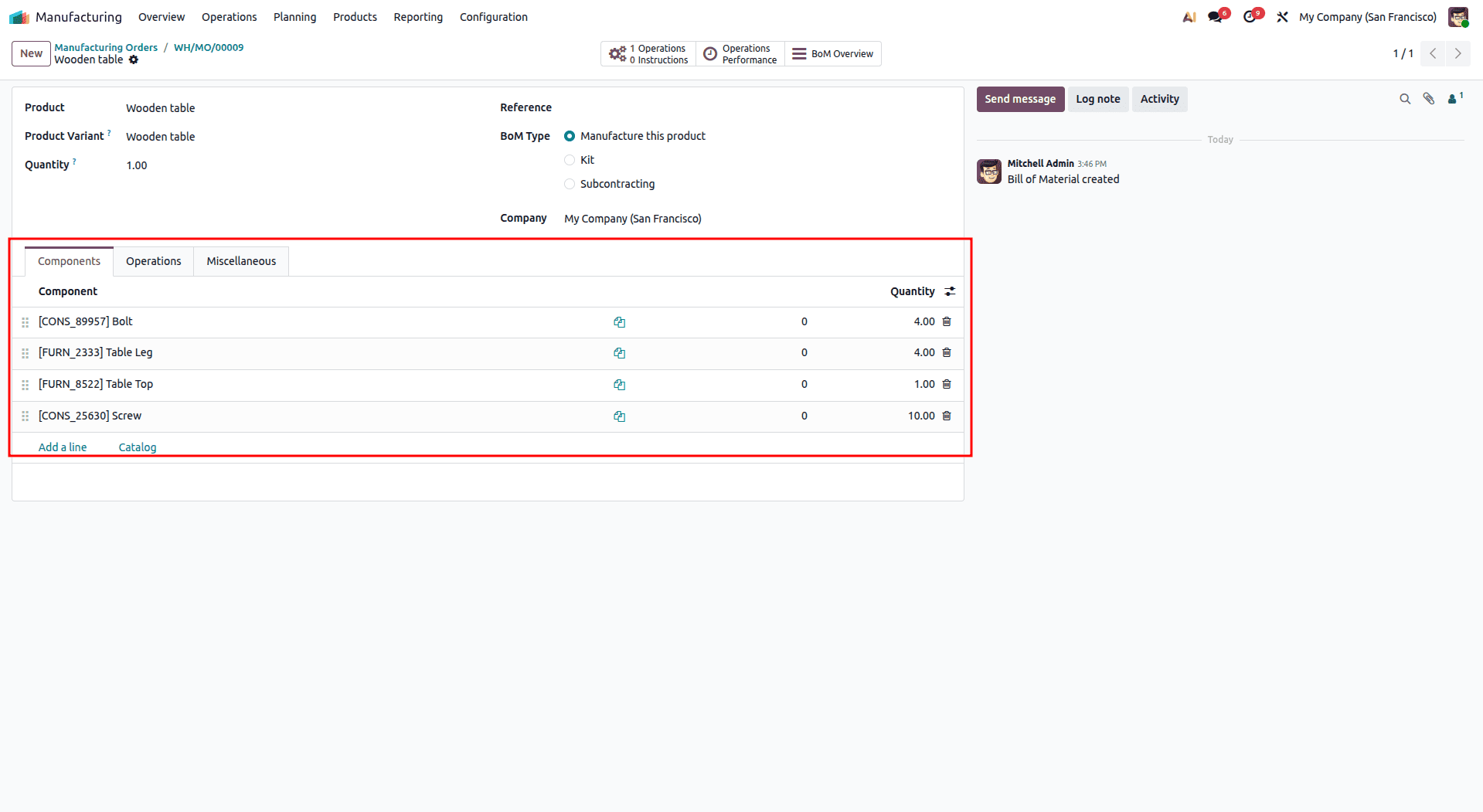
Navigate to Manufacturing > Products > Bills of Materials and select or create the BoM for Wooden Table.
- Product: Wooden Table
- BoM Type: Manufacture this product
- Components Required (per 1 unit):
Work Centers & Operations Setup
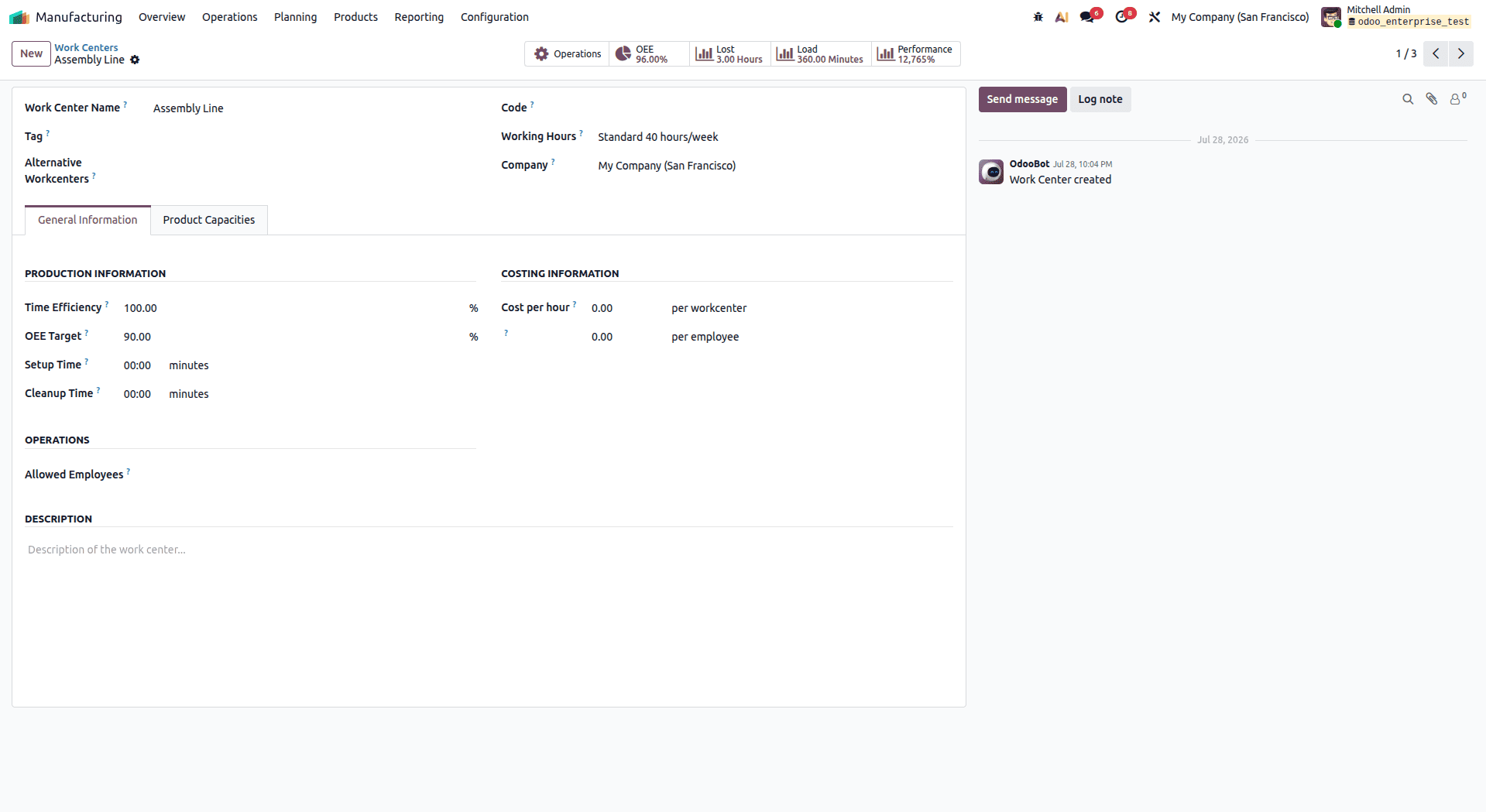
Navigate to Manufacturing > Configuration > Work Centers:
- Select or create the relevant Work Center (e.g., Assembly Line / Cutting Station).
- Set Capacity, Working Hours, and Cost per Hour (covering labor and operational overheads).
Step 5: Executing the 3-Step Manufacturing Order
Creating the Manufacturing Order (MO)
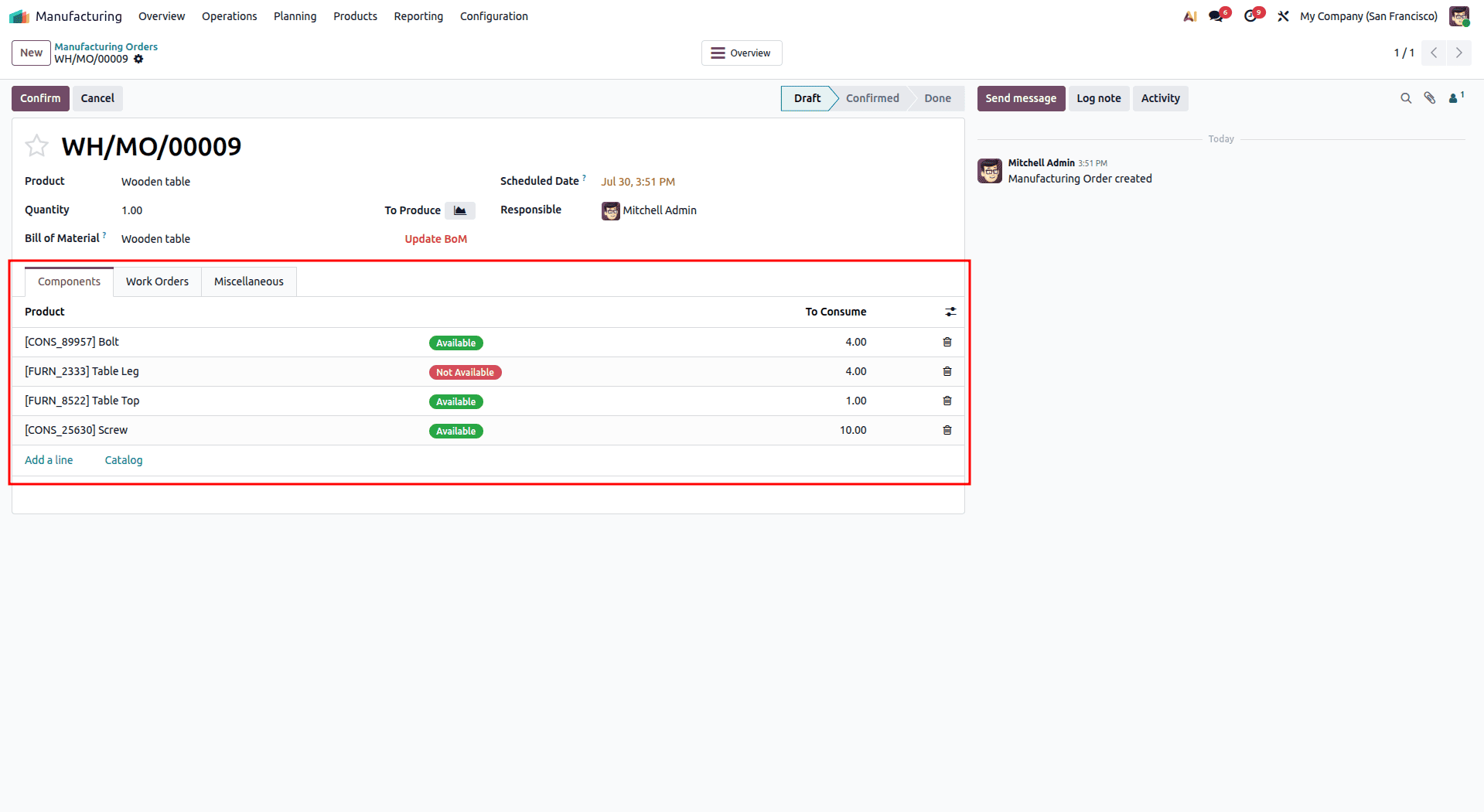
Go to Manufacturing > Operations > Manufacturing Orders and click New:
- Select the Wooden Table as the product.
- Odoo automatically populates the Bill of Materials and lists the required component quantities:
- 1 Table Top, 4 Table Legs, 4 Bolts, 10 Screws (for 1 unit of Table).
- Click Confirm Button
Step 1: Picking Components (WH/Stock > WH/Pre-production)
Upon confirming the MO, raw materials are reserved, and the first-stage transfer is generated automatically:
- Click the Transfers smart button at the top right of the MO.
- Open the pending transfer (WH/Stock to WH/Pre-production).
- Review the quantities of Table Tops, Table Legs, Bolts, and Screws.
- Click Validate.
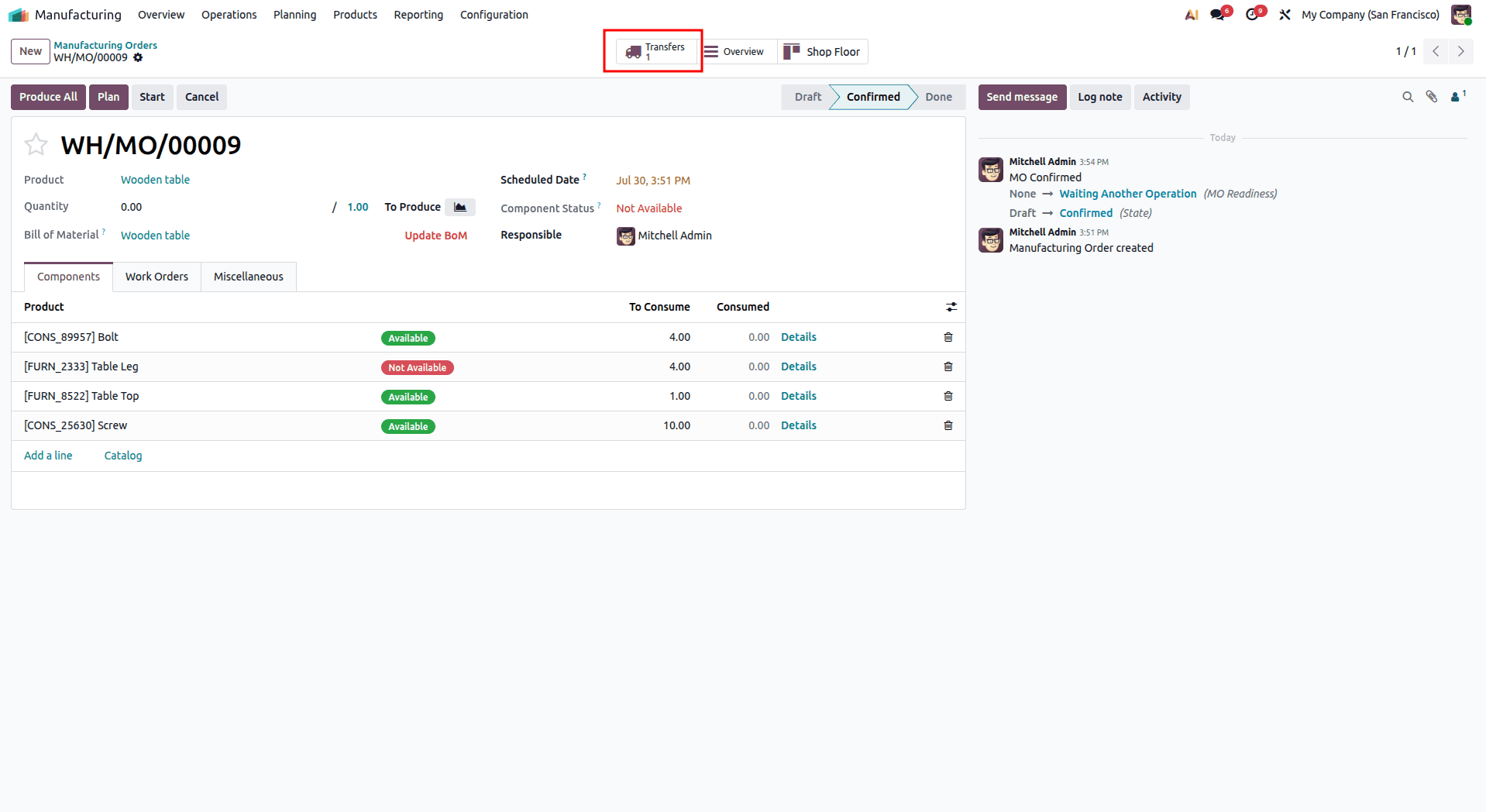
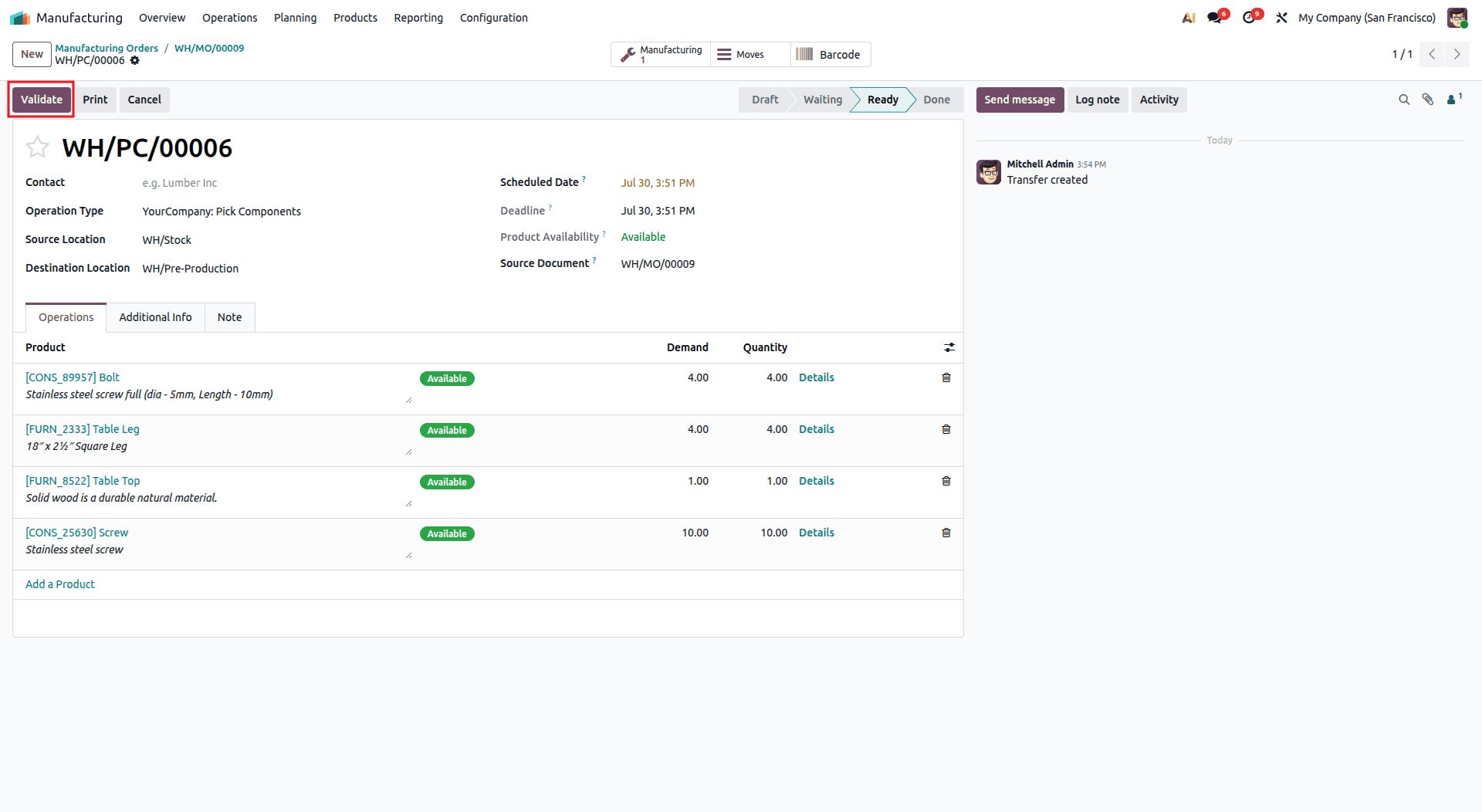
Validation moves the raw materials into the WH/Pre-production location, updating the MO's Component Status to Ready (green).
Step 2: Production Execution & Shop Floor (WH/Pre-production > WH/Post-production)
Once components are present in WH/Pre-production:
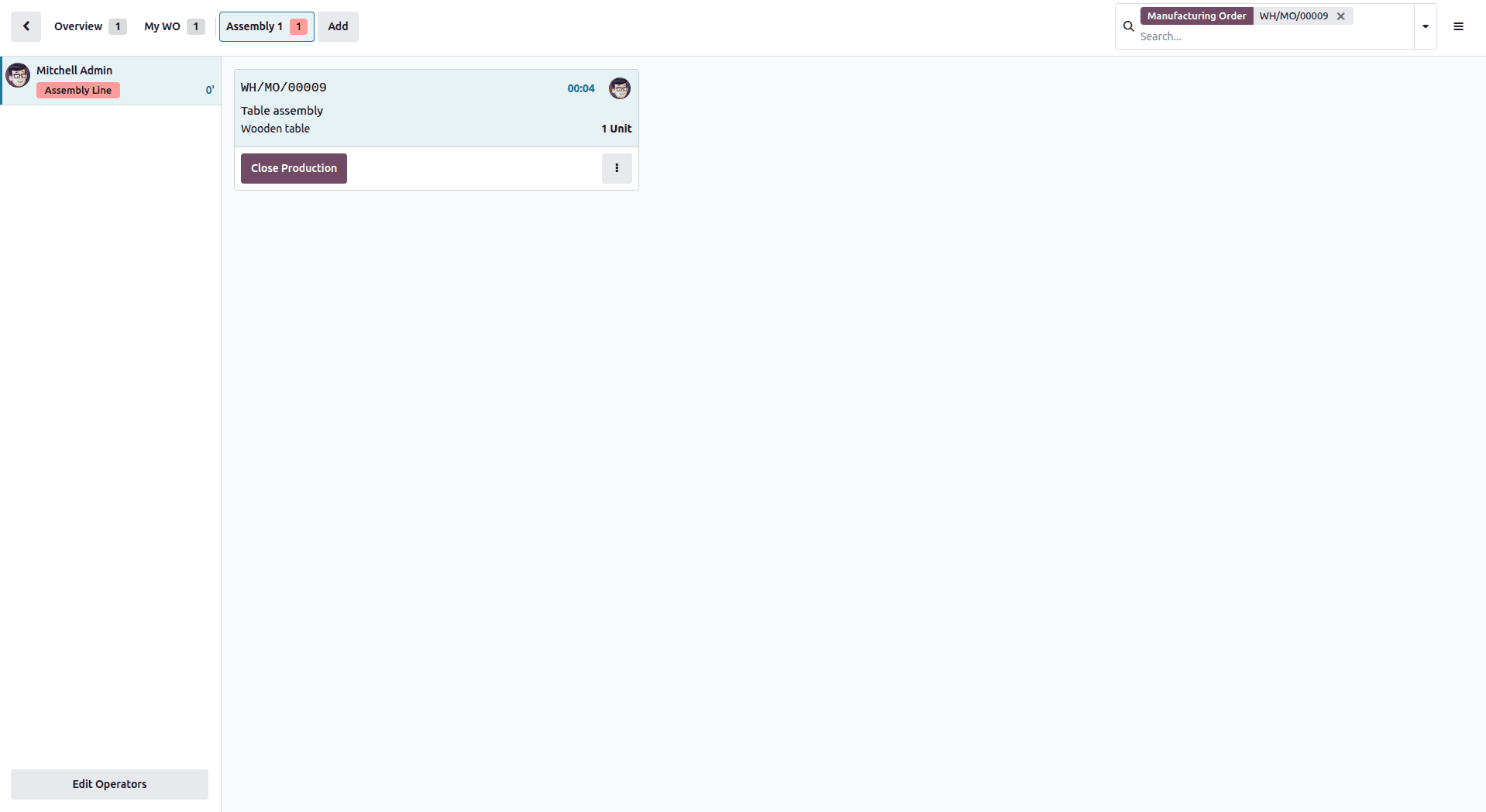
- Click the Shop Floor smart button at the top of the MO to launch the tablet-optimized interface.
- Workers start, pause, and mark tasks (e.g., Assembly) as Done step by step.
- Operation times and work center hourly expenses are logged automatically.
During this stage:
- Raw materials are consumed from the WH/Pre-production into virtual production (Virtual Locations/Production).
- The finished product, Wooden Table, is produced and deposited into WH/Post-production.
Step 3: Storing Finished Goods (WH/Post-production > WH/Stock)
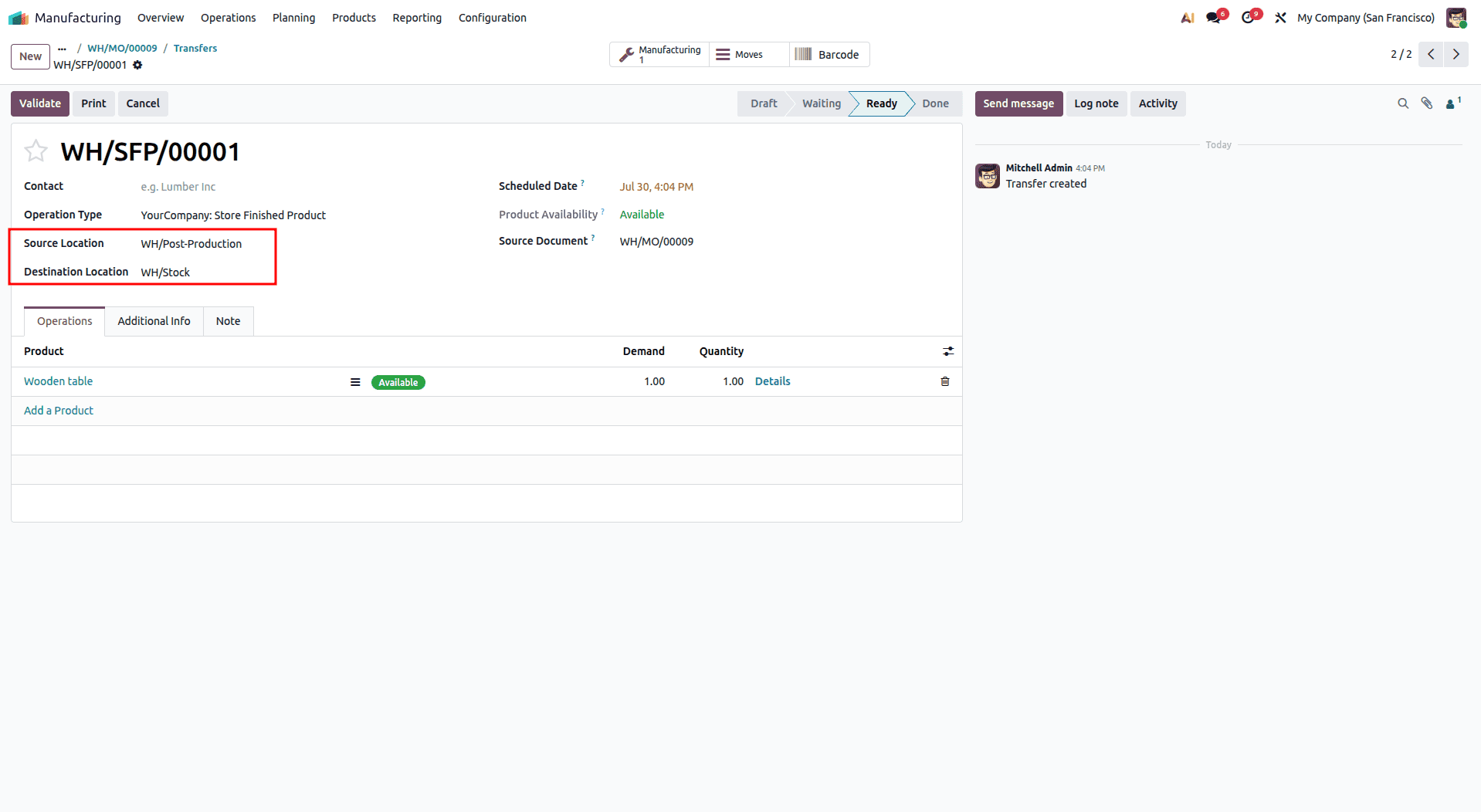
When all work orders are completed, and the MO is marked Done, Odoo 19 creates the final transfer:
- Click the Transfers smart button on the MO.
- Select the final transfer moving the Wooden Table from WH/Post-production to WH/Stock.
- Review the finished quantity and click Validate.
Validation completes the 3-step cycle, adding the completed Wooden Table units to the main available stock in WH/Stock.
Step 6: Tracking Moves, Cost Analysis & Accounting
Product Moves & Traceability
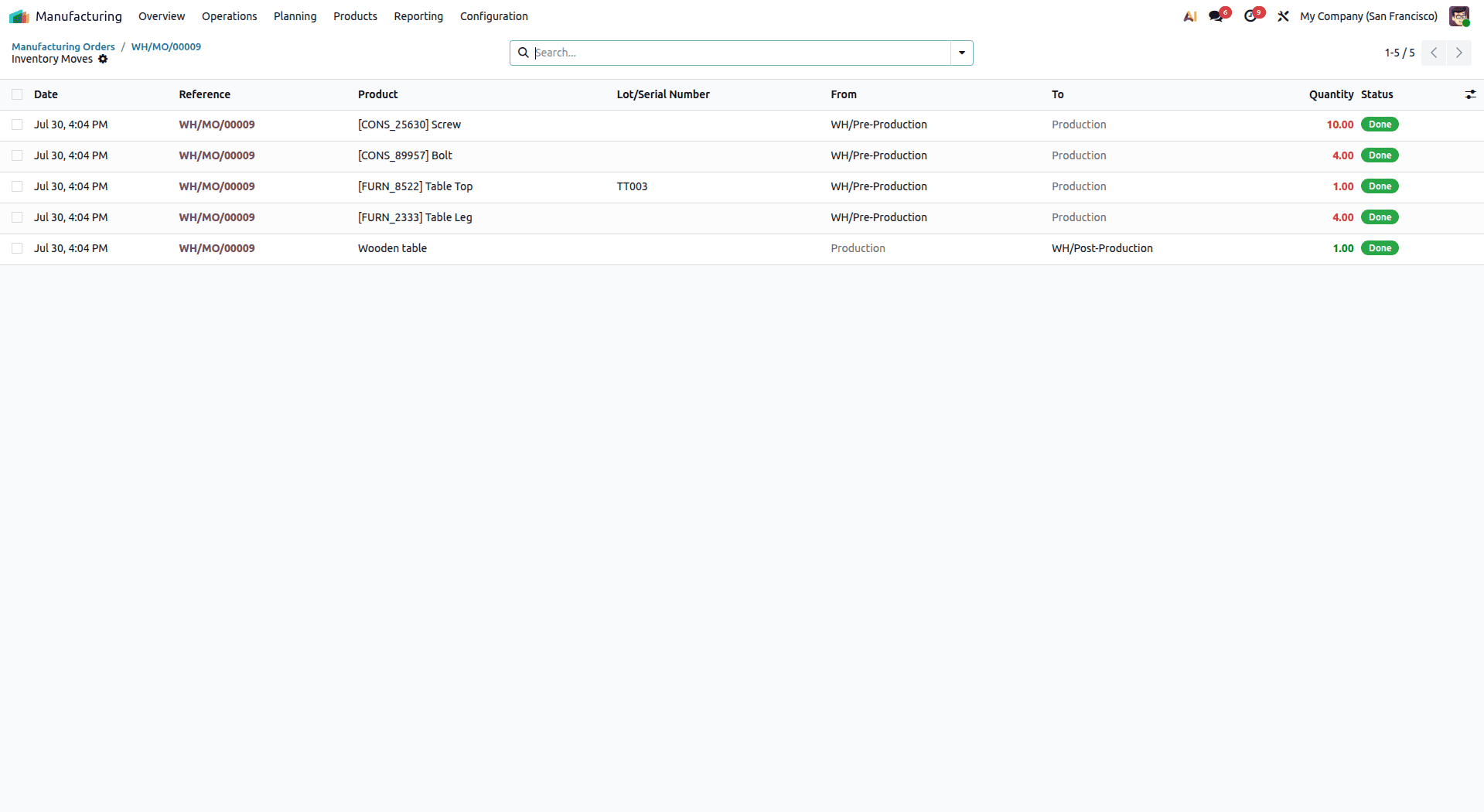
To inspect every stock movement across the 3-step cycle:
- Click the Product Moves smart button on the MO (or navigate to Inventory > Reporting > Moves History).
Overview & Cost Analysis
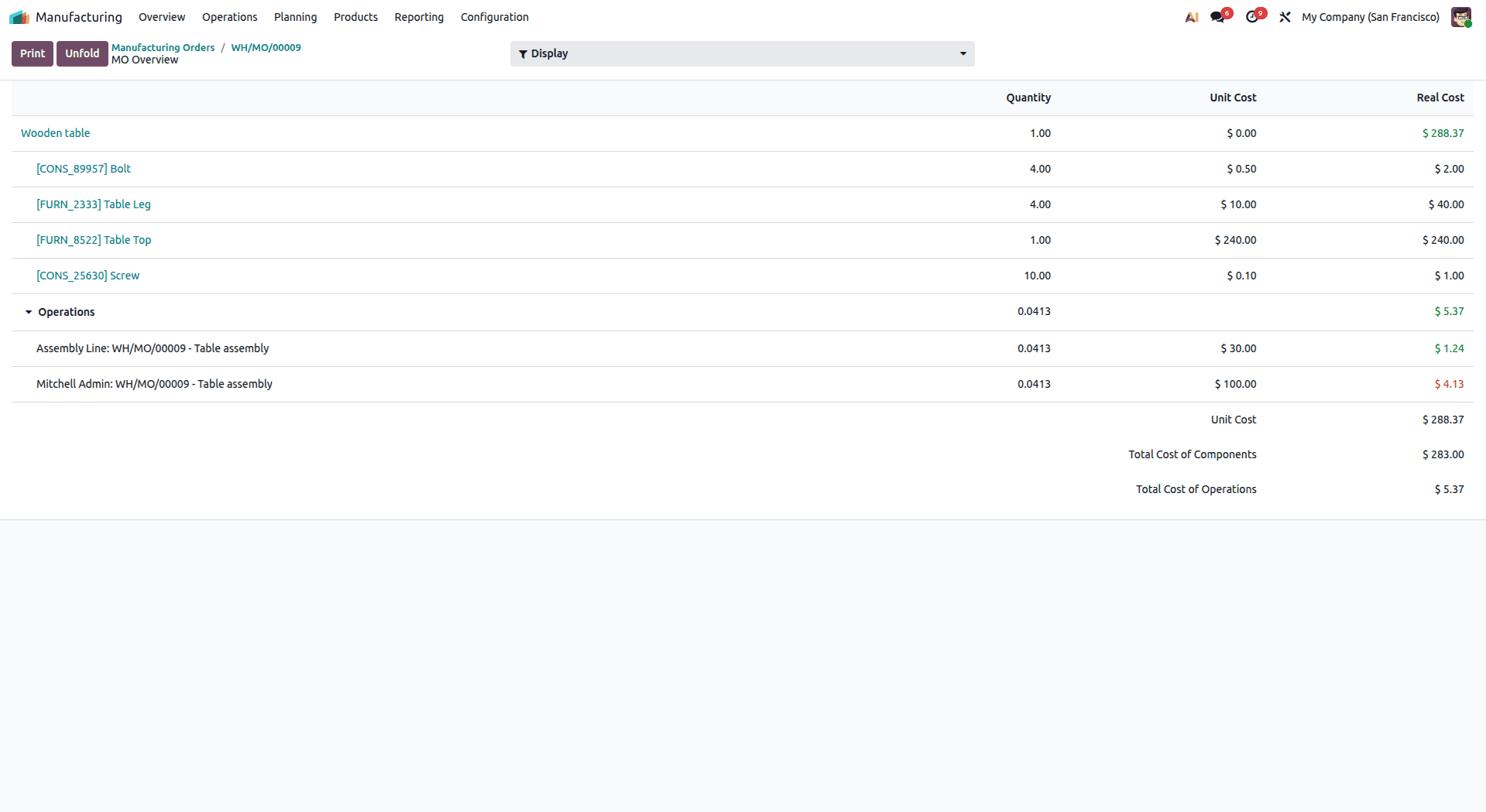
Click the smart button Overview from the Manufacturing Order for a current snapshot of your financials:
- Raw Material Costs: Add up all Table Top, Table Legs, Bolts, and Screws consumed.
- Operation Costs: Work center hours recorded times work center cost per hour.
- Total Manufacturing Cost: Total costs allocated for the Wooden Table valuation.
The application of the three-step Warehouse Configuration in Odoo 19 and Wooden Table guarantees that you have full control over your production process, as well as tracing of your process. This is due to the separation of the picking, processing, and final goods into individual stages.
To read more about How to Handle Manufacting With Three Step Warehouse Configuration in Odoo 18, refer to our blog How to Handle Manufacting With Three Step Warehouse Configuration in Odoo 18.